

MSConfig still matters: the System Configuration utility remains one of Windows’ handiest, fastest tools for isolating startup problems, trimming unwanted boot-time processes, and forcing Safe Mode — and knowing how to use it well can save hours of trial-and-error troubleshooting when Windows starts acting up.
MSConfig — officially named System Configuration in modern Windows — is not a new toy. It first appeared in the late 1990s and has been included with Windows releases for decades as a compact, focused interface that controls what the operating system loads at boot. Over time some responsibilities have migrated to other tools (notably Task Manager’s Startup tab), but MSConfig still brings a single-pane view of startup modes, boot options, services and a convenient launcher for diagnostic utilities.
For everyday troubleshooting it’s quick, low-friction, and effective. For inexperienced users it can be dangerous: changing boot parameters or disabling critical services may render features unusable or, in the worst case, leave a machine that won’t boot normally. The goal of this guide is to explain what MSConfig does, when to use it, how to use it safely, and when to reach for stronger tools.
Action plan:
Action plan:
That said, MSConfig is only one arrow in the troubleshooting quiver. For forensic or persistent issues you’ll need Task Manager, Event Viewer, Autoruns, BCDEdit/WinRE skills, and — sometimes — driver debugging or system imaging. Use MSConfig as your first diagnostic stop: it’s fast, reversible, and often enough to get a desktop back to normal before the coffee gets cold.
If you keep three practices in mind — always backup or create a restore point, hide Microsoft services before disabling anything, and document changes so you can undo them — MSConfig will repay your caution many times over.
Source: actualapp.com MSConfig in Windows 10 and 11: what it is and what it’s for | ActualApp
 Background / Overview
MSConfig — officially named System Configuration in modern Windows — is not a new toy. It first appeared in the late 1990s and has been included with Windows releases for decades as a compact, focused interface that controls what the operating system loads at boot. Over time some responsibilities have migrated to other tools (notably Task Manager’s Startup tab), but MSConfig still brings a single-pane view of startup modes, boot options, services and a convenient launcher for diagnostic utilities.For everyday troubleshooting it’s quick, low-friction, and effective. For inexperienced users it can be dangerous: changing boot parameters or disabling critical services may render features unusable or, in the worst case, leave a machine that won’t boot normally. The goal of this guide is to explain what MSConfig does, when to use it, how to use it safely, and when to reach for stronger tools.
What MSConfig is — and what it isn’t
MSConfig is a lightweight system tool that helps you control the Windows startup process without digging into low-level boot databases or the Registry. Key points to understand:- Purpose: Diagnose and change what Windows loads and how it boots — startup programs, non-Microsoft services, and boot-time options such as Safe Mode and boot logging.
- Scope: It does not replace full device-driver or kernel debugging; it’s for mid‑level troubleshooting and temporary configuration changes.
- Modern role: Some responsibilities previously handled by MSConfig (notably per‑user startup program management) now live in Task Manager, but MSConfig remains the centralized place for boot modes, services triage, and tools shortcuts.
How to open MSConfig: six quick ways
You’ll want to be able to get to System Configuration fast when time is short. Any of these work on Windows 10 and Windows 11:- Run dialog (fastest): Press Windows + R, type msconfig, press Enter.
- Start menu: Type msconfig or “System Configuration” in Start and select the app.
- Task Manager: File → Run new task → type msconfig and press Enter. Useful when you’re already investigating processes.
- Command line / Terminal: Open PowerShell or Command Prompt and run msconfig (use an elevated terminal when necessary).
- File Explorer: Open C:\Windows\System32 and run msconfig.exe directly.
- Control Panel → Windows Tools → System Configuration (traditional route for Control Panel users).
MSConfig explained: the interface, tab by tab
MSConfig’s UI is compact but powerful. Below is how each major tab is used in practice.General tab
- Normal startup: Leaves Windows’ standard configuration intact. Use this when you’re done diagnosing.
- Diagnostic startup: Loads only the base system services and drivers — useful for a quick reality check that the OS itself is fine.
- Selective startup: The most useful troubleshooting mode. Check/uncheck:
- Load system services
- Load startup items
- Use original boot configuration
Selective startup lets you selectively disable startup items without uninstalling them. Use it to narrow down whether a third‑party service or startup program is the culprit.
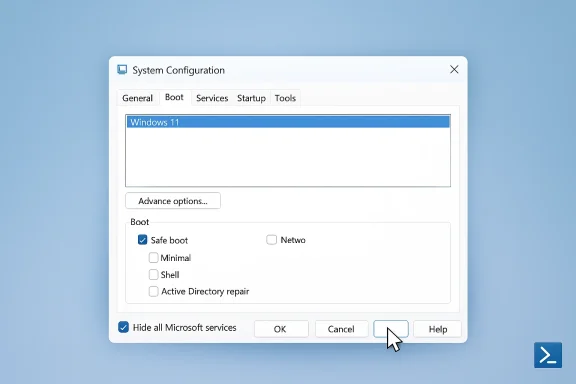
Boot tab
The Boot tab exposes boot entries from the Boot Configuration Data (BCD) store and lets you set:- Safe Boot modes:
- Minimal — Classic Safe Mode GUI with core services.
- Alternate shell — Safe Mode with Command Prompt (no GUI).
- Active Directory repair — specific to domain controller repair scenarios.
- Network — Safe Mode with networking drivers.
- Other options: No GUI boot, Boot log (creates ntbtlog.txt), Base video (use basic VGA driver), OS boot information, timeout and multi‑OS selection, and the checkbox to make selected boot options permanent (use cautiously).
Services tab
This shows services registered with Windows and lets you enable/disable them for subsequent boots. Best practices:- Check Hide all Microsoft services before you make bulk changes — this avoids accidentally disabling essential Microsoft platform services.
- Use the binary search approach: disable half of the non‑Microsoft services, reboot; if the issue disappears, re-enable half of that set and repeat to find the single misbehaving service.
Startup tab
On Windows 10/11 the MSConfig Startup tab contains a shortcut that opens Task Manager’s Startup page; the actual per-user startup enable/disable is handled by Task Manager now. MSConfig keeps the shortcut for convenience.Tools tab
A convenient launcher for Windows troubleshooting utilities: Event Viewer, System Information, Performance Monitor, Registry Editor, System Restore, Command Prompt and more. Each tool is listed with its command, which saves time when you need to jump to a specific diagnostic.Typical workflows and step-by-step recipes
Below are several common troubleshooting tasks you can perform with MSConfig, described as practical, sequenced steps.1) Clean‑boot (binary search for startup conflicts)
A clean boot isolates third‑party software and drivers that cause problems.- Open msconfig → General → choose Selective startup.
- Uncheck Load startup items. Leave Load system services checked.
- Services tab → check Hide all Microsoft services → click Disable all (this disables third‑party services only).
- Click OK and restart. If the issue is gone, re-enable half of the disabled services and reboot again; repeat to find the culprit.
- When finished, restore Normal startup in msconfig.
2) Booting into Safe Mode with MSConfig
- Open msconfig → Boot tab → check Safe boot → choose Minimal (or Network if you need connectivity).
- Apply and restart. Windows will boot into Safe Mode.
- When troubleshooting is complete, run msconfig again and uncheck Safe boot, or use the recovery/command-line method below to remove the safeboot BCD setting.
3) Temporary boot tweaks: Boot log, base video, no GUI boot
- Boot log: Enable to create a trace of loaded drivers (C:\Windows\ntbtlog.txt) — helpful for identifying driver load failures.
- Base video: Forces minimal video driver, useful if an updated display driver causes black screen or low‑resolution graphics during boot.
- No GUI boot / OS boot information: Good for diagnostic visibility during startup.
Recovery and undoing mistakes
MSConfig makes reversible changes, but mistakes happen. Here’s how to recover safely.Undo changes from the desktop
- If Windows starts: open msconfig and restore Normal startup (General tab) and uncheck Safe boot (Boot tab), then restart.
If you’re stuck in Safe Mode or the machine won’t boot
- Boot into Windows Recovery Environment (WinRE): force two hard reboots during boot or hold Shift while choosing Restart.
- Choose Troubleshoot → Advanced options → Command Prompt.
- Run BCDEdit to remove the safeboot flag:
- bcdedit /deletevalue {current} safeboot
- If that fails, try {default} instead of {current}.
- Restart.
Strengths: why MSConfig still matters
- Fast triage: It’s one of the quickest ways to test whether third‑party services or startup items are causing problems.
- Consolidation: MSConfig centralizes boot configuration, Safe Mode toggles, service visibility, and a diagnostic tool launcher in one compact UI.
- Reversible experimentation: Selective startup and the Services tab let you experiment without uninstalling software — useful in time‑critical troubleshooting.
- Educational value: For admins and tech‑savvy users, MSConfig surfaces the real pieces of the startup puzzle (services vs. startup items vs. drivers) and helps build a mental model of boot sequencing.
Risks and limitations — what to watch out for
- Disabling critical services by accident: Not all services are optional; disabling essential system or third‑party security services can cause instability. Always check Hide all Microsoft services first and proceed cautiously.
- Persistent Safe Mode: Forgetting to uncheck Safe Boot can leave you trapped in Safe Mode until you run msconfig again or edit the BCD. Know how to remove the safeboot flag with BCDEdit or WinRE.
- BitLocker and boot changes: Modifying boot configuration may trigger BitLocker recovery on some devices. Back up recovery keys before making firmware/boot changes.
- Not a replacement for Autoruns or in-depth driver tools: MSConfig does not show everything (shell extensions, scheduled tasks, services launched from odd Registry keys, or logon hooks). For forensic startup analysis, Sysinternals Autoruns is more exhaustive.
- Limited visibility on user‑level autostarts: Per-user startup entries are now managed by Task Manager and other modern startup registries — MSConfig only points you at Task Manager. Expect to combine tools.
Alternatives and complementary tools
MSConfig is a triage tool; when you need a deeper view or a safer automation path, turn to these:- Task Manager (Startup tab): Manage per-user startup apps. Immediate and safe for enabling/disabling auto-start programs.
- Services.msc: Intricate service properties and startup type configuration (Automatic, Manual, Disabled) with more granular control.
- Sysinternals Autoruns: The most comprehensive autostart enumerator — shows everything that can launch at boot or login, including Explorer shell extensions and scheduled tasks. Use it when MSConfig doesn’t find the culprit.
- Event Viewer & Reliability Monitor: After a problematic boot, check Event Viewer’s System and Application logs and Reliability Monitor for crash and driver failure histories.
- Windows Recovery Environment (WinRE) / BCDEdit: Undo stubborn BCD flags or boot entries when the desktop is unavailable. Use BCDEdit only when you understand the BCD store.
- System Restore / Image backups: If configuration changes make the system unusable, a restore to an earlier point or a bare-metal image is the last resort.
Practical checklist: use MSConfig safely
- Before any change:
- Create a System Restore point.
- Note any settings you change (take a screenshot or jot them down).
- Back up important data or have a recent image.
- While changing:
- Check Hide all Microsoft services before mass‑disabling services.
- Disable in small groups; reboot to confirm.
- After troubleshooting:
- Restore Normal startup once the issue is fixed.
- Remove Safe Boot flags if you used them, and verify normal boot behavior.
Two real-world scenarios and how MSConfig helps
Scenario A — slow boot after a recent app install
Symptoms: System takes much longer to reach desktop; drive activity spikes with background processes.Action plan:
- msconfig → General → Selective startup → uncheck Load startup items.
- Restart. If boot is fast again, the culprit is a startup program: open Task Manager → Startup to disable the offender permanently, or use Autoruns to find deeper autostarts.
- If disabling startup items doesn’t help, msconfig → Services → hide Microsoft services → disable third‑party services in small batches and reboot to find the bad actor.
Scenario B — intermittent driver crash producing a BSOD at boot
Symptoms: Boot occasionally bluescreens; crashes reference a video or storage driver.Action plan:
- msconfig → Boot → check Boot log and restart. Examine ntbtlog.txt after boot to see which drivers loaded before the crash.
- msconfig → Boot → check Base video and reboot; if the system boots consistently, suspect the display driver. Reinstall or roll back the driver.
- If still unreliable, use WinRE and BCDEdit /boot logging or autoruns offline analysis.
Final analysis: MSConfig — practical, compact, but not omnipotent
MSConfig’s longevity is proof of a useful design: a small, focused utility that makes startup troubleshooting accessible. It’s quick to reach, easy to use for deliberate diagnostics, and powerful enough to fix a large class of common startup problems.That said, MSConfig is only one arrow in the troubleshooting quiver. For forensic or persistent issues you’ll need Task Manager, Event Viewer, Autoruns, BCDEdit/WinRE skills, and — sometimes — driver debugging or system imaging. Use MSConfig as your first diagnostic stop: it’s fast, reversible, and often enough to get a desktop back to normal before the coffee gets cold.
If you keep three practices in mind — always backup or create a restore point, hide Microsoft services before disabling anything, and document changes so you can undo them — MSConfig will repay your caution many times over.
Source: actualapp.com MSConfig in Windows 10 and 11: what it is and what it’s for | ActualApp
