MSI Claw Gains Xbox Full Screen Experience in Windows 11 Insider

  • Thread Author
Microsoft has quietly opened the door for MSI Claw owners to run Microsoft's Xbox Full Screen Experience (FSE) on Windows 11 handhelds, rolling the feature out through the Windows Insider program and giving handheld gamers an opt‑in, console‑style launcher that aims to reduce background overhead and improve sustained gaming performance.

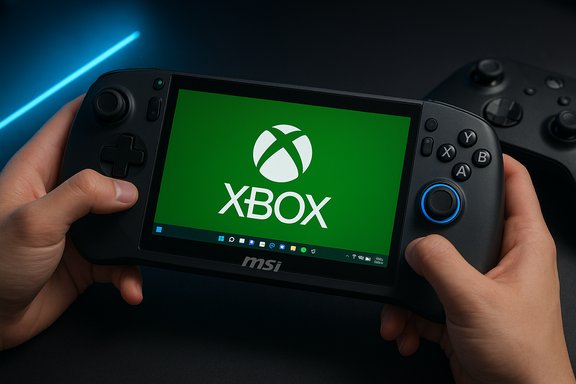
A handheld MSI gaming device displays the green Xbox logo on its screen.Background​

Microsoft first introduced the Xbox Full Screen Experience as a handheld‑focused UI and runtime posture designed to make Windows 11 behave more like a dedicated gaming console when users want to play. The feature launched on ASUS’ ROG Xbox Ally family and has since been expanded in a controlled preview to other OEM handhelds. The official Windows Insider announcement explicitly names the MSI Claw family as receiving the preview rollout in the relevant Insider build. FSE is not a replacement operating system or an OEM skin. Instead, it is a layered session posture that runs a chosen “home app” — typically the Xbox PC app — as a full‑screen launcher while deferring or suppressing non‑essential desktop processes and cosmetic shell elements. The result is intended to be a cleaner, controller‑first interface and a lower‑noise runtime state that can free RAM, reduce background CPU wakeups, and extend battery life on thermally constrained handheld APUs. Microsoft’s support documentation and Insider notes document the Settings path and the entry points for the feature.

What the Xbox Full Screen Experience actually is​

A session posture, not a forked OS​

The Full Screen Experience (FSE) is best understood as a layered UX and policy set that changes what Windows initializes for a gaming session rather than rewriting kernel scheduling or driver stacks. When enabled, Windows will:
  • Launch your selected gaming home app in full‑screen as the primary launcher.
  • Defer many desktop startup items and Explorer ornamentation until the user explicitly switches to the desktop.
  • Adapt Game Bar and Task View flows for controller navigation and add direct Game Bar entry/exit to the FSE session.
Microsoft’s support page lays out these behaviors and the Settings path for enabling FSE.

Why this matters for handheld gaming​

Handheld Windows PCs are limited by thermal envelopes, battery capacity, and smaller memory footprints compared with desktop or full‑size laptops. FSE targets those pain points by reducing background overhead and simplifying navigation for thumb‑based controls. In practical terms, this can yield:
  • Lower background memory use
  • Fewer idle CPU wakeups and interruptions
  • Cleaner, controller‑first navigation and library access
  • Potentially longer battery life and steadier frame rates
Independent hands‑on reports and early benchmarks suggest measurable improvements in some workloads, although gains vary by device, power limits, game engine, and driver maturity. One review reported mid‑20% FPS uplifts in specific titles on an Ally device running the full‑screen mode, while community testers report a broad range of outcomes depending on configuration. These variations are consistent with the fact that FSE changes session composition rather than fundamental driver behavior.

The MSI Claw rollout: what changed this week​

Microsoft’s Insider announcement (Windows 11 Insider Preview Build 26220.7051, KB5067115) expanded the preview of FSE to additional handheld devices, explicitly calling out MSI Claw models as part of the staged rollout. That means Claw owners who enroll their device in the appropriate Windows Insider channel and meet the preview prerequisites can opt into FSE today. Microsoft describes this as a controlled feature rollout, which means device visibility is gated by Microsoft and OEM entitlements and will appear progressively to Insiders. MSI’s Claw family spans multiple configurations — both Intel Core Ultra and AMD Ryzen Z2‑class SKUs are represented across the Claw line, with 7–8‑inch, high‑refresh displays and varying memory and battery options. These devices are logical beneficiaries of FSE’s resource‑trimming approach because they pair powerful APUs with tight thermal constraints. That said, the experience users see will depend heavily on OEM firmware, system utilities (MSI Center, OSD components), and GPU driver versions. Community reports show that keeping MSI firmware and drivers up to date matters for a clean FSE experience.

How to enable Full Screen Experience on a supported device​

The supported, official path to try FSE on an MSI Claw device is a combination of the Windows Insider program and the Xbox PC app preview. Microsoft’s published guidance and user reports converge on the following steps.
  • Join the Windows Insider Program on your Claw and pick the channel that contains the 25H2 preview bits (Dev or Beta when the FSE preview was distributed). Sign in with the Microsoft account linked to your Xbox/PC.
  • Update Windows to the build that includes the FSE preview (Insider Preview Build 26220.7051 / KB5067115 or later where the feature is included for your device).
  • Install the Xbox Insider Hub from the Microsoft Store and join the PC Gaming Preview to obtain the Xbox PC app preview (some testers reported the option won’t appear without the preview Xbox app).
  • Update MSI firmware, MSI Center, and GPU drivers. Apply any available BIOS or OSD updates from MSI to minimize overlay and overlay‑interaction issues.
  • Open Settings > Gaming > Full screen experience. Under “Set your home app,” choose Xbox (or another installed gaming home app) and — if desired — enable “Enter full screen experience on startup.” That option defers many startup apps until the first switch to desktop, which is how FSE frees resources for gameplay.
Practical tips and precautions:
  • Create a full system backup and a recovery USB or restore point before experimenting with Insider builds.
  • Prefer Beta or Release Preview channels if you value relative stability; Dev channel may include rougher code. Community reporting shows that inconsistent OEM utility states and leftover preview components can cause oddities.
  • If the FSE toggle does not appear, ensure the Xbox PC app preview is installed and MSI utility packages are updated; restarting or reinstalling the Xbox app sometimes resolves visibility issues.

Real‑world performance — claims, evidence, and caveats​

Early hands‑on testing and community benchmarks suggest the Full Screen Experience can materially affect runtime behaviour on handhelds, but results vary.
  • Reported gains: Some outlets documented double‑digit percentage FPS improvements (TechRadar cited mid‑20% gains in specific tests), driven primarily by memory reclaimed and background tasks not running while FSE is active.
  • Limitations: FSE does not change GPU driver behavior, kernel scheduling, or anti‑cheat kernel modes, so the improvements are largely from userland trimming and session simplifications. Outcomes therefore vary by title and device power cap. Microsoft’s documentation and the Insider blog are explicit that FSE does not rewrite low‑level scheduling; instead it aims to minimize desktop overhead to preserve resources for games.
Cross‑checking claims: While TechRadar’s hands‑on numbers are notable, community reports collected by enthusiast outlets and forums show a wider spread of experiences—some users achieved major gains, others saw modest improvements or encountered startup issues. This confirms that while performance improvements are possible, they are not guaranteed and are highly dependent on device firmware, OEM utilities, and the specific game and settings used. Independent coverage and Microsoft’s own notes together provide a balanced picture: FSE can materially help some handheld scenarios, but it’s not a universal performance panacea.

Reported issues and community feedback​

The preview rollout has surfaced a number of teething problems typical for an early feature gated by Insider distribution:
  • Boot inconsistencies: Some testers report the device still booting to the desktop despite enabling FSE on startup, or FSE only launching as a windowed Xbox app. These issues appear intermittently and sometimes require firmware updates, Xbox app reinstalls, or even registry/utility workarounds in community threads.
  • Overlay and OSD conflicts: Interactions between MSI’s OSD utilities and the Xbox app preview have produced blank overlays or frozen UIs for a subset of testers until OEM updates fixed the conflicts. Updating MSI Center and OSD components has resolved many of these problems for affected users.
  • Feature gating variability: The staged rollout model means identical devices can see different feature visibility depending on Microsoft/OEM server entitlements. That variability is expected as Microsoft ramps features, but it increases friction for testers trying to reproduce experiences.
Because these issues are present in preview code, the recommendation for most users is to treat the FSE preview as an opt‑in experiment: back up, update firmware and drivers first, and avoid switching production or competitive gaming devices to preview builds until the feature reaches general availability.

Compatibility, anti‑cheat, and enterprise concerns​

FSE’s optimizations are intentionally userland and session‑level, but there are compatibility considerations:
  • Anti‑cheat systems: Because FSE does not alter kernel or driver semantics, anti‑cheat systems should remain unaffected in principle. However, any new system UI or overlay that changes how game sessions are launched can expose edge cases with certain anti‑cheat drivers or overlays; community testing remains important.
  • App/startup behavior: When “Enter full screen experience on startup” is enabled, startup apps are deferred until the first switch to desktop. Users who rely on background services (cloud sync, communications clients, VPNs) must explicitly set those apps to “Start at log in” in Settings > Apps > Startup if they must run while in FSE. Microsoft’s support documentation describes this behavior and how to manage it.
  • Enterprise deployment: FSE is targeted squarely at consumer handheld scenarios. Enterprises should evaluate it the same way they would any Insider feature: test thoroughly, verify compliance with managed endpoint policies, and treat preview deployments cautiously.

Strategic context — why Microsoft is making Windows more “console‑like”​

Microsoft’s push to introduce FSE reflects a strategic recognition that handheld gaming requires a different UX posture than the traditional Windows desktop. By enabling OEMs to opt devices into a controller‑first home app and by trimming unnecessary desktop noise during play, Microsoft is positioning Windows to compete more effectively with console‑like experiences and alternative platforms such as SteamOS.
Key strategic incentives for Microsoft and OEMs include:
  • Making Windows handheld hardware more approachable for mainstream gamers who prefer a console‑like flow.
  • Tightening the Xbox ecosystem’s cohesion with Game Pass and the Xbox PC app, while preserving access to other PC storefronts.
  • Providing a vendor‑enabled path to deliver a predictable gaming runtime on thermally constrained hardware.
The staged OEM approach (Ally first, then Claw, with more partners to follow) lets Microsoft iterate on interactions with firmware and OEM utilities before a broad consumer rollout. That conservatism is sensible for a feature that changes startup and session composition, but it also risks frustrating early adopters who expect immediate parity across devices.

Strengths, opportunities, and risks​

Strengths​

  • Tangible runtime wins: When it works, FSE can free memory and reduce non‑essential CPU wakeups, resulting in smoother play and better battery life on handhelds.
  • Controller‑first UX: Aggregated libraries and gamepad navigation make handhelds feel more like consoles, reducing friction on small screens.

Opportunities​

  • OEM tuning: OEMs can tune firmware and utilities specifically for FSE, creating better out‑of‑box handheld experiences across the Windows ecosystem.
  • Desktop gaming features: The FSE work could influence a broader "gaming mode" for laptops and desktops that prioritizes runtime trimming and controller flows where appropriate.

Risks and caveats​

  • Preview instability: Early adopters will encounter bugs, overlay conflicts, and gating variability; Insiders should be prepared to roll back.
  • Fragmentation during rollout: Staged enablement can cause frustration when identical hardware behaves differently due to server‑side gating.
  • Overhyped expectations: FSE is not a substitute for native driver or kernel optimizations; some users may expect bigger gains than FSE can deliver without accompanying driver and firmware improvements.

Practical recommendations for MSI Claw owners​

  • Update MSI Center, BIOS, and GPU drivers before enabling FSE. Firmware parity reduces the likelihood of overlay issues.
  • Join the Xbox PC app preview through Xbox Insider Hub to ensure the home app and library aggregation behave as expected.
  • Use Beta/Release Preview channels if possible to reduce the chance of encountering Dev‑channel regressions.
  • Back up the system and create a recovery drive before experimenting with Insider builds on a daily‑use device.
  • Test your competitive or required titles after enabling FSE—validate anti‑cheat, input mapping, and overlay behavior before relying on the device for important sessions.
These practical steps mirror what Microsoft recommends and reflect the collective troubleshooting advice from early testers.

The road ahead​

Microsoft’s controlled, OEM‑gated rollout is deliberate: FSE changes how Windows initializes and interacts with OEM utilities and overlays, and the staged approach gives Microsoft and partners room to address real‑world compatibility problems. Expect additional vendors to enable FSE on compatible handhelds over the coming months as drivers and firmware mature.
A successful, broad FSE rollout could meaningfully improve the viability of Windows handhelds against SteamOS and other handheld ecosystems by providing a more predictable, console‑like experience while preserving Windows’ openness. Conversely, if gating, instability, or inconsistent OEM support persist, the experiment could reinforce consumer concerns about Windows complexity on small‑form‑factor gaming devices.

Conclusion​

The Xbox Full Screen Experience arriving for MSI Claw owners via the Windows Insider program is an important milestone for handheld Windows gaming: it formalizes a controller‑first launcher and session posture that reduces desktop noise and can free resources for games. Microsoft’s documentation and Insider notes make the mechanics and the official enablement flow clear, while independent hands‑on reporting and community feedback show the feature can deliver meaningful improvements—albeit with variability and early‑preview instability. For MSI Claw owners who enjoy experimenting and want a more console‑like handheld experience, the preview offers a compelling option—provided they follow the prerequisite steps, keep firmware and drivers current, and accept the risks of Insider code. For users who depend on their device for daily competitive play or work, waiting for the broader, stable rollout remains the prudent path.
Note: performance claims and percentage gains reported early in the preview come from hands‑on reviews and community tests; results vary significantly by device configuration, firmware, and individual game workloads, so precise outcomes may differ for your hardware.
Source: OC3D MSI Claw users can now us the Xbox Full Screen Experience
 

Microsoft’s console-style interface for handheld Windows PCs has quietly left its first-party home: the Xbox-branded ROG Xbox Ally's exclusive Full Screen Experience (FSE) is now available to select MSI Claw owners through the Windows 11 Insider Preview, delivered in Build 26220.7051 (KB5067115). This is a tangible shift in Microsoft’s handheld PC strategy — turning Windows into an opt-in, controller-first platform that can boot straight into an Xbox-style, full-screen launcher while deferring many desktop services to improve responsiveness and battery life for games.

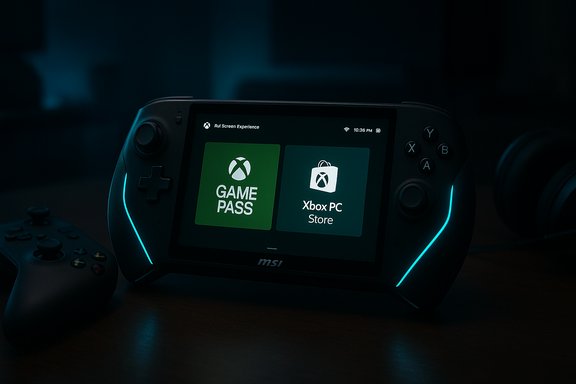
MSI handheld console showing Game Pass and Xbox PC Store tiles with blue LED edges.Background / Overview​

Microsoft introduced the Xbox Full Screen Experience (FSE) as a session posture layered on top of Windows 11, not as a separate operating system. The feature was first integrated and preinstalled on ASUS’ ROG Xbox Ally family, where it functioned as a game-centric, thumb-first launcher designed to make handheld Windows devices behave more like dedicated consoles. With the recent Windows 11 Insider Preview (Build 26220.7051, KB5067115), Microsoft has expanded the preview to include additional OEM handhelds — notably MSI Claw models — and signaled plans for more partners to follow. At its core, FSE performs three related jobs:
  • Present a single, full-screen, controller-friendly launcher (the Xbox PC app is the default “home app”) that aggregates Game Pass, Xbox purchases, and many installed PC titles into one place.
  • Rework the session composition so that many desktop subsystems, cosmetic Explorer elements, and nonessential startup tasks are deferred while the full-screen launcher is active.
  • Provide controller-first navigation, Game Bar integration, and quick entry/exit paths so handhelds are easy to pick up and play without keyboard-and-mouse clutter.
This approach preserves Windows’ openness — Steam, Epic, GOG and other PC storefronts remain usable under FSE — while offering a lower-friction surface for handheld play. Microsoft is using a staged, hardware-gated rollout: the binaries exist broadly in the Insider build, but visibility of FSE is controlled by server-side flags and OEM entitlements, so availability varies between identical devices at first.

Why the MSI Claw matters​

The MSI Claw family occupies a notable position in the modern Windows handheld landscape: larger 7–8-inch displays, high-refresh panels, and a mix of Intel Core Ultra and AMD Ryzen Z-series options spread across SKUs. That combination places the Claw in the segment where console-style ergonomics and the resource savings FSE claims to deliver are most immediately useful. MSI’s devices have also received frequent firmware and driver updates that help them remain competitive with AMD-based rivals. Enabling FSE on the Claw is therefore a sensible test case for Microsoft’s plan to “consolize” Windows without breaking the ecosystem.
Early reporting and hands-on reviews show the Claw is the first non-ROG handheld to receive the FSE toggle in the Insider preview, making it the next visible checkpoint for Microsoft’s expansion. Observers see this as an important sign: Microsoft intends FSE to be an OEM-enabled platform capability rather than an Asus exclusive.

What Full Screen Experience actually changes (technical snapshot)​

Session posture, not kernel surgery​

It’s important to stress what FSE is not: it does not rewrite Windows kernel scheduling, swap drivers, or disable anti-cheat systems. The underlying drivers, kernel, and most system services remain intact. FSE is a session-level posture that changes which userland components and shell elements are active at startup and during gameplay. That means interoperability with existing game launchers and DRM remains largely unchanged, while practical runtime overhead can be reduced by delaying or deferring certain processes.

Key mechanics​

  • The selected home app runs as a full-screen launcher and becomes the primary UX for the session (Xbox PC app is the default choice).
  • Windows deliberately defers many nonessential startup apps and hides some Explorer “ornamentation” while FSE is active, reclaiming userland memory and reducing background CPU wakeups that can cause micro-stutters on thermally constrained handheld APUs.
  • Controller-first navigation: Game Bar, Task View and common system functions are adapted to be thumb-friendly; dedicated Xbox button mappings and in-app overlays simplify captures, switching and system controls.
  • Entry/exit paths: FSE can be toggled from Settings → Gaming → Full screen experience, via Game Bar, Task View, or a commonly reported F11 shortcut; users can set FSE to launch at startup for an appliance-like experience.

What Microsoft says and allows​

Microsoft’s support documentation explicitly describes the user controls — you can choose a home app, enable “Enter full screen experience on startup,” and return to the Windows desktop at any time. The company frames FSE as an opt-in improvement for handheld sessions rather than a replacement for Windows. That positioning reduces risk to users who depend on Windows desktop functionality, but it still relies on OEMs and Microsoft’s staged flags to reach devices.

How to enable FSE on an MSI Claw (official path)​

If you own an MSI Claw and want to try FSE through the supported Insider route, follow this sequence that matches Microsoft’s documented flow and community-verified steps:
  • Join the Windows Insider Program (Dev or Beta channels as the 25H2 preview was distributed in those rings).
  • Update Windows to the Insider build that contains the FSE binaries — Windows 11 Insider Preview Build 26220.7051 (KB5067115).
  • Update the Xbox PC app (some testers required the Xbox app preview via the Xbox Insider Hub to surface certain launcher integrations).
  • Update MSI utilities and firmware (MSI Center, BIOS/UEFI, OSD) to reduce overlay conflicts and driver mismatches.
  • Open Settings → Gaming → Full screen experience, choose your home app (Xbox by default) and optionally enable Enter full screen experience on startup.
Note: Because Microsoft uses device-entitlement gating, some Claw units may require a server-side flag to unlock FSE even after following these steps; this is by design during the preview.

Early impressions: ergonomics and performance​

Hands-on reports from early testers and coverage by mainstream outlets indicate two main areas of improvement on Claw hardware when FSE is active:
  • Ergonomics and UI clarity: The large-tile, controller-first launcher removes mouse-centric UI friction and makes library navigation comfortable on a small, thumb-driven display. Users boot straight into gaming, which feels closer to a console experience.
  • Measured runtime gains: Microsoft and independent testers reported modest but measurable memory reclamation and fewer idle CPU wakeups when FSE defers background services. Some community reports suggest up to roughly 2 GB of userland RAM can be reclaimed in specific scenarios, which can reduce paging pressure and micro-stutters during sustained gaming sessions. However, the amount varies by device, installed apps, drivers, and the particular game workload — so treat numbers like “~2GB” as indicative, not guaranteed.
These improvements are pragmatic: they increase the predictability of sustained performance on thermally constrained handhelds by trimming OS noise while preserving Windows’ openness to multiple game stores.

Risks, caveats, and troubleshooting​

Insider preview risks​

Running Windows Insider builds exposes you to unfinished features and occasional regressions. The FSE rollout is explicitly a preview: expect bugs, driver conflicts, and intermittent gating behavior. If you rely on the Claw as a daily production device (for competitive play, work, or critical tasks), wait for a stable public rollout. Community posts show a mix of smooth installs and troubleshooting steps like clean installs, driver rollbacks, or firmware updates to restore the desktop or FSE behavior.

Compatibility and overlays​

OEM utilities (MSI Center, Armor Crate equivalents), third-party overlays, and some capture tools may conflict with the FSE session posture. Keep MSI firmware and drivers updated and test your most-used games and accessories after enabling FSE. In practice, a clean update sequence — firmware → GPU driver → Xbox app → Windows build — reduces the chance of odd interactions.

Anti-cheat and DRM​

FSE does not bypass anti-cheat or DRM restrictions. Titles that require kernel-mode anti-cheat drivers or specific launcher behaviors will still need those components to run. If your favorite competitive titles depend on specialized anti-cheat tooling, verify compatibility in FSE before moving to it for live matches.

Staged gating and inconsistent availability​

Microsoft’s rollout is cloud-flagged. That means identical MSI Claw units may behave differently: one may see the FSE toggle while another on the same Insider ring does not. This can be frustrating but is an intentional risk-limiting measure on Microsoft’s part while it gathers telemetry. Be patient and check Microsoft’s Insider channels for updates.

Community workarounds — proceed cautiously​

Early adopters have circulated registry tweaks and vivetool-based unlocks that can force the FSE toggle to appear on unsupported devices. These methods come with no guarantees, can break with future builds, and may violate OEM support expectations — so treat them as advanced, unsupported tinkering. Community threads and Reddit posts document both successes and problems with such hacks.

What this means for the ROG Xbox Ally advantage — and the wider handheld market​

The ROG Xbox Ally family launched with FSE built-in, and that exclusivity was a marketing differentiator for ASUS and Microsoft’s co-branded hardware. MSI Claw gaining FSE preview access narrows that hardware advantage: the value proposition now shifts toward hardware ergonomics, thermals, and vendor software polish rather than exclusive OS-level features. Early coverage frames the move as Microsoft opening the platform to other OEMs, signaling a strategic push to make the Xbox launcher a multi-vendor standard for Windows handhelds rather than an Ally-only gimmick. However, the competitive picture remains complex. Valve’s SteamOS and the Steam Deck/Steam Deck 2 ecosystem continue to appeal to users who prioritize a lean, game-focused Linux-based stack with deep Steam integration and features like quick resume. Observers argue that Windows’ FSE narrows the user-experience gap, but Windows still lags in fast-suspend, some power-management behaviors, and the long-standing anti-cheat compatibility gaps that favor Windows. Tech commentary suggests SteamOS remains compelling where Linux-native workflows and quick-resume behavior matter most, even as FSE improves Windows’ handheld ergonomics.

Practical recommendations for MSI Claw owners​

  • Backup your system before enrolling in Insider channels and installing preview builds. Create a recovery image so you can roll back if stability becomes an issue.
  • Prefer the Beta or Release Preview channels if you want a balance between early access and reduced risk; Dev builds push more experimental changes. Confirm that Build 26220.7051 (KB5067115) or later is installed if you expect to see the FSE toggle.
  • Update MSI firmware and system utilities first, then GPU drivers, then the Xbox PC app, then the Windows preview — this sequencing reduces overlay and driver mismatches.
  • Test critical games and anti-cheat-dependent titles in FSE on a non-production profile before making FSE your default boot posture.
  • If FSE does not appear after installing the correct build, be patient — Microsoft’s server-side gating can delay visibility. If you prefer not to wait, advanced users report registry/vivetool methods, but these are unsupported and can complicate future updates.

Policy and ecosystem implications​

Microsoft’s decision to gate FSE as an OEM-enabled feature rather than an open toggle for all devices reflects a modern approach to feature deployment: ship the binaries widely but gate visibility with cloud flags and vendor entitlements. This allows Microsoft to test the feature across varied hardware while limiting risk to the update ecosystem. The downside: feature availability becomes a function of Microsoft/OEM coordination, complicating the user experience and creating inconsistent behavior across otherwise identical devices. Enterprises and IT teams should treat Insider bits as test artifacts and validate impacts on DLP, telemetry, and OS management tools before permitting FSE in production environments.

Final analysis: meaningful evolution, but not a silver bullet​

The Full Screen Experience on MSI Claw is a significant step in making Windows handhelds friendlier for gamers who want a console-like UX without abandoning the PC ecosystem. The benefits are pragmatic and focused: cleaner launcher, reduced background noise, and modest runtime improvements that can help thermally limited handhelds deliver smoother sustained framerates. For MSI Claw owners willing to run Insider previews, the FSE toggle is an attractive option that closes some of the experience gap with dedicated handhelds and SteamOS. Yet, caveats remain. The improvements are incremental rather than revolutionary; FSE trims userland overhead but does not alter drivers, kernel behavior, or anti-cheat constraints. The staged rollout introduces friction for users who expect a uniform upgrade path, and Insider-level risk means the feature is best for enthusiasts and testers for now. Finally, the broader competition with Valve and Linux-based handhelds is far from decided — FSE helps Windows form a stronger handheld story, but it doesn’t negate SteamOS’s strengths in suspend/resume, low-level system control, and an OS designed from the ground up for gaming.

Quick checklist — should you enable FSE on an MSI Claw?​

  • Yes, if:
  • You enjoy early access and can tolerate preview bugs.
  • You want a console-style, controller-first launcher and cleaner handheld ergonomics.
  • You are prepared to update MSI firmware, GPU drivers, and the Xbox app and test your games.
  • Wait, if:
  • You rely on the device for competitive play or critical work and cannot tolerate occasional regressions.
  • Your favorite titles depend on uncommon anti-cheat drivers that may behave differently under preview builds.
  • Advanced users:
  • Registry/vivetool unlocks exist but are unsupported; use them only if you accept potential update complications.

Microsoft’s Full Screen Experience becoming available on the MSI Claw is a practical, well-targeted step to improve handheld gaming on Windows 11 — and it importantly signals a move away from first-party exclusivity toward a broader OEM-based ecosystem for controller-first handheld experiences. For Claw owners, the feature promises real ergonomic and runtime improvements, but it arrives as a preview: test cautiously, keep drivers and firmware current, and expect Microsoft’s staged rollout to continue expanding the capability across vendors in the months ahead.
Source: Overclocking.com MSI Claw: handheld console also gets Xbox Interface - Overclocking.com EN
 

Back
Top