MSI Claw Gets Xbox Full Screen Experience in Windows 11 Insider Preview

  • Thread Author
Microsoft has quietly expanded its Xbox Full Screen Experience (FSE) to include MSI’s Claw family of Windows handhelds, and owners can enable a console‑style, controller‑first launcher by running the right Windows 11 Insider Preview build and updating the Xbox PC app.

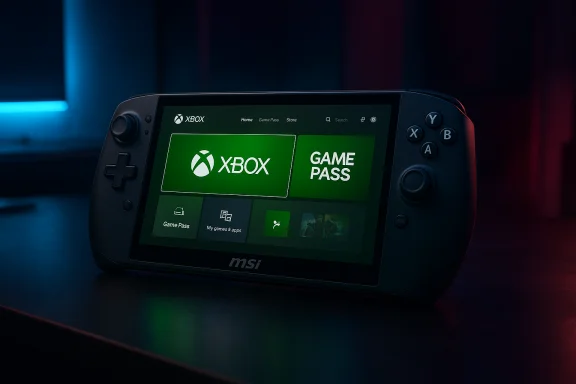
MSI handheld gaming device displaying a game library with Game Pass and popular titles.Background / Overview​

The Xbox Full Screen Experience is not a new operating system or a locked OEM skin — it’s a layered, controller‑first shell hosted by the Xbox PC app and enhanced Game Bar features that sits on top of Windows 11. When active, FSE makes the Xbox app the device’s primary home launcher, aggregates installed titles across storefronts into a console‑style library, and applies system policies to reduce desktop subsystems and background services while in the handheld posture. The aim is a lower‑friction, more console‑like experience on 7–8‑inch gaming PCs. Microsoft has been rolling FSE features out gradually through the Windows Insider and Xbox Insider programs. Early testing and rollouts targeted ASUS’s ROG Ally family and other partner devices, and community testers quickly discovered methods to enable the same features on other handhelds, including the MSI Claw, by running preview builds and participating in the Xbox PC app previews.

Why this matters for handheld owners​

For handheld gamers, the Full Screen Experience promises three practical benefits:
  • A single, controller‑friendly launcher where Game Pass, Xbox library, and installed PC titles appear in a unified view. This reduces launcher hopping and finger‑fiddly desktop navigation on small screens.
  • Resource trimming by deferring or suspending nonessential desktop services and Explorer subsystems while the shell is active, freeing memory and lowering background CPU/wakeups for potentially better battery life and smoother play. Early messaging from Microsoft and community analysis suggests memory savings can be noticeable on constrained handheld hardware — though the exact amount varies by device and workload.
  • Controller‑first UX with Game Bar and Xbox app integrations that map common system operations to controller buttons and overlays, simplifying switching and captures while playing.
Those benefits are meaningful on devices where ergonomics and battery life are high priorities, but they come with the tradeoffs of running preview software and the possibility of driver/OS interactions that weren’t fully validated on every hardware configuration.

The MSI Claw in context​

MSI’s Claw family (in its 2024–2025 refreshes) spans Intel and AMD configurations, with models such as the early Intel‑based Claw and newer Claw A8 (AMD Ryzen Z2 Extreme variants) offering 7–8‑inch displays, high‑refresh panels, and up to 24GB of LPDDR5(X) memory on later models. These machines are powerful enough to benefit from FSE’s resource‑tightening behavior while also being sensitive to buggy preview drivers or misbehaving system overlays. MSI’s software stack (MSI Center, OSD utilities) and BIOS updates can play a material role in whether a preview feature like FSE behaves cleanly. Community reports indicate some users experienced interactions between Xbox app preview builds and MSI’s OSD that resulted in blank or frozen overlays; in some cases an updated Xbox app or MSI firmware fixed the problem, in others a clean Windows install resolved residual conflicts.

What you need before you start​

Before enabling the Xbox Full Screen Experience on an MSI Claw, assemble these prerequisites:
  • A supported MSI Claw model running Windows 11 (check whether your specific Claw A1M/A8/8 AI+ variant is on the list of devices receiving the 25H2/Insider preview changes).
  • Enrollment in the Windows Insider Program on the device and access to an Insider channel that includes the FSE preview (25H2 preview builds). The Release Preview or Beta channel tends to be more stable than Dev but availability depends on Microsoft’s phased rollout.
  • Enrollment in the Xbox PC app preview (PC Gaming Preview) via the Xbox Insider Hub; the Xbox PC app preview often includes the aggregated library and FSE components. Download Xbox Insider Hub from the Microsoft Store and join PC Gaming Preview, then update the Xbox PC app to the preview version.
  • Optional but recommended: create a full system backup and a restore point, ensure BIOS and MSI Center are updated, and have a recovery USB or installation media ready in case you need to roll back. Community posts frequently warn that Dev‑channel installs and leftover OEM utilities can behave unpredictably.

Step‑by‑step: How to enable FSE on an MSI Claw​

The following procedure consolidates Microsoft’s published preview flow and the steps community testers used. It is written for Windows 11 users willing to run Insider Preview code. If you prefer to avoid preview builds, wait for the official, stable rollout.
  • Update Windows and join Windows Insider:
  • Go to Settings > Windows Update > Windows Insider Program.
  • Sign in with the Microsoft account used for Xbox/Xbox PC app.
  • Choose an Insider channel that includes the FSE preview (the 25H2 prerelease/preview channels). The exact build number will depend on Microsoft’s rollout; target the 25H2 branch or the Insider build identified in Microsoft’s rollout notes.
  • Enroll in the Xbox PC app previews:
  • Install the Xbox Insider Hub from the Microsoft Store, sign in, and join the PC Gaming Preview.
  • After joining, open Microsoft Store > Library and update the Xbox PC app (or wait for it to update automatically). The preview Xbox PC app contains the aggregated library and FSE components.
  • Install any recommended firmware or MSI Center updates:
  • Open MSI Center and update the system firmware, OSD utilities, and drivers. Some community fixes require updated MSI OSD components to avoid blank‑screen or overlay problems while FSE loads. If MSI Center reports a BIOS update, install it following MSI’s documented process.
  • Enable Full Screen Experience:
  • Open Settings > Gaming > Full screen experience.
  • Under Set your home app, select Xbox.
  • Toggle Enter full screen experience on startup if you want the device to boot directly into FSE.
  • Restart and verify that the Xbox app appears as the primary full‑screen launcher.
  • If the UI does not appear or the setting disappears:
  • Confirm you are on the correct Insider build and that the Xbox PC app is on the preview version.
  • Try restarting, signing out of the Xbox app and back in, or reinstalling the Xbox PC app.
  • If problems persist, perform a clean install of Windows 11 on the desired Insider channel; several community posts indicate clean installs solved persistent OSD/Xbox preview conflicts.

How to exit FSE and roll back safely​

Exiting Full Screen Experience is straightforward, but rolling back Insider builds or recovering from a failed boot requires care.
  • Immediate exits:
  • Use the Game Bar overlay, press the assigned controller hotkey, open Task View, or use the Xbox app UI to switch back to desktop mode. These in‑shell controls are intentionally mapped to common controller inputs.
  • Disabling FSE:
  • Settings > Gaming > Full screen experience and toggle off Enter full screen experience on startup, or change the home app away from Xbox.
  • If the setting is missing, uninstall or roll back the Xbox PC app to a stable release through the Microsoft Store or remove the device from the Xbox Insider preview.
  • Rolling back Windows builds:
  • If you need to revert the entire OS to a prior stable build, use Settings > System > Recovery > Go back (if available) or boot from Windows 11 installation media to reinstall a stable release. Always restore from the system image or backup you created before joining an Insider channel.
  • Leaving Insider and cleaning up Xbox preview:
  • Open Xbox Insider Hub > Previews > PC Gaming > Leave.
  • Reinstall the Xbox PC app and Gaming Services if required. Community guidance stresses that uninstalling Gaming Services sometimes resolves launcher or party‑system breakage introduced by preview builds.

What users are reporting (stability, bugs, and fixes)​

Early adopters of FSE on handhelds have posted a mix of excitement and cautionary tales.
  • Some users achieved the full‑screen launcher and reported the intended smoother, controller‑first navigation and aggregated library behavior. These experiences reflect Microsoft’s stated goals for FSE.
  • Others ran into startup issues where the Gaming > Full screen experience setting would appear and then disappear after a reboot, or where the device failed to boot into the Xbox UI reliably. Community members documented that switching Insider channels or performing a clean Windows install fixed the issue for some.
  • Specific MSI Claw interactions: a known bug involved MSI’s OSD painting a blank white overlay when FSE loaded; an updated Xbox app and updated MSI Center/firmware eliminated the issue in reported cases. That demonstrates the real risk of OEM utility conflicts in this preview stage.
Because the rollout is staged and tied to both Windows Insider builds and Xbox PC app previews, user experience varies widely by machine configuration, installed third‑party utilities, and whether a user applied all recommended firmware/drivers.

Performance and battery: expectations vs reality​

Microsoft and community testers describe FSE as applying resource‑trimming policies — suspending some Explorer subsystems, limiting nonessential startup items, and deferring background services while in the shell. On constrained handhelds that can translate to fewer background processes and lower idle RAM, which can improve battery life in theory. Reports sometimes cite memory savings on the order of up to a couple of gigabytes on specific workloads, but this is not universal and is highly workload‑dependent. Real‑world caveats:
  • System utilities (like MSI Center) and graphics driver behavior can negate or complicate gains. A buggy overlay or mis‑timed service can create CPU spikes and reduce battery life instead of improving it.
  • Anti‑cheat systems and certain game launchers may behave differently in a layered shell; some titles that rely on specific kernel services could be affected by preview builds of system components. Test critical titles before assuming universal compatibility.
Recommendation: treat performance claims as directional. Expect improvements on some titles and scenarios, but validate with your common games and power profiles before committing to an always‑on FSE boot.

Security, privacy and support implications​

Because FSE is a shell layered over Windows rather than a separate OS, Windows security and policies still apply. That means:
  • System updates, antivirus, and telemetry remain part of the underlying OS.
  • OEM or Microsoft support may be limited if the device runs Insider Preview code; warranty support for hardware remains, but software support for preview builds is normally limited to community channels and Insider feedback.
Enrolling in Insider programs also means you accept a degree of instability and should use a Microsoft account that’s registered for Insider feedback and bug reporting. If corporate or school policies govern the device, do not enroll an enterprise device in Insider channels without IT approval.

Troubleshooting checklist (quick reference)​

  • Confirm Insider build: Settings > Windows Update > Windows Insider Program shows the build branch.
  • Update Xbox PC app: join PC Gaming Preview via Xbox Insider Hub and update the Xbox PC app from Microsoft Store.
  • Update MSI Center and BIOS: apply vendor firmware and OSD updates before enabling FSE.
  • If FSE setting disappears: sign out/in the Xbox PC app, reinstall the Xbox PC app, and reboot. If persistent, consider a clean Windows install on the target Insider channel.
  • To recover from a bad boot: use Windows recovery media to repair or reinstall, or restore from your backup image. Always have a plan B before joining Insiders.

Best practices and recommended workflow​

  • Use the Release Preview or Beta Insider channels if available for the FSE bits — they are less likely to contain early regressions than Dev. Test on non‑primary hardware if possible.
  • Keep MSI Center, GPU drivers, and BIOS updated before joining preview channels.
  • Enroll in Xbox PC app previews via the Xbox Insider Hub rather than relying on community registry tweaks. Official preview builds reduce risk and make it easier to revert.
  • Create a full system backup and an external recovery USB before you begin enabling preview features.
  • Test your most important games and peripherals (controllers, headsets) after enabling FSE to confirm everything behaves as expected.

The verdict — should MSI Claw owners enable FSE now?​

The Xbox Full Screen Experience delivers a compelling, controller‑focused UX and meaningful integration for Game Pass and aggregated libraries. For enthusiasts who value a console‑style launcher and who are comfortable running preview software, enabling FSE on an MSI Claw delivers a tangible, more polished handheld experience — provided you follow the precautions above. However, this is not a no‑risk, one‑click upgrade for everyone. The combination of Insider Windows builds, Xbox PC app previews, and OEM utilities increases the chance of conflicts, startup quirks, or overlay issues. If you rely on your Claw as a daily driver for competitive play or work, wait for the stable consumer rollout or at least test FSE in a controlled way (backup, prefer Release Preview/Beta, and update MSI firmware first). Community reports show that a clean install and up‑to‑date OEM utilities resolve many issues, but that’s a burdensome fallback for casual users.

Final recommendations​

  • If you’re comfortable with Insider builds and want the console‑style launcher now: follow the verified steps — join the appropriate Windows Insider channel, enroll in the Xbox PC app preview via Xbox Insider Hub, update OEM firmware, then enable FSE in Settings > Gaming. Keep backups and be prepared to roll back.
  • If you prefer stability: wait for the public stable rollout. Microsoft is phasing the rollout across OEM partners and devices; broader availability is expected after the preview phase.
  • In all cases: keep your MSI Center, BIOS, Xbox PC app, and GPU drivers up to date and test your most important games and accessories after enabling FSE.
Microsoft’s Full Screen Experience is an important step in making Windows handhelds feel more like dedicated gaming devices, but right now it’s a preview for enthusiast testing rather than a finished consumer feature. With sensible preparation — backups, up‑to‑date firmware, and the right Insider channel — MSI Claw owners can try it today and decide whether the simplified, controller‑first launcher fits their handheld workflow.
Source: Phandroid Own an MSI Claw? Here's How to Enable Microsoft's Xbox Full Screen Experience on your Device - Phandroid
 

Microsoft’s Xbox “Full Screen Experience” (FSE) — the console-style, controller-first mode that first shipped with the ROG Xbox Ally family — is now appearing on MSI’s Claw handhelds via the latest Windows 11 Insider preview, expanding Microsoft’s experiment in “consolizing” Windows for handheld gaming and giving Claw owners an easy way to boot straight into an Xbox-style home app instead of the full Windows shell.

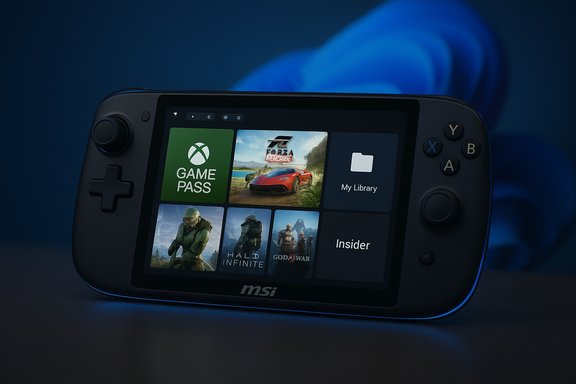
MSI handheld console displaying Xbox UI with Game Pass in a neon-lit setup.Background / Overview​

Microsoft’s Full Screen Experience is a session posture layered on top of Windows 11 that runs a chosen “home app” — typically the Xbox PC app — as a full-screen launcher and intentionally limits or defers many desktop subsystems and background tasks while the launcher is active. The stated goal is pragmatic: reduce memory usage, minimize background wakeups, and provide gamepad-first navigation so handheld Windows devices behave more like dedicated consoles during play sessions. The Windows Insider Blog describes the mechanics and add-on controls (Settings → Gaming → Full screen experience), and confirms the staged rollout to additional OEM devices, naming MSI Claw models in the preview distribution. The idea is not to replace Windows but to offer an opt-in, fast path to games that reduces desktop noise and improves the perceived gaming experience. The mode was preinstalled on ASUS’ ROG Xbox Ally and ROG Xbox Ally X hardware; Microsoft has signaled that the feature will be enabled on other vendor hardware in a controlled, hardware-gated rollout. The most visible vehicle for that expansion has been the Windows 11 25H2 Insider cumulative preview (Build 26220.7051, KB5067115), which explicitly lists FSE enablement for MSI Claw models in its notes.

What the FSE actually does — technical snapshot​

FSE is a session posture, not a new operating system. Key mechanics:
  • The selected home app (commonly the Xbox PC app) runs as a full-screen launcher and becomes the primary UX for the session.
  • Windows deliberately defers or suppresses many nonessential startup apps and some Explorer cosmetics while FSE is active, reclaiming RAM and reducing idle CPU wakeups that can cause micro-stutters on thermally constrained handheld APUs.
  • Game Bar, Task View and the Xbox button are adapted for controller-first flows so that navigation, captures and task switching are thumb-friendly.
  • Users can choose to enter FSE at startup or toggle it from Settings → Gaming → Full screen experience; entry/exit points include Task View and Game Bar.
Microsoft frames these changes as targeted optimizations: they do not change kernel scheduler behavior, GPU drivers, or anti-cheat systems, but they do aim to reduce peripheral CPU/OS overhead that commonly harms sustained gaming on small-form-factor PCs.

The MSI Claw rollout — what happened and how to get it​

Microsoft’s Insider notes and subsequent reporting show that the FSE preview has been expanded to “MSI Claw models” through Build 26220.7051 on Dev and Beta channels. Insiders running the relevant build and the Xbox PC app preview can enable FSE on supported Claw devices by choosing Xbox as the home app in Settings → Gaming → Full screen experience. The rollout is staged and gated by OEM entitlements and server-side flags, so availability can vary even between identical hardware. Practical preconditions and steps commonly reported by early testers:
  • Join the Windows Insider Program (Dev or Beta channel that contains the 25H2 preview build).
  • Install the optional preview cumulative (KB5067115 / Build 26220.7051) if it’s available for your device.
  • Update the Xbox PC app, and enroll in any required Xbox/PC Gaming preview if necessary.
  • Open Settings → Gaming → Full screen experience and select Xbox as your home app; optionally enable “Enter full screen experience on startup.”
Note: many early adopters reported visibility inconsistencies (the FSE toggle appearing and then disappearing), and some users have relied on community tools or registry tweaks to force the feature before it reached broader availability. Because the rollout is intentionally staggered, expect a day-to-day variance in who sees the option.

Why this matters for the Claw family — hardware context​

MSI’s Claw family sits at the high end of Windows handhelds: models span the Claw 7/8 and the Claw A8 (Ryzen Z2 Extreme) class, offering 7–8-inch 120Hz panels, high-capacity batteries and up to 24GB LPDDR5(X) in some SKUs. These are the kind of devices where trimming background overhead can translate into measurable runtime benefits because thermals and memory are limited compared with full-size laptops or desktops. Enabling FSE effectively gives MSI a way to present a more predictable, console-like first impression without changing hardware.
But hardware specs alone don’t guarantee a smooth FSE experience. OEM software components — MSI Center, OSD overlays, firmware and driver packages — must be updated and tuned to avoid conflicts with FSE’s suppression of desktop services. Community reports show that overlay interactions, quick settings, and MSI utilities have occasionally conflicted with Xbox FSE preview builds until vendor updates arrived. That means MSI’s firmware and software cadence will materially affect the day-one experience for many owners.

Expected benefits — performance, battery, UX​

Microsoft’s pitch is straightforward: by not loading the entire Windows desktop and by deferring nonessential services, FSE frees system resources for games and reduces background CPU wakeups. That can yield:
  • Faster task switching between games and launchers in the full-screen shell.
  • Lower background memory usage and fewer idle CPU wakeups, which in some workloads produces smoother frame delivery and longer sustained runs at a given power cap.
  • A more coherent, controller-first UI that aggregates Game Pass, Xbox library and installed titles across storefronts into a single, large-tile launcher.
Independent hands-on reviews and community tests have demonstrated measurable but variable gains. VGC’s ROG Xbox Ally X review emphasized FSE’s ability to boot Xbox PC games and switch between other PC stores without leaving the full-screen environment — a big UX win — and found performance improvements in real tests when the system was tuned for handheld workloads. At the same time, community benchmarks and a recent Tom’s Hardware hands-on showed that alternate OS approaches (like specialized Linux gaming distros) can sometimes achieve higher FPS or faster resume times, underscoring that FSE’s gains are meaningful but not universally dominant. A practical note: the scale of the memory or FPS improvement varies by title, driver, and device. Early testers have reported anything from minor improvements to noticeable relief in CPU-bound scenarios; claiming a single guaranteed percentage uplift across all devices is inaccurate. Treat observed gains as workload- and configuration-dependent.

UX improvements — console-like navigation across stores​

One of the clearest early benefits reviewers praise is the ability to unify storefronts under a single, controller-friendly launcher. FSE’s “My Apps” concept on Ally devices — which lets you install front-ends for Steam, Epic, GOG, Ubisoft and Battle.net and launch them from the Xbox home app — is now accessible on the Claw when FSE is enabled, giving handheld gamers a fast, throttled path between ecosystems without leaving the controller-first shell. That reduces the friction of launcher hopping on a small screen and makes the device feel more like a proper handheld console.

Early problems and risks — what the reporting and communities show​

The preview rollout has surfaced several recurring issues that owners and IT-savvy users should be aware of:
  • Boot and startup reliability: some devices boot to the regular desktop or show the Xbox app as a window instead of a full-screen launcher; the toggle can appear and then vanish after a reboot. This is symptomatic of server-side gating and preview plumbing rather than a single bug, but it’s disruptive.
  • Wake/sleep and resume quirks: reviewers and hands-on users have reported inconsistent sleep behavior and long resume delays when FSE is active — a critical problem for handhelds that are supposed to be instantly playable. Benchmarks and community reports recommend careful testing before adopting FSE as a daily driver.
  • OEM software conflicts: vendor overlays, OSD utilities and power management tools can conflict with FSE’s suppression of desktop services, producing blank overlays, broken quick settings or flaky controller mapping until updated drivers and firmware are applied. Several Claw owners found reinstalling or updating MSI Center and OSD utilities resolved issues; others needed a clean install in extreme cases.
  • Anti-cheat and store compatibility: FSE’s suppression of certain background services can interact poorly with older anti-cheat kernels or third-party overlays; some users reported titles that refused to launch or behaved unexpectedly. This is an area where wide testing across stores will be essential as the feature matures.
  • Fragmentation and gating: the staged rollout model means two identical hardware units could have different experiences based on account entitlements, region and timing. For enterprise or fleet deployments, this unpredictability complicates standardized testing and support.
Community forums and Reddit threads are full of first-hand notes: some users reporting smooth gains and others reporting regressions or control issues. The overall pattern is typical of an early, staged platform roll-out — mixed impressions, purposeful gating, and a steady stream of vendor fixes.

Cross-vendor roadmap — who else is on the list?​

Microsoft’s official notes list ASUS’ ROG Xbox Ally and Ally X as the first shipping devices with FSE and explicitly name MSI Claw models in the Insider preview. Lenovo has publicly confirmed plans to bring FSE to the Legion Go Gen 2 in spring 2026, according to reporting that cites a Lenovo spokesperson. That sequence indicates Microsoft’s plan to expand FSE across multiple OEMs over a months-long window rather than a one-time, universal switch. The vendor roadmap matters: devices that ship with FSE preinstalled can tune drivers and firmware for the posture ahead of time; legacy devices relying on an OS-side preview path must wait for OEM updates to avoid conflicts and realize the best experience.

Practical advice for MSI Claw owners​

  • Back up first. Enrolling in Insider channels and installing preview quality updates carries risk. Create a full system image and recovery media before experimenting.
  • Prefer Release Preview / Beta if you want more stability. The Dev channel increases exposure to cutting-edge changes that can be harder to recover from.
  • Update MSI Center, OSD and BIOS before enabling FSE. Many reported issues were fixed after applying the latest OEM updates.
  • If you rely on specific third-party overlays, anti-cheat protected titles or professional workflows, test those scenarios before making FSE your everyday mode. Some legacy behaviors are still glitchy in preview.
  • Expect a staged rollout: if the toggle doesn’t appear immediately, don’t panic. Microsoft and OEMs are unlocking visibility in waves and sometimes server-side gating delays exposure.

Strategic implications — why Microsoft is doing this​

The FSE move is a striking example of platform engineering without fragmentation. Rather than shipping a new OS, Microsoft is layering a device- and posture-aware shell on top of Windows that preserves ecosystem openness (multiple storefronts, mod tools, full desktop access) while giving OEMs a console-like default UX. That preserves developer reach and user flexibility, while letting vendors present a novel front-door experience for handhelds.
This approach reduces the political and technical friction of creating a new, closed handheld OS while allowing Microsoft to iterate on a new category of device-centered UX. The tradeoff is complexity: a Windows-side posture requires tighter vendor coordination, driver maturity, and more testing to avoid the fragmentation and stability problems that critics warn about.

What’s next — maturation and measurement​

Expect the next several months to be an iterative improvement cycle:
  • OEM firmware and MSI Center updates to remove overlay conflicts.
  • Microsoft and Xbox updates that refine transitions between FSE and full desktop (reducing restart requirements to reclaim memory).
  • Wider rollout to other OEMs (Lenovo’s Legion Go Gen 2 is promised for spring 2026).
  • Developer participation in Microsoft’s Handheld Compatibility Program to optimize control layouts and small-screen UI.
Independent testers will continue to measure the real-world advantages. Some will show meaningful CPU- and memory-bound wins; others will prefer alternative OS approaches for maximum raw efficiency. The mixed results from community benchmarks and Linux tests indicate that FSE is an important step, but not an instant panacea for every handheld performance problem.

Final assessment — strengths, caveats, and a pragmatic stance​

Strengths:
  • Console-like UX that reduces launcher friction and aggregates multiple storefronts into a single, controller-first home.
  • Tangible runtime benefits in many handheld scenarios by trimming background processes and reclaiming memory.
  • Vendor-friendly rollout model that keeps Windows open while letting OEMs differentiate on hardware.
Caveats and risks:
  • Preview instability and gating mean most users should treat FSE as experimental until OEM-blessed updates arrive.
  • OEM software and driver interactions are the largest practical risk; MSI (and others) must ship tuned updates to avoid broken overlays, wake/sleep bugs and controller quirks.
  • Not a universal performance silver bullet — gains are workload- and device-dependent, and specialized OS or driver stacks (e.g., Linux gaming distros) can still outperform Windows in certain scenarios.
Practical verdict for MSI Claw owners: FSE is an exciting and pragmatic improvement for handheld Windows gaming that can make the Claw feel closer to a true handheld console. Enthusiasts with spare time and a willingness to test Insider builds will enjoy early access and the convenience of a controller-first launcher. Mainstream buyers and those who rely on specific apps, overlays or anti-cheat protected titles should wait for OEM-updated, supported releases that resolve the early friction points.
The expansion of FSE to MSI Claw marks the start of a broader experiment: can Windows provide console-class ergonomics without sacrificing openness? Early signs are promising, but the true test will be whether Microsoft and OEMs can remove the preview rough edges and deliver a consistent, polished experience across a wide range of hardware.
Conclusion: Microsoft’s FSE is now more than a demonstration — it’s an expanding, opt-in platform feature moving beyond its initial Ally hardware to in-market handheld PCs such as MSI’s Claw. For those who prize a console-like, controller-first front end and are comfortable with Insider previews, the feature is immediately compelling. For everyone else, patience until vendor-validated updates arrive will yield the best balance of stability and the performance improvements FSE promises.
Source: Video Games Chronicle MSI Claw handhelds have started getting the Xbox ‘full screen experience’ first seen on ROG Xbox Ally | VGC
 

Back
Top