

Microsoft’s Malicious Software Removal Tool (MSRT) has quietly protected Windows systems for two decades, but when users encounter a “This download is no longer available” message on the old Download Center page for the Windows Malicious Software Removal Tool 64‑bit, it raises immediate questions: is the tool discontinued, has Microsoft changed distribution, and where should administrators and home users turn for on‑demand malware cleanup? This feature unpacks what MSRT is, explains why standalone download pages sometimes vanish, verifies current distribution paths and technical details, and offers practical, step‑by‑step guidance for users and IT teams who need a reliable malware cleanup workflow today.
The Windows Malicious Software Removal Tool (MSRT) is a specialized, signature‑based cleanup utility that Microsoft publishes on a regular cadence to detect and remove prevalent malware families from supported Windows systems. It was never intended to be a full antivirus replacement; rather, MSRT is a targeted, post‑infection remedial tool that complements real‑time endpoint protection by removing known, high‑impact threats and attempting to reverse obvious changes those threats made to a system. This targeted role and monthly distribution model are explicitly documented in Microsoft support guidance and deployment documentation.
MSRT typically reaches most Windows devices automatically via Windows Update (commonly distributed on Patch Tuesday), and Microsoft also historically published a standalone executable (mrt.exe) in the Download Center for manual or offline use. When that standalone Download Center page returns a “not available” or 404 message, it usually reflects site reshuffling, page deprecation, or the file being rehosted or updated — not the immediate end of the MSRT project itself. The tool remains part of Microsoft’s security toolkit and can also be obtained or deployed through documented enterprise channels.
Source: Microsoft https://www.microsoft.com/en-us/download/details.aspx?id=9905
 Background / Overview
The Windows Malicious Software Removal Tool (MSRT) is a specialized, signature‑based cleanup utility that Microsoft publishes on a regular cadence to detect and remove prevalent malware families from supported Windows systems. It was never intended to be a full antivirus replacement; rather, MSRT is a targeted, post‑infection remedial tool that complements real‑time endpoint protection by removing known, high‑impact threats and attempting to reverse obvious changes those threats made to a system. This targeted role and monthly distribution model are explicitly documented in Microsoft support guidance and deployment documentation.MSRT typically reaches most Windows devices automatically via Windows Update (commonly distributed on Patch Tuesday), and Microsoft also historically published a standalone executable (mrt.exe) in the Download Center for manual or offline use. When that standalone Download Center page returns a “not available” or 404 message, it usually reflects site reshuffling, page deprecation, or the file being rehosted or updated — not the immediate end of the MSRT project itself. The tool remains part of Microsoft’s security toolkit and can also be obtained or deployed through documented enterprise channels.
How MSRT works: technical architecture and capabilities
What MSRT scans for and how it detects malware
- MSRT is a signature‑driven scanner focused on a curated list of prevalent malware families — worms, trojans, and other high‑volume threats that historically cause widespread infection. It does not attempt to detect every new or obscure threat family.
- The tool scans for active, resident instances of known malware and attempts to remove them and undo common persistence or system modifications the malware made. It is not designed to scan for advanced fileless threats or to provide behavioral, heuristic, or continuous protection.
Execution modes and command‑line options
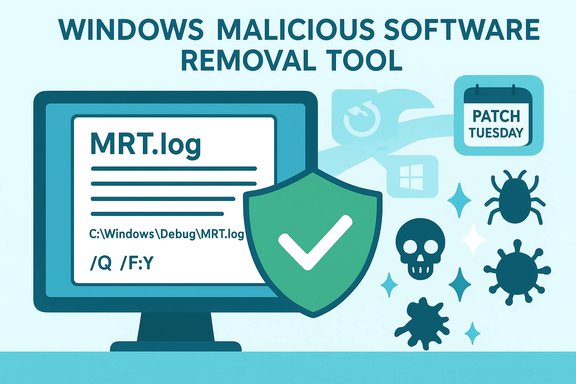
MSRT can be run interactively or silently and supports command‑line switches for automation:- /Q or /quiet — run without UI.
- /N — detect only (no removal), useful for auditing.
- /F — force a full/extended scan.
- /F:Y — force full scan and automatically clean infections.
Logging and telemetry
- After each run MSRT writes a detailed log (MRT.log) to the system’s Debug folder (commonly C:\Windows\Debug\MRT.log). The log includes timestamps, the tool version, families inspected, detection results, and remediation actions. Administrators should collect these logs for incident correlation and trend analysis.
Distribution: Why the Download Center page may say “no longer available”
Windows Update is the primary delivery channel
For the majority of Windows systems, MSRT is distributed automatically through Windows Update on a monthly basis. This means many users never need the standalone download because their systems receive the latest MSRT silently as part of the update cadence. Microsoft’s support guidance affirms this distribution model and the monthly cadence.Standalone downloads can be moved, removed or consolidated
Microsoft periodically reorganizes the Download Center and support pages. A “This download is no longer available” message on an old download page can occur for several reasons:- The standalone package has been updated and re‑released under a new page or KB reference.
- Content was consolidated into a different KB article or made available exclusively via Windows Update and enterprise channels.
- Microsoft archived older files or redirected downloads to enhanced hosting infrastructure (signed packages, SHA‑2 requirements, or new distribution URLs).
Enterprise distribution routes
For IT teams, MSRT can be deployed through supported enterprise mechanisms rather than manual downloads:- Windows Server Update Services (WSUS)
- Systems Management tools (SCCM / ConfigMgr)
- Group Policy scripts (startup/logon scripts)
- Manual packaging and push via management consoles using the documented command line switches and silent options
Limitations, risks, and common misconceptions
MSRT is NOT a replacement for antivirus
- It is a post‑infection removal tool, not a real‑time antimalware engine. Relying solely on MSRT for endpoint defense is dangerous. Always maintain a modern, real‑time antivirus/EDR solution for active protection.
Narrow detection scope and active‑process limitation
- MSRT targets a limited list of prevalent malware families. It will not detect or remove many modern threats (fileless attacks, APT toolsets, zero‑day ransomware variants) that require advanced heuristics or EDR. It typically removes active infections; dormant or deeply embedded components may survive.
Potential for false confidence and incomplete remediation
- A clean MSRT run does not guarantee the system is clean. Follow up with a comprehensive scan using your primary antivirus and, if needed, Microsoft Safety Scanner or Defender Offline for more thorough analysis. Collect and analyze MRT.log entries and run full forensic/IR if symptoms persist.
Impersonation risk: mrtstub.exe and leftover artifacts
- MSRT’s update mechanism sometimes creates temporary, randomly named folders that contain a signed stub (commonly named mrtstub.exe). Malware authors have mimicked this behavior by naming malicious binaries similarly. Always verify the digital signature and confirm corresponding MRT.log entries before trusting an unexpectedly appearing mrtstub.exe. If unsigned or lacking a log entry, treat it as suspicious.
Possible data loss during cleanup
- Because MSRT removes infected files and attempts to restore system settings, remediation may result in deleted or changed files. Backups are essential before running remediation tools, and administrators should have a recovery plan for business‑critical systems.
Immediate steps when the Download Center page is gone
If you encounter the “This download is no longer available” message for the MSRT 64‑bit package, follow these steps:- Verify Windows Update delivery
- Ensure automatic updates are enabled and that the target system has applied the latest cumulative and security updates. On most supported systems MSRT will have been distributed through Windows Update.
- Check Microsoft’s KB documentation (KB890830 and KB891716)
- The KB article for MSRT documents purpose, supported command‑line switches, and download options. Microsoft’s deployment KB provides the supported x86/x64 package downloads for enterprise usage even when the public download page is repointed. If the public page changed, the KB will often point you to the current distribution or alternative download methods.
- Use the Microsoft Safety Scanner for an on‑demand scan
- Microsoft publishes a portable on‑demand scanner (Microsoft Safety Scanner) that contains the broader detection set used by Microsoft Defender definitions and is useful when a standalone MSRT executable isn’t readily available. Note that Safety Scanner must be re‑downloaded periodically to get current definitions.
- Obtain the MSRT package from enterprise KB or trusted Microsoft channels
- If you manage systems, download the MSRT packages referenced in the deployment KB or push the tool via WSUS/SCCM. The enterprise KB is the authoritative distribution route for administrators.
- Validate downloaded binaries
- Always verify digital signatures and file hashes. MSRT is SHA‑2 signed; ensure your environment supports SHA‑2 code signing. Microsoft added SHA‑2 signing exclusively starting in late 2019 and later required SHA‑2 support for MSRT execution.
Step‑by‑step: safe on‑demand cleanup routine (recommended)
Follow this sequence to minimize risk and maximize the chance of clean remediation:- Back up critical data
- Full or incremental backups of user data and application state before remediation.
- Update your real‑time antivirus definitions
- Run a full scan with your primary AV product (e.g., Microsoft Defender, third‑party EDR). Resolve or quarantine any items it finds.
- Download and run an on‑demand cleaner
- If MSRT standalone is unavailable, use Microsoft Safety Scanner (MSERT) or download the MSRT package from enterprise KB pages for targeted cleanup.
- Run MSRT (GUI) or use the silent command line
- For immediate interactive scanning: Press Windows+R, type mrt, run with administrative privileges, choose Quick/Full/Custom.
- For automated deployment: use /Q /F:Y switches for silent, forced full scan & cleanup.
- Inspect MRT.log and follow up
- Open C:\Windows\Debug\MRT.log; confirm timestamps and remediation actions. If the log indicates files removed, follow up with full AV scans and restoration steps for any lost data.
- Escalate if symptoms persist
- If signs of infection continue, run Windows Defender Offline, collect forensic artifacts, or engage incident response. Use EDR tools for deep memory and persistence analysis.
Alternatives and complementary tools
- Microsoft Defender Antivirus / Microsoft Defender for Endpoint — full‑time, real‑time protection with heuristics and cloud‑assisted detection; required for ongoing defense.
- Microsoft Safety Scanner (MSERT) — portable on‑demand scanner using the broader Defender definition set; ideal if a targeted MSRT download isn’t available.
- Windows Defender Offline — bootable offline scanning for persistent rootkits and deeply embedded threats.
- Third‑party on‑demand tools — Emsisoft Emergency Kit, Malwarebytes, Dr.Web CureIt!, Norton Power Eraser for specialized situations.
- Endpoint Detection & Response (EDR) — for enterprises requiring visibility, behavioral detection, and remediation workflows beyond signature‑based tools.
Enterprise considerations and deployment best practices
Centralized deployment & automation
- Use WSUS or ConfigMgr to push MSRT across many devices with the silent command line switches. Collect MRT.log centrally for trending and rapid incident validation. Microsoft’s enterprise KB lists supported deployment channels and known unsupported methods — read it before you build automation.
Compliance and telemetry control
- MSRT may generate telemetry and prevalence data that Microsoft uses for threat tracking. Organizations subject to strict data governance should review privacy settings and consult the deployment guide on how telemetry is handled and how to limit reporting if policy requires it.
Runbooks for incident response
- Include an MSRT run as a step in your incident response playbook for known prevalent malware outbreaks, but never as the sole remediation step. After an MSRT run, follow up with full Defender/EDR scans, log analysis, and host‑based forensic collection if needed.
Practical troubleshooting: common errors and fixes
- “MSRT not running or not updating via Windows Update”
- Confirm Windows Update service and policy settings, ensure clients have SHA‑2 support, and check WSUS/ConfigMgr approval settings if you manage patches centrally.
- “Random temp folder with mrtstub.exe”
- Validate the file signature; if signed by Microsoft and MRT.log shows a legitimate run, delete the leftover temporary folder if it wasn’t cleaned automatically. If unsigned or no log exists, quarantine and investigate.
- “MSRT removed files and users report missing data”
- Restore from backups and confirm whether the deleted items were infected. Document remediation steps and revise the remediation policy to require pre‑remediation backups for sensitive data.
Critical analysis: strengths, blind spots, and strategic role
Notable strengths
- Low friction & broad reach: When distributed via Windows Update, MSRT reaches a massive installed base without user action.
- Focused efficacy: By targeting the most prevalent, high‑impact families, the tool reduces the incidence of common worm‑style outbreaks quickly.
- Administrative utility: Logs and automation switches make MSRT useful for administrators as an initial cleanup tool in incident response workflows.
Potential risks and blind spots
- Narrow detection scope: Modern threats often evade signature‑only tools; MSRT’s limited family list means many active threats won’t be detected.
- False sense of security: Users who see a clean MSRT run may incorrectly assume total system safety; follow‑up with full‑scope tools is essential.
- Impersonation & artifact confusion: Malicious actors may mimic MSRT artifacts like mrtstub.exe; naive trust of file names can lead to missed infections.
Strategic role in defense‑in‑depth
MSRT’s ideal role is one layer in a multi‑tool defensive posture: periodic automatic cleanup via Windows Update, on‑demand checks with Microsoft Safety Scanner or Defender Offline, and continuous protection and detection via a modern AV/EDR solution. For enterprises, MSRT is valuable for scripted remediation across many endpoints, but it should be an adjunct to more capable prevention and detection technologies.Conclusion
Encountering a “This download is no longer available” message for the Windows Malicious Software Removal Tool 64‑bit package is usually a sign of site reorganization rather than the end of MSRT itself. The tool remains a documented, supported component of Microsoft’s security ecosystem — delivered primarily through Windows Update and available to administrators through Microsoft’s KB and enterprise distribution channels. However, MSRT is a narrow, signature‑driven cleanup utility, not a substitute for real‑time antimalware or EDR solutions. The practical response for home users and administrators is clear: confirm Windows Update delivery, consult Microsoft’s KB pages for authoritative downloads and deployment guidance, validate any downloaded binaries, and incorporate MSRT runs into a layered remediation process that includes backups, full AV/EDR scans, and post‑remediation verification. Use MSRT as it was designed — a monthly safety net and quick cleanup tool — while relying on comprehensive, continuous protection for everyday defenses.Source: Microsoft https://www.microsoft.com/en-us/download/details.aspx?id=9905
