

Windows 11’s setup experience has long been a battleground between convenience, cloud integration, and user expectations — and the latest Insider changes mark a small but meaningful victory for clarity: you can now pick the name of your C:\Users folder during setup instead of letting Windows guess a five‑character name drawn from your Microsoft Account email. This change looks simple on the surface, but it touches a long‑running usability gripe, affects provisioning workflows, and exposes subtle compatibility and security trade‑offs that both consumers and IT pros should understand.
For years, Windows has auto‑generated the profile folder name for accounts created during the Out‑Of‑Box Experience (OOBE). When you sign in with a Microsoft account during first run, Windows historically takes the first five letters of your account name or email prefix and uses that as the folder name (for example, iluvb for [email protected]). That heuristic saves a click, but it frequently confuses users, breaks assumptions about paths, and surprises people who expect their profile folder to match their display name.
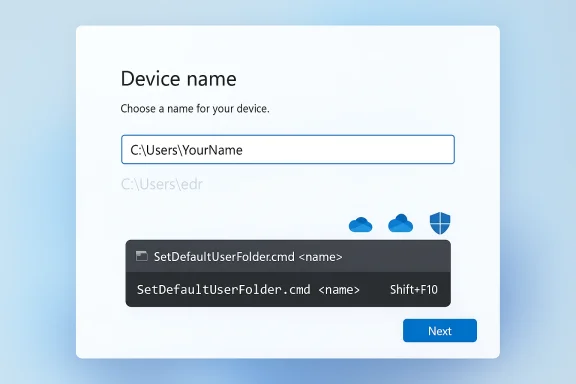
Microsoft has been iterating on the OOBE for Windows 11 for several preview cycles. Alongside more visible changes (PC naming UI, Copilot in setup, and other personalization steps), the Insider release notes and hands‑on reporting reveal two linked moves: Microsoft is removing several in‑OOBE workarounds that let users avoid signing into a Microsoft Account, and it is adding an explicit mechanism to let the installer set the default profile folder name during OOBE. That mechanism started life as a command‑line helper and is now being exposed more directly in the Device Name phase of OOBE in current Insider flights.
The pairing of this fix with the removal of in‑OOBE local‑account shortcuts signals a broader design direction: Microsoft intends to lock down the interactive setup experience to enforce a consistent, cloud‑integrated setup while providing narrow, supported levers to fix high‑impact usability pain points. That’s defensible from a security and support perspective, but it raises legitimate concerns for privacy‑minded users and workflows that historically depended on interactive local accounts.
For now, the best path forward is straightforward: if you care about your profile folder name, set it during setup (or use supported provisioning). If you manage fleets or refurbish devices, update deployment procedures and test the new behavior. The change is not radical, but it is a useful example of Microsoft listening to users on a specific, fixable annoyance — and delivering a safe, supported option rather than leaving the community to rely on fragile, unofficial workarounds.
In short: Windows now lets you name what matters most — your profile — at the moment it is created. That clarity will save time, reduce confusion, and make the first‑run story a little less mysterious for many users.
Source: Windows Central Windows 11 will finally let you name your user directory during setup
 Background / Overview
For years, Windows has auto‑generated the profile folder name for accounts created during the Out‑Of‑Box Experience (OOBE). When you sign in with a Microsoft account during first run, Windows historically takes the first five letters of your account name or email prefix and uses that as the folder name (for example, iluvb for [email protected]). That heuristic saves a click, but it frequently confuses users, breaks assumptions about paths, and surprises people who expect their profile folder to match their display name.Microsoft has been iterating on the OOBE for Windows 11 for several preview cycles. Alongside more visible changes (PC naming UI, Copilot in setup, and other personalization steps), the Insider release notes and hands‑on reporting reveal two linked moves: Microsoft is removing several in‑OOBE workarounds that let users avoid signing into a Microsoft Account, and it is adding an explicit mechanism to let the installer set the default profile folder name during OOBE. That mechanism started life as a command‑line helper and is now being exposed more directly in the Device Name phase of OOBE in current Insider flights.
What changed, exactly
The headline: pick your user folder name during setup
The core user‑facing outcome is straightforward: during Windows setup (OOBE), there is now an option to provide a custom name for the user folder that will be created under C:\Users. Microsoft has described the UI/experience as being available on the Device Name page of OOBE, and Insiders in the Dev Channel have begun to see the option appear as Microsoft refines the flow. If you skip the step, Windows will fall back to the existing default behavior (the email‑derived, five‑character name).The technical plumbing: SetDefaultUserFolder.cmd and OOBE command prompt
Before the UI was introduced, Microsoft shipped a narrow, supported helper for Insiders: SetDefaultUserFolder.cmd, which can be invoked from the OOBE command prompt (Shift+F10 → cd oobe → SetDefaultUserFolder.cmd <name>). That helper sets the intended profile folder name before the account profile is created so that applications, OneDrive, and subsequent profile‑scoped settings point at the expected path. The helper is deliberately limited (character/length sanitization, applied only during setup) and is not a tool to rename an existing profile after first sign‑in. Independent guides and early reporting documented the command‑line usage while the GUI was still rolling out.The companion policy change: local account bypasses removed
Crucially, Microsoft paired the user‑folder concession with a policy change: Insider release notes state the company is “removing known mechanisms for creating a local account in the Windows Setup experience (OOBE).” In practice, that means popular tricks used by enthusiasts — notably the long‑used BYPASSNRO script and the one‑line start ms‑cxh:localonly URI trick executed from the OOBE command prompt — no longer produce a local/offline account creation flow in preview builds. The rationale Microsoft provided in release notes is about preventing users from skipping critical setup screens that leave devices incompletely configured. Independent testing by outlets and community members reproduced the neutralization of those tricks in test ISOs and preview devices.Why this matters — user experience, clarity, and edge cases
A long‑standing UX headache finally addressed
For many users the old behavior was baffling. They’d provide their personal name or full name to Microsoft Account, but when they opened a terminal or navigated to C:\Users they'd see an unrelated five‑letter folder derived from their email prefix. That mismatch led to confusion about where files lived, awkward path‑dependent scripts failing, and a steady stream of forum posts and help requests describing the surprise. By letting people set the folder name at the time the profile is created, Microsoft removes that surprise and makes the profile directory more intelligible and consistent with user expectations.Power users and technicians get a supported option
Before this change, enthusiasts and refurbishers often used command tricks or custom imaging to achieve a friendly profile path. The SetDefaultUserFolder helper is a supported, deterministic way to set the folder during OOBE — far preferable to fragile hacks or registry surgery. For technicians preparing a small batch of machines manually, the helper is a practical tool. As the UI rolls out, even non‑technical users will be able to name the profile during first run without needing a command prompt.It does not restore offline local installs
This needs emphasis: the user‑folder naming concession is not a backdoor to restore the old offline, local‑account first setup. Microsoft’s policy change intentionally removes the easy in‑OOBE commands used to create local accounts interactively. The new helper applies within the account‑first model — in practice, you still generally finish OOBE with a Microsoft Account sign‑in unless you use provisioning tools (unattend.xml, Autopilot, MDT, or pre‑provisioned images) that explicitly create local accounts outside interactive OOBE. If you require an offline local account for privacy or policy reasons, standard provisioning and imaging methods remain the supported path, not the interactive OOBE shortcuts that Microsoft is neutralizing.Technical details, limits, and gotchas
When and where the name must be set
- The custom name must be chosen during OOBE — either via the Device Name page UI or via the SetDefaultUserFolder.cmd helper early in setup.
- If you skip the step, Windows will fall back to the legacy default (the automatic email‑derived five‑character folder).
- It is currently rolling out in Windows 11 Insider preview channels (Dev and Beta families for specific builds) and will take months to reach general release after testing and iteration.
Syntax and sanitization (practical constraints)
- The helper strips or blocks special characters that are invalid in NTFS paths; it also enforces reasonable length limits and normalization to prevent malformed folder names.
- Microsoft’s public notes and community tests show the helper accepts typical alphanumeric names and will sanitize input; treat it as a convenience intended for simple names rather than arbitrary Unicode or very long strings. If you need non‑standard names, test thoroughly on an Insider image first.
One‑time setup — you cannot retroactively rename safely
- Once Windows creates the profile folder and the associated registry profile mount points (ProfileImagePath under HKLM\SOFTWARE\Microsoft\Windows NT\CurrentVersion\ProfileList), safely renaming the folder is non‑trivial and can break installed apps, virtualenvs, OneDrive links, and other services.
- If you already have a deployed machine and want a different profile folder, the supported options are: create a new account with the desired name and migrate data, or use supported unattended imaging/provisioning methods during deployment. Manual renames with registry edits remain risky and are not a recommended general practice.
Impacts on OneDrive, roaming profiles, and installed apps
- Because many apps and Microsoft services make early choices based on the profile path, setting the name before the profile is created is the correct technique. Doing it after the profile exists is liable to break path‑hardcoded settings.
- Enterprises using roaming or cloud profiles should validate their management tooling and any path assumptions (backup scripts, antivirus, endpoint detection rules) before broadly switching to the new UI. Test in a lab environment first.
Enterprise and deployment considerations
Unattended installs, Autopilot, and imaging remain the authoritative routes
Organizations should not rely on interactive OOBE to set profile folder names at scale. Existing, supported provisioning methods remain the recommended way to deterministically control account names and profile paths:- Unattend.xml and sysprep during image capture or deployment.
- Windows Autopilot and provisioning packages for cloud‑native enrollment flows.
- MDT/SCCM and other task‑sequence tooling in large deployments.
Refurbishers and repair shops: test your workflows
Refurbishers that previously relied on in‑OOBE shortcuts to create local accounts will need to adapt. The neutralization of BYPASSNRO and other command prompt tricks means technicians should standardize on supported practices (provisioning scripts, pre‑created local accounts, or the new supported helper where acceptable). Failing to update workflows risks surprise behavior during first boot.Practical how‑tos (what readers can actually do today)
Fresh installs on Insider builds (current method)
If you’re testing an Insider build and want to try the helper today:- During OOBE, when you reach the Microsoft Account sign‑in screen, press Shift+F10 to open a command prompt.
- Type: cd oobe
- Run: SetDefaultUserFolder.cmd <desiredName>
- Continue through OOBE and sign in. The profile should be created using the chosen name.
If you already have a machine and want to change the folder name
- Create a new local or Microsoft account with the desired username and migrate your files and application settings.
- Alternatively, capture a new image or use an unattended install where you specify the account and profile name.
- Avoid manual rename + registry edits unless you are prepared to troubleshoot broken app paths and permission issues. Back up everything first.
For privacy‑conscious users who preferred local accounts
- If you want a local account and a custom C:\Users folder, use unattended provisioning methods (unattend.xml, prebuilt image) or create a local account after setup — the interactive OOBE shortcuts Microsoft neutralized are not a supported way forward. If you need help building an unattended image, consult your IT admin resources and test thoroughly.
Risks, trade‑offs, and things Microsoft still needs to address
Risk: partial fixes can introduce new confusion
Adding the option to choose a C:\Users folder name during OOBE improves clarity for new installs, but it does nothing for the millions of existing devices. The community will still see posts asking how to rename an existing profile; those remain corner cases with risky workarounds. Microsoft could mitigate this by adding an assisted, supported tool for post‑install profile migration that preserves app paths and registry links, but no such consumer tool exists today.Risk: hiding the setting behind OOBE
If the UI continues to be an optional Device Name step in OOBE, many users will skip it — intentionally or not — and end up with the default five‑character name. Making the option obvious and making Microsoft explain the implications of the default would help reduce downstream confusion. The earlier CLI helper was too arcane for non‑technical users; the UI is an improvement if exposed clearly.Trade‑off: account‑first model vs. user choice
Microsoft’s choice to remove easy local‑account bypasses is a deliberate policy decision to make OOBE account‑first. This has security benefits (e.g., easier recovery, sync, and device management) but reduces friction for users who prefer local accounts for privacy or offline use. The new user‑folder naming concession addresses one nuisance while preserving the account‑first posture — a pragmatic compromise that will please many, frustrate some.Comparison: how other OSes handle this
- macOS and Linux installers have long exposed clear user name and home directory naming during setup, and many distributions let users change the home folder name later with supported utilities. Windows lagged here, and the change brings Windows closer to parity in first‑run clarity.
- The difference is Windows’ larger installed base of legacy apps that often embed absolute paths; this makes retroactive renaming riskier on Windows than on Unix‑style platforms. Microsoft’s approach (set the name before profile creation) is therefore the safer technical choice.
Recommendations for users and administrators
- If you’re an everyday user setting up a single PC: use the new Device Name UI option when it appears in stable builds to pick a readable C:\Users folder name; it will save confusion later.
- If you’re a power user or technician: adopt the supported SetDefaultUserFolder helper or the new UI in OOBE for manual installs, and migrate any scripted workflows away from fragile OOBE hacks.
- If you manage deployments: continue using Autopilot, unattend.xml, or imaging workflows to control account creation and profile names for predictable, at‑scale deployments.
- For everyone: test before you deploy. Validate OneDrive behavior, backup solutions, and app compatibility on a test device when you change profile naming policies.
Final analysis — small change, outsized value
On balance, the addition of a supported way to set your C:\Users folder name during Windows setup is a welcome, pragmatic fix to a long‑running irritation. It won’t reverse Microsoft’s account‑first trajectory, nor will it make retroactive profile renames safe and trivial, but it reduces a common source of user confusion and gives technicians a supported alternative to brittle command hacks.The pairing of this fix with the removal of in‑OOBE local‑account shortcuts signals a broader design direction: Microsoft intends to lock down the interactive setup experience to enforce a consistent, cloud‑integrated setup while providing narrow, supported levers to fix high‑impact usability pain points. That’s defensible from a security and support perspective, but it raises legitimate concerns for privacy‑minded users and workflows that historically depended on interactive local accounts.
For now, the best path forward is straightforward: if you care about your profile folder name, set it during setup (or use supported provisioning). If you manage fleets or refurbish devices, update deployment procedures and test the new behavior. The change is not radical, but it is a useful example of Microsoft listening to users on a specific, fixable annoyance — and delivering a safe, supported option rather than leaving the community to rely on fragile, unofficial workarounds.
In short: Windows now lets you name what matters most — your profile — at the moment it is created. That clarity will save time, reduce confusion, and make the first‑run story a little less mysterious for many users.
Source: Windows Central Windows 11 will finally let you name your user directory during setup
