

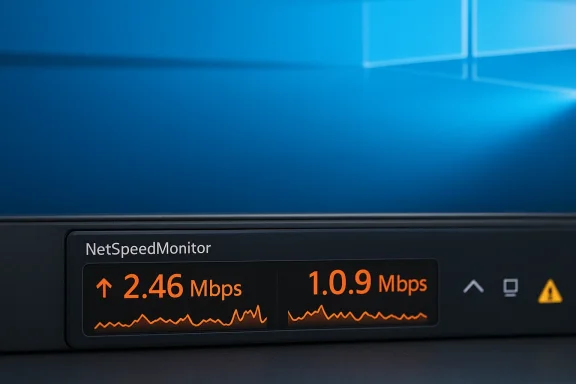
NetSpeedMonitor still lives in the memory of many Windows users as the tiny, no‑nonsense taskbar meter that put upload and download speeds front and center — and for Windows 10 (64‑bit) users who want that simple readout, it’s still a viable option, but only with clear caveats: the original project is effectively dormant, modern Windows limits third‑party taskbar toolbars, and getting a safe, working copy often means using community forks or compatibility‑mode workarounds. ps://bradshacks.com/netspeedmonitor-windows-10/)
NetSpeedMonitor began life as a compact toolbar utility that displayed real‑time upload and download throughput in the Windows taskbar. It was designed for older Windows releases (XP through Windows 7) and became popular because it was lightweight, unobtrusive, and did what it said on the tin: show current transfer rates and a basic usage log.
Over the years, the official project ceased active development and updates. The software is still widely circulated and used by enthusiasts on modern Windows editions by running the installer under compatibility settings or by using community‑maintained builds. That practical reality — abandoned upstream but sustained in the community — is central to any advice about using NetSpeedMonitor on Windows 10 64‑bit.
Short answer: the original project is effectively discontinued; community forks exist; treat downloads and installers with caution.
In short: NetSpeedMonitor can still be made to work on Windows 10 (64‑bit) using compatibility mode and community builds, but for safety, future compatibility, and richer features, evaluate maintained alternatives and treat any legacy binary with appropriate scrutiny.
Source: The Detroit Bureau NetSpeedMonitor For Windows 10 64-Bit: A Simple Guide
 Background
NetSpeedMonitor began life as a compact toolbar utility that displayed real‑time upload and download throughput in the Windows taskbar. It was designed for older Windows releases (XP through Windows 7) and became popular because it was lightweight, unobtrusive, and did what it said on the tin: show current transfer rates and a basic usage log.Over the years, the official project ceased active development and updates. The software is still widely circulated and used by enthusiasts on modern Windows editions by running the installer under compatibility settings or by using community‑maintained builds. That practical reality — abandoned upstream but sustained in the community — is central to any advice about using NetSpeedMonitor on Windows 10 64‑bit.
What NetSpeedMonitor Does (and what it doesn’t)
NetSpeedMonitor’s appeal is its focus and simplicity. In short, it provides:- Real‑time throughput readout (upload and download) in the taskbar.
- Compact taskbar integration so speeds are always visible without opening a separate window.
- Basic historical logging of data usage (daily/monthly summaries).
- Lightweight resource use — it’s meant to be always on without noticeable overhead.
- Deep packet inspection, advanced per‑process forensic logging, or firewall controls.
- Enterprise‑grade long‑term retention, remote monitoring, or built‑in cloud dashboards.
- Native modern Windows 10/11 support from the original developer.
Short answer: the original project is effectively discontinued; community forks exist; treat downloads and installers with caution.
- Multiple software indexes and archival pages list NetSpeedMonitor as discontinued or no longer actively supported by the original author. Community distributions and forks appear on GitHub and other repositories.
- Because the original developer hasn’t maintained a current, official Windows 10/11 build, people either run the original MSI in compatibility mode or use modified/x64 builds supplied by third parties. That introduces two security considerations: (1) you’re trusting a third‑party binary; and (2) installer modifications or repackaging could carry unwanted changes. Always scan downloaded installers with up‑to‑date antivirus and prefer community repositories with transparent source code when possible.
Why NetSpeedMonitor Still Works for Many Windows 10 Users
Practically, NetSpeedMonitor can run on Windows 10 (64‑bit) with a few simple tricks. The widely reported steps are:- Download the appropriate x64 build (or an x86 build if you run 32‑bit Windows).
- Right‑click the MSI and open Properties → Compatibility.
- Enable “Run this program in compatibility mode for” and select a prior Windows version (Windows 7 is commonly used).
- Run the installer as Administrator, then select the active network adapter in the configuration dialog.
- If the toolbar doesn’t appear, enable it from the taskbar toolbars menu or re‑install/repair the package.
Step‑by‑Step: Installing NetSpeedMonitor on Windows 10 (64‑bit)
Follow these steps carefully and treat any downloaded file as potentially untrusted until scanned.- Confirm system type:
- Press Windows Key + Pause (or open Settings → System → About) and verify you’re running Windows 10 64‑bit.
- Obtain a copy:
- Prefer a reputable repository or a GitHub fork that provides source code or signed releases. If a signed binary is not available, prefer an installer distributed alongside source and a build log. (See the GitHub forks that host maintained builds as an example.)
- Scan the installer:
- Use your antivirus and an online multi‑engine scanner if available. Do not proceed if the file flags suspicious behavior.
- Set compatibility and run installer:
- Right‑click the MSI → Properties → Compatibility.
- Check “Run this program in compatibility mode for” → choose Windows 7 or Windows 8.
- Click “Change settings for all users” and repeat.
- Click OK, then right‑click the MSI and choose Run as administrator.
- During setup:
- Choose the network adapter that corresponds to your internet connection (Ethernet, Wi‑Fi, etc.).
- Finish installation and allow the toolbar to appear in the taskbar.
- If the NetSpeedMonitor toolbar doesn’t show:
- Right‑click taskbar → Toolbars → tick NetSpeedMonitor.
- If still not visible, open the program folder (usually C:\Program Files\NetSpeedMonitor) and run nsmc.exe / repair or reinstall.
- Fine‑tuning:
- Right‑click the NetSpeedMonitor readout → Settings to:
- Set units (KB/s, MB/s, Mbps).
- Adjust update interval (increase to reduce CPU use).
- Enable/disable logging or change the font and colors.
Troubleshooting common installation issues
- “Operating system not supported” error:
- Use compatibility mode and run as Administrator; that resolves the issue in most cases.
- Toolbar still missing:
- Confirm Taskbar → Toolbars → NetSpeedMonitor is checked. If it’s checked and invisible, try removing the toolbar and re‑adding it after a restart.
- Conflicts with other monitoring utilities:
- Disable or uninstall other low‑level network monitors and packet capture drivers (WinPcap/Npcap) temporarily during installation.
- UAC or permission problems:
- Temporarily raising User Account Control or installing with an admin account can help, but revert any security downgrades after installation.
The Windows Taskbar Reality: Why NetSpeedMonitor Is Limited Going Forward
Windows evolved. Microsoft has tightened how third‑party applications can customize and inject content into the taskbar. Windows 11, for example, no longer supports many of the legacy toolbar hooks that older utilities relied on; the OS restricts customization and isolates taskbar UI to prevent instability and security issues. That means even when NetSpeedMonitor works on Windows 10 today, it is unlikely to be future‑proof, and it will not work natively on many modern Windows 11 builds without significant workarounds. Industry reporting and community threads highlight that Microsoft has moved away from the extensible toolbar model that made NetSpeedMonitor possible.Safer, Modern Alternatives (when you need more than a simple taskbar counter)
If you want a maintained tool with better compatibility, more features, and active support, consider these alternatives — each has different strengths depending on whether you want security, historical logging, per‑process visibility, or a simple tray graph.- GlassWire — Network monitor with security features:
- Visual graphs, per‑app traffic, historical usage, alerts for new or unusual network activity, and optional firewall controls. Good for users who want both monitoring and basic intrusion detection.
- NetWorx (SoftPerfect) — data quotas and per‑app reporting:
- Excellent for tracking daily/weekly/monthly usage, setting quotas and alerts, and running scheduled speed tests. Lightweight and actively maintained. Works well for users on metered or capped connections.
- DU Meter — long‑term usage dashboards and multi‑machine views:
- Strong reporting capabilities across many machines and good for small office/home networks. Commercial product, focused on thorough usage analytics.
- TrafficMonitor (open source) — modern taskbar/window overlay:
- An actively maintained open‑source alternative that restores a taskbar‑style speed readout and is configurable; widely used by those who prefer a taskbar or small overlay. Look for the official GitHub project and its wiki for safe builds and configuration options.
- Windows built‑in tools (Resource Monitor, Task Manager):
- Not a taskbar widget, but Resource Monitor and Task Manager can show per‑process network activity and live throughput without installing third‑party software. For quick diagnostics they’re useful and safe.
Security, Privacy, and Trust: What to watch for
When you choose to run an older utility or a community fork:- Prefer source‑available projects. If the build is reproducible or the repository hosts source code, the trust model is stronger.
- Scan installers. Run an antivirus and, if possible, a multi‑engine scan of the file before executing.
- Avoid obscure repackagers. If a website repackages an MSI with an unfamiliar installer stub, question it.
- Limit permissions. Don’t run unknown installers with domain admin privileges. Use a local admin account only if necessary.
- Consider network access needs. NetSpeedMonitor and similar tools require low‑level access to monitor adapters — that’s normal, but be wary of any additional network or remote telemetry behavior you did not expect.
- Backup your system. Before installing legacy system‑level utilities, create a restore point or system image.
Practical Recommendations (quick checklist)
- If you want the classic taskbar counter and run Windows 10 64‑bit:
- Try a compatibility‑mode install from a trustworthy source and confirm with antivirus scans first. Keep a backup snapshot ready.
- If you need per‑app forensic detail, alerts, or historical timelines:
- Use GlassWire or NetWorx for reliable, maintained feature sets.
- If you want an open‑source, actively maintained minimal overlay:
- Evaluate TrafficMonitor (check the official GitHub repository and read the wiki for settings).
- If you are primarily diagnosing a temporary speed problem:
- Use an online speed test or the built‑in Windows taskbar speed‑test shortcut (on Windows 11 preview builds) for a one‑off measurement, then use a local monitor for continuous inspection. Note: Microsoft’s taskbar has been surfacing a speed‑test launcher in Insider builds, showing a trend toward embedding simple network checks in the OS UI rather than supporting third‑party toolbars.
Critical analysis: Strengths, limits, and risks
Strengths
- Simplicity: NetSpeedMonitor does one job, and it does it visibly and unobtrusively. For many users that single capability is the whole point.
- Low footprint: The program has a minimal performance cost, which matters for always‑on monitoring.
- Historical familiarity: Long‑time Windows users appreciate the direct placement in the taskbar for quick diagnostics.
Limits & Risks
- Project maintenance: The upstream project is not actively maintained, meaning bugs and compatibility issues will accumulate and likely remain unresolved. Relying on an unmaintained tool for security‑sensitive monitoring is risky.
- Taskbar integration fragility: Modern Windows (especially Windows 11) intentionally reduces APIs that allowed toolbars to inject into the taskbar; future Windows builds may further limit or outright block these techniques. What works today on Windows 10 could fail with a system update.
- Third‑party binary risk: Community forks and repackaged installers vary in trustworthiness. Running unsigned or opaque binaries increases attack surface and the risk of bundled adware or unwanted components.
- Feature gap for power users: NetSpeedMonitor is not meant to replace modern, maintained network monitors which provide per‑process history, firewalling, and alerting — features essential for deeper troubleshooting or security posture.
Final verdict
If you want a tiny, always‑visible taskbar readout and you run Windows 10 64‑bit, NetSpeedMonitor can still deliver that exact experience with a compatibility‑mode install or via vetted community builds — but you should proceed deliberately:- Prefer maintained alternatives if you need reliability, security updates, or advanced features.
- If you install NetSpeedMonitor, do so from an auditable source, scan installers, and accept that future Windows updates may break it.
- Consider modern open‑source projects (TrafficMonitor) or actively supported commercial tools (GlassWire, NetWorx, DU Meter) if longevity, telemetry, or detailed reporting matter.
In short: NetSpeedMonitor can still be made to work on Windows 10 (64‑bit) using compatibility mode and community builds, but for safety, future compatibility, and richer features, evaluate maintained alternatives and treat any legacy binary with appropriate scrutiny.
Source: The Detroit Bureau NetSpeedMonitor For Windows 10 64-Bit: A Simple Guide
