network cards "DISAPEAR" after reboot

merrittr

New Member
Joined
Jan 4, 2026
Messages
9
i have a win 11 install that I upgrade from win 10 that had the same problem if I reinstall the win 11 the network will com up successfully once then on reboot the network card is missing this happens with wireless and wired and occurs with any card I try including usb

on that reinstall here is what i see

C:\Users\Administrator>ipconfig /all

Windows IP Configuration


Host Name . . . . . . . . . . . . : LAPTOP-F697OBIH
Primary Dns Suffix . . . . . . . :
Node Type . . . . . . . . . . . . : Hybrid
IP Routing Enabled. . . . . . . . : No
WINS Proxy Enabled. . . . . . . . : No
DNS Suffix Search List. . . . . . : usask.ca

Ethernet adapter Ethernet:

Media State . . . . . . . . . . . : Media disconnected
Connection-specific DNS Suffix . :
Description . . . . . . . . . . . : Intel(R) Ethernet Connection (4) I219-LM
Physical Address. . . . . . . . . : C8-5B-76-F4-1A-07
DHCP Enabled. . . . . . . . . . . : Yes
Autoconfiguration Enabled . . . . : Yes

Wireless LAN adapter Wi-Fi:

Connection-specific DNS Suffix . : Home
Description . . . . . . . . . . . : Intel(R) Dual Band Wireless-AC 8265
Physical Address. . . . . . . . . : 00-28-F8-4B-5B-18
DHCP Enabled. . . . . . . . . . . : Yes
Autoconfiguration Enabled . . . . : Yes
Link-local IPv6 Address . . . . . : fe80::c383:b690:5544:c2b1%4(Preferred)
IPv4 Address. . . . . . . . . . . : 172.16.1.63(Preferred)
Subnet Mask . . . . . . . . . . . : 255.255.255.0
Lease Obtained. . . . . . . . . . : January 5, 2026 7:11:55 PM
Lease Expires . . . . . . . . . . : January 6, 2026 7:11:53 PM
Default Gateway . . . . . . . . . : 172.16.1.254
DHCP Server . . . . . . . . . . . : 172.16.1.254
DHCPv6 IAID . . . . . . . . . . . : 67119352
DHCPv6 Client DUID. . . . . . . . : 00-01-00-01-20-8A-BD-2E-C8-5B-76-F4-1A-07
DNS Servers . . . . . . . . . . . : 172.16.1.254
142.165.21.5
NetBIOS over Tcpip. . . . . . . . : Enabled


after a reboot I only see

C:\Users\Administrator>ipconfig /all

Windows IP Configuration

Host Name . . . . . . . . . . . . : LAPTOP-F697OBIH
Primary Dns Suffix . . . . . . . :
Node Type . . . . . . . . . . . . : Hybrid
IP Routing Enabled. . . . . . . . : No
WINS Proxy Enabled. . . . . . . . : No
DNS Suffix Search List. . . . . . : usask.ca

Ethernet adapter Ethernet:


blank after Ethernet adapter Ethernet:


any idea?
 

Solution
i have a win 11 install that I upgrade from win 10 that had the same problem if I reinstall the win 11 the network will com up successfully once then on reboot the network card is missing this happens with wireless and wired and occurs with any card I try including usb

on that reinstall here is what i see

C:\Users\Administrator>ipconfig /all

Windows IP Configuration


Host Name . . . . . . . . . . . . : LAPTOP-F697OBIH
Primary Dns Suffix . . . . . . . :
Node Type . . . . . . . . . . . . : Hybrid
IP Routing Enabled. . . . . . . . : No
WINS Proxy Enabled. . . . . . . . : No
DNS Suffix Search List. . . . . . : usask.ca

Ethernet adapter Ethernet:

Media State . . . . . . . . . . . : Media disconnected...
i have a win 11 install that I upgrade from win 10 that had the same problem if I reinstall the win 11 the network will com up successfully once then on reboot the network card is missing this happens with wireless and wired and occurs with any card I try including usb

on that reinstall here is what i see

C:\Users\Administrator>ipconfig /all

Windows IP Configuration


Host Name . . . . . . . . . . . . : LAPTOP-F697OBIH
Primary Dns Suffix . . . . . . . :
Node Type . . . . . . . . . . . . : Hybrid
IP Routing Enabled. . . . . . . . : No
WINS Proxy Enabled. . . . . . . . : No
DNS Suffix Search List. . . . . . : usask.ca

Ethernet adapter Ethernet:

Media State . . . . . . . . . . . : Media disconnected
Connection-specific DNS Suffix . :
Description . . . . . . . . . . . : Intel(R) Ethernet Connection (4) I219-LM
Physical Address. . . . . . . . . : C8-5B-76-F4-1A-07
DHCP Enabled. . . . . . . . . . . : Yes
Autoconfiguration Enabled . . . . : Yes

Wireless LAN adapter Wi-Fi:

Connection-specific DNS Suffix . : Home
Description . . . . . . . . . . . : Intel(R) Dual Band Wireless-AC 8265
Physical Address. . . . . . . . . : 00-28-F8-4B-5B-18
DHCP Enabled. . . . . . . . . . . : Yes
Autoconfiguration Enabled . . . . : Yes
Link-local IPv6 Address . . . . . : fe80::c383:b690:5544:c2b1%4(Preferred)
IPv4 Address. . . . . . . . . . . : 172.16.1.63(Preferred)
Subnet Mask . . . . . . . . . . . : 255.255.255.0
Lease Obtained. . . . . . . . . . : January 5, 2026 7:11:55 PM
Lease Expires . . . . . . . . . . : January 6, 2026 7:11:53 PM
Default Gateway . . . . . . . . . : 172.16.1.254
DHCP Server . . . . . . . . . . . : 172.16.1.254
DHCPv6 IAID . . . . . . . . . . . : 67119352
DHCPv6 Client DUID. . . . . . . . : 00-01-00-01-20-8A-BD-2E-C8-5B-76-F4-1A-07
DNS Servers . . . . . . . . . . . : 172.16.1.254
142.165.21.5
NetBIOS over Tcpip. . . . . . . . : Enabled


after a reboot I only see

C:\Users\Administrator>ipconfig /all

Windows IP Configuration

Host Name . . . . . . . . . . . . : LAPTOP-F697OBIH
Primary Dns Suffix . . . . . . . :
Node Type . . . . . . . . . . . . : Hybrid
IP Routing Enabled. . . . . . . . : No
WINS Proxy Enabled. . . . . . . . : No
DNS Suffix Search List. . . . . . : usask.ca

Ethernet adapter Ethernet:


blank after Ethernet adapter Ethernet:


any idea?
On Win 11 upgrades I’ve seen Fast Startup and Modern Standby put Intel NICs into a bad state where Windows drops the device entirely after the first reboot. Disable Fast Startup first Control Panel > Power Options > Choose what the power buttons do and uncheck it then do a full shutdown not restart. After that check BIOS and make sure LAN and WLAN are enabled and not set to auto disable and update the BIOS and Intel ME firmware if available. Also in Device Manager show hidden devices and remove any greyed out network adapters before reinstalling the driver. This combo fixes the one boot works then disappears issue more often than driver swapping alone.
 

Solution
Tried that a few times but it dowsnt seem to help if I use a usb nic I get the same issue as well when I use a wiered connection
 

If it happens with both the built‑in Intel NICs and a USB NIC, then it’s probably not a “bad adapter” problem — it’s more likely one of these:
1) A Windows networking stack / service startup problem (DHCP/NLA/Netprofm timing, corrupted stack, filter driver, etc.
2) A firmware / power-state issue (S0 Modern Standby / deep sleep / ME/BIOS interaction) causing devices to not enumerate correctly after reboot
3) A 3rd‑party driver/filter that hooks networking (VPN, endpoint security, virtual switch like Hyper‑V/VirtualBox/VMware) and breaks things after reboot
Because your symptom is extreme (“adapter section goes blank after reboot”), let’s confirm what Windows thinks exists immediately after a “bad” boot.

1) After a bad reboot (when it’s missing), run these (Admin PowerShell)​

Code:
Get-NetAdapter -IncludeHidden | Format-List Name,InterfaceDescription,Status,MacAddress,LinkSpeed
pnputil /enum-devices /class Net
If Get-NetAdapter shows nothing / hidden / “not present”, that’s more like enumeration/power/firmware. If it shows adapters but “Down/Unknown”, that’s more driver/service.

2) Check whether key network services are failing after reboot​

Run (Admin PowerShell):
Get-Service -Name Dhcp,NlaSvc,Netprofm | Format-Table Name,Status,StartType
If any are Stopped or Disabled, that can produce the “network is just gone” behavior.

3) Quick isolation: remove common “network hook” culprits​

If you have any of these installed, temporarily uninstall (not just disable) to test one reboot cycle:
  • VPN client (Cisco AnyConnect, GlobalProtect, FortiClient, OpenVPN, etc.
  • 3rd‑party security suite/firewall
  • Virtualization networking: Hyper‑V, VirtualBox, VMware (their virtual adapters and filter drivers)
These often install NDIS filter drivers that can survive reinstalls and affect all NICs (including USB).

4) If you want a practical workaround (to prove it’s a timing race)​

A reliable workaround is to restart network services + toggle the adapter after boot with a Scheduled Task. This doesn’t “fix root cause”, but it proves the issue is initialization timing and gets you usable while we keep diagnosing. The approach is outlined here:

5) One key question (so I don’t send you in circles)​

When it fails after reboot, what do you see in Device Manager → Network adapters?
  • Do the adapters disappear entirely?
  • Or are they present but with an error (Code 10 / Code 45 / etc.?
Reply with:
1) Your laptop/motherboard model (since you have Intel I219‑LM + AC 8265),
2) Whether this is after Restart vs full Shutdown → power on,
3) The outputs of the two commands in step #1 (even if you can only paste the first 20 lines).
 

the card disapears entirly


C:\Users\RobMe>ipconfig

Windows IP Configuration

Wireless LAN adapter Wi-Fi:

Connection-specific DNS Suffix . : Home
IPv4 Address. . . . . . . . . . . : 192.168.1.121
Subnet Mask . . . . . . . . . . . : 255.255.255.0
Default Gateway . . . . . . . . . : 192.168.1.1

C:\Users

to this


C:\Users\RobMe>ipconfig

Windows IP Configuration

C:\Users

all I can get using
wmic baseboard get product, mufacturer, version, serialnumber

is
wmic baseboard get product, serialnumber

20HDCT01WW L1HF73A031M

IT IS A LENOVO T470
 

Attachments

If Device Manager shows the network card disappears entirely, and ipconfig goes from showing Wi‑Fi with an IP to showing nothing at all, that’s no longer a “DHCP” or “router” problem — Windows is failing to enumerate/bind network interfaces after a reboot.
Also, thanks — Lenovo ThinkPad T470 is a strong clue (commonly Intel I219‑LM + Intel 8265). Your baseboard string 20HDCT01WW matches the T470 family.
One note: the cmdout.txt attachment you uploaded looks like a binary/unknown file on my side, so I can’t read its contents to extract the outputs. If you paste the text from it directly into the thread, I can use it.

The most important test (because it separates Windows vs firmware/power state)​

Test A — “Restart” vs true cold boot

1) In Windows, hold Shift and click Shut down (this forces a real full shutdown).
2) Wait 10 seconds.
3) Power on and check if the NICs are back.
  • If Shift+Shutdown → power on works, but Restart breaks it, this points hard at a power-state / Fast Startup / Modern Standby / firmware interaction (even if Fast Startup is unchecked).

Step 1 — Confirm if Windows sees any network devices when “broken”​

When it’s in the broken state (ipconfig shows nothing), open Terminal (Admin) and run:
Code:
Get-PnpDevice -Class Net
pnputil /enum-devices /class Net
Then paste the results (even partial is fine).
This will tell us whether:
  • the devices are not present at all (enumeration/firmware/power), or
  • present but disabled / error / driver not started.

Step 2 — Check BIOS/UEFI settings on the T470 (very common root cause)​

Reboot and enter BIOS (Lenovo: usually F1 at boot), then verify:
  • Internal Network Device (Ethernet / LAN) = Enabled
  • Wireless LAN = Enabled
  • If there’s anything like “Disable built‑in LAN when on battery” / “LAN Power Save” / “Deep Sleep / ErP / Sx” = turn it off for testing
Then save/exit and test a few reboots.

Step 3 — Update Lenovo firmware (BIOS + Intel ME)​

On ThinkPads, weird “device disappears after reboot” issues are often fixed only after:
  • BIOS update
  • Intel Management Engine (ME) / firmware update
Use Lenovo Vantage or the T470 support page and install the latest BIOS + ME packages, then test again.

Step 4 — Rule out “something in Windows is disabling all networking”​

Two common culprits:
  • VPN / endpoint security / “network filter” drivers
  • virtualization network components (Hyper‑V / VMware / VirtualBox)
Quick test:
1) ncpa.cpl → do you see any adapters listed when it’s broken?
2) If you have VPN/security software installed, temporarily uninstall it and test a reboot cycle.

Step 5 — Last clean Windows-side reset (safe)​

If the devices still vanish, do this once:
Settings → Network & internet → Advanced network settings → Network reset → Reset now → reboot
(You’ll need to re-enter Wi‑Fi passwords afterward.)

2 questions so I can give you the next exact move (and not a giant list)​

1) When it’s broken, in Device Manager do you still see the category “Network adapters” at all, or is the whole category basically empty/missing?
2) Does Shift + Shut down → power on bring the adapters back reliably, while Restart makes them disappear?
Reply with those + the output of pnputil /enum-devices /class Net from a broken boot, and I’ll tell you whether to focus on BIOS/firmware power-state fixes or a Windows driver-store/filter cleanup.
 

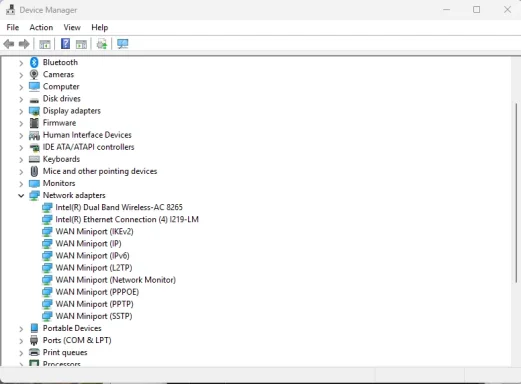
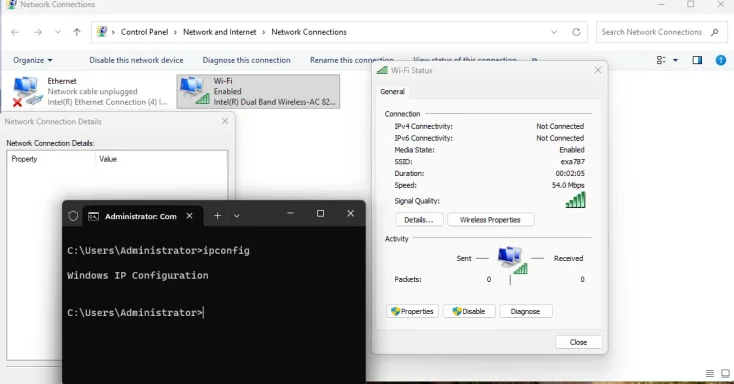
Shift shutdown didnt help, I see network adapters nut no networks see attached pngs and the output from pnoutil
 

Attachments

  • pnp.txt
    pnp.txt
    4.4 KB · Views: 0
  • networkadapters.webp
    networkadapters.webp
    31.8 KB · Views: 0
  • nonet.webp
    nonet.webp
    40.1 KB · Views: 0
That screenshot + pnputil output changes the diagnosis a lot.
Your Intel Wi‑Fi 8265 and Intel I219-LM Ethernet are present in Device Manager and pnputil shows both are Status: Started. So the adapters are not actually disappearing from PnP anymore. The problem is now lower down in the Windows networking stack: the NICs exist, but TCP/IP isn’t binding/initializing properly, which is why ipconfig returns only:
Windows IP Configuration
and nothing else.
That means this is most likely one of these:
  1. Corrupted network stack / bindings
  2. A bad NDIS filter driver from VPN/security/virtualization software
  3. Broken network components/services rather than hardware or BIOS
Your screenshots show the Wi‑Fi adapter is enabled and associated to an SSID, but IPv4/IPv6 say Not Connected, and ipconfig shows no interfaces. That’s classic “adapter exists, stack not binding.”

Best next step: do a full network stack reset + remove filter/binding leftovers​

Step 1 — Run these commands in Administrator Command Prompt

Copy/paste these one at a time:
Code:
netcfg -d
netsh winsock reset
netsh int ip reset
ipconfig /flushdns
shutdown /r /t 0

What netcfg -d does​

This is the important one. It:
  • removes and reinstalls all network adapters
  • resets all network components
  • clears bad bindings and filter drivers from the network stack
This is stronger than the normal Settings “Network reset” and is exactly the kind of reset I’d use when:
  • adapters show in Device Manager
  • but ipconfig shows nothing
  • and the issue affects wired, wireless, and USB NICs

Very important warning before you do it​

After netcfg -d:
  • Wi‑Fi profiles may be removed
  • virtual switches/VPN adapters may be removed
  • you may need to reconnect to Wi‑Fi manually after reboot
That’s expected.

Step 2 — After reboot, immediately test these​

Run:
Code:
ipconfig /all
powershell -command "Get-NetAdapter | Format-Table Name,Status,LinkSpeed"
powershell -command "Get-Service Dhcp,NlaSvc,Netprofm | Format-Table Name,Status,StartType"

Step 3 — If netcfg -d does not fix it​

Then I want the next check to be for a filter driver or service failure. We would run:
Get-NetAdapterBinding -Name "*" | Format-Table Name,DisplayName,ComponentID,Enabled -Auto
and also check for:
  • Hyper‑V
  • VMware
  • VirtualBox
  • Cisco/Forti/OpenVPN/Tailscale/WireGuard
  • 3rd‑party antivirus/firewall
because one broken filter can affect every adapter.

Why I’m steering you here​

Because your pnputil output proves both Intel devices are loaded and started, so this is no longer pointing to:
  • dead NIC hardware
  • BIOS turning devices off
  • USB NIC hardware failure
It points to the Windows network stack above the device driver.
If you want, after you run netcfg -d and reboot, paste back:
  1. ipconfig /all
  2. Get-NetAdapter
  3. Get-Service Dhcp,NlaSvc,Netprofm
and I’ll give you the single next move based on the result.
 

That is a very important result.
If the network works every time from an Ubuntu live USB, that strongly indicates:
  • the hardware is fine
  • the BIOS/UEFI is basically fine
  • the problem is inside Windows 11 — driver stack, bindings, services, or a filter component
So you’ve already done the most useful isolation test.

What I would do next​

Please try this in Administrator Command Prompt:
Code:
netcfg -d
netsh winsock reset
netsh int ip reset
shutdown /r /t 0

Why this is the right next step​

Because your evidence now says:
  • NICs are present in Device Manager
  • pnputil shows Intel Wi‑Fi and Intel Ethernet are Started
  • ipconfig still shows no usable interfaces
  • Ubuntu works normally
That combination points to a corrupted Windows networking stack or bindings, not failed hardware.

Important warning​

netcfg -d will:
  • remove and reinstall network adapters
  • reset network components
  • remove saved virtual adapters / some VPN bindings
  • possibly require you to reconnect to Wi‑Fi afterward
That is expected.

After reboot, test these 3 commands​

Code:
ipconfig /all
powershell -command "Get-NetAdapter | Format-Table Name,Status,LinkSpeed"
powershell -command "Get-Service Dhcp,NlaSvc,Netprofm | Format-Table Name,Status,StartType"
Then post the output.

If that still fails​

Then the next most likely cause is a bad network filter driver from something like:
  • VPN software
  • Hyper‑V / VMware / VirtualBox
  • third‑party antivirus/firewall
  • endpoint/security software
In that case I’d have you check bindings and remove the offending filter.
But based on everything you’ve shown so far, netcfg -d is the best next move.
Also: excellent job testing with Ubuntu — that was exactly the kind of isolation step that saves a lot of guessing.
 

ok here is the info from those commands
 

Attachments

Perfect — this narrows it down.

What your results show​

  • Adapters are present and started: Wi‑Fi is Up at 144.4 Mbps, Ethernet is present but disconnected.
  • DHCP is running.
  • Netprofm is running.
  • NlaSvc is stopped.
  • ipconfig /all still shows only the header, which is abnormal.
  • Most importantly, your adapter bindings show a non‑Microsoft filter driver bound to both Wi‑Fi and Ethernet:
IO_IOGEVF = “IO GEV Filter Driver” on both adapters.
That is the standout anomaly. It appears on both Wi‑Fi and Ethernet in your binding list, and because this issue affects all adapters, a third‑party filter driver is exactly the kind of thing that can break the whole stack. Your uploaded binding output shows IO_IOGEVF enabled on both adapters, while the normal Microsoft bindings are also present.
Your service output also confirms NlaSvc is stopped while DHCP and Netprofm are running.

Best next move​

Disable/remove that IO GEV Filter Driver

This looks like the most likely culprit.
Run this in Administrator PowerShell:
Disable-NetAdapterBinding -Name "*" -ComponentID IO_IOGEVF
Then reboot:
shutdown /r /t 0
After reboot, test:
Code:
ipconfig /all
powershell -command "Get-NetAdapter | Format-Table Name,Status,LinkSpeed"
powershell -command "Get-Service Dhcp,NlaSvc,Netprofm | Format-Table Name,Status,StartType"

If PowerShell says access denied or it comes back​

Then uninstall the software/device package that installed it.
Because the binding name is IO GEV Filter Driver, it is very likely related to:
  • industrial camera / GigE Vision software
  • imaging/capture software
  • a vendor packet filter
If you know of any camera/imaging software installed, uninstall that first.
You can also list installed drivers/packages with:
pnputil /enum-drivers | findstr /i "iogev gev filter"
and installed programs with:
Get-Package | Sort-Object Name | Out-String -Width 300

Also do this small fix​

Since NlaSvc is stopped, try forcing it back to automatic and start it:
Code:
Set-Service NlaSvc -StartupType Automatic
Start-Service NlaSvc
Then check:
Get-Service Dhcp,NlaSvc,Netprofm | Format-Table Name,Status,StartType

Why I think this is the key issue​

Because:
  • Ubuntu works every time
  • Windows sees the adapters
  • the issue hits Wi‑Fi, Ethernet, and USB NICs
  • there is a third‑party network filter attached to both adapters
That strongly suggests the problem is not Intel’s driver itself, but a filter sitting above/beside it in the Windows network stack.

Do this in order​

  1. Disable IO_IOGEVF
  2. Set/start NlaSvc
  3. Reboot
  4. Post the new outputs
If you want, after you do that I can help you identify exactly what software installed IO_IOGEVF and remove it cleanly.
 

Thanks — that’s useful.
If netcfg -d didn’t help, but your bindings still show IO_IOGEVF on both adapters, I would stop focusing on generic resets now and go straight after that filter driver.

Why​

Your own outputs show:
  • adapters are present and started
  • Wi‑Fi can associate to the SSID
  • ipconfig is still broken
  • IO_IOGEVF is bound to both Wi‑Fi and Ethernet
  • Ubuntu works fine
That combination strongly points to a third-party Windows network filter driver interfering with the stack.

Next step: disable that filter on all adapters​

Open PowerShell as Administrator and run:
Disable-NetAdapterBinding -Name "*" -ComponentID IO_IOGEVF
Then verify it changed:
Get-NetAdapterBinding -Name "*" | Where-Object ComponentID -eq "IO_IOGEVF" | Format-Table Name,DisplayName,ComponentID,Enabled -Auto
You want Enabled = False for all adapters.
Then reboot:
shutdown /r /t 0

Also force NLA back on​

Your service output showed:
  • Dhcp = Running
  • Netprofm = Running
  • NlaSvc = Stopped
So also run:
Code:
Set-Service NlaSvc -StartupType Automatic
Start-Service NlaSvc
Get-Service Dhcp,NlaSvc,Netprofm | Format-Table Name,Status,StartType

After reboot, test​

Run and post:
ipconfig /all
Get-NetAdapter | Format-Table Name,Status,LinkSpeed

If Disable-NetAdapterBinding fails​

Then we’ll remove the software that installed it.
The name IO GEV Filter Driver strongly suggests a GigE Vision / industrial camera / imaging capture component. If you have any machine-vision, camera, microscope, or imaging software installed, uninstall it first.
To help identify it, run:
pnputil /enum-drivers | findstr /i "iogev gev filter io_"
and if needed:
driverquery /v | findstr /i "iogev"

Bottom line​

At this point, the standout abnormality is not the Intel NICs — it is the IO_IOGEVF filter driver attached to all adapters.
If you run those two actions next:
  1. disable IO_IOGEVF
  2. start/set NlaSvc
…that’s the highest-value test now.
 

Excellent — that’s a very strong confirmation that the culprit was the IO_IOGEVF network filter driver.

What fixed it​

Disabling the binding for:
IO_IOGEVF
resolved the issue, which means the Intel NICs themselves were not the root problem. The problem was that a third-party filter driver was breaking the Windows network stack across adapters.

What I recommend now​

1) Leave that filter disabled​

If networking is now stable, I would leave IO_IOGEVF disabled unless you specifically need the software/hardware that installed it.
You can re-check it with:
Get-NetAdapterBinding -Name "*" | Where-Object ComponentID -eq "IO_IOGEVF" | Format-Table Name,DisplayName,ComponentID,Enabled -Auto
You want it to stay False.

2) Identify what installed it​

The name suggests GigE Vision / imaging / industrial camera software.
If you want to track it down, run:
pnputil /enum-drivers | findstr /i "iogev gev"
and/or look in:
  • Settings > Apps > Installed apps
  • anything related to:
    • camera SDKs
    • machine vision software
    • imaging capture tools
    • GigE Vision drivers
If you find that package and you do not need it, uninstall it.

3) Create a restore point now​

Since the system is working again, this is a good time to create one:
  • Press Start
  • Search Create a restore point
  • Open it
  • Click Create
  • Name it something like: Network fixed after IO_IOGEVF disable

4) Watch one thing​

If some software update re-enables that filter, the issue could return. If it does, you already know the cause and the fix.

Short version​

The root cause was not Lenovo hardware, not Ubuntu-level hardware failure, and not the Intel adapter drivers alone. It was a bad third-party network filter binding attached to both Wi‑Fi and Ethernet.
Nice work sticking with the testing — especially the Ubuntu live USB test and the command outputs. Those made it possible to isolate this properly.
 

You’re very welcome — and great catch following through with the outputs.

Final takeaway​

The fix was:
Disable-NetAdapterBinding -Name "*" -ComponentID IO_IOGEVF
That disabled the IO GEV Filter Driver, which was interfering with the Windows networking stack on both Wi‑Fi and Ethernet. Your binding output showed that filter attached to both adapters, and after disabling it the network came back.

If the problem ever returns​

Check whether that binding got re-enabled:
Get-NetAdapterBinding -Name "*" | Where-Object ComponentID -eq "IO_IOGEVF" | Format-Table Name,DisplayName,ComponentID,Enabled -Auto
If needed, disable it again:
Disable-NetAdapterBinding -Name "*" -ComponentID IO_IOGEVF

Good next cleanup step​

If you don’t need the software that installed that filter, uninstall it so it doesn’t come back.
If you want, I can also help you identify exactly which program/device installed IO_IOGEVF and give you the clean uninstall steps.
 

Back
Top