

Microsoft is using a fresh list of more than 15 productivity features in the new Outlook for Windows, highlighted in early June 2026, to persuade classic Outlook users that the web-based replacement is finally ready for daily use. The pitch is not subtle: pinning, snoozing, Sweep, scheduled sending, calendar refinements, themes, and keyboard-shortcut choices are being framed as reasons to move now. But the real story is not that new Outlook has gained a respectable set of convenience features. It is that Microsoft is still trying to sell catch-up work as momentum while the users most likely to resist are measuring the app against two decades of muscle memory, performance expectations, add-in dependencies, and administrative control.
The new Outlook for Windows has always suffered from a branding problem that is also a product problem. Microsoft calls it Outlook, but for many classic Outlook users it still feels like Outlook on the web wearing a desktop badge. That distinction matters because Outlook is not just another inbox for a huge slice of the Windows world; it is a workflow engine, a filing cabinet, a calendar broker, a compliance surface, and in some offices, the nearest thing to an operating system inside the operating system.
That is why Microsoft’s latest list of productivity features lands awkwardly. Pinning an email to the top of the inbox is useful. Snoozing a message until later in the day is useful. Sweep rules, scheduled sending, folder sharing, calendar filters, RSVP follow-up, meeting recaps, and dark mode are all useful. Nobody should pretend these are bad additions.
The problem is that usefulness is not the same as sufficiency. A feature list can make new Outlook look competitive in a comparison table, but it does not answer the question classic Outlook users are actually asking: will this thing let me work faster, with fewer surprises, under the constraints my job already has?
Microsoft’s June pitch is therefore less a victory lap than a status report. It says the company has heard some of the complaints and is filling in gaps. It does not prove that the new Outlook has crossed the line from acceptable for many users to trustworthy for the holdouts.
For regular consumers and light business users, the new Outlook’s pitch is easier to understand. The app looks cleaner, it aligns more closely with Outlook.com and Microsoft 365 web experiences, it offers modern inbox triage tools, and it gives Microsoft one codebase direction rather than several aging Windows clients. If your email life is mostly reading, replying, searching, scheduling, and occasionally filing, the new Outlook may already be good enough.
But the classic Outlook audience is not merely checking mail. These users often rely on PST files, complex mailbox setups, delegated calendars, COM add-ins, custom forms, local workflows, offline behavior, advanced rules, and years of learned shortcuts. For them, Outlook is less a modern app than a sedimentary workplace tool: layers of behavior, plugins, habits, and exceptions accumulated over time.
That is why “you can choose your shortcut style” is a revealing feature. It is a small concession to muscle memory, and it signals that Microsoft knows the migration problem is not only technical. The company is trying to make the new app feel less alien. But keyboard shortcuts are the surface layer of familiarity, not its foundation.
Snooze is another sensible addition. Classic Outlook can approximate deferred attention through follow-up flags and reminders, but the new Outlook’s snooze model is more natural for users who think in terms of hiding a message until it becomes actionable. It is a consumer-friendly pattern, but it also has business value: fewer visible distractions, fewer accidental neglects, and a cleaner division between “not now” and “done.”
Sweep is more complicated. It is powerful because it lets users apply broad cleanup behavior to senders and recurring messages. It also reflects Microsoft’s webmail DNA, where inbox management is automated, opinionated, and server-centric. For people drowning in newsletters, notifications, and automated reports, Sweep is a real productivity win.
Schedule Send, meanwhile, is in the odd position of being both genuinely useful and hard to celebrate. Delayed delivery has existed in classic Outlook in various forms for ages, and scheduled sending is table stakes in modern mail clients. Microsoft can fairly say the new Outlook has it. It cannot fairly expect classic users to treat its presence as a reason to migrate.
The same applies to categories. Multiple categories, colors, and category management are important, especially for people who use Outlook as a lightweight task-management system. But categories are also an area where parity matters more than novelty. If a user has years of color-coded process in classic Outlook, the new app has to preserve confidence, not merely advertise the concept.
The company is touting saved calendar views, attendee-list filtering, better tracking, meeting recap access, event-detail hiding, non-consecutive date selection, automapped calendars, and the ability to edit the current event in a recurring series without disturbing past meetings. These are not cosmetic improvements. They address the reality that calendar work is messy, social, and full of edge cases.
The RSVP follow-up feature is particularly telling. In the Microsoft 365 era, the meeting is no longer just a time slot. It can be a Teams recording, a transcript, a recap, a chat thread, a Loop component, and a set of follow-up actions. New Outlook is being built for that world, where email and calendar are front ends to a broader collaboration graph.
That gives Microsoft a strong strategic argument. Classic Outlook was designed for the age of Exchange mailboxes and desktop Office integration. New Outlook is being shaped around cloud services, Copilot, Teams, Loop, and web-first Microsoft 365 behavior. If the future of work is a cloud substrate with multiple clients attached, Microsoft would rather not keep dragging a Win32-era Outlook architecture behind it forever.
But calendars are also where “almost there” is dangerous. Users may forgive a missing theme or an awkward right-click menu. They are less forgiving when delegate access, shared calendars, recurring meetings, or mailbox automapping behaves differently than expected. In Outlook, reliability is a feature.
For users, however, architecture shows up as feel. Does the message open instantly? Does the app behave predictably after a network hiccup? Does it work well with multiple accounts and shared mailboxes? Does it preserve drafts? Does search feel local and immediate or distant and negotiated? Does the notification-to-message path feel native or sluggish?
The complaint that new Outlook is slower than classic Outlook is not merely a preference for old software. Classic Outlook is heavy, but it is also a mature desktop application with decades of optimization around the way business users actually hammer it all day. New Outlook can look cleaner and still feel worse if every interaction carries a little more latency.
That is why the Windows Latest framing — Microsoft is “begging” holdouts — resonates. The company is not merely announcing features; it is trying to overcome accumulated skepticism. Each month of improvements helps, but each user who clicks a notification and waits too long for a message reinforces the old complaint: this may be modern, but it is not yet better.
Microsoft has made progress on shared mailboxes, folder search, calendars, and everyday productivity. The issue is that classic Outlook did not become entrenched because it was elegant. It became entrenched because it was dependable enough in enough bizarre office scenarios that organizations built processes around it. New Outlook has to earn that kind of boring confidence.
A company does not move a deadline like that if the migration is frictionless. Microsoft can describe the change as giving organizations time to prepare, and that is partly true. Large tenants need time to inventory add-ins, test shared mailbox workflows, update training material, configure policies, and handle executives who will notice immediately if their calendar muscle memory breaks.
But the delay also functions as an implicit admission that new Outlook is not yet universally safe to impose. That does not mean it is unusable. It means the tail of enterprise scenarios remains long, and Microsoft knows the backlash from forcing a not-quite-ready client would be worse than the embarrassment of waiting.
For sysadmins, the distinction between “available” and “default” is everything. A voluntary new Outlook rollout can be piloted, segmented, reversed, and explained. A forced migration turns every missing feature and performance complaint into a help desk ticket with an executive sponsor.
This is where Microsoft’s productivity pitch runs into the administrative reality. Pin and Snooze are end-user features. Migration readiness is an organizational property. The people deciding whether a tenant should lean into new Outlook are not only asking whether users can pin messages; they are asking whether legal, compliance, shared mailbox, delegation, offline, add-in, and support workflows survive contact with the new client.
The company wants a client that can ship web-paced features, light up Copilot experiences quickly, integrate with Teams and Loop, and present a consistent interface across platforms. The classic Outlook codebase is powerful, but it is also a monument to an earlier era of desktop software. Every year Microsoft keeps it at the center of Windows productivity is another year of supporting old assumptions about local state, plugins, and client-specific behavior.
The new Outlook also gives Microsoft a cleaner path for consumer Windows. Mail and Calendar are gone as the old default lightweight clients, and the new Outlook is positioned as the unified inbox for Outlook.com, Gmail, Yahoo, and other accounts. For a Windows user who never bought Office and only needs a modern mail app, that makes sense.
The friction appears when Microsoft applies the same product gravity to power users and enterprises. A web-first client can be the right future and still be the wrong forced present. Microsoft’s challenge is that it needs adoption to justify the new platform, but it needs quality and parity to earn adoption from the people who matter most.
That is the trap. The more Microsoft pressures classic users, the more every missing feature becomes evidence that the company values consolidation over customers. The more Microsoft waits, the longer it carries the cost and complexity of two Outlooks. The June feature push is an attempt to thread that needle by saying: look, the gap is closing.
Classic Outlook users often define productivity differently. For them, productivity is not needing to think about the tool. It is pressing the same shortcut they have pressed for 12 years and getting the same result. It is trusting that a rule behaves the same way tomorrow. It is opening a shared mailbox without wondering whether this particular edge case has been implemented yet.
This is why Microsoft’s emphasis on shortcut flexibility is smarter than it first appears. Keyboard shortcuts are not a marquee feature, but they are an emotional bridge. They tell users Microsoft understands that workflows live in fingers as much as in menus.
Still, shortcut compatibility cannot carry the migration alone. Outlook’s power-user identity comes from depth: rules, views, add-ins, archives, offline work, mailbox management, and integration with the rest of Office. New Outlook has to win not by proving it can do 15 useful things, but by proving it will not break the 50 invisible things a user does before lunch.
There is also a trust penalty from Microsoft’s broader Windows behavior. Users have grown accustomed to toggles, nudges, banners, defaults, and “try the new experience” prompts that feel less like invitations than rehearsals for inevitability. Outlook sits squarely in that pattern. Even when Microsoft is right about the destination, its migration style can make users suspicious of the journey.
That is part of Microsoft’s case for replacement. The classic client solves many advanced problems, but it also carries the burden of old design decisions. A cleaner, service-backed Outlook could reduce some classes of support pain, especially for users whose needs fit the modern Microsoft 365 model.
The new Outlook’s customization improvements are not trivial either. Themes, dark mode, account renaming, density choices, and modern settings matter because software used all day should not feel hostile. Classic Outlook’s personalization story has never been its strongest asset.
Microsoft is also right that some features are simply better in the new model. Pinning and snoozing are clearer than old flag-and-reminder improvisations. Sweep is easier than building equivalent cleanup routines manually. Meeting recaps make more sense when the client is tightly integrated with cloud recordings and transcripts.
The mistake would be assuming that those advantages automatically outweigh the losses. Classic Outlook’s messiness is part of why it can accommodate messy organizations. New Outlook’s simplification must not become a euphemism for “the edge cases are not ready yet.”
For those environments, Microsoft does not need perfection. It needs a migration that is boring. The app has to launch quickly enough, open messages reliably, support the mailbox configurations people actually use, preserve calendar trust, and offer admins enough policy control to avoid chaos. If the new Outlook becomes boring, the debate changes.
Right now, Microsoft is still in persuasion mode because the product is not boring enough for everyone. The company is adding features at a steady pace, but the reputational lag is real. Users remember early versions that felt incomplete. Admins remember missing capabilities. Power users remember being told a replacement was coming before it felt ready.
This is the danger of shipping a new client into public perception too early. Every improvement after that is judged not just on its own merits, but against the memory of the first bad impression. Microsoft can close feature gaps faster than it can repair trust.
The March 2027 enterprise timeline gives the company a year to make the new Outlook less interesting in the best possible way. That means fewer “new productivity features” headlines and more quiet wins: faster load times, stronger offline behavior, cleaner migrations, better add-in support, more predictable shared mailbox handling, and fewer reasons for admins to build exception lists.
The message is simple: new Outlook is no longer the thin replacement you remember. It can pin, snooze, categorize, sweep, schedule, share folders more easily, personalize its interface, handle more calendar workflows, and preserve some shortcut habits. It is improving quickly, and Microsoft wants the conversation to move from “not ready” to “ready enough.”
That may work for consumers and many business users. It may even work for organizations that have relatively standard Microsoft 365 setups and limited reliance on classic-only behaviors. The new Outlook is no longer merely a preview curiosity; it is a serious client with a growing set of mainstream capabilities.
But Microsoft’s own timeline undercuts any claim that the debate is settled. If the product were plainly ready for enterprise standardization, the company would not have needed to give large customers another year. The delay is not fatal to new Outlook’s prospects, but it is the clearest evidence that Microsoft still has work to do.
The endgame is obvious. Classic Outlook will eventually become the exception, then the legacy option, then the thing only certain licenses or timelines preserve. Microsoft’s task is to make that transition feel like a modernization rather than a downgrade. The June feature bundle is a step in that direction, but it is not the finish line.
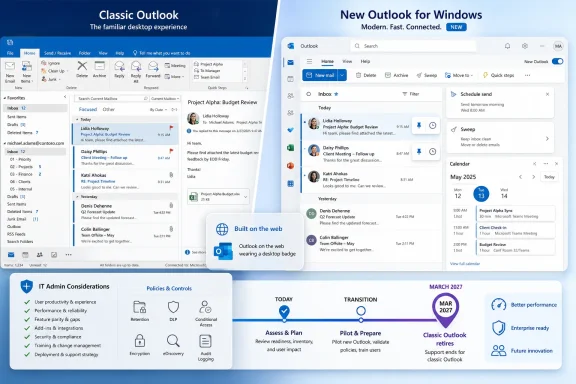 Microsoft Is Selling Progress Because It Cannot Yet Sell Trust
The new Outlook for Windows has always suffered from a branding problem that is also a product problem. Microsoft calls it Outlook, but for many classic Outlook users it still feels like Outlook on the web wearing a desktop badge. That distinction matters because Outlook is not just another inbox for a huge slice of the Windows world; it is a workflow engine, a filing cabinet, a calendar broker, a compliance surface, and in some offices, the nearest thing to an operating system inside the operating system.That is why Microsoft’s latest list of productivity features lands awkwardly. Pinning an email to the top of the inbox is useful. Snoozing a message until later in the day is useful. Sweep rules, scheduled sending, folder sharing, calendar filters, RSVP follow-up, meeting recaps, and dark mode are all useful. Nobody should pretend these are bad additions.
The problem is that usefulness is not the same as sufficiency. A feature list can make new Outlook look competitive in a comparison table, but it does not answer the question classic Outlook users are actually asking: will this thing let me work faster, with fewer surprises, under the constraints my job already has?
Microsoft’s June pitch is therefore less a victory lap than a status report. It says the company has heard some of the complaints and is filling in gaps. It does not prove that the new Outlook has crossed the line from acceptable for many users to trustworthy for the holdouts.
The Holdouts Are Not Confused About Pinning
There is a temptation in Redmond, and occasionally in tech coverage, to treat resistance to new Outlook as nostalgia. That misunderstands the audience. Classic Outlook holdouts are not refusing to switch because they have never seen a pin button before. They are refusing because classic Outlook, for all its clutter and age, remains fast, dense, scriptable, familiar, and deeply embedded in enterprise routines.For regular consumers and light business users, the new Outlook’s pitch is easier to understand. The app looks cleaner, it aligns more closely with Outlook.com and Microsoft 365 web experiences, it offers modern inbox triage tools, and it gives Microsoft one codebase direction rather than several aging Windows clients. If your email life is mostly reading, replying, searching, scheduling, and occasionally filing, the new Outlook may already be good enough.
But the classic Outlook audience is not merely checking mail. These users often rely on PST files, complex mailbox setups, delegated calendars, COM add-ins, custom forms, local workflows, offline behavior, advanced rules, and years of learned shortcuts. For them, Outlook is less a modern app than a sedimentary workplace tool: layers of behavior, plugins, habits, and exceptions accumulated over time.
That is why “you can choose your shortcut style” is a revealing feature. It is a small concession to muscle memory, and it signals that Microsoft knows the migration problem is not only technical. The company is trying to make the new app feel less alien. But keyboard shortcuts are the surface layer of familiarity, not its foundation.
New Outlook’s Best Features Are Also Its Admission of Debt
Pin is the cleanest example of a new Outlook feature that genuinely improves the everyday inbox. Classic Outlook users have long improvised around important messages with flags, categories, search folders, folders, or simply leaving items unread. Pinning brings the lightweight “keep this visible” behavior that many modern email clients already normalized.Snooze is another sensible addition. Classic Outlook can approximate deferred attention through follow-up flags and reminders, but the new Outlook’s snooze model is more natural for users who think in terms of hiding a message until it becomes actionable. It is a consumer-friendly pattern, but it also has business value: fewer visible distractions, fewer accidental neglects, and a cleaner division between “not now” and “done.”
Sweep is more complicated. It is powerful because it lets users apply broad cleanup behavior to senders and recurring messages. It also reflects Microsoft’s webmail DNA, where inbox management is automated, opinionated, and server-centric. For people drowning in newsletters, notifications, and automated reports, Sweep is a real productivity win.
Schedule Send, meanwhile, is in the odd position of being both genuinely useful and hard to celebrate. Delayed delivery has existed in classic Outlook in various forms for ages, and scheduled sending is table stakes in modern mail clients. Microsoft can fairly say the new Outlook has it. It cannot fairly expect classic users to treat its presence as a reason to migrate.
The same applies to categories. Multiple categories, colors, and category management are important, especially for people who use Outlook as a lightweight task-management system. But categories are also an area where parity matters more than novelty. If a user has years of color-coded process in classic Outlook, the new app has to preserve confidence, not merely advertise the concept.
Calendar Polish Does Not Erase Calendar Anxiety
Outlook’s calendar is where many migrations succeed or fail. Mail is personal until it breaks; calendars become organizational the moment a missed invite, broken delegate view, hidden attendee, or malformed recurrence causes a meeting to go sideways. Microsoft’s new calendar features are therefore important, but they also invite sharper scrutiny.The company is touting saved calendar views, attendee-list filtering, better tracking, meeting recap access, event-detail hiding, non-consecutive date selection, automapped calendars, and the ability to edit the current event in a recurring series without disturbing past meetings. These are not cosmetic improvements. They address the reality that calendar work is messy, social, and full of edge cases.
The RSVP follow-up feature is particularly telling. In the Microsoft 365 era, the meeting is no longer just a time slot. It can be a Teams recording, a transcript, a recap, a chat thread, a Loop component, and a set of follow-up actions. New Outlook is being built for that world, where email and calendar are front ends to a broader collaboration graph.
That gives Microsoft a strong strategic argument. Classic Outlook was designed for the age of Exchange mailboxes and desktop Office integration. New Outlook is being shaped around cloud services, Copilot, Teams, Loop, and web-first Microsoft 365 behavior. If the future of work is a cloud substrate with multiple clients attached, Microsoft would rather not keep dragging a Win32-era Outlook architecture behind it forever.
But calendars are also where “almost there” is dangerous. Users may forgive a missing theme or an awkward right-click menu. They are less forgiving when delegate access, shared calendars, recurring meetings, or mailbox automapping behaves differently than expected. In Outlook, reliability is a feature.
The Web App Question Still Haunts the Desktop
New Outlook’s central controversy remains its architecture. The app is closely tied to Outlook on the web, and that gives Microsoft enormous advantages: faster feature deployment, consistent interface patterns, easier service integration, and a path toward reducing duplicated engineering across Windows, Mac, and web experiences. It is the kind of move that makes strategic sense inside a company trying to align Microsoft 365 around cloud services and AI.For users, however, architecture shows up as feel. Does the message open instantly? Does the app behave predictably after a network hiccup? Does it work well with multiple accounts and shared mailboxes? Does it preserve drafts? Does search feel local and immediate or distant and negotiated? Does the notification-to-message path feel native or sluggish?
The complaint that new Outlook is slower than classic Outlook is not merely a preference for old software. Classic Outlook is heavy, but it is also a mature desktop application with decades of optimization around the way business users actually hammer it all day. New Outlook can look cleaner and still feel worse if every interaction carries a little more latency.
That is why the Windows Latest framing — Microsoft is “begging” holdouts — resonates. The company is not merely announcing features; it is trying to overcome accumulated skepticism. Each month of improvements helps, but each user who clicks a notification and waits too long for a message reinforces the old complaint: this may be modern, but it is not yet better.
Microsoft has made progress on shared mailboxes, folder search, calendars, and everyday productivity. The issue is that classic Outlook did not become entrenched because it was elegant. It became entrenched because it was dependable enough in enough bizarre office scenarios that organizations built processes around it. New Outlook has to earn that kind of boring confidence.
Enterprise IT Heard the Delay Louder Than the Feature List
The most important Outlook news this year may not be any single feature Microsoft added. It may be that Microsoft delayed the forced enterprise migration timeline, pushing the opt-out phase for Microsoft 365 Enterprise customers from April 2026 to March 2027. That delay says more than any marketing page.A company does not move a deadline like that if the migration is frictionless. Microsoft can describe the change as giving organizations time to prepare, and that is partly true. Large tenants need time to inventory add-ins, test shared mailbox workflows, update training material, configure policies, and handle executives who will notice immediately if their calendar muscle memory breaks.
But the delay also functions as an implicit admission that new Outlook is not yet universally safe to impose. That does not mean it is unusable. It means the tail of enterprise scenarios remains long, and Microsoft knows the backlash from forcing a not-quite-ready client would be worse than the embarrassment of waiting.
For sysadmins, the distinction between “available” and “default” is everything. A voluntary new Outlook rollout can be piloted, segmented, reversed, and explained. A forced migration turns every missing feature and performance complaint into a help desk ticket with an executive sponsor.
This is where Microsoft’s productivity pitch runs into the administrative reality. Pin and Snooze are end-user features. Migration readiness is an organizational property. The people deciding whether a tenant should lean into new Outlook are not only asking whether users can pin messages; they are asking whether legal, compliance, shared mailbox, delegation, offline, add-in, and support workflows survive contact with the new client.
Microsoft’s Strategy Is Rational, Even If the Rollout Feels Premature
It is easy to dunk on Microsoft for pushing new Outlook before it matches classic Outlook everywhere. It is also easy to understand why Microsoft is doing it. Maintaining classic Outlook indefinitely is expensive, strategically awkward, and increasingly misaligned with how Microsoft wants Microsoft 365 to work.The company wants a client that can ship web-paced features, light up Copilot experiences quickly, integrate with Teams and Loop, and present a consistent interface across platforms. The classic Outlook codebase is powerful, but it is also a monument to an earlier era of desktop software. Every year Microsoft keeps it at the center of Windows productivity is another year of supporting old assumptions about local state, plugins, and client-specific behavior.
The new Outlook also gives Microsoft a cleaner path for consumer Windows. Mail and Calendar are gone as the old default lightweight clients, and the new Outlook is positioned as the unified inbox for Outlook.com, Gmail, Yahoo, and other accounts. For a Windows user who never bought Office and only needs a modern mail app, that makes sense.
The friction appears when Microsoft applies the same product gravity to power users and enterprises. A web-first client can be the right future and still be the wrong forced present. Microsoft’s challenge is that it needs adoption to justify the new platform, but it needs quality and parity to earn adoption from the people who matter most.
That is the trap. The more Microsoft pressures classic users, the more every missing feature becomes evidence that the company values consolidation over customers. The more Microsoft waits, the longer it carries the cost and complexity of two Outlooks. The June feature push is an attempt to thread that needle by saying: look, the gap is closing.
“Productivity” Means Something Different to Power Users
Microsoft’s list leans heavily on visible productivity: fewer clicks, cleaner inboxes, faster triage, more personalization, better calendar views. That is productivity in the app-store sense, and it is not wrong. For many users, the ability to snooze a message, schedule a send, or save a calendar view really does reduce daily friction.Classic Outlook users often define productivity differently. For them, productivity is not needing to think about the tool. It is pressing the same shortcut they have pressed for 12 years and getting the same result. It is trusting that a rule behaves the same way tomorrow. It is opening a shared mailbox without wondering whether this particular edge case has been implemented yet.
This is why Microsoft’s emphasis on shortcut flexibility is smarter than it first appears. Keyboard shortcuts are not a marquee feature, but they are an emotional bridge. They tell users Microsoft understands that workflows live in fingers as much as in menus.
Still, shortcut compatibility cannot carry the migration alone. Outlook’s power-user identity comes from depth: rules, views, add-ins, archives, offline work, mailbox management, and integration with the rest of Office. New Outlook has to win not by proving it can do 15 useful things, but by proving it will not break the 50 invisible things a user does before lunch.
There is also a trust penalty from Microsoft’s broader Windows behavior. Users have grown accustomed to toggles, nudges, banners, defaults, and “try the new experience” prompts that feel less like invitations than rehearsals for inevitability. Outlook sits squarely in that pattern. Even when Microsoft is right about the destination, its migration style can make users suspicious of the journey.
The Classic Client Is Not a Saint
Classic Outlook deserves its defenders, but it should not be romanticized. It can be bloated, cranky, visually dated, and baffling to new users. Its option dialogs can feel like archeological sites. Its PST and profile problems have consumed untold hours of support labor. Its flexibility is often inseparable from its complexity.That is part of Microsoft’s case for replacement. The classic client solves many advanced problems, but it also carries the burden of old design decisions. A cleaner, service-backed Outlook could reduce some classes of support pain, especially for users whose needs fit the modern Microsoft 365 model.
The new Outlook’s customization improvements are not trivial either. Themes, dark mode, account renaming, density choices, and modern settings matter because software used all day should not feel hostile. Classic Outlook’s personalization story has never been its strongest asset.
Microsoft is also right that some features are simply better in the new model. Pinning and snoozing are clearer than old flag-and-reminder improvisations. Sweep is easier than building equivalent cleanup routines manually. Meeting recaps make more sense when the client is tightly integrated with cloud recordings and transcripts.
The mistake would be assuming that those advantages automatically outweigh the losses. Classic Outlook’s messiness is part of why it can accommodate messy organizations. New Outlook’s simplification must not become a euphemism for “the edge cases are not ready yet.”
The Real Migration Will Be Won in the Boring Middle
The future of Outlook will not be decided by the users who already switched happily or the die-hards who will run classic Outlook until Microsoft pries it from their taskbar. It will be decided in the boring middle: departments, small businesses, schools, nonprofits, and managed tenants where users are annoyed by change but not ideologically opposed to it.For those environments, Microsoft does not need perfection. It needs a migration that is boring. The app has to launch quickly enough, open messages reliably, support the mailbox configurations people actually use, preserve calendar trust, and offer admins enough policy control to avoid chaos. If the new Outlook becomes boring, the debate changes.
Right now, Microsoft is still in persuasion mode because the product is not boring enough for everyone. The company is adding features at a steady pace, but the reputational lag is real. Users remember early versions that felt incomplete. Admins remember missing capabilities. Power users remember being told a replacement was coming before it felt ready.
This is the danger of shipping a new client into public perception too early. Every improvement after that is judged not just on its own merits, but against the memory of the first bad impression. Microsoft can close feature gaps faster than it can repair trust.
The March 2027 enterprise timeline gives the company a year to make the new Outlook less interesting in the best possible way. That means fewer “new productivity features” headlines and more quiet wins: faster load times, stronger offline behavior, cleaner migrations, better add-in support, more predictable shared mailbox handling, and fewer reasons for admins to build exception lists.
The June Feature Pitch Reveals the Shape of the Endgame
Microsoft’s list of 15-plus productivity features is not really aimed at the most entrenched classic Outlook power users. Those users already know what they are missing, what they distrust, and what would have to change. The list is aimed at everyone around them: managers, lighter users, IT decision-makers, and organizations trying to decide whether resistance is still rational.The message is simple: new Outlook is no longer the thin replacement you remember. It can pin, snooze, categorize, sweep, schedule, share folders more easily, personalize its interface, handle more calendar workflows, and preserve some shortcut habits. It is improving quickly, and Microsoft wants the conversation to move from “not ready” to “ready enough.”
That may work for consumers and many business users. It may even work for organizations that have relatively standard Microsoft 365 setups and limited reliance on classic-only behaviors. The new Outlook is no longer merely a preview curiosity; it is a serious client with a growing set of mainstream capabilities.
But Microsoft’s own timeline undercuts any claim that the debate is settled. If the product were plainly ready for enterprise standardization, the company would not have needed to give large customers another year. The delay is not fatal to new Outlook’s prospects, but it is the clearest evidence that Microsoft still has work to do.
The endgame is obvious. Classic Outlook will eventually become the exception, then the legacy option, then the thing only certain licenses or timelines preserve. Microsoft’s task is to make that transition feel like a modernization rather than a downgrade. The June feature bundle is a step in that direction, but it is not the finish line.
The New Outlook Bargain Is Getting Clearer
The practical lesson for Windows users and admins is not that everyone should switch immediately, or that everyone should refuse. It is that the new Outlook has entered the evaluation phase where blanket takes are less useful than scenario testing. The app is good enough for some workflows, still risky for others, and changing quickly enough that last year’s verdict may already be stale.- Users who mostly read, reply, search, schedule, and manage a normal inbox may find the new Outlook’s pinning, snoozing, Sweep, and personalization features genuinely worthwhile.
- Classic Outlook power users should test their real workflows rather than Microsoft’s marketing list, especially if they depend on advanced rules, add-ins, delegated access, local data files, or complex mailbox arrangements.
- Administrators should treat March 2027 as a planning deadline, not a distant abstraction, because pilots, training, policy decisions, and exception handling will take longer than the toggle itself.
- Microsoft’s productivity additions show meaningful progress, but many of them are parity work or modern equivalents of capabilities users already had in classic Outlook.
- The decisive improvements over the next year will be performance, reliability, offline behavior, shared mailbox handling, calendar trust, and administrative control rather than another round of eye-catching inbox tricks.
References
- Primary source: Windows Latest
Published: Sun, 07 Jun 2026 03:12:04 GMT
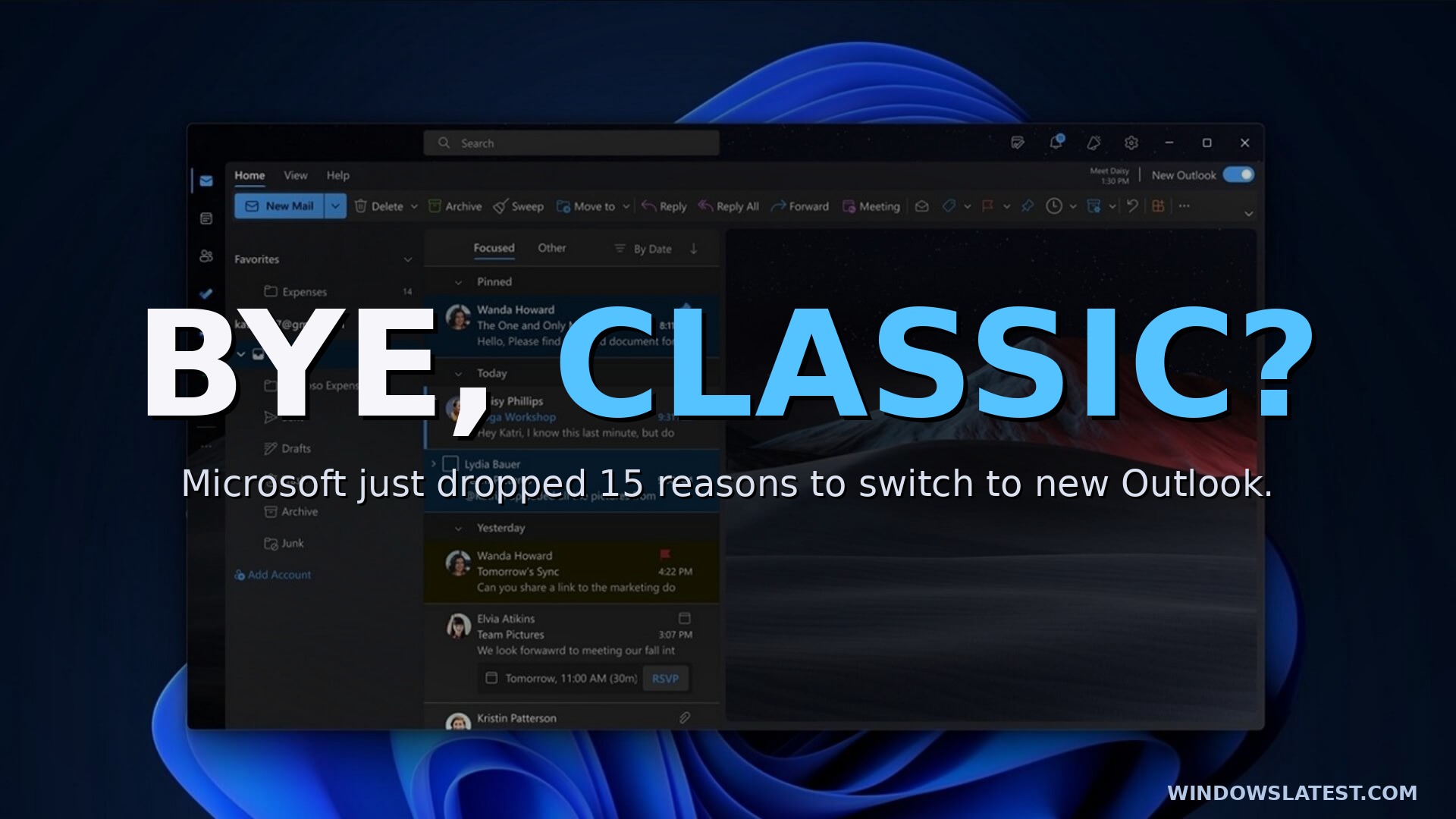
Microsoft is begging Classic Outlook holdouts to switch with 15 productivity features in new Outlook for Windows
Microsoft says the new Outlook for Windows (based on Outlook.com) has added over 15 productivity features, and it's the right time to switch. www.windowslatest.com
- Related coverage: windowscentral.com
- Official source: support.microsoft.com
Getting started with the new Outlook for Windows - Microsoft Support
Get started with the new Outlook for Windows by joining Office Insiders. You'll get a first look at the newest version of Outlook and you can give feedback to help improve it. support.microsoft.com
- Official source: microsoft.com
Microsoft 365 Roadmap | Microsoft 365
The Microsoft 365 Roadmap lists updates that are currently planned for applicable subscribers. Check here for more information on the status of new features and updates.www.microsoft.com
- Related coverage: office-watch.com

Microsoft Delays forced New Outlook to March 2027
Microsoft has given enterprise customers another 12 months before it starts forcing them into new Outlook for Windows. The opt-out phase was supposed to start noffice-watch.com
- Official source: adoption.microsoft.com
New Microsoft Outlook for Windows – Microsoft Adoption
The new Outlook brings the speed of our latest technology into the performance and reliability of a Windows desktop app to build a simple, powerful, and consistent experience in Windows that allows a faster and more agile way to deploy updates and fixes. adoption.microsoft.com
- Related coverage: techradar.com

Microsoft delays enterprise Outlook switchover to 2027
The opt-out phase for Enterprises to switch to new Outlook has been pushed back by a year as Microsoft continues to improve it.www.techradar.com
- Related coverage: betanews.com

Microsoft delays the rollout of new Outlook to enterprises
Enterprise users will no longer be automatically updated to the new Outlook next month as Microsoft planned. Instead, the company has decided to delay thebetanews.com
- Related coverage: pcworld.com

Microsoft extends support for the classic Outlook app again
The deadline has been pushed back to March 2027. www.pcworld.com
- Related coverage: drwindows.de
Loading…
www.drwindows.de - Related coverage: nubis365.com
- Official source: download.microsoft.com
- Official source: cdn-dynmedia-1.microsoft.com