

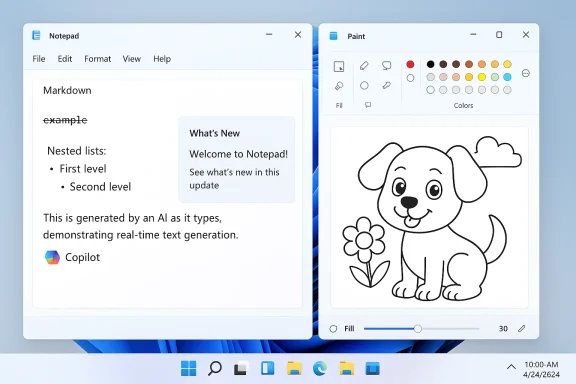
Microisoft has quietly expanded Notepad’s capabilities again, adding richer Markdown editing (including strikethrough and nested lists), a first-run “What’s New” welcome pane, and improved streaming for its AI writing features — updates appearing first to Windows Insiders in the Canary and Dev channels as Notepad version 11.2512.10.0 while a companion Paint update (version 11.2512.191.0) adds a Copilot-powered “Coloring book” generator and a fill‑tool tolerance slider.
Notepad’s evolution over the past few years has been deliberate and incremental. What was once the simplest bundled text editor in Windows has been modernized with tabbed documents, spell check, a formatting toolbar that renders Markdown, and AI actions like Write, Rewrite, and Summarize. Those earlier changes first surfaced in mid‑2025 when Microsoft began rolling out lightweight Markdown-style formatting continued as Microsoft tests additional Markdown parity and AI experiences. This latest Insider flight continues that trajectory: small, targeted improvements to Markdown features and AI responsiveness that aim to give everyday users look documentation and drafting tasks without turning Notepad into a full word processor or spreadsheet. Microsoft is using the Windows Insider program to stage these changes before a wider rollout.
Source: How-To Geek Windows Notepad is now a better Markdown text editor
 Background
Notepad’s evolution over the past few years has been deliberate and incremental. What was once the simplest bundled text editor in Windows has been modernized with tabbed documents, spell check, a formatting toolbar that renders Markdown, and AI actions like Write, Rewrite, and Summarize. Those earlier changes first surfaced in mid‑2025 when Microsoft began rolling out lightweight Markdown-style formatting continued as Microsoft tests additional Markdown parity and AI experiences. This latest Insider flight continues that trajectory: small, targeted improvements to Markdown features and AI responsiveness that aim to give everyday users look documentation and drafting tasks without turning Notepad into a full word processor or spreadsheet. Microsoft is using the Windows Insider program to stage these changes before a wider rollout. What’s new in Notepad (detailed)
Markdown fidelity — strikethrough and nested lists
Notepad’s “lightweight formatting” layer — the rendering mode that turns raw Markdown into formatted content — now recognizes additional Markdown constructs. Two of the most useful and frequently requested igh syntax (text) and nested lists* (multiple indentation levels using hyphens or numbers). These appear to be accessible via the formatting toolbar, keyboard shortcuts, or by typing raw Markdown directly. The aim is closer parity with the common expectations of Markdown users and note‑taking workflows. Why these matter: nested lists are core to outlines and task through is widely used in todo lists and editorial workflows. Adding them reduces friction when migrating snippets between Notepad and tools like Obsidian, Visual Studio Code, or Git repositories that expect standard Markdown markup. However, the feature remains a rendering/formatting layer* rather than an extension to Notepad’s underlying file semantics — the file remains plain text (Markdown) when formatting is turned off.First-run “What’s New” welcome experience
A small but practical UX change: Notepad will now show a short welcome dialog on first run after the update that highlights new features and points users to the megaphone icon in the toolbar to re-open the dialog later. This is a discoverability measure that helps long‑tail or casual users become aware of incremental updates without hunting release notes. The welcome pane is dismissible and can be reopened at any time.AI streamingarize get faster-feeling results
Notepad’s AI features — Write, Rewrite, and Summarize — have shifted from a blocking “spinner then full result” model to streaming output, where generated text starts to appear incrementally while the model continues producing the rest. That change reduces perceived latency, allows early in and feels more conversational. Microsoft explicitly notes that the streaming behavior applies whether the generation happens locally or in the cloud, though specific flows (for example, Rewrite) may stream only when running locally on Copilot+ devices. A Microsoft account is required to use these AI features. Important nuance: streaming behavior and the privatecy/peperformance tradeoffs depend on whether the generation is performed locally on Copilot+ hardware (on‑device models) or in the cloud. On-device runs tend to be lower-latency and keep data local; cloud runs may vary by network and server-side streaming support.Paint updates bundled with this flight
Paint is receiving two notable additions in the companion build 11.2512.191.0:- Coloring book — an AI-assisted generator that turns a text prompt into stylized, coloring‑book‑style illustrations using Copilot. This feature is currently gated to Copilot+ PCs and requires a Microsoft account to access.
- Filler — a practical enhancement that gives finer control over how aggressively the Fill tool applies color, improving both precision fills and creative effects. ([blogs.windows.com](Notepad and Paint updates begin rolling out to Windows Insiders reinforce the pattern of adding AI-powered creative primitives to inbox apps and, as with Notepad, show Microsoft testing features on Copilot-enabled hardware before a broader rollout.
How to access and use the new Notepad Markdown features (quick guide)
- Ensure you are running the Notepad build distributed to Insiders (Notepad 11.2512.10.0 for this flight) and that lightweight formatting is enabled in Notepad settings.
- Toggle the formatting view with the status-bar control or the View menu to switch between rendered Markdown and raw syntax.
- Use the formatting toolbar to apply bold, italic, strikethrough, list levels, or table insertion; or type the standard Markdown syntax directly (for nested lists, indent with tab or two spaces and use hyphens or numbers).
- For AI features, sign in with a Micros text (or place the cursor), and use the Copilot/AI menu to Write, Rewrite, or Summarize. Expect streaming text to appear as generation proceeds. If you are on a Copilot+ machine, some Rewrite streaming may execute locally.
Product comparison: Notepad vs. other free Markdown editors
Notepad’s enhancements make it a more competent lightweight Markdown editor, but it still s from specialized tools.- Visual Studio Code: full-featured Markdown ecosystem (live preview, extensions, integrated Git, code editing). Notepad is not a substitute for heavy editing or integrated development workflows.
- Notepad++ with Markdown++ plugin: lightweight and extensible for power users; Notepad’s built-in formatting is aimed at casual authors and those who want WYSIWYG Markdown rendering without extra extensions.
- Obsidian/Apple Notes/other note apps: feature-rich, plugin ecosystems, graph views, and synced vaults. Notepad is intentionally single‑file focused and offline‑friendly by design when formatting and AI are disabled.
Strengths: what Microsoft got right
- Plain-text preservation: Notepad content as Markdown (pipe-delimited tables, standard inline markers) when formatting is toggled off, preserving portability and VCS friendliness. This avoids proprietary file formats and aligns with expectations for plaintext tools.
- Low-friction UX: The formatting toolbar and visual insertion tools (tables, list controls) lower the barrier for non‑technical users who need formatted notes without learning Markdown syntax. The welcome pane improves feature discoverability.
- Hybrid AI approach: Streaming output and on-device model support for Copilot+ hardware reduce perceived latency and provide a path for keeping data local when hardware supports it. rformance and some privacy concerns for those devices.
Risks, limitations, and concerns
1) Feature creep vs. original simplicity
Notepad’s identity has always been simplicity and predictability. Adding formatting, tables, and AI—while optional—moves the app into a different design space. Users who value a tiny, dependency-free editor may find the default experience unfamiliar or overly complex despite toggle options. Multiple community threads and independent coverage emphasize this tension.2) Privacy and sign-in requirements
AI features require a Microsoft account to operate. Cloud-based generation sends data off-device unless explicitly run locally on Copilot+ hardware; organizations and privacy‑sensitive users must recognize that many AI flows default to cloud subject to server-side logging or policy controls. Microsoft’s documentation and announcements stress the sign-in requirement and the hybrid local/cloud model.3) Fragmentation: Copilot+ gating and hardware differences
Some capabilities stream only when run locally on Copilot+ certified machines; others might still require cloud backends. This creates a capability delta across devices that can confuse users and complicate enterprise management. Not all Windows devices will have the NPU and certification needed for on-device models.4) Enterprise implications and compliance
For regulated environments where plaintext editing must remain auditable and offline, the presence of AI and cloud‑backed features raises policy questions. Administrators should review management and group-policy options and consider controlling access to Copilot features or pinning older Notepad builds until compatibility and privacy concerns are addressed. Microsoft’s staged Insider approach gives admins time to test, but the company’s push to integrate AI widely means administrators will need actionable controls.5) Expectation vs. reality: Not a full Markdown IDE
Notepad’s table support and Markdown parity are intentionally lightweight: no formulas, sorting, pivot tables, or advanced Markdown plugin systems. Users expecting spreadsheet parity or developer-grade Markdown tooling will be disappointed; this is a convenience layer, not a replacement for VS Code, Obsidian, or Excel.Recommendations for different user groups
Power users and developers
- Continue using Visual Studio Code, Notepad++, or other full-featured editors for development and heavy Markdown workflows. Notepad is now a better quick-capture tool but still lacks advanced editing and extension ecosystems.
Casual note-takers and students
- Notepad now covers many everyday needs: quick outlines, small tables for checklists, and on-device AI assistance where available. Use the formatting toolbar for convenience and toggle to raw Markdown when sharing with developers.
Privacy-conscious users and enterprises
- Disable AI features via Notepad settings or manage access via organizational policies. Test the Copilot+ gating behavior and verify whether on-device inference meets your compliance requirements before enabling the cloud flows. Consider retaining older Notepad builds if strict offline behavior is required.
Admins and IT teams
- Monitor the Windows Insider blog and staged rollout notes to understand exactly which builds contain new behavior and when they are expected to reach the general channel.
- Use enterprise update rings and feature‑management tooling to stage or block Notepad updates until compatibility and policy checks are complete.
- Communicate with end users about sign‑in requirements and whether AI features are enabled by default in your environm
Accessibility, performance, and UX notes
- Accessibility: adding richer formatting invites additional testing to ensure screen readers and keyboard navigation handle formatted Markdown, tables, and streaming AI output gracefully. Microsoft’s blog posts and Insider notes do not deeply detail accessibility updates for these new controls; users who rely on assistive tech should test the new builds carefully. Flagged: this is an area where verification is incomplete.
- Performance: the addition of streaming and richer rendering will have measurable impacts on memory and CPU in constrained devices; however, on-device AI acceleration on Copilot+ hardware aims to mitigate latency. Users on older hardware should expect less responsive AI features and may prefer to keep formatting and AI disabled for raw performance.
What remains unclear or unverifiable
- Exact telemetry and data‑handling details for the AI flows (what Microsoft logs server-side, how prompts are stored or used for model improvement) are not exhaustively documented in the product announcement; organizations should consult Microsoft’s product privacy documentation and, if necessary, legal/compliance teams for a definitive interpretation. This point is flagged because the public release notes emphasize behavior but do not publish a full telemetry matrix for Copilot interactions. Treat this as a caution area pending direct policy documentation.
- Rollout cadence to general (non‑Insider) Windows 11 users: Microsoft’s staged deployment means calendar timelines vary; while the Insider builds show the intended direction and pack numbers, the exact consumer-release dates are fluid and should be tracked via official Windows update channels.
The strategic picture: why Microsoft is doing this
Notepad’s updates reflect a broader Microsoft strategy to modernize inbox apps and embed Copilot primitives across the Windows shell. The company benefits from keeping lightweight creation and quick-edit workflows inside the OS rather than forcing users to open separate apps or web services. The approach is pragmatic: provide convenience for most users while preserving plaintext portability for power users and developers — but the strategy carries tradeoffs in complexity, privacy control, and platform fragmentation.Conclusion
Notepad’s latest update tightens its role as a practical, Markdown-aware scratchpad that now supports strikethrough, nested lists, a helpful welcome pane, and improved streaming AI responses — all while preserving the plain-text foundation that made the app indispensable for decades. For many users, these changes reduce friction for everyday documentation and quick drafting. For power users, security teams, and privacy-conscious organizations, the release is a reminder to review settings, test the staged builds, and exercise policy controls around Copilot and cloud-based AI features. As always with staged Insider rollouts, the best approach is measured: try the new features where appropriate, flag any compliance concerns, and adopt the general release only after verifying behavior on your fleet and verifying the privacy/telemetry tradeoffs.Source: How-To Geek Windows Notepad is now a better Markdown text editor
