Notepad gains native tables and streaming AI in Insider preview

  • Thread Author
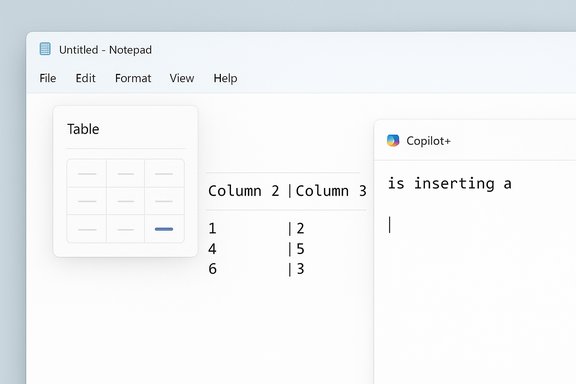
A Notepad-style window showing a Table tool and a Copilot+ panel.
Microsoft’s tiny text box just learned to hold rows and columns, and that change says a lot about where Windows is headed — Notepad 11.2510.6.0 now ships with native table insertion and a faster, streaming AI output experience in an Insider preview, but the move reignites a familiar debate: is feature creep quietly reshaping one of Windows’ simplest apps?

Background / Overview​

Notepad began as an austere utility: instant-launch, minimal UI, plain text. Over the last few years Microsoft has been adding carefully scoped capabilities — tabs, lightweight Markdown-style formatting, and experimental AI actions — nudging Notepad from a throwaway scratchpad toward a compact, Markdown-aware authoring surface. The latest Insider preview (Notepad version 11.2510.6.0) adds two headline features: native table support in the formatting toolbar and streaming results for the Write, Rewrite, and Summarize AI tools. The update is rolling out to Windows Insiders in the Canary and Dev Channels first. This article summarizes what’s changed, verifies the technical details announced in the preview, evaluates the user-facing trade-offs, and offers practical guidance for users and administrators. Key claims and release notes have been cross-checked against Microsoft’s Windows Insider announcement and independent coverage to ensure accuracy.

What’s new — the features explained​

Native table insertion (Markdown-first)​

  • Notepad now shows a Table option in the formatting toolbar when lightweight formatting is enabled.
  • You can insert a table visually by selecting the number of rows and columns from a grid, or create one by typing standard Markdown table syntax (pipe-delimited rows with a header separator).
  • Tables are editable in-place; a right-click context menu and the Table menu in the toolbar offer options to add or remove rows and columns.
  • Critically, tables are implemented as a formatting-layer convenience — the underlying document remains plain Markdown when formatting is turned off, preserving portability and readable diffs for version control.
This is explicitly not a spreadsheet engine: there are no formulas, sorting, pivoting, data validation, or merged-cell features. Microsoft’s intent — based on the release notes and early previews — is to remove friction for small, structured notes (meeting comparisons, readme snippets, quick checklists) without forcing a context switch to Word or Excel.

Streaming AI output (Write, Rewrite, Summarize)​

  • The Write, Rewrite, and Summarize actions now produce streaming results: partial output appears incrementally (word-by-word or token-by-token) as the model generates text, instead of waiting for a single completed block.
  • Streaming reduces perceived latency, provides early previews that users can act on sooner, and makes the interaction feel more conversational and iterative.
  • An important implementation nuance: streaming for the Rewrite action is limited to results generated locally on Copilot+ certified PCs at this time. Cloud-generated Rewrite results may not stream in the same low-latency way yet.
  • Use of these AI features requires signing in with a Microsoft account.

How it works — the technical details verified​

Notepad version and rollout​

Microsoft lists the update as Notepad (version 11.2510.6.0) and confirms the staged roll‑out to the Windows Insider program Canary and Dev Channels. This is the source of official implementation details and should be considered authoritative for the feature set currently in preview.

Table implementation: Markdown mapping​

Microsoft’s approach maps the table’s visual representation to underlying Markdown text (pipe-delimited rows and a header separator). Toggling formatting off reveals the raw Markdown, ensuring files remain portable between editors that understand Markdown. This design choice preserves Notepad’s historical role as a plain-text-friendly utility while adding a WYSIWYG convenience layer.

Streaming and Copilot+ on-device constraints​

Streaming behavior depends on where the model runs:
  • On Copilot+ certified devices (hardware equipped to run on‑device models), Rewrite can stream locally with reduced latency and lower cloud exposure.
  • Where models run in the cloud, streaming depends on server and network behavior; some flows may still deliver a single-block response rather than tokenized streaming.
  • All AI actions require Microsoft account sign-in; on-device execution can improve perceived privacy but is tightly coupled to device hardware and certification.

Use cases: where the new features make sense​

  • Quick comparisons or meeting notes where a two- or three-column layout improves readability.
  • README or documentation snippets embedded in Markdown where a visual table improves clarity while keeping source files plain text.
  • Short inventories or configuration mappings captured while troubleshooting.
  • Fast iterative edits where streaming AI previews speed up tone or length adjustments.
These scenarios benefit from reduced context switching: small, structured tasks that once required Word or Excel are now doable inside Notepad with fewer clicks. Community threads and early testers tend to agree that this is Notepad’s sweet spot.

Strengths — why Microsoft’s approach is sensible​

  • Markdown-first design preserves portability and version control friendliness, which matters to developers and writers who use plain text in repositories.
  • Low-friction table insertion removes small but frequent context switches, saving seconds that add up for heavy Notepad users.
  • Streaming AI improves responsiveness, making Write/Rewrite/Summarize feel more interactive and useful for rapid iteration.
  • On-device option for Copilot+ devices offers a lower-latency, privacy-friendly path for sensitive edits where hardware permits.

Risks and trade-offs — what to watch for​

  • Identity drift / feature creep: Notepad’s audience includes purists who prize instant launch and absolute simplicity. Each new UI control and cloud tie can feel like erosion of that promise. Community feedback shows vocal pushback from that cohort.
  • Expectations vs reality: Some users might assume tables act like a spreadsheet. Because Notepad intentionally lacks formulas and sorting, that mismatch will cause frustration if not clearly communicated in the UI.
  • Privacy and enterprise concerns: AI features require Microsoft account sign-in and, in many cases, cloud processing. Administrators need to evaluate telemetry, sign‑in policies, and DLP controls before enabling these features broadly. Local on-device Rewrite helps, but only on supported hardware.
  • Performance and battery: Streaming AI and on‑device models consume CPU/NPU resources and can affect thermals and battery life, particularly on thin laptops. Early feedback indicates users should test thermals for longer AI sessions.
  • Discoverability and accidental formatting: If formatting is enabled by default or tables are too discoverable, users who expect raw plaintext workflows could inadvertently create Markdown markup. Clear toggles and education are necessary.
Where claims are uncertain or evolving — for example, precise subscription gating around advanced AI features — treat those as subject to change and validate against Microsoft’s most recent commercial documentation before making long-term decisions. Early community posts sometimes conflate subscription requirements with availability, and those specifics can shift during preview and GA.

Practical guidance — how to try it, how to avoid surprises​

For curious users (step-by-step)​

  1. Join the Windows Insider Program and set your device to the Canary or Dev Channel.
  2. Update Windows and then update Notepad via the Microsoft Store to receive Notepad 11.2510.6.0.
  3. Enable Notepad’s lightweight formatting for a document to see the formatting toolbar.
  4. Click the Table icon and choose a grid size, or type Markdown table syntax and toggle formatting on to render it.
  5. Sign in with your Microsoft account to test Write, Rewrite, and Summarize and observe streaming behavior; note whether Rewrite is running locally (Copilot+) or via cloud.

For administrators​

  • Pilot the preview on a small fleet and document how Microsoft account sign‑in, telemetry, and on-device vs cloud model behavior interact with existing policies.
  • If privacy or DLP are strict requirements, block or restrict AI features until policies and controls are validated.
  • Communicate with users: explain the Markdown-first design and how to toggle formatting off to preserve plain text.

Quick rules of thumb​

  • Keep formatting off when you need pristine plain text.
  • Use Notepad tables for short, human-centric tables only; rely on Excel for numeric work.
  • Prefer on-device Rewrite on Copilot+ hardware for sensitive content when possible.

Community reaction and the nostalgia factor​

Early responses are mixed and predictable. Many users welcome the convenience of small tables and faster AI interactions; others view the additions as unnecessary bloat. The debate centers on identity: is Notepad a minimal scratchpad or a lightweight document surface that can safely absorb modest new capabilities?
Community threads show praise for the Markdown mapping and local-model streaming but also show a vocal faction that believes Notepad should remain unchanged. Microsoft’s choice to map visual tables to plain Markdown appears aimed at satisfying both camps, but the tension remains real and emotive.

Critical analysis — strengths, weaknesses, and the longer view​

Strengths (strategic)​

  • The Markdown-first table implementation is the right technical decision: it keeps files portable, readable in diffs, and friendly to developer workflows.
  • Streaming AI is a meaningful UX upgrade; tokenized output reduces perceived latency and improves iterative editing.
  • Offering local model streaming for Copilot+ hardware aligns with Microsoft’s hybrid strategy: better privacy and lower latency where hardware allows, with cloud fallbacks elsewhere.

Weaknesses (product and UX)​

  • The incremental feature model leaves Notepad somewhere between a scratchpad and a lightweight editor; that intermediate position satisfies fewer users at the extremes.
  • Discoverability and accidental formatting are practical UX risks that can be mitigated but require deliberate settings defaults and clear messaging.
  • The feature set depends on Microsoft account sign-in and hardware certification for best privacy outcomes, complicating adoption in privacy-sensitive or tightly managed corporate environments.

What Microsoft should watch next​

  • Default settings and discoverability: keep the path to raw plaintext obvious and frictionless.
  • Telemetry and policy controls for enterprises: provide admins clear toggles to opt out or manage AI features.
  • Performance telemetry: measure device thermals and battery impact on representative hardware, and adjust model sizes or throttles if needed.
  • Communication: explicitly state "not a spreadsheet" in UI affordances so users don’t assume spreadsheet-grade behavior.

Verdict — is this one feature too many?​

The table feature itself is not excessive when judged in isolation: it’s a small, well-scoped convenience with practical value for short-form notes and Markdown workflows. The bigger question is cumulative: how many conveniences can be added before Notepad’s identity changes in ways that matter to its core user base?
  • If you use Notepad dozens of times a day and often need tiny tables or rapid AI edits, this update is a net win: it reduces context switches and makes iterative editing faster.
  • If your priorities are instant launch, zero-sign-in, and pure offline text editing, the trend may be uncomfortable; the safe countermeasure is to keep formatting disabled and avoid AI features.
In short: the table feature is sensible and technically well-executed, but it sits inside a broader evolution that Microsoft must manage carefully to avoid alienating Notepad’s purists. The success of this trajectory will depend less on the individual feature and more on defaults, discoverability, and administrative controls.

Final recommendations and what to watch​

  • Try the Insider build if you’re curious, but test AI behavior and thermals before relying on it for daily workflows.
  • Keep formatting off if you want pure plaintext — Markdown persistence preserves portability.
  • For enterprises, pilot and document the Microsoft account and telemetry implications before enabling wide adoption.
  • Watch Microsoft’s feedback channels and subsequent release notes: staged Insiders rollouts often change defaults and behavior before broad availability, so what arrives in the Dev/Canary channels could be refined before general release.
Notepad’s table support and streaming AI are practical, measured additions that solve real friction points. The challenge ahead is not technical: it’s communicative and managerial. Microsoft can keep Notepad useful to modern workflows while preserving its classic identity — but only if the company balances added convenience with clear opt-outs, transparent defaults, and enterprise-friendly controls.

This article cross-checked Microsoft’s release notes and multiple independent community reports to verify the feature set, behavior, and rollout channels; where details were provisional (hardware certification specifics and subscription implications), the discussion flags those items as subject to change as the preview matures.
Source: TweakTown Notepad now lets you create tables, but is it one feature too many for this simple app?
 

Microsoft is quietly turning Notepad into something far more than a scratchpad: Windows Insiders are now seeing native table support and streaming AI results in Notepad version 11.2510.6.0, a small-but-significant update that extends Notepad’s lightweight Markdown formatting and underscores Microsoft’s push to fold AI into even the most venerable inbox apps.

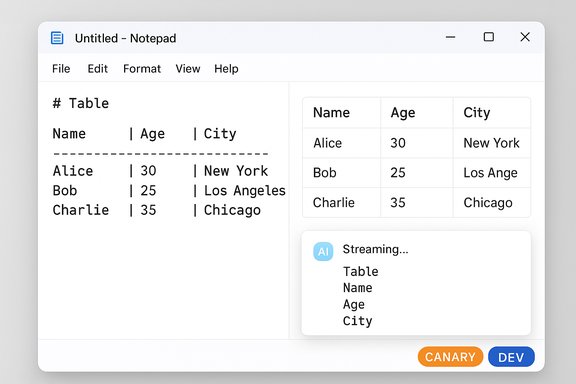
Notepad-style window showing an ASCII table on the left and a right-side data table with Name, Age, City.Background​

Notepad has historically been the poster child for minimalism on Windows — a near-instant, no-frills text box first shipped decades ago. In the last couple of years Microsoft has nudged that minimalism toward a richer, Markdown-first editing experience: tabs, spellcheck, a formatting toolbar with bold/italic/links/lists/headings, and AI actions such as Write, Rewrite, and Summarize. The 11.2510.6.0 Insider release continues that trajectory by adding two clear capabilities: visual table insertion and editing and streaming AI output for Notepad’s text-generation tools. This change is arriving first to the Canary and Dev channels for Windows Insiders so Microsoft can collect feedback before any broader rollout. The Insider announcement explicitly names the features and the Notepad version number, and it notes that the streaming behavior for some flows depends on whether results are produced locally on Copilot+ hardware.

What’s changed in Notepad 11.2510.6.0​

Tables: lightweight, Markdown-first grids​

Notepad now exposes a Table option in the formatting toolbar for documents using lightweight formatting, and it will render standard Markdown table syntax (pipe-delimited rows) as editable tables in formatted view. Users can insert a grid visually, then add or remove rows and columns from a toolbar or right-click context menu. If formatting is toggled off, the underlying content remains the original Markdown — human‑readable text that remains portable across other editors and version-control workflows. Key practical facts about Notepad tables:
  • They are implemented as a formatting layer on top of plain text (Markdown), not as a binary or proprietary container.
  • Tables are intended for small, structured notes (checklists, readme snippets, quick comparisons), not large datasets.
  • There is no spreadsheet functionality: expect no formulas, sorting, filtering, merged cells, pivot tables, or advanced data types.
Why this design matters: mapping the visual table editor to plain Markdown preserves Notepad’s portability. Files remain readable and diffs remain meaningful when stored in source control or opened in other Markdown-aware editors. That trade-off — visual convenience without sacrificing text-first portability — is clearly intentional.

Streaming AI: faster, incremental output​

Notepad’s built-in AI actions (Write, Rewrite, Summarize) previously produced results only after the model finished generating the entire response. The update introduces streaming results: partial output appears incrementally (token- or word-by-word) as the model generates it, reducing perceived latency and letting users see and react to content before generation completes. This is particularly helpful for iterative editing workflows where you want early visibility into an AI draft. Important operational nuance:
  • Rewrite streaming is currently limited to results generated locally on Copilot+ certified PCs (machines with an NPU and on-device model capability). Cloud-based flows may not stream in the same way yet. All AI actions require a signed-in Microsoft account.

Why Microsoft is doing this — the product logic​

At a surface level, the changes solve a small but real friction: people often use Notepad to jot short tables — meeting comparisons, configuration snippets, or quick CSV-like notes — and switching to Word or Excel breaks flow. By adding tiny table editing as a visual convenience mapped to Markdown, Notepad keeps quick structured content inside a familiar, lightweight app.
Strategically, the update also signals a broader Microsoft approach:
  • Make inbox apps more capable so users can complete more tasks without context switching.
  • Tighten integration between local device capabilities (Copilot+ on-device models) and cloud-powered AI.
  • Continue a design pattern where visual niceties (toolbar, WYSIWYG rendering) are underpinned by plain-text interoperability.
Those aims are defensible from a product perspective — but they expose tensions and trade-offs that matter to both everyday users and IT professionals.

Strengths: practical gains for everyday workflows​

  • Reduced context switching: Quick tables and faster AI reduce the need to open Word, Excel, or a web app for trivial structured tasks.
  • Markdown portability: Since the feature writes Markdown under the hood, files remain interoperable with other editors and repositories.
  • Perceived speed improvements: Streaming AI makes generative features feel more responsive and conversational, which can materially improve iterative editing.
  • Low-friction insertion: The visual Table grid in the toolbar is a simple affordance for users who don’t want to type Markdown manually.
  • On-device AI privacy/performance option: Copilot+ PCs can run Rewrite locally and stream results with lower latency and potentially better data locality, which helps privacy-sensitive scenarios.

Risks and downsides: what to watch for​

1. Perception of bloat and erosion of Notepad’s identity​

Long-time Notepad users value the app’s tiny footprint and predictability. Adding decorative or specialized features risks alienating users who rely on Notepad’s simplicity. Comment threads and early reactions already highlight frustration that the tool is drifting from its minimalist roots.

2. Fragmentation of basic editing tools​

Microsoft recently deprecated and removed WordPad from Windows 11, leaving fewer built-in choices between plain-text Notepad and full Word. At the same time Microsoft shipped a revived command-line editor (“Edit”) for terminal users — an explicit move toward both specialization and fragmentation: a feature-rich Notepad vs. a terse CLI tool. That split will force users to choose third-party apps more often or accept compromises.

3. Privacy and telemetry surface area​

AI features require a Microsoft account and, in many cases, cloud processing. Different flows behave differently: some tasks can run locally on Copilot+ hardware while others use cloud models. That hybrid model leaves room for confusion about what data is sent to Microsoft servers and what stays local. Administrators and privacy-conscious users should expect to ask precise questions about where content is processed and how logs/telemetry are handled.

4. Interoperability surprises​

Although tables are saved as Markdown, toggling formatting off reveals raw pipe-delimited text. That’s deliberate, but users who expect WYSIWYG fidelity across apps may be surprised when markup is shown or when pasting into non‑Markdown-aware destinations yields unexpected results. Likewise, copy/paste behavior into Excel or other rich editors will determine whether tables feel frictionless in real workflows. Early reports suggest Microsoft is intentionally preserving Markdown, but real-world interoperability will be judged by edge-case behavior.

5. Enterprise management and update surface​

Features rolling in via the Insider channel are a preview; enterprise admins must decide whether to allow these fast-changing builds on test devices. Notepad is an inbox app; that means its behavior can vary with Windows updates, and administrators should plan testing and policy controls accordingly. The presence of account requirements and cloud-based AI could further complicate group policies.

How to think about the change (practical guidance)​

If you use Notepad dozens of times a day for quick edits, the new features will feel like small wins if they’re implemented cleanly. If you use Notepad for scripting, config files, or plain-text engineering work, the Markdown-first approach is a net positive because it preserves repository-friendly text.
Actionable steps to manage the change:
  • Try the preview in a controlled environment (Insider Canary or Dev VM) before accepting it on production machines.
  • If you prefer pure plain text, look for the new formatting toggle in Notepad settings to keep files as raw text (the formatting layer is opt-in and can be disabled). Note: the ability to completely disable specific AI features may require policy controls or sign‑in restrictions.
  • If privacy matters, prefer Copilot+ on‑device flows where available (be mindful that only certain devices support this) or restrict account sign-in for Notepad on managed endpoints.
  • Evaluate the revived Edit CLI editor if you want a minimal, keyboard-first experience in the terminal — it’s open source, modeless, and intended as a lightweight built-in option for 64-bit Windows.

The broader context: WordPad gone, Edit arrives, Notepad grows up​

Microsoft’s product juggling is striking: WordPad — an RTF, lightweight rich-text editor bundled since Windows 95 — has been deprecated and removed from Windows 11 (the removal is listed among removed/deprecated features), which eliminates an intermediate built-in alternative for users wanting formatting but not full Office features. Microsoft’s guidance points users toward Word for rich documents and Notepad for plain text. That change steepens the importance of what Microsoft chooses to add to Notepad. Simultaneously, Microsoft revived a command-line, MS-DOS-inspired editor called Edit — an open-source, under‑250KB, modeless TUI editor that runs from the edit command. Edit is explicitly targeted at lightweight terminal workflows and will ship as part of Windows and is available from GitHub. This creates a dual approach:
  • A richer, Markdown-capable, AI-aware Notepad for quick GUI workflows.
  • A minimal, fast CLI editor for terminal-centric users who want a tiny, keyboard-driven tool.
The net effect is not uniform simplicity: instead the Windows toolchain is splitting into specialized islands, each optimized for different workflows — which is useful in some contexts but will feel fragmentary to others.

Technical verification and cross-checks​

The main technical claims in early coverage were explicitly confirmed in Microsoft’s Windows Insider Blog post announcing Notepad 11.2510.6.0: tables via the formatting toolbar and Markdown, streaming AI for Write/Rewrite/Summarize, Canary/Dev rollout, and the requirement for Microsoft account sign-in. On the removal of WordPad, Microsoft’s official documentation of removed features confirms WordPad will be removed starting in Windows 11, version 24H2 (and Windows Server 2025). That decision has been covered by multiple independent outlets and is reflected in Microsoft’s feature list. The new Edit command-line tool is documented on Microsoft’s developer blogs and Microsoft Learn as an open-source, modeless TUI editor; independent coverage and GitHub documentation reinforce the claim that Edit will ship via Insider previews and as part of Windows in upcoming releases. Caveat: some interpretive claims — for example, that “AI is now the primary focus of Redmond’s development plans” — are inferences based on product and marketing patterns (Copilot integration across Windows inbox apps, on-device model investments, and the proliferation of AI features). Those inferences are plausible and supported by visible investment patterns, but they are not a direct announcement of corporate strategy and should be treated as context and analysis rather than hard fact. Flagged as an interpretation rather than a Microsoft statement.

Practical examples and quick how‑tos​

  • Insert a table visually: enable Notepad’s lightweight formatting, click the Table button in the toolbar, and choose the number of rows/columns to insert. Use the right-click menu or Table menu to add/remove rows and columns. If you toggle formatting off, the table will be shown as Markdown pipes and header separators.
  • Create a table by typing Markdown: type a pipe-delimited header row and a separator row (e.g., | A | B | then |---|---|) — Notepad will render it as a visual table in formatted view.
  • Use AI Write/Rewrite/Summarize: select text or issue the command from the Notepad AI menu (requires Microsoft account). Streaming responses appear as the model generates, but note that some flows may only stream locally on systems with Copilot+ hardware.
  • Want raw text only? Look for the formatting toggle or disable formatting in Notepad settings to keep plain-text Markdown view as your default (this preserves raw pipe syntax instead of showing formatted tables). Behavior may evolve as the feature moves from Insider to general release.

Verdict: pragmatic convenience, inevitable trade-offs​

The Notepad table and streaming AI update is a pragmatic, low-risk way to make a frequently used inbox app slightly more capable. The engineering choice to implement tables as a Markdown formatting layer is smart: it preserves portability and avoids turning Notepad into a closed-format editor. Streaming AI, especially when supported locally on Copilot+ hardware, meaningfully improves responsiveness for basic generative tasks.
That said, the move intensifies a long-running tension: when do useful additions become feature creep? Microsoft has intentionally preserved options to keep classic plain-text workflows, but the apparent shift of functionality away from WordPad and into Notepad — coupled with increasing dependency on account sign-in and cloud/on-device model splits — raises real questions about user expectations, corporate telemetry, privacy, and enterprise management.
For typical users who want quick, readable notes with small tables and snappier AI drafts, Notepad’s new features are a win. For purists who expect Notepad to remain a bare-metal text tool, and for administrators who need predictable, off‑network behavior, the changes demand review, policy planning, and possibly alternative tooling.

Final takeaways (quick bullets)​

  • Notepad 11.2510.6.0 adds native table support (visual + Markdown) and streaming AI for Write/Rewrite/Summarize in Insider builds.
  • Tables are a formatting-layer convenience saved as Markdown; this is not a spreadsheet replacement.
  • Streaming for Rewrite may be limited to on-device (Copilot+) flows; AI features require sign-in.
  • WordPad has been deprecated/removed from Windows 11, increasing the significance of Notepad’s direction.
  • Microsoft also shipped Edit, a new minimalist, open-source CLI editor for terminal users — creating a two-pronged approach to lightweight text editing.
Notepad’s evolution is a useful case study in product trade-offs: incremental convenience and improved AI responsiveness versus the risk of diluting a tool’s original identity and increasing platform complexity. Users and administrators should test the Insider preview, validate policy and privacy settings, and choose whether these conveniences align with their workflows before accepting them as default.

Source: TechSpot Windows Notepad will soon support tables because why leave well enough alone
 

Back
Top