

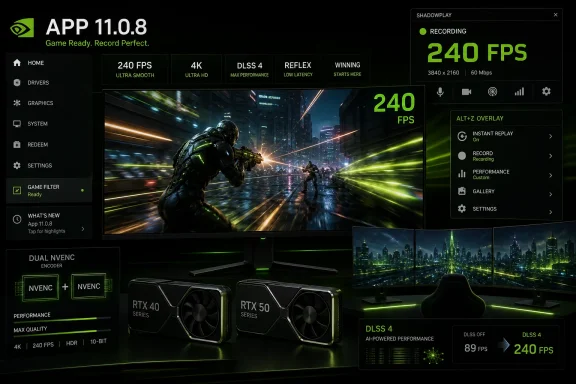
NVIDIA App 11.0.8 adds ShadowPlay recording at up to 240 frames per second for GeForce RTX 40- and RTX 50-series GPUs, bringing a beta-era capture option into the regular release. VideoCardz first reported the rollout, and NVIDIA’s release highlights confirm the feature and supported GPU families.
The headline figure has an important hardware caveat. According to NVIDIA, RTX cards with dual NVENC video encoders can capture at up to 4K and 240 FPS, while models with a single NVENC encoder top out at 1440p at 240 FPS. That makes the option most useful for competitive-game capture, frame-by-frame analysis, and producing slow-motion footage from high-refresh-rate gameplay.
Users can configure the new capture rate through the NVIDIA overlay: press Alt+Z, then open Settings > Video Capture. Recording at 240 FPS will naturally require substantial disk bandwidth and produce much larger files than conventional 60 FPS captures, so fast local storage is advisable.
The update also adds two NVIDIA Surround controls aimed at multi-monitor desktop setups. Under System > Displays > Surround, users can confine the Windows taskbar to one display and choose to maximize windows across all connected Surround displays. The changes should be welcome for users who want a triple-screen gaming layout without treating the entire desktop as one oversized workspace.
NVIDIA App 11.0.8 further expands DLSS Override support to 17 titles, including Active Matter, INDUSTRIA 2, MOUSE: P.I. For Hire, Neverness to Everness, PRAGMATA, Screamer, Sudden Strike 5, Twinmotion, and Windrose. The app’s optimal-settings profiles also gain support for games including Crimson Desert, Death Stranding 2: On the Beach, Marathon, Nioh 3, Resident Evil Requiem, and The Seven Deadly Sins: Origin.
RTX 40- and RTX 50-series owners can update NVIDIA App and check Alt+Z video settings to see which 240 FPS recording limits their specific GPU exposes.
The headline figure has an important hardware caveat. According to NVIDIA, RTX cards with dual NVENC video encoders can capture at up to 4K and 240 FPS, while models with a single NVENC encoder top out at 1440p at 240 FPS. That makes the option most useful for competitive-game capture, frame-by-frame analysis, and producing slow-motion footage from high-refresh-rate gameplay.
Users can configure the new capture rate through the NVIDIA overlay: press Alt+Z, then open Settings > Video Capture. Recording at 240 FPS will naturally require substantial disk bandwidth and produce much larger files than conventional 60 FPS captures, so fast local storage is advisable.
 Surround and DLSS changes
The update also adds two NVIDIA Surround controls aimed at multi-monitor desktop setups. Under System > Displays > Surround, users can confine the Windows taskbar to one display and choose to maximize windows across all connected Surround displays. The changes should be welcome for users who want a triple-screen gaming layout without treating the entire desktop as one oversized workspace.NVIDIA App 11.0.8 further expands DLSS Override support to 17 titles, including Active Matter, INDUSTRIA 2, MOUSE: P.I. For Hire, Neverness to Everness, PRAGMATA, Screamer, Sudden Strike 5, Twinmotion, and Windrose. The app’s optimal-settings profiles also gain support for games including Crimson Desert, Death Stranding 2: On the Beach, Marathon, Nioh 3, Resident Evil Requiem, and The Seven Deadly Sins: Origin.
One capture bug fixed
NVIDIA says the release fixes a ShadowPlay failure affecting games whose titles contain special characters, alongside unspecified general stability improvements. That fix may matter more than the new 240 FPS mode for users whose recordings have silently failed on affected titles.RTX 40- and RTX 50-series owners can update NVIDIA App and check Alt+Z video settings to see which 240 FPS recording limits their specific GPU exposes.
References
- Primary source: videocardz.com
Published: 2026-07-18T07:30:25+00:00
- Related coverage: nvidia.com
Shadowplay Is Now The New Share Overlay
ShadowPlay is now part of GeForce Experience 3.0 Share - learn more about its features and functionality in this handy guide.www.nvidia.com