It’s still possible in 2026 to download an official, unmodified Windows 10 ISO directly from Microsoft — and doing so safely matters more than ever now that Windows 10 has reached its formal end of support. This article explains the official direct‑download path, the simple browser workaround Windows users need on a Windows PC, when to use UUP Dump for more advanced or archival builds, and practical advice to verify and store ISOs so you can use them for installations, virtual machines, or long‑term archives without falling prey to tampered images or broken links.
Microsoft ended mainstream support for Windows 10 on October 14, 2025; after that date Home and Pro no longer receive routine security and feature updates unless you enroll in Extended Security Updates (ESU). Microsoft’s lifecycle announcements and support pages state this clearly and recommend migration to Windows 11 or ESU enrollment if you must keep Windows 10 in production. Because of Windows 10’s long life and its wide install base, many people still need original Windows 10 ISOs in 2026 — for legacy hardware that won’t run Windows 11, for virtual machines, for repair media, or simply as a known‑good archived image. The safest approach is to obtain the ISO from Microsoft or to build one from Microsoft’s update servers (UUP Dump). Community tools can help, but they must be used with caution and verification.
This guide covers three reliable methods:
Step‑by‑step (non‑Windows client or when ISO option is shown):
Why it works: Microsoft serves a different page depending on the detected client OS; a macOS/Linux or mobile agent yields the direct ISO interface, while a Windows agent is routed to the MCT. You are not breaking anything — you are simply selecting the alternate version of Microsoft’s own page. Multiple technical guides walk through this exact approach. Quick steps (Chromium browsers: Chrome / Edge / Opera):
Getting an official Windows 10 ISO in 2026 is straightforward if you follow safe procedures: prefer Microsoft’s own distribution, verify the file, and use UUP Dump only when you need a historic or specially composed image. Keep your ISO files hashed and archived, and remember that Windows 10’s public support window closed October 14, 2025 — ESU or migration should be part of your long‑term plan.
Source: How2shout How to Download Windows 10 ISO File in 2026 (Official, Safe & Direct Methods)
 Background / Overview
Microsoft ended mainstream support for Windows 10 on October 14, 2025; after that date Home and Pro no longer receive routine security and feature updates unless you enroll in Extended Security Updates (ESU). Microsoft’s lifecycle announcements and support pages state this clearly and recommend migration to Windows 11 or ESU enrollment if you must keep Windows 10 in production. Because of Windows 10’s long life and its wide install base, many people still need original Windows 10 ISOs in 2026 — for legacy hardware that won’t run Windows 11, for virtual machines, for repair media, or simply as a known‑good archived image. The safest approach is to obtain the ISO from Microsoft or to build one from Microsoft’s update servers (UUP Dump). Community tools can help, but they must be used with caution and verification.This guide covers three reliable methods:
- Official direct ISO download from Microsoft (the canonical source).
- Browser user‑agent emulation on a Windows PC (how to reveal the ISO download link).
- Building an ISO from Microsoft’s update packages with UUP Dump (for advanced needs and archived builds).
Why a direct ISO still matters in 2026
Short answer: control and safety. A raw ISO gives you:- A single, portable file you can mount, hash, and write to USB on your terms.
- A repeatable image for virtual machines, lab builds, and recovery media.
- A convenient archive when Microsoft phases out or alters download portals.
Overview of the official Microsoft ISO download route
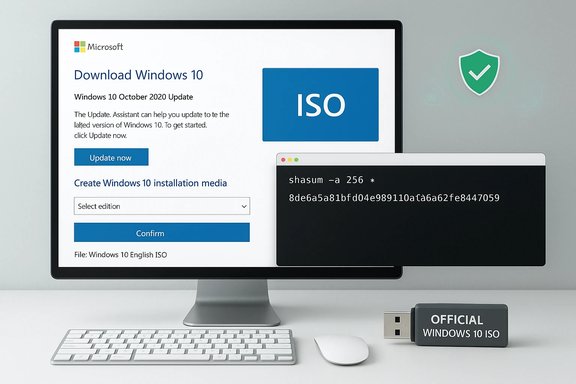
Microsoft provides a “Download Windows 10 Disk Image (ISO)” experience on their Software Download pages. On non‑Windows clients (macOS, Linux, iOS, Android) that page natively lists ISO download links; on Windows clients the site typically routes you toward the Media Creation Tool (MCT) by default. Both deliver official Microsoft ISOs — but the interface varies depending on the detected client. If you prefer a direct ISO file from Microsoft’s CDN, you have two safe options:- Use a non‑Windows device to visit the Microsoft download page and follow the guided ISO download.
- On a Windows PC, change your browser’s user‑agent or use developer tools to make Microsoft’s page present the ISO links. Multiple reputable guides document this behavior and the practical steps to reveal the ISO option.
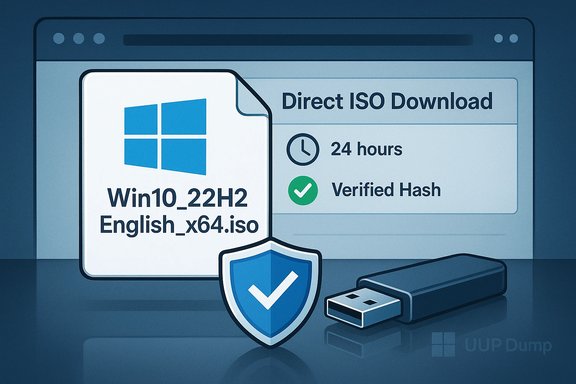
- The Microsoft download page generates tokenized download URLs that typically expire after about 24 hours. That means you must start the download within the validity window and save the ISO immediately. Community guidance and Microsoft answers confirm the 24‑hour behaviour.
- The multi‑edition ISO Microsoft provides usually contains Home, Pro, Education and Pro for Workstations. The edition you install is selected via product key or the installer prompt. Some specialized editions (Enterprise LTSC, volume‑licensed SKUs) are distributed through enterprise channels, not the public download page.
Method 1 — Official direct ISO from Microsoft (recommended for most users)
This is the canonical, safest method when you can access a non‑Windows device or successfully reveal the ISO link from Windows (see Method 2). The direct ISO is hosted on Microsoft’s content delivery network and is the identical image used by the Media Creation Tool.Step‑by‑step (non‑Windows client or when ISO option is shown):
- Open a browser on macOS, Linux, Android, or iOS and go to Microsoft’s Windows 10 download page.
- Under “Select edition” choose “Windows 10 (multi‑edition ISO)” and click Confirm.
- Pick the product language and click Confirm again.
- Choose the architecture (x64 is the correct choice for almost every modern system; x86 is only for very old 32‑bit hardware).
- Click the download button for your chosen architecture and save the ISO file.
- The ISO filename will follow Microsoft’s pattern (for example, Win10_22H2_English_x64.iso) and will be roughly 5–6 GB for multi‑edition x64 images (file size varies by build and included updates).
- Download speeds depend on your ISP and Microsoft’s CDN; if speeds are poor, retry during off‑peak hours.
- Start the download within the link’s validity window (about 24 hours). Once started, many reports indicate a download that began before expiration will continue to completion even if the token then expires. However, if the transfer aborts and you need to resume after expiry, the link will not resume — you’ll need to generate a fresh link.
- After download, compute a hash (SHA‑256) of the ISO and compare with any authoritative checksum if available; if Microsoft doesn’t publish a checksum for that ISO directly on the same page, use the download behavior (hosted on Microsoft servers) and scan the ISO locally. Verifying the hash removes the risk of tampered images. Be aware some community sites and scripts publish checksums for archival copies — treat those as secondary and prefer Microsoft‑published values where available.
Method 2 — How to get the direct ISO on a Windows PC (developer tools / user‑agent trick)
If you’re sitting at a Windows PC and Microsoft’s download page shows only the Media Creation Tool and not the direct ISO links, you can force the ISO experience by making the site think you’re browsing from a non‑Windows device. This is done by changing your browser’s user agent or using device emulation in Developer Tools.Why it works: Microsoft serves a different page depending on the detected client OS; a macOS/Linux or mobile agent yields the direct ISO interface, while a Windows agent is routed to the MCT. You are not breaking anything — you are simply selecting the alternate version of Microsoft’s own page. Multiple technical guides walk through this exact approach. Quick steps (Chromium browsers: Chrome / Edge / Opera):
- Open the Microsoft Windows 10 download page in your browser.
- Press F12 to open Developer Tools.
- Toggle the device toolbar (Ctrl+Shift+M or click the phone/tablet icon).
- In the device toolbar select a non‑Windows profile such as “iPad” or “iPhone”, or use the Network Conditions → User Agent menu to pick Safari (iPad) or an Android user agent.
- Refresh the page (F5). The ISO download interface should appear.
- Follow the edition → language → architecture flow and start the download. Keep Developer Tools open until the download is started to avoid reverting the user agent prematurely.
- Open Developer Tools (F12), then use Responsive Design Mode (Ctrl+Shift+M) and pick a non‑Windows device profile; refresh the page to expose the ISO download.
- Keep DevTools open while you generate and start the download; some users report the generated token is tied to the current session and user agent.
- Ad blockers, privacy extensions, or network blockers such as Pi‑Hole can interfere with the Microsoft page or its telemetry endpoints — if you encounter cryptic “unable to complete your request” messages, temporarily disable those filters and retry. Community troubleshooting threads report such cases.
- Never use third‑party mirrors that do not repoint to Microsoft’s servers unless you can verify the ISO’s hash. It’s always safer to download directly from Microsoft or to build from Microsoft update packages (UUP Dump) if you need a specific historic build.
Method 3 — UUP Dump: assemble an ISO from Windows Update packages (advanced / archival)
UUP Dump (uupdump.net) collects Windows Update Unified Update Platform (UUP) files from Microsoft’s update services and builds ISO images locally using scripts. Important distinctions:- UUP Dump does not host Windows binaries itself; it pulls the same files your Windows Update client would fetch from Microsoft and packages them into an ISO you can use.
- This method is ideal when you need older builds, specific cumulative updates baked into an ISO, or Insider preview images not published as ready ISOs on Microsoft’s public download page.
- On uupdump.net select the build and edition you want.
- The site generates a small ZIP package containing scripts and manifest lists.
- You run the platform‑specific script included (uup_download_windows.cmd on Windows, or the .sh variants on Linux/macOS) and the script downloads the required components from Microsoft and assembles an ISO locally.
- Access to a wider set of builds (older releases, Insider builds, or builds with particular cumulative updates).
- Ability to create a multi‑edition ISO with updates already integrated, saving post‑install patching.
- Reproducibility for IT workflows where a particular build level is required.
- The UUP Dump scripts download files from Microsoft servers, but the site itself is a third‑party aggregator that automates that process. The UUP Dump project maintains a public FAQ and a repository describing operations and safety practices; community reputations and independent reporting (Computerworld and other technical outlets) confirm the approach, but you should always fetch the ZIP from the official uupdump.net domain and inspect the script contents if you are security‑conscious.
- Running the scripts requires executing unsigned batch/shell scripts and using DISM/PowerShell operations. Some antivirus engines may flag the scripts as suspicious; this is commonly a false positive but you should review the script before running it and run in an isolated environment if unsure.
- Building from UUP takes longer than downloading a pre‑built ISO because the script fetches many small package files and then composes them into a single image. Expect 20–60 minutes depending on your connection and system speed.
- Visit uupdump.net and pick the target build.
- Choose language and edition, then select “Create download package” with “Download and convert to ISO.”
- Download the small ZIP, extract it, and run the included script for your OS.
- Wait while the script downloads files and assembles the ISO.
- Verify the resulting ISO (compute SHA‑256, run a malware scan).
Common practical issues and how to avoid them
1) Link expiration and resumable downloads
Microsoft’s generated ISO links are tokenized and typically expire after ~24 hours. Start the download within that window. Community guidance also notes that once a download is started before expiry it normally continues, but aborted transfers may not resume after expiry without regenerating a new link. Be prepared to use a download manager that supports partial‑download resumption while you’re within the token window.2) Large install.wim and FAT32 USB drives
Recent official ISOs may include an install.wim file larger than 4 GB; that can prevent copying the ISO contents to a FAT32 USB stick used by some UEFI firmware. Workarounds:- Use Rufus or Ventoy which can either write the ISO to NTFS on the USB and ensure UEFI bootability, or handle splitting as needed.
- Use DISM to split install.wim into multiple install.swm files that fit under 4 GB for FAT32 targets (DISM /Split‑Image), then copy the split files into the USB sources folder. Microsoft documents the DISM approach and community troubleshooting threads detail practical steps.
3) Verifying ISO integrity
Always compute a SHA‑256 hash of your downloaded ISO. If Microsoft publishes a checksum for that exact ISO build on an authoritative page, compare against it. If not, verify the ISO signature where possible and scan with a reputable AV. For UUP Dump‑built ISOs, double‑check the script and confirm the download sources are Microsoft hosts before trusting the final image.4) Avoid untrusted mirrors and torrents
Malicious actors have distributed repackaged Windows ISOs that include malware or backdoors. Always prefer Microsoft’s own servers or UUP Dump’s scripts that pull from Microsoft — and validate with hashes. News reporting and technical advisories repeatedly warn against third‑party repackaged images. Treat torrents or random file‑hosting mirrors with extreme caution.When to prefer each method
- Official Microsoft direct ISO: use this whenever you want the simplest, safest path to a current public build and you can access the Microsoft page from a non‑Windows device or via the developer‑tools user‑agent trick on Windows.
- Media Creation Tool: use this when you want a guided USB creation process and you’re on a supported Windows host — it’s simple and supported for most users.
- UUP Dump: use this when you need a specific older build, an ISO with particular updates baked in, or an image that Microsoft doesn’t offer as a prebuilt ISO (Insider previews, special archival builds). It’s a powerful tool for IT pros and archivists but requires some comfort with scripts and command line tools.
Realistic hardware and VM recommendations for Windows 10 in 2026
The original Windows 10 minimums remain trivial by modern standards, but for a usable system:- CPU: Dual‑core 2 GHz or better for general use; allocate 2–4 cores for VMs depending on workload.
- RAM: 4 GB for light tasks; 8 GB is comfortably usable for everyday workloads. For VMs plan 4–8 GB per instance.
- Storage: An SSD dramatically improves responsiveness; allocate 40–80 GB for a VM depending on what you’ll install.
- Graphics: Integrated GPUs from the last decade are fine for standard desktop tasks.
- Basic test VM: 2 cores, 4 GB RAM, 40 GB virtual disk.
- Development VM: 4 cores, 8 GB RAM, 80+ GB disk.
- Resource‑heavy workloads: roughly half of the host’s available cores and memory per VM as a starting point.
FAQs — short, authoritative answers
- Can I download the Windows 10 ISO without a product key? Yes; downloading and installing the ISO does not require a product key. Activation is separate and required only for a fully licensed system.
- Are Microsoft’s ISO download links free? Yes, Microsoft distributes ISO files for download free of charge; the license (product key) is what costs money.
- Will Windows 10 get security updates in 2026? Not by default. Windows 10 Home and Pro mainstream support ended October 14, 2025. Microsoft offered consumer ESU to extend security updates through October 13, 2026 under certain enrollment conditions; check Microsoft’s lifecycle pages for current enrollment mechanics.
- What’s the difference between Home and Pro inside the ISO? The multi‑edition ISO contains Home and Pro (and Education/Workstations variants) and the edition you install is determined by your key or installer choice. Pro includes BitLocker, Remote Desktop hosting, Hyper‑V and domain join features absent from Home.
- How long do Microsoft’s ISO links remain valid? The download links you generate on Microsoft’s site are time‑limited tokens that typically expire after about 24 hours; you must start your download within that window.
Final checklist before you download and archive an ISO
- Choose the source: prefer Microsoft’s Software Download page or UUP Dump’s script that pulls from Microsoft servers.
- If you’re on Windows and the ISO option is not visible, use the Developer Tools user‑agent trick to reveal it (keep DevTools open while initiating the download).
- Start the download within the token validity window (~24 hours). Use a reliable connection or a download manager that supports resuming within that period.
- After download, compute a SHA‑256 hash and scan the ISO with reputable AV. If possible, confirm the hash against an authoritative value. If you built the ISO with UUP Dump, read the included script and logs to confirm the Microsoft hosts used for downloads.
- If you’ll write the ISO to a FAT32 USB, be prepared to use DISM to split install.wim or use tools like Rufus/Ventoy that handle NTFS booting and large files.
- Keep at least one offline, hashed copy on archival storage (external drive or offline server) for recovery or lab use.
Critical analysis — strengths, blind spots, and risks
Strengths:- Microsoft’s official ISOs deliver known, untampered images from Microsoft’s CDNs — the gold standard for safety and trust.
- UUP Dump gives power users access to a broader set of builds and lets you produce ISOs with recent cumulative updates already integrated — a real time‑saver for lab and testing environments.
- Link expiry and session token behavior complicate downloads for very slow connections or unreliable networks; a failed partial download after the token expires often means starting over. Community troubleshooting threads repeatedly raise this issue.
- Some users rely on convenience tools or third‑party mirrors without verifying hashes, and attackers have used that trust gap to distribute compromised ISOs. Verify and prefer Microsoft‑originated files.
- UUP Dump requires running scripts and assembling files locally. While this pulls only from Microsoft servers, it demands more technical trust and due diligence; never run random scripts without inspection, and understand potential antivirus false positives.
- Always verify the downloaded ISO’s integrity and scan it with multiple detection engines when possible.
- Keep official ISOs archived in multiple locations (offline and cloud) with their hashes recorded.
- For production or enterprise usage, prefer enterprise licensing channels and volume licensing ISOs for images such as Enterprise and LTSC; public download pages won’t provide those SKUs.
Getting an official Windows 10 ISO in 2026 is straightforward if you follow safe procedures: prefer Microsoft’s own distribution, verify the file, and use UUP Dump only when you need a historic or specially composed image. Keep your ISO files hashed and archived, and remember that Windows 10’s public support window closed October 14, 2025 — ESU or migration should be part of your long‑term plan.
Source: How2shout How to Download Windows 10 ISO File in 2026 (Official, Safe & Direct Methods)