RemoveWindowsAI: Free PowerShell Tool to Disable Copilot and AI in Windows 11

  • Thread Author
Windows 11 users who want an AI-free desktop now have a community-made tool that goes well beyond the built‑in toggles: a free PowerShell script called RemoveWindowsAI can remove Copilot, Recall, and a broad set of Microsoft’s built‑in AI entry points, then attempt to stop Windows Update from reinstalling them. The script is presented as a one‑stop way to strip visible AI UI and services from a Windows 11 system, and it combines registry policy changes, Appx package removals, scheduled‑task cleanups and a servicing‑store “blocker” to make removals persist across updates — but that approach brings technical trade‑offs and support risks that every power user should weigh carefully.

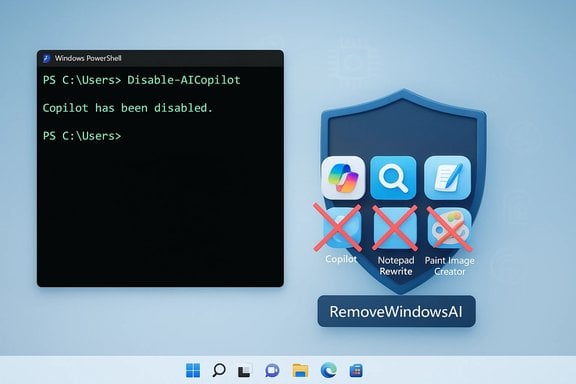
PowerShell shows Copilot disabled; shield with crossed-out app icons and RemoveWindowsAI button.Background​

Windows 11 has been steadily folding AI into the operating system. Copilot is surfaced in the taskbar, Settings, and several bundled apps such as Notepad and Paint. Other AI components — Recall (device activity and timeline indexing), voice effects and accessibility features, AI image generation and rewrite actions — are scattered across the OS. Microsoft exposes many of these individually in Settings and enterprise policy, but there is no single Microsoft‑supported global switch to fully opt out of every AI integration.
This absence of a single control has two consequences. First, per‑feature toggles can be inconsistent: some UI elements reappear and some packages are reinstalled after cumulative updates. Second, privacy‑minded or traditional desktop users who want a minimal, AI‑free environment must either accept Microsoft’s defaults or use third‑party measures. RemoveWindowsAI is one such community response: it aims to remove visible AI entry points and harden the system against automatic reinstalls.

Overview of RemoveWindowsAI​

What RemoveWindowsAI claims to do​

RemoveWindowsAI is a PowerShell script with an interactive UI and non‑interactive modes that offer granular control over which AI components to disable. The script’s advertised feature set includes:
  • Disabling Copilot UI and Copilot‑related registry keys and policies.
  • Removing the Recall feature and deleting Recall scheduled tasks and indices.
  • Removing or disabling Appx/MSIX packages that contain AI features (including some provisioned or “non‑removable” packages).
  • Installing a custom package into the Component‑Based Servicing (CBS) store to block Windows Update from reinstalling targeted AI packages.
  • Hiding “AI Components” entries in the Settings app and disabling AI affordances in apps (Notepad rewrite buttons, Paint Image Creator, Voice Access effects, etc..
  • Cleaning leftover files and registry keys associated with AI features.
  • Providing a backup mode and a revert mode to roll changes back (when backup is used at removal time).
The script is distributed publicly on a repository and an informational site; it is open source and explicitly targeted at users who want Windows to behave like a classical desktop OS rather than a continuously AI‑integrated platform.

How users run it​

RemoveWindowsAI is intended to run in Windows PowerShell 5.1 (the default Windows PowerShell that ships with Windows) and requires administrative privileges. The project notes that PowerShell 7 (PowerShell Core) is not supported and may cause issues. The script provides an interactive menu for selecting which categories to disable, and it can also be run with non‑interactive flags to apply all options or selected options in one command. A backup mode is available and recommended if users want the ability to revert changes later.

Technical deep dive: what the script changes and how​

Registry and policy modifications​

One of the script’s primary levers is registry‑based policy changes. It applies or sets registry keys and modifies policy files so that UI elements and feature flags are turned off. These registry operations affect, among other things:
  • Copilot enablement toggles
  • Recall indexing and history settings
  • Rewrite and inline AI actions surfaced in apps
  • Telemetry and input‑insights related flags
Registry changes are relatively low‑risk compared with binary patching because they rely on supported configuration surfaces, but they are only effective where Windows honors those keys. Microsoft’s servicing updates can and do change policy defaults or add new keys, so registry changes are not necessarily permanent across major feature upgrades.

Appx/MSIX package removal and CBS surgery​

RemoveWindowsAI does far more than flip registry switches. It also:
  • Uninstalls AI‑labeled Appx/MSIX packages, including packages marked “non‑removable” via normal Settings UI.
  • Attempts to remove hidden packages from the Component‑Based Servicing store (CBS), which is the low‑level Windows servicing inventory used during updates and provisioning.
  • Optionally purges installer artifacts, cached payloads and leftover files related to AI components.
The script’s ability to operate in the CBS store and to remove provisioned packages is what allows it to reach things that the Settings UI cannot. That power is helpful for persistence but is a double‑edged sword: modifying or blocking the servicing store can make future updates more complex and may create upgrade fragility.

Installer/blocker package to avoid reinstalls​

To avoid automatic reinstalls of removed AI packages, RemoveWindowsAI installs a custom package into the servicing store. The idea is simple and widely used by community tools: introduce an item into the system’s servicing inventory that prevents Windows Update from deciding that the original Microsoft package is “missing” and must be reinstalled.
This blocker approach provides durability across many cumulative updates, but it also intentionally alters the servicing inventory, which Windows Update assumes matches Microsoft’s expectations. That mismatch can later cause conflicts during a major feature update or when Microsoft modifies package manifests. The result can range from harmless warnings to failed updates that require repair or a system refresh.

Scheduled tasks, indices and hidden components​

Recall and other AI features often create scheduled tasks for background indexing, snapshotting or telemetry. RemoveWindowsAI searches for and removes these tasks, and it cleans local indices used by Recall. It also attempts to remove tasks and services associated with AI fabric or runtime components.
The script consolidates many low‑level cleanup steps that would otherwise require manual tracking and multiple tools.

Running RemoveWindowsAI: practical steps and precautions​

Minimum prerequisites​

  • Use a Windows 11 system (features targeted primarily at Windows 11 25H2 and later).
  • Open Windows PowerShell 5.1 as Administrator. Verify by running $PSVersionTable.PSVersion and ensuring the major/minor version is 5.1.
  • Temporarily disable or whitelist the script in third‑party antivirus if it flags the tool as malicious (community tools that alter system servicing often trigger false positives).
  • Create a full image backup or a restore point and, for enterprise use, test in a non‑production VM or test machine first.

Typical run flow​

  • Obtain the current install command from the project’s official page or repository (do not run random or copied commands from untrusted channels).
  • Paste and execute the command in the elevated PowerShell session.
  • Use the interactive menu to choose the components to disable, or run in non‑interactive mode with flags to target everything.
  • Optionally use the script’s backup mode to capture the current state so that reversion is possible.
  • Reboot only if the script prompts that a restart is necessary; many changes are visible immediately but some app‑level UI updates only appear after restarting the affected apps.

Reverting changes​

The project includes a revert mode, but it requires that removal was done with backup mode enabled. Even so, a reversion is not guaranteed to be perfect, especially if Windows Update or subsequent system changes have modified the servicing store or replaced packages.

Impact: benefits and use cases​

  • Single‑action control: For power users who want to disable a wide cross‑section of AI elements quickly, RemoveWindowsAI offers a consolidated, easy‑to‑use path.
  • Persistence across monthly updates: The script’s servicing‑store blocker and package removals reduce the frequency of AI features being reinstalled by routine cumulative updates.
  • Privacy and minimalism: Users who are privacy‑conscious or prefer a traditional, distraction‑free desktop can remove persistent prompts and UI elements tied to AI.
  • Community transparency: The project is open source and documented, which allows technical users to inspect what the script does before running it.

Risks, limitations and unknowns​

Update fragility and servicing conflicts​

Modifying the servicing inventory and installing blocker packages can create a state where Windows Update encounters unexpected package configurations. This is the biggest practical risk: future feature updates may be blocked, fail, or require more intrusive repair actions. In enterprise environments that rely on centralized update management, those conflicts can create remediation headaches.

Incomplete coverage and future changes​

Microsoft continues to add AI features across both stable and Insider channels. RemoveWindowsAI targets the stable channel and the set of features known at the time of each release. New AI features rolled out in later updates or preview builds may not be covered until the script is updated, and there is no guarantee the script will always keep pace with Microsoft’s additions.

False positives and security scanners​

Tools that modify low‑level servicing behavior, remove provisioned packages or change scheduled tasks often trigger antivirus engines and endpoint protection. The project author explicitly warns about false positives. Users may need to temporarily whitelist the script in AV software, which adds operational friction and a potential security consideration.

Supportability and warranty concerns​

Using community tools to alter the OS at this level is unsupported by Microsoft. While such modifications rarely void hardware warranties, they may complicate vendor support interactions and make remote troubleshooting harder. Corporations and managed endpoints should treat this as an unsupported customization unless approved by IT governance.

Potential for data loss​

Removing Recall or deleting local indices will destroy any stored history or timeline snapshots. If users later revert the changes, the previous history may be unrecoverable. Users should export or back up anything they wish to keep before running the script.

Not a “one‑click law” for security or privacy​

Disabling visible AI entry points does not necessarily neutralize all telemetry, cloud interactions or background services that might be related to broader Windows diagnostics. The script reduces the visible attack surface and telemetry vectors tied to specific AI features, but it is not a substitute for a full privacy or security hardening plan.

Best practices and mitigation strategies​

If you decide to try RemoveWindowsAI, follow these precautions to reduce risk:
  • Back up the entire system image to a reliable external storage device or snapshot the VM.
  • Test the script in a virtual machine or a non‑critical spare device first. Verify boots, updates and critical apps after removal.
  • Use the script’s backup mode when running removal so revert mode is available later.
  • Keep the original install command and the script version you ran. Record the system state (Windows build, installed updates) so you can troubleshoot or roll back.
  • Monitor the Windows Update history and ensure you can access a recovery environment if updates fail.
  • For enterprise deployments, run a pilot group and coordinate with patch management teams to assess update interactions.
  • If using third‑party AV, add a temporary exclusion for the script and then re‑enable protection afterwards.
  • Consider network‑level controls or enterprise policy for controlling Copilot and telemetry where possible before resorting to servicing store surgery.

Alternatives and the bigger picture​

RemoveWindowsAI is one of several community responses to Microsoft’s AI integration. Alternatives and complements include:
  • Using built‑in Settings and Group Policy controls where available to disable Copilot, Voice Access, or Recall selectively.
  • Enterprise management tools (MDM, Group Policy, Intune) that can suppress specific features on managed devices.
  • Other debloating and system‑tweaking tools that now offer modules for AI removal — some of these integrate RemoveWindowsAI or adopt similar techniques, while others limit themselves to safer registry toggles and optional feature removal.
  • Waiting for a first‑party Microsoft control: Microsoft has not provided a global opt‑out, and the lack of a single supported toggle is the primary reason many users turn to community tools.
From a platform perspective, the tension is clear: Microsoft is embedding AI across the OS to enable new capabilities, while a portion of users prefer a lighter, non‑AI experience. Community tools like RemoveWindowsAI reflect demand for user choice, but they also expose the technical and support limitations of ad‑hoc opt‑outs.

Final assessment​

RemoveWindowsAI is an unusually comprehensive community tool that addresses a real gap in Windows 11: the lack of a global, supported way to disable all AI features and prevent them from reappearing after updates. For privacy‑focused enthusiasts and advanced users who accept the risks and perform careful testing, the script can deliver the desired outcome: a Windows 11 environment with Copilot, Recall and related AI UI elements removed and guarded against routine reinstalls.
However, the same techniques that give the script durability — modifying the servicing store, forcibly removing provisioned packages and installing blocker packages — are what make it risky for broad or inexperienced deployment. These changes can introduce update fragility, support complications and potential incompatibilities with OEM customizations or future Windows feature upgrades. The detection of the script as suspicious by antivirus engines is another practical hurdle.
For readers who value stability and vendor support above a fully AI‑stripped UI, a safer approach is to use official Settings and enterprise policies where available and to closely monitor Microsoft’s guidance for disabling specific features. For those who prioritize control and are comfortable with backups, a VM testbed and careful use of the script’s backup/revert modes will reduce many of the operational hazards.
In short: RemoveWindowsAI is an effective community answer to a genuine user need, and it demonstrates that technical users can regain control over AI surface area in Windows 11. It is not, however, a risk‑free solution. The responsible path is to test, back up, and proceed only when the trade‑offs are fully understood.

Source: gHacks Technology News A Free Script Disables Built-In AI Features Across Windows 11 - gHacks Tech News
 

A new community tool called RemoveWindowsAI bundles a PowerShell script and GUI front end to remove or disable most of the AI surfaces Microsoft has layered into modern Windows 11 builds — including Copilot, Recall, Paint/Notepad AI bits, and related Appx/MSIX components — and it does so by combining registry/policy flips, Appx removals, scheduled‑task and data wipes, and optional edits to Windows’ Component‑Based Servicing (CBS) inventory intended to block automatic reinstallation.

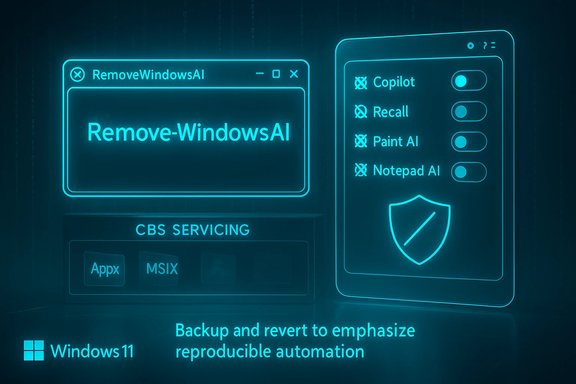
Neon blue Windows 11 UI showing RemoveWindowsAI with AI tools and backup automation.Background​

Microsoft has repositioned recent Windows 11 releases as an “AI PC” platform, shipping features such as Copilot (an integrated assistant), Recall (a local snapshot/timeline feature), and a growing set of AI Actions and generative tools inside built‑in apps like Paint and Notepad. Some of these surfaces are controlled by Settings and enterprise policies, but others are woven into the provisioning and servicing model that governs what Windows installs and re‑installs across accounts and updates. In that context, RemoveWindowsAI — authored under the GitHub handle zoicware and mirrored with a companion site — appeared as a community response: a single, scriptable workflow that automates the manual steps power users and admins have been using to opt out of these features. The project explicitly targets stable Windows 11 releases (25H2 and later, per the repo) and offers both backup and revert modes alongside a non‑interactive, scripted run for automation.

Overview: what RemoveWindowsAI promises​

The repository and project documentation list a layered approach. At a glance, the script can:
  • Flip registry keys and Group Policy/CSP equivalents to hide or block Copilot, Recall, Input Insights (typing telemetry), and AI Actions.
  • Remove Appx/MSIX packages from the current user and remove provisioned manifests so new user profiles don’t receive those packages.
  • Purge or neutralize hidden Component‑Based Servicing (CBS) store packages that normally survive user‑level uninstalls and may be re‑provisioned by Windows Update; optionally install a custom blocker package to try to prevent reinstall.
  • Delete scheduled tasks and local data used by Recall (snapshot indices and search artifacts).
  • Hide the “AI Components” settings page and disable UI nudges.
  • Offer GUI and non‑interactive CLI modes, plus a backup mode that enables a later revert operation (recovery is not guaranteed).
Independent hands‑on reporting and community tests have repeatedly verified that the script can remove or hide the visible Copilot/Recall UI and unprovision many AI Appx packages on the stable builds those reviewers tested. Those results vary depending on OEM customizations, installed updates, and whether the system is a Copilot‑enabled OEM image.

Technical anatomy — how the script works​

RemoveWindowsAI is best understood as an orchestration layer that combines several distinct technical operations. Each layer has a different risk and reversibility profile.

1. Registry and policy edits (least invasive)​

The script applies documented registry keys and Group Policy flips that hide UI elements and block activation paths for features such as Copilot, Recall, Input Insights and other AI gates. These edits are comparable to the supported toggles Microsoft documents and are generally reversible when values are backed up, but they can gate deeper component behavior and create inconsistent states if combined with more invasive removals.

2. Appx / MSIX package removal (moderate risk)​

Using standard PowerShell Appx cmdlets (Remove‑AppxPackage for user installs and Remove‑AppxProvisionedPackage for provisioned manifests), the script uninstalls first‑party AI packages and strips provisioning information so newly created profiles won’t automatically receive them. Removing visible packages is typically straightforward; removing provisioned packages is more invasive because it modifies what new accounts get during provisioning and can affect OEM customizations or features that share package families.

3. CBS store edits and blocker package (most invasive)​

The highest‑risk operations touch the Component‑Based Servicing (CBS) store — the WinSxS/servicing inventory that Windows Update and TrustedInstaller consult for modular components. RemoveWindowsAI attempts to remove or neutralize hidden servicing packages and can install a custom MSU‑style blocker package into CBS to prevent Windows Update from re‑provisioning those AI components. Modifying CBS intentionally diverges a machine’s servicing inventory from Microsoft’s expected state and is the clearest source of long‑term fragility: feature updates, cumulative updates, or servicing operations may fail, revert, or leave the system in an inconsistent state if servicing metadata no longer matches Microsoft’s update graph.

4. Scheduled tasks and local data removal (destructive but targeted)​

For Recall, the script force‑removes scheduled tasks and deletes local snapshot indices and databases. That effectively erases the local timeline and search artifacts — useful for privacy‑minded users — but destructive if you want to restore Recall history later. Microsoft has documented Recall as a local, encrypted snapshot feature and has iterated on its design to address earlier security concerns, but deletion of Recalls’ indices is irreversible once performed unless a prior backup exists.

What RemoveWindowsAI targets (concrete list)​

The script README, the project site, and independent reporting enumerate a broad list; the most prominent items include:
  • Copilot taskbar/pane and Copilot integrations in first‑party apps.
  • Recall (snapshotting, timeline, scheduled tasks, local indices).
  • Image Creator / Paint AI components and other generative tools bundled into Paint.
  • Notepad’s Rewrite features and other in‑app AI hooks.
  • Input Insights / typing telemetry flags and related nudges.
  • Various Appx/MSIX packages labeled “AI” or bundled with system images, including provisioned packages.
Not every AI surface is reliably scriptable; gaming‑specific Copilot overlays, certain OneDrive AI integrations, or experimental Insider features may require separate steps or are intentionally out of scope until they reach stable builds. The repository documents manual workaround guidance for many items.

Benefits — why users are adopting it​

  • Control and convenience. RemoveWindowsAI consolidates dozens of manual tasks into a single, auditable script that saves time for power users and administrators who prefer a reproducible approach.
  • Stronger opt‑out than Settings alone. The script targets provisioning and servicing artifacts that simple Settings toggles or Group Policy alone do not remove, making the opt‑out more durable in many tested cases.
  • Privacy and data minimization. Deleting Recall indices and removing local model files reduces on‑device stores that some users view as undesirable from a privacy standpoint.
  • Reproducible tooling for imaging and automation. The non‑interactive mode enables scripted runs — useful for custom images and lab environments where administrators want consistent baseline configurations.
These benefits have driven rapid interest in the project; the GitHub repo quickly attracted stars, forks and third‑party wrappers. Independent outlets have reproduced the core functional claims in lab tests.

Risks and operational tradeoffs — what to worry about​

RemoveWindowsAI is powerful, and power comes with commensurate risks. The project README and multiple independent reviews highlight the following hazards.

1. Update and feature‑upgrade fragility (the primary risk)​

Modifying the CBS inventory or installing a custom blocker package is the single largest safety issue. If servicing metadata no longer matches Microsoft’s update expectations, cumulative updates and major feature upgrades can fail, roll back, or leave components mismatched. That can lead to unpredictable behavior, broken dependent features, or an inability to apply future Windows updates cleanly. For managed fleets, this can create unsupported system states that complicate compliance and patching.

2. Data loss and irreversibility​

Removing Recall data and scheduled tasks deletes local snapshots — this is intentionally destructive. While the tool offers a backup mode that archives removed packages and assets if enabled before destructive operations, the reliability of revert depends on the machine’s servicing state and subsequent updates; backups are not a guaranteed recovery path in all cases.

3. Supportability and warranty concerns​

For home users this is mainly an inconvenience; for enterprise customers the stakes are higher. Systems that deviate from Microsoft’s expected servicing state may be out of scope for standard support, and OEM customizations removed by the script could affect warranty or OEM recovery tools. Administrators should assume that Microsoft Support or OEM help desks may require reimaging to return to a fully supported configuration.

4. False positives and AV detection​

Because the script performs low‑level system edits and removes components, some third‑party antivirus engines may flag it as suspicious or malicious. The repo warns about false positives and recommends testing in a virtual machine or temporarily whitelisting the script while executing. This increases operational friction and risk for less technical users.

5. Partial coverage and drifting feature surface​

Microsoft continually ships new AI surfaces. The script targets stable builds and is actively maintained, but new features or Insider‑only components may not be covered immediately. Running the script creates a snapshot in time of what the author knows to remove; continuing maintenance is required to avoid reversion as Windows evolves.

Best practices and recommended runbook​

For anyone considering RemoveWindowsAI, the following procedural steps reduce risk and give you a path toward recovery if something goes wrong.
  • Create a full system image or snapshot first (disk image / VSS / Acronis / macrium). Do not rely solely on Windows’ restore points.
  • Test in a virtual machine or a non‑production device identical (as far as possible) to target hardware and OS build. Confirm both removal and revert workflows.
  • Run the script in backupMode if you plan to allow a later revert; confirm the created backup artifacts and export logs. Use the documented revert path to validate recoverability.
  • Avoid CBS edits unless you understand servicing implications. If you must use the blocker package, document the change in change control and be prepared to restore from image if servicing breaks.
  • For fleet use, prefer policy‑based controls (Group Policy, MDM CSPs) and provide clear exceptions and support playbooks. If a script must be used, run it in a lab image and validate Windows Update behavior for several months of cumulative updates.
  • Keep antivirus and security tooling informed (whitelists) when running the tool, and capture EDR/AV alerts to avoid false positives interfering with operations.

Enterprise perspective — alternatives and what IT should consider​

For organizations the discussion should start with threat model and risk tolerance. In most corporate environments, policy controls delivered by Group Policy or MDM/CSP are preferable to servicing surgery because they’re supported, auditable, and reversible by design. Microsoft publishes administrative controls for many AI surfaces (for example, Windows Copilot Group Policy), and IT should exhaust those mechanisms first. When a durable removal is required for compliance reasons, the safer path is to:
  • Build and maintain a sanctioned reference image with the desired components excluded using Microsoft‑supported tools (Windows Image Servicing and Management, DISM, or OEM image customization workflows).
  • Maintain test lanes to verify Windows Update against the image before wide rollout.
  • Use third‑party imaging to recover devices quickly if servicing breaks.
RemoveWindowsAI is useful for power users, privacy‑minded hobbyists, and research labs, but in controlled, regulatory, or managed production environments it should only be used after exhaustive testing and with explicit acceptance of support risk.

What the community is doing and ongoing maintenance​

Because the project is open source, forks, GUI wrappers and mirrors have proliferated. The author invites issue reports and feature submissions so the script can be updated to handle newly shipped AI surfaces as they appear on stable channels. Community maintenance accelerates coverage, but it also fragments trust: every fork is a distinct binary/script that requires its own audit. For that reason, use the canonical repo and inspect the script before running it. Independent technical coverage has reproduced the script’s major effects on test systems: Copilot/Recall UIs disappearing, Appx packages unprovisioned, and Recall indices removed — confirming the tool’s efficacy in many common configurations. That reporting also repeatedly emphasized the CBS edits as the most risky part of the workflow.

Quick checklist: safe‑mode approach to using RemoveWindowsAI​

  • Back up and image first.
  • Use the script’s GUI in a VM to preview actions.
  • Run backupMode to enable revert; validate revert on the same build before deploying to other devices.
  • Avoid the CBS blocker on production machines unless you have a tested recovery plan.
  • Document every change: registry edits, removed packages, and blocker installation must be logged for future troubleshooting.

Verdict — who should use this and who should avoid it​

RemoveWindowsAI is a powerful, transparent community tool that addresses a legitimate and growing demand: users want durable opt‑outs from components that are increasingly woven into Windows’ servicing model. For technically literate users who accept the tradeoffs — and who follow a cautious, image‑backed workflow — the script provides a convenient, auditable way to reclaim a minimal desktop free of on‑device AI surfaces.
For managed enterprise fleets, critical production machines, or users uncomfortable with low‑level servicing edits, the safer path is to exhaust Microsoft’s documented policy/MDM controls, use imaging to produce vetted baselines, or wait for Microsoft to expose supported opt‑out paths that preserve update reliability. The most serious and documented hazard is servicing fragility after CBS edits; if long‑term update stability matters, avoid aggressive CBS surgery and blocker packages.

Final notes and practical takeaways​

  • RemoveWindowsAI packages many manual, error‑prone steps into a single workflow that works in numerous tested configurations, but it is not risk‑free.
  • The project is actively maintained, and contributions or issue reports are encouraged if you find unhandled AI features; however, forks and mirrors should be treated with fresh caution.
  • If privacy or a lean, AI‑free desktop is your priority and you accept the operational tradeoffs, RemoveWindowsAI is a mature, pragmatic option — proceed with backups and validation. If update reliability and vendor supportability are higher priorities, prefer supported policy controls and imaging workflows instead.
RemoveWindowsAI makes the debate over Windows’ AI pivot tangible: it gives users a blunt, transparent tool to reclaim control, but using that tool responsibly requires discipline, backups, and a sober evaluation of the servicing tradeoffs that follow.

Source: 80 Level This Script Lets You Remove Built-In Windows 11's AI Features
 

A compact, community-built PowerShell project has given frustrated Windows 11 users a one-click way to strip much of the AI surface Microsoft has layered into the OS — but the convenience comes with real technical trade‑offs, update fragility risks, and support implications that every power user and IT admin should weigh carefully.

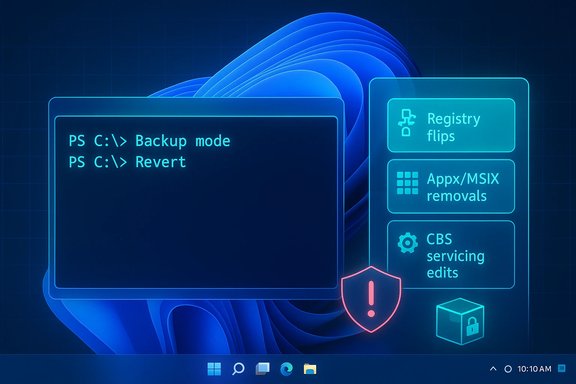
Futuristic Windows UI showing PowerShell backup/revert commands and repair options with a shield.Background / Overview​

Microsoft has been steadily repositioning Windows 11 as an “AI PC” platform, embedding features under names like Copilot, Recall, and a set of AI Actions and generative tools inside built‑in apps such as Paint and Notepad. These features are surfaced in the taskbar, Settings, and multiple inbox apps across the OS, and many arrive as Appx/MSIX packages or servicing inventory entries that Windows can re‑provision during updates. That integration model has frustrated users who want a minimal, classical desktop experience and administrators who need deterministic control over managed devices. Enter RemoveWindowsAI, an open‑source PowerShell project published on GitHub by the handle “zoicware” that bundles registry tweaks, Appx package removals, Component‑Based Servicing (CBS) edits, scheduled‑task cleanups and an optional “blocker” update to prevent Microsoft from reinstalling targeted AI packages. The repository’s README lists a broad set of actions the script can take and explicitly targets stable Windows 11 builds (25H2 and later). This article summarizes what RemoveWindowsAI does, verifies core technical claims, explains the mechanisms the script uses, analyzes strengths and risks, provides safer alternatives and step‑by‑step precautions, and flags claims that can’t be proved in perpetuity.

What the script claims to do — quick summary​

RemoveWindowsAI advertises a multi‑layered cleanup that attempts to make many AI components invisible or removed from a Windows 11 machine:
  • Disable a set of registry keys and policy entries (hide Copilot UI, disable Recall, turn off Input Insights/typing telemetry, disable AI Actions, etc..
  • Uninstall Appx/MSIX packages for Copilot, Recall, Paint Image Creator, Notepad rewrite hooks, Voice Access effects and other AI-labeled inbox apps — including attempts to remove provisioned / “non‑removable” manifests.
  • Remove Recall scheduled tasks and wipe local snapshot/index data used by Recall.
  • Edit the Component‑Based Servicing (CBS) store and optionally install a custom blocker package so Windows Update will not re‑provision the removed AI packages.
  • Provide a backup mode and a revert mode when possible, plus a manual guide for items the script cannot or should not change automatically.
Independent coverage and hands‑on reports show the script removes or hides many visible Copilot and Recall surfaces on tested systems, but results vary by Windows build, OEM customizations, and the servicing state of the machine.

Technical anatomy: how RemoveWindowsAI works​

Understanding the layers the script manipulates is essential to judge both efficacy and risk. The script operates across at least three technical layers:

1. Registry keys and policy flips (low‑risk layer)​

The script sets registry entries and Group Policy / CSP‑equivalent flags that hide UI elements or prevent activation paths. These changes mirror what an administrator can do with supported controls and are generally reversible when properly backed up. However, some keys gate deeper behaviors and other components may expect those keys to exist. For example, toggling a UI key that other features reference can lead to inconsistent behavior if the lower‑level binaries remain present.

2. Appx / MSIX package removal (moderate risk)​

RemoveWindowsAI issues Remove‑AppxPackage for per‑user installs and Remove‑AppxProvisionedPackage to strip provisioned manifests. Removing the user‑facing package is straightforward; removing provisioned packages changes how new accounts and provisioning flows behave and can be more invasive. Provisioned packages live in image/servicing metadata and often reappear unless the servicing inventory is adjusted — which is where the script’s third layer comes in.

3. Component‑Based Servicing (CBS) surgery and blocker package (highest risk)​

To make removals durable across updates, the script can modify the CBS store and install a custom blocking package (an MSU‑style update) that aims to prevent Windows Update from re‑provisioning the original Microsoft packages. This technique is used by community debloat tooling for persistence, but it intentionally diverges the machine’s servicing inventory from Microsoft’s expected baseline. That divergence is the principal reason this approach increases the risk of cumulative update failures, feature‑upgrade conflicts, or repair operations.

4. Scheduled tasks, indices and local file cleanup (destructive)​

Recall and similar features create scheduled tasks and local indices/snapshot files. RemoveWindowsAI searches for and removes these tasks, deletes indices, and purges installer artifacts. Deleting stored Recall snapshots is irreversible without a prior export; the script offers a backup mode, but not all state is guaranteed recoverable.

Verifying core claims against public sources​

  • The RemoveWindowsAI repository is public on GitHub and documents the features listed above in its README, run commands, and options. The repository also warns about antivirus false positives and recommends running in a VM first. These claims are verifiable on the project page.
  • BetaNews and other outlets summarized the repository’s features and pointed readers to the GitHub repo and a manual guide for items the script cannot alter automatically. Independent hands‑on reporting echoed that Copilot and Recall UI elements can disappear when the script is run on targeted stable builds.
  • Microsoft has begun adding targeted administrative controls for Copilot in Insider builds (Group Policy RemoveMicrosoftCopilotApp), indicating that Microsoft is partly responding to enterprise requests for control — but that official controls remain constrained and conditional (Insider builds, specific SKUs and gating conditions such as the app not having been launched in the last 28 days). This is significant context for enterprises considering community scripts versus official policy controls.
  • The Recall uninstallability confusion has precedent: Microsoft acknowledged that a previous listing of Recall as removable was a bug; Recall was redesigned as opt‑in with local encryption and Windows Hello protections but is not generally freely uninstallable in the way some users assumed. That nuance matters because community scripts that delete Recall indices and tasks are performing destructive actions that Microsoft’s official tooling does not offer as a simple uninstall path.

Strengths: why power users are attracted to RemoveWindowsAI​

  • One‑stop automation: It aggregates dozens of manual steps (registry keys, Appx removals, scheduled task deletion) into one script with GUI and non‑interactive modes, saving time and reducing human error.
  • Durability (when it works): The blocker approach and CBS edits make removals persist across many cumulative updates — exactly what casual toggles in Settings sometimes fail to achieve. For users who repeatedly see features re‑provisioned, the script can appear to provide a durable opt‑out.
  • Open source and documented: The code and documentation are public, allowing technical users to inspect what’s being changed before they run it. That transparency is a strong point compared with opaque binary debloaters.
  • Backup + revert options: The project includes a backup mode and a revert mode to help restore state where possible — a useful safety valve if used correctly. However, that revert is not a guarantee.

Risks, limitations and operational realities​

No tool that edits core servicing state and removes system packages is risk‑free. The major, practical hazards are:
  • Update and upgrade fragility (biggest risk): Changing the CBS inventory or installing a blocker package creates a mismatch between the machine’s servicing inventory and Microsoft’s expected baseline. That mismatch can cause cumulative update failures, feature upgrade errors, or repair loops that require offline servicing or OS refreshes to fix. Numerous community analyses identify CBS edits as the primary fragility vector.
  • Supportability and warranty complications: Vendor or Microsoft support may insist on restoring a stock servicing inventory before troubleshooting. For OEM devices under warranty, heavy servicing edits may complicate support calls and raise the cost or time required to remediate.
  • Irreversible data loss: Removing Recall indices and scheduled tasks destroys stored timeline snapshots; a later revert will not bring back that data unless it was exported beforehand. Users must consider that loss if they rely on Recall for productivity or recovery.
  • Feature dependency breakage: Some inbox components and OEM utilities share package families. Removing one package may break another feature, produce runtime errors, or cause settings pages to misbehave. This is particularly true on heavily customized OEM images.
  • Antivirus and supply‑chain concerns: Elevated, network‑fetched PowerShell scripts that manipulate servicing often trigger endpoint protection. The repo warns of false positives and recommends whitelisting or temporary AV exclusions, which introduces a security consideration. Community projects require trust and vetting; a changed remote script or malicious fork could be dangerous.
  • Incomplete or non‑permanent coverage: Microsoft continues adding AI features across stable and Insider channels. RemoveWindowsAI targets features known in the stable channel at the time of each release; it cannot guarantee coverage of future additions and cannot claim perpetual prevention of every new AI surface introduced later. That claim is inherently unverifiable and should be treated with caution.

Safer alternatives and official controls to try first​

Before running a tool that edits CBS, consider less invasive, supported approaches:
  • Use the built‑in Settings toggles and Microsoft’s documented admin policies (Group Policy / Intune CSP) where available. Official policies are the safest route for managed fleets. Microsoft has recently introduced a targeted Group Policy (RemoveMicrosoftCopilotApp) in Insider channels for admins to uninstall the consumer Copilot app under strict conditions; it’s not a universal uninstall but shows Microsoft is expanding official controls for admins. For many organizations, waiting for or adopting official administrative controls is preferable to servicing surgery.
  • In enterprise deployments, create custom images or provisioning packages that omit certain Appx packages at build time rather than surgically removing them on live systems. Image‑level control avoids servicing surprises later.
  • Use feature‑scoped Group Policy/MDM settings to disable telemetry, Input Insights, and feature activation paths rather than deleting packages. These options are often reversible and preserve servicing consistency.
  • If privacy is the driver, review Microsoft’s privacy controls for Recall and related features and export any data you want to keep before deleting it. Microsoft’s documentation and recent updates added privacy and Recall data management features in some regions.

If you still want to test RemoveWindowsAI: a cautious step‑by‑step plan​

  • Read the repository README and Documentation.md carefully. Do not run ad‑hoc commands copied from untrusted channels; fetch directly from the official repo to verify content.
  • Test in a virtual machine or disposable, non‑critical device first. This eliminates the risk of bricking your primary system.
  • Create a full disk image backup (not just a restore point). Image backups are the only reliable path for undoing servicing‑level changes if a repair becomes necessary.
  • Run the script with backup mode enabled the first time; confirm the backup completed and that revert mode can reapply the saved state. Understand the limitations of revert and which items it can restore.
  • Avoid the CBS/blocker option until you are comfortable with the consequences — test routine Windows Update cycles after disabling only registry and per‑user Appx packages first. Watch for update warnings or failed patches.
  • Keep an offline recovery medium handy (bootable Windows installation, Sysinternals tools, or install media). If a feature update fails, offline repair or an in-place upgrade repair may be required.
  • For managed fleets, test in a lab and discuss with vendor support before applying to production. Many organizations should treat this as an unsupported customization unless IT governance explicitly approves it.

What the script cannot guarantee (and what to flag as unverifiable)​

  • Any claim that a community script will forever prevent Microsoft from adding or re‑introducing AI features to Windows is unverifiable. Microsoft can change package names, servicing manifests, or add new distribution mechanisms that bypass a blocker. The script can be effective for a period, but persistence is dependent on future Microsoft changes. Treat durability claims as a time‑bound result, not a guarantee.
  • The “remove ALL AI features” promise must be read with caveats: the repository notes it targets stable channel features and that not all items can be disabled by script. Insider or future features, cloud‑side integrations, and tenant‑level services (e.g., Microsoft 365 Copilot tied to subscription services) will not necessarily be removable by this approach. Flag any absolute language as conditional.

Practical recommendations and final analysis​

For privacy‑minded or minimalist users who understand and accept the risks, RemoveWindowsAI is a transparent, well‑documented community tool that automates a long list of manual steps and can meaningfully reduce visible AI surfaces on many Windows 11 installs. Its strengths are real: open source, backup/revert options, and a comprehensive checklist that saves time.
However, the most consequential operations — CBS edits and blocker package installation — trade durability for servicing integrity. The tradeoff is explicit: you get fewer re‑provisions and prompts, but you increase the risk of failed updates, broken future feature upgrades, and support complexity. For most users, the pragmatic order of operations is:
  • Exhaust official, supported toggles and enterprise policies first. Microsoft is gradually exposing more admin controls (e.g., RemoveMicrosoftCopilotApp in Insider builds) that should be preferred for managed devices.
  • If you choose community tooling, test in a VM, use image backups, and avoid the CBS/blocker step until you are confident in the environment. Monitor Windows Update results for several cycles before trusting the configuration for production use.
  • Treat any claim of permanent prevention with skepticism; update the community tools, watch the project’s changelog, and maintain a recovery plan. The open‑source nature helps (you can audit the script), but it does not eliminate servicing risks.
In short: RemoveWindowsAI is an important expression of user demand for control and a useful tool for skilled users who accept operational risk — but it is not a free lunch. When the goal is long‑term stability and supported maintainability, official controls, image‑level customization, and conservative policy changes will remain the safest path.

Conclusion
RemoveWindowsAI makes it straightforward to remove visible Copilot, Recall and many AI‑labelled app components from Windows 11, and it packages powerful techniques that can make those removals persist. The script’s public GitHub repository, community testing, and media coverage confirm the tool’s capabilities — and they also demonstrate the hazards of touching servicing metadata and the CBS store. For enthusiasts and administrators, the choice is clear: weigh immediate convenience against long‑term update and support risks, test in isolated environments, use official policies where available, and never run servicing‑level operations on critical machines without an image backup and a recovery plan.
Source: BetaNews Strip the AI from Windows 11 with this handy script
 

Back
Top