

OneCommander has emerged as a clear favorite among modern Windows file managers, promising a fast, polished alternative to File Explorer with dual‑pane workflows, Miller columns, rich previews and a lightweight automation layer — and for many power users the productivity gains are obvious within minutes of use.
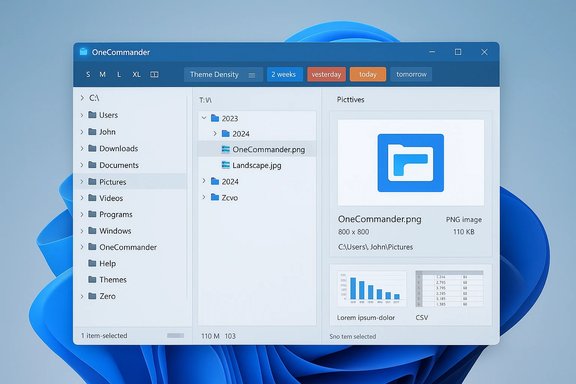
OneCommander is a contemporary file manager built specifically for Windows 10 and Windows 11. It reimagines traditional dual‑pane paradigms by combining persistent tabs, a columns (Miller) view, an integrated preview pane and an internal automation toolkit. The app is distributed as a standalone MSI/portable ZIP and also as a Microsoft Store package; the vendor positions the product as free for personal use with a paid Pro license for commercial environments.
Independent hands‑on reviews and community threads over the last two years converge on the same core takeaways: OneCommander’s interface is modern and productivity‑oriented, its previewing is considerably more capable than Explorer’s, and its dual‑pane + column navigation modes materially speed common tasks. At the same time, users and reviewers have raised pragmatic cautions about update‑related regressions, differences between the Store and standalone builds, and integration limits with system dialogs and some enterprise scenarios.
Adopting OneCommander is less about replacing Explorer entirely and more about choosing the right tool for the job; for day‑to‑day file triage and project work, it’s one of the best free file managers on Windows today.
Source: MSN http://www.msn.com/en-us/news/techn...vertelemetry=1&renderwebcomponents=1&wcseo=1]
 Background
OneCommander is a contemporary file manager built specifically for Windows 10 and Windows 11. It reimagines traditional dual‑pane paradigms by combining persistent tabs, a columns (Miller) view, an integrated preview pane and an internal automation toolkit. The app is distributed as a standalone MSI/portable ZIP and also as a Microsoft Store package; the vendor positions the product as free for personal use with a paid Pro license for commercial environments.Independent hands‑on reviews and community threads over the last two years converge on the same core takeaways: OneCommander’s interface is modern and productivity‑oriented, its previewing is considerably more capable than Explorer’s, and its dual‑pane + column navigation modes materially speed common tasks. At the same time, users and reviewers have raised pragmatic cautions about update‑related regressions, differences between the Store and standalone builds, and integration limits with system dialogs and some enterprise scenarios.
Why this matters now
Windows power users, creative professionals, and developers increasingly demand tools that reduce context switching: fast previews to avoid opening full applications, UI patterns that expose deep folder hierarchies at a glance, and simple automation to collapse recurring chores. OneCommander addresses these demands directly, sitting between the simplicity of File Explorer and the feature density of paid legacy tools such as Directory Opus or Total Commander. That positioning makes it a practical candidate for individuals and small teams that want meaningful productivity gains without large licensing costs.Six reasons OneCommander stands out
The following sections unpack the six reasons most often cited by reviewers and power users — confirming the claims where documentation and independent reporting align, and flagging where further verification is wise.1. A modern, usable UI that actually helps you work
OneCommander’s visual design emphasizes clarity and information density rather than skeuomorphism. Theme support, adjustable typography, and color‑coded date tags let you tune the interface to surface the attributes that matter most for your workflows. That design decision reduces visual friction when scanning directories full of mixed assets (images, documents, archives). Multiple hands‑on writeups note that the UI feels contemporary without sacrificing function.- Why it matters: When you spend hours navigating folders, small gains in clarity compound into real time savings.
- Practical note: Theme and density settings are worth adjusting on first run to match your monitor density and workflow habits.
2. Native dual‑pane plus persistent tabs for real multitasking
Dual‑pane file managers are a long‑standing power‑user pattern, but OneCommander extends the idea by offering session‑persistent tabs in each pane and named window layouts that can be saved and recalled. This makes repetitive project tasks — e.g., moving assets between source and export folders — faster and less error‑prone. Independent reviews highlight how session persistence and saved layouts restore a working context quickly.- Best practice: Use named windows for recurring projects (example: “Photo Triage”, “Video Export”) to avoid rebuilding your workspace each day.
3. Miller columns (columns view) for deep trees
The columns (Miller) view exposes a folder hierarchy as successive columns, letting you scan parent/child relationships and sibling folders without drilling down sequentially. OneCommander refines the classic columns approach with responsive column resizing and hover expansion to prioritize the active context. Reviewers consistently report that this is a productivity multiplier when working with deeply nested repositories.- When to use columns: Large code repositories, nested media archives, and deep project structures where sibling folder comparison is common.
4. Integrated previews and metadata — stop opening apps
OneCommander’s preview pane goes well beyond Explorer’s thumbnail and preview basics: it displays image metadata (dimensions, GPS), scrollable PDF previews, text/CSV content, and archive listings without extraction. A Quick‑Look–style Spacebar preview expands files for fast inspection. Several reviewers and testers suggest that preview capability alone is often enough justification to add OneCommander to a daily workflow.- Important caveat: Not every format will always render internally; verify critical proprietary file types (e.g., PSD, certain Office formats) in your environment before relying on the preview pane exclusively.
5. File Automator and scripted conversions (powerful micro‑automation)
OneCommander includes a File Automator that covers bulk renaming with regex patterns and — in the Pro feature set — ffmpeg‑driven conversion presets (e.g., convert to MP4, extract audio). These built‑in automations let creators transform media batches without leaving the file manager. Documentation and practical tests confirm the functionality, but reviewers note that some conversion features are restricted to paid builds and require ffmpeg binaries to be present on the system.- Deployment tip: If you plan to use ffmpeg presets, place ffmpeg on PATH or in a known folder and test presets on representative samples first.
6. Lightweight rendering and long path support
OneCommander is built with a custom renderer (DirectX) rather than being a pure UWP or WinForms wrapper. That design choice maintains smooth scrolling and crisp thumbnails on high‑DPI displays. The application also supports long Unicode paths (beyond the classic 260‑character limit), a critical advantage for deep checkout trees or development repositories. These technical choices produce a perceptible snappiness for many users in everyday navigation.- Objective note on speed: Claims that OneCommander is “the fastest” file manager are context‑dependent. Performance varies with hardware, storage topology, and the specific workload; treat absolute speed claims as indicative and validate with your own tests.
Feature deep‑dive: what matters in daily workflows
Tabs, named windows, and saved layouts
Tabs persist between sessions and named window snapshots (tab sets + layout + position) can be saved and restored. For project‑based work, this means a one‑click return to a tailored workspace that contains source folders, exports and reference assets. This is more than convenience — it reduces human error when juggling multiple assets across destinations.Columns mode versus standard dual‑pane
Columns mode is best for browsing deep hierarchies quickly. The standard dual‑pane remains the go‑to for bulk moves and straightforward copy/compare tasks. OneCommander supports both seamlessly so you can pick the right tool for the job.Previews and quick identify
The preview pane supports a broad set of common formats: images, PDFs, text, CSV, archives and many media types. Press Spacebar for a full preview window; use the metadata strip to make decisions faster. Pro users report noticeably fewer accidental opens of large editors when triaging media.Automation and batch tasks
Regex‑based bulk renaming and preset‑driven ffmpeg tasks make repetitive work less error‑prone. For professionals processing batches of camera captures or screen recordings, this eliminates multiple context switches. Confirm which automations are behind the Pro paywall during planning.Installation, deployment, and version choices
OneCommander ships in multiple forms: standalone MSI, portable ZIP, and Microsoft Store (MSIX) package. This choice matters more than it might seem at first glance.- The MSI/portable builds are recommended for enterprise or managed deployments because they avoid MSIX sandboxing constraints and typically offer the latest builds. Use these if you need consistent behavior across user profiles and want direct installer control.
- The Microsoft Store package is convenient for personal installs but is often behind the standalone builds due to certification and has sandboxing constraints that can affect certain file operations and elevation behavior. The Store version is also tied to Microsoft account licensing semantics.
Licensing and commercial use
OneCommander is free for home use but requires a Pro license for business/commercial deployments. The Microsoft Store variant ties license purchases to a Microsoft account and is not ideal for volume licensing. Organizations should contact the vendor for volume or site licensing details and prefer MSI packaging for managed installs. Treat the free/personal promise with the usual due diligence: read the EULA for your intended use case and obtain Pro licenses where required.Risks, limitations and real‑world caveats
No single tool is right for every environment. Several practical cautions emerged repeatedly in documentation and community testing:- Store vs standalone differences: The Store package’s MSIX sandboxing can limit operations and elevation behavior; enterprise deployments should use the MSI/portable builds.
- Stability after updates: Community reports describe occasional regressions, crashes or rendering issues tied to particular updates, meaning you should pilot new versions before fleet deployment. Keep rollback packages ready.
- Integration gaps: OneCommander improves the daily file manager experience but cannot replace Explorer in every system dialog. Some Open/Save dialogs will still call Explorer; prepare users for mixed behavior.
- Large concurrent transfers / VDI: Heavy concurrent copy jobs to slow network shares or environments with many simultaneous transfers have revealed edge‑case hangs; specialist copy utilities (TeraCopy, FastCopy) remain recommended for mission‑critical transfers until validated.
- Performance claims are contextual: Absolute speed rankings are difficult to generalize; hardware, filesystem, and background services matter. Treat claims of being “the fastest” as marketing that needs verification in your environment.
How OneCommander compares with alternatives
OneCommander occupies the middle ground between the built‑in File Explorer and heavyweight paid offerings:- File Explorer: Ubiquitous and universal in system dialogs but limited for power workflows. OneCommander wins on previews, columns and dual‑pane workflows.
- Files (community open‑source app): Beautiful and Fluent‑aligned but can struggle in very large directories; OneCommander emphasizes snappy rendering and feature breadth for power users.
- Directory Opus / Total Commander: Paid, mature solutions with extensive customization and enterprise features. They remain the choice for organizations that need deep shell integration or a plugin ecosystem. OneCommander is a pragmatic, lower‑cost middle ground.
Practical checklist: try before you roll
- Backup and create a system restore point before making the app the default file manager.
- Download the standalone MSI/portable ZIP from the official site and verify checksums. Prefer MSI for managed deployments.
- Pilot with a small user group for at least one week — include users who perform large copy jobs and those who use deep repositories.
- Test Open/Save dialog behavior from common apps (Word, Photoshop, IDEs) to confirm whether Explorer is invoked.
- If using ffmpeg automations, ensure ffmpeg binaries exist on the system and test presets on representative files.
- Keep a transfer utility (TeraCopy/FastCopy) as a fallback for mission‑critical large transfers until you’ve validated OneCommander’s behavior in your network topology.
Deployment checklist for IT teams
- Prefer MSI installers and publish verified checksums internally.
- Acquire Pro licenses for commercial use and confirm the Store package’s licensing and volume options are acceptable before mass deployment.
- Build an update cadence and pilot plan; do not auto‑push major updates without prior validation.
- Document fallback paths and train users to use Explorer where system dialogs require it.
Final assessment — who should adopt OneCommander
- Enthusiast power users and creatives: Strong yes. Photographers, video editors, and designers benefit from integrated previews, metadata display and quick conversion presets.
- Developers and repo navigators: Yes. Miller columns, long path support and tabbed panes help when traversing deep code trees.
- Small teams and freelancers: Likely yes, with care to license properly for commercial use.
- Large enterprises / regulated environments: Proceed cautiously. Use MSI, pilot widely, validate VDI/NAS behavior and obtain Pro licenses; do not force a system‑wide Explorer replacement without rollback planning.
Conclusion
OneCommander is a pragmatic rethinking of Windows file management that delivers genuine, repeatable productivity gains for many users. Its combination of dual‑pane tabs, Miller columns, robust previewing, and lightweight automation addresses real pain points left by File Explorer. The recommended approach is measured adoption: download the standalone build, verify checksums, pilot with representative workflows, and keep Explorer as a fallback while you validate large transfers and system integration scenarios. The tool is free for home use and competitively priced for Pro licenses in commercial settings, making it a low‑risk, high‑reward upgrade for individuals and small teams willing to test it in their environment.Adopting OneCommander is less about replacing Explorer entirely and more about choosing the right tool for the job; for day‑to‑day file triage and project work, it’s one of the best free file managers on Windows today.
Source: MSN http://www.msn.com/en-us/news/techn...vertelemetry=1&renderwebcomponents=1&wcseo=1]
