

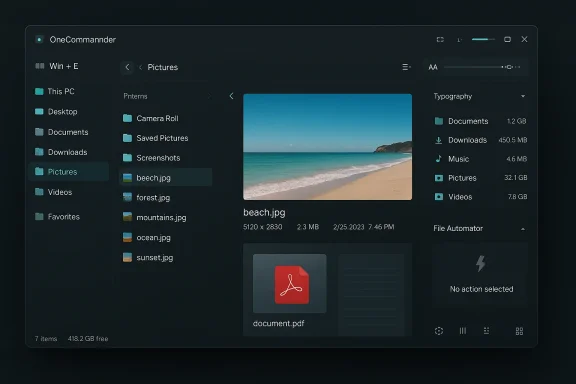
I swapped Windows File Explorer for a modern file manager and never looked back — and if you've spent any time wrestling with Explorer's speed, previews, or single-pane quirks, you may feel the same. OneCommander delivers a polished, productivity-first experience: a clean, customizable UI, native dual-pane and Miller‑columns navigation, richer previews, and small but meaningful workflow conveniences (hotkey override, inline folder sizes, and a lightweight automation toolkit) that compound into real time savings for power users and creatives. The tradeoffs are practical — differences between Store and standalone builds, a few integration limits, and occasional update regressions — but for many daily workflows OneCommander is a pragmatic, modern replacement that settles the age‑old File Explorer complaints.
Background
Windows File Explorer has improved incrementally over the years, but core limitations remain for power workflows: no native folder‑size column in Details view, only a single principal pane for browsing, limited preview capabilities beyond images, and search that can be sluggish on large collections of files. Those gaps have pushed users toward specialized replacements — from old favorites like Total Commander to fresher contenders such as OneCommander and File Pilot — each taking different approaches to speed, UI, and integration. The market now includes niche, fast single‑purpose tools and full reimaginings that trade deep Windows integration for productivity features.OneCommander positions itself in that middle ground: close enough to Explorer's basics to feel familiar, while introducing targeted features that solve the daily annoyances many of us live with. Multiple hands‑on writeups and community conversations confirm the same themes: cleaner visuals, dual‑pane workflows, and richer previews make a tangible difference for repetitive file tasks. At the same time, reviewers repeatedly warn about differences between the Microsoft Store package and the standalone MSI/ZIP builds and encourage conservative adoption for enterprise environments.
Why people ditch File Explorer: the underlying frustrations
Most readers who switch away from Explorer cite three categories of friction:- Performance and navigation latency when opening folders, loading thumbnails, or searching large sets of files.
- Missing native features: folder sizes in the column view, multi‑pane layouts for side‑by‑side work, and robust previews for PDFs, text, and archives.
- UI density and discoverability: Quick Access and OneDrive integrations crowd the UI, and advanced options are often hidden or inconsistent across Windows versions.
OneCommander at a glance: what it delivers
OneCommander isn’t a radical reinvention; it’s a careful redesign focused on workflow gains. Key strengths reported by reviewers and users include:- A modern, highly tweakable UI with themes, adjustable typography, and density controls that reduce visual friction.
- Native dual‑pane layout with persistent tabs and the ability to orient panes top‑to‑bottom or left‑to‑right — handy for copy/compare tasks.
- Miller columns (a Finder‑style columns view) for rapid traversal of deep folder hierarchies without repeated back/forth navigation.
- A robust preview pane that handles images (with metadata), text, scrollable PDFs, CSVs, and archive content listings — far beyond Explorer’s basic preview.
- Inline folder size calculation visible in the listing (note: sorting folders by size is limited by Windows APIs).
- Hotkey support to override Win+E so muscle memory still opens your preferred manager, Quick Look–style previews (spacebar for a big peek), and a built‑in File Automator for batch tasks.
UI and customization: less noise, more context
OneCommander’s visual layout treats information density as a feature, not a flaw. You can choose from themes on first launch, tweak font sizes to suit high‑DPI displays, and selectively show or hide UI elements. Small touches — color tagging for files by age or size, dotfile handling for cross‑platform folders (.DS_Store suppression), and color cues for large files — help you scan directories faster and spot storage hogs at a glance. Reviewers repeatedly highlight that these are the kinds of small improvements that compound into hours saved over weeks of work.Navigation metaphors: dual panes and Miller columns
Where OneCommander really changes the rhythm of work is navigation. Dual panes keep source and destination visible; persistent tabs mean you can keep multiple project locations alive between sessions. If you prefer a Finder‑like tree, Miller columns expose sibling folders and depth without losing context — a modality especially useful for developers and photo editors who dive multiple levels deep into directory trees. The result: fewer context switches, fewer accidental misclicks, and less need to open many Explorer windows.Previews and metadata: stop launching apps
The preview pane in OneCommander is substantially more capable than Explorer’s default. You can preview large image collections with embedded metadata, scroll PDFs, and peek into archives without extracting them first. With Quick Look integration (or Seer), pressing Space offers a larger transient preview that’s close to the macOS Finder experience on Windows. For users who triage images and markdown often, this reduces the time spent launching heavyweight apps and waiting for them to render files.Advanced features power users will appreciate
OneCommander adds small automation and power user features that go beyond visual polish:- File Automator: batch tasks such as regex‑based renaming, adding timestamps to filenames, and media conversions (FFmpeg hooks in Pro). This is a pragmatic way to handle small repetitive chores without external scripts.
- Hotkey rebind: map Win+E to OneCommander so your long‑learned muscle memory still opens a file manager. That lowers the cognitive barrier to switching.
- Portable and non‑admin friendly builds: OneCommander is available as portable ZIP or MSI; the standalone build avoids requiring admin rights and can be used from a USB stick for quick troubleshooting or carry‑your‑workspace scenarios.
Where OneCommander still has limits — and why they matter
No third‑party file manager is a perfect drop‑in for Explorer. Here are the important limitations to weigh before replacing Explorer system‑wide:- Integration with system Open/Save dialogs and shell extensions: Explorer still has the edge for universal system‑level integration. Some apps and enterprise scenarios expect Explorer behavior; OneCommander is feature‑rich but not always a seamless replacement inside Open/Save dialogs. That means workflows that rely on third‑party shell extensions, system‑wide drag/drop behaviors, or specific admin policies may be better off keeping Explorer as a fallback.
- Store vs standalone differences and update regressions: community reports note behavioral differences between the Microsoft Store package and the standalone MSI/ZIP builds, and occasional regressions after updates. For enterprise or critical setups, prefer an installer of record (MSI) and test updates before large rollouts.
- Archive handling: OneCommander can preview archive contents but doesn’t mount them as navigable virtual folders in every case; extraction or external tools may still be needed. This is an annoyance for workflows that treat archives like folders.
- No native folder‑size sorting: while OneCommander shows inline folder sizes, Windows API limitations mean folder‑size sorting remains constrained. If sorting by folder size is critical for you, a specialized analysis tool is still required.
- Search power: although OneCommander’s search is competent, it’s not a replacement for Everything Search for lightning‑fast index-based queries. Power users who rely extensively on near‑instant global searches will either keep Everything alongside OneCommander or miss that capability.
Licensing and pricing: what to expect
OneCommander’s licensing model is straightforward but important to confirm. The product is commonly described as free for personal use with a Pro license required for commercial or professional environments. Community writeups reference a modest Pro price (figures in community threads vary by time and distribution channel), and reviewers advise confirming the current license terms and build differences (Store vs standalone) before deploying broadly. For alternative apps like File Pilot, some reviewers note beta/free availability followed by a planned perpetual license fee on stable release — another reminder to plan for future licensing changes when building workflows around a third‑party manager. Always check the vendor’s official license details for up‑to‑date pricing and enterprise terms.Real‑world adoption strategy: how to replace Explorer without a meltdown
If you decide to trial OneCommander as your daily file manager, here’s a practical rollout plan that minimizes friction:- Install the portable or standalone build first and use it in parallel with Explorer for a week to adapt settings (themes, pane orientation, preview settings).
- Configure hotkeys (Win+E override) only after you’re comfortable; keep Explorer pinned as a fallback for a transition period.
- Test automation tasks and File Automator scripts on copies before using them on production data. Verify FFmpeg integrations if you rely on media conversion.
- For enterprise rollouts, prefer the MSI installer and pilot on a small group of machines. Validate Open/Save behavior, network drive handling, and compatibility with shell extensions.
- Maintain a rollback plan and keep Explorer as a known stable option until any update‑related regressions have been observed and addressed.
How OneCommander compares to popular alternatives
- Total Commander: Extremely powerful and scriptable but feels dated; unbeatable for plugin ecosystems and enterprise edge cases but with a steeper learning curve.
- Directory Opus: The premium, feature‑rich solution for those who need enterprise scripting and customization. It’s costly but unmatched for deep automation.
- Files (open‑source Files app): Polished and visually aligned with Fluent Design; better for aesthetics than raw speed in very large directories.
- File Pilot: A newer contender focused obsessively on speed, split‑pane flexibility, and minimal footprint; promising but watch out for beta‑to‑stable licensing changes.
Risks and security considerations
Third‑party file managers interact closely with the filesystem and shell. This raises a few specific security and operational considerations:- Permissions and elevation: portable builds that avoid admin rights are convenient, but some operations (system folders, registry changes, shell hooks) may require elevated privileges. Understand which tasks require elevation and apply the principle of least privilege.
- Update and rollback behavior: Store packages update automatically; standalone builds permit controlled update cadence. For managed environments prefer MSI or centralized deployment tools and maintain a documented rollback path.
- Vendor trust and supply chain: vet installer checksums and distribution channels before deployment. Community reviews are helpful, but enterprise adoption should include a vendor security and patching review.
Verdict: who should switch — and who shouldn’t
OneCommander is an excellent fit if you:- Spend significant time moving files, curating media, or navigating deep repository trees.
- Want a modern, less cluttered UI with practical features like Miller columns, inline folder sizes, and a capable preview pane.
- Prefer a portable, non‑admin install for troubleshooting or carry‑your‑workspace convenience.
- Require perfect, system‑level Explorer integration for enterprise apps or shell extensions.
- Rely heavily on instant global search via Everything Search (you can, however, use them together).
- Manage fleets where automatic Store updates, or build differences between packages, introduce unacceptable risk without testing.
Final thoughts
Switching your primary file manager is more than a cosmetic change; it reshapes daily workflows. OneCommander balances modern design, real productivity gains, and practical automation in a package that’s easy to try and hard to stop using for many power users. It solves a lot of the friction points that keep people tinkering around Explorer — faster navigation, better previews, and a dual‑pane mindset that matches how professionals actually move files.That said, caution matters: validate integration scenarios, prefer managed builds for enterprise rollouts, and keep Explorer as a fallback while you adapt settings and automation scripts. For individuals and small teams seeking an immediate productivity boost without steep licensing or complexity, OneCommander is a compelling replacement — one that may well make you keep Explorer only for the occasional system dialog.
In short: if your day involves moving, previewing, or triaging files more than twice a day, try OneCommander in parallel with Explorer for a week — the productivity gains are likely to make the small adoption cost worthwhile.
Source: MakeUseOf I replaced Windows Explorer with this free tool, and I can never go back
