

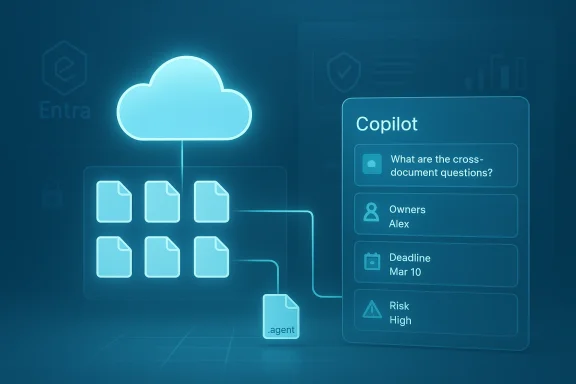
Microsoft has quietly moved a major piece of its Copilot strategy from preview into production: AI agents in OneDrive are now generally available for commercial tenants, letting you save a focused AI assistant as a .agent file that reasons over a curated set of documents, keeps project history, and opens into a full‑screen Copilot experience grounded in the files you choose. This is not a search box or a single‑file summarizer — it's a portable, permission‑aware assistant that lives beside your documents in OneDrive and is designed to answer cross‑document questions, extract owners and deadlines, surface risks, and keep a persistent project context as files evolve.
Microsoft’s agent strategy has two clear threads: make generative AI an ambient layer inside productivity apps, and make agents first‑class, manageable IT assets. OneDrive agents are a concrete expression of that strategy: rather than copying files into a separate tool to get AI assistance, you create a small, scoped agent that references live OneDrive content and appears in your file list as a distinct .agent file. That file opens in Copilot and answers questions based on the exact dataset you pointed it at.
This feature complements other Copilot investments — Copilot Studio for building agents, Agent 365 (tenant control plane) for governance, and identity plumbing that gives agents managed identities — and fits into the wider vision of agents appearing across Office, Windows, and Teams. Those platform pieces are intended to let organizations treat agents as IT-managed services with audit trails, lifecycle controls, and policy enforcement.
Key protections and controls:
High‑value examples:
OneDrive’s agents turn the storage surface into an active workspace: a place where files live alongside the assistants that understand them. If you’re comfortable with AI accessing project documents and you have Copilot licensing, they’re worth piloting now — but do so with controls, telemetry, and a plan to scale governance as fast as adoption grows.
Source: Windows Central AI Agents in OneDrive now generally available — here’s how to create yours
 Background / Overview
Microsoft’s agent strategy has two clear threads: make generative AI an ambient layer inside productivity apps, and make agents first‑class, manageable IT assets. OneDrive agents are a concrete expression of that strategy: rather than copying files into a separate tool to get AI assistance, you create a small, scoped agent that references live OneDrive content and appears in your file list as a distinct .agent file. That file opens in Copilot and answers questions based on the exact dataset you pointed it at.This feature complements other Copilot investments — Copilot Studio for building agents, Agent 365 (tenant control plane) for governance, and identity plumbing that gives agents managed identities — and fits into the wider vision of agents appearing across Office, Windows, and Teams. Those platform pieces are intended to let organizations treat agents as IT-managed services with audit trails, lifecycle controls, and policy enforcement.
What OneDrive Agents actually do
At a functional level, OneDrive agents are built to solve a practical problem: projects live as many file types across OneDrive and SharePoint, yet answering project questions often requires opening multiple documents and synthesizing them manually. Agents change that by:- Letting you select a bounded set of source files and teach an assistant what to consider.
- Saving the agent as a .agent file in OneDrive that you can search for, share, or update like any other file.
- Opening into a Copilot interface that can summarize the dataset, extract action items, identify named owners and deadlines, and highlight risks or unresolved items.
- Maintaining live grounding: agents reference the live files (not detached copies), so their answers reflect document updates.
How to create an AI agent in OneDrive (practical step‑by‑step)
Creating an agent is intentionally user‑facing and low friction. The in‑product flow prioritizes a few simple choices so nontechnical users can build useful assistants quickly:- Ensure your account has a Microsoft 365 Copilot license — OneDrive agents require Copilot licensing for commercial (work or school) accounts.
- Open OneDrive on the web.
- Click Create (or use the Select + Create path) and choose Create an agent; alternatively, select multiple files and choose Create an agent from the toolbar or right‑click menu.
- Select the source files and folders you want the agent to use. Microsoft’s public guidance describes this as a bounded set (a modest limit intended for project‑level datasets rather than tenant‑wide search). Some early coverage referenced specific counts (for example, “up to 20 files” in certain UI flows), but limits can vary by rollout and tenant — verify the exact number in your environment when you create an agent.
- Give the agent a name, add optional instructions (scope, tone, or exclusions), and save. The agent will appear in OneDrive as a .agent file and will open in the Copilot experience when launched.
- The agent references the selected source files rather than making persistent copies, so updates to those files flow into the agent’s knowledge.
- You can update the agent’s instructions and its file set over time as the project evolves; the agent’s responses will reflect the current source content.
Where OneDrive agents fit into Microsoft’s agent platform
OneDrive agents are content‑centric but not standalone: they plug into the broader Copilot/agent architecture that Microsoft has been building.- Copilot Studio / Copilot Agent Builder: low‑code authoring surfaces for defining agent behavior and knowledge sources; useful when teams want structured templates or richer behavior than simple file scoping.
- Agent 365 / Copilot Control System: a tenant control plane for discovering agents, managing lifecycle, access, telemetry, and policy enforcement—this is the administrative view that IT will use to inventory and govern agents.
- Entra Agent ID / Managed agent identities: agents receive identities so conditional access and least‑privilege policies can be applied and agent actions are auditable. Treating agents as principals is foundational to enterprise governance.
- Model Context Protocol (MCP) and connectors: plumbing to let agents discover and safely call app capabilities (connectors, file actions, third‑party tools) in an auditable way. MCP is the interoperability layer Microsoft is pushing for predictable tool integrations.
Security, privacy and governance — the real tradeoffs
Embedding agents into file stores and onto endpoints creates new efficiencies — and new risks. Microsoft has explicitly designed several mitigations into the platform; understanding them is critical before rolling agents out broadly.Key protections and controls:
- Permission‑aware design: Agents reference files; they don’t magically bypass OneDrive/SharePoint permissions. If a user can’t open a file, the agent shouldn’t surface its contents to that user. This is a central guardrail for enterprise use.
- Managed identities and audit trails: Agents are provisioned with distinct identities so actions can be audited and policies applied via standard identity tooling (Entra, Intune).
- Agent 365 and tenant controls: IT can discover and manage agents centrally, set lifecycle rules, and quarantine or revoke agents when needed.
- Agent Workspace and endpoint isolation (Windows): when agents act on endpoints (Copilot Actions / Agent Workspace), Microsoft runs them in a contained desktop session under a low‑privilege agent account, with visible progress and pause/takeover controls designed to prevent silent automation. This is gated as an experimental, opt‑in feature in preview and is off by default in Windows.
- Prompt‑injection and malicious content: documents can contain adversarial instructions or malformed content that the agent might treat as directives. Teams should treat agents as instruments that can be manipulated and include prompt‑injection tests in their validation checklists.
- Excessive permissions and blast radius: granting broad file or connector permissions increases exposure. Start with least‑privilege scoping and expand only after validation.
- Agent sprawl and lifecycle debt: easy authoring can produce many agents with overlapping scope. Maintain an agent inventory, ownership, versioning, and scheduled reviews.
- Billing and metering surprises: some Copilot/agent workloads are metered; heavy or unattended agents can drive consumption. Monitor usage and set quotas if your tenant uses consumption billing for Copilot actions.
Practical use cases that make sense today
Not every workflow benefits from an agent. The sweet spots are repeatable, document‑centric tasks where cross‑file synthesis or multi‑step assembly used to be manual and time consuming.High‑value examples:
- Product release dossiers: assemble specs, test results, and marketing decks into an agent that can answer release‑readiness questions and list outstanding owners and blockers.
- Meeting / project briefs: create an agent scoped to meeting notes, action logs, and agendas so new team members can ask “what decisions were made” without paging through transcripts.
- Contract digests for sales: a legal agent can extract negotiation points and unresolved clauses, then let sales query the summary while redactions remain enforced by file permissions.
- Research & competitive analysis: R&D teams can put whitepapers and benchmark PDFs into an agent to produce cross‑document comparisons and highlight conflicting claims.
- Highly sensitive compliance reports or financials where any mistake would be mission‑critical; these require human sign‑off, auditability and separate change control.
- Broad enterprise search across thousands of documents; OneDrive agents are aimed at project‑level datasets, not tenant‑wide discovery without governance.
Admin and rollout playbook: recommended steps
If you manage OneDrive or Microsoft 365 for an organization, adopt a staged, audit‑driven approach.- Pilot narrowly. Select one or two non‑sensitive workflows (project briefs, onboarding packs) and a small pilot group. Capture before/after metrics.
- Inventory and approval. Add agents to your asset register; require metadata (owner, scope, data sources) and an approval gate before publishing to a broader catalog.
- DLP and sensitivity labels. Ensure agents respect Purview sensitivity labels and that files subject to DLP are excluded or audited before allowing agent access.
- Logging & SIEM integration. Route agent activity and Copilot consumption telemetry into your SIEM so you can alert on anomalous activity or unexpected usage spikes.
- Consumption controls. If Copilot usage is metered, set quotas and alerts to avoid runaway billing.
- Human verification rules. For outputs that will change data, send emails, or produce publishable artifacts, require a named reviewer before anything is sent externally.
- Training and templates. Provide users with vetted instruction templates and a small catalog of approved agents to reduce adhoc, risky builds.
UX and administration: what to expect day‑to‑day
- Agents appear in OneDrive as files: you can search, filter by file type, and treat them as discoverable artifacts in the storage view.
- Sharing an agent only shares the agent metadata — recipients still need access to the underlying documents for the agent to answer fully.
- Agents are editable: you can add/remove files or refine instructions as a project changes. That keeps the agent aligned with the latest information without having to rebuild from scratch.
Limits, caveats and unverifiable claims
- File count limits and exact UI wording can vary by tenant and rollout. Microsoft documentation describes a bounded set of source files for OneDrive agents, and some early coverage reported numeric limits in specific UI flows; verify the exact limit in your tenant at the time you create an agent. Do not assume a universal "20 files" limit without confirming in product UI or admin docs.
- Agent behaviors and capabilities in Windows (Agent Workspace, Copilot Actions) were previewed with experimental toggles and may differ from what’s available in production; Microsoft has emphasized staged rollouts and opt‑in controls during preview. Validate local agent runtime behavior and consent UIs before enabling on enterprise devices.
- Metering and billing models can change as Microsoft refines Copilot commercialization; treat consumption assumptions as provisional and monitor tenant usage.
Final assessment: strengths, risks, and the path forward
Strengths- Low friction for users: Creating an agent in OneDrive is simple and maps closely to how project teams already organize files, which lowers the adoption barrier.
- Permissions‑aware design: Respecting OneDrive/SharePoint permissions is a pragmatic way to reduce accidental exposure and make the feature enterprise‑friendly.
- Platform consistency: Agents slot into Microsoft’s wider Copilot and governance stack (Copilot Studio, Agent 365, Entra Agent ID), giving IT a path to scale responsibly.
- New attack surface: Agents that read and act on files — especially when agent runtimes reach the endpoint (Agent Workspace) — change the endpoint threat model and require new detection and policy patterns.
- Operational debt: Without lifecycle governance, an organization can accumulate many poorly maintained agents, increasing audit burden and compliance risk.
- Reliance on human review: Agents are powerful synthesizers, but they can hallucinate or miss edge cases; outputs used for decisions still require human sign‑off.
OneDrive’s agents turn the storage surface into an active workspace: a place where files live alongside the assistants that understand them. If you’re comfortable with AI accessing project documents and you have Copilot licensing, they’re worth piloting now — but do so with controls, telemetry, and a plan to scale governance as fast as adoption grows.
Source: Windows Central AI Agents in OneDrive now generally available — here’s how to create yours
