

Microsoft’s OneDrive is built into Windows 10 and Windows 11 as the default cloud file system for consumers and many Microsoft 365 workplaces, letting users sign in, sync folders, save disk space with Files On-Demand, back up known folders, and recover from sync failures without installing a separate Windows client. That sounds mundane until it is your Desktop, your tax folder, or a department’s shared project tree caught between a local disk and Microsoft’s cloud. OneDrive is not just another app on Windows anymore; it is part of the operating system’s file behavior. Setting it up well is the difference between a helpful safety net and a confusing second file system hiding in plain sight.
For years, cloud storage was something users opted into deliberately. You installed Dropbox, mapped a network drive, or signed into a browser and dragged files into a window. OneDrive on modern Windows is different because the plumbing is already there, waiting in File Explorer, in the taskbar notification area, and increasingly in the assumptions Microsoft makes about where personal and work files should live.
That convenience is the sales pitch. A user signs in once, sees a OneDrive folder appear, and can move between PCs with less ceremony than the old days of USB sticks and “final_final_v3.docx” attachments. For Microsoft 365 shops, OneDrive also becomes the quiet foundation beneath SharePoint sync, Teams file access, Office autosave, and endpoint migration.
But the same integration that makes OneDrive approachable also makes it easy to misunderstand. A blue cloud icon is not a file in the old-fashioned sense. A backed-up Desktop may not be living where the user thinks it lives. Unchecking a folder may remove it from one PC without deleting it from the cloud, while stopping folder backup can present a prompt that changes where files remain.
The first rule of OneDrive on Windows is therefore simple: treat setup as configuration, not onboarding. You are not just signing into storage. You are deciding which data is local, which data is cloud-backed, which data is merely visible, and which Windows folders Microsoft will quietly redirect into a synced location.
The setup flow is short enough to seem harmless. Enter a personal Microsoft account or a work or school account, complete multifactor verification if the tenant or account requires it, and accept the default OneDrive folder location unless there is a specific reason to move it. That default location matters because it becomes the local root for synced content, the place File Explorer will show as the user’s OneDrive.
Microsoft also uses this early experience to introduce Files On-Demand, the feature that makes cloud files appear locally without occupying full local storage until opened. Many users click through that screen because it reads like a benefit, and usually it is. On a 256GB laptop connected to a 1TB cloud library, placeholders are the difference between a usable machine and a storage crisis.
The catch is that placeholders require a mental model. The file you see may be a full local file, a locally cached copy, or an online-only object waiting to hydrate when opened. That distinction is obvious to administrators who live in sync clients and storage policies. It is not obvious to a user who thinks “I can see it in Explorer” means “it is on my disk and recoverable with local tools.”
The current OneDrive settings window is organized around a handful of practical tabs. Sync and backup covers known folder backup, collaboration behavior, transfer rates, and Files On-Demand. Account handles linked accounts, selective sync through Choose folders, and Personal Vault. Notifications covers the usual prompts and status messages. About shows versioning and Insider options.
That layout is important because it separates three ideas users often collapse into one. Sync decides what flows between device and cloud. Backup decides whether Windows’ familiar folders such as Desktop, Documents, and Pictures are protected by OneDrive. Files On-Demand decides whether synced files consume disk space now, later, or always.
For IT pros, the cloud icon is also the first diagnostic checkpoint. If the icon is absent, sync may not be running. If it shows an error, the local user already has an actionable state. If it shows a pause symbol, someone may have stopped syncing during travel or troubleshooting and forgotten to resume it.
The everyday controls are simple. Right-click a file or folder and choose “Always keep on this device” to make it available offline. Right-click again and choose “Free up space” to remove the local copy while keeping the cloud version visible. In OneDrive settings, the global Files On-Demand behavior can be adjusted under Sync and backup, Advanced settings, where users can keep new files online-only or download all files.
This is an elegant answer to modern storage economics. Microsoft can sell cloud capacity far beyond what most laptops can hold, while users still browse everything from File Explorer. A traveling consultant can pin only the client folder needed for a flight. A desktop workstation with a large SSD can download more aggressively.
The risk is not technical failure so much as user interpretation. Online-only files are not locally recoverable in the same way as conventional files because the data payload is not fully present. If an account loses access, a subscription lapses, or a user misunderstands deletion behavior, the visible placeholder can create false confidence. Files On-Demand is a space-saving feature, not a substitute for a backup architecture.
That distinction is especially relevant for external drives, archival workflows, and legal or compliance data. OneDrive sync can protect a working set, but it should not be treated as immutable storage. Version history, recycle bins, retention policies, and third-party backups all matter once the data has business value.
To a normal user, vanishing looks like deletion. In this case, it is not. The folder remains in OneDrive online and remains available from other devices, the browser, and mobile apps. The local PC is simply no longer syncing that branch of the tree.
That per-device behavior is powerful. A home desktop might sync a family archive; a work laptop might sync only current project folders; a kiosk or shared machine might avoid broad local exposure altogether. It is also an important corrective to the idea that OneDrive is all-or-nothing. A single account can have different local footprints on different PCs.
The limitation is that Choose folders manages folders already inside OneDrive. It is not a way to add arbitrary external drive folders into sync, nor is it a substitute for known folder backup. Users who want Desktop or Documents protected should use the backup controls, not drag random profile folders into OneDrive and hope Windows behaves.
When enabled, OneDrive moves those folders into its protection model so their contents sync to the cloud. The experience can feel magical when a laptop dies and a replacement signs in to find the user’s Desktop returning. It can also feel invasive when users discover that files they thought were “just on the PC” are part of their Microsoft account storage.
Microsoft has expanded the language around these backed-up folders over time, and availability can vary depending on account type, organization policy, and platform. Desktop, Documents, and Pictures are the classic trio, while other media folders may appear in newer experiences. The safe operational advice is to look at the Manage backup dialog on the actual machine and account, not rely on a screenshot from last year.
Stopping backup deserves more caution than starting it. When a user turns off backup for a folder, OneDrive asks whether files should remain only in OneDrive or only on the PC. That prompt is not decoration; it determines the next location of the working copy. Help desk tickets are born when users click through it as casually as they clicked through setup.
For administrators, known folder backup is both a migration dream and a governance concern. It reduces data loss from failed endpoints and simplifies PC replacement, but it also pushes user-generated content into Microsoft 365 storage where retention, eDiscovery, sharing, and data loss prevention policies need to match the organization’s risk model.
On Windows, Personal Vault appears inside OneDrive and can be opened from File Explorer. Setup requires verification, and access can be protected through methods such as a code, Microsoft Authenticator, Windows Hello, or other account verification flows depending on configuration. Once unlocked, the vault behaves like a special folder until it locks again.
The value is not that Personal Vault makes OneDrive invincible. It does not. The value is that it creates an additional hurdle for casual exposure, especially on shared or temporarily unattended machines. It also encourages users to separate truly sensitive material from the noisy sprawl of everyday synced files.
There are practical limits. Free and Basic OneDrive accounts are limited to a small number of files in Personal Vault, while Microsoft 365 subscribers can store more, bounded by their storage quota. Files in the vault cannot be shared while they remain there, which is a feature masquerading as a restriction. If a document is sensitive enough for Personal Vault, sharing it should require an explicit decision to move it out.
Personal Vault is not an enterprise records-management system, and IT departments should not pretend otherwise. But for consumers and small offices, it is a useful layer of friction in a product designed around convenience.
Pause is the least dramatic and often the most appropriate. It is useful on metered connections, during large local file operations, or when a user needs bandwidth for a call. Resume is just as important; a paused client that never resumes is indistinguishable from a broken one to the person waiting for files to arrive elsewhere.
Unlinking is more serious. Files already synced remain on the PC, but new changes stop moving between the device and the cloud. After relinking, the user may need to reselect folders and wait while OneDrive reconciles the local and cloud states.
The mistake is treating unlinking as a casual refresh button. It can solve account or sync state problems, but it can also create confusion if the user has unsynced local changes, selective sync choices, or a large library that must be re-evaluated. In support workflows, unlinking belongs after basic checks, not before them.
Only then should most users reach for reset. The Windows reset command, launched from the Run dialog, asks OneDrive to rebuild its sync state without deleting the user’s cloud files. If the standard local app path fails, Microsoft documents alternative Program Files paths for the installed client.
That “does not delete files” reassurance is true but incomplete. Resetting disconnects sync connections and rebuilds the local sync database. If the user had carefully selected only certain folders, those choices may need to be made again. On large libraries, the recheck can take time and bandwidth.
Reset is a scalpel, not a broom. It is valuable when the client is wedged, icons are wrong, or sync state has become incoherent. It is less useful when the underlying issue is an invalid filename, exhausted storage quota, blocked tenant policy, or a file still open in an application.
For administrators, the more disciplined approach is to collect the symptom before resetting. Is the issue upload-only? Download-only? One file? A SharePoint library? A personal OneDrive? A device after a Windows update? The reset command may clear the immediate pain, but it can also erase the evidence needed to find a policy or service-side cause.
The maximum individual file upload size is now large enough for most ordinary users at 250GB, but that headline number hides more common limits. Very deep folder structures can still run into path-length problems. Files open in desktop applications may not sync until saved and closed. Storage quota exhaustion can block uploads, edits, and sync progression in ways that look like an app bug from the user’s chair.
OneDrive may also rename files that contain invalid characters by replacing them with underscores. That is better than failing silently, but it can surprise workflows that depend on exact names. Scripts, CAD references, media projects, and legacy business applications are all less forgiving than Word documents.
This is where the consumer-friendly veneer gives way to sysadmin reality. OneDrive sync is a distributed filesystem behavior layered over a cloud service, not magic dust. It rewards clean naming, shallow folder design, current clients, and realistic expectations about what happens when thousands of tiny files or a few enormous ones change at once.
That strategy has benefits. PC replacement is easier. Ransomware recovery has more options if version history and cloud copies survive. Users who once saved everything to an unprotected Desktop can get at least a basic layer of off-device resilience. Office collaboration works better when documents live in a sync-aware Microsoft cloud location.
It also raises the stakes of consent and clarity. Users should know when Desktop, Documents, and Pictures have moved under OneDrive. They should understand that deleting a synced file can delete it everywhere, subject to recycle bin recovery. They should not need to decode status icons during a crisis to know whether a file is actually local.
Windows enthusiasts have long criticized Microsoft for blurring the line between helpful defaults and aggressive account nudging. OneDrive sits directly on that line. It is genuinely useful software, but its usefulness depends on the user understanding decisions Microsoft often presents as setup conveniences.
Known folder backup can dramatically reduce the pain of lost or replaced PCs. Files On-Demand can keep small SSDs viable. Selective sync can reduce local exposure on devices that do not need a full library. Tenant policies can standardize behavior that would otherwise depend on users clicking the right buttons during setup.
But the operational risks are just as real. Sync storms can punish networks. Users may sync libraries that were never designed for local replication. Departing employees can leave behind local copies on unmanaged machines if offboarding and device controls are weak. Sensitive data can move from a file server with mature permissions into a personal sync space if migration planning is sloppy.
The right enterprise stance is neither blind adoption nor blanket prohibition. OneDrive should be governed like any other data plane. That means clear policies for folder backup, retention, external sharing, device compliance, storage quotas, and recovery. It also means training users on the few concepts that matter: local versus online-only, sync versus backup, unlink versus delete, and vault versus shared file.
The irony is that OneDrive works best when users do not have to think about it every day. Achieving that quiet state requires administrators to think about it very carefully up front.
Choose folders should be used to limit what appears on each PC. Manage backup should be used to protect Desktop, Documents, and Pictures when cloud backup is desired. Personal Vault should be enabled for a small set of sensitive documents. Pause should be used temporarily, while unlink and reset should be saved for real account or sync problems.
The most important habit is to watch the prompts. OneDrive is full of dialogs that look routine but carry data-location consequences. “Free up space” is not delete. “Always keep on this device” is not backup. “Stop backup” is not merely turning off a switch. “Unlink this PC” is not the same thing as signing out of a website.
That vocabulary gap is the heart of the OneDrive experience on Windows. Microsoft has built a system that is technically coherent but semantically slippery. It uses familiar folders and icons to represent a hybrid state many users have never been taught to read.
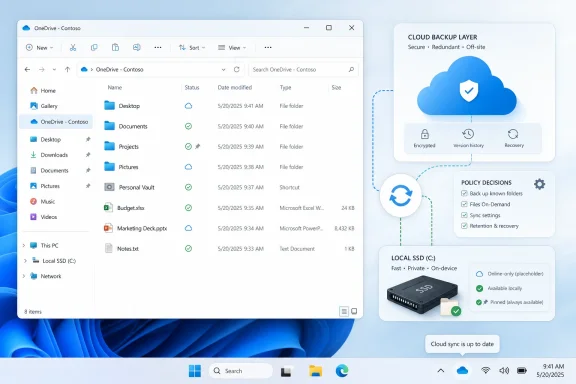 OneDrive Is No Longer a Folder, It Is a Policy Decision
For years, cloud storage was something users opted into deliberately. You installed Dropbox, mapped a network drive, or signed into a browser and dragged files into a window. OneDrive on modern Windows is different because the plumbing is already there, waiting in File Explorer, in the taskbar notification area, and increasingly in the assumptions Microsoft makes about where personal and work files should live.That convenience is the sales pitch. A user signs in once, sees a OneDrive folder appear, and can move between PCs with less ceremony than the old days of USB sticks and “final_final_v3.docx” attachments. For Microsoft 365 shops, OneDrive also becomes the quiet foundation beneath SharePoint sync, Teams file access, Office autosave, and endpoint migration.
But the same integration that makes OneDrive approachable also makes it easy to misunderstand. A blue cloud icon is not a file in the old-fashioned sense. A backed-up Desktop may not be living where the user thinks it lives. Unchecking a folder may remove it from one PC without deleting it from the cloud, while stopping folder backup can present a prompt that changes where files remain.
The first rule of OneDrive on Windows is therefore simple: treat setup as configuration, not onboarding. You are not just signing into storage. You are deciding which data is local, which data is cloud-backed, which data is merely visible, and which Windows folders Microsoft will quietly redirect into a synced location.
The First Sign-In Sets the Trapdoor for Everything After
On Windows 10 and Windows 11, the OneDrive sync app is already present. The user’s first job is not to hunt for an installer but to open Start, search for OneDrive, and launch the setup wizard. Older Windows installations may still require the OneDriveSetup.exe installer, but for supported mainstream Windows clients, Microsoft has made the app part of the furniture.The setup flow is short enough to seem harmless. Enter a personal Microsoft account or a work or school account, complete multifactor verification if the tenant or account requires it, and accept the default OneDrive folder location unless there is a specific reason to move it. That default location matters because it becomes the local root for synced content, the place File Explorer will show as the user’s OneDrive.
Microsoft also uses this early experience to introduce Files On-Demand, the feature that makes cloud files appear locally without occupying full local storage until opened. Many users click through that screen because it reads like a benefit, and usually it is. On a 256GB laptop connected to a 1TB cloud library, placeholders are the difference between a usable machine and a storage crisis.
The catch is that placeholders require a mental model. The file you see may be a full local file, a locally cached copy, or an online-only object waiting to hydrate when opened. That distinction is obvious to administrators who live in sync clients and storage policies. It is not obvious to a user who thinks “I can see it in Explorer” means “it is on my disk and recoverable with local tools.”
The Cloud Icon Is the New Control Panel
Nearly every useful OneDrive setting starts from the small blue or white cloud icon in the taskbar notification area. If it is missing, it may be tucked behind the “show hidden icons” arrow, which is fitting: Windows has a habit of hiding the control surface for features that dramatically affect user data. Click the cloud, click the gear, and Settings becomes the cockpit.The current OneDrive settings window is organized around a handful of practical tabs. Sync and backup covers known folder backup, collaboration behavior, transfer rates, and Files On-Demand. Account handles linked accounts, selective sync through Choose folders, and Personal Vault. Notifications covers the usual prompts and status messages. About shows versioning and Insider options.
That layout is important because it separates three ideas users often collapse into one. Sync decides what flows between device and cloud. Backup decides whether Windows’ familiar folders such as Desktop, Documents, and Pictures are protected by OneDrive. Files On-Demand decides whether synced files consume disk space now, later, or always.
For IT pros, the cloud icon is also the first diagnostic checkpoint. If the icon is absent, sync may not be running. If it shows an error, the local user already has an actionable state. If it shows a pause symbol, someone may have stopped syncing during travel or troubleshooting and forgotten to resume it.
Files On-Demand Is Brilliant Until Someone Mistakes a Placeholder for a Backup
Files On-Demand is the feature that makes OneDrive feel native on Windows. A blue cloud icon beside a file means the item is online-only and consumes minimal local disk space. A green check in a white circle means the file has been downloaded and is available locally. A solid green circle with a white check indicates the user has deliberately marked it to stay on the device.The everyday controls are simple. Right-click a file or folder and choose “Always keep on this device” to make it available offline. Right-click again and choose “Free up space” to remove the local copy while keeping the cloud version visible. In OneDrive settings, the global Files On-Demand behavior can be adjusted under Sync and backup, Advanced settings, where users can keep new files online-only or download all files.
This is an elegant answer to modern storage economics. Microsoft can sell cloud capacity far beyond what most laptops can hold, while users still browse everything from File Explorer. A traveling consultant can pin only the client folder needed for a flight. A desktop workstation with a large SSD can download more aggressively.
The risk is not technical failure so much as user interpretation. Online-only files are not locally recoverable in the same way as conventional files because the data payload is not fully present. If an account loses access, a subscription lapses, or a user misunderstands deletion behavior, the visible placeholder can create false confidence. Files On-Demand is a space-saving feature, not a substitute for a backup architecture.
That distinction is especially relevant for external drives, archival workflows, and legal or compliance data. OneDrive sync can protect a working set, but it should not be treated as immutable storage. Version history, recycle bins, retention policies, and third-party backups all matter once the data has business value.
Selective Sync Is Not Deletion, Which Is Exactly Why Users Panic
The Choose folders dialog is one of the most useful and most misunderstood parts of OneDrive. It lives under the Account tab in Settings and lets users decide which OneDrive folders appear on that particular PC. Uncheck a folder, click OK, and it vanishes from the local OneDrive view.To a normal user, vanishing looks like deletion. In this case, it is not. The folder remains in OneDrive online and remains available from other devices, the browser, and mobile apps. The local PC is simply no longer syncing that branch of the tree.
That per-device behavior is powerful. A home desktop might sync a family archive; a work laptop might sync only current project folders; a kiosk or shared machine might avoid broad local exposure altogether. It is also an important corrective to the idea that OneDrive is all-or-nothing. A single account can have different local footprints on different PCs.
The limitation is that Choose folders manages folders already inside OneDrive. It is not a way to add arbitrary external drive folders into sync, nor is it a substitute for known folder backup. Users who want Desktop or Documents protected should use the backup controls, not drag random profile folders into OneDrive and hope Windows behaves.
Known Folder Backup Is the Feature That Changes Where “My Files” Live
The most consequential OneDrive setting for everyday Windows users is not the cloud folder itself. It is known folder backup, the feature that redirects and protects familiar locations such as Desktop, Documents, and Pictures. In OneDrive settings, it sits under Sync and backup, behind the Manage backup button.When enabled, OneDrive moves those folders into its protection model so their contents sync to the cloud. The experience can feel magical when a laptop dies and a replacement signs in to find the user’s Desktop returning. It can also feel invasive when users discover that files they thought were “just on the PC” are part of their Microsoft account storage.
Microsoft has expanded the language around these backed-up folders over time, and availability can vary depending on account type, organization policy, and platform. Desktop, Documents, and Pictures are the classic trio, while other media folders may appear in newer experiences. The safe operational advice is to look at the Manage backup dialog on the actual machine and account, not rely on a screenshot from last year.
Stopping backup deserves more caution than starting it. When a user turns off backup for a folder, OneDrive asks whether files should remain only in OneDrive or only on the PC. That prompt is not decoration; it determines the next location of the working copy. Help desk tickets are born when users click through it as casually as they clicked through setup.
For administrators, known folder backup is both a migration dream and a governance concern. It reduces data loss from failed endpoints and simplifies PC replacement, but it also pushes user-generated content into Microsoft 365 storage where retention, eDiscovery, sharing, and data loss prevention policies need to match the organization’s risk model.
Personal Vault Adds Friction Where Friction Is the Point
Personal Vault is Microsoft’s answer to the uncomfortable fact that cloud storage often holds the most sensitive files people own. Tax records, identity documents, insurance papers, and financial scans tend to end up in the same place as screenshots and vacation photos. A protected folder with extra verification is a sensible counterweight.On Windows, Personal Vault appears inside OneDrive and can be opened from File Explorer. Setup requires verification, and access can be protected through methods such as a code, Microsoft Authenticator, Windows Hello, or other account verification flows depending on configuration. Once unlocked, the vault behaves like a special folder until it locks again.
The value is not that Personal Vault makes OneDrive invincible. It does not. The value is that it creates an additional hurdle for casual exposure, especially on shared or temporarily unattended machines. It also encourages users to separate truly sensitive material from the noisy sprawl of everyday synced files.
There are practical limits. Free and Basic OneDrive accounts are limited to a small number of files in Personal Vault, while Microsoft 365 subscribers can store more, bounded by their storage quota. Files in the vault cannot be shared while they remain there, which is a feature masquerading as a restriction. If a document is sensitive enough for Personal Vault, sharing it should require an explicit decision to move it out.
Personal Vault is not an enterprise records-management system, and IT departments should not pretend otherwise. But for consumers and small offices, it is a useful layer of friction in a product designed around convenience.
Pause and Unlink Are Safety Valves, Not Fix-All Buttons
OneDrive provides three different ways to interrupt sync, and they are not interchangeable. Pause syncing temporarily stops activity for a selected period, commonly two, eight, or twenty-four hours. Quit OneDrive closes the client entirely. Unlink this PC disconnects the account from the local sync relationship until the user signs in again.Pause is the least dramatic and often the most appropriate. It is useful on metered connections, during large local file operations, or when a user needs bandwidth for a call. Resume is just as important; a paused client that never resumes is indistinguishable from a broken one to the person waiting for files to arrive elsewhere.
Unlinking is more serious. Files already synced remain on the PC, but new changes stop moving between the device and the cloud. After relinking, the user may need to reselect folders and wait while OneDrive reconciles the local and cloud states.
The mistake is treating unlinking as a casual refresh button. It can solve account or sync state problems, but it can also create confusion if the user has unsynced local changes, selective sync choices, or a large library that must be re-evaluated. In support workflows, unlinking belongs after basic checks, not before them.
Resetting OneDrive Is Less Scary Than It Sounds, But Still Not Harmless
When OneDrive stalls, the best troubleshooting order is boring by design. Confirm the client is running. Check the notification icon. Verify that the account has storage available. Pause and resume sync. Install Windows and OneDrive updates. Look for obvious file-name, path-length, or open-file conflicts.Only then should most users reach for reset. The Windows reset command, launched from the Run dialog, asks OneDrive to rebuild its sync state without deleting the user’s cloud files. If the standard local app path fails, Microsoft documents alternative Program Files paths for the installed client.
That “does not delete files” reassurance is true but incomplete. Resetting disconnects sync connections and rebuilds the local sync database. If the user had carefully selected only certain folders, those choices may need to be made again. On large libraries, the recheck can take time and bandwidth.
Reset is a scalpel, not a broom. It is valuable when the client is wedged, icons are wrong, or sync state has become incoherent. It is less useful when the underlying issue is an invalid filename, exhausted storage quota, blocked tenant policy, or a file still open in an application.
For administrators, the more disciplined approach is to collect the symptom before resetting. Is the issue upload-only? Download-only? One file? A SharePoint library? A personal OneDrive? A device after a Windows update? The reset command may clear the immediate pain, but it can also erase the evidence needed to find a policy or service-side cause.
The Rules of Sync Are Written in File Names and Quotas
Cloud sync turns old filesystem trivia into front-line support work. OneDrive still has rules about invalid characters, reserved names, path length, and file size. Users may never have cared that Windows has opinions about names like CON, PRN, AUX, and NUL, but sync clients care because they must reconcile local files, cloud APIs, Office behavior, and web access.The maximum individual file upload size is now large enough for most ordinary users at 250GB, but that headline number hides more common limits. Very deep folder structures can still run into path-length problems. Files open in desktop applications may not sync until saved and closed. Storage quota exhaustion can block uploads, edits, and sync progression in ways that look like an app bug from the user’s chair.
OneDrive may also rename files that contain invalid characters by replacing them with underscores. That is better than failing silently, but it can surprise workflows that depend on exact names. Scripts, CAD references, media projects, and legacy business applications are all less forgiving than Word documents.
This is where the consumer-friendly veneer gives way to sysadmin reality. OneDrive sync is a distributed filesystem behavior layered over a cloud service, not magic dust. It rewards clean naming, shallow folder design, current clients, and realistic expectations about what happens when thousands of tiny files or a few enormous ones change at once.
Microsoft’s Integration Strategy Makes OneDrive Harder to Ignore
OneDrive’s prominence in Windows is not accidental. It serves Microsoft’s larger strategy of making the Microsoft account, Microsoft 365, Office apps, Windows backup, and cloud storage feel like one continuum. The more Windows assumes OneDrive is present, the more friction users feel when they try to operate purely locally.That strategy has benefits. PC replacement is easier. Ransomware recovery has more options if version history and cloud copies survive. Users who once saved everything to an unprotected Desktop can get at least a basic layer of off-device resilience. Office collaboration works better when documents live in a sync-aware Microsoft cloud location.
It also raises the stakes of consent and clarity. Users should know when Desktop, Documents, and Pictures have moved under OneDrive. They should understand that deleting a synced file can delete it everywhere, subject to recycle bin recovery. They should not need to decode status icons during a crisis to know whether a file is actually local.
Windows enthusiasts have long criticized Microsoft for blurring the line between helpful defaults and aggressive account nudging. OneDrive sits directly on that line. It is genuinely useful software, but its usefulness depends on the user understanding decisions Microsoft often presents as setup conveniences.
Enterprise IT Should Treat OneDrive as Endpoint Infrastructure
In managed environments, OneDrive is not a personal productivity accessory. It is endpoint infrastructure. It affects device refresh, data retention, incident response, legal discovery, bandwidth planning, storage cost, and user training.Known folder backup can dramatically reduce the pain of lost or replaced PCs. Files On-Demand can keep small SSDs viable. Selective sync can reduce local exposure on devices that do not need a full library. Tenant policies can standardize behavior that would otherwise depend on users clicking the right buttons during setup.
But the operational risks are just as real. Sync storms can punish networks. Users may sync libraries that were never designed for local replication. Departing employees can leave behind local copies on unmanaged machines if offboarding and device controls are weak. Sensitive data can move from a file server with mature permissions into a personal sync space if migration planning is sloppy.
The right enterprise stance is neither blind adoption nor blanket prohibition. OneDrive should be governed like any other data plane. That means clear policies for folder backup, retention, external sharing, device compliance, storage quotas, and recovery. It also means training users on the few concepts that matter: local versus online-only, sync versus backup, unlink versus delete, and vault versus shared file.
The irony is that OneDrive works best when users do not have to think about it every day. Achieving that quiet state requires administrators to think about it very carefully up front.
The Practical Setup Is Simple, but the Meaning Is Not
For an individual Windows user, the recommended setup is straightforward. Sign in from Start, accept the default folder location unless there is a real reason not to, and keep Files On-Demand enabled on laptops with limited storage. Then open Settings from the taskbar cloud icon and make deliberate choices.Choose folders should be used to limit what appears on each PC. Manage backup should be used to protect Desktop, Documents, and Pictures when cloud backup is desired. Personal Vault should be enabled for a small set of sensitive documents. Pause should be used temporarily, while unlink and reset should be saved for real account or sync problems.
The most important habit is to watch the prompts. OneDrive is full of dialogs that look routine but carry data-location consequences. “Free up space” is not delete. “Always keep on this device” is not backup. “Stop backup” is not merely turning off a switch. “Unlink this PC” is not the same thing as signing out of a website.
That vocabulary gap is the heart of the OneDrive experience on Windows. Microsoft has built a system that is technically coherent but semantically slippery. It uses familiar folders and icons to represent a hybrid state many users have never been taught to read.
The Few Decisions That Prevent Most OneDrive Regret
OneDrive does not need a 40-page manual, but it does need a handful of decisions made consciously instead of by accident. The difference between a smooth setup and a future support call is usually established in the first hour.- Decide whether Desktop, Documents, and Pictures should be backed up before you start moving important files around.
- Keep Files On-Demand enabled when local storage is limited, but mark critical travel or offline folders as always available on the device.
- Use Choose folders to reduce clutter on each PC without mistaking that action for deleting cloud content.
- Put only genuinely sensitive files in Personal Vault, and remember that vault-protected files must be moved out before they can be shared.
- Try pause, resume, storage checks, updates, and filename fixes before unlinking or resetting the sync client.
- Do not treat OneDrive as your only backup for irreplaceable data, especially when placeholders, account access, and cloud retention policies are involved.
References
- Primary source: Technobezz
Published: 2026-05-30T09:40:12.447727
How to Set Up and Use OneDrive on Windows | Technobezz
OneDrive is built into Windows 10 and Windows 11, so the cloud folder is already waiting for you in File Explorer.www.technobezz.com - Related coverage: windowscentral.com
Microsoft confirms that Samsung is killing OneDrive integration on its Galaxy phones very soon: Here's what will happen to your photo backups | Windows Central
Starting September 30, Samsung Galaxy users will no longer be able to backup their photos to OneDrive using the Gallery app.www.windowscentral.com - Official source: support.microsoft.com
OneDrive Sync release notes - SharePoint in Microsoft 365 | Microsoft Learn
Release notes for OneDrive sync clientsupport.microsoft.com - Official source: microsoft.com
Personal Vault: Store Sensitive Files | Microsoft OneDrive
Store and help protect sensitive files with an added layer of security in OneDrive Personal Vault. Keep digital copies of your passport and driver license secured.www.microsoft.com
- Official source: techcommunity.microsoft.com

OneDrive - doesn't upload files - reset without dataloss a solution? | Microsoft Community Hub
Hi Folks, i need your help regarding OneDrive. I already searched the web and followed best practices, but nothing helped so far. The...
techcommunity.microsoft.com
- Official source: answers.microsoft.com
Windows 11 & Location my files are saved - Microsoft Q&A
Hello, I just bought a new Laptop with Windows 11 loaded on it. I am a bit confused concerning where my files get saved. Where is the default place where the files get saved? Is it on the ONE Drive? Is there automatically a copy of my folders and files…answers.microsoft.com
- Related coverage: techradar.com
Microsoft fixes nasty Windows 11 bug that breaks Edge, OneDrive, and other apps, but you won't get it automatically — here's what you need to do | TechRadar
Most people will need to manually grab the patch in Windows Updatewww.techradar.com - Official source: download.microsoft.com
- Related coverage: choc.org
- Related coverage: montgomerycountymd.gov
