

A MakeUseOf writer disabled or removed five unused Windows apps — OneDrive, Phone Link, Microsoft Teams, the Xbox app, and Widgets — and reported that the PC stopped feeling sluggish after cutting back components the writer was not using. The important part is not that any of those apps are “bad.” They are useful for the right person. The practical takeaway is simpler: if Windows is preparing cloud sync, phone access, meetings, gaming, and web-fed widgets for a user who does not need them, disabling that readiness can make the machine feel lighter.
Here are the exact starting points before the longer explanation:
MakeUseOf’s reported result was concrete: roughly 1.5GB of idle memory freed, cold boot-to-usable-desktop time cut from about three minutes to around two, and roughly 20 extra minutes of battery life during normal writing and browsing. Those are the writer’s reported results on that PC, not a promise that every Windows system will see the same numbers. The value of the test is that it gives users a practical cleanup order: disable what you do not use before blaming the hardware.
The MakeUseOf piece is best read as a small consumer experiment, not a universal Windows rule. The author did not claim to discover malware, expose a broken update, or unlock a secret registry fix. They stopped five unused Windows apps from acting as if they belonged in the session all day.
That distinction matters. Windows performance advice is often framed as if every app is either “necessary” or “bloatware.” Real PCs are more complicated. OneDrive is indispensable if you use Microsoft cloud storage. Phone Link is useful if you manage messages, calls, photos, and notifications from your desktop. Teams may be unavoidable for work or school. The Xbox app belongs on a PC used for Game Pass or Microsoft gaming features. Widgets can be useful if you like glanceable weather, news, sports, finance, traffic, and other cards.
The problem is not that these apps exist. The problem, in this case, was that the MakeUseOf writer did not need them running, watching, syncing, notifying, or sitting on the taskbar. First-party Windows apps can still be unnecessary on a particular machine.
That is why the safest reading is not “remove these five apps from every PC.” It is: check whether these five apps match the job of the device. If they do not, start by disabling startup and taskbar behavior. Uninstall only when you are sure the app is not part of your workflow.
The pattern is practical. None of these apps is a random toolbar from the bad old days. They are recognizable Microsoft experiences. But included does not always mean needed, and needed on one PC does not mean needed on every PC.
That is why OneDrive should be handled in stages.
The MakeUseOf writer started with the OneDrive cloud icon in the notification area, selected the gear icon, opened Settings, went to Account, and chose Unlink this PC. After confirming Unlink account, the writer went to Settings -> Apps -> Startup and turned off Microsoft OneDrive so it would not launch automatically at sign-in.
That sequence is measured. Unlinking first breaks the account relationship on that PC. Disabling startup then keeps the client from returning as part of the boot routine. If the user wants to go further, MakeUseOf points to Settings -> Apps -> Installed apps, searching for Microsoft OneDrive, opening the three-dot menu, and selecting Uninstall.
For a personal PC, the question is straightforward: do you use OneDrive on this machine? If yes, leave it alone or only adjust what it syncs. If no, unlinking and disabling startup are reasonable first moves.
For a managed PC, do not remove OneDrive just because a user says the machine feels slow. It may be part of the organization’s file sync, folder protection, or recovery expectations. On work or school devices, check policy and support requirements first.
The MakeUseOf writer’s objection was practical: the phone was already nearby. They did not need the PC handling mobile interruptions too.
The setting path in the report is direct: Settings -> Bluetooth & devices -> Mobile devices, then turn off Allow this PC to access content and capabilities from your mobile phone. If a phone is already linked, the cleaner route is inside Phone Link itself: Phone Link -> Settings -> Mobile devices -> Manage devices, then remove the device.
This is not only a performance choice. It is also an attention and privacy choice. If you want texts, calls, photos, and notifications on the PC, Phone Link may be worth keeping. If you do not, leaving the device connected “just in case” adds complexity without a clear benefit.
The best rule is simple: either use Phone Link intentionally or disconnect it. A half-configured phone bridge is rarely the best state.
MakeUseOf’s steps were conservative. The writer opened Teams, clicked the three-dot menu, went to Settings, and unchecked Auto-start Teams and Open application in background under the General tab. Then they went to Settings -> Personalization -> Taskbar and turned off the toggle for Microsoft Teams under Other system tray icons.
That is the right first move for many users. It does not break Teams. It does not remove it from a system where it might occasionally be needed. It simply stops Teams from joining every session before the user asks for it.
On managed PCs, be careful. Do not tell users to disable Teams if the device is expected to receive calls, join meetings quickly, or support workplace chat. The better administrative approach is to decide by device role. A shared kiosk, lab PC, loaner laptop, or non-collaboration workstation may not need Teams launching in the background. A primary work laptop probably does.
For personal PCs, the test is easier: if Teams is not part of your day, disable auto-start and background launch first. If you later need it, open it manually.
MakeUseOf’s action was direct: Settings -> Apps -> Installed apps, search for Xbox, click the three-dot menu beside the Xbox app, and select Uninstall. For users who do not want to remove it completely, the lighter option is Settings -> Apps -> Startup and disabling Xbox-related startup entries that do not need to launch with Windows.
The Xbox app is not automatically the main cause of a slow PC. On many systems, it may not be doing much until opened. But on a productivity laptop, school machine, or office desktop with no gaming role, keeping the Xbox app is often unnecessary.
The writer also reviewed Settings -> Gaming for features they were not using. That is a useful extra stop. A gaming desktop and a work laptop should not have the same gaming-related setup. If the machine is not a gaming PC, remove or disable the pieces that only make sense for gaming.
The MakeUseOf solution was intentionally simple: right-click the taskbar, select Taskbar settings, and under Taskbar items, toggle Widgets off.
No uninstall is necessary for most users. No package removal. No command line. Just remove the visible entry point.
That matters because Widgets are as much about attention as performance. If you never intentionally open the Widgets board, there is little reason to keep it on the taskbar. If you do use it for weather, headlines, scores, or market information, leave it on.
On shared, school, kiosk, or productivity-focused machines, hiding Widgets can also reduce distraction. On a personal PC, it is a preference call. The cleanup question is not whether Widgets are good or bad; it is whether you actually use them.
But again, that figure is the MakeUseOf writer’s reported result, not a guaranteed benchmark.
The boot-time claim should be read the same way. The writer reported that cold boot-to-usable-desktop time dropped from about three minutes to around two. Your result may vary depending on SSD speed, startup apps, drivers, firmware, security software, Windows configuration, and what you consider “usable.”
The battery-life gain — roughly 20 extra minutes during normal writing and browsing — is also a user-level observation. Battery life is noisy. Screen brightness, Wi-Fi conditions, browser workload, battery health, background indexing, and update activity can all change the result. Still, it is reasonable to treat the report as a reminder that fewer unused background components can help a laptop that was previously doing work the user did not value.
The useful lesson is not “disable these five apps and get these exact numbers.” It is: inspect the things Windows starts for you and ask whether they match how you use the PC.
There is also a usability gain that benchmarks do not always capture. Fewer tray icons, fewer notifications, fewer startup prompts, and fewer content surfaces can make a PC feel calmer. Users often describe that as speed, even when the improvement is partly about reduced interruption.
The MakeUseOf approach is more useful because it is personal and observable. The writer did not argue that nobody should use OneDrive, Phone Link, Teams, Xbox, or Widgets. The writer decided that this PC did not need them running in the background, then reported the result.
That is the right model for Windows tuning. Start with a question: what is this machine for?
A student laptop, gaming desktop, sales laptop, developer workstation, finance department PC, and shared reception machine should not have identical startup behavior. Yet many PCs accumulate the same general-purpose apps and background helpers. Power users and admins should correct that mismatch early.
The cheapest performance upgrade is sometimes not new hardware. It is making unused software stop acting important.
The concrete lessons are simple:
Here are the exact starting points before the longer explanation:
| App | First thing to try | Where to click | Remove only if… |
|---|---|---|---|
| OneDrive | Unlink the PC, then disable startup | OneDrive cloud icon -> gear -> Settings -> Account -> Unlink this PC; then Settings -> Apps -> Startup -> Microsoft OneDrive off | You do not use OneDrive sync or folder backup on this PC |
| Phone Link | Turn off PC-phone access or remove the linked device | Settings -> Bluetooth & devices -> Mobile devices; or Phone Link -> Settings -> Mobile devices -> Manage devices | You do not want calls, texts, photos, or phone notifications on the PC |
| Microsoft Teams | Disable auto-start and background launch | Teams -> three-dot menu -> Settings -> General -> uncheck Auto-start Teams and Open application in background; then Settings -> Personalization -> Taskbar if you want to hide the tray icon | You are sure the PC is not required to be meeting-ready |
| Xbox app | Uninstall it, or just stop related startup behavior | Settings -> Apps -> Installed apps -> Xbox -> three-dot menu -> Uninstall; lighter option: Settings -> Apps -> Startup | The PC is not used for Game Pass, Xbox services, or Microsoft Store gaming |
| Widgets | Hide Widgets from the taskbar | Right-click taskbar -> Taskbar settings -> Taskbar items -> Widgets off | Usually no uninstall needed; hiding it is enough for most users |
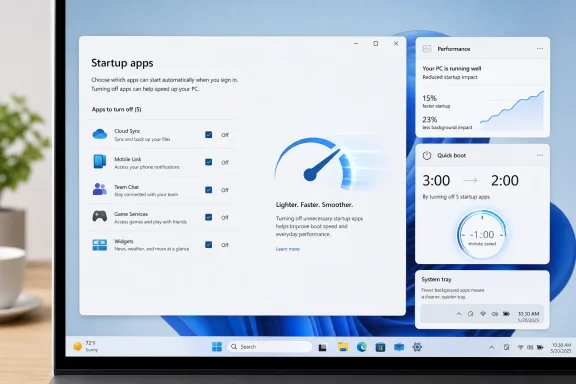 The Five-App Cleanup Was a Test of What This PC Actually Needed
The MakeUseOf piece is best read as a small consumer experiment, not a universal Windows rule. The author did not claim to discover malware, expose a broken update, or unlock a secret registry fix. They stopped five unused Windows apps from acting as if they belonged in the session all day.That distinction matters. Windows performance advice is often framed as if every app is either “necessary” or “bloatware.” Real PCs are more complicated. OneDrive is indispensable if you use Microsoft cloud storage. Phone Link is useful if you manage messages, calls, photos, and notifications from your desktop. Teams may be unavoidable for work or school. The Xbox app belongs on a PC used for Game Pass or Microsoft gaming features. Widgets can be useful if you like glanceable weather, news, sports, finance, traffic, and other cards.
The problem is not that these apps exist. The problem, in this case, was that the MakeUseOf writer did not need them running, watching, syncing, notifying, or sitting on the taskbar. First-party Windows apps can still be unnecessary on a particular machine.
That is why the safest reading is not “remove these five apps from every PC.” It is: check whether these five apps match the job of the device. If they do not, start by disabling startup and taskbar behavior. Uninstall only when you are sure the app is not part of your workflow.
| App | What it is there to do | MakeUseOf action | Windows path or setting used | Who should keep it |
|---|---|---|---|---|
| OneDrive | Sync files and connect the PC to Microsoft cloud storage | Unlinked PC, disabled startup, optionally uninstallable | OneDrive settings; Settings -> Apps -> Startup; Settings -> Apps -> Installed apps | Users who rely on OneDrive sync or folder backup |
| Phone Link | Connect phone features to the PC | Turned off PC-phone access and removed linked-device readiness | Settings -> Bluetooth & devices -> Mobile devices; Phone Link settings | Users who actively manage phone activity from Windows |
| Microsoft Teams | Keep chat, calls, and meetings available | Disabled auto-start and background launch; hid tray icon | Teams -> Settings -> General; Settings -> Personalization -> Taskbar | Workplaces, schools, and users who rely on Teams |
| Xbox app | Provide access to Xbox and Game Pass-related PC gaming features | Uninstalled, with startup disabling as the lighter option | Settings -> Apps -> Installed apps; Settings -> Apps -> Startup | Game Pass users and Windows gamers |
| Widgets | Show web-fed cards such as weather, news, sports, finance, and traffic | Turned Widgets off from taskbar settings | Right-click taskbar -> Taskbar settings -> Taskbar items | Users who want Widgets visible on Windows 11 |
OneDrive: Disable Carefully, Especially If It Handles Your Files
OneDrive is the most defensible background app on the list because file sync is its purpose. A sync client has to notice file changes and keep local and cloud state aligned. If you rely on OneDrive, disabling it can create confusion fast: files may stop syncing, folders may no longer match across devices, and a user who expects cloud backup may no longer have it.That is why OneDrive should be handled in stages.
The MakeUseOf writer started with the OneDrive cloud icon in the notification area, selected the gear icon, opened Settings, went to Account, and chose Unlink this PC. After confirming Unlink account, the writer went to Settings -> Apps -> Startup and turned off Microsoft OneDrive so it would not launch automatically at sign-in.
That sequence is measured. Unlinking first breaks the account relationship on that PC. Disabling startup then keeps the client from returning as part of the boot routine. If the user wants to go further, MakeUseOf points to Settings -> Apps -> Installed apps, searching for Microsoft OneDrive, opening the three-dot menu, and selecting Uninstall.
For a personal PC, the question is straightforward: do you use OneDrive on this machine? If yes, leave it alone or only adjust what it syncs. If no, unlinking and disabling startup are reasonable first moves.
For a managed PC, do not remove OneDrive just because a user says the machine feels slow. It may be part of the organization’s file sync, folder protection, or recovery expectations. On work or school devices, check policy and support requirements first.
Phone Link: Turn It Off If the PC Does Not Need Your Phone
Phone Link is useful when the PC is meant to act as a phone companion. It can bring phone-related activity into Windows, depending on the device, setup, and permissions. For some users, that is convenient. For others, it turns a quiet desktop into another notification surface.The MakeUseOf writer’s objection was practical: the phone was already nearby. They did not need the PC handling mobile interruptions too.
The setting path in the report is direct: Settings -> Bluetooth & devices -> Mobile devices, then turn off Allow this PC to access content and capabilities from your mobile phone. If a phone is already linked, the cleaner route is inside Phone Link itself: Phone Link -> Settings -> Mobile devices -> Manage devices, then remove the device.
This is not only a performance choice. It is also an attention and privacy choice. If you want texts, calls, photos, and notifications on the PC, Phone Link may be worth keeping. If you do not, leaving the device connected “just in case” adds complexity without a clear benefit.
The best rule is simple: either use Phone Link intentionally or disconnect it. A half-configured phone bridge is rarely the best state.
Microsoft Teams: Disable Startup Before You Remove the App
Teams is another app where the right answer depends on the user. On a work machine, Teams may be the meeting room, phone system, chat layer, and daily coordination tool. On a personal PC, it may be something that launches even though the user rarely opens it.MakeUseOf’s steps were conservative. The writer opened Teams, clicked the three-dot menu, went to Settings, and unchecked Auto-start Teams and Open application in background under the General tab. Then they went to Settings -> Personalization -> Taskbar and turned off the toggle for Microsoft Teams under Other system tray icons.
That is the right first move for many users. It does not break Teams. It does not remove it from a system where it might occasionally be needed. It simply stops Teams from joining every session before the user asks for it.
On managed PCs, be careful. Do not tell users to disable Teams if the device is expected to receive calls, join meetings quickly, or support workplace chat. The better administrative approach is to decide by device role. A shared kiosk, lab PC, loaner laptop, or non-collaboration workstation may not need Teams launching in the background. A primary work laptop probably does.
For personal PCs, the test is easier: if Teams is not part of your day, disable auto-start and background launch first. If you later need it, open it manually.
The Xbox App: Remove It From Non-Gaming PCs
The Xbox app has a clearer audience. If the Windows PC is used for Game Pass, Xbox services, cloud gaming, installed games, or Microsoft gaming features, keep it. If the PC is not used for those things, the app may simply be occupying space and attention.MakeUseOf’s action was direct: Settings -> Apps -> Installed apps, search for Xbox, click the three-dot menu beside the Xbox app, and select Uninstall. For users who do not want to remove it completely, the lighter option is Settings -> Apps -> Startup and disabling Xbox-related startup entries that do not need to launch with Windows.
The Xbox app is not automatically the main cause of a slow PC. On many systems, it may not be doing much until opened. But on a productivity laptop, school machine, or office desktop with no gaming role, keeping the Xbox app is often unnecessary.
The writer also reviewed Settings -> Gaming for features they were not using. That is a useful extra stop. A gaming desktop and a work laptop should not have the same gaming-related setup. If the machine is not a gaming PC, remove or disable the pieces that only make sense for gaming.
Widgets: Hide the Button If You Never Use the Board
Widgets are the simplest item on the list because the practical fix is just a taskbar setting. MakeUseOf describes Widgets as showing weather, news, sports, finance, traffic, and other web-fed cards. Some users like that. Others see it as a distraction sitting next to the work they are trying to do.The MakeUseOf solution was intentionally simple: right-click the taskbar, select Taskbar settings, and under Taskbar items, toggle Widgets off.
No uninstall is necessary for most users. No package removal. No command line. Just remove the visible entry point.
That matters because Widgets are as much about attention as performance. If you never intentionally open the Widgets board, there is little reason to keep it on the taskbar. If you do use it for weather, headlines, scores, or market information, leave it on.
On shared, school, kiosk, or productivity-focused machines, hiding Widgets can also reduce distraction. On a personal PC, it is a preference call. The cleanup question is not whether Widgets are good or bad; it is whether you actually use them.
Caution Box: What to Disable First, What Not to Remove
Before uninstalling anything, use this order:- Disable startup first.
Go to Settings -> Apps -> Startup and turn off apps that do not need to launch at sign-in. - Hide taskbar surfaces you do not use.
For Widgets, right-click the taskbar -> Taskbar settings -> Taskbar items -> Widgets off.
For Teams tray visibility, use Settings -> Personalization -> Taskbar. - Disconnect unused linked services.
For OneDrive, use the OneDrive cloud icon -> gear -> Settings -> Account -> Unlink this PC.
For Phone Link, use Settings -> Bluetooth & devices -> Mobile devices, or Phone Link -> Settings -> Mobile devices -> Manage devices. - Uninstall only when the workflow is clear.
Use Settings -> Apps -> Installed apps for OneDrive or Xbox only if you are sure they are not needed. - Do not remove OneDrive or Teams casually on managed PCs.
On work or school devices, OneDrive may be tied to file sync expectations, and Teams may be required for calls, meetings, or chat. Check with IT before removing either one.
The Performance Win Was an Accumulation, Not a Miracle Cure
The headline number in MakeUseOf’s account is roughly 1.5GB of idle memory freed. That is attention-grabbing because RAM pressure is one of the most visible ways a PC begins to feel constrained. On an 8GB system, 1.5GB can matter. On a 16GB system, it may still matter if the user keeps many browser tabs, Office apps, and chat clients open. On a 32GB workstation, it may be less noticeable.But again, that figure is the MakeUseOf writer’s reported result, not a guaranteed benchmark.
The boot-time claim should be read the same way. The writer reported that cold boot-to-usable-desktop time dropped from about three minutes to around two. Your result may vary depending on SSD speed, startup apps, drivers, firmware, security software, Windows configuration, and what you consider “usable.”
The battery-life gain — roughly 20 extra minutes during normal writing and browsing — is also a user-level observation. Battery life is noisy. Screen brightness, Wi-Fi conditions, browser workload, battery health, background indexing, and update activity can all change the result. Still, it is reasonable to treat the report as a reminder that fewer unused background components can help a laptop that was previously doing work the user did not value.
The useful lesson is not “disable these five apps and get these exact numbers.” It is: inspect the things Windows starts for you and ask whether they match how you use the PC.
There is also a usability gain that benchmarks do not always capture. Fewer tray icons, fewer notifications, fewer startup prompts, and fewer content surfaces can make a PC feel calmer. Users often describe that as speed, even when the improvement is partly about reduced interruption.
The Better Version of “Debloating” Starts With Intent
The word “debloat” is emotionally satisfying and technically imprecise. It can encourage users to remove things just because they are present. That can backfire. Remove the wrong sync client and files stop appearing where expected. Disable the wrong collaboration app and calls are missed. Strip out gaming components on a gaming PC and the user loses features they wanted.The MakeUseOf approach is more useful because it is personal and observable. The writer did not argue that nobody should use OneDrive, Phone Link, Teams, Xbox, or Widgets. The writer decided that this PC did not need them running in the background, then reported the result.
That is the right model for Windows tuning. Start with a question: what is this machine for?
A student laptop, gaming desktop, sales laptop, developer workstation, finance department PC, and shared reception machine should not have identical startup behavior. Yet many PCs accumulate the same general-purpose apps and background helpers. Power users and admins should correct that mismatch early.
The cheapest performance upgrade is sometimes not new hardware. It is making unused software stop acting important.
Admin Checklist
- Check startup entries before changing anything: Settings -> Apps -> Startup.
- Ask what the device is for before disabling apps.
- For OneDrive, confirm whether the PC depends on sync or folder backup before unlinking, disabling startup, or uninstalling.
- For Phone Link, remove linked devices if the PC should not access phone content or capabilities.
- For Teams, disable auto-start only where the user or device role does not require meeting and chat readiness.
- For the Xbox app, uninstall it from non-gaming PCs only when Game Pass, Xbox features, and Store gaming are not part of the device’s purpose.
- For Widgets, use the taskbar toggle first; do not overcomplicate the fix.
- Prefer reversible changes before permanent removals.
- On managed PCs, do not remove OneDrive or Teams without checking organizational requirements.
What This Actually Proves About a Sluggish Windows PC
This story does not prove that Windows is inherently bloated beyond repair. It does not prove that OneDrive, Phone Link, Teams, Xbox, or Widgets should be removed from every PC. It proves something narrower and more useful: unused default apps and background behaviors can add up, and trimming them can help when they do not match the user’s workflow.The concrete lessons are simple:
- Five unused Windows apps were disabled or removed in the MakeUseOf test: OneDrive, Phone Link, Microsoft Teams, the Xbox app, and Widgets.
- The reported improvement was roughly 1.5GB of idle memory, a cold boot-to-usable-desktop drop from about three minutes to around two, and about 20 extra minutes of battery life during normal writing and browsing.
- Those performance numbers are the MakeUseOf writer’s reported results, not a universal promise.
- The safest first move is usually disabling startup or background behavior, not uninstalling everything.
- OneDrive and Teams require special caution on managed PCs.
- Phone Link and Widgets are attention and privacy choices as much as performance choices.
- The best cleanup target is not “Microsoft apps.” It is apps that are ready all day for work you never do.
References
- Primary source: MakeUseOf
Published: Thu, 09 Jul 2026 18:00:18 GMT
Loading…
www.makeuseof.com - Official source: learn.microsoft.com
Loading…
learn.microsoft.com - Official source: techcommunity.microsoft.com
Loading…
techcommunity.microsoft.com - Official source: answers.microsoft.com
Loading…
answers.microsoft.com - Official source: blogs.windows.com
Loading…
blogs.windows.com - Official source: support.microsoft.com
Loading…
support.microsoft.com
- Related coverage: windowscentral.com
This free app puts Microsoft to shame by bringing widgets to the Windows 11 taskbar | Windows Central
A new app fills the empty space on your taskbar and highlights just how stale Microsoft's official Widgets Panel has become.www.windowscentral.com - Related coverage: techradar.com
Microsoft continues the good work on Windows 11, with tweaks to 'quiet' ads — and that big taskbar change is 'coming soon' | TechRadar
Useful changes for the widgets panel are in testingwww.techradar.com - Related coverage: cincodias.elpais.com
Loading…
cincodias.elpais.com - Related coverage: tomsguide.com
Loading…
www.tomsguide.com - Related coverage: androidcentral.com
I couldn't be happier, as Windows 11's cross-device resume update offers more for Android | Android Central
Why not let my PC and Android phone pause and play content between each other?www.androidcentral.com