

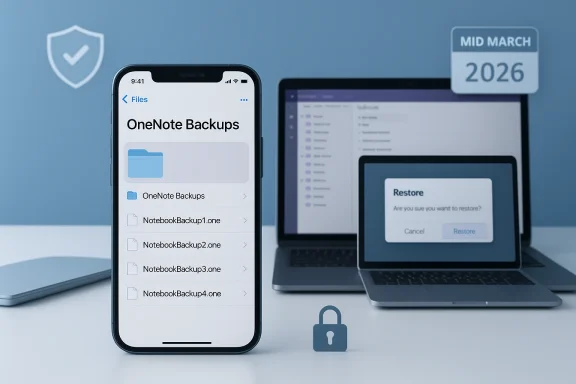
Microsoft is rolling out automatic local backups for OneNote on iOS devices starting in mid‑March 2026, a change designed to give mobile-first users a self‑service recovery option that mirrors the desktop backup experience and to reduce dependency on IT for basic notebook restores.
OneNote has long offered platform‑specific backup behavior: the Windows desktop version includes automatic and manual local backups, and the macOS client supports a limited backup model. Mobile versions historically relied on cloud sync to protect notes, which left users without an easy on‑device way to recover lost or corrupted notebooks when sync failed or a notebook was accidentally deleted.
In February 2026 Microsoft published a Microsoft 365 message (Message ID MC1235123) announcing that OneNote for iOS will begin creating automatic local backups stored in the device’s Files app. The rollout is scheduled to begin in mid‑March and complete by mid‑April 2026, and the feature will be enabled by default unless an organization’s Intune app protection policies restrict it. Microsoft also updated platform guidance to show that automatic backup for iOS and iPadOS is “coming soon” in early‑to‑mid 2026, confirming the timeline and intent.
These are not theoretical changes reported by a rumor mill: Microsoft’s administrator messaging, official support documentation updates, and multiple independent industry outlets have reported the same timeline and behavior, making this one of the more straightforward product changes you’ll see this spring.
This suggests the backup format will be the same or similar to the OneNote section (*.one or packaged) files used by desktop clients, enabling a straightforward restore path for users who have access to a Windows or macOS machine with the desktop OneNote app.
Because backups are stored outside of OneDrive or other cloud containers by default, they are accessible without uploading to the cloud. This behavior is important for users who want local control, but it raises security and compliance implications that IT teams must consider.
What this means in practice:
Key risks:
However, the feature introduces real security and compliance considerations that cannot be ignored. Because backups live in a user‑accessible area on the device, organizations must treat the rollout as a configuration and change‑management event—not just a client update. Existing Intune app protection policies will block the feature where appropriate, but many tenants will see it enabled by default unless they proactively act.
Bottom line recommendations:
In the weeks after the rollout begins, IT teams should perform controlled tests, capture screenshots of the Files app backup location, and verify that their legal and compliance tooling captures or accounts for locally stored backups. With the right controls in place, OneNote’s iOS local backups will substantially strengthen notebook resilience for mobile users without undermining enterprise governance.
Source: Windows Report https://windowsreport.com/microsoft...-backups-to-onenote-on-ios-starting-in-march/
 Background
OneNote has long offered platform‑specific backup behavior: the Windows desktop version includes automatic and manual local backups, and the macOS client supports a limited backup model. Mobile versions historically relied on cloud sync to protect notes, which left users without an easy on‑device way to recover lost or corrupted notebooks when sync failed or a notebook was accidentally deleted.In February 2026 Microsoft published a Microsoft 365 message (Message ID MC1235123) announcing that OneNote for iOS will begin creating automatic local backups stored in the device’s Files app. The rollout is scheduled to begin in mid‑March and complete by mid‑April 2026, and the feature will be enabled by default unless an organization’s Intune app protection policies restrict it. Microsoft also updated platform guidance to show that automatic backup for iOS and iPadOS is “coming soon” in early‑to‑mid 2026, confirming the timeline and intent.
These are not theoretical changes reported by a rumor mill: Microsoft’s administrator messaging, official support documentation updates, and multiple independent industry outlets have reported the same timeline and behavior, making this one of the more straightforward product changes you’ll see this spring.
What Microsoft announced — the essentials
- The feature: automatic local backups for OneNote on iPhone and iPad.
- Storage location: backup files will be saved to a user‑accessible directory inside the iOS Files app.
- Rollout timeline: mid‑March through mid‑April 2026 (global availability, includes Commercial, GCC, GCC High and DoD tenants).
- Default state: enabled by default unless blocked by an organization’s Intune app protection policy.
- Admin controls: governed by existing Microsoft Intune app protection policies (notably the Send org data to other apps setting).
- Restore process: backup files cannot be opened on iPhone/iPad; recovery requires transferring the backup file to a Windows PC or Mac running the desktop OneNote client.
How the new local backups will work
What gets backed up
Microsoft’s announcement describes automatic creation of local backup copies of notebooks. Based on existing OneNote backup behavior on desktop platforms, we expect these backups to capture notebook sections and pages in a format compatible with the OneNote desktop clients. However, Microsoft’s public note explicitly states that users must move the backup file to a PC or Mac for full recovery—iOS devices will not be able to open the file themselves.This suggests the backup format will be the same or similar to the OneNote section (*.one or packaged) files used by desktop clients, enabling a straightforward restore path for users who have access to a Windows or macOS machine with the desktop OneNote app.
Where backups are stored
Backups will be saved to a user‑accessible location in the iOS Files app. That means the files live in device storage under a folder that the user can access, move, or copy—subject to Intune app protection restrictions on managed devices.Because backups are stored outside of OneDrive or other cloud containers by default, they are accessible without uploading to the cloud. This behavior is important for users who want local control, but it raises security and compliance implications that IT teams must consider.
How restores work
- Users cannot open or restore backups from the iPhone/iPad directly.
- To recover a notebook, the user must transfer the backup file from the Files app to a PC or Mac and open it with the desktop version of OneNote.
- The feature is intended primarily as a self‑service recovery path for cases where cloud sync is insufficient or when a notebook gets deleted or corrupted.
Admin controls: Intune governs availability
Microsoft is not adding a new admin toggle specifically for this feature. Instead, it’s governed by existing Intune app protection policies—particularly the policy setting Send org data to other apps. If that setting is not set to All apps, OneNote local backups will be automatically disabled for managed users.What this means in practice:
- Organizations that already enforce restrictive Intune data‑movement policies will continue to block OneNote local backups without additional configuration.
- Tenants that have no app protection policies in place should expect the feature to be available by default to end users.
- Admins can scope control via Entra ID group membership to allow or block backups selectively.
Why this change matters — immediate benefits
- Self‑service recovery: Mobile‑first users who previously had no on‑device recovery path will gain a way to recover notebooks without contacting IT or restoring from cloud backups.
- Resilience to sync failures: Backups provide an extra copy for situations where sync is paused, interrupted, or corrupted.
- Alignment across platforms: The iOS client will now more closely match Windows and macOS behavior, reducing confusion about where recovery options exist.
- Reduced support load: Helpdesks should see fewer tickets for basic restore requests if end users can retrieve backups themselves.
Risks and compliance implications — what IT needs to evaluate
The convenience of local, user‑accessible backups brings a set of real security and compliance tradeoffs. Organizations must weigh the operational benefits against the risk of uncontrolled data exfiltration.Key risks:
- Data leakage: Files stored in the Files app can be moved to other apps or cloud services if Intune policies permit it. A local backup could be exported to personal cloud storage or shared via messaging apps.
- Device loss or theft: Backups kept on a device without disk encryption or secure containerization can be exposed if the device is compromised.
- Unclear retention: Microsoft has not published a precise local retention policy for iOS backups (for example, how many copies are kept or for how long). Lack of clarity can complicate legal holds and eDiscovery.
- Interactions with DLP and Purview: The local backups bypass some cloud‑first controls; organizations relying on cloud auditing and retention may find gaps unless Intune app protection policies are tightly configured.
Practical recommendations for administrators
Prepare before mid‑March with a short checklist to avoid surprises when the feature reaches your tenant.- Review current Intune app protection policies:
- Confirm the setting for Send org data to other apps.
- Ensure Save copies of org data and Allow user to save copies are set in line with your compliance posture.
- Decide which Entra ID groups should permit local backups and scope the policy accordingly.
- Update internal documentation and helpdesk runbooks to include:
- How users find backup files in the Files app.
- How to transfer backups to a desktop for restore.
- A known limitations section explaining that backups cannot be restored on iPhone/iPad directly.
- Audit existing endpoints for disk encryption and passcode policies; ensure mobile devices have modern encryption enforced.
- Communicate to end users and stakeholders:
- What the feature does and does not do.
- Where backups are stored and how to recover notebooks.
- Best practices for protecting backup files.
- Conduct a security review with compliance and legal teams to determine whether local backups meet regulatory needs for data residency, retention, and eDiscovery.
User experience: accessing and recovering backups
From the end‑user perspective, the flow should be straightforward with a few added manual steps:- Find the backup file in the iOS Files app under the OneNote backup folder.
- Transfer the backup file to a PC or Mac. Options include:
- AirDrop to a nearby Mac.
- Attach to an email (if permitted by Intune policy).
- Save to a cloud service allowed by organizational policy and then download on a desktop.
- Open the backup in the desktop OneNote client and follow the app’s restore process.
- If you’re unsure where OneNote saves its backup files in Files, consult your organization’s internal documentation or helpdesk.
- Avoid sending backup files through personal cloud accounts; use an organization‑approved transfer method.
- If you don’t have access to a desktop, contact your IT team—many organizations will want to centralize restore requests for compliance reasons.
Technical details to watch once the rollout begins
Microsoft’s message is clear about the timeline and admin controls, but a few important technical details remain unspecified or lightly documented. These are the areas to verify as the feature becomes available in your tenant:- File format and compatibility: Confirm the exact backup file format and confirm which desktop OneNote versions can open it.
- Retention policy: Determine how many backup copies iOS retains and whether backups are rotated or merged.
- Encryption on device: Verify whether backups are encrypted at rest by default and whether they inherit device encryption.
- Scope of notebooks: Does the backup include shared notebooks and notebooks from non‑work OneDrive accounts?
- Automatic backup frequency: Microsoft’s desktop clients define backup frequency (daily, weekly). For iOS, check how often backups are created and whether users can influence frequency.
- Storage size and quota behavior: Large notebooks with attachments can consume device storage; admins should monitor storage use and inform users.
Comparison: OneNote backup behavior across platforms
- Windows (desktop): Supports automatic and manual local backups; backups stored locally, configurable backup frequency and folder, and desktop restore is native. Designed for robust local recovery.
- macOS: Has backup behaviors but is more limited than Windows; desktop‑focused restore supports OneNote section files with different retention semantics.
- iOS (new): Introduces automatic local backups stored in Files, but with desktop restore required; intended to close a gap between mobile and desktop experiences.
- Android: Not covered by Microsoft’s current announcement; Android users still lack a similar built‑in local backup mechanism as of Microsoft’s messaging in early 2026.
Security hardening recommendations for organizations
To reduce the risk associated with local backup files on iOS devices, consider the following controls:- Enforce strong device passcodes and modern OS patching policies.
- Require device encryption and disable backup export to unmanaged cloud services.
- Use Intune app protection policy settings to block or limit saving to other apps when handling sensitive notebooks.
- Configure Conditional Access and device compliance rules to restrict access from jailbroken or compromised devices.
- Monitor endpoint telemetry for unusual file movements out of the Files app or unusual AirDrop activity.
- Train users to handle backups carefully and discourage sharing backups to personal services.
Edge cases and potential pitfalls
- Large notebooks: Notebooks with many attachments could generate large backup files that consume device storage or fail to create because of space constraints.
- Shared notebooks: The behavior for notebooks that live in shared libraries or in other people’s OneDrive accounts could be different; clarify ownership boundaries before relying on local backups.
- Legal holds and eDiscovery: If local backups are not captured by your organization’s cloud retention policies, they may create challenges when responding to legal discovery requests.
- Third‑party backup apps: Users may use third‑party device backup tools that inadvertently capture OneNote backup files and upload them to uncontrolled cloud services.
- User confusion: Because the backup cannot be opened on iOS devices, users may mistakenly believe backups are useless; clear communications and simple restore guides are essential.
Alternatives and complementary strategies
Local backups are helpful, but they’re one piece of a broader resilience strategy. Consider these complementary measures:- Maintain centralized cloud backup and retention policies for OneDrive and SharePoint where notebooks are commonly stored.
- Encourage periodic exports of critical notebooks to organization‑managed archival storage.
- Use enterprise backup vendors that provide Microsoft 365 cloud‑to‑cloud backup and long‑term retention for notebooks.
- For highly sensitive notebooks, consider restricting local backup availability via Intune and instead rely on managed cloud controls with auditing and retention.
What we still don’t know — and what to verify after rollout
Microsoft’s admin message is explicit about rollout timing, Files app storage, and Intune governance, but it is not exhaustive. Administrators and security teams should verify these items as soon as the feature is available to their tenants:- Precise backup file naming conventions and folder locations in Files.
- Whether backups are differential or full‑file copies (impacting storage and bandwidth).
- The default backup frequency and whether it is configurable.
- The number of copies retained and the rotation policy.
- Whether backups created under a managed account remain after the account is removed or the device is wiped.
Final analysis and verdict
Microsoft’s addition of automatic local backups to OneNote on iOS is a pragmatic and overdue improvement for mobile users. It aligns iOS with desktop expectations and provides a useful recovery tool for notebooks when sync and cloud workflows fall short.However, the feature introduces real security and compliance considerations that cannot be ignored. Because backups live in a user‑accessible area on the device, organizations must treat the rollout as a configuration and change‑management event—not just a client update. Existing Intune app protection policies will block the feature where appropriate, but many tenants will see it enabled by default unless they proactively act.
Bottom line recommendations:
- Treat the rollout as a planned change: audit Intune policies, update documentation, and brief helpdesk staff before mid‑March 2026.
- Verify encryption, retention, and file format details once the feature lands in your tenant.
- Use Intune and Conditional Access to limit unintended data movement and protect backups from exfiltration.
- Train users on the restore flow: find the backup in Files, transfer to a desktop, and restore using the desktop OneNote client.
In the weeks after the rollout begins, IT teams should perform controlled tests, capture screenshots of the Files app backup location, and verify that their legal and compliance tooling captures or accounts for locally stored backups. With the right controls in place, OneNote’s iOS local backups will substantially strengthen notebook resilience for mobile users without undermining enterprise governance.
Source: Windows Report https://windowsreport.com/microsoft...-backups-to-onenote-on-ios-starting-in-march/
