

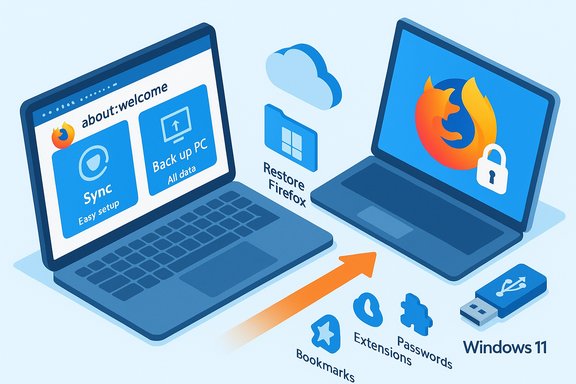
Mozilla is testing a new, focused backup and restore assistant for Firefox that’s explicitly designed to reduce data-loss and churn when people move from Windows 10 to Windows 11 — offering an on-device “Back up to PC” path alongside the existing Firefox Sync option, selectable backup depth (an Easy setup profile or an All data profile that includes encrypted passwords), OneDrive as a suggested destination, and an automated restore prompt when Firefox runs for the first time after a Windows 11 upgrade.
Windows 10 reached official end-of-support on October 14, 2025, pushing many users to upgrade to Windows 11, enroll in Extended Security Updates, or otherwise mitigate platform risk. Microsoft’s guidance and the public notices around EOL underline why migration tooling at the application layer matters now more than ever. Browsers are often the last user-facing components people think to migrate when they change operating systems; the moment of an OS upgrade is also a window when users frequently reconsider default apps and may abandon a browser if restoring profiles is awkward. Mozilla’s new backup assistant is explicitly intended to reduce that friction and preserve bookmarks, history, extensions and — optionally — saved passwords and payment data during the OS transition. Early reports and internal notes describe both a “recommended” Sync flow and a local backup file flow that aims to meet privacy-sensitive users’ preferences.
However, the features currently visible in test builds leave several important questions unanswered: cryptographic parameter transparency, long-term format compatibility, and a mature backup-history UI to manage retention and manual runs. Those gaps matter because they determine whether a backup is safe, recoverable and usable across real-world upgrade scenarios.
For end users and IT pros, the practical advice is straightforward: prefer Firefox Sync where possible, test the local backup + restore path before relying on it for production migrations, use strong passphrases and external encrypted storage, and — above all — remember that a browser backup is only one piece of a larger migration and security plan that must include OS updates or Extended Security Updates.
Source: Neowin Firefox to get useful dedicated tool for when you need to upgrade to Windows 11
 Background / Overview
Windows 10 reached official end-of-support on October 14, 2025, pushing many users to upgrade to Windows 11, enroll in Extended Security Updates, or otherwise mitigate platform risk. Microsoft’s guidance and the public notices around EOL underline why migration tooling at the application layer matters now more than ever. Browsers are often the last user-facing components people think to migrate when they change operating systems; the moment of an OS upgrade is also a window when users frequently reconsider default apps and may abandon a browser if restoring profiles is awkward. Mozilla’s new backup assistant is explicitly intended to reduce that friction and preserve bookmarks, history, extensions and — optionally — saved passwords and payment data during the OS transition. Early reports and internal notes describe both a “recommended” Sync flow and a local backup file flow that aims to meet privacy-sensitive users’ preferences. What the new Firefox backup assistant does
Two top-level choices: Sync or Back up to PC
When Firefox detects you’re on Windows 10 (or after a recent update), the about:welcome card may invite you to prepare for an upgrade with a simple prompt that offers:- Sync with Firefox — the standard Firefox Account route, recommended and end‑to‑end encrypted by Mozilla’s Sync protocols.
- Back up to PC — a local, file-centered backup that does not require signing into a Firefox Account and lets users choose where to store their profile snapshot.
Two backup depth profiles
After choosing “Back up to PC,” Firefox reportedly presents two presets:- Easy setup — preserves bookmarks, history and basic settings; does not include passwords or payment data and does not require encryption.
- All data — includes passwords and payment-related information; requires the user to set an encryption password for the backup file.
Where the backup is saved, and scheduling
The save dialog reportedly recommends OneDrive as a destination — a pragmatic choice because OneDrive is already commonly used for migrating files between Windows machines — but users may choose any folder, a USB/external drive, or another cloud folder. Test builds appear to default OneDrive into a subfolder named “Restore Firefox,” and after you complete the flow Firefox displays a confirmation page that says the backup is scheduled and will run once per day unless you change that behavior.Restore on Windows 11 first-run
After you upgrade or install Firefox on a new Windows 11 device, the about:welcome flow will scan for available Firefox backup files. If it finds the backup created earlier, it offers to restore the data; for All data backups the user must supply the encryption password to decrypt the file and complete restore of sensitive credentials. That “restore at first run” behavior is the core migration convenience Mozilla is testing.Why Mozilla is adding this: practical benefits
- Reduces migration friction during a high-risk moment: OS upgrades are when users most often reconsider default apps. A clean, integrated restore flow reduces the chance users switch browsers during setup.
- Preserves user choice: local backups let privacy‑sensitive users avoid vendor cloud accounts while still migrating their profile data.
- Provides an explicit, branded assistant with clear choices and safeguards (encryption for all-password backups) rather than leaving migration to manual profile copying or ad-hoc instructions scattered across help pages.
Critical examination: strengths, limitations, and risks
Strengths
- Low-friction UX: A one-card prompt on about:welcome with clear “Sync” or “Back up to PC” options meets users where they are and reduces the cognitive load of a multi-step manual migration process. Test notes and screenshots show compact, well-labeled flows for both options.
- Choice for privacy-conscious users: Local backup files appeal to users who refuse cloud sync or must meet organizational privacy constraints; the assistant explicitly supports both routes.
- Encryption for sensitive data: Requiring encryption for the “All data” profile is the right default behavior for a backup that includes passwords and payment details. The intent is good design: sensitive payloads are not saved unprotected by default.
- OneDrive integration for convenience: Suggesting OneDrive recognizes the practical reality that most Windows users already use Microsoft’s cloud and can recover a OneDrive-stored backup once they sign into their Microsoft account on a new device.
Limitations and risks
- Unclear cryptographic details and key management. Early coverage and test reports confirm that All data backups are password‑encrypted, but they do not document how Mozilla derives the encryption key (PBKDF iterations, algorithm, salt usage) or whether the encryption metadata is robust to offline attacks. Without published, verifiable cryptographic parameters, it’s impossible to judge actual strength. Users should treat the backup password as crucial and use a strong passphrase stored in a password manager.
- Password loss = lost access to data. Unlike sync — which is recoverable via account recovery and recovery keys — a local encrypted backup file is only as recoverable as the password the user provides. Mozilla’s flow will rely on users to remember/store that passphrase; if it’s lost, the backup will be unrecoverable. This tradeoff should be highlighted at the point of encryption setup.
- Backup scheduling and stale snapshots. Scheduling a daily backup is convenient, but users who save backups to cloud folders without awareness (or who reuse the same filename) can inadvertently keep long-lived, sensitive archives in third-party cloud storage. Daily backups without retention controls or visible history can increase an attacker’s surface if a cloud account is compromised. Test builds indicate Mozilla intends to add backup history and manual-run controls to the UI, but some of these controls were not visible in early builds. Until that control surface is fully present, users must be cautious about where they put encrypted files and how they manage retention.
- Defaulting to OneDrive raises model questions. Recommending OneDrive is pragmatic for Windows users, but it also nudges users toward a Microsoft-hosted cloud store. That’s fine for many users, but organizations and strictly local-only users may need clearer opt-out language and documentation on secure storage practices for backups.
- Potential API/format drift between Firefox versions. A backup created by one Firefox build must be restorable by subsequent builds at the time of recovery. Mozilla will need to document compatibility guarantees or provide migration helpers; failure to ensure forward-compatibility can render a legitimately created backup useless in future releases. Early project notes suggest this flow is intended for relatively near-term migration (Windows 10 → Windows 11), but long-term archival compatibility remains an open question.
Flagged claims (verify at release)
- The reported minimum eight-character encryption password requirement appears in early testing coverage, but that constraint comes from test builds and might change before wide release. Treat the eight-character figure as provisional and prefer a long, high-entropy passphrase regardless.
What this means for Windows 10 users upgrading to Windows 11
- Windows 10 stopped receiving mainstream security updates from Microsoft on October 14, 2025; migrating to a supported OS or enrolling in Extended Security Updates is the primary defense step for platform-level security. Browsers remain important but cannot substitute for OS patches.
- For Firefox users, the simplest and most robust migration route remains Firefox Sync — sign into your Firefox Account on the new device and let Mozilla rehydrate bookmarks, passwords, history and add-ons automatically. The new assistant preserves a local alternative for users who cannot or will not use Sync.
- If you plan to use the Back up to PC option, do these three things before you upgrade:
- Use a strong, unique passphrase for All data backups and store it in a reputable password manager.
- Prefer storing backup files on an external encrypted drive, or if using cloud storage, enable multi‑factor authentication and consider adding an additional layer of encryption (for example, an encrypted container) beyond the Firefox-provided archive.
- Make a full system image or additional backups (Acronis, Macrium, or Windows System Image) before attempting an OS upgrade — browser backup alone is not a substitute for a full disk or profile image.
Technical and security questions for Mozilla to clarify
- Which encryption algorithms and key‑derivation functions are used for All data backups? Are parameters (salt, iteration counts) documented and adjustable over time to remain resilient against evolving brute‑force best practices? This matters because a backup containing credentials will be a valuable target to an attacker.
- How does Mozilla guarantee forward compatibility of the backup file format across Firefox releases? Will older backups remain restorable after major profile-storage changes? Early notes imply migration is intended for near-term OS moves, but long-term durability commitments would be reassuring.
- What retention and visibility controls will users have in the UI? A small backup history panel that lets users view dates, file sizes, and run manual restores would increase user confidence and reduce accidental exposure. Test builds point to planned history and manual-run capabilities, but they weren’t fully surfaced in all builds.
Practical checklist for users right now
- Update Firefox to the latest Release channel build, or test the Backup feature in Beta/Nightly if you want early access — the feature is being trialed and behind flags in preview releases.
- Prefer Firefox Sync if you want the least-risk, cloud-managed restore path and you’re comfortable with a Mozilla Account.
- If you choose Back up to PC:
- Pick a unique, high-entropy passphrase and store it in a password manager (do not reuse other passwords).
- Save the backup to an external encrypted drive, or if you must use cloud storage, enable MFA and treat the backup file as highly sensitive.
- Keep a separate, full‑disk or image backup before upgrading the OS.
- Test restore on a spare device (or VM) before you do a production upgrade to ensure the backup file and password behave as you expect.
Broader context: Windows updates and timing
Mozilla’s new assistant arrives in a timeframe when Windows servicing is very active: Windows 11 continues to receive feature and non-security preview updates (for example, KB5070311 in late 2025 introduced File Explorer dark mode changes and other small fixes), and Microsoft’s official EOL messaging is what’s driving the migration wave that makes this assistant worthwhile. The OS update cadence and recent preview releases are reminders that application-level migration helpers are an important but partial mitigation — users still need to address platform security with OS updates or Extended Security Updates.Verdict — useful, but not a replacement for an OS plan
Mozilla’s Firefox Backup assistant is a well-targeted, pragmatic attempt to reduce churn during a high-stakes migration window. It addresses a real user pain point with a simple, choice-driven UX and a sensible principle: don’t force everyone into cloud sync. For privacy-conscious users and shops that avoid cloud accounts, a local, encrypted backup option is valuable.However, the features currently visible in test builds leave several important questions unanswered: cryptographic parameter transparency, long-term format compatibility, and a mature backup-history UI to manage retention and manual runs. Those gaps matter because they determine whether a backup is safe, recoverable and usable across real-world upgrade scenarios.
For end users and IT pros, the practical advice is straightforward: prefer Firefox Sync where possible, test the local backup + restore path before relying on it for production migrations, use strong passphrases and external encrypted storage, and — above all — remember that a browser backup is only one piece of a larger migration and security plan that must include OS updates or Extended Security Updates.
Quick reference: Where the facts in this article come from
- Details of the Firefox Backup assistant flows and UI behaviors are reported from early test coverage and forum analysis of Mozilla’s planned assistant.
- Mozilla’s public guidance on Firefox and Windows 10/11 migration context and Sync recommendations.
- Independent press coverage and technical reporting that describe the assistant and its options.
- Microsoft’s official notices about Windows 10 end of support and Windows 11 cumulative updates such as KB5070311.
Source: Neowin Firefox to get useful dedicated tool for when you need to upgrade to Windows 11
