

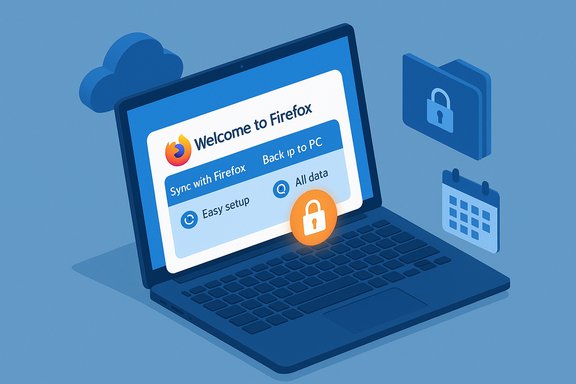
Mozilla’s new Firefox 146 release brings a focused, on‑device Backup Assistant for Windows users alongside the usual developer and platform updates — a practical tool that aims to simplify Windows 10 → Windows 11 migrations by offering an explicit “Back up to PC” path in addition to the existing Firefox Sync option.
Background
Windows 10 reached its widely discussed end‑of‑support milestone in October 2025, creating a wave of device migrations and a consequential moment when users often re‑evaluate default apps and services. Browsers are a particularly vulnerable point during OS upgrades: a clumsy migration experience can cause users to abandon their preferred browser for whatever is preinstalled or feels easiest on a fresh system. Mozilla’s Backup Assistant is specifically targeted at that migration pain point.From a product‑management perspective, the new assistant is designed to reduce churn at “the moment of truth” — the initial setup or first run on a newly upgraded device — by making it straightforward to preserve bookmarks, history, extensions and, optionally, saved passwords and payment data via a local file that users control. The feature has been visible in testing channels and is tracked under the Firefox 146 development cycle.
Overview: what the Backup Assistant does
Two top‑level choices: Sync or Back up to PC
When triggered, the onboarding card in Firefox’s about:welcome UI presents two clear options:- Sync with Firefox — the existing Firefox Account route that uses Mozilla’s end‑to‑end Sync service.
- Back up to PC — a new, local backup workflow that produces a portable backup file without requiring a Firefox Account sign‑in.
Two backup depth profiles
After selecting Back up to PC, Firefox offers two preset profiles:- Easy setup — preserves bookmarks, history and basic settings; does not include passwords or payment data and does not require encryption.
- All data — includes saved passwords and payment information; requires the user to set an encryption passphrase before the archive is written.
Where the backup is saved and how it runs
The Save dialog recommends OneDrive as a destination — a pragmatic UX choice for Windows users — while still allowing any folder, USB/external drive or other cloud folder. Test builds often suggested a OneDrive subfolder named “Restore Firefox.” Once created, the UI displays a confirmation and indicates the backup is scheduled to run once per day by default, though manual-run and history controls are planned for future UI expansions.Restore and first‑run detection
On a newly upgraded machine (for example, a Windows 11 system after migrating from Windows 10), the Firefox about:welcome flow scans for available backup files. Users pick the backup file, supply the encryption passphrase for All data backups and Firefox restores bookmarks, history, extensions and preferences from that file. This is the convenience point Mozilla emphasises: an automated restore prompt at first run significantly reduces friction in re‑establishing a familiar browsing environment.Why Mozilla built this: practical context
The Backup Assistant is a targeted response to a real behavioral and technical problem:- OS upgrades are high‑churn moments. Users performing a factory reset, an in‑place upgrade or buying a new device are more likely to stick with system defaults if it’s easier than restoring a prior browser profile.
- Not all users want cloud sync. Some users and organizations avoid vendor cloud accounts for privacy or compliance reasons; a local backup file provides a cloud‑free migration path.
- OneDrive is ubiquitous on Windows. Suggesting OneDrive reflects how many Windows users already move data between machines, but it introduces trust trade‑offs that deserve consideration.
Technical verification and maturity
Release channel status
At the time of reporting, the Backup Assistant has been visible in Beta and Nightly builds and has been available behind a preference flag in preview channels. That places the feature in active testing rather than being a guaranteed, unchanged item in every stable release channel at rollout. Users and administrators should treat the experience as evolving until it appears in a Release channel without flags.Bug tracker and real‑world QA
Multiple Bugzilla issues related to Backup onboarding (alignment of UI elements, onboarding state persistence, detection of OneDrive or Documents folder) are active under the Firefox 146 tracking flag. These reports show Mozilla’s engineering teams are iterating on polish and edge‑case behavior — a normal part of a feature introduced during a migration wave. The presence of these bugs is a reminder that early users should test the feature in their environment before relying on it for critical migrations.Strengths: what the Backup Assistant gets right
- Low‑friction UX at the point of need. A single about:welcome card that surfaces both Sync and a local backup option meets users during the OS upgrade flow, reducing cognitive load and the risk of losing them to alternative browsers.
- Choice for privacy‑sensitive users. The Back up to PC option avoids forcing sign‑in to a Firefox Account, which is valuable for users who must avoid cloud storage for compliance or preference reasons.
- Encryption for sensitive data. Requiring a passphrase for the All data profile is a pragmatic protection for a backup file containing passwords and payment data. It balances usability and safety for many users if implemented with robust cryptography.
- Practical OneDrive default. Suggesting OneDrive acknowledges the real behavior of Windows users who already use the service to move files between devices, lowering the friction to complete the migration.
- Planned management features. Bugzilla notes and preview UIs indicate Mozilla intends to add backup history, manual‑run, and restore controls; those will increase transparency and user control when they arrive.
Risks and limitations — what to watch for
- Unclear cryptographic details. Public reporting and test builds confirm backups that include credentials are password‑encrypted, but they do not yet document the exact cryptographic algorithms, key‑derivation parameters (PBKDF2 vs Argon2, iteration counts, salt usage), or metadata protections. Without published, verifiable cryptographic parameters, independent security assessment is limited. Users should favor long, high‑entropy passphrases and keep cross‑backups (Sync / external images) until Mozilla documents the scheme.
- Backup security depends on user choices. Choosing Easy setup means no passwords are included; saving an unencrypted archive to a shared or cloud folder exposes profile data. Conversely, choosing All data with a weak passphrase undermines protection even if encryption is applied. The default OneDrive suggestion is convenient but introduces a separate trust boundary — the Microsoft account and OneDrive security posture matter.
- Feature maturity and bugs. Active Bugzilla entries show onboarding and detection problems on Windows 10 test images; the presence of these defects means users should test the flow in their own environment before relying solely on it for migration.
- Not a substitute for OS patching. A current browser reduces web‑facing attack surface, but it does not fix kernel, driver or firmware vulnerabilities in an unsupported OS. Users on Windows 10 must still plan for OS patching (upgrade to Windows 11, enroll in Extended Security Updates, or migrate workloads) to maintain a secure posture.
- Enterprise management gaps. The Backup Assistant is primarily consumer‑facing. Organizations that rely on managed profiles and centralized migration tooling will need enterprise policy hooks or administrative controls; those are not yet clearly documented for this new backup subsystem. Enterprises should continue to use documented management tooling for migrations until explicit policy support is published.
How to use the Backup Assistant (practical steps)
- Update Firefox to the latest Beta/Nightly if you want early access, or wait for the Release channel if you prefer a conservative rollout. The Backup Assistant has been visible in Firefox 145+ test builds and is tracked in the 146 development cycle.
- When prompted by the about:welcome card, choose either Sync with Firefox (recommended for most users) or Back up to PC for a local file.
- If selecting Back up to PC, choose between Easy setup (no passwords included) or All data (encrypted archive containing credentials). For All data, create a long, unique passphrase and store it in a reputable password manager.
- Pick a save location. Prefer an external encrypted drive or a secured cloud path protected by MFA (e.g., OneDrive with personal vault and MFA enabled) if you must use cloud storage. Remember that OneDrive is suggested by the UI but not mandatory.
- Verify the scheduled backup behavior and, if possible, trigger a manual backup to confirm the file is created and the passphrase works. Bugzilla notes show onboarding settings can behave differently in test builds, so confirmation is worth the effort.
- Before upgrading your OS, make a full system image as a rollback safety net; treat the browser backup as an additional convenience, not a complete disaster recovery solution.
- After upgrading or on first run of Firefox on the new device, use the about:welcome restore option to locate the backup file, enter the encryption passphrase for All data archives and confirm bookmarks, extensions and preferences restored correctly.
Security checklist for the backup file
- Use a long, unique passphrase for All data backups; prefer passphrases longer than 15 characters with high entropy and store them in a trusted password manager.
- If storing backups in the cloud, enable MFA and use personal‑vault or additional encryption layers (for example, encrypt the backup file or store it inside an encrypted container).
- For unencrypted Easy setup archives, avoid saving to shared or public cloud folders.
- Test a restore into a secondary profile or VM before relying on the file for a production migration.
- Keep a full system image as the primary rollback mechanism; browser backups are not enough if an OS upgrade fails.
How Firefox’s approach compares to competitors
- Google Chrome relies primarily on Google Account sync for cross‑device portability; users without a Google Account must use manual exports (bookmarks HTML) or third‑party tools.
- Microsoft Edge often leverages Windows and Microsoft account features and is closely tied to OneDrive and platform backups in Windows.
- Firefox’s hybrid model — an in‑browser local backup plus a Sync route — is distinct for offering a local, portable archive that doesn’t require vendor cloud sign‑in while still supporting the convenience of cloud transfer via OneDrive. This gives users both a cloud‑managed path and a cloud‑free fallback.
Enterprise considerations
IT administrators should treat the Backup Assistant as a consumer migration convenience until Mozilla publishes explicit enterprise policy hooks. Critical enterprises should continue with established migration plans:- Inventory Windows 10 endpoints and categorize by upgrade eligibility.
- Prioritize ESU enrollment for devices that cannot be immediately upgraded.
- Use centralized management tools, imaging, and tested migration waves for critical systems.
- Combine client migration steps with compensating controls (segmentation, application allowlists) for legacy devices.
Open questions and what to watch
- Will Mozilla publish full cryptographic specifications (algorithm suites, KDF parameters, metadata protections) for the All data backups?
- When will the Backup Assistant appear in the stable Release channel and in ESR (Enterprise) builds by default?
- What enterprise policies and administrative controls will be exposed for bulk migrations?
- How will backup retention, naming conventions and cross‑cloud behaviors be documented (OneDrive vs other clouds)?
Final analysis — a balanced verdict
The Firefox Backup Assistant is a pragmatic, well‑targeted tool that addresses a real user pain point during OS migrations. Its strengths are clear: a simple, consumer‑friendly UI surfaced at the right moment; a local archive option for privacy‑sensitive users; and optional encryption for credentials. Those design choices will measurably reduce friction for many users and lower the risk of browser churn during device setup.However, this convenience comes with caveats. The security value of the All data archive depends heavily on the cryptographic implementation and on user choices (passphrase strength, storage location). The feature is still in active testing, and live Bugzilla reports show onboarding edge cases are being ironed out. Most importantly, a browser migration assistant is a mitigation for convenience — not a substitute for an OS upgrade or Extended Security Updates to address platform‑level vulnerabilities. For Windows 10 users planning a move to Windows 11, the sensible approach is a layered one: enable Firefox Sync for immediate cloud rehydration where appropriate, use the new Backup Assistant as a portable fallback (prefer encrypted All data with a strong passphrase), keep a full system image, and follow enterprise migration best practices where applicable. That combination preserves convenience without sacrificing security or operational resilience.
Practical next steps and recommendations
- If you want early access: test the Backup Assistant in Firefox Beta/Nightly builds but verify behavior on a test profile first.
- Prefer the All data encrypted profile when you want credentials included — but use a secure, unique passphrase and store it in a password manager.
- Treat the OneDrive suggestion as a convenience, not a requirement — use it only with additional protections (MFA, personal vault, or a second encryption layer) if you are concerned about cloud exposure.
- Maintain a full system image and other backups before performing any OS migration; test restores thoroughly.
Mozilla’s Backup Assistant is a timely addition to Firefox’s migration toolkit: it recognizes that the browser is both a personal data vault and a critical user retention point during OS upgrades. The feature’s success will depend on solid cryptographic hygiene, thoughtful defaults, and thorough QA as it migrates from test channels into general availability. In the meantime, users should test, verify, and retain independent backups while Mozilla finalizes the feature and its supporting documentation.
Source: Neowin https://www.neowin.net/news/firefox...ew-backup-tool-for-windows-10-users-and-more/

 references#experimental). Labs is available regardless of telemetry/studies settings in 146. Administrators can control availability through policies.