

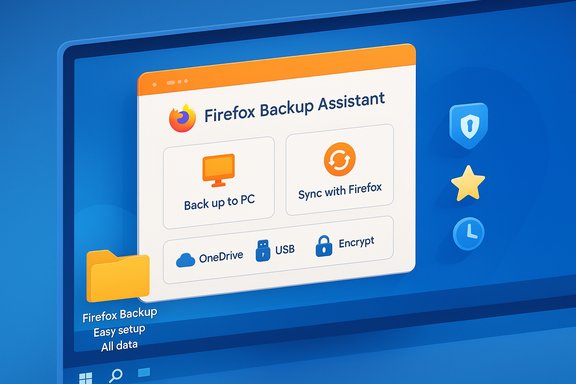
Firefox is testing an on‑device backup and restore assistant designed to ease data migration for users moving from Windows 10 to Windows 11 — offering a local “Back up to PC” path (and the existing Sync route) that aims to preserve bookmarks, history, extensions and, optionally, encrypted passwords and payment data during the OS transition.
Microsoft formally ended mainstream, free support for Windows 10 on October 14, 2025, leaving many consumers and organizations to choose between upgrading to Windows 11, enrolling in Microsoft’s consumer Extended Security Updates (ESU) option, or otherwise mitigating risk on older devices. That calendar milestone is the immediate context for why browser migration tools matter. Mozilla has maintained that Firefox on Windows 10 will continue to receive Release‑channel updates for the “foreseeable future,” but that promise addresses the browser layer, not the operating system layer. Browsers protect web‑facing attack surfaces; the OS, firmware and drivers protect deeper platform layers. For many users, the moment of an OS upgrade is when they re-evaluate which browser to use — and that’s the exact churn Firefox’s new backup assistant is intended to reduce.
However, the backup assistant is not a security panacea. The underlying OS lifecycle remains the dominant security variable; Microsoft’s October 14, 2025 end‑of‑support for Windows 10 means users must still plan for OS patching either by upgrading to Windows 11, enrolling eligible machines in ESU, or migrating workloads off Windows 10. Browser backups solve migration inconvenience — they do not substitute for OS‑level patching and firmware updates. For everyday users, recommended best practice is simple and robust: enable Firefox Sync as the primary safety net, create a local encrypted Firefox backup for an extra safety layer, export bookmarks as an independent fallback, and create a full system image before performing an OS upgrade. For administrators, continue to treat Firefox’s tools as helpful adjuncts to formal migration plans rather than replacements for enterprise migration policy and lifecycle controls.
Firefox’s backup effort is a welcome, practical piece of migration tooling — one that could reduce browser churn, help privacy‑conscious users migrate safely, and improve the onboarding experience on new Windows 11 devices. Expect the UI and enforcement details to evolve as the feature moves from Beta/Nightly testing toward broader release; verify the final behavior in your Firefox build and keep multipronged backups active until you’ve confirmed recovery works end‑to‑end.
Source: Windows Report Firefox works on backup feature to help Windows 10 users move to Windows 11 following end of support
 Background
Microsoft formally ended mainstream, free support for Windows 10 on October 14, 2025, leaving many consumers and organizations to choose between upgrading to Windows 11, enrolling in Microsoft’s consumer Extended Security Updates (ESU) option, or otherwise mitigating risk on older devices. That calendar milestone is the immediate context for why browser migration tools matter. Mozilla has maintained that Firefox on Windows 10 will continue to receive Release‑channel updates for the “foreseeable future,” but that promise addresses the browser layer, not the operating system layer. Browsers protect web‑facing attack surfaces; the OS, firmware and drivers protect deeper platform layers. For many users, the moment of an OS upgrade is when they re-evaluate which browser to use — and that’s the exact churn Firefox’s new backup assistant is intended to reduce. Overview: what the new Firefox backup assistant does
How users are prompted
- On Windows 10 systems that have a recent Firefox build, a card may appear on the about:welcome page after an update. The card’s text prompts: “Upgrading to Windows 11? Let’s back up your Firefox data. Protect your passwords, bookmarks and more in 1–2 minutes.” That card offers two top‑level choices: Sync with Firefox (recommended) or Back up to PC (local backup).
- The Sync option continues to use a Firefox Account and end‑to‑end encryption tied to that account. The Back up to PC option creates a local backup file and does not require signing into a Firefox account; it is intended for users who prefer a file they can carry or place on a cloud storage provider themselves.
Two backup depth profiles
When choosing Back up to PC, users are presented with two preset options:- Easy setup — includes bookmarks, history and settings but excludes passwords and payment data. This option does not require encryption.
- All data — includes passwords and saved payment information and requires the user to set a password to encrypt the resulting backup file. Reports indicate the password prompt enforces a minimum length (reported as eight characters), though that specific constraint comes from early testing reports and should be verified by users when the feature rolls to release.
Where the backup goes
- Firefox’s UI reportedly suggests saving the backup to OneDrive and notes that OneDrive can help transfer the file to a new device during setup. Users can choose other destinations as well — local folders, USB drives, or external drives. Test builds appear to default to a subfolder named “Restore Firefox” when OneDrive is selected.
Scheduling and visibility
- After creating a backup the UI displays a confirmation screen stating the backup is scheduled and runs once per day, and it lists what is included in the scheduled backups. A settings link leads to the existing Sync preferences; according to a Bugzilla record Mozilla plans (or planned) to add dedicated backup history, manual-run, restore and inclusion controls to the Sync/backup UI. That separate backup control panel did not appear in some test builds and remains a development detail to watch.
How restore works after migration
- On a Windows 11 device (or after a fresh install), the Firefox about:welcome installer or initial startup flow looks for available backup files. Users choose the backup file, supply the encryption password if required, and Firefox restores bookmarks, history, extensions and preferences from that file. This flow is intended to make a migration smoother and to reduce the number of users who switch browsers during device setup.
Why Mozilla is building this (the practical problem it solves)
Migration is a churn moment for browsers
The OS upgrade path is when many users reconsider default apps. Fresh device setups are a high‑visibility opportunity for browser vendors to win users back or lose them forever. By providing an integrated, local backup/restore path Mozilla reduces friction and the need for users to rely solely on cloud sync or manual profile copying. That both preserves user choice and reduces churn.Local backup addresses privacy and continuity preferences
Not every user wants to create or use a Firefox account for sync. The “Back up to PC” flow gives a non‑cloud, file‑centric alternative for users who prefer direct control over where profile data is stored — particularly organizations or privacy‑sensitive individuals who do not want their profile metadata held in a vendor-controlled cloud by default.OneDrive as a pragmatic UX nudge
Suggesting OneDrive as the default save location is pragmatic: it’s cross‑device, ubiquitous on Windows, and it simplifies moving a file from an old machine to a new one. The trade‑off is that OneDrive suggests a Microsoft account tie to achieve the “easy move” promise, which may be unwanted by some privacy‑minded users. The UI still permits other destinations.Technical specifics and verification status
- Feature testing: Planet Mozilla and localization notes indicate Firefox Backup is being introduced in Firefox 145 and has been available behind a preference flag in Beta and Nightly builds at the time of reporting. That places the feature in active development and testing, not yet guaranteed in a stable release channel.
- What’s included: the feature’s “Easy setup” and “All data” profiles map to two familiar risk models — convenience without encryption and a full, encrypted copy that includes sensitive data. The latter requires a user‑chosen password. The reporting of an eight‑character minimum for the password appears in early hands‑on writeups and screenshots; this specific enforcement has not been verified on an official Mozilla support document at the time of writing and should be treated as an implementational detail that may change. Flag: password minimum length reported from testing builds and early reports — verify in your Firefox build when you use the feature.
- Scheduling: preliminary UIs show an automatic daily backup schedule with a confirmation screen and a link to Sync settings. Bugzilla notes list features planned for the backup subsystem — viewing backup history, manual backups, restores and scope controls — but a dedicated control panel was not available in all test builds. That means user control will likely expand in follow‑up updates.
- Restore mechanics: the about:welcome restore flow detects backup files at startup and walks users through selecting the file and entering the password for encrypted files. The process intends to restore bookmarks, history, extensions and preferences — the set most users expect when moving devices.
Strengths — why this is a smart move for Firefox
- Reduces churn at the moment of truth. An in‑browser migration path addresses the exact moment many users switch their default browser: device setup. That can materially reduce loss of users who would otherwise default to Edge or Chrome on a new Windows 11 machine.
- Respects user choice and privacy. Offering a local backup option avoids forcing a sign‑in to restore critical data, which is important for users who decline cloud sync for privacy or compliance reasons. The option to encrypt the file is a reasonable balance between usability and protection for secrets like passwords and payment details.
- Practical OneDrive integration. Recommending OneDrive meets users where they already store data on Windows and lowers friction for transferring the single backup file to a new machine. For many users, that’s an easier step than copying profile directories manually.
- Engineers for edge cases. Bugzilla and internal notes show attention to details such as preserving default profile behavior during restores and renaming prior profiles to keep rollbacks clear — small quality‑of‑life improvements that reduce support friction.
Risks, open questions and things users must watch for
- The OS gap remains the dominant risk. An updated browser reduces web‑facing risk, but a patched browser cannot close kernel, driver or firmware vulnerabilities in an unsupported OS. Microsoft’s Windows 10 end‑of‑support means OS‑level fixes are not guaranteed without ESU enrollment or an upgrade. Users must not conflate a browser backup/restore tool with full platform security.
- Backup file security depends on user choices. If users choose “Easy setup” or save unencrypted files to cloud storage, sensitive data such as passwords will not be included or protected. Conversely, if users choose “All data” but pick a weak encryption password (or poorly secure storage for the password), the backup’s protection is compromised. The reported minimum‑length requirement should not be treated as an automatic guarantee of strength — complexity, entropy and proper derivation matter. Flag: verify password rules in your build and use a strong, unique passphrase stored in a reputable password manager.
- Trust boundaries with OneDrive. Storing an encrypted backup file on OneDrive implicitly involves a trust decision — OneDrive will hold that file in your cloud store and could be subject to account compromise unless additional protections such as Microsoft 365 security controls or personal vaults are used. For users who specifically want to avoid cloud providers, local drives or offline USB storage remain the safer choices.
- Feature maturity and timeline. The backup assistant was visible in Beta/Nightly testing and behind flags in Firefox 145; no final release date was published at the time of reporting. That means behavior, UI text and security details can change between test builds and the eventual stable rollout. Flag: this is pre‑release functionality — test it carefully and keep fallbacks (Sync and manual exports) active.
- Enterprise and manageability questions. The backup assistant is primarily a consumer UX mechanism. Enterprises relying on managed profiles and centralized tooling will need clear policy hooks or enterprise controls to integrate this into migration workflows. It’s not yet clear if the backup subsystem will expose administrative controls analogous to Firefox’s existing enterprise policies. Flag: administrators should continue to use documented enterprise migration tooling and policies until productized enterprise controls are published.
Practical recommendations — preparing for a Windows 10 → Windows 11 migration (actionable checklist)
- Confirm where your important browser data currently lives:
- Check Firefox Sync status (Settings → Firefox Account → Sync) and confirm “Last synced” time.
- Use multiple backups before you upgrade:
- Enable Firefox Sync (end‑to‑end encrypted).
- Export bookmarks to an HTML file and keep a copy on USB or external drive.
- Use the new Firefox Backup (if available in your build) and prefer the encrypted “All data” option when you want passwords and payment info included — but use a long, unique passphrase.
- If you plan to use cloud storage, pick a secure path:
- OneDrive is convenient and suggested by Firefox’s UI, but protect the associated Microsoft account with MFA and review its retention and sharing settings.
- Make a full system image before an OS upgrade:
- Treat the browser backup as a convenience for profile data; a full disk image is your strongest rollback safety net.
- Verify restores on the new device:
- After upgrading or installing on a new PC, test restoring the backup from about:welcome and confirm that bookmarks, extensions and (if chosen) passwords are restored correctly.
- For enterprises: plan migration waves and compensating controls:
- Inventory Windows 10 devices, categorize by upgrade eligibility, and prioritize ESU enrollment for critical endpoints while scheduling migrations for the rest. Combine Mozilla’s browser tools with OS‑level controls and EDR/segmentation.
Privacy and security checklist for the backup file
- Use a strong, unique passphrase for encrypted backups (passphrases > 15 characters with mixed character classes are recommended).
- Keep the passphrase in a trusted password manager rather than in a document stored alongside the backup.
- If you choose to store backups on cloud services, enable multi‑factor authentication and consider adding additional protection such as personal vault features or file encryption at rest on the service.
- If the backup file is unencrypted (Easy setup), do not store it in shared/cloud locations that lack additional protections.
- Regularly verify backup integrity by restoring into a test profile or secondary device before relying on it during a migration.
How this compares to other browsers
- Google Chrome: Chrome’s migration relies primarily on Google Account sync for cross‑device profile portability. Users without a Google Account must export bookmarks or use third‑party tools.
- Microsoft Edge: Edge integrates with Windows File History and Microsoft account features on Windows; Edge’s restore/continuity on Windows often leans on the platform-level backups offered by Microsoft.
- Firefox’s approach: By building an in‑browser local backup with optional encryption and OneDrive‑friendly defaults, Firefox offers both a cloud‑free fallback and a convenient cloud‑assisted path. This hybrid model is distinct: it gives users a local file they control and an option to use cloud transfer without forcing sign‑in.
What we still don’t know (and what to watch)
- Final release timing and which Firefox channel (Release vs ESR) will receive the backup assistant by default.
- The final, official password complexity and derivation requirements for encrypted backups (reported eight‑character minimum in tests — verify in release).
- Exact retention, naming and folder behavior across cloud providers beyond OneDrive integration testing notes.
- Enterprise policy hooks and centralized management options for admin‑driven migrations.
These are functional items Mozilla is actively iterating on; users and administrators should treat the current experience as evolving and verify behavior in the build they plan to use.
Final analysis — a balanced take
Mozilla’s backup assistant addresses a real, high‑impact pain point: the device‑setup moment is when users frequently abandon their preferred apps. By offering a local, optionally encrypted backup plus a convenience path via OneDrive, Firefox reduces friction and gives users choice — a pragmatic, user‑centric solution that respects different privacy postures.However, the backup assistant is not a security panacea. The underlying OS lifecycle remains the dominant security variable; Microsoft’s October 14, 2025 end‑of‑support for Windows 10 means users must still plan for OS patching either by upgrading to Windows 11, enrolling eligible machines in ESU, or migrating workloads off Windows 10. Browser backups solve migration inconvenience — they do not substitute for OS‑level patching and firmware updates. For everyday users, recommended best practice is simple and robust: enable Firefox Sync as the primary safety net, create a local encrypted Firefox backup for an extra safety layer, export bookmarks as an independent fallback, and create a full system image before performing an OS upgrade. For administrators, continue to treat Firefox’s tools as helpful adjuncts to formal migration plans rather than replacements for enterprise migration policy and lifecycle controls.
Firefox’s backup effort is a welcome, practical piece of migration tooling — one that could reduce browser churn, help privacy‑conscious users migrate safely, and improve the onboarding experience on new Windows 11 devices. Expect the UI and enforcement details to evolve as the feature moves from Beta/Nightly testing toward broader release; verify the final behavior in your Firefox build and keep multipronged backups active until you’ve confirmed recovery works end‑to‑end.
Source: Windows Report Firefox works on backup feature to help Windows 10 users move to Windows 11 following end of support
