

Opening the Settings app in Windows 11 is one of those tiny, everyday actions that can save you minutes (or headaches) every week — and yet most users stick with whatever method they learned first. This deep, practical guide collects every reliable way to open Settings, explains when each method is best, shows exact commands and shortcuts, and walks through troubleshooting if Settings won’t open. The aim is a single, publish-ready resource for Windows enthusiasts: fast, safe, and scriptable ways to reach Settings — plus the caveats you must know when ms-settings URIs meet the web.
Windows 11 centralizes system configuration inside the modern Settings app. Microsoft maintains several stable entry points into that app: keyboard shortcuts, Start/menu actions, special URIs (the
Examples:
Source: HowToiSolve How to open the Settings app on Windows 11
 Background / Overview
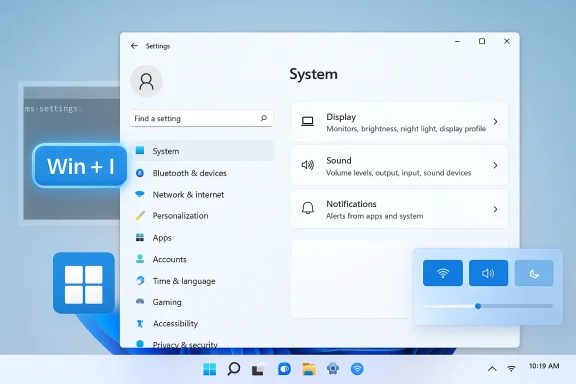
Windows 11 centralizes system configuration inside the modern Settings app. Microsoft maintains several stable entry points into that app: keyboard shortcuts, Start/menu actions, special URIs (the ms-settings: scheme), and programmatic launchers that are friendly to scripts and remote help workflows. Different methods suit different contexts: quick keyboard navigation, mouse-driven discovery, automation, or troubleshooting when system shells misbehave. This article consolidates the practical options and documents the small security and reliability differences between them.The single fastest way: Windows key + I
Pressing Windows key + I opens Settings instantly from almost any context. This hotkey is universal, built into the shell, and works whether you’re on the desktop, inside an app, or helping someone over a remote session. For everyday use — changing Wi‑Fi, adjusting display brightness, or checking Windows Update — this is the method to remember.- Why it’s the best default:
- It’s immediate and requires no mouse.
- It works regardless of Start-menu customizations or third-party shells.
- It’s consistent across standard Windows 10 and Windows 11 builds, making it highly memorable.
Quick GUI methods (good for beginners)
Start menu
Click Start (or press the Windows key), then click the gear-shaped Settings icon or type “Settings” and press Enter. You can also pin Settings to Start or the taskbar for one-click access. This visual route is the easiest for users who prefer a mouse and discoverability.Quick Settings (Action Center)
Click the network / sound / battery cluster at the right side of the taskbar (or press Windows + A) to open Quick Settings, then click the gear icon to jump to the full Settings app. This is ideal when you already have Quick Settings open for volume or connectivity tweaks.Power User menu (Win + X)
Right-click Start or press Windows + X and choose Settings from the Power User menu. This method is especially handy when you’re already using that menu to access Device Manager, Disk Management, or Terminal.Search and Run-box methods
Windows Search
Press Windows + S or click the Search icon on the taskbar, type Settings, and press Enter. Search is useful when you want the app plus related suggestions (for example, the exact Settings page name where a control lives).Run dialog: ms-settings:
Press Windows + R, typems-settings: and press Enter to open Settings. The ms-settings: URI scheme is a handler built into Windows that launches the Settings app. Short, reliable, and script-friendly.- Tip: add a specific page by using the page slug, for example:
ms-settings:network→ opens Network settings.ms-settings:windowsupdate→ opens Windows Update.
These deep links are useful for support calls and documentation.
Command-line and scripting options (power-user friendly)
Command Prompt
Open Command Prompt and run:start ms-settings:
PowerShell
From PowerShell, use:Start-Process "ms-settings:"
File Explorer path bar
Typems-settings: into File Explorer’s address bar and press Enter. Explorer will redirect to the Settings app — handy if you already work inside Explorer and prefer not to open a separate command shell.Task Manager
Open Task Manager (Ctrl + Shift + Esc) → File → Run new task → typems-settings: → OK. Useful during troubleshooting when Task Manager is already open.Creating shortcuts and automation
Desktop shortcut
If you open Settings frequently, create a desktop shortcut:- Right-click desktop → New → Shortcut.
- Enter
ms-settings:(orms-settings:systemto land on System). - Name it “Settings” and Finish.
Taskbar or Start pin
Right-click the Settings app in Start search results and choose “Pin to taskbar” or “Pin to Start” for one-click access — useful on touch devices or when learning Windows.Scripts and remote help
Embedstart ms-settings:windowsupdate or similar deep links in help scripts to guide a remote user straight to the exact page you need them to see. This avoids long verbal instructions and reduces mistakes during support calls.Security and reliability caveats
Thems-settings: URI is powerful because it lets web pages, apps, or scripts request that the OS open specific Settings pages. That convenience has an associated security model:- Browsers show a user prompt when a webpage tries to open an
ms-settings:link. Treat that prompt as a security checkpoint: only allow it when you trust the page or the person who sent the link. Malicious pages could attempt social-engineer users into granting a URI that opens a sensitive settings page. - Never accept prompts or click links that claim “click to fix” sent from unknown or untrusted sources. Everything accessible through Settings can be reached directly from the OS without visiting third-party web pages. If someone instructs you to click a random link to “fix” your Wi‑Fi or privacy settings, pause and verify the sender.
- Programmatic launches (scripts, Task Manager, Run box) avoid browser prompts and are suitable for administrators and trusted automation. However, any script that runs on an unmanaged system should be treated with the same caution as other executables.
ms-settings: is safe when used locally or through trusted scripts; beware of unsolicited web prompts that try to invoke it.Troubleshooting: when Settings won’t open
If the Settings app is missing, unresponsive, or crashes, a few reliable steps usually fix the problem.1. Reset the app
Open Start → right‑click Settings → App settings → scroll to Reset → click Reset. Resetting reinstates default app data without affecting general system settings and resolves the majority of crashes or launch failures. This is the recommended first step.2. Repair or Re-register (when Reset fails)
If Reset doesn’t help, use PowerShell (run as administrator) to re-register the Settings package or repair system components. The exact PowerShell commands can vary by Windows build; apply official troubleshooting steps from your organization's knowledge base or a trusted admin guide before running higher‑privilege commands. If you’re unsure, collect the error message and consult a trusted technician. (Flag: specific re-registration commands can vary; verify on your target build before running them.)3. Use command-line launchers
If the shell isn’t loading Start or the keyboard is unresponsive, try launching Settings using a command prompt on a remote session:start ms-settings:. This can bypass a broken Start menu or explorer instance and is a standard remote-support trick.4. Check for system updates
If Settings repeatedly crashes, a pending or failed Windows Update may be involved. Open Windows Update (when possible) or usems-settings:windowsupdate via Run or script to confirm update status. If updates fail, capture the error codes and consult Windows Update diagnostics.Advanced uses and deep-links
Microsoft exposes many deep links under thems-settings: scheme. These are invaluable when you want a script or documentation to land precisely on a particular page.Examples:
ms-settings:network→ Network & internetms-settings:bluetooth→ Bluetooth & devicesms-settings:windowsupdate→ Windows Update
- Support scripts to reduce user confusion.
- Admin documentation to create consistent instructions across teams.
- Automated workflows that prepare a machine for imaging or handoff.
Practical checklist: choose the right method
- Need the fastest, universal action? Use Windows + I.
- Prefer mouse-driven discovery? Use the Start menu or Quick Settings.
- You’re troubleshooting remotely or scripting? Use
start ms-settings:orStart-Process "ms-settings:". - Want a permanent shortcut? Create a desktop shortcut pointing to
ms-settings:or pin Settings to the taskbar. - Concerned about phishing via
ms-settings:links? Block opening those links from untrusted web pages — always confirm the source.
Common mistakes and how to avoid them
- Mistaking
ms-settings:for a web URL. It’s an OS URI scheme, not a web address. Don’t paste it into unknown web pages to “fix” anything; use it locally. - Forgetting the colon (
:) inms-settings:. The URI handler requires the colon;ms-settingswithout it will not invoke the handler. Double-check when typing into Run or scripts. - Running untrusted scripts that invoke Settings deep links. Scripts can automate valuable tasks — but any script running on an unmanaged machine should be vetted. Prefer centrally managed automation and signed scripts for enterprise environments.
Accessibility and touch considerations
Windows 11 supports all the methods above on touch devices, but a few points are worth noting:- Pinning Settings to the taskbar creates a larger tap target on touch screens.
- The Quick Settings panel is designed for quick touch adjustments and contains a direct gear icon for full Settings access.
- Keyboard shortcut Windows + I still works on most keyboards attached to tablets and convertibles, and it’s often the quickest way for keyboard users.
Final tips and professional habits
- Memorize one method (Windows + I) and use it as your default. It’s fast, consistent, and requires no extra steps.
- When helping others remotely, send an
ms-settings:deep link only after confirming they understand and trust the instruction; it reduces confusion but should be used carefully. - Keep a tested set of deep-link scripts in your toolbox for common support tasks (Wi‑Fi, Bluetooth, Windows Update). Maintain versioned copies for each Windows build deployed in your environment.
Conclusion
Opening Settings on Windows 11 is a small, frequent task with surprisingly many reliable paths: the universal Windows + I shortcut for speed, Start and Quick Settings for discoverability, andms-settings: URIs plus command-line launchers for automation and troubleshooting. Each method has a clear place in a modern workflow — from beginner-friendly visual navigation to scripted, reproducible support flows. Remember the security rule of thumb: treat ms-settings: URIs the same way you treat other OS-level actions initiated by the web — confirm the source before accepting prompts. Use the quick checklist above in daily practice, keep a tested set of deep links for your support scripts, and you’ll turn one of Windows’ most basic workflows into a quiet productivity win.Source: HowToiSolve How to open the Settings app on Windows 11
