

Windows 11 has become the default gaming operating system for millions of PC players, but default does not mean optimal. The truth is that a stock Windows 11 install often carries more visual polish, background activity, and general-purpose behavior than a serious gamer actually needs. That is why tuning things like Game Mode, startup apps, power behavior, and visual effects can still make a measurable difference—especially on systems where every frame and every millisecond of latency matter.
At the same time, the debate around Windows 11 gaming is no longer just about raw performance. It is also about how much of the operating system’s modern feature set you are actually using, whether you have the right gaming settings enabled, and whether Microsoft’s newer gaming features are helping or hindering your particular hardware. With Windows 11 now dominant on Steam’s gamer survey and Windows 10 support having ended in October 2025, the question has shifted from “Should gamers move?” to “How do they get the most out of the move?”
Windows has always had a complicated relationship with gaming. On the one hand, Microsoft owns the most important PC gaming platform in the world, and the company has spent years building a broad ecosystem around DirectX, Xbox integration, Game Bar, and increasingly modern display features like Auto HDR and variable refresh rate. On the other hand, Windows is a general-purpose operating system, so it must balance gaming with productivity, security, accessibility, and enterprise management.
That balancing act matters because gaming workloads are unusually sensitive to overhead. A few extra background services, a busy launcher, or a power profile that favors efficiency over responsiveness can change the feel of a game long before average frame rates tell the whole story. Smoothness is often more important than peak benchmark numbers, especially in shooters, racing games, and competitive titles.
Windows 11 has also matured into the de facto gaming OS for many users. Steam survey data from late 2025 and early 2026 shows Windows 11 holding the largest share among Steam users, while Windows 10 continues to decline after reaching end of support on October 14, 2025. That shift does not mean Windows 11 is perfect for gaming; it means more gamers are now dealing with its quirks rather than avoiding them.
A key reason this topic keeps returning is that Windows 11 ships with a wide range of gaming-adjacent features, but they are not all equally useful for all users. Microsoft’s own support pages point to features such as optimizations for windowed games, Auto HDR, Game Mode, and the full screen experience for gaming handhelds. These tools can help, but only when they fit the game, the display, and the hardware in use.
The result is that optimizing Windows 11 for gaming remains important not because the OS is broken, but because it is busy. The modern desktop is full of launchers, overlays, cloud sync clients, RGB tools, browser tabs, and update managers, all competing for attention. If gamers do not actively manage the system, Windows 11 will happily spend resources on things that have little to do with the game currently on screen.
This is why background management remains one of the simplest and most effective optimizations. Microsoft’s own documentation and support guidance repeatedly call out startup apps, visual effects, and background tasks as meaningful contributors to performance drag. Even if the gains are small in isolation, they can add up in a way that a competitive player notices immediately.
That is especially true on midrange hardware, laptops, and hybrid devices. On high-end desktop systems, the difference between a good and a great configuration may be subtle. On lower-power systems, however, the wrong power settings or too many running services can be the difference between a stable experience and a frustrating one. Small inefficiencies matter more when the hardware margin is thin.
That distinction matters because gamers sometimes confuse licensing state with speed. The real performance gains usually come from configuration: power plans, graphics settings, driver health, background app control, and Windows gaming features. Activation may improve the overall user experience by removing restrictions, but it should not be treated as the secret to smoother gameplay. The hardware and settings still do the heavy lifting.
Windows gives users multiple ways to control startup behavior, and that control is worth using. Disabling unused startup apps does not just reduce clutter; it also lowers the chances that a random updater or helper service will spike CPU usage during a match. For gamers, predictability is a feature.
This is especially useful for apps installed from the Microsoft Store or other modern app frameworks that are capable of background activity. Even if the gains are modest, stopping unnecessary background activity can reduce memory pressure and improve system responsiveness. That matters on machines with 8GB or 16GB of RAM and on systems that also need to juggle browser tabs, streaming, or Discord calls.
Each overlay can add another layer of hooks, notifications, or telemetry. Most of the time this is fine, but the cumulative effect can become noticeable in latency-sensitive games. If you want the cleanest possible gaming experience, it is worth deciding which overlays are truly essential and which are just habit. Less screen clutter often means less system clutter.
That is why some users switch to high-performance or other tuned modes when they game. The exact benefit depends on the hardware, but the principle is consistent: if you want a game to respond immediately to input, you need the system to avoid unnecessary power-saving behavior. Microsoft’s power-management guidance even notes that background power throttling is a deliberate design choice, which can be good for efficiency but not always ideal for peak gaming responsiveness.
There is also an important distinction between Game Mode and Windows power settings. One is a session-based optimization, while the other governs how the entire system behaves. The best results often come from using both sensibly rather than treating either one as a silver bullet.
Microsoft’s own support guidance acknowledges that visual effects consume system resources and suggests using the “best performance” option when users want the least overhead. That guidance is not gaming-specific, but the logic applies cleanly to gaming setups, especially on lower-spec machines.
That is why many enthusiasts quietly trim animations and transparency even on expensive builds. The argument is not that Windows 11 is too beautiful to game on. The argument is that beauty should not come at the expense of clarity, speed, and predictability.
This matters because a large number of games today are played in borderless windowed mode for convenience. If that mode used to carry a small performance penalty, Windows 11 is now trying to close that gap. For many users, that makes the difference between “better compatibility” and “no real downside.”
The important caveat is that display enhancements are not universal wins. If your monitor is not HDR-capable, or if a specific game handles HDR poorly, the feature may be irrelevant or even annoying. Still, for the right setup, it is one of the most compelling reasons to prefer Windows 11 over older releases.
This group also tends to feel small inefficiencies more acutely because desktop users often expect a fully responsive experience at all times. If the PC is dedicated to gaming, the case for aggressive optimization is strong.
That is why power profiles, gaming mode behavior, and startup trimming matter so much on portable systems. A laptop that is used for work during the day and gaming at night is a perfect example of why Windows needs manual tuning: it is trying to satisfy two very different use cases on the same machine.
That matters competitively, too. Windows handhelds compete with more focused environments that can start up faster and feel less cluttered. If Microsoft wants Windows-based handhelds to remain credible, reducing background overhead is not optional. It is a necessity.
It also means many of the old Windows 10-era comparisons are becoming less useful. The question is not whether an older OS once felt leaner. The question is whether modern Windows 11 can be configured to deliver the same kind of lean experience while preserving current features. That is a more nuanced—and more important—discussion.
The more polished Windows 11 becomes for gaming, the less likely users are to explore alternatives just to escape overhead. In that sense, optimization is not only a technical issue; it is also a retention strategy.
There is also a strong chance that the most important improvements will continue to be boring but effective: smarter background handling, better default power behavior, faster feature onboarding, and more predictable game-related settings. Those changes rarely make headlines, but they often decide whether a system feels excellent or merely acceptable.
Windows 11 may not be the perfect gaming OS out of the box, but it is becoming a very capable one in the hands of users who know how to shape it. In 2026, that distinction matters more than ever, because the difference between a merely adequate setup and a great one is often hidden in the settings menu rather than the spec sheet.
Source: Tech4Gamers Why Optimizing Windows 11 For Gaming Is So Important
At the same time, the debate around Windows 11 gaming is no longer just about raw performance. It is also about how much of the operating system’s modern feature set you are actually using, whether you have the right gaming settings enabled, and whether Microsoft’s newer gaming features are helping or hindering your particular hardware. With Windows 11 now dominant on Steam’s gamer survey and Windows 10 support having ended in October 2025, the question has shifted from “Should gamers move?” to “How do they get the most out of the move?”
 Background
Windows has always had a complicated relationship with gaming. On the one hand, Microsoft owns the most important PC gaming platform in the world, and the company has spent years building a broad ecosystem around DirectX, Xbox integration, Game Bar, and increasingly modern display features like Auto HDR and variable refresh rate. On the other hand, Windows is a general-purpose operating system, so it must balance gaming with productivity, security, accessibility, and enterprise management.That balancing act matters because gaming workloads are unusually sensitive to overhead. A few extra background services, a busy launcher, or a power profile that favors efficiency over responsiveness can change the feel of a game long before average frame rates tell the whole story. Smoothness is often more important than peak benchmark numbers, especially in shooters, racing games, and competitive titles.
Windows 11 has also matured into the de facto gaming OS for many users. Steam survey data from late 2025 and early 2026 shows Windows 11 holding the largest share among Steam users, while Windows 10 continues to decline after reaching end of support on October 14, 2025. That shift does not mean Windows 11 is perfect for gaming; it means more gamers are now dealing with its quirks rather than avoiding them.
A key reason this topic keeps returning is that Windows 11 ships with a wide range of gaming-adjacent features, but they are not all equally useful for all users. Microsoft’s own support pages point to features such as optimizations for windowed games, Auto HDR, Game Mode, and the full screen experience for gaming handhelds. These tools can help, but only when they fit the game, the display, and the hardware in use.
The result is that optimizing Windows 11 for gaming remains important not because the OS is broken, but because it is busy. The modern desktop is full of launchers, overlays, cloud sync clients, RGB tools, browser tabs, and update managers, all competing for attention. If gamers do not actively manage the system, Windows 11 will happily spend resources on things that have little to do with the game currently on screen.
Why Windows 11 Needs Tuning
The first thing to understand is that Windows 11 is designed for broad compatibility, not for a single-minded focus on games. Microsoft wants the OS to handle office work, video calls, creative workloads, handheld gaming, accessibility, and enterprise security without forcing users to choose one personality. That makes Windows 11 flexible, but it also means the operating system does not automatically prioritize gaming the way enthusiasts often assume it should.General-purpose design brings overhead
A modern PC can have dozens of services active before a game even launches. Some are useful, such as driver helpers and security tools, but others are just convenience features that can become costly under load. Launchers, chat clients, browser companions, and updaters may only use small amounts of CPU time individually, yet their combined effect can still increase stutter or background contention.This is why background management remains one of the simplest and most effective optimizations. Microsoft’s own documentation and support guidance repeatedly call out startup apps, visual effects, and background tasks as meaningful contributors to performance drag. Even if the gains are small in isolation, they can add up in a way that a competitive player notices immediately.
- Fewer startup apps means a cleaner boot and less contention when a game launches.
- Fewer overlays means fewer conflicts with frame pacing and capture tools.
- Fewer update agents means less chance of random spikes in the middle of a match.
- Fewer visual effects can slightly reduce unnecessary resource use on weaker PCs.
Gaming needs consistency more than flash
A lot of gamers focus on average FPS, but consistency is what usually makes a system feel “fast.” Windows 11 can run many games well, yet that does not mean the OS is always configured to deliver the lowest possible latency or the least disruptive background load. In practice, the best gaming setup is often the one that avoids surprises.That is especially true on midrange hardware, laptops, and hybrid devices. On high-end desktop systems, the difference between a good and a great configuration may be subtle. On lower-power systems, however, the wrong power settings or too many running services can be the difference between a stable experience and a frustrating one. Small inefficiencies matter more when the hardware margin is thin.
Activation is not the performance story
The Tech4Gamers framing suggests that an activated copy of Windows is needed for “unlocking” the best gaming experience, but that is more of a licensing and feature-access question than a core performance one. Windows activation primarily affects personalization and compliance, not magical frame-rate boosts. In other words, activation matters for legitimacy and access to certain cosmetic features, but it is not the main lever for gaming performance.That distinction matters because gamers sometimes confuse licensing state with speed. The real performance gains usually come from configuration: power plans, graphics settings, driver health, background app control, and Windows gaming features. Activation may improve the overall user experience by removing restrictions, but it should not be treated as the secret to smoother gameplay. The hardware and settings still do the heavy lifting.
Background Apps and Startup Load
One of the most practical reasons to optimize Windows 11 for gaming is simple: too many things run before you ever click Play. Game launchers, anti-cheat helpers, Discord, RGB suites, cloud storage tools, and OEM control panels are all common examples. None of them is inherently bad, but all of them can compete for memory, disk activity, and CPU time at exactly the wrong moment.Why startup discipline matters
Startup load does not just slow down boot times. It also creates a more fragile background environment when gaming begins. A system that is still waking up a stack of services may not feel fully settled, and that can lead to slower app launches, delayed driver initialization, or momentary stutters when overlays and companion apps attach themselves to the game.Windows gives users multiple ways to control startup behavior, and that control is worth using. Disabling unused startup apps does not just reduce clutter; it also lowers the chances that a random updater or helper service will spike CPU usage during a match. For gamers, predictability is a feature.
Background permission trimming
Windows 11’s background app behavior has also changed over time, and this has made the issue more confusing for users. Some Microsoft interfaces now emphasize power-throttling behavior and app permissions differently than in older versions of Windows, which means gamers often have to hunt through Settings to find the right controls. The broad principle remains the same: if an app does not need to run when you are not using it, do not let it.This is especially useful for apps installed from the Microsoft Store or other modern app frameworks that are capable of background activity. Even if the gains are modest, stopping unnecessary background activity can reduce memory pressure and improve system responsiveness. That matters on machines with 8GB or 16GB of RAM and on systems that also need to juggle browser tabs, streaming, or Discord calls.
- Disable launchers you do not need at boot.
- Review app background permissions after major updates.
- Keep only one RGB suite if possible.
- Remove duplicate cloud sync tools.
- Shut down auto-updaters before long gaming sessions.
Overlays and companion apps
The modern PC gaming stack is full of overlays. Some are useful, such as capture tools and performance widgets. Others exist mainly to keep the user inside a vendor ecosystem. The problem is not overlays themselves; it is the accumulation of them.Each overlay can add another layer of hooks, notifications, or telemetry. Most of the time this is fine, but the cumulative effect can become noticeable in latency-sensitive games. If you want the cleanest possible gaming experience, it is worth deciding which overlays are truly essential and which are just habit. Less screen clutter often means less system clutter.
Power Plans and Power Modes
Power behavior remains one of the most misunderstood parts of Windows 11 gaming. Many users still assume the operating system is automatically choosing the best configuration for gaming, but Windows often optimizes for a balance between performance, heat, and battery life. That is reasonable for general use, yet not always ideal for gaming.Balanced is not always best
The default balanced profile is built to serve the average user. For desktops plugged into the wall, it is often perfectly acceptable, but it does not necessarily deliver the most aggressive responsiveness. On laptops, it may be even more conservative, especially if the machine is trying to preserve battery life or manage thermals.That is why some users switch to high-performance or other tuned modes when they game. The exact benefit depends on the hardware, but the principle is consistent: if you want a game to respond immediately to input, you need the system to avoid unnecessary power-saving behavior. Microsoft’s power-management guidance even notes that background power throttling is a deliberate design choice, which can be good for efficiency but not always ideal for peak gaming responsiveness.
Game Mode and related settings
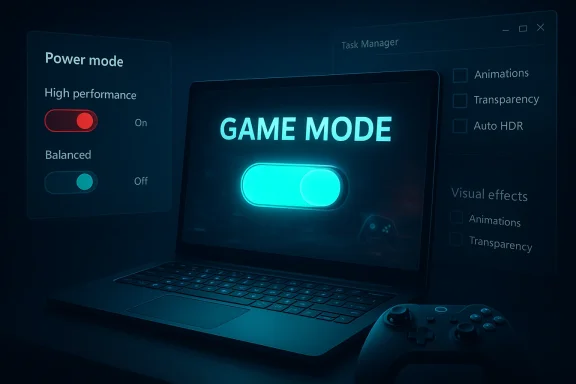
Windows Game Mode exists for a reason. Microsoft describes it as a way to optimize system performance during gaming sessions, and it is part of the broader Gaming section in Windows Settings. On its own, Game Mode is not a miracle feature, but it can help shift resources away from less important tasks while a game is running.There is also an important distinction between Game Mode and Windows power settings. One is a session-based optimization, while the other governs how the entire system behaves. The best results often come from using both sensibly rather than treating either one as a silver bullet.
What power tuning actually changes
The practical effect of power tuning is not just raw speed. It is about how fast the CPU ramps up, how aggressively the system manages background tasks, and how quickly the machine recovers from spikes in demand. On a gaming PC, that can translate into better frame pacing and fewer moments where the system feels like it is lagging behind the action.- Faster response to sudden in-game load changes.
- Lower risk of background processes stealing cycles.
- Better consistency in short, bursty gaming workloads.
- Potentially improved performance on laptops connected to power.
Visual Effects and UI Overhead
Windows 11’s interface is undeniably attractive, but visual polish comes at a cost. Transparency effects, animated menus, shadows, and other cosmetic features all consume some resources. On a modern high-end machine, the cost may be tiny. On older or thermally constrained systems, those effects can still add up.Appearance versus efficiency
This is one of those areas where the user experience and the gaming experience are not always aligned. A desktop that looks sleek may not be the one that delivers the snappiest game launch or the least distracting background use. Disabling transparency effects and trimming visual flourishes will not transform a weak GPU into a strong one, but it can reduce unnecessary load and improve perceived responsiveness.Microsoft’s own support guidance acknowledges that visual effects consume system resources and suggests using the “best performance” option when users want the least overhead. That guidance is not gaming-specific, but the logic applies cleanly to gaming setups, especially on lower-spec machines.
When small changes matter
A few percent here and there may sound trivial, but those gains matter when they prevent a frame-time spike or reduce desktop lag before a game launches. Gamers frequently optimize the obvious things—drivers, resolutions, graphics presets—while overlooking the desktop layer that still sits underneath the game.That is why many enthusiasts quietly trim animations and transparency even on expensive builds. The argument is not that Windows 11 is too beautiful to game on. The argument is that beauty should not come at the expense of clarity, speed, and predictability.
Practical visual trims
- Turn off transparency effects if you prefer a lighter desktop.
- Reduce animation-heavy effects on slower systems.
- Use performance-oriented visual settings if you care more about gaming than aesthetics.
- Keep accessibility needs in mind; not every visual reduction is suitable for every user.
Microsoft’s Built-In Gaming Features
Windows 11 is not just a general-purpose OS with gaming tacked on. Microsoft has continued adding features that directly target gaming performance and display quality. The challenge is that these features are useful only when users know they exist and understand when they should be enabled.Windowed game optimizations
One of the most important recent changes is optimizations for windowed games. Microsoft says this feature improves gaming performance for DirectX 10 and DirectX 11 titles running in windowed and borderless windowed modes. It also moves compatible games from the older presentation model to a newer flip model, which can reduce latency and enable modern display features.This matters because a large number of games today are played in borderless windowed mode for convenience. If that mode used to carry a small performance penalty, Windows 11 is now trying to close that gap. For many users, that makes the difference between “better compatibility” and “no real downside.”
Auto HDR and display enhancement
Microsoft also continues to push Auto HDR as a way to improve older SDR games on HDR-capable displays. The feature automatically broadens the color range and brightness, which can make older titles look much better without requiring developers to patch each game manually.The important caveat is that display enhancements are not universal wins. If your monitor is not HDR-capable, or if a specific game handles HDR poorly, the feature may be irrelevant or even annoying. Still, for the right setup, it is one of the most compelling reasons to prefer Windows 11 over older releases.
Gaming handheld and full screen experience
Microsoft’s newer full screen experience also shows where Windows 11 gaming is headed. On supported gaming handhelds, the OS can reduce background process loading and make the interface easier to navigate with a controller. That is a meaningful shift because it suggests Microsoft is no longer just optimizing for desktop gaming; it is now treating handhelds as first-class gaming devices too.- Windowed games can gain better latency behavior.
- Auto HDR can improve older titles on the right display.
- Full screen experience can reduce handheld friction.
- Game Bar provides capture and navigation tools in one place.
Why these features still need tuning
Built-in features only help when they are aligned with the system’s workload. Enabling every feature blindly is not smart optimization. The smarter approach is to test what actually helps your games and leave the rest off. Feature-rich is not the same as feature-optimal.Enterprise, Consumer, and Handheld Impact
Windows 11 gaming optimization is not the same conversation for every type of user. A competitive desktop gamer, a family laptop owner, and a handheld player each face different tradeoffs. That is why the best advice is usually conditional rather than absolute.Consumer gaming on desktops
For consumers on desktops, optimization is mostly about eliminating friction. The goal is to keep the machine fast, quiet, and predictable while preserving useful convenience features. Most desktop users will benefit most from trimming background activity, keeping drivers current, and enabling gaming features that actually help their library.This group also tends to feel small inefficiencies more acutely because desktop users often expect a fully responsive experience at all times. If the PC is dedicated to gaming, the case for aggressive optimization is strong.
Laptops and hybrid devices
Laptop gaming is more sensitive because power limits and thermals matter. Here, Windows 11 tuning becomes even more important, not less. A laptop can only perform as well as its cooling and power budget allow, so background load and unnecessary UI effects can eat into already limited headroom.That is why power profiles, gaming mode behavior, and startup trimming matter so much on portable systems. A laptop that is used for work during the day and gaming at night is a perfect example of why Windows needs manual tuning: it is trying to satisfy two very different use cases on the same machine.
Handheld and controller-first gaming
The handheld market is especially interesting because it changes the role of the operating system. Windows 11 is no longer just a window manager and service host; it is also a handheld gaming shell that must behave like a console interface. Microsoft’s push toward the gaming full screen experience confirms that the company understands this shift.That matters competitively, too. Windows handhelds compete with more focused environments that can start up faster and feel less cluttered. If Microsoft wants Windows-based handhelds to remain credible, reducing background overhead is not optional. It is a necessity.
Business and enterprise tension
Enterprise admins care about security, policy, and compatibility, which means they are often wary of aggressive gaming-style tuning. That creates a tension inside Windows itself: the same OS must satisfy both corporate governance and leisure performance. Microsoft’s design choices increasingly reflect that tension, which is why some settings now privilege battery life, background throttling, or structured user experiences over raw gaming aggression.Why Optimized Windows Matters More Now
The timing of these tuning conversations is not accidental. Windows 10 reached end of support in October 2025, and Steam survey data shows a large chunk of gamers moving to Windows 11 as the new default. That means more players are now asking not whether Windows 11 can game, but whether it can do so well enough without extra intervention.The new normal is Windows 11
Windows 11 is now the center of gravity for mainstream PC gaming. That shift matters because feature support, driver optimization, and performance tuning all follow the crowd. The more gamers use Windows 11, the more pressure Microsoft and hardware vendors have to keep improving it.It also means many of the old Windows 10-era comparisons are becoming less useful. The question is not whether an older OS once felt leaner. The question is whether modern Windows 11 can be configured to deliver the same kind of lean experience while preserving current features. That is a more nuanced—and more important—discussion.
Linux pressure changes the conversation
Linux is also becoming more visible in gaming conversations, even if its share remains much smaller than Windows overall. As more users experiment with SteamOS-like environments, the Windows ecosystem cannot rely purely on habit anymore. It has to compete on feel, speed, and convenience. That competitive pressure is healthy.The more polished Windows 11 becomes for gaming, the less likely users are to explore alternatives just to escape overhead. In that sense, optimization is not only a technical issue; it is also a retention strategy.
A moving target
What makes this particularly interesting is that Windows 11 gaming optimization is a moving target. Microsoft is still adding features, changing defaults, and adjusting the way background tasks are handled. Some changes help performance, some help usability, and some help battery life. The user has to decide which goal matters most.- A competitive gamer may want the lowest latency possible.
- A casual gamer may want a cleaner desktop and fewer distractions.
- A handheld user may care most about controller navigation and boot speed.
- A laptop user may need a balance between thermals and responsiveness.
Strengths and Opportunities
Windows 11’s biggest strength for gamers is not that it is flawless; it is that it is capable of improvement. Once you know where to look, the OS offers enough knobs and switches to make a meaningful difference without needing third-party optimization utilities. That creates a lot of room for both novice users and enthusiasts to tailor the machine to their style of play.- Game Mode can prioritize gaming sessions more intelligently.
- Optimizations for windowed games reduce the old borderless-windowed tradeoff.
- Auto HDR adds value for compatible displays and older games.
- Startup trimming can improve responsiveness and reduce clutter.
- Power tuning gives users control over performance versus efficiency.
- Handheld support points to a more console-like future for Windows gaming.
- Visual-effect reduction can help weaker systems feel snappier.
Risks and Concerns
The downside of optimization culture is that it can easily become superstition. Not every tweak helps every machine, and some “gaming optimization” advice online is outdated, overbroad, or simply copied from earlier Windows versions. The risk is that users disable useful features, break stability, or waste time chasing marginal gains instead of fixing the real bottlenecks.- Over-tweaking can make Windows less stable or less secure.
- Bad advice can disable features that are harmless or useful.
- Power settings that favor performance may increase heat and fan noise.
- Disabling background activity too aggressively can break sync or notifications.
- Visual changes may reduce accessibility for some users.
- Activation myths can distract from the settings that actually matter.
- One-size-fits-all guides often ignore different hardware classes and use cases.
Looking Ahead
The future of Windows 11 gaming will likely be defined by how well Microsoft can keep reducing friction without making the OS feel stripped down. The company is already moving toward more specialized gaming experiences, especially on handheld devices, while still preserving compatibility for the broader desktop market. That balancing act will shape the next few years of PC gaming on Windows.There is also a strong chance that the most important improvements will continue to be boring but effective: smarter background handling, better default power behavior, faster feature onboarding, and more predictable game-related settings. Those changes rarely make headlines, but they often decide whether a system feels excellent or merely acceptable.
- Better default tuning for borderless and windowed gaming.
- More handheld-friendly Windows experiences.
- Continued improvement to Auto HDR and related display features.
- Smarter background throttling that respects gaming sessions.
- Wider awareness of Game Mode and graphics preference settings.
- More pressure on Microsoft to simplify gaming-focused configuration.
Windows 11 may not be the perfect gaming OS out of the box, but it is becoming a very capable one in the hands of users who know how to shape it. In 2026, that distinction matters more than ever, because the difference between a merely adequate setup and a great one is often hidden in the settings menu rather than the spec sheet.
Source: Tech4Gamers Why Optimizing Windows 11 For Gaming Is So Important
