

Microsoft is rolling out direct access to multiple Copilot settings inside classic Outlook for Windows in July 2026, bringing the controls to the desktop client used by many organizations rather than forcing users to hunt through another Outlook experience or a separate Microsoft 365 surface. Microsoft 365 Roadmap item 561491 is narrow in wording, but strategically revealing: classic Outlook is still too important to leave with second-class AI controls. The change acknowledges that Copilot cannot become an ordinary workplace feature until its settings are visible where people actually encounter it. It also gives administrators a new support problem, because an easier personal switch does not replace licensing rules, tenant policy, or compliance governance.
Microsoft’s description is almost aggressively modest: users will be able to access different Copilot settings directly in classic Outlook for Windows. There is no promise of a redesigned Copilot experience, a new model, a new licensing tier, or a dramatic productivity feature. This is fundamentally a change in control placement.
That placement matters. When a user sees an AI-generated summary, drafting control, coaching suggestion, or Copilot entry point in Outlook, the natural expectation is that Outlook itself will contain the relevant settings. Requiring people to cross into another client or Microsoft 365 surface to manage behavior creates an unnecessary gap between the feature and the user’s ability to control it.
A Microsoft 365 change notice reproduced by Cloudscout adds useful operational detail to the terse roadmap entry. According to that notice, the settings appear under classic Outlook’s File menu and include the ability for eligible users to turn Copilot on or off for their own experience. The notice also says the feature does not independently grant Copilot access, change eligibility, alter licensing, or replace existing administrative controls.
That distinction is essential. Microsoft is not announcing that every classic Outlook installation suddenly gains Microsoft 365 Copilot. It is making the settings easier to reach for users whose accounts and organizations already qualify for the relevant capabilities.
The result is a more local control surface, not a new entitlement. That may sound like a semantic distinction, but it is the difference between a user-experience change and a licensing or governance change. Help desks that fail to make that distinction will spend July investigating “missing” settings on accounts that were never eligible to receive them.
Microsoft’s own feature comparison illustrates why the transition is not finished. Both clients provide core Outlook functions and a growing collection of Copilot capabilities, but classic Outlook retains compatibility with technologies and workflows that the new client either approaches differently or does not support.
For many users, choosing classic Outlook is therefore not nostalgia. It is a dependency decision.
Microsoft says the two versions can operate side by side during the current migration stage, allowing users to test the new client and return to classic Outlook when a required workflow is unavailable. The company has also said existing classic installations will remain supported for years, reinforcing that the old client is not disappearing simply because Microsoft would prefer customers to adopt the new one.
Roadmap item 561491 should be read in that context. If classic Outlook were merely an obsolete shell awaiting rapid removal, Microsoft would have little incentive to invest in better Copilot settings. Adding those controls indicates that the company expects substantial Copilot use to continue inside the traditional Windows application.
It is also a tacit concession that AI adoption cannot depend entirely on application migration. Organizations that still require classic Outlook should not have to postpone every Copilot usability improvement until they complete a much larger client transition.
The product has evolved in a less orderly direction. Microsoft’s current Outlook comparison material lists capabilities such as drafting, coaching, Copilot chat, and the Copilot application across both the classic and new experiences, subject to account and subscription requirements. Classic Outlook is increasingly becoming a first-class Copilot host even while Microsoft continues to describe the new Outlook as the strategic destination.
Adding settings completes part of that evolution. A feature is not fully integrated simply because its button appears in the ribbon or navigation area. Integration also requires discoverability, configuration, troubleshooting, and a clear relationship between what the user sees and what the organization permits.
This has been a recurring weakness in Microsoft’s broad Copilot expansion. Similar branding can refer to different experiences, different account states, and different levels of organizational access. A user may see Copilot in one Microsoft 365 application but not another, find a chat interface without the expected work-data capabilities, or encounter controls that appear available but do not function because the account lacks the necessary entitlement.
Classic Outlook magnifies that confusion because it combines decades of desktop conventions with services delivered and changed from the cloud. Users naturally expect the File and Options areas to explain the application’s behavior. Until this rollout, Copilot did not always fit comfortably into that established management model.
Putting its settings inside the File menu turns Copilot from something that can feel bolted onto Outlook into something Outlook itself recognizes and exposes. That is a small design correction, but one Microsoft needed to make if Copilot is to become routine rather than perpetually novel.
A personal setting governs the individual’s visible experience. Tenant policy governs whether a capability is available, under what conditions it operates, and how it fits the organization’s security and compliance posture. Those are different layers, even when they both appear to answer the same question: “Is Copilot enabled?”
An eligible user may use the new Outlook setting to disable Copilot for personal preference, reduce interface clutter, or avoid AI prompts during a particular workflow. That does not mean the user can override an administrator who has restricted Copilot, manufacture an entitlement that the account does not possess, or rewrite organizational data-handling policy.
The inverse is equally important. An organization’s decision to make Copilot available does not necessarily mean every employee wants the feature visible in every part of Outlook. Giving users an application-level setting recognizes that availability and adoption are not identical.
This is a healthier design than treating every licensed capability as an interface obligation. Microsoft has faced persistent criticism for promoting Copilot through buttons, prompts, sidebars, and entry points that some users perceive as advertising rather than assistance. A direct setting provides a more credible answer to that criticism than another support article explaining why the control is located elsewhere.
Still, the control should not be oversold as a privacy or compliance boundary. Disabling an interface for one user is not the same as changing the organization’s contractual, technical, or governance relationship with Microsoft 365 Copilot. Regulated organizations must continue to rely on administrative configuration, identity controls, licensing assignments, data protection rules, and internal policy.
User preference is not tenant governance. IT documentation should state that plainly, because the visual simplicity of an on/off option can imply more authority than the option actually carries.
That does not mean every eligible user receives the settings simultaneously. Microsoft 365 deployments commonly progress through staged service and client availability, and the “rolling out” label is a warning against assuming fleet-wide consistency.
During the rollout, two users with apparently similar computers may see different interfaces. One may have a Copilot settings entry under File while another does not. Differences can reflect deployment stage, update state, account eligibility, release exposure, or the time required for a service-side change to reach a session.
This creates a familiar support trap. A technician sees the setting on a test system, concludes it should exist everywhere, and begins repairing Office installations on machines that are simply waiting for the rollout. Another technician assumes every absence is rollout-related and overlooks a real licensing, account, or update problem.
The correct response is to establish a troubleshooting order. Verify that the user is in scope, confirm that the organization has not blocked the relevant experience, check the Outlook update state, restart the application, and only then consider deeper remediation. Reinstallation should not be the opening move for a staged cloud feature.
A recent Microsoft support incident involving missing Copilot entry points in classic Outlook demonstrates how difficult this distinction can become. In that case, Copilot could remain available through other Microsoft surfaces even when its classic Outlook buttons were absent. The episode was separate from roadmap item 561491, but it illustrates the same operational reality: interface presence is an unreliable proxy for overall service entitlement.
The new settings entry may eventually make such cases easier to diagnose, provided Microsoft presents a meaningful state rather than merely hiding the menu when Copilot is unavailable. A visible explanation such as “managed by your organization” or “not available for this account” would be more useful than silence. The roadmap entry does not say whether those states will be shown.
July 2026 — Preview availability is scheduled for the Worldwide Standard Multi-Tenant cloud.
July 2026 — General Availability is scheduled for the same worldwide commercial cloud scope.
July 10, 2026 — Microsoft last updated the roadmap record, with the feature listed as rolling out.
The most common question is likely to be simple: “Why does my colleague have Copilot settings when I do not?” Answering it requires more than comparing Outlook screenshots. The technician may need to distinguish between an in-progress rollout, a missing entitlement, an account-context problem, an application update issue, and a tenant policy.
A second category will involve users who turn Copilot off and expect the decision to propagate to every Microsoft application. The supporting change notice describes a setting for the user’s Copilot experience in classic Outlook; it does not establish that the choice becomes a universal Microsoft 365 opt-out. Unless Microsoft documents broader synchronization, support teams should avoid promising it.
The opposite misunderstanding will also occur. Some employees may assume that switching Copilot on in Outlook purchases or activates the service. According to the reproduced change notice, the new setting does not enable Copilot for users who do not already have access.
Then there is the language problem. Microsoft uses “Copilot” across Windows, Edge, Microsoft 365, Outlook, standalone applications, chat experiences, and subscription-backed work features. Users do not necessarily know which product boundary they have crossed, and a support ticket that says “Copilot is disabled” may refer to several unrelated controls.
Internal support documentation should therefore name the exact application and context: Copilot settings in classic Outlook for Windows. The classic client, the new client, Outlook on the web, and the broader Microsoft 365 Copilot experience should not be treated as interchangeable, even when their icons and branding are similar.
Microsoft cannot base Copilot adoption on a forced synchronization between AI deployment and Outlook migration. Large organizations rarely modernize every email client, add-in, automation, records process, shared mailbox workflow, and support procedure at the same time. If Copilot waited for that transition to finish, many potential users would wait with it.
Classic Outlook also remains a point of stability for users who find the newer client incomplete or disruptive. Microsoft’s feature comparison shows a patchwork rather than a clean hierarchy: the new Outlook leads in some modern experiences, while classic Outlook retains capabilities tied to its mature Windows architecture.
That leaves Microsoft supporting two overlapping strategies. It must continue making new Outlook attractive enough to justify migration while keeping classic Outlook capable enough that existing customers do not feel punished. Copilot settings are a textbook example of that balancing act.
The change reduces one minor reason to move to the new client. It also removes one minor reason not to deploy Copilot. Microsoft appears to value the second outcome more.
This is a broader pattern in enterprise software transitions. Vendors may announce a strategic successor, but customers determine the practical lifespan of the predecessor through dependencies and purchasing power. Classic Outlook will remain consequential for as long as organizations depend on capabilities that cannot be replaced without cost, testing, or risk.
The rollout therefore says more about classic Outlook’s staying power than Microsoft’s one-sentence description admits. The client is not frozen. It remains part of the active Microsoft 365 Copilot delivery surface.
The roadmap description does not enumerate the settings. It does not explain whether all users receive the same options, whether settings synchronize across clients, how organization-managed states are displayed, or whether disabling Copilot suppresses every related prompt and entry point. It simply promises access to “different Copilot settings.”
The Message Center material reproduced by Cloudscout narrows the ambiguity by describing an on/off control, but administrators still need official, durable documentation explaining the scope of that switch. Does it hide Copilot buttons? Does it disable drafting and summaries? Does it affect chat? Does it remove proactive suggestions? Does the setting survive profile recreation or movement between devices?
Those questions are not objections to the rollout. They are the documentation required to support it.
A well-designed settings page should expose more than a binary state. It should indicate whether Copilot is available to the current account, whether an organization manages the setting, and which Outlook experiences are affected. It should also provide a clear distinction between turning off visible assistance and changing any service-level processing or connected-experience configuration.
Without that clarity, Microsoft risks moving confusion rather than eliminating it. Users will find the setting more easily but may still not understand what it controls.
The best version of this change would make Copilot’s status legible. The weakest version would add a switch whose effect can be determined only by toggling it and watching which buttons disappear.
It can still contribute to a responsible deployment. Some organizations may allow Copilot broadly while giving workers discretion over whether it appears in their daily mail interface. Others may use the setting during training, allowing employees to compare workflows with and without assistance.
But compliance teams should avoid treating a user-controlled setting as evidence that an organization has disabled Copilot in a policy-enforceable way. A user may turn it back on, another client may expose the capability differently, and other Microsoft 365 applications may retain their own Copilot interfaces.
The governing controls remain the controls that administrators can enforce and audit. The Outlook setting is primarily an experience preference.
This distinction should also shape employee communications. If an organization tells users, “You can disable Copilot under File,” some will understandably conclude that they have opted out of every Copilot-related service. A more accurate message would explain that the option controls Copilot’s availability or presentation within classic Outlook, subject to the organization’s configuration and Microsoft’s documented behavior.
Legal and privacy teams should request the final Microsoft documentation before attaching broader meaning to the switch. The roadmap confirms availability and rollout scope; it does not define the full technical semantics of disabling the feature.
Roadmap item 561491 confirms the product, platform, worldwide commercial scope, Preview ring, General Availability ring, July 2026 timing, and rolling-out status. It does not identify a client version requirement, describe the visual layout, or provide a complete behavioral specification.
That is enough for awareness planning but not enough for a support runbook. Administrators should watch for corresponding Microsoft documentation and tenant communications rather than reverse-engineering policy from the roadmap sentence alone.
They should also avoid assuming that “directly in classic Outlook” means the controls will appear in the same way for every account configuration. Outlook can host multiple accounts, and Copilot availability may depend on the identity and mailbox context in use. The roadmap does not explain how the settings behave in mixed-account profiles.
Nor does it explain whether the rollout has any relationship to other Copilot entry points. A settings page may coexist with ribbon controls, navigation icons, drafting tools, and chat surfaces. Turning off one experience may or may not affect all of them.
Microsoft’s decision to use the plural—“settings”—suggests a surface broader than a single switch, but only the on/off behavior is described in the reproduced change notice. Until the feature is fully deployed and documented, administrators should treat any additional controls as unconfirmed.
That restraint matters because Copilot reporting tends to collapse plans, previews, and live functionality into the same tense. Here, Microsoft’s status is explicit: the feature is rolling out, not necessarily complete across every eligible environment.
A successful implementation should answer three questions without requiring a support ticket: Is Copilot available here? Who controls that availability? What exactly happens if the user changes the setting?
If Outlook answers those questions, roadmap item 561491 will be a small but worthwhile usability correction. If it merely presents a switch with vague consequences, the setting may generate as many tickets as it prevents.
Microsoft also has an opportunity to normalize a better approach to AI features. Copilot controls should be placed near Copilot functionality, labeled precisely, and accompanied by visible policy state. Users should not need to search the web, open another Outlook client, or decode Microsoft’s product branding to decide whether an assistant appears in their inbox.
The feature’s success will therefore be measured less by how quickly it reaches General Availability than by how consistently users understand it. Deployment completion is a service milestone; comprehension is the product milestone.
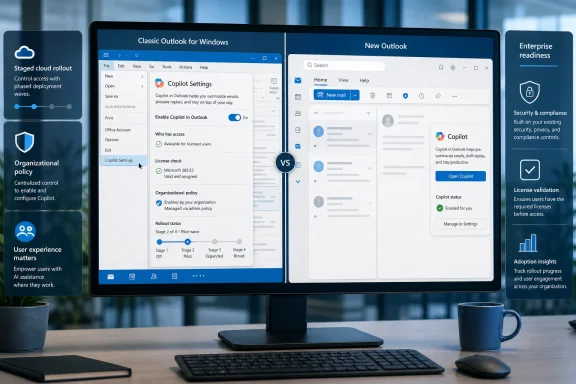 Microsoft Moves the Control to Where the Work Happens
Microsoft’s description is almost aggressively modest: users will be able to access different Copilot settings directly in classic Outlook for Windows. There is no promise of a redesigned Copilot experience, a new model, a new licensing tier, or a dramatic productivity feature. This is fundamentally a change in control placement.That placement matters. When a user sees an AI-generated summary, drafting control, coaching suggestion, or Copilot entry point in Outlook, the natural expectation is that Outlook itself will contain the relevant settings. Requiring people to cross into another client or Microsoft 365 surface to manage behavior creates an unnecessary gap between the feature and the user’s ability to control it.
A Microsoft 365 change notice reproduced by Cloudscout adds useful operational detail to the terse roadmap entry. According to that notice, the settings appear under classic Outlook’s File menu and include the ability for eligible users to turn Copilot on or off for their own experience. The notice also says the feature does not independently grant Copilot access, change eligibility, alter licensing, or replace existing administrative controls.
That distinction is essential. Microsoft is not announcing that every classic Outlook installation suddenly gains Microsoft 365 Copilot. It is making the settings easier to reach for users whose accounts and organizations already qualify for the relevant capabilities.
The result is a more local control surface, not a new entitlement. That may sound like a semantic distinction, but it is the difference between a user-experience change and a licensing or governance change. Help desks that fail to make that distinction will spend July investigating “missing” settings on accounts that were never eligible to receive them.
A Tiny Settings Entry Exposes Outlook’s Two-Client Reality
The feature arrives against the long, awkward transition from classic Outlook for Windows to the new Outlook. Microsoft promotes the new application as its modern client, but classic Outlook remains deeply embedded in corporate workflows, particularly where organizations depend on established extensions, automation, local data handling, and mature desktop behavior.Microsoft’s own feature comparison illustrates why the transition is not finished. Both clients provide core Outlook functions and a growing collection of Copilot capabilities, but classic Outlook retains compatibility with technologies and workflows that the new client either approaches differently or does not support.
For many users, choosing classic Outlook is therefore not nostalgia. It is a dependency decision.
| Area | Classic Outlook for Windows | New Outlook for Windows | Practical consequence |
|---|---|---|---|
| Copilot settings | Direct access rolling out | Settings already integrated into the newer experience | Classic users gain a more self-contained control path |
| Copilot capabilities | Multiple capabilities available for eligible users | Multiple capabilities available for eligible users | AI is no longer exclusive to the new client |
| Traditional desktop extensibility | Retains established desktop integration options | Uses a more modern, web-oriented model | Some organizations cannot migrate without reworking workflows |
| Local and offline workflows | More mature support | Some capabilities remain different or partial | Classic Outlook remains operationally necessary for some users |
| Release position | Long-established desktop client | Microsoft’s strategic successor | IT must support both during the transition |
Roadmap item 561491 should be read in that context. If classic Outlook were merely an obsolete shell awaiting rapid removal, Microsoft would have little incentive to invest in better Copilot settings. Adding those controls indicates that the company expects substantial Copilot use to continue inside the traditional Windows application.
It is also a tacit concession that AI adoption cannot depend entirely on application migration. Organizations that still require classic Outlook should not have to postpone every Copilot usability improvement until they complete a much larger client transition.
Classic Outlook Is No Longer the Copilot Waiting Room
Microsoft originally positioned many of its newest experiences around modern, cloud-connected applications. That encouraged an assumption that classic Outlook would receive only a subset of Copilot functionality while the new Outlook became the primary AI client.The product has evolved in a less orderly direction. Microsoft’s current Outlook comparison material lists capabilities such as drafting, coaching, Copilot chat, and the Copilot application across both the classic and new experiences, subject to account and subscription requirements. Classic Outlook is increasingly becoming a first-class Copilot host even while Microsoft continues to describe the new Outlook as the strategic destination.
Adding settings completes part of that evolution. A feature is not fully integrated simply because its button appears in the ribbon or navigation area. Integration also requires discoverability, configuration, troubleshooting, and a clear relationship between what the user sees and what the organization permits.
This has been a recurring weakness in Microsoft’s broad Copilot expansion. Similar branding can refer to different experiences, different account states, and different levels of organizational access. A user may see Copilot in one Microsoft 365 application but not another, find a chat interface without the expected work-data capabilities, or encounter controls that appear available but do not function because the account lacks the necessary entitlement.
Classic Outlook magnifies that confusion because it combines decades of desktop conventions with services delivered and changed from the cloud. Users naturally expect the File and Options areas to explain the application’s behavior. Until this rollout, Copilot did not always fit comfortably into that established management model.
Putting its settings inside the File menu turns Copilot from something that can feel bolted onto Outlook into something Outlook itself recognizes and exposes. That is a small design correction, but one Microsoft needed to make if Copilot is to become routine rather than perpetually novel.
Personal Choice Stops Where Tenant Policy Begins
The most consequential phrase in the supporting change notice is not that users can turn Copilot off. It is that existing administrator controls remain unchanged.A personal setting governs the individual’s visible experience. Tenant policy governs whether a capability is available, under what conditions it operates, and how it fits the organization’s security and compliance posture. Those are different layers, even when they both appear to answer the same question: “Is Copilot enabled?”
An eligible user may use the new Outlook setting to disable Copilot for personal preference, reduce interface clutter, or avoid AI prompts during a particular workflow. That does not mean the user can override an administrator who has restricted Copilot, manufacture an entitlement that the account does not possess, or rewrite organizational data-handling policy.
The inverse is equally important. An organization’s decision to make Copilot available does not necessarily mean every employee wants the feature visible in every part of Outlook. Giving users an application-level setting recognizes that availability and adoption are not identical.
This is a healthier design than treating every licensed capability as an interface obligation. Microsoft has faced persistent criticism for promoting Copilot through buttons, prompts, sidebars, and entry points that some users perceive as advertising rather than assistance. A direct setting provides a more credible answer to that criticism than another support article explaining why the control is located elsewhere.
Still, the control should not be oversold as a privacy or compliance boundary. Disabling an interface for one user is not the same as changing the organization’s contractual, technical, or governance relationship with Microsoft 365 Copilot. Regulated organizations must continue to rely on administrative configuration, identity controls, licensing assignments, data protection rules, and internal policy.
User preference is not tenant governance. IT documentation should state that plainly, because the visual simplicity of an on/off option can imply more authority than the option actually carries.
“Rolling Out” Means Support Teams Will See Different Outlooks
Microsoft lists the roadmap item as rolling out for Outlook on desktop, covering both Preview and General Availability in the Worldwide Standard Multi-Tenant cloud. Both availability entries point to July 2026.That does not mean every eligible user receives the settings simultaneously. Microsoft 365 deployments commonly progress through staged service and client availability, and the “rolling out” label is a warning against assuming fleet-wide consistency.
During the rollout, two users with apparently similar computers may see different interfaces. One may have a Copilot settings entry under File while another does not. Differences can reflect deployment stage, update state, account eligibility, release exposure, or the time required for a service-side change to reach a session.
This creates a familiar support trap. A technician sees the setting on a test system, concludes it should exist everywhere, and begins repairing Office installations on machines that are simply waiting for the rollout. Another technician assumes every absence is rollout-related and overlooks a real licensing, account, or update problem.
The correct response is to establish a troubleshooting order. Verify that the user is in scope, confirm that the organization has not blocked the relevant experience, check the Outlook update state, restart the application, and only then consider deeper remediation. Reinstallation should not be the opening move for a staged cloud feature.
A recent Microsoft support incident involving missing Copilot entry points in classic Outlook demonstrates how difficult this distinction can become. In that case, Copilot could remain available through other Microsoft surfaces even when its classic Outlook buttons were absent. The episode was separate from roadmap item 561491, but it illustrates the same operational reality: interface presence is an unreliable proxy for overall service entitlement.
The new settings entry may eventually make such cases easier to diagnose, provided Microsoft presents a meaningful state rather than merely hiding the menu when Copilot is unavailable. A visible explanation such as “managed by your organization” or “not available for this account” would be more useful than silence. The roadmap entry does not say whether those states will be shown.
Timeline
May 6, 2026 — Microsoft created the roadmap entry for direct Copilot settings access in classic Outlook for Windows.July 2026 — Preview availability is scheduled for the Worldwide Standard Multi-Tenant cloud.
July 2026 — General Availability is scheduled for the same worldwide commercial cloud scope.
July 10, 2026 — Microsoft last updated the roadmap record, with the feature listed as rolling out.
The Help Desk Will Encounter the Ambiguity First
For end users, the feature is a menu item. For support teams, it is another decision tree.The most common question is likely to be simple: “Why does my colleague have Copilot settings when I do not?” Answering it requires more than comparing Outlook screenshots. The technician may need to distinguish between an in-progress rollout, a missing entitlement, an account-context problem, an application update issue, and a tenant policy.
A second category will involve users who turn Copilot off and expect the decision to propagate to every Microsoft application. The supporting change notice describes a setting for the user’s Copilot experience in classic Outlook; it does not establish that the choice becomes a universal Microsoft 365 opt-out. Unless Microsoft documents broader synchronization, support teams should avoid promising it.
The opposite misunderstanding will also occur. Some employees may assume that switching Copilot on in Outlook purchases or activates the service. According to the reproduced change notice, the new setting does not enable Copilot for users who do not already have access.
Then there is the language problem. Microsoft uses “Copilot” across Windows, Edge, Microsoft 365, Outlook, standalone applications, chat experiences, and subscription-backed work features. Users do not necessarily know which product boundary they have crossed, and a support ticket that says “Copilot is disabled” may refer to several unrelated controls.
Internal support documentation should therefore name the exact application and context: Copilot settings in classic Outlook for Windows. The classic client, the new client, Outlook on the web, and the broader Microsoft 365 Copilot experience should not be treated as interchangeable, even when their icons and branding are similar.
Action checklist for admins
- Confirm whether affected users already have the required Copilot access before troubleshooting the missing setting.
- Check organizational Copilot policies and licensing assignments; the new menu does not override them.
- Verify that classic Outlook is current and restart it before attempting repair or reinstallation.
- Tell help-desk staff that deployment is staged and that eligible users may receive the setting at different times.
- Update screenshots and internal guidance to identify the Copilot settings entry under the File menu.
- Document separately what the user-level switch changes and what remains controlled at the tenant level.
Microsoft Is Making Classic Outlook Easier to Keep
There is an apparent contradiction in improving Copilot integration inside the client Microsoft ultimately wants customers to leave. In practice, the decision is commercially and operationally rational.Microsoft cannot base Copilot adoption on a forced synchronization between AI deployment and Outlook migration. Large organizations rarely modernize every email client, add-in, automation, records process, shared mailbox workflow, and support procedure at the same time. If Copilot waited for that transition to finish, many potential users would wait with it.
Classic Outlook also remains a point of stability for users who find the newer client incomplete or disruptive. Microsoft’s feature comparison shows a patchwork rather than a clean hierarchy: the new Outlook leads in some modern experiences, while classic Outlook retains capabilities tied to its mature Windows architecture.
That leaves Microsoft supporting two overlapping strategies. It must continue making new Outlook attractive enough to justify migration while keeping classic Outlook capable enough that existing customers do not feel punished. Copilot settings are a textbook example of that balancing act.
The change reduces one minor reason to move to the new client. It also removes one minor reason not to deploy Copilot. Microsoft appears to value the second outcome more.
This is a broader pattern in enterprise software transitions. Vendors may announce a strategic successor, but customers determine the practical lifespan of the predecessor through dependencies and purchasing power. Classic Outlook will remain consequential for as long as organizations depend on capabilities that cannot be replaced without cost, testing, or risk.
The rollout therefore says more about classic Outlook’s staying power than Microsoft’s one-sentence description admits. The client is not frozen. It remains part of the active Microsoft 365 Copilot delivery surface.
Better Discoverability Also Creates Better Accountability
Bringing Copilot settings into Outlook gives users a more obvious place to inspect the feature. It also makes omissions in Microsoft’s documentation harder to excuse.The roadmap description does not enumerate the settings. It does not explain whether all users receive the same options, whether settings synchronize across clients, how organization-managed states are displayed, or whether disabling Copilot suppresses every related prompt and entry point. It simply promises access to “different Copilot settings.”
The Message Center material reproduced by Cloudscout narrows the ambiguity by describing an on/off control, but administrators still need official, durable documentation explaining the scope of that switch. Does it hide Copilot buttons? Does it disable drafting and summaries? Does it affect chat? Does it remove proactive suggestions? Does the setting survive profile recreation or movement between devices?
Those questions are not objections to the rollout. They are the documentation required to support it.
A well-designed settings page should expose more than a binary state. It should indicate whether Copilot is available to the current account, whether an organization manages the setting, and which Outlook experiences are affected. It should also provide a clear distinction between turning off visible assistance and changing any service-level processing or connected-experience configuration.
Without that clarity, Microsoft risks moving confusion rather than eliminating it. Users will find the setting more easily but may still not understand what it controls.
The best version of this change would make Copilot’s status legible. The weakest version would add a switch whose effect can be determined only by toggling it and watching which buttons disappear.
Compliance Teams Should Treat the Switch as UX, Not Policy
Organizations evaluating Copilot often focus on data boundaries, access permissions, retention, auditability, and the risk that employees will over-trust generated material. A local Outlook switch does not answer those questions.It can still contribute to a responsible deployment. Some organizations may allow Copilot broadly while giving workers discretion over whether it appears in their daily mail interface. Others may use the setting during training, allowing employees to compare workflows with and without assistance.
But compliance teams should avoid treating a user-controlled setting as evidence that an organization has disabled Copilot in a policy-enforceable way. A user may turn it back on, another client may expose the capability differently, and other Microsoft 365 applications may retain their own Copilot interfaces.
The governing controls remain the controls that administrators can enforce and audit. The Outlook setting is primarily an experience preference.
This distinction should also shape employee communications. If an organization tells users, “You can disable Copilot under File,” some will understandably conclude that they have opted out of every Copilot-related service. A more accurate message would explain that the option controls Copilot’s availability or presentation within classic Outlook, subject to the organization’s configuration and Microsoft’s documented behavior.
Legal and privacy teams should request the final Microsoft documentation before attaching broader meaning to the switch. The roadmap confirms availability and rollout scope; it does not define the full technical semantics of disabling the feature.
The Roadmap’s Sparse Language Leaves Important Questions Open
Microsoft 365 roadmap entries are signals, not implementation manuals. They tell administrators what is coming and approximately when, but their brevity can create an illusion of certainty.Roadmap item 561491 confirms the product, platform, worldwide commercial scope, Preview ring, General Availability ring, July 2026 timing, and rolling-out status. It does not identify a client version requirement, describe the visual layout, or provide a complete behavioral specification.
That is enough for awareness planning but not enough for a support runbook. Administrators should watch for corresponding Microsoft documentation and tenant communications rather than reverse-engineering policy from the roadmap sentence alone.
They should also avoid assuming that “directly in classic Outlook” means the controls will appear in the same way for every account configuration. Outlook can host multiple accounts, and Copilot availability may depend on the identity and mailbox context in use. The roadmap does not explain how the settings behave in mixed-account profiles.
Nor does it explain whether the rollout has any relationship to other Copilot entry points. A settings page may coexist with ribbon controls, navigation icons, drafting tools, and chat surfaces. Turning off one experience may or may not affect all of them.
Microsoft’s decision to use the plural—“settings”—suggests a surface broader than a single switch, but only the on/off behavior is described in the reproduced change notice. Until the feature is fully deployed and documented, administrators should treat any additional controls as unconfirmed.
That restraint matters because Copilot reporting tends to collapse plans, previews, and live functionality into the same tense. Here, Microsoft’s status is explicit: the feature is rolling out, not necessarily complete across every eligible environment.
July’s Real Test Is Whether the Setting Explains Itself
The technical work of adding a menu entry is not difficult compared with building Copilot. The hard part is making the control understandable across different licenses, policies, accounts, clients, and rollout states.A successful implementation should answer three questions without requiring a support ticket: Is Copilot available here? Who controls that availability? What exactly happens if the user changes the setting?
If Outlook answers those questions, roadmap item 561491 will be a small but worthwhile usability correction. If it merely presents a switch with vague consequences, the setting may generate as many tickets as it prevents.
Microsoft also has an opportunity to normalize a better approach to AI features. Copilot controls should be placed near Copilot functionality, labeled precisely, and accompanied by visible policy state. Users should not need to search the web, open another Outlook client, or decode Microsoft’s product branding to decide whether an assistant appears in their inbox.
The feature’s success will therefore be measured less by how quickly it reaches General Availability than by how consistently users understand it. Deployment completion is a service milestone; comprehension is the product milestone.
What Outlook Teams Should Carry Into the Rollout
For organizations running classic Outlook, this is not a migration event or a new Copilot purchase. It is a control-surface change that should make an existing capability easier to manage while exposing the boundary between user preference and administrative authority.- Microsoft 365 Roadmap item 561491 is rolling out to classic Outlook for Windows.
- Preview and General Availability are both listed for July 2026 in the worldwide commercial cloud.
- Supporting change information says the settings are available through Outlook’s File menu.
- Eligible users can reportedly turn Copilot on or off for their own classic Outlook experience.
- The feature does not itself grant a license, create eligibility, or supersede tenant controls.
- Admins should prepare support guidance for staggered availability and differing account states.
References
- Primary source: Microsoft 365 Roadmap
Published: 2026-07-10T21:58:35.1674832Z
Loading…
www.microsoft.com - Official source: support.microsoft.com
Loading…
support.microsoft.com - Official source: learn.microsoft.com
Stages of migration to new Outlook for Windows | Microsoft Learn
Describes the stages of migration to new Outlook for Windows and how to prepare to deploy it.learn.microsoft.com - Related coverage: m365admin.handsontek.net
Loading…
m365admin.handsontek.net - Official source: techcommunity.microsoft.com
Loading…
techcommunity.microsoft.com - Official source: adoption.microsoft.com
- Official source: info.microsoft.com
- Official source: news.microsoft.com
- Official source: cdn-dynmedia-1.microsoft.com
</rdf:Alt> </dc:title> <dc:creator> <rdf:Seq> <rdf:li>Ryan Fowles
PDF documentcdn-dynmedia-1.microsoft.com
- Related coverage: bpb-us-e1.wpmucdn.com
- Related coverage: windowscentral.com
Loading…
www.windowscentral.com - Related coverage: techradar.com
Microsoft's planned new AI trick for Edge will 'automatically open the Copilot side pane' with Outlook email links — and I can feel the hate already | TechRadar
New feature is on the roadmap for May 2026www.techradar.com - Related coverage: tomsguide.com
Loading…
www.tomsguide.com