

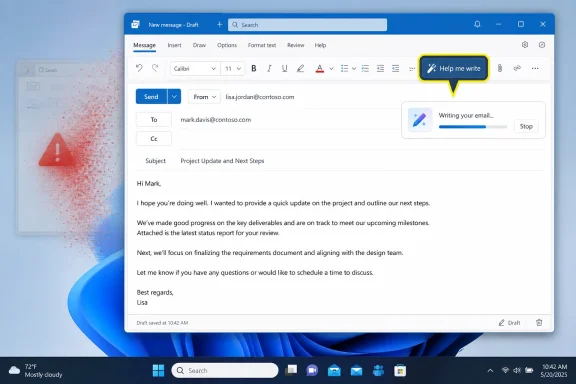
Microsoft has fixed an Outlook crash tied to Copilot email drafting in the latest Microsoft 365 update. The issue could occur when a user started Copilot Compose in Outlook, including from Alt + I or the Copilot pencil icon, entered a prompt, and saw “Writing your email” before Outlook froze and closed unexpectedly. Admin action is straightforward: update Outlook through Microsoft 365, then verify the same Copilot Compose path no longer crashes.
What changed: Microsoft says Outlook no longer closes unexpectedly when using Copilot’s Compose chat feature. The same update also fixes a separate issue where the Help me write button did not display correctly when high contrast mode was enabled, so the release should be treated as both a stability and accessibility remediation.
The broken path was ordinary enough to matter. A user opened Outlook, began composing an email, pressed Alt + I or clicked the Copilot pencil icon inside the email body, entered a prompt, and waited while Copilot displayed “Writing your email.” Instead of returning a draft, Outlook could freeze and then close.
Microsoft’s release notes describe the resolved issue in narrower terms: Outlook closed unexpectedly when using Copilot’s Compose chat feature. WindowsReport, citing Neowin, framed the same problem in more user-facing language as an Outlook Copilot crash tied to email drafting. Those descriptions point to the same practical outcome: a normal Copilot compose action could take down Outlook instead of producing draft text.
That is the important reader takeaway. This was not a vague complaint about AI quality, a prompt-writing problem, or a user preference issue. It was a crash in the mail client during a documented Copilot drafting flow.
In Outlook, Copilot is not just a chatbot in a separate browser tab. It appears inside the compose surface, responds to entry points, exposes buttons, and is expected to return generated text into a message draft. When that chain fails by closing Outlook, users experience it as a productivity interruption, not as a minor AI inconvenience.
The remediation should stay just as narrow as the verified issue. Microsoft says the issue is fixed in the latest Microsoft 365 update. Affected users should update Outlook through the organization’s normal Microsoft 365 servicing process and retry the same Copilot Compose path after the update is installed.
Microsoft’s support material for drafting email with Copilot describes multiple Outlook paths, including starting from the Copilot box in the message area, working through Chat, using Help me write or Help me reply, and using the Copilot icon in classic Outlook to reach Draft with Copilot. The relevant point for support teams is that Copilot drafting may be invoked from more than one place in the compose experience, so intake should capture the exact path the user used.
The failure appeared after the prompt had been entered and Copilot showed “Writing your email.” At that point, the user had already moved from discovering the feature to waiting for output. The draft request had been submitted, and the expected next step was generated text appearing in the compose window. Instead, Outlook stopped responding and closed.
AI tooling can fail in several ways. A weak suggestion can be edited. A missing button can be reported. An unexpected rewrite can be discarded. A client crash is more disruptive because it breaks the application underneath the feature. Outlook’s first job is still to remain available while the user is composing mail.
For admins, the support category is therefore clear. If Copilot produces poor prose, the conversation may involve training, prompt expectations, or review habits. If Copilot crashes Outlook, the response belongs with update management, incident tracking, and help-desk triage. In this case, Microsoft’s stated fix path is not a prompt change or a tenant policy adjustment. It is installing the Microsoft 365 update that contains the Outlook fix.
The same Outlook update information also includes a separate fix for a high-contrast display issue affecting the Help me write button. In practical terms, the update addresses two user-visible Copilot problems: one where Outlook could close unexpectedly during Copilot Compose, and one where a Copilot writing control did not display correctly for users working in high contrast mode.
The changelog language is useful because it gives administrators a clean remediation statement. It does not require a workaround, a registry edit, a special deployment claim, or a new training program. The fix exists in the Microsoft 365 update stream.
After deployment, validation should focus on the actual user path. Ask affected users to repeat the same Copilot drafting workflow that previously failed. If they used Alt + I, test Alt + I. If they used the pencil icon, test the pencil icon. If the report involved the “Writing your email” state, confirm Outlook now returns control instead of freezing or closing.
The accessibility fix should also be verified where relevant. If a user relies on high contrast mode, check that the Help me write button displays correctly after the update. That is a concrete usability outcome, not a secondary technical detail.
Admins should avoid turning a resolved issue into a broader diagnosis without evidence. Do not assume the root cause is a specific Outlook flavor, add-in model, virtualization setup, mailbox type, update ring, tenant setting, or accessibility configuration unless Microsoft support guidance, internal telemetry, or reproducible testing supports that conclusion.
The better operational approach is to capture facts. Record the Outlook client, Microsoft 365 update channel, build information, Windows version, add-ins, accessibility settings, trigger path, and whether the update containing Microsoft’s fix has been applied. That information helps support teams separate a known resolved issue from a new crash, a delayed update rollout, or an unrelated local problem.
This matters because Outlook environments vary widely. Users may not all see the same interface, the same buttons, or the same behavior at the same time. Some may start Copilot from a keyboard shortcut, others from a visible icon, and others from a writing assistance button. Support should document what happened rather than infer too much from the first complaint.
The verified message remains simple: if users encounter the Copilot Compose crash in Outlook, update Outlook to the latest Microsoft 365 version available through the organization’s servicing plan and validate the Compose path again.
Those user details matter because they shape confidence. Generative AI inside productivity software asks people to hand part of their work to a system they cannot fully see. In email composition, that work may involve a customer response, a personnel matter, a legal nuance, a sensitive internal update, or a time-critical follow-up. If the assistant fails by closing the mail client, some users will remember the interruption more than the later fix.
That is not a reason to turn one fixed bug into a sweeping verdict on Copilot. It is a reason to communicate the update plainly. Tell affected users that Microsoft has fixed the Outlook crash involving Copilot Compose. Tell them the fix is delivered through the latest Microsoft 365 update. Tell them to retry the same drafting path after updating. If they use high contrast mode, tell them the same update also corrects the Help me write display issue.
Copilot’s promise in Outlook depends on availability at the point of use. A writing assistant is useful only if it appears when expected, accepts the prompt, returns usable text, and leaves the user in control of the draft. If it disappears, misrenders, or closes the host application, users will fall back to manual drafting because it feels safer.
The practical confidence gap after a crash is easy to understand. The fix may close the immediate bug, but organizations still need users to believe the feature is safe to try again. That does not require hype. It requires a clean update, a short explanation, and a working compose experience.
This Outlook crash sits on the client side from the user’s perspective. The visible failure happened in Outlook, and Microsoft’s fix is delivered through a Microsoft 365 update. Support teams therefore need to treat the affected Copilot Compose path like any other Outlook feature that depends on current client updates.
If a user says “Copilot crashed Outlook,” first-line support needs a concrete intake path:
Update channel planning also matters. Organizations that receive Microsoft 365 updates quickly may deploy the repair sooner, while organizations on slower servicing models may need to plan and communicate the arrival of the fix according to their own deployment process. The key is not to improvise unsupported workarounds when Microsoft’s verified remediation is already available through the current Microsoft 365 update.
The operational lesson is narrow but important: Copilot entry points inside Outlook now belong to the supported productivity surface. Once users rely on Copilot to draft mail, those pathways deserve the same basic care as other business-critical Outlook functions.
That is not merely cosmetic. If a writing control is difficult to see in a supported display mode, the feature is less usable for some people before Copilot generates a single sentence. Accessibility support has to apply to AI controls just as it applies to older Outlook controls.
The remediation is the same update path. Install the latest Microsoft 365 update containing Microsoft’s fix, then confirm that the Help me write button displays correctly when high contrast mode is enabled. For organizations with users who rely on high contrast mode, the communication should mention this explicitly rather than describing the release only as a crash fix.
A useful admin message is short: the latest Outlook update fixes the Copilot Compose crash and corrects the Help me write button display problem in high contrast mode. That keeps the concrete impact and remediation front and center.
The verified facts are enough: Microsoft says Outlook closed unexpectedly when using Copilot’s Compose chat feature, and the latest Microsoft 365 update fixes it. Users may have seen the failure after invoking Copilot drafting from normal compose entry points and waiting on the “Writing your email” state. The same update also addresses the Help me write button not displaying correctly in high contrast mode.
What should be avoided is just as important. Do not invent specific build numbers, dates, KB identifiers, CVEs, or version strings unless they are present in the source material being used. Do not turn unverified environment reports into a claim that a particular server, desktop configuration, Outlook flavor, add-in, or deployment model is affected. Do not dilute the fix with speculative future Outlook features that are not needed to understand the remediation.
For help-desk teams, the language should be direct:
For organizations, the next step is validation. Confirm the update is installed. Ask affected users to repeat the workflow that previously failed. Make sure the compose path returns a draft instead of freezing. Check the high-contrast display behavior for users who rely on that setting. Then close the incident with a short explanation that users can understand.
The reasonable opinion to draw from this is not that every Copilot feature is unstable or that admins should distrust AI in Office. It is narrower: once Copilot is embedded in Outlook’s compose window, it becomes part of the reliability surface users judge every day. If it works, it may save time. If it closes the client, it becomes an Outlook support problem.
That is the standard Microsoft now has to meet. Copilot in Outlook does not have to amaze users every time to be useful. It does have to be available, visible, accessible, and dependable when someone is trying to send an email. The latest update addresses the immediate crash. The next test is whether users can invoke Copilot Compose again without turning a draft into a help-desk ticket.
What changed: Microsoft says Outlook no longer closes unexpectedly when using Copilot’s Compose chat feature. The same update also fixes a separate issue where the Help me write button did not display correctly when high contrast mode was enabled, so the release should be treated as both a stability and accessibility remediation.
 Copilot Broke at the Most Trust-Sensitive Point in Outlook
The broken path was ordinary enough to matter. A user opened Outlook, began composing an email, pressed Alt + I or clicked the Copilot pencil icon inside the email body, entered a prompt, and waited while Copilot displayed “Writing your email.” Instead of returning a draft, Outlook could freeze and then close.Microsoft’s release notes describe the resolved issue in narrower terms: Outlook closed unexpectedly when using Copilot’s Compose chat feature. WindowsReport, citing Neowin, framed the same problem in more user-facing language as an Outlook Copilot crash tied to email drafting. Those descriptions point to the same practical outcome: a normal Copilot compose action could take down Outlook instead of producing draft text.
That is the important reader takeaway. This was not a vague complaint about AI quality, a prompt-writing problem, or a user preference issue. It was a crash in the mail client during a documented Copilot drafting flow.
In Outlook, Copilot is not just a chatbot in a separate browser tab. It appears inside the compose surface, responds to entry points, exposes buttons, and is expected to return generated text into a message draft. When that chain fails by closing Outlook, users experience it as a productivity interruption, not as a minor AI inconvenience.
The remediation should stay just as narrow as the verified issue. Microsoft says the issue is fixed in the latest Microsoft 365 update. Affected users should update Outlook through the organization’s normal Microsoft 365 servicing process and retry the same Copilot Compose path after the update is installed.
The Shortcut Was Not the Edge Case
The trigger path did not require an obscure diagnostic sequence. Users could encounter the problem after starting Copilot Compose from Alt + I or from the Copilot pencil icon inside the email body. Those are normal user-facing entry points, not hidden engineering controls.Microsoft’s support material for drafting email with Copilot describes multiple Outlook paths, including starting from the Copilot box in the message area, working through Chat, using Help me write or Help me reply, and using the Copilot icon in classic Outlook to reach Draft with Copilot. The relevant point for support teams is that Copilot drafting may be invoked from more than one place in the compose experience, so intake should capture the exact path the user used.
The failure appeared after the prompt had been entered and Copilot showed “Writing your email.” At that point, the user had already moved from discovering the feature to waiting for output. The draft request had been submitted, and the expected next step was generated text appearing in the compose window. Instead, Outlook stopped responding and closed.
AI tooling can fail in several ways. A weak suggestion can be edited. A missing button can be reported. An unexpected rewrite can be discarded. A client crash is more disruptive because it breaks the application underneath the feature. Outlook’s first job is still to remain available while the user is composing mail.
For admins, the support category is therefore clear. If Copilot produces poor prose, the conversation may involve training, prompt expectations, or review habits. If Copilot crashes Outlook, the response belongs with update management, incident tracking, and help-desk triage. In this case, Microsoft’s stated fix path is not a prompt change or a tenant policy adjustment. It is installing the Microsoft 365 update that contains the Outlook fix.
Microsoft’s Fix Is Clear; Validate the Copilot Surface After Updating
Microsoft says the Outlook issue is fixed in the latest Microsoft 365 update. The immediate remediation is to update Outlook to the latest available Microsoft 365 version for the organization’s update channel and confirm the Copilot Compose workflow behaves normally afterward.The same Outlook update information also includes a separate fix for a high-contrast display issue affecting the Help me write button. In practical terms, the update addresses two user-visible Copilot problems: one where Outlook could close unexpectedly during Copilot Compose, and one where a Copilot writing control did not display correctly for users working in high contrast mode.
| Outlook Copilot issue | Trigger or condition | User-visible result | Verified remediation |
|---|---|---|---|
| Copilot Compose crash | Using Copilot Compose in Outlook, including compose entry points such as Alt + I or the Copilot pencil icon | Outlook could freeze while Copilot displayed “Writing your email,” then close unexpectedly | Update Outlook to the latest Microsoft 365 version that includes Microsoft’s fix |
| Help me write visibility issue | High contrast mode enabled | The Help me write button did not display correctly | Update Outlook to the latest Microsoft 365 version that includes Microsoft’s accessibility fix |
After deployment, validation should focus on the actual user path. Ask affected users to repeat the same Copilot drafting workflow that previously failed. If they used Alt + I, test Alt + I. If they used the pencil icon, test the pencil icon. If the report involved the “Writing your email” state, confirm Outlook now returns control instead of freezing or closing.
The accessibility fix should also be verified where relevant. If a user relies on high contrast mode, check that the Help me write button displays correctly after the update. That is a concrete usability outcome, not a secondary technical detail.
Do Not Overstate the Client or Deployment Scope
The source reporting emphasized Outlook as the affected host, and many organizations will naturally ask whether the issue is tied to classic Outlook, new Outlook, Outlook on the web, a managed desktop image, or a particular deployment model. The verified remediation does not support overconfident claims about those scenarios. The safe support message is that Microsoft fixed an Outlook issue where the app closed unexpectedly when using Copilot’s Compose chat feature, and the fix is delivered through the latest Microsoft 365 update.Admins should avoid turning a resolved issue into a broader diagnosis without evidence. Do not assume the root cause is a specific Outlook flavor, add-in model, virtualization setup, mailbox type, update ring, tenant setting, or accessibility configuration unless Microsoft support guidance, internal telemetry, or reproducible testing supports that conclusion.
The better operational approach is to capture facts. Record the Outlook client, Microsoft 365 update channel, build information, Windows version, add-ins, accessibility settings, trigger path, and whether the update containing Microsoft’s fix has been applied. That information helps support teams separate a known resolved issue from a new crash, a delayed update rollout, or an unrelated local problem.
This matters because Outlook environments vary widely. Users may not all see the same interface, the same buttons, or the same behavior at the same time. Some may start Copilot from a keyboard shortcut, others from a visible icon, and others from a writing assistance button. Support should document what happened rather than infer too much from the first complaint.
The verified message remains simple: if users encounter the Copilot Compose crash in Outlook, update Outlook to the latest Microsoft 365 version available through the organization’s servicing plan and validate the Compose path again.
The Changelog Solves the Symptom; Users Still Need Confidence
Microsoft’s resolved issue says Outlook no longer closes unexpectedly when using the Copilot Compose chat feature. That is the line administrators need for remediation. Users may describe the incident differently: they invoked Copilot, entered a prompt, saw “Writing your email,” and Outlook stopped responding before closing.Those user details matter because they shape confidence. Generative AI inside productivity software asks people to hand part of their work to a system they cannot fully see. In email composition, that work may involve a customer response, a personnel matter, a legal nuance, a sensitive internal update, or a time-critical follow-up. If the assistant fails by closing the mail client, some users will remember the interruption more than the later fix.
That is not a reason to turn one fixed bug into a sweeping verdict on Copilot. It is a reason to communicate the update plainly. Tell affected users that Microsoft has fixed the Outlook crash involving Copilot Compose. Tell them the fix is delivered through the latest Microsoft 365 update. Tell them to retry the same drafting path after updating. If they use high contrast mode, tell them the same update also corrects the Help me write display issue.
Copilot’s promise in Outlook depends on availability at the point of use. A writing assistant is useful only if it appears when expected, accepts the prompt, returns usable text, and leaves the user in control of the draft. If it disappears, misrenders, or closes the host application, users will fall back to manual drafting because it feels safer.
The practical confidence gap after a crash is easy to understand. The fix may close the immediate bug, but organizations still need users to believe the feature is safe to try again. That does not require hype. It requires a clean update, a short explanation, and a working compose experience.
Outlook’s AI Surface Is Becoming a Patch Management Surface
Office patching has long covered crashes, rendering bugs, security issues, add-in problems, and compatibility regressions. Copilot adds another support surface because AI features are experienced through host applications such as Outlook. When a Copilot button, prompt box, progress state, or returned draft fails, users may report it as an Outlook problem even if they think of the feature as “Copilot.”This Outlook crash sits on the client side from the user’s perspective. The visible failure happened in Outlook, and Microsoft’s fix is delivered through a Microsoft 365 update. Support teams therefore need to treat the affected Copilot Compose path like any other Outlook feature that depends on current client updates.
If a user says “Copilot crashed Outlook,” first-line support needs a concrete intake path:
- Which Outlook client was the user running?
- Which Microsoft 365 update channel applies to the device?
- Has the latest Outlook update been installed?
- Did the user start from Alt + I, the Copilot pencil icon, Help me write, Chat, or another compose-surface control?
- Did Outlook freeze while showing “Writing your email”?
- Did Outlook close unexpectedly?
- Is high contrast mode enabled?
- Does the Help me write button display correctly after the update?
Update channel planning also matters. Organizations that receive Microsoft 365 updates quickly may deploy the repair sooner, while organizations on slower servicing models may need to plan and communicate the arrival of the fix according to their own deployment process. The key is not to improvise unsupported workarounds when Microsoft’s verified remediation is already available through the current Microsoft 365 update.
The operational lesson is narrow but important: Copilot entry points inside Outlook now belong to the supported productivity surface. Once users rely on Copilot to draft mail, those pathways deserve the same basic care as other business-critical Outlook functions.
Accessibility Impact and Remediation
The high-contrast issue deserves concise, separate attention. Microsoft says the Help me write button did not display correctly when high contrast mode was enabled, and the update corrects that display problem. In plain terms, a user relying on high contrast mode could have had a harder time seeing or using an AI writing entry point.That is not merely cosmetic. If a writing control is difficult to see in a supported display mode, the feature is less usable for some people before Copilot generates a single sentence. Accessibility support has to apply to AI controls just as it applies to older Outlook controls.
The remediation is the same update path. Install the latest Microsoft 365 update containing Microsoft’s fix, then confirm that the Help me write button displays correctly when high contrast mode is enabled. For organizations with users who rely on high contrast mode, the communication should mention this explicitly rather than describing the release only as a crash fix.
A useful admin message is short: the latest Outlook update fixes the Copilot Compose crash and corrects the Help me write button display problem in high contrast mode. That keeps the concrete impact and remediation front and center.
Keep the Support Message Narrow and Useful
This incident does not need exaggerated conclusions. It needs a clean support message.The verified facts are enough: Microsoft says Outlook closed unexpectedly when using Copilot’s Compose chat feature, and the latest Microsoft 365 update fixes it. Users may have seen the failure after invoking Copilot drafting from normal compose entry points and waiting on the “Writing your email” state. The same update also addresses the Help me write button not displaying correctly in high contrast mode.
What should be avoided is just as important. Do not invent specific build numbers, dates, KB identifiers, CVEs, or version strings unless they are present in the source material being used. Do not turn unverified environment reports into a claim that a particular server, desktop configuration, Outlook flavor, add-in, or deployment model is affected. Do not dilute the fix with speculative future Outlook features that are not needed to understand the remediation.
For help-desk teams, the language should be direct:
- “Microsoft has fixed an Outlook crash involving Copilot Compose.”
- “Please update Outlook through Microsoft 365.”
- “After updating, try the same Copilot drafting path again.”
- “If you use high contrast mode, the update also includes a display fix for the Help me write button.”
- “If the crash continues after updating, capture the Outlook client, update channel, build, trigger path, and whether the message froze on ‘Writing your email.’”
Action checklist for admins
- Confirm affected users have updated Outlook to the latest Microsoft 365 version available for the organization’s update channel.
- Prioritize users who reported freezes or unexpected Outlook closures during Copilot-assisted email composition.
- Ask help-desk staff to capture the exact Copilot entry point used: Alt + I, the Copilot pencil icon, Help me write, Chat, or another compose-surface control.
- Treat “Writing your email” followed by Outlook freezing or closing as the signature symptom for this resolved Copilot Compose issue.
- After the update, have affected users retry the same drafting workflow that previously caused the crash.
- Verify whether high contrast mode is enabled for affected users, and confirm the Help me write button displays correctly after updating.
- Avoid environment-specific assumptions unless Microsoft support guidance, internal telemetry, or reproducible testing confirms them.
- If the issue persists after updating, collect Outlook client details, Microsoft 365 update channel, build information, Windows version, add-ins, accessibility settings, and the exact reproduction steps before escalating.
- Communicate the release as both a stability update for Copilot Compose and an accessibility update for the Help me write button.
- Continue monitoring Microsoft’s release notes for additional Outlook Copilot stability or accessibility fixes.
The Real Test Is Whether Users Try It Again
The concrete takeaway is simple: update Outlook through Microsoft 365. Microsoft says the latest Microsoft 365 update fixes the issue where Outlook closed unexpectedly when using Copilot’s Compose chat feature. The same update also addresses the Help me write button not displaying correctly in high contrast mode.For organizations, the next step is validation. Confirm the update is installed. Ask affected users to repeat the workflow that previously failed. Make sure the compose path returns a draft instead of freezing. Check the high-contrast display behavior for users who rely on that setting. Then close the incident with a short explanation that users can understand.
The reasonable opinion to draw from this is not that every Copilot feature is unstable or that admins should distrust AI in Office. It is narrower: once Copilot is embedded in Outlook’s compose window, it becomes part of the reliability surface users judge every day. If it works, it may save time. If it closes the client, it becomes an Outlook support problem.
That is the standard Microsoft now has to meet. Copilot in Outlook does not have to amaze users every time to be useful. It does have to be available, visible, accessible, and dependable when someone is trying to send an email. The latest update addresses the immediate crash. The next test is whether users can invoke Copilot Compose again without turning a draft into a help-desk ticket.
References
- Primary source: Windows Report
Published: 2026-07-09T05:12:08.385269
Loading…
windowsreport.com - Official source: learn.microsoft.com
Release Notes for Microsoft 365 Copilot | Microsoft Learn
Lists the features that reach General Availability in each release of Microsoft 365 Copilot.learn.microsoft.com - Official source: support.microsoft.com
Loading…
support.microsoft.com - Official source: techcommunity.microsoft.com
Loading…
techcommunity.microsoft.com - Official source: microsoft.com
Announcing Copilot for Microsoft 365 general availability and Microsoft 365 Chat | Microsoft 365 Blog
Discover the latest AI innovations across Microsoft 365 Copilot, Bing Chat Enterprise, and Windows. www.microsoft.com
- Related coverage: spscc.edu
- Related coverage: content.govdelivery.com
</rdf:Alt> </dc:title> <dc:description> <rdf:Alt> <rdf:li xml:lang="x-default"/> </rdf:Alt> </dc:description> <dc:creator> <rdf:Seq> <rdf:li>Alyssa.
</rdf:Alt> </dc:description> <dc:creator> <rdf:Seq> <rdf:li>[email protected];[email protected];[email protected];[email protected]content.govdelivery.com
- Official source: cdn-dynmedia-1.microsoft.com
</rdf:Alt> </dc:title> <dc:creator> <rdf:Seq> <rdf:li>Ryan Fowles
PDF documentcdn-dynmedia-1.microsoft.com
- Related coverage: windowscentral.com
Microsoft 365 is paywalling most of Copilot in its Office apps | Windows Central
Commercial customers will soon need a Microsoft 365 Copilot license to use Copilot Chat in Word, Excel, PowerPoint, and OneNote.www.windowscentral.com - Related coverage: tomsguide.com
Microsoft confirms Copilot bug let its AI read sensitive and confidential emails | Tom's Guide
Microsoft confirmed a bug in Copilot was letting the AI assistant read and summarize confidential emails.www.tomsguide.com - Related coverage: itpro.com
Microsoft Copilot bug saw AI snoop on confidential emails — after it was told not to | IT Pro
The Copilot bug meant an AI summarizing tool accessed messages in the Sent and Draft folders, dodging policy ruleswww.itpro.com - Related coverage: techradar.com
Your favorite Microsoft 365 apps are getting a load more Copilot AI Agents - Word, Excel, Outlook, PowerPoint all get a boost | TechRadar
More AI agents are coming to Microsoft 365www.techradar.com - Related coverage: neowin.net
Loading…
www.neowin.net