

Microsoft's redesigned Outlook for Windows refused to open for a number of Windows 11 users in December, producing a sharp, consistent error in Event Viewer — exception code 0xc0000409 — and leaving the app stuck at launch. The immediate remedy that worked for most affected PCs was unexpectedly simple: clear two local temporary folders used by the app. This article explains what causes the failure, walks through the safe, step‑by‑step fix, verifies the technical claims with independent reporting and Microsoft community guidance, and drills into the benefits, caveats, and longer‑term mitigations IT pros and power users should know.
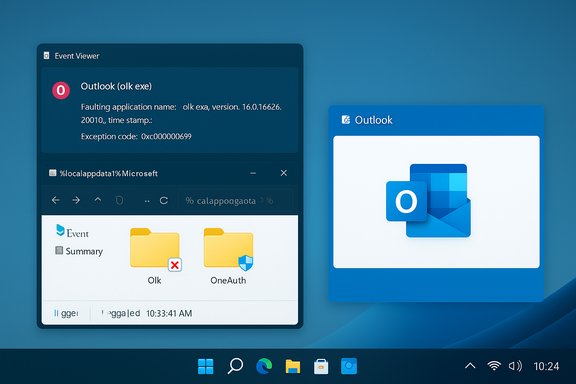
For many users who updated the new Outlook app (the UWP/WinUI “Outlook for Windows” package), clicking the desktop or Start menu icon produced no application window. Event Viewer recorded an Application Error pointing to olk.exe (the Outlook shell process) with Exception code 0xc0000409, a generic “stack buffer overrun / fast fail” style fault that indicates the process terminated very early during startup.
Community troubleshooting converged on two per‑user local folders in the user’s Local App Data area:
This is a cache / local‑state corruption problem — not a server‑side mailbox loss — but there are practical implications for reauthentication, offline caches, and large mailboxes that administrators and users should understand before proceeding.
Multiple community reports and troubleshooting threads show the same signature: olk.exe or OUTLOOK.EXE fails with the same exception code and a faulting module commonly in the runtime (ucrtbase.dll) or an Office runtime module. That pattern matches a fast fail caused by invalid state rather than network timeouts or server authentication alone.
Important: these folders hold temporary files and local cached tokens — they do not contain mailbox contents that live in Exchange or Outlook.com. If you have local PSTs or manually stored data outside cloud mailboxes, back them up first. Also be prepared to reauthenticate (MFA, SSPR, conditional access prompts).
Follow these steps exactly:
Where Microsoft has not published an official public bulletin explicitly tying every outage to a specific update, the company’s response in community forums has echoed the workaround as an appropriate remediation for clients that won’t open. This alignment between verified community evidence and guidance reinforces the safety and practicality of deleting Olk and OneAuth for this particular failure mode.
This fix is not a panacea: reauthentication, index rebuilding, and the potential for app updates to surface further edge cases mean admins should adopt cautious rollout, comprehensive testing, and monitoring. For end users, the recommended order is: try the folder reset first, then app Repair/Reset, and finally reinstall or escalate if the problem persists.
Windows and Outlook continue to evolve, and occasional regressions are unavoidable. In this incident, the community and the vendor converged on a practical, low‑risk workaround — an outcome that balances convenience with safety for most Windows 11 users.
Source: Windows Report New Outlook Won’t Launch On Windows 11? Here’s The Quick Fix
 Background / Overview
For many users who updated the new Outlook app (the UWP/WinUI “Outlook for Windows” package), clicking the desktop or Start menu icon produced no application window. Event Viewer recorded an Application Error pointing to olk.exe (the Outlook shell process) with Exception code 0xc0000409, a generic “stack buffer overrun / fast fail” style fault that indicates the process terminated very early during startup.Community troubleshooting converged on two per‑user local folders in the user’s Local App Data area:
- %localappdata%\Microsoft\Olk
- %localappdata%\Microsoft\OneAuth
This is a cache / local‑state corruption problem — not a server‑side mailbox loss — but there are practical implications for reauthentication, offline caches, and large mailboxes that administrators and users should understand before proceeding.
What triggers the failure (technical context)
The role of Olk and OneAuth
The new Outlook uses a mix of local temporary storage and cloud‑backed mail. Two per‑user folders are central to its startup state:- Olk — holds local cache, logs, WebView/renderer artifacts, temporary files and other non‑persistent state that speeds startup and UX responsiveness. The app will recreate this folder if it is missing.
- OneAuth — stores local sign‑in tokens, cached authentication state, and ephemeral credentials required to silently sign you in to Microsoft 365 / Exchange Online / Outlook.com. This folder is rebuilt when needed by the authentication subsystem.
Why 0xc0000409 appears in Event Viewer
Exception code 0xc0000409 is a Windows error code that shows up for application crashes when a process triggers a “fast fail” (often from runtime library checks, heap corruption detection, or explicit calls to terminate the process). In the context of a modern Windows Store / WindowsApps UWP process like olk.exe, this code typically indicates the application encountered corrupted local data or an invalid runtime state during early startup — consistent with the cache/token hypothesis.Multiple community reports and troubleshooting threads show the same signature: olk.exe or OUTLOOK.EXE fails with the same exception code and a faulting module commonly in the runtime (ucrtbase.dll) or an Office runtime module. That pattern matches a fast fail caused by invalid state rather than network timeouts or server authentication alone.
The quick fix (tested recipe)
This is the minimum and safest remediation that solved the issue for most users: delete the Olk and OneAuth folders from your Local App Data. The app recreates them and will prompt for sign‑in if required.Important: these folders hold temporary files and local cached tokens — they do not contain mailbox contents that live in Exchange or Outlook.com. If you have local PSTs or manually stored data outside cloud mailboxes, back them up first. Also be prepared to reauthenticate (MFA, SSPR, conditional access prompts).
Follow these steps exactly:
- Close Outlook (force‑quit if it appears hung).
- Press Win + R to open the Run dialog.
- Type or paste: %localappdata%\Microsoft and press Enter.
- Locate the Olk folder. Right‑click and delete it (or rename it to Olk‑old if you prefer a non‑destructive option).
- Locate the OneAuth folder and delete it (or rename it to OneAuth‑old).
- Close File Explorer and try launching the new Outlook.
Step‑by‑step with extra safety (for cautious users)
If you want a safer, more forensic approach (especially advisable in business environments):- Create a System Restore point or a temporary backup of the two folders:
- Copy %localappdata%\Microsoft\Olk to a backup directory (for example, C:\Temp\Olk‑backup).
- Copy %localappdata%\Microsoft\OneAuth to C:\Temp\OneAuth‑backup.
- Quit Outlook and related processes from Task Manager (look for olk.exe).
- Rename the original folders (Olk -> Olk‑old, OneAuth -> OneAuth‑old) instead of deleting.
- Launch Outlook and verify it starts. If everything is good for 24 hours, you can delete the backups.
- If launch still fails, restore the folders from the backup and escalate to more invasive troubleshooting (see next section).
When the quick fix won't work — follow‑up troubleshooting
If removing Olk and OneAuth does not fix startup, proceed in order with these troubleshooting steps:- Try launching olk.exe directly from its WindowsApps installation folder to see if a different launch path behaves differently. Some reports show Explorer launch vs direct exe run difference.
- Reset or Repair the app via Settings: Settings > Apps > Installed apps > Outlook > Advanced options > Repair (or Reset). Use Repair first; Reset reinstalls and clears all app data.
- Run the Microsoft Store / Microsoft Store app repair if Outlook is a Store package.
- Check Event Viewer closely for further faulting module details (ucrtbase, ntdll, OLMAPI32). Note the faulting module path and exception offsets for helpdesk escalation.
- Run SFC and DISM:
- sfc /scannow
- DISM /Online /Cleanup-Image /RestoreHealth
These commands inspect Windows system files if runtime DLLs are implicated. - Reinstall the new Outlook from the Microsoft Store or via the Office update channel (if delivered through Microsoft 365 channels).
- Try a new Windows user profile to see if the issue is profile‑specific. If a fresh profile works, it strengthens the corrupted local state theory.
- Check for Windows Updates and app updates. A new revision may already have been released that addresses a specific crash condition.
- If the machine is domain‑joined or has conditional access policies, ensure you have network access to required endpoints and that policy changes or token restrictions are not blocking reauthentication.
- Collect logs and escalate to Microsoft support if this is a widespread, repeatable problem in your environment.
Which accounts / setups are most affected
The failure pattern has appeared across both consumer and business tenants. The majority of reports indicate:- The problem often affects machines that previously had the app installed and then received a recent app update. Fresh installs have been less commonly impacted.
- Both Exchange Online (Microsoft 365) and Outlook.com accounts are involved. Local PST usage is a separate variable.
- Virtual desktop infrastructure (VDI), remote desktop sessions, and machines with restrictive security/antimalware policies have historically been more likely to surface similar Outlook startup exceptions.
- Devices with Multi‑Factor Authentication (MFA) and Conditional Access policies may require additional steps during reauthentication after the OneAuth folder is removed.
Benefits of the folder‑delete fix
- Fast and effective — For most users, the app starts immediately after the folders are removed.
- Non‑destructive — The folders are temporary caches; in cloud‑backed mailboxes, nothing in the mailbox is deleted.
- Low‑risk — Compared to full reinstall or aggressive registry edits, deleting local temporary state is minimally invasive and easy to roll back by restoring a renamed folder.
- No admin tools required — End users can apply the fix themselves without elevated privileges (the Local App Data path is per‑user).
Risks, caveats, and what to expect after the fix
- Reauthentication required — Deleting OneAuth removes cached tokens. Users will likely be prompted to sign in again. This can be a headache where MFA devices, SSO third‑party agents, or strict conditional access rules apply.
- Rebuilding indexes and caches — The app will rebuild local cache and search indexes. On large mailboxes or slow disks, the first launch after the fix may be slower; search results may be limited until indexing completes.
- Local data edge cases — If you use classic Outlook with local PSTs or have moved PST files into unusual locations, be cautious. The fix applies to the new Outlook package; ensure your local data files are elsewhere and backed up.
- Temporary UI/config differences — Some personalized UX settings that are stored in the local cache may be reset, requiring reconfiguration of panes, layout, or quick actions.
- Not a replacement for updates — Deleting temp folders solves the symptom, but if the root cause is a buggy app update, users should install any newer app fixes or patches provided by Microsoft.
Why Microsoft and community posts matter (verification)
Independent community threads and Microsoft’s own Q&A forums recorded the same signatures — olk.exe crash, ucrtbase.dll involvement, and exception code 0xc0000409 — and the folder reset remedy was validated by multiple user reports and Microsoft community responses. Microsoft Support documentation historically links similar Event Viewer exception codes to local state issues and has published fixes for related Outlook crash scenarios in the past, which lends credibility to the cache‑reset approach.Where Microsoft has not published an official public bulletin explicitly tying every outage to a specific update, the company’s response in community forums has echoed the workaround as an appropriate remediation for clients that won’t open. This alignment between verified community evidence and guidance reinforces the safety and practicality of deleting Olk and OneAuth for this particular failure mode.
Best practices for admins and power users
For IT administrators who manage multiple endpoints, apply a measured approach:- Create a short support script that safely renames the two folders instead of deleting them outright, preserving the ability to restore in case of unintended side effects.
- Automate post‑fix telemetry collection: capture Event Viewer entries, app versions, and OS build numbers. This will help identify whether a particular app build is correlated with the issue.
- Communicate the expected sign‑in behavior to users (MFA prompts, potential SSO re‑auth) so helpdesk calls are reduced.
- Where possible, test the fix on a small pilot group before broad deployment.
- Monitor Microsoft update channels for a patched app build and plan to deploy the update once confirmed.
- In VDI environments, consider profile management strategies (FSLogix, local cache exclusions) to reduce the chance of profile corruption causing startup failures.
Long‑term mitigation and monitoring
- Keep the app up to date — Microsoft frequently publishes updates to the new Outlook and reactive patches; installing updates promptly reduces exposure to known bugs.
- Profile hygiene — Clean up and archive old profiles; avoid oversized local caches that increase the likelihood of write/corruption problems.
- Endpoint protection tuning — Ensure antivirus or endpoint protection software is not interfering with the app’s ability to write temporary files into %localappdata% during updates.
- User training — Teach users how to close the app properly; interrupted writes (during forced shutdowns) are a common vector for cache corruption.
- Log centralization — Capture Event Viewer errors centrally for pattern detection. Repeated 0xc0000409 events across many machines typically indicate an app update problem rather than individual device failure.
Final thoughts and takeaways
The December outage of the new Outlook on Windows 11 that produced 0xc0000409 crashes was a classic case of corrupted local state causing modern, hardened apps to fast‑fail at startup. The remedy — deleting or renaming the Olk and OneAuth folders under %localappdata%\Microsoft — is simple, effective, and minimally invasive for the majority of affected users. It also demonstrates how cloud‑centric apps still rely on fragile local glue, and why per‑user cache management remains a valuable troubleshooting skill for both home users and enterprise IT.This fix is not a panacea: reauthentication, index rebuilding, and the potential for app updates to surface further edge cases mean admins should adopt cautious rollout, comprehensive testing, and monitoring. For end users, the recommended order is: try the folder reset first, then app Repair/Reset, and finally reinstall or escalate if the problem persists.
Windows and Outlook continue to evolve, and occasional regressions are unavoidable. In this incident, the community and the vendor converged on a practical, low‑risk workaround — an outcome that balances convenience with safety for most Windows 11 users.
Source: Windows Report New Outlook Won’t Launch On Windows 11? Here’s The Quick Fix
