

PCMag’s 2026 keyboard guide argues that the right PC keyboard is determined less by brand mystique than by connection type, layout, ergonomics, switch mechanism, and gaming features, because each choice changes how a Windows desk feels hour after hour. That sounds obvious until you look at how keyboards are actually bought: as afterthoughts, bundle accessories, RGB ornaments, or desperate replacements for whatever just died. The better way to shop is to treat the keyboard as the primary physical interface to Windows, not as a peripheral hanging off the end of a USB cable. In 2026, the smartest keyboard purchase is not the flashiest one; it is the one that removes friction from the work, game, spreadsheet, shortcut, and posture habits you already have.
The strange thing about keyboard buying is that almost everyone has strong preferences and almost nobody discovers them systematically. Users will argue about Windows versions, monitor refresh rates, GPU tiers, browser tabs, and mouse sensitivity, then spend years typing on a board that fights their wrists, drops shortcuts, lacks the keys they use daily, or feels like pushing through damp cardboard. PCMag’s 2026 guide is useful because it refuses to treat the keyboard as one generic object. It breaks the category into the decisions that actually matter: wired versus wireless, full-size versus compact, ergonomic versus conventional, membrane versus scissor versus mechanical, and general-purpose versus gaming.
That framing matters more for Windows users than it might at first appear. Windows is still a shortcut-heavy operating system, and the keyboard is the fastest route to Task Manager, virtual desktops, search, snapping, app switching, file operations, terminal sessions, remote desktops, and accessibility workflows. A bad keyboard does not merely slow typing. It makes the operating system feel clumsier than it is.
The article’s most important unstated point is that the “best keyboard” is not a universal winner. It is a match between a body, a desk, a workload, and a tolerance for cables, noise, travel distance, software, and visual excess. A gaming keyboard with per-key RGB and macro keys may be wasted on a finance worker who needs a numeric keypad and a quiet switch. A compact 60% board may look elegant until the missing cursor directional arrows and Home, End, Page Up, and Page Down keys turn every editing session into a key-combo scavenger hunt.
The market has also become more confusing because nearly every keyboard segment has borrowed features from every other one. Office boards now offer wireless multi-device convenience. Gaming boards have become productivity tools for people who live inside macros. Mechanical keyboards are no longer only chunky nostalgia machines for typists who miss the old clickety-clack. Ergonomic boards are no longer medical-looking compromises. The right buying question is therefore not “Which keyboard is best?” It is “Which compromises should I choose on purpose?”
For many Windows desktops, especially fixed office workstations, a wired keyboard is the rational default. Non-gaming models are usually plug-and-play devices, so the user connects the cable and starts typing. In managed environments, that simplicity has a real administrative value: fewer support tickets about pairing, fewer questions about battery life, and fewer mysterious “my keyboard stopped working” incidents caused by a sleeping Bluetooth connection or a misplaced receiver.
Gaming keyboards complicate the picture, but not in a way that weakens the case for USB. PCMag notes that gaming boards typically work as soon as they are plugged in, while their deeper features often depend on companion software for things like onboard RGB lighting and macro-key assignments. Some cheaper gaming models skip software and handle backlighting or shortcuts through hardware. That split is not just a consumer detail; for IT departments, it determines whether the keyboard is merely an input device or another software package to test, patch, and potentially restrict.
The biggest downside of wired keyboards is physical. Cables create clutter, limit placement, and are awkward in living-room PC setups, conference rooms, shared desks, or lap use. But the strength of wired keyboards is that their failure modes are visible. If the cable is damaged or unplugged, the problem is obvious. If a wireless keyboard drops input, drains itself, pairs to the wrong machine, or competes with other wireless traffic, the problem can feel like a ghost in the room.
There is also a subtle performance and trust argument here. Most users do not need to worry about input latency for normal typing, but people notice when a keyboard misses a wake-up keystroke or takes a moment to reconnect. Wired boards do not ask users to think about signal quality. In a world where enough of Windows already depends on cloud accounts, background services, device drivers, firmware, and sync settings, the appeal of a keyboard that just talks over copper should not be underestimated.
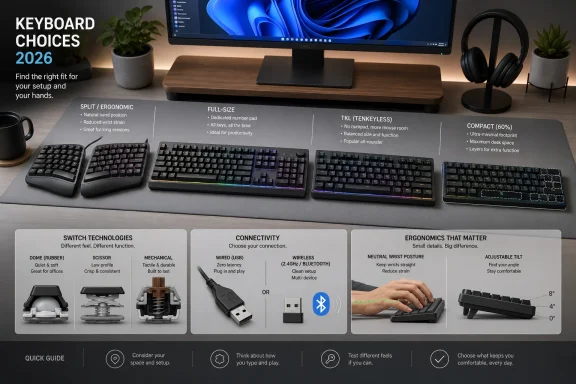
The USB-dongle approach usually means a small receiver plugged into a USB port, with many such keyboards transmitting over the same 2.4GHz wireless frequency used by cordless phones and Wi-Fi routers. PCMag’s practical assessment is that the 2.4GHz dongle connection tends to offer more stable connectivity than Bluetooth. That stability is why a dongle-based wireless keyboard can feel more like a cable replacement than a gadget that needs managing.
Bluetooth wins on flexibility. It does not monopolize a USB port, it can work with mobile devices such as smartphones and tablets, and PCMag says that in regular use it gives roughly 30 feet of wireless range. For users who switch between a Windows PC, tablet, and phone, Bluetooth can be the least annoying option. For a home theater PC, a meeting-room machine, or a laptop dock with limited ports, it can be the difference between a clean setup and yet another adapter.
But Bluetooth also introduces the kind of ambiguity that support desks dislike. Battery life can be shorter than on USB-dongle devices, according to PCMag, although newer designs with hand-proximity sensors can improve that picture compared with older always-on models. Pairing is also an operating-system-level relationship, not merely a physical connection. That can be an advantage for users who want clean portability, and a nuisance for users who just want the keyboard to follow the machine in front of them.
Backlighting is another practical dividing line. PCMag notes that few mainstream wireless keyboards feature key backlighting, and when they do, users should expect to change batteries or recharge more often. That matters because backlighting is not just a gaming vanity feature. It is useful for typing in a dim den, controlling a home theater PC, or finding media keys during a late-night session. Wireless keyboards make a clean desk easier; illuminated wireless keyboards make battery management harder.
For Windows buyers, the wireless decision should start with the room, not the spec sheet. If the keyboard never moves from a desk and the PC has open USB ports, wired is still the cleanest operational answer. If the keyboard is part of a couch, conference, lap, or multi-device routine, wireless earns its keep. The mistake is buying wireless because it sounds modern, then discovering that the cable was the only inconvenience it solved.
Most mainstream and gaming keyboards include a 10-key numeric keypad on the right. PCMag points out that such keypads are rarely found on laptops smaller than 15.6 inches, which is why many laptop users forget how useful they are until they return to a desktop board. If you spend the day entering numbers, working in spreadsheets, punching in accounting data, or navigating business systems built around numeric input, the keypad is not optional convenience. It is the difference between fluent work and constant friction.
Tenkeyless, or TKL, models remove that numeric pad. They are especially popular in gaming because they save desk space and keep typing and mousing hands closer together. That last point is not trivial. A full-size keyboard pushes the mouse farther to the right for right-handed users, which can widen the reach and aggravate shoulder or wrist discomfort over time. A TKL board can make a desk feel more centered and reduce the distance between typing and pointing.
Then come 60% keyboards, which PCMag describes as going even smaller by eliminating more extra keys. These boards can be elegant, portable, and efficient for users who have internalized layered shortcuts. They can also be punishing for users who rely on dedicated navigation keys. The placement of cursor directional arrows and Home, End, Page Up, and Page Down keys is not a minor distinction if you write, code, edit documents, work in logs, or live in spreadsheets.
The danger of compact keyboards is that they sell space savings immediately and reveal workflow cost slowly. A user may love the look of a 60% board on day one and resent it by day ten because every editing maneuver requires a function-layer chord. Conversely, a full-size board may feel old-fashioned until a number-heavy workflow proves that the keypad was the whole point. The keyboard market’s obsession with minimalism can obscure the fact that dedicated keys are a form of interface luxury.
Media controls deserve the same practical treatment. PCMag notes that most current keyboards include basic media-control features such as volume, play/pause, and next/previous track keys, usually as dedicated buttons above the numeric pad or shared shortcuts in the top row. Bonus points go to makers that implement volume as a dial or roller, as seen on some high-end Corsair, Das Keyboard, and HyperX models. That may sound like a small flourish, but physical controls are the kind of small flourish that makes a PC feel less like a stack of windows and more like a workstation.
Windows users who want an unusual layout or just need to move a key or two are not helpless. PCMag points readers toward keyboard remapping on Windows, and Microsoft’s own documentation for PowerToys Keyboard Manager describes remapping keys and shortcuts for productivity. That is an important escape hatch, especially for compact boards, international layouts, or keyboards with awkwardly placed keys. But remapping is a correction layer, not a miracle. It can rescue a bad key position; it cannot turn a keyboard with missing physical keys into a full-size board without adding complexity somewhere else.
The better approach is preventive. If a keyboard is used for hours every day, comfort is a performance feature. A board that reduces strain can preserve focus, lower fatigue, and make a workstation sustainable. It may not make benchmark charts, but it affects the metric that actually matters for most people: whether they can keep working without their hands, wrists, or shoulders objecting.
Ergonomic features range from simple padded wrist rests to more elaborate layouts sculpted to curve and slope, or split designs that separate the hands. Those choices are not interchangeable. A wrist rest can provide comfort during pauses, but it does not fundamentally change the angle at which the hands meet the keys. A sculpted or split keyboard can change posture more dramatically, but it may also require a learning period and can be disruptive in shared workspaces.
PCMag’s most useful ergonomic warning concerns angle adjustment. Many keyboards include two plastic feet on the back that fold or flip out to raise the rear edge. Users often assume that a steeper uphill tilt is better because it presents the keys more visibly. PCMag says research has shown the traditional uphill tilt is not ergonomically ideal, and recommends experimenting until the keyboard is flat or even angled slightly away from the wrists.
That aligns with broader workstation guidance from OSHA, which emphasizes choosing and placing the keyboard in conjunction with the mouse, wrist or palm rests, and the rest of the workstation, while maintaining straight, neutral wrist postures. The practical WindowsForum translation is simple: do not evaluate a keyboard in isolation. Evaluate it with the chair, desk height, mouse position, monitor placement, and the user’s actual typing posture.
This is especially important for compact keyboards. A TKL board can reduce mouse reach and help keep the hands closer together, which may be ergonomically helpful even if the board itself is not marketed as ergonomic. A full-size board with a numeric keypad may be necessary for work but may push the mouse outward. A split board may improve wrist angle but change shortcut habits. Ergonomics is not one feature; it is a set of trade-offs across the desk.
For IT departments, ergonomics also has policy implications. Standardizing on the cheapest bundled keyboard may simplify purchasing but can increase dissatisfaction among heavy typists. At minimum, organizations should allow exceptions for users with documented discomfort, number-heavy roles, or workstation constraints. The cost difference between a mediocre keyboard and a good one is usually small compared with the productivity cost of avoidable discomfort.
Silicone dome switches dominate budget keyboards, including many that ship bundled with new desktops. PCMag describes them as using two dimpled layers of silicone membrane that form a grid of rubber bubbles or domes as the springback for each key. The result is a soft, mushy feel, and the switch typically requires the user to bottom out with each keystroke, pressing the key to its fullest travel.
That “bottom out” requirement is not just a feel preference. It changes how typing effort accumulates. If every keystroke ends by driving the key to the bottom of the well, the board can feel less precise and more tiring over long sessions. The upside is cost. For light use, kiosks, occasional family PCs, or budget deployments, silicone dome boards can be good enough. The mistake is assuming that good enough for occasional use is good enough for a full-time workstation.
Scissor switches sit between the cheap membrane world and the mechanical enthusiast world. PCMag notes that many low-profile, laptop-like keyboards use scissor switches, adding a mechanical stabilizer to each key and an attached plunger under each keycap for shorter key travel. The feel is shallow, but generally more durable than rubber-dome switches alone. This is why many laptop users who dislike chunky desktop keyboards gravitate toward low-profile boards.
Mechanical switches are the category that attracts the most attention, and for good reason. PCMag describes them as more intricate, with a spring-loaded sliding keypost beneath each key. They provide strong tactile feedback, can register keystrokes with less travel, and many produce the clickety-clack sound long associated with typing. For touch typists, that combination can feel faster, more confident, and more satisfying.
The trade-off is physical and social. Mechanical keyboards tend to be thicker because their switches usually require more vertical space than silicone-dome or scissor designs. They can also be loud, depending on the switch. That may delight the user and irritate everyone within earshot. A mechanical keyboard that is perfect for a home office may be a menace in an open-plan workplace.
Cherry AG still looms over the category. PCMag identifies Cherry MX switches in Blue, Red, Black, and Brown varieties as historically central to mainstream mechanical keyboards, with each color carrying different feel, sound, and pressure characteristics. The market has broadened, however, with house-brand mechanical switches from Logitech and Razer, as well as switches using similar color schemes from makers such as Kaihua. The lesson is not that one brand name guarantees success. It is that buyers need to understand what switch behavior they are choosing.
Low-profile mechanical switches complicate the old assumption that mechanical means tall and chunky. PCMag notes that Cherry AG has introduced low-profile mechanical switches, as have competitors. That points to the future of the category: the feel of mechanical boards moving into thinner designs that better suit modern desks and laptop-adjacent setups. But PCMag is right to caution that the vast majority of mechanical keyboards remain relatively chunky.
For most buyers, the practical test is still physical. Read reviews, but type before buying if possible. A switch that sounds perfect in a description may feel wrong under your fingers. A quiet scissor board may beat a celebrated mechanical if the desk is shared. A mechanical switch may transform long typing sessions if the user has spent years fighting a mushy dome board. The switch is the keyboard’s engine; choose it for the route you actually drive.
Premium gaming models often use high-grade mechanical key switches and add programmable macro keys, textured WASD keys, and swappable keycaps. They may offer backlighting that can be customized by zone or by individual key, the latter commonly called per-key RGB. Cheaper models may settle for one backlight color, but the upward path is toward deeper customization.
Some of that is pure personalization. A user may want the keyboard to match a case, room, brand ecosystem, or streamer desk. But lighting can also serve function. Highlighting game controls, macro groups, media keys, or application-specific zones can reduce search time and make complex setups more readable. The same idea can apply outside games: color-coded shortcuts for editing, streaming, accessibility, or production workflows.
Anti-ghosting is the feature that separates a serious gaming keyboard from a board merely dressed like one. PCMag calls anti-ghosting essential because it allows the keyboard to register multiple simultaneous keystrokes, something not all standard keyboards can do. In gaming, that can determine whether a movement, modifier, and action all register at once. In productivity, it matters less often, but anyone who uses complex key combinations benefits from reliable multi-key recognition.
Gaming extras such as USB pass-through ports or audio connections are also more practical than they first appear. A pass-through port can move an inconvenient rear desktop port to the keyboard, simplifying headset, mouse receiver, or flash-drive access. Audio connections can do the same for headphones on machines buried under desks. These are small workstation conveniences disguised as gaming features.
Macros are the most powerful and potentially most problematic gaming import. PCMag says any gaming keyboard worthy of the name comes with dedicated software and discrete keys for triggering macro commands, allowing users to save and play back complex strings of commands with a single keypress. For players, macros can create a competitive edge. For power users, they can automate repetitive application workflows. For administrators, they raise questions about software approval, supportability, and misuse.
That is where gaming keyboards cross into enterprise territory. A macro engine can be an accessibility tool, a productivity booster, or a policy headache. It depends on the environment. In a locked-down workplace, installing vendor software for RGB and macros may not be acceptable. In a creator studio, engineering lab, or support team, programmable keys may save real time. The keyboard is no longer merely hardware once its best features live in software.
The broader market has already absorbed the lesson. Even users who never play games now expect better switches, lighting options, media controls, and customization. Gaming keyboards pushed those features into the mainstream. The trick in 2026 is to buy the useful parts without paying for theater you will not use.
Remapping is particularly useful when a keyboard is nearly right. Maybe the layout is excellent but one key sits where your fingers expect something else. Maybe a compact board forces a navigation compromise. Maybe a user moving between laptop and desktop wants a more consistent modifier-key experience. A small remap can turn irritation into muscle memory.
But remapping should not be used to excuse a fundamentally wrong purchase. If a user needs a numeric keypad all day, a 60% keyboard plus clever layers is not a productivity upgrade. If a user needs quiet typing in a shared space, no shortcut utility will make a loud clicky switch socially acceptable. If a user needs dedicated Home, End, Page Up, and Page Down keys, hiding them behind functions may be a daily tax.
The more strategic point is that Windows users should evaluate keyboard hardware and software together. A keyboard with onboard memory, dedicated software, macro keys, lighting profiles, and remapping options is part of the PC configuration. That affects roaming users, shared machines, backups, device replacement, and help-desk scripts. When the keyboard carries user-specific behavior, replacing it is no longer as simple as swapping plastic.
For home users, this is mostly a convenience question. For businesses, it is a standardization question. Does the organization allow vendor keyboard software? Are macros acceptable? Are lighting controls irrelevant or distracting? Are remaps documented so another technician can understand the workstation? Does the keyboard work usefully before any software loads, including at sign-in or recovery screens?
The best Windows keyboard setup is often layered. Hardware provides the right physical layout and feel. Windows provides system shortcuts. Power-user tools provide remapping where necessary. Vendor software provides lighting and macros only when those features justify their footprint. That hierarchy prevents the common mistake of trying to solve a physical problem in software.
For standard office desktops, the default should be boring, durable, easy to clean, and easy to replace. That often means wired USB for fixed workstations, especially where battery replacement and pairing support would create overhead. For number-heavy roles, the 10-key numeric keypad should be treated as required. For shared desks, training rooms, reception areas, and labs, plug-and-play reliability is more valuable than customization.
For hot desks and conference spaces, wireless may be worth the management cost. Bluetooth avoids occupying a USB port, but dongle-based wireless may provide more stable connectivity. Either way, the receiver, pairing instructions, battery policy, and replacement process need to be part of the deployment plan. A wireless keyboard without an ownership model becomes office archaeology: someone eventually finds the dongle in a drawer and the keyboard in a cabinet, and neither works with anything.
For developers, analysts, writers, support engineers, and administrators, the keyboard is a productivity tool. These users may benefit from mechanical switches, TKL layouts, programmable keys, or remapping. The worst procurement policy is one that treats every keyboard preference as frivolous. The second-worst is one that lets every user install whatever vendor software they want with no review. A sensible middle ground is to define approved categories: standard wired, ergonomic, compact, mechanical quiet, and gaming-style programmable where justified.
Accessibility and ergonomics should sit outside the usual “nice to have” debate. If a user needs a split design, padded wrist rest, alternative angle, or different layout to work comfortably, the organization should not force that request through the same lens as RGB lighting. PCMag’s discussion of carpal tunnel syndrome and repetitive stress injury is a reminder that keyboard choice can become a health issue. OSHA’s workstation guidance reinforces that the keyboard has to be considered with the rest of the desk, not purchased in isolation.
Start with connection. If the keyboard will stay on a desk, wired USB is still hard to beat. If the keyboard must move across a room, avoid cable clutter, or work with tablets and phones, wireless earns consideration. If wireless is the answer, decide whether the stability of a 2.4GHz dongle is more important than Bluetooth’s port-free convenience and broad device compatibility.
Then choose layout. If you use numbers constantly, keep the numeric keypad. If you game, have a narrow desk, or want the mouse closer to your typing hand, consider TKL. If you love minimalism and live comfortably with layers, 60% can work. If you merely like the look of a tiny keyboard, pause before buying one and imagine editing a long document without dedicated navigation keys.
Next comes feel. Silicone dome switches can be acceptable for budget and light use but tend toward a soft, mushy feel and require bottoming out. Scissor switches offer a shallow, laptop-like feel with more stability than rubber domes alone. Mechanical switches deliver stronger feedback, shorter actuation possibilities, longer-lasting mechanisms, and often more sound. None of these is morally superior. The best switch is the one that keeps your hands accurate and comfortable.
Ergonomics should be evaluated before aesthetics. A keyboard that looks perfect but forces awkward wrist extension is not a good keyboard. Use the adjustable feet thoughtfully, and do not assume the raised rear position is better. PCMag’s warning about traditional uphill tilt should be taken seriously: flat or slightly negative tilt may be more comfortable, depending on desk height and posture.
Finally, be honest about gaming features. Programmable macro keys, textured WASD keys, swappable keycaps, per-key RGB, anti-ghosting, USB pass-through, and audio connections can be genuinely useful. They can also be expensive decoration. If you will use macros, buy a board with good software and enough dedicated controls. If you only want a keyboard that types well, do not let lighting effects drag you into the wrong price tier.
That self-audit matters because the keyboard market is now wide enough to indulge almost any preference. There are boards for people who want full-size certainty, compact discipline, wireless freedom, mechanical tactility, quiet laptop-like travel, ergonomic posture, gaming control, and visual spectacle. The danger is not lack of choice. It is buying someone else’s preference because a roundup, streamer, coworker, or product photo made it look universal.
PCMag’s 2026 guide, read carefully, is less a list of products than a warning against lazy matching. It says that connectivity, layout, switch type, ergonomics, and gaming features are the real decision points. Microsoft’s Windows remapping tools add flexibility after the purchase. Workstation ergonomics guidance adds a reminder that comfort is designed across the whole desk. Together, the sources point to a mature category where the buyer has no excuse to treat the keyboard as disposable.
The keyboard is where the PC becomes physical, and that is why it deserves more careful buying than it usually gets. Windows users can replace a bad board in seconds, but they may spend years absorbing the small daily costs of the wrong one: extra reaches, missed shortcuts, tired wrists, dead batteries, mushy keystrokes, and software nobody wanted to support. In 2026, the winning move is to stop shopping for “the best keyboard” as a trophy and start specifying the keyboard as infrastructure — the part of the PC your hands have to trust before anything useful can happen.
 The Keyboard Is Still the PC’s Most Underrated Upgrade
The strange thing about keyboard buying is that almost everyone has strong preferences and almost nobody discovers them systematically. Users will argue about Windows versions, monitor refresh rates, GPU tiers, browser tabs, and mouse sensitivity, then spend years typing on a board that fights their wrists, drops shortcuts, lacks the keys they use daily, or feels like pushing through damp cardboard. PCMag’s 2026 guide is useful because it refuses to treat the keyboard as one generic object. It breaks the category into the decisions that actually matter: wired versus wireless, full-size versus compact, ergonomic versus conventional, membrane versus scissor versus mechanical, and general-purpose versus gaming.That framing matters more for Windows users than it might at first appear. Windows is still a shortcut-heavy operating system, and the keyboard is the fastest route to Task Manager, virtual desktops, search, snapping, app switching, file operations, terminal sessions, remote desktops, and accessibility workflows. A bad keyboard does not merely slow typing. It makes the operating system feel clumsier than it is.
The article’s most important unstated point is that the “best keyboard” is not a universal winner. It is a match between a body, a desk, a workload, and a tolerance for cables, noise, travel distance, software, and visual excess. A gaming keyboard with per-key RGB and macro keys may be wasted on a finance worker who needs a numeric keypad and a quiet switch. A compact 60% board may look elegant until the missing cursor directional arrows and Home, End, Page Up, and Page Down keys turn every editing session into a key-combo scavenger hunt.
The market has also become more confusing because nearly every keyboard segment has borrowed features from every other one. Office boards now offer wireless multi-device convenience. Gaming boards have become productivity tools for people who live inside macros. Mechanical keyboards are no longer only chunky nostalgia machines for typists who miss the old clickety-clack. Ergonomic boards are no longer medical-looking compromises. The right buying question is therefore not “Which keyboard is best?” It is “Which compromises should I choose on purpose?”
Wired Remains the Boring Answer That Often Wins
The simplest keyboard connection is still the one PCMag describes first: plug the keyboard’s cable into a USB port. That is not glamorous, but it is decisive. A USB keyboard carries keystrokes to the PC and powers the keyboard at the same time, which means there are no batteries to charge, no dongles to lose, no pairing state to corrupt, and no wireless link to troubleshoot when a user is already angry.For many Windows desktops, especially fixed office workstations, a wired keyboard is the rational default. Non-gaming models are usually plug-and-play devices, so the user connects the cable and starts typing. In managed environments, that simplicity has a real administrative value: fewer support tickets about pairing, fewer questions about battery life, and fewer mysterious “my keyboard stopped working” incidents caused by a sleeping Bluetooth connection or a misplaced receiver.
Gaming keyboards complicate the picture, but not in a way that weakens the case for USB. PCMag notes that gaming boards typically work as soon as they are plugged in, while their deeper features often depend on companion software for things like onboard RGB lighting and macro-key assignments. Some cheaper gaming models skip software and handle backlighting or shortcuts through hardware. That split is not just a consumer detail; for IT departments, it determines whether the keyboard is merely an input device or another software package to test, patch, and potentially restrict.
The biggest downside of wired keyboards is physical. Cables create clutter, limit placement, and are awkward in living-room PC setups, conference rooms, shared desks, or lap use. But the strength of wired keyboards is that their failure modes are visible. If the cable is damaged or unplugged, the problem is obvious. If a wireless keyboard drops input, drains itself, pairs to the wrong machine, or competes with other wireless traffic, the problem can feel like a ghost in the room.
There is also a subtle performance and trust argument here. Most users do not need to worry about input latency for normal typing, but people notice when a keyboard misses a wake-up keystroke or takes a moment to reconnect. Wired boards do not ask users to think about signal quality. In a world where enough of Windows already depends on cloud accounts, background services, device drivers, firmware, and sync settings, the appeal of a keyboard that just talks over copper should not be underestimated.
Wireless Keyboards Trade Cable Clutter for Radio Discipline
Wireless is not a single technology. PCMag correctly splits mainstream wireless keyboards into two primary paths: an RF connection to a small USB dongle, or Bluetooth with no dongle required. Both remove the cable. They do not remove trade-offs.The USB-dongle approach usually means a small receiver plugged into a USB port, with many such keyboards transmitting over the same 2.4GHz wireless frequency used by cordless phones and Wi-Fi routers. PCMag’s practical assessment is that the 2.4GHz dongle connection tends to offer more stable connectivity than Bluetooth. That stability is why a dongle-based wireless keyboard can feel more like a cable replacement than a gadget that needs managing.
Bluetooth wins on flexibility. It does not monopolize a USB port, it can work with mobile devices such as smartphones and tablets, and PCMag says that in regular use it gives roughly 30 feet of wireless range. For users who switch between a Windows PC, tablet, and phone, Bluetooth can be the least annoying option. For a home theater PC, a meeting-room machine, or a laptop dock with limited ports, it can be the difference between a clean setup and yet another adapter.
But Bluetooth also introduces the kind of ambiguity that support desks dislike. Battery life can be shorter than on USB-dongle devices, according to PCMag, although newer designs with hand-proximity sensors can improve that picture compared with older always-on models. Pairing is also an operating-system-level relationship, not merely a physical connection. That can be an advantage for users who want clean portability, and a nuisance for users who just want the keyboard to follow the machine in front of them.
Backlighting is another practical dividing line. PCMag notes that few mainstream wireless keyboards feature key backlighting, and when they do, users should expect to change batteries or recharge more often. That matters because backlighting is not just a gaming vanity feature. It is useful for typing in a dim den, controlling a home theater PC, or finding media keys during a late-night session. Wireless keyboards make a clean desk easier; illuminated wireless keyboards make battery management harder.
For Windows buyers, the wireless decision should start with the room, not the spec sheet. If the keyboard never moves from a desk and the PC has open USB ports, wired is still the cleanest operational answer. If the keyboard is part of a couch, conference, lap, or multi-device routine, wireless earns its keep. The mistake is buying wireless because it sounds modern, then discovering that the cable was the only inconvenience it solved.
Layout Is Where Productivity Is Won or Lost
Keyboard layout is not only about QWERTY versus Dvorak, though PCMag nods to that distinction. The layout decision most buyers actually face is whether they want the full spread of keys or a smaller board that reclaims desk space. That choice can change how Windows feels every day.Most mainstream and gaming keyboards include a 10-key numeric keypad on the right. PCMag points out that such keypads are rarely found on laptops smaller than 15.6 inches, which is why many laptop users forget how useful they are until they return to a desktop board. If you spend the day entering numbers, working in spreadsheets, punching in accounting data, or navigating business systems built around numeric input, the keypad is not optional convenience. It is the difference between fluent work and constant friction.
Tenkeyless, or TKL, models remove that numeric pad. They are especially popular in gaming because they save desk space and keep typing and mousing hands closer together. That last point is not trivial. A full-size keyboard pushes the mouse farther to the right for right-handed users, which can widen the reach and aggravate shoulder or wrist discomfort over time. A TKL board can make a desk feel more centered and reduce the distance between typing and pointing.
Then come 60% keyboards, which PCMag describes as going even smaller by eliminating more extra keys. These boards can be elegant, portable, and efficient for users who have internalized layered shortcuts. They can also be punishing for users who rely on dedicated navigation keys. The placement of cursor directional arrows and Home, End, Page Up, and Page Down keys is not a minor distinction if you write, code, edit documents, work in logs, or live in spreadsheets.
The danger of compact keyboards is that they sell space savings immediately and reveal workflow cost slowly. A user may love the look of a 60% board on day one and resent it by day ten because every editing maneuver requires a function-layer chord. Conversely, a full-size board may feel old-fashioned until a number-heavy workflow proves that the keypad was the whole point. The keyboard market’s obsession with minimalism can obscure the fact that dedicated keys are a form of interface luxury.
Media controls deserve the same practical treatment. PCMag notes that most current keyboards include basic media-control features such as volume, play/pause, and next/previous track keys, usually as dedicated buttons above the numeric pad or shared shortcuts in the top row. Bonus points go to makers that implement volume as a dial or roller, as seen on some high-end Corsair, Das Keyboard, and HyperX models. That may sound like a small flourish, but physical controls are the kind of small flourish that makes a PC feel less like a stack of windows and more like a workstation.
| Keyboard choice | What changes | Best fit | Hidden cost |
|---|---|---|---|
| Full-size | Keeps the 10-key numeric keypad | Spreadsheets, data entry, finance, office desktops | Wider mouse reach and more desk space |
| TKL | Removes the numeric keypad | Gaming, smaller desks, centered typing and mousing | Slower numeric-heavy work |
| 60% | Removes even more extra keys | Minimal desks, portability, shortcut-heavy users | More dependence on layers for navigation keys |
| Ergonomic | Reshapes or splits the typing position | Comfort-focused daily typing | Adjustment time and possible layout retraining |
| Gaming | Adds RGB, macros, anti-ghosting, and software | Competitive play and shortcut automation | Software management, cost, and visual excess |
Ergonomics Is Not a Luxury Feature for People Already in Pain
The keyboard is one of the few PC components that can make a user physically worse at the end of the day. PCMag’s guide is blunt about why ergonomic keyboards exist: to help stave off carpal tunnel syndrome and repetitive stress injury by placing hands in a more neutral position. That framing is important because ergonomics is too often treated as a specialty category for people who have already been injured.The better approach is preventive. If a keyboard is used for hours every day, comfort is a performance feature. A board that reduces strain can preserve focus, lower fatigue, and make a workstation sustainable. It may not make benchmark charts, but it affects the metric that actually matters for most people: whether they can keep working without their hands, wrists, or shoulders objecting.
Ergonomic features range from simple padded wrist rests to more elaborate layouts sculpted to curve and slope, or split designs that separate the hands. Those choices are not interchangeable. A wrist rest can provide comfort during pauses, but it does not fundamentally change the angle at which the hands meet the keys. A sculpted or split keyboard can change posture more dramatically, but it may also require a learning period and can be disruptive in shared workspaces.
PCMag’s most useful ergonomic warning concerns angle adjustment. Many keyboards include two plastic feet on the back that fold or flip out to raise the rear edge. Users often assume that a steeper uphill tilt is better because it presents the keys more visibly. PCMag says research has shown the traditional uphill tilt is not ergonomically ideal, and recommends experimenting until the keyboard is flat or even angled slightly away from the wrists.
That aligns with broader workstation guidance from OSHA, which emphasizes choosing and placing the keyboard in conjunction with the mouse, wrist or palm rests, and the rest of the workstation, while maintaining straight, neutral wrist postures. The practical WindowsForum translation is simple: do not evaluate a keyboard in isolation. Evaluate it with the chair, desk height, mouse position, monitor placement, and the user’s actual typing posture.
This is especially important for compact keyboards. A TKL board can reduce mouse reach and help keep the hands closer together, which may be ergonomically helpful even if the board itself is not marketed as ergonomic. A full-size board with a numeric keypad may be necessary for work but may push the mouse outward. A split board may improve wrist angle but change shortcut habits. Ergonomics is not one feature; it is a set of trade-offs across the desk.
For IT departments, ergonomics also has policy implications. Standardizing on the cheapest bundled keyboard may simplify purchasing but can increase dissatisfaction among heavy typists. At minimum, organizations should allow exceptions for users with documented discomfort, number-heavy roles, or workstation constraints. The cost difference between a mediocre keyboard and a good one is usually small compared with the productivity cost of avoidable discomfort.
Switches Are the Keyboard’s Engine, Not a Spec-Sheet Decoration
Switch type is the part of keyboard buying that sounds nerdy until the user starts typing. PCMag divides modern keyboard switches into three primary types: silicone dome switches, scissor switches, and mechanical switches. Each one shapes feel, travel, durability, sound, and cost.Silicone dome switches dominate budget keyboards, including many that ship bundled with new desktops. PCMag describes them as using two dimpled layers of silicone membrane that form a grid of rubber bubbles or domes as the springback for each key. The result is a soft, mushy feel, and the switch typically requires the user to bottom out with each keystroke, pressing the key to its fullest travel.
That “bottom out” requirement is not just a feel preference. It changes how typing effort accumulates. If every keystroke ends by driving the key to the bottom of the well, the board can feel less precise and more tiring over long sessions. The upside is cost. For light use, kiosks, occasional family PCs, or budget deployments, silicone dome boards can be good enough. The mistake is assuming that good enough for occasional use is good enough for a full-time workstation.
Scissor switches sit between the cheap membrane world and the mechanical enthusiast world. PCMag notes that many low-profile, laptop-like keyboards use scissor switches, adding a mechanical stabilizer to each key and an attached plunger under each keycap for shorter key travel. The feel is shallow, but generally more durable than rubber-dome switches alone. This is why many laptop users who dislike chunky desktop keyboards gravitate toward low-profile boards.
Mechanical switches are the category that attracts the most attention, and for good reason. PCMag describes them as more intricate, with a spring-loaded sliding keypost beneath each key. They provide strong tactile feedback, can register keystrokes with less travel, and many produce the clickety-clack sound long associated with typing. For touch typists, that combination can feel faster, more confident, and more satisfying.
The trade-off is physical and social. Mechanical keyboards tend to be thicker because their switches usually require more vertical space than silicone-dome or scissor designs. They can also be loud, depending on the switch. That may delight the user and irritate everyone within earshot. A mechanical keyboard that is perfect for a home office may be a menace in an open-plan workplace.
Cherry AG still looms over the category. PCMag identifies Cherry MX switches in Blue, Red, Black, and Brown varieties as historically central to mainstream mechanical keyboards, with each color carrying different feel, sound, and pressure characteristics. The market has broadened, however, with house-brand mechanical switches from Logitech and Razer, as well as switches using similar color schemes from makers such as Kaihua. The lesson is not that one brand name guarantees success. It is that buyers need to understand what switch behavior they are choosing.
Low-profile mechanical switches complicate the old assumption that mechanical means tall and chunky. PCMag notes that Cherry AG has introduced low-profile mechanical switches, as have competitors. That points to the future of the category: the feel of mechanical boards moving into thinner designs that better suit modern desks and laptop-adjacent setups. But PCMag is right to caution that the vast majority of mechanical keyboards remain relatively chunky.
For most buyers, the practical test is still physical. Read reviews, but type before buying if possible. A switch that sounds perfect in a description may feel wrong under your fingers. A quiet scissor board may beat a celebrated mechanical if the desk is shared. A mechanical switch may transform long typing sessions if the user has spent years fighting a mushy dome board. The switch is the keyboard’s engine; choose it for the route you actually drive.
Gaming Keyboards Became the Lab Where Everyone Else Borrows Ideas
Gaming keyboards are easy to mock because they often look like miniature carnival rides: pulsing backlighting, dramatic RGB color schemes, aggressive fonts, sculpted keycaps, and software dashboards with more options than some routers. But PCMag’s guide makes clear that the gaming category is not only about aesthetics. It is where many of the keyboard market’s most advanced input features have been normalized.Premium gaming models often use high-grade mechanical key switches and add programmable macro keys, textured WASD keys, and swappable keycaps. They may offer backlighting that can be customized by zone or by individual key, the latter commonly called per-key RGB. Cheaper models may settle for one backlight color, but the upward path is toward deeper customization.
Some of that is pure personalization. A user may want the keyboard to match a case, room, brand ecosystem, or streamer desk. But lighting can also serve function. Highlighting game controls, macro groups, media keys, or application-specific zones can reduce search time and make complex setups more readable. The same idea can apply outside games: color-coded shortcuts for editing, streaming, accessibility, or production workflows.
Anti-ghosting is the feature that separates a serious gaming keyboard from a board merely dressed like one. PCMag calls anti-ghosting essential because it allows the keyboard to register multiple simultaneous keystrokes, something not all standard keyboards can do. In gaming, that can determine whether a movement, modifier, and action all register at once. In productivity, it matters less often, but anyone who uses complex key combinations benefits from reliable multi-key recognition.
Gaming extras such as USB pass-through ports or audio connections are also more practical than they first appear. A pass-through port can move an inconvenient rear desktop port to the keyboard, simplifying headset, mouse receiver, or flash-drive access. Audio connections can do the same for headphones on machines buried under desks. These are small workstation conveniences disguised as gaming features.
Macros are the most powerful and potentially most problematic gaming import. PCMag says any gaming keyboard worthy of the name comes with dedicated software and discrete keys for triggering macro commands, allowing users to save and play back complex strings of commands with a single keypress. For players, macros can create a competitive edge. For power users, they can automate repetitive application workflows. For administrators, they raise questions about software approval, supportability, and misuse.
That is where gaming keyboards cross into enterprise territory. A macro engine can be an accessibility tool, a productivity booster, or a policy headache. It depends on the environment. In a locked-down workplace, installing vendor software for RGB and macros may not be acceptable. In a creator studio, engineering lab, or support team, programmable keys may save real time. The keyboard is no longer merely hardware once its best features live in software.
The broader market has already absorbed the lesson. Even users who never play games now expect better switches, lighting options, media controls, and customization. Gaming keyboards pushed those features into the mainstream. The trick in 2026 is to buy the useful parts without paying for theater you will not use.
Windows Makes the Keyboard More Customizable, but Also More Strategic
PCMag’s nod to keyboard remapping on Windows deserves more weight than it gets in a buying guide. The ability to remap keys changes the purchase equation because it lets users compensate for awkward layouts, broken habits, application conflicts, or unusual workflows. Microsoft’s PowerToys Keyboard Manager documentation frames remapping as a productivity feature, and that is exactly how Windows power users should treat it.Remapping is particularly useful when a keyboard is nearly right. Maybe the layout is excellent but one key sits where your fingers expect something else. Maybe a compact board forces a navigation compromise. Maybe a user moving between laptop and desktop wants a more consistent modifier-key experience. A small remap can turn irritation into muscle memory.
But remapping should not be used to excuse a fundamentally wrong purchase. If a user needs a numeric keypad all day, a 60% keyboard plus clever layers is not a productivity upgrade. If a user needs quiet typing in a shared space, no shortcut utility will make a loud clicky switch socially acceptable. If a user needs dedicated Home, End, Page Up, and Page Down keys, hiding them behind functions may be a daily tax.
The more strategic point is that Windows users should evaluate keyboard hardware and software together. A keyboard with onboard memory, dedicated software, macro keys, lighting profiles, and remapping options is part of the PC configuration. That affects roaming users, shared machines, backups, device replacement, and help-desk scripts. When the keyboard carries user-specific behavior, replacing it is no longer as simple as swapping plastic.
For home users, this is mostly a convenience question. For businesses, it is a standardization question. Does the organization allow vendor keyboard software? Are macros acceptable? Are lighting controls irrelevant or distracting? Are remaps documented so another technician can understand the workstation? Does the keyboard work usefully before any software loads, including at sign-in or recovery screens?
The best Windows keyboard setup is often layered. Hardware provides the right physical layout and feel. Windows provides system shortcuts. Power-user tools provide remapping where necessary. Vendor software provides lighting and macros only when those features justify their footprint. That hierarchy prevents the common mistake of trying to solve a physical problem in software.
The Best Keyboard for an IT Fleet Is Not the Best Keyboard for a DeskFlex Post
Enterprise keyboard buying is usually less glamorous than consumer keyboard buying, but the stakes are broader. A home user can indulge a preference and replace a board later. An organization may buy hundreds or thousands of units, then live with the support consequences. The PCMag guide is consumer-oriented, but its categories map directly onto IT procurement.For standard office desktops, the default should be boring, durable, easy to clean, and easy to replace. That often means wired USB for fixed workstations, especially where battery replacement and pairing support would create overhead. For number-heavy roles, the 10-key numeric keypad should be treated as required. For shared desks, training rooms, reception areas, and labs, plug-and-play reliability is more valuable than customization.
For hot desks and conference spaces, wireless may be worth the management cost. Bluetooth avoids occupying a USB port, but dongle-based wireless may provide more stable connectivity. Either way, the receiver, pairing instructions, battery policy, and replacement process need to be part of the deployment plan. A wireless keyboard without an ownership model becomes office archaeology: someone eventually finds the dongle in a drawer and the keyboard in a cabinet, and neither works with anything.
For developers, analysts, writers, support engineers, and administrators, the keyboard is a productivity tool. These users may benefit from mechanical switches, TKL layouts, programmable keys, or remapping. The worst procurement policy is one that treats every keyboard preference as frivolous. The second-worst is one that lets every user install whatever vendor software they want with no review. A sensible middle ground is to define approved categories: standard wired, ergonomic, compact, mechanical quiet, and gaming-style programmable where justified.
Accessibility and ergonomics should sit outside the usual “nice to have” debate. If a user needs a split design, padded wrist rest, alternative angle, or different layout to work comfortably, the organization should not force that request through the same lens as RGB lighting. PCMag’s discussion of carpal tunnel syndrome and repetitive stress injury is a reminder that keyboard choice can become a health issue. OSHA’s workstation guidance reinforces that the keyboard has to be considered with the rest of the desk, not purchased in isolation.
Action checklist for admins
- Standardize at least one reliable wired USB keyboard for fixed desktops and recovery scenarios.
- Offer a full-size option for users who depend on the 10-key numeric keypad.
- Define when wireless keyboards are allowed, and document dongle storage, pairing, battery, and replacement procedures.
- Treat ergonomic keyboard requests as workstation-risk mitigation, not cosmetic preference.
- Review vendor software for gaming or macro keyboards before allowing deployment.
- Document approved remaps and macro usage where they affect support, security, or shared systems.
The Consumer Buying Trap Is Mistaking Features for Fit
Consumer keyboard marketing tends to reward visible features: RGB, metal top plates, detachable cables, knobs, rollers, wireless modes, hotkeys, and dramatic switch names. Those features are not useless, but they can distract from fit. PCMag’s guide is strongest when it pulls the buyer back to the fundamentals.Start with connection. If the keyboard will stay on a desk, wired USB is still hard to beat. If the keyboard must move across a room, avoid cable clutter, or work with tablets and phones, wireless earns consideration. If wireless is the answer, decide whether the stability of a 2.4GHz dongle is more important than Bluetooth’s port-free convenience and broad device compatibility.
Then choose layout. If you use numbers constantly, keep the numeric keypad. If you game, have a narrow desk, or want the mouse closer to your typing hand, consider TKL. If you love minimalism and live comfortably with layers, 60% can work. If you merely like the look of a tiny keyboard, pause before buying one and imagine editing a long document without dedicated navigation keys.
Next comes feel. Silicone dome switches can be acceptable for budget and light use but tend toward a soft, mushy feel and require bottoming out. Scissor switches offer a shallow, laptop-like feel with more stability than rubber domes alone. Mechanical switches deliver stronger feedback, shorter actuation possibilities, longer-lasting mechanisms, and often more sound. None of these is morally superior. The best switch is the one that keeps your hands accurate and comfortable.
Ergonomics should be evaluated before aesthetics. A keyboard that looks perfect but forces awkward wrist extension is not a good keyboard. Use the adjustable feet thoughtfully, and do not assume the raised rear position is better. PCMag’s warning about traditional uphill tilt should be taken seriously: flat or slightly negative tilt may be more comfortable, depending on desk height and posture.
Finally, be honest about gaming features. Programmable macro keys, textured WASD keys, swappable keycaps, per-key RGB, anti-ghosting, USB pass-through, and audio connections can be genuinely useful. They can also be expensive decoration. If you will use macros, buy a board with good software and enough dedicated controls. If you only want a keyboard that types well, do not let lighting effects drag you into the wrong price tier.
The 2026 Keyboard Market Rewards People Who Know Their Own Habits
The most useful keyboard advice is behavioral, not technical. Watch what your hands do for a week. Count how often you use the numeric keypad, arrow cluster, Home, End, Page Up, Page Down, function row, media keys, and shortcuts. Notice whether your mouse sits too far away. Notice whether your wrists bend upward. Notice whether your current keyboard misses combinations, feels mushy, wakes slowly, or annoys other people with noise.That self-audit matters because the keyboard market is now wide enough to indulge almost any preference. There are boards for people who want full-size certainty, compact discipline, wireless freedom, mechanical tactility, quiet laptop-like travel, ergonomic posture, gaming control, and visual spectacle. The danger is not lack of choice. It is buying someone else’s preference because a roundup, streamer, coworker, or product photo made it look universal.
PCMag’s 2026 guide, read carefully, is less a list of products than a warning against lazy matching. It says that connectivity, layout, switch type, ergonomics, and gaming features are the real decision points. Microsoft’s Windows remapping tools add flexibility after the purchase. Workstation ergonomics guidance adds a reminder that comfort is designed across the whole desk. Together, the sources point to a mature category where the buyer has no excuse to treat the keyboard as disposable.
The Short List That Actually Narrows the Search
The right way to shop is to eliminate wrong categories before comparing models. That keeps the buyer from drowning in RGB screenshots, switch-color debates, and marketing claims that sound decisive but have nothing to do with the job at hand.- If the keyboard never leaves the desk, start with wired USB unless cable clutter is a real problem.
- If wireless matters, choose between 2.4GHz dongle stability and Bluetooth’s port-free, multi-device flexibility.
- If you enter numbers often, do not give up the 10-key numeric keypad for aesthetics.
- If desk space or mouse reach matters, TKL is usually the safer compact step before 60%.
- If your hands hurt, prioritize layout, tilt, wrist position, and ergonomics before lighting or switch fashion.
- If you game seriously or automate repetitive work, anti-ghosting, macros, software, and key customization may be worth the premium.
The keyboard is where the PC becomes physical, and that is why it deserves more careful buying than it usually gets. Windows users can replace a bad board in seconds, but they may spend years absorbing the small daily costs of the wrong one: extra reaches, missed shortcuts, tired wrists, dead batteries, mushy keystrokes, and software nobody wanted to support. In 2026, the winning move is to stop shopping for “the best keyboard” as a trophy and start specifying the keyboard as infrastructure — the part of the PC your hands have to trust before anything useful can happen.