

Microsoft has a long history of borrowing the best ideas in personal computing, but PeekDesktop is interesting because it does not try to reinvent anything. Instead, it takes a small, polished macOS behavior — clicking the wallpaper to clear the workspace — and turns it into a lightweight Windows utility built by one of Microsoft’s own senior technologists, Scott Hanselman. That matters because the tool is not just a novelty; it is a signal that Windows usability improvements can come from tiny, focused interactions rather than only from massive platform overhauls. For users who live with a crowded desktop and a mouse in hand, it also answers a question that has lingered for years: why doesn’t Windows already do this?
The story begins with a simple mismatch between platform habits. On macOS Sonoma, clicking the wallpaper can reveal the desktop and temporarily sweep windows aside, a gesture that feels natural to many Mac users and can become almost invisible muscle memory over time. Windows has long had related capabilities, including Show Desktop behaviors and keyboard shortcuts like Win + D and Win + M, but they are not the same interaction, and they do not quite solve the same problem with the same immediacy.
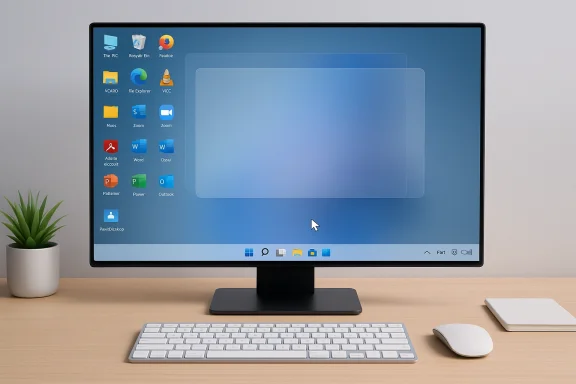
Hanselman’s PeekDesktop sits in that gap. It is a tiny desktop utility that watches for clicks on empty wallpaper, minimizes open windows, and restores them when the user returns to an app or the desktop. The distinction sounds subtle, but subtle is exactly where the usefulness lives. In daily use, a feature like this reduces friction in the moments when a user wants to drag files, right-click the desktop, or clean up icons without fighting overlapping windows.
The timing is notable as well. Windows 11 has spent the last few cycles shedding rough edges, improving consistency, and slowly modernizing old behaviors that never quite felt finished. That creates an opening for smaller quality-of-life features to matter more than they might have a decade ago. A feature like PeekDesktop feels like a small piece of product polish, but product polish is often what users notice most after the headline features fade.
There is also a symbolic side to this release. Microsoft has repeatedly emphasized that it wants Windows to be more intuitive, more responsive, and less cluttered. A utility like PeekDesktop demonstrates that this philosophy can extend beyond official OS updates and into grassroots experimentation from inside the company. It is not the same thing as a built-in platform feature, but it is close enough to provoke a legitimate question: if the experience is good, why shouldn’t Windows absorb it?
That reversibility is a big part of the appeal. One of the irritating limitations of older minimize-all shortcuts is that they can feel destructive or one-way, especially if you are not sure which windows were active, maximized, tiled, or arranged across multiple monitors. PeekDesktop tries to preserve state rather than simply hiding everything and hoping restoration feels right. That difference is what makes the tool feel thoughtful rather than merely functional.
In practice, this is the sort of feature that quickly disappears into the background. Users who like it will likely stop thinking about the app itself and start thinking only in terms of the gesture. That is usually the sign of a good interface decision, because the best utilities do not ask for attention after they have earned trust.
This is also why the feature resonates beyond pure convenience. A direct click-to-reveal model can make Windows feel less procedural and more tactile. Instead of commanding the system with a shortcut, the user simply points at the place they want to interact with and the environment adapts.
That difference matters because interaction design is not just about what a system can do, but how quickly a person can do it. If your hand is already on the mouse and your intent is “I need space,” then clicking the wallpaper is more direct than shifting to the keyboard, finding the shortcut, and then shifting back. It is a small gain, but small gains compound across a workday.
For users who are coming from macOS, the value is even more obvious. Muscle memory is real, and platform switching often fails at the level of gestures rather than big features. A familiar wallpaper click can reduce that cognitive mismatch and make Windows feel less foreign.
The tradeoff is consistency. Keyboard shortcuts are usually more deterministic, while mouse-driven interactions can be more vulnerable to accidental clicks or edge cases. PeekDesktop tries to reduce that risk by reacting only to clicks on empty wallpaper rather than to icons, but the broader point remains: a mouse-first gesture must be carefully filtered or it becomes a nuisance.
There is a strong argument that Windows 11 should own this sort of interaction natively if it wants to feel more modern without feeling more complicated. The challenge is that every new built-in gesture raises the stakes for regression testing, accessibility, and edge-case handling. A tiny utility can afford to be clever; the operating system itself has to be dependable.
The basic logic is elegant. Detect a mouse click globally, determine whether the click landed on blank wallpaper, and then decide whether to minimize or restore windows. That sounds simple until you remember how many different things can live on or near a Windows desktop: icons, context menus, taskbar interactions, multi-monitor configurations, special windows, and full-screen applications.
The app then uses WindowFromPoint and accessibility-aware checks to figure out what sits under the cursor. The point of that extra layer is obvious: a click on an icon should not behave like a click on empty wallpaper. That distinction is exactly what separates a polished desktop utility from a frustrating one.
That is especially important for maximized windows and multi-monitor setups. Users do not merely want windows back; they want them back as they were. Restoring a workspace imperfectly is often worse than not restoring it at all, because it breaks trust in the tool’s memory.
The restoration step itself uses SetWindowPlacement. That matters because it lets the utility respect not just visibility, but actual window placement and window state. In effect, the app is not just hiding and showing things; it is preserving a workspace.
One of the reasons the feature feels natural is that it mirrors a physical metaphor. Clicking the background says, “I want the background.” That is a more direct expression of intent than minimizing every window, which feels more like a command than a gesture. The practical result may be similar, but the mental model is different.
That difference becomes especially obvious when the user is doing file management. Dragging files, renaming folders, or right-clicking on the desktop is easier when the desktop behaves like a place rather than a mode. If the system can reveal the space in a single click, it removes an otherwise unnecessary step from a very common workflow.
This is one reason small shell utilities remain popular even as operating systems grow more sophisticated. The desktop still needs to support human habits, not just technical capabilities. PeekDesktop targets that habit layer directly.
That is why the success of a feature like this depends less on the novelty of the gesture and more on the quality of the edge-case handling. A great idea that fails in the corner cases is not a great desktop feature. It is just an attractive demo.
Task Manager is another revealing example. It reportedly refuses to minimize in the same way as normal apps, which raises the question of whether special system windows should be excluded by design or handled with custom logic. Either way, a tool like this must decide which windows are part of the desktop experience and which are too important to suppress.
Then there is the desktop context menu. If actions like “New Folder” accidentally trigger restoration, the utility starts interfering with one of the very tasks it is meant to help. That is the price of living close to the shell: the utility must read user intent with enough accuracy to avoid re-entrant surprises.
This is where a feature built by one engineer can still reveal the broader challenge Microsoft faces as a platform vendor. The easy part is detecting clicks. The hard part is deciding how the desktop should behave when the user’s click intersects with something the system considers different from a regular app.
This is why small shell utilities often begin as impressive prototypes and then gradually evolve into careful exception-handling projects. The feature is not hard to imagine. The implementation is hard to finish.
The strategic argument is strong. A built-in click-to-reveal-desktop gesture could make Windows feel friendlier to users crossing over from macOS, and it could also improve everyday usability for existing users who prefer mouse-driven workflows. That matters in a market where desktop operating systems are judged not only by power, but by feel.
Microsoft also tends to benefit when it makes Windows feel less like a legacy system and more like a living platform. Tiny utility-inspired features can be a powerful way to modernize the experience because they are easy to understand and hard to hate. People may disagree about bigger product decisions, but they rarely complain about a feature that simply gets them to the desktop faster.
That makes them ideal candidates for gradual adoption. Microsoft could pilot behavior like this in a hidden setting, a dev channel experiment, or a shell update, then assess whether it creates more delight than confusion. Small features are often the easiest to ship and the easiest to remove if they fail.
That is why the best desktop features are often the ones that sound trivial in a press release. The feature does not need to headline a keynote to matter; it just needs to eliminate one repeated annoyance.
Another concern is discoverability. If click-to-reveal-desktop is built in but hidden inside settings, many users will never find it. If it is enabled by default, some users may be surprised by windows disappearing when they expected a normal click to do nothing. This tension is familiar in operating system design: the most intuitive behavior for one audience can be the least intuitive for another.
Then there is the issue of precedent. Once Microsoft starts adding Mac-like gestures to Windows, users will reasonably ask why other desktop interactions have not been modernized too. That can be good, but it also creates a long tail of expectations that must be managed carefully.
That is not a reason to avoid innovation, but it is a reason to be cautious about assuming that a neat trick should automatically become a system default. The feature must serve a broad range of users, not just the ones who immediately appreciate it.
This is where the argument for a utility becomes stronger in the short term. A small app can move quickly and adapt faster. The OS, by contrast, must be slow enough to be safe.
That distinction matters because the desktop market has matured. No one is expecting a radically new computing model from a wallpaper-click feature. But users do expect the system to keep quietly shaving off friction. In that sense, small usability wins can influence platform loyalty more than headline-grabbing changes.
There is also a competitive irony here. Windows users often look to macOS for elegant micro-interactions, while Mac users often envy Windows’ broader compatibility and configurability. A tool like PeekDesktop sits neatly in the middle of that exchange, borrowing from one side while remaining deeply rooted in the other.
That is why a utility like this has broader appeal than the specific wallpaper-click gimmick might suggest. It is really about reducing the mental translation layer between platforms.
In that sense, PeekDesktop is less about one feature and more about the kind of detail users remember when deciding which desktop environment feels finished.
The more interesting question is whether Microsoft takes the hint. Windows has spent years dealing with complaints that it feels inconsistent, overcomplicated, or slightly behind in the polish department. A feature like this is not a cure for those problems, but it is exactly the kind of small, humane touch that can improve perception.
Source: Windows Latest Microsoft’s VP brings macOS-style click to reveal desktop feature to Windows with new tool
 Overview
The story begins with a simple mismatch between platform habits. On macOS Sonoma, clicking the wallpaper can reveal the desktop and temporarily sweep windows aside, a gesture that feels natural to many Mac users and can become almost invisible muscle memory over time. Windows has long had related capabilities, including Show Desktop behaviors and keyboard shortcuts like Win + D and Win + M, but they are not the same interaction, and they do not quite solve the same problem with the same immediacy.Hanselman’s PeekDesktop sits in that gap. It is a tiny desktop utility that watches for clicks on empty wallpaper, minimizes open windows, and restores them when the user returns to an app or the desktop. The distinction sounds subtle, but subtle is exactly where the usefulness lives. In daily use, a feature like this reduces friction in the moments when a user wants to drag files, right-click the desktop, or clean up icons without fighting overlapping windows.
The timing is notable as well. Windows 11 has spent the last few cycles shedding rough edges, improving consistency, and slowly modernizing old behaviors that never quite felt finished. That creates an opening for smaller quality-of-life features to matter more than they might have a decade ago. A feature like PeekDesktop feels like a small piece of product polish, but product polish is often what users notice most after the headline features fade.
There is also a symbolic side to this release. Microsoft has repeatedly emphasized that it wants Windows to be more intuitive, more responsive, and less cluttered. A utility like PeekDesktop demonstrates that this philosophy can extend beyond official OS updates and into grassroots experimentation from inside the company. It is not the same thing as a built-in platform feature, but it is close enough to provoke a legitimate question: if the experience is good, why shouldn’t Windows absorb it?
What PeekDesktop Actually Does
At its core, PeekDesktop is a desktop-state switcher with a very narrow mission. Click empty wallpaper, and windows move out of the way; click again, or switch back to an app, and your layout returns as it was. The idea is not to replace task switching, snapping, or virtual desktops. It is to make a very specific motion — “I need the bare desktop right now” — fast, predictable, and reversible.That reversibility is a big part of the appeal. One of the irritating limitations of older minimize-all shortcuts is that they can feel destructive or one-way, especially if you are not sure which windows were active, maximized, tiled, or arranged across multiple monitors. PeekDesktop tries to preserve state rather than simply hiding everything and hoping restoration feels right. That difference is what makes the tool feel thoughtful rather than merely functional.
The user experience
The interaction model is as simple as desktop utilities get. There is no setup wizard, no visible control surface, and no learning curve beyond knowing that the wallpaper is now a meaningful target. The app lives in the system tray, where it can be toggled, configured to launch at startup, or closed when no longer needed.In practice, this is the sort of feature that quickly disappears into the background. Users who like it will likely stop thinking about the app itself and start thinking only in terms of the gesture. That is usually the sign of a good interface decision, because the best utilities do not ask for attention after they have earned trust.
- Click wallpaper to reveal the desktop.
- Click again or switch focus to restore windows.
- Keep the desktop usable for file management and icon work.
- Avoid hunting for keyboard shortcuts when the mouse is already in use.
- Preserve the positions and states of windows after restoration.
Why the gesture matters
The genius of the wallpaper-click concept is that it maps user intent onto an existing object. Desktop wallpaper is already the visible “background” of the workspace, so clicking it to clear the canvas feels natural in a way that a keyboard chord sometimes does not. That is especially true for users who move between operating systems and expect similar gestures to do similar work.This is also why the feature resonates beyond pure convenience. A direct click-to-reveal model can make Windows feel less procedural and more tactile. Instead of commanding the system with a shortcut, the user simply points at the place they want to interact with and the environment adapts.
How It Compares to Windows’ Built-In Options
Windows already has ways to show the desktop, but they are not fully equivalent to what PeekDesktop offers. Win + D is the closest conceptual match because it can minimize and restore windows, but it is still a keyboard action. Win + M, by contrast, is primarily one-way and does not provide the same restoration experience. The taskbar’s Show Desktop button is also similar in outcome, but it is anchored to the taskbar rather than to the wallpaper itself.That difference matters because interaction design is not just about what a system can do, but how quickly a person can do it. If your hand is already on the mouse and your intent is “I need space,” then clicking the wallpaper is more direct than shifting to the keyboard, finding the shortcut, and then shifting back. It is a small gain, but small gains compound across a workday.
For users who are coming from macOS, the value is even more obvious. Muscle memory is real, and platform switching often fails at the level of gestures rather than big features. A familiar wallpaper click can reduce that cognitive mismatch and make Windows feel less foreign.
Shortcuts versus gestures
Keyboard shortcuts are powerful, but they depend on memory and posture. Gestures and clicks depend more on spatial awareness, which many people find more intuitive when multitasking. That is why touchpads, hot corners, and taskbar peeks have remained popular across different desktop ecosystems.The tradeoff is consistency. Keyboard shortcuts are usually more deterministic, while mouse-driven interactions can be more vulnerable to accidental clicks or edge cases. PeekDesktop tries to reduce that risk by reacting only to clicks on empty wallpaper rather than to icons, but the broader point remains: a mouse-first gesture must be carefully filtered or it becomes a nuisance.
Built-in behavior versus add-on behavior
Windows can absorb a feature like this in two ways: it can continue to leave it as a third-party utility, or it can promote a behavior like this into the shell itself. The first path keeps the feature flexible and optional. The second path gives it system-level cohesion, which is usually where desktop behaviors feel most polished.There is a strong argument that Windows 11 should own this sort of interaction natively if it wants to feel more modern without feeling more complicated. The challenge is that every new built-in gesture raises the stakes for regression testing, accessibility, and edge-case handling. A tiny utility can afford to be clever; the operating system itself has to be dependable.
The Technical Design Behind the Tool
PeekDesktop’s technical approach is interesting because it relies on Windows APIs rather than heavy abstractions. According to the explanation circulating with the tool, it uses a low-level mouse hook, window detection, accessibility checks, and state restoration APIs to manage the entire interaction. That design keeps the utility compact while still making it reliable enough to avoid obvious false positives.The basic logic is elegant. Detect a mouse click globally, determine whether the click landed on blank wallpaper, and then decide whether to minimize or restore windows. That sounds simple until you remember how many different things can live on or near a Windows desktop: icons, context menus, taskbar interactions, multi-monitor configurations, special windows, and full-screen applications.
Input detection and filtering
A major part of the implementation hinges on SetWindowsHookEx(WH_MOUSE_LL), which allows the app to observe mouse activity at a low level. That is a powerful but delicate approach because global hooks can be invasive if they are not carefully scoped. In this case, the goal is to recognize desktop clicks without interfering with normal desktop use.The app then uses WindowFromPoint and accessibility-aware checks to figure out what sits under the cursor. The point of that extra layer is obvious: a click on an icon should not behave like a click on empty wallpaper. That distinction is exactly what separates a polished desktop utility from a frustrating one.
- Low-level hooks capture input globally.
- Hit-testing determines what the cursor is pointing at.
- Accessibility inspection helps distinguish wallpaper from icons.
- State logic decides whether to minimize or restore.
- Restoration follows the active foreground change, not a timer.
Window state tracking
Once PeekDesktop decides to act, it has to remember every affected window well enough to restore it accurately. That is where EnumWindows and WINDOWPLACEMENT come in. By enumerating open windows and recording their position, size, and state, the utility can later reconstruct the same arrangement rather than forcing a best-effort approximation.That is especially important for maximized windows and multi-monitor setups. Users do not merely want windows back; they want them back as they were. Restoring a workspace imperfectly is often worse than not restoring it at all, because it breaks trust in the tool’s memory.
Restoration logic
The restore behavior is triggered through foreground-window tracking, reportedly using SetWinEventHook(EVENT_SYSTEM_FOREGROUND). This means the app can notice when the user returns to an app, the taskbar, or even the wallpaper and then restore everything in a controlled way. That is a smart design choice because it avoids making the user remember a special “bring windows back” command.The restoration step itself uses SetWindowPlacement. That matters because it lets the utility respect not just visibility, but actual window placement and window state. In effect, the app is not just hiding and showing things; it is preserving a workspace.
Why This Feels More Natural Than “Show Desktop”
Windows users have lived for years with Show Desktop shortcuts and taskbar peeks, so it would be easy to dismiss PeekDesktop as redundant. But redundancy is not always a flaw. Sometimes it is proof that the same goal can be reached by a cleaner path, and the cleaner path is what users remember.One of the reasons the feature feels natural is that it mirrors a physical metaphor. Clicking the background says, “I want the background.” That is a more direct expression of intent than minimizing every window, which feels more like a command than a gesture. The practical result may be similar, but the mental model is different.
That difference becomes especially obvious when the user is doing file management. Dragging files, renaming folders, or right-clicking on the desktop is easier when the desktop behaves like a place rather than a mode. If the system can reveal the space in a single click, it removes an otherwise unnecessary step from a very common workflow.
Mouse-first workflows
Not everyone works keyboard-first. Many users spend most of the day with a pointing device in hand, especially in enterprise settings where many actions are still point-and-click. For those people, a mouse-centered desktop gesture is often more useful than a command that assumes the keyboard is the primary interface.This is one reason small shell utilities remain popular even as operating systems grow more sophisticated. The desktop still needs to support human habits, not just technical capabilities. PeekDesktop targets that habit layer directly.
Hidden cost of convenience
Of course, convenience can hide complexity. A smooth action can encourage users to adopt a workflow without fully considering what happens when the context gets messy. Desktop interactions are particularly messy because the desktop is not a clean canvas in modern Windows; it is a living surface with icons, context menus, gadgets, notifications, and sometimes stubborn system windows.That is why the success of a feature like this depends less on the novelty of the gesture and more on the quality of the edge-case handling. A great idea that fails in the corner cases is not a great desktop feature. It is just an attractive demo.
The Edge Cases and Friction Points
No utility this small is likely to be perfect, and the reported quirks around PeekDesktop are a useful reminder that desktop automation is always wrestling with exceptions. The Recycle Bin behavior described by testers, for example, suggests that the tool can become awkward when a user tries to interact with a special desktop item while the app is managing window state. That is not necessarily a deal-breaker, but it does show how easily “simple” becomes nuanced.Task Manager is another revealing example. It reportedly refuses to minimize in the same way as normal apps, which raises the question of whether special system windows should be excluded by design or handled with custom logic. Either way, a tool like this must decide which windows are part of the desktop experience and which are too important to suppress.
Then there is the desktop context menu. If actions like “New Folder” accidentally trigger restoration, the utility starts interfering with one of the very tasks it is meant to help. That is the price of living close to the shell: the utility must read user intent with enough accuracy to avoid re-entrant surprises.
Special windows and exclusions
A desktop shell has a lot of exceptional cases, and special-purpose windows often do not behave like normal app windows. Task Manager, elevated prompts, overlays, and certain system dialogs may need custom handling. If they are too aggressively minimized, users can lose access to the tools they need.This is where a feature built by one engineer can still reveal the broader challenge Microsoft faces as a platform vendor. The easy part is detecting clicks. The hard part is deciding how the desktop should behave when the user’s click intersects with something the system considers different from a regular app.
Context menus and accidental restores
Context menus are especially tricky because they are often part of the desktop itself, not separate applications. If clicking to open a menu also restores all windows, the utility can create a tug-of-war between the menu and the restore logic. That can make routine tasks feel unstable.This is why small shell utilities often begin as impressive prototypes and then gradually evolve into careful exception-handling projects. The feature is not hard to imagine. The implementation is hard to finish.
Why Microsoft Might Want This in Windows
If Microsoft is serious about making Windows feel more coherent, then features like PeekDesktop are exactly the kind of low-drama improvements worth studying. They are small enough to be unobtrusive, but meaningful enough to change how people work. They also fit the direction Windows has been moving in: less emphasis on flashy reinvention, more emphasis on polish, predictability, and reducing friction.The strategic argument is strong. A built-in click-to-reveal-desktop gesture could make Windows feel friendlier to users crossing over from macOS, and it could also improve everyday usability for existing users who prefer mouse-driven workflows. That matters in a market where desktop operating systems are judged not only by power, but by feel.
Microsoft also tends to benefit when it makes Windows feel less like a legacy system and more like a living platform. Tiny utility-inspired features can be a powerful way to modernize the experience because they are easy to understand and hard to hate. People may disagree about bigger product decisions, but they rarely complain about a feature that simply gets them to the desktop faster.
The case for incremental UX
The most persuasive argument for integrating features like this is that they are incremental. They do not require a platform reset, a new task model, or a major compatibility sacrifice. They just make a common task less annoying.That makes them ideal candidates for gradual adoption. Microsoft could pilot behavior like this in a hidden setting, a dev channel experiment, or a shell update, then assess whether it creates more delight than confusion. Small features are often the easiest to ship and the easiest to remove if they fail.
The brand value of polish
There is also a branding dimension here. When Windows behaves in subtle, thoughtful ways, it changes the emotional texture of the platform. Users do not always remember the exact setting that made them happy, but they remember that Windows felt smoother.That is why the best desktop features are often the ones that sound trivial in a press release. The feature does not need to headline a keynote to matter; it just needs to eliminate one repeated annoyance.
The Case Against Turning It Into an OS Feature
Of course, there are reasons Microsoft might prefer to leave this as a utility. The first is predictability. The more input gestures the shell owns, the more surface area there is for accidental triggers, compatibility problems, and accessibility questions. A feature that is delightful for one group can become maddening for another if it gets in the way of established workflows.Another concern is discoverability. If click-to-reveal-desktop is built in but hidden inside settings, many users will never find it. If it is enabled by default, some users may be surprised by windows disappearing when they expected a normal click to do nothing. This tension is familiar in operating system design: the most intuitive behavior for one audience can be the least intuitive for another.
Then there is the issue of precedent. Once Microsoft starts adding Mac-like gestures to Windows, users will reasonably ask why other desktop interactions have not been modernized too. That can be good, but it also creates a long tail of expectations that must be managed carefully.
Accessibility and inclusivity
A built-in feature also has to account for accessibility from day one. Mouse-driven gestures can be challenging for users who rely on keyboard navigation, screen readers, alternative input devices, or motor-assistive technologies. A third-party tool can be narrow and opinionated; Windows itself cannot.That is not a reason to avoid innovation, but it is a reason to be cautious about assuming that a neat trick should automatically become a system default. The feature must serve a broad range of users, not just the ones who immediately appreciate it.
Maintenance and compatibility
Operating-system features also come with maintenance burdens that hobby utilities do not. Every new release of Windows can shift shell behavior, window management rules, or accessibility surfaces. A shell-level implementation would have to survive those changes and continue behaving reliably across hardware categories, monitor setups, and future UI changes.This is where the argument for a utility becomes stronger in the short term. A small app can move quickly and adapt faster. The OS, by contrast, must be slow enough to be safe.
Broader Competitive Context
PeekDesktop is not just about Windows versus macOS. It is part of a larger competition around how desktop operating systems should feel in 2026. Apple has spent years polishing gestures, animation, and continuity, while Microsoft has spent years balancing tradition, flexibility, and enterprise compatibility. Tools like this show that the competition is no longer only about features; it is about the emotional ease of the workflow.That distinction matters because the desktop market has matured. No one is expecting a radically new computing model from a wallpaper-click feature. But users do expect the system to keep quietly shaving off friction. In that sense, small usability wins can influence platform loyalty more than headline-grabbing changes.
There is also a competitive irony here. Windows users often look to macOS for elegant micro-interactions, while Mac users often envy Windows’ broader compatibility and configurability. A tool like PeekDesktop sits neatly in the middle of that exchange, borrowing from one side while remaining deeply rooted in the other.
Cross-platform muscle memory
The more time people spend on multiple operating systems, the more they crave behavioral consistency. A click, swipe, or gesture that means one thing on one platform and another on the next creates tiny moments of confusion all day long. Aligning those gestures can make the overall experience feel far less fragmented.That is why a utility like this has broader appeal than the specific wallpaper-click gimmick might suggest. It is really about reducing the mental translation layer between platforms.
A signal to rival ecosystems
The existence of a polished third-party or semi-official workaround also sends a message to competitors. If users keep reaching for a feature that is missing from one platform, that missing behavior becomes a product gap, even if it is small. Over time, enough small gaps can shape perception.In that sense, PeekDesktop is less about one feature and more about the kind of detail users remember when deciding which desktop environment feels finished.
Strengths and Opportunities
PeekDesktop succeeds because it targets an everyday annoyance with almost no ceremony. It is lightweight, visually invisible, and conceptually easy to understand, which are exactly the qualities that make a desktop utility stick. It also creates a compelling argument for how Windows can evolve: not only through massive redesigns, but through tiny moments of better behavior.- The interaction is fast and easy to learn.
- It feels more natural than hunting for shortcuts.
- It preserves window placement rather than only hiding windows.
- It is lightweight and low-friction for daily use.
- It fits the way many people already use a mouse.
- It can help Windows feel more welcoming to macOS switchers.
- It demonstrates that small UX wins still matter enormously.
- It shows how Microsoft can experiment without major platform risk.
A better desktop habit
The opportunity here is not just convenience, but habit formation. Once people get used to clicking the wallpaper to clear the workspace, the old methods can start to feel clumsy by comparison. That kind of behavioral shift is how minor features become expected features.A template for future shell polish
PeekDesktop could be a template for other shell improvements. If Microsoft sees that a tiny, well-scoped utility changes user behavior positively, it may encourage more experiments in the same spirit. That would be a healthy direction for a platform that sometimes moves too cautiously and sometimes moves too broadly.Risks and Concerns
The biggest risk is that the feature’s simplicity hides how many edge cases it must navigate. Desktop interactions are notoriously messy, and a tool that works beautifully in the common case can quickly annoy users when special windows, context menus, or multi-monitor layouts enter the picture. If the behavior feels inconsistent, the goodwill disappears fast.- Special windows may behave unpredictably.
- Desktop context menus can conflict with restore logic.
- Users may accidentally trigger restores during file management.
- Accessibility needs may not be fully covered by a mouse-first gesture.
- System integration could introduce compatibility burdens.
- Too many exceptions could make the tool feel fragile.
- A built-in version might surprise users if enabled by default.
Reliability over novelty
The key concern is trust. A feature like this only works if the user believes it will not interfere with normal desktop activity. If it ever feels random, over-eager, or hard to disable, the novelty turns into friction.The danger of “nice, but not necessary”
There is also a product-management risk. If Microsoft frames this kind of improvement as optional polish, it may never graduate beyond a niche utility. If it overcommits, it may alienate users who prefer the current behavior. That leaves the company in a classic middle ground: the feature is useful enough to want, but subtle enough to be easy to ignore.Looking Ahead
The most likely near-term future is that PeekDesktop remains a small enthusiast tool that earns loyal users through word of mouth. That is not a failure; in desktop software, many of the best ideas begin as narrowly scoped helpers before they influence the larger product conversation. If enough people enjoy the behavior, the idea can eventually become part of the Windows design vocabulary even if the original app never becomes mainstream.The more interesting question is whether Microsoft takes the hint. Windows has spent years dealing with complaints that it feels inconsistent, overcomplicated, or slightly behind in the polish department. A feature like this is not a cure for those problems, but it is exactly the kind of small, humane touch that can improve perception.
What to watch
- Whether the utility gains broader adoption among Windows power users.
- Whether Microsoft folds a similar gesture into a future Windows release.
- Whether accessibility and shell teams refine the edge cases.
- Whether the behavior expands to support additional desktop interactions.
- Whether the Windows 11 shell continues toward more gesture-based polish.
- Whether more Microsoft engineers ship small usability experiments like this.
Source: Windows Latest Microsoft’s VP brings macOS-style click to reveal desktop feature to Windows with new tool
