

Microsoft’s Phone Link has moved from a convenience utility into a central continuity layer that can genuinely reshape day‑to‑day workflows — bridging messages, calls, photos, app content and device actions between smartphones and Windows PCs in ways that matter for productivity, security, and IT management.
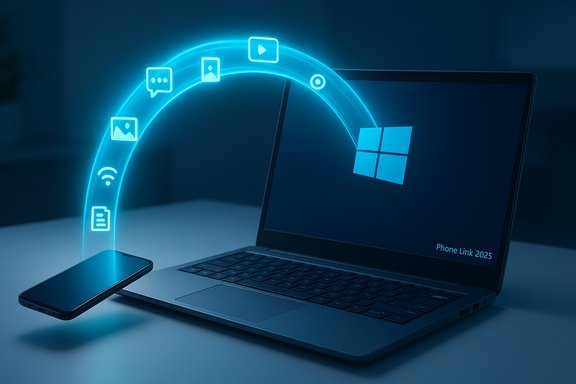
Phone Link (formerly “Your Phone”) and its companion app Link to Windows now form a practical cross‑device ecosystem for Windows 10 and Windows 11 users. The experience surfaces SMS/MMS, call handling, live notifications, photo and file transfers, cross‑device clipboard, phone‑as‑webcam, app streaming for supported Android devices, and remote device controls — all from the desktop. That evolution is more than incremental: Phone Link aims to reduce the context switches that fragment modern work, letting the PC be the primary workspace while the phone supplies capabilities.
This feature guide verifies the 2025 landscape, clarifies what Phone Link can and cannot do, compares claims against official documentation and independent reporting, and gives setup, troubleshooting, security, and enterprise guidance for practical adoption.
Notable limits and risks:
Phone Link in 2025 is no longer a curiosity — it’s a working continuity hub that removes friction between mobile and desktop. For most Windows users the immediate wins are real: faster replies, easier media transfer, and fewer interruptions. For IT and privacy‑conscious users the path forward is cautious adoption: pilot, verify encryption/policy fit, and require MFA and managed controls where appropriate. The feature set and OEM partnerships make Phone Link one of the most effective ways to make your PC the centre of a mobile‑enabled workday — but as with any cross‑device surface, the details matter and verification is essential before relying on it for mission‑critical, high‑security workflows.
Source: Technology Org The Ultimate Guide to Microsoft Phone Link for Smarter Workflows in 2025 - Technology Org
 Overview
Phone Link (formerly “Your Phone”) and its companion app Link to Windows now form a practical cross‑device ecosystem for Windows 10 and Windows 11 users. The experience surfaces SMS/MMS, call handling, live notifications, photo and file transfers, cross‑device clipboard, phone‑as‑webcam, app streaming for supported Android devices, and remote device controls — all from the desktop. That evolution is more than incremental: Phone Link aims to reduce the context switches that fragment modern work, letting the PC be the primary workspace while the phone supplies capabilities.This feature guide verifies the 2025 landscape, clarifies what Phone Link can and cannot do, compares claims against official documentation and independent reporting, and gives setup, troubleshooting, security, and enterprise guidance for practical adoption.
Background: how Phone Link evolved into a productivity layer
Phone Link began as a notification mirror but has been steadily expanded by Microsoft and OEM partners into a broader continuity tool. Between 2023–2025 Microsoft focused on deeper Start‑menu integration, QR pairing flows, OEM cooperation (notably with Samsung and HONOR), and richer two‑way interactions such as file sharing and app streaming on supported Android devices. Independent coverage tracks this trajectory and documents both feature releases and platform caveats. Why this matters: the typical productivity loss from switching devices is measurable — every minute spent grabbing a phone to respond to a message or move a screenshot chips away at focus. Phone Link’s value proposition is to collapse those interruptions into a single, desktop‑centred workflow.What Phone Link actually offers in 2025
Below is a clear, verifiable breakdown of the core features you will encounter when you pair your phone and PC.Messaging and Notifications
- Read and reply to SMS and MMS directly from the PC using a full keyboard.
- Notifications from many phone apps appear in the Windows Action Center; you can dismiss, pin, or act on them.
- On Android, third‑party app notifications are usually available if the Link to Windows companion has notification access; behaviour can vary by OEM and Android version.
Calls and audio routing
- Make and receive cellular calls on your PC. Audio can route to the PC microphone and speakers, and call controls (mute, volume) are provided.
- Bluetooth Low Energy (BLE) support in the PC is required for some call routing and discovery flows; without BLE some telephony conveniences will not function.
Photos and files
- Browse and drag‑and‑drop recent photos directly from the phone into desktop apps. Microsoft documents that Phone Link exposes the most recent photos (commonly around ~2,000 images/screenshots) to balance performance; treat that number as guidance — exact behavior can be OEM/OS dependent.
- File transfers operate over local Wi‑Fi or an instant hotspot for speed; some OEMs also enable Send‑to‑Phone actions from File Explorer or the Start menu.
App mirroring / streaming (Android only, supported devices)
- On many Samsung and select OEM devices with Link to Windows preinstalled, you can stream mobile apps to resizable windows on the PC. The app still executes on the phone; the PC is an input/output surface — i.e., streaming, not full virtualization. Performance depends on the phone’s CPU, network quality, and OEM integration.
Cross‑device clipboard and other micro‑features
- Shared clipboard syncs text and images across devices, keeping copy/paste friction low for research and content creation tasks.
- The phone can function as a webcam for Teams/Zoom when configured through Phone Link, often providing significant camera quality improvements over built‑in PC webcams.
Remote actions and device controls
- Newer updates added a manual remote lock for Windows PCs from the Link to Windows app — a practical security feature that severs the Phone Link connection until the PC is unlocked. This complements existing dynamic lock scenarios and is useful when stepping away from a desk.
System requirements and compatibility — verified
These are the practical baseline requirements you should check before expecting a full Phone Link experience.- Windows PC: Windows 10 (May 2019 Update or later) or Windows 11. Phone Link ships preinstalled on most Windows 11 systems; on older Windows 10 machines you may need to install it from the Microsoft Store. Microsoft recommends keeping Windows up to date for the best compatibility.
- Android: Official baseline is Android 8.0 (Oreo) or later for basic features; Microsoft recommends Android 10+ for richer capabilities such as app streaming and File Explorer integration. Many Samsung and HONOR phones ship Link to Windows preinstalled. OEM-specific behavior matters: some features require One UI or vendor builds at certain versions.
- iPhone: iOS support has improved but remains constrained by Apple platform restrictions. Recent Microsoft guidance and App Store metadata indicate Phone Link for iOS requires iOS 16+ for the newer file‑sharing and parity features in 2024–2025 testing, while some basic pairing and notification features have worked from earlier iOS versions in limited form. Expect feature parity to trail Android.
- Network & hardware: A stable local Wi‑Fi network (same network recommended) provides the best experience for high‑bandwidth flows like app streaming and file transfers. BLE is required for some telephony and pairing flows; PCs lacking BLE may be functionally limited.
Step‑by‑step setup (PC‑first QR pairing)
- On the PC, open Phone Link (search “Phone Link” in Start). Sign in with your Microsoft account if prompted.
- Choose your device type (Android or iPhone) and select the QR pairing method. Phone Link will display a QR code.
- On the phone, open the Link to Windows app or visit the shortlink prompted on the PC (aka.ms/linkphoneqr). Sign in with the same Microsoft account and scan the QR code.
- Grant required permissions on the phone (contacts, messages, notifications, storage, microphone, camera) to enable the features you want.
- Confirm pairing on both devices and tune Phone Link’s Settings > Features to customize notifications, photo limits, and app permissions.
Troubleshooting: common problems and fixes
- No notifications on PC: confirm both devices are on the same network (or allow mobile data), check Android notification access and battery‑optimizations (some OEMs aggressively kill background services), and ensure BLE is enabled on the PC if telephony or discovery is failing. Community reports show occasional OEM‑specific notification issues with new phone models that need manual Android permission tweaks.
- Calls not routing: confirm BLE support, pair Bluetooth if requested, and test PC audio devices. If calls fail, reboot both devices, and re‑pair using the Phone Link settings.
- App mirroring lag: streaming performance depends on phone CPU and local network. For best results use the same Wi‑Fi network, avoid network congestion, and prefer modern phones with OEM‑level Link to Windows preinstallation (e.g., many Samsung models).
- iPhone file sharing not available: file sharing from iPhone has been rolling out gradually via Windows Insider channels; if you see the iOS share sheet option but pairing fails, update both Phone Link and Link to Windows to the latest versions and check whether your PC is enrolled in an Insider channel that has received the feature.
Security, privacy and enterprise considerations
Phone Link increases convenience — and therefore the attack surface — so treat deployment with a security‑first mindset.Authentication and account security
- Use a Microsoft account protected by multi‑factor authentication (MFA). Because Phone Link relies on the Microsoft account for onboarding and identity, strong account protection is a baseline control.
Permissions and data exposure
- Phone Link requires granular permissions on the phone (notifications, contacts, SMS, storage). Review and limit permissions you do not need; revoking a permission will disable the related feature on the PC.
- Sensitive notification suppression in Android 15 is a privacy improvement but affects visibility of items like 2FA codes on the PC. Treat any configuration changes that relax that protection with caution.
Data in transit and at rest
- Official documentation emphasizes local network transfers (Wi‑Fi or hotspot) and the account handshake for pairing. Microsoft’s support pages recommend using the same Wi‑Fi network for best performance and explain how data is managed; however, enterprises should validate any specific encryption, retention, and logging behavior against corporate policy before wholesale adoption.
- Flag: End‑to‑end encryption claims. Some public descriptions casually state “end‑to‑end encryption”; where encryption details are critical for compliance or sensitive data, verify the precise transport and storage model with vendor documentation or Microsoft Support. Do not assume all Phone Link flows are E2EE — treat them as secure transport tied to Microsoft account authentication but verify if regulatory compliance requires explicit attestations. If you need absolute confidentiality guarantees, test and confirm the encryption specifics with Microsoft.
Enterprise management
- Phone Link currently has constraints with work/school accounts in some configurations and may be blocked under strict MDM policies. Corporate IT must decide whether to allow companion apps, adjust conditional access, and document what content is permitted to flow across devices. Microsoft and OEMs are incrementally adding admin controls; treat Phone Link as an endpoint that requires governance and testing in your environment before broad rollout.
Best practices for productivity with Phone Link
- Customize notification filters: only surface alerts that matter during focused work sessions.
- Use the cross‑device clipboard for research and drafting workflows; it’s a quick win for multi‑screen workflows.
- Leverage app streaming for mobile‑only tools you need on a bigger display and wire keyboard shortcuts for faster interaction.
- Use phone webcam mode for video calls when you need better optics; test lighting and framing in advance.
- Make a plan for sensitive inputs (2FA codes, private messages) given Android/iOS notification restrictions — keep the phone handy for those cases.
- For IT: define allowed Phone Link scenarios, enforce MFA, monitor for unusual link‑creation events, and pilot with a subset of users before broad deployment.
What to watch for next (2025 outlook)
- Continued parity efforts for iPhone features: Microsoft has been testing iPhone file sharing in Insider rings and gradually exposing more iOS capabilities, but full parity is unlikely to arrive overnight due to Apple platform limits. Watch for broader iOS file‑sharing rollouts out of Insider channels.
- OEM consolidation: Samsung’s decision to deprecate its DeX Windows app and steer users toward Phone Link signals deeper vendor cooperation that can reduce fragmentation and simplify the Windows‑Android continuity story. Expect more Samsung integrations and OEM cooperation to continue.
- More remote device actions and security controls: recent releases introduced a manual “Lock PC” action from the phone and other management features; further administrative controls and enterprise‑oriented capabilities are likely as Phone Link becomes a managed endpoint.
- AI‑driven continuity: Microsoft is likely to bake Copilot‑style suggestions into cross‑device flows (smart replies, file suggestions, context handoffs), but the precise timing and functional shape will follow Microsoft’s general Copilot/OS integrations and Insider testing cadence.
Alternatives and power‑user options
Phone Link is designed for mainstream productivity; if you need developer‑grade mirroring or low‑latency control:- scrcpy for open‑source, low‑latency Android mirroring (wired or wireless).
- Third‑party webcam tools (DroidCam, Camo) for more configurability or features not exposed by Phone Link.
- OEM solutions (DeX historically; now Phone Link on Windows) — evaluate vendor tradeoffs.
Quick checklist before you enable Phone Link
- Update Windows to a recent build (Windows 11 preferred).
- Ensure your phone meets the OS baseline (Android 8.0+; Android 10+ recommended; iOS 16+ for the newest iPhone features).
- Confirm BLE support on your PC if you rely on calls and discovery.
- Sign both devices into the same Microsoft account with MFA enabled.
- Test the specific features you’ll use (messages, app streaming, photo drag‑and‑drop) with a single pilot machine before rolling out.
Final analysis: strengths, limits, and risk profile
Phone Link’s biggest strength is pragmatic productivity gain: it removes many low‑value context switches, uses PC input devices for phone tasks, and consolidates media and message management in a single workspace. OEM partnerships (Samsung/HONOR) and Microsoft’s OS‑level integrations give Phone Link the institutional backing to become a standard continuity layer for Windows users.Notable limits and risks:
- Platform asymmetry remains — Android gets the deepest integrations; iPhone parity is improving but lags due to platform restrictions. Verify function availability on your phone model before committing workflows.
- Fragmentation across OEM builds and Windows Insider channels can produce inconsistent behavior. Expect differences in feature presence and performance across devices and Windows versions.
- Privacy and security trade‑offs require deliberate configuration. Do not assume blanket end‑to‑end guarantees for every Phone Link flow; enterprises must validate encryption and management options.
- Dependence on Microsoft account and cloud/on‑device services introduces governance considerations for regulated environments; implement clear policies and pilot tests.
Phone Link in 2025 is no longer a curiosity — it’s a working continuity hub that removes friction between mobile and desktop. For most Windows users the immediate wins are real: faster replies, easier media transfer, and fewer interruptions. For IT and privacy‑conscious users the path forward is cautious adoption: pilot, verify encryption/policy fit, and require MFA and managed controls where appropriate. The feature set and OEM partnerships make Phone Link one of the most effective ways to make your PC the centre of a mobile‑enabled workday — but as with any cross‑device surface, the details matter and verification is essential before relying on it for mission‑critical, high‑security workflows.
Source: Technology Org The Ultimate Guide to Microsoft Phone Link for Smarter Workflows in 2025 - Technology Org
