

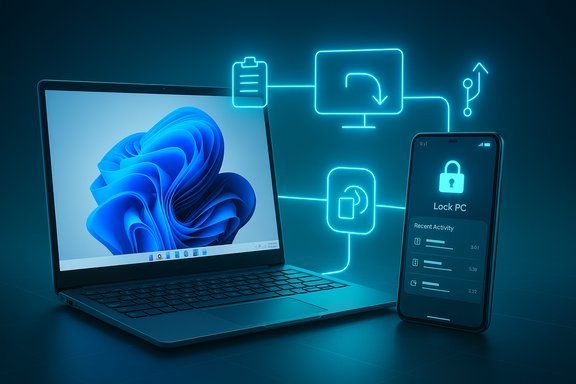
Microsoft’s Phone Link and the Android companion Link to Windows have moved from convenience add‑ons to an actionable cross‑device control surface: a new update adds a one‑tap Lock PC toggle, a Recent Activity dashboard, wireless Android→Windows file sharing that behaves like AirDrop, cross‑device clipboard sync, and a quick Mirror to PC switch — all designed to shrink the friction between your Android phone and a Windows 11 PC. The rollout is incremental, feature availability varies by device and region, and the convenience gains come with new security and reliability tradeoffs users and IT teams should understand.
Microsoft’s Phone Link ecosystem (the desktop Phone Link app) and the Android Link to Windows companion were originally positioned as a notification and photo bridge. Over the past several years, that lightweight bridge has been iteratively expanded into a broader continuity layer for Windows 11: messages, calls, photo access, and now deeper device control and file transfer. The latest release surfaces actions and telemetry on the phone itself — effectively letting an Android handset act as a remote control and content hub for a Windows 11 PC.
These changes are part of a broader push to make Windows 11 feel less like an isolated desktop and more like the central node in a multi‑device workflow. Microsoft is integrating phone presence into File Explorer and the Start menu, while using a mix of Bluetooth Low Energy (BLE), local Wi‑Fi, and account‑backed pairing for discovery and authentication. Expect differences in behavior depending on handset OEM, Android version, and Windows build.
Where concrete build numbers and KB identifiers were reported in coverage or forum testing, these were used by early adopters and Insiders; these specific identifiers should be confirmed via Windows Update or Microsoft’s release notes for production rollouts. If a feature appears missing, check the Phone Link and Link to Windows app versions and the Windows Update history — incremental rollouts are common.
At the same time, the feature set introduces new vectors for accidental data leakage and operational surprises (failed locks, inconsistent clipboard behavior), and the rollout will be uneven across devices. The right approach is pragmatic: enable and test the features where they materially improve workflows, secure the phone and account vigorously, and treat cross‑device sync settings as policy decisions for sensitive environments.
Microsoft’s continued investment in Phone Link and Link to Windows signals a clear strategy: make Windows 11 the productivity hub for people who live on phones and PCs at once. The latest update tightens that promise by turning the Android handset into a practical remote control, a monitoring surface, and a fast content shuttle — but with new functionality comes new responsibility. Users and IT teams should embrace the convenience while applying straightforward security and operational checks so these features add value without increasing risk.
Source: Digital Trends It just got a lot easier to control a Windows 11 PC with your Android phone
 Background / Overview
Microsoft’s Phone Link ecosystem (the desktop Phone Link app) and the Android Link to Windows companion were originally positioned as a notification and photo bridge. Over the past several years, that lightweight bridge has been iteratively expanded into a broader continuity layer for Windows 11: messages, calls, photo access, and now deeper device control and file transfer. The latest release surfaces actions and telemetry on the phone itself — effectively letting an Android handset act as a remote control and content hub for a Windows 11 PC.These changes are part of a broader push to make Windows 11 feel less like an isolated desktop and more like the central node in a multi‑device workflow. Microsoft is integrating phone presence into File Explorer and the Start menu, while using a mix of Bluetooth Low Energy (BLE), local Wi‑Fi, and account‑backed pairing for discovery and authentication. Expect differences in behavior depending on handset OEM, Android version, and Windows build.
What’s new, at a glance
- Lock PC: New toggle in Link to Windows to lock a paired Windows 11 PC remotely from the phone.
- Recent Activity: A unified feed on the phone that shows recent file transfers, clipboard items, and quick stats for the paired PC.
- Wireless file sharing (Android → Windows and vice versa): Native sharing flows that let users send photos, videos, PDFs, and documents without email or third‑party apps — akin to AirDrop or Quick Share. These transfers also appear on the PC in Phone Link or File Explorer.
- Cross‑device clipboard: Copy on one device, paste on the other — text and images (with opt‑in settings).
- Mirror to PC / App streaming: One‑tap casting of the phone screen to the PC, and on supported OEM devices you can stream and interact with Android apps from the Windows desktop.
Deep dive: Lock PC — what it does and how it works
What the new Lock PC toggle actually does
The Lock PC control sends a command from the Link to Windows app to the paired Windows 11 machine to place the session in the locked state immediately. It’s a manual, on‑demand action and differs from the older Dynamic Lock feature, which locks Windows automatically when a paired Bluetooth device moves out of range. The new action is a direct user‑initiated command that does not require Dynamic Lock to be enabled.Security model and practical behavior
Reports and early testing show the feature is intentionally one‑way: locking only, not remotely unlocking. After a successful lock, Phone Link will typically disconnect and a manual sign‑in (PIN, password, or Windows Hello) is required on the PC to re‑establish the link, which reduces the risk of remote re‑unlocking by a compromised phone. However, the lock command depends on a healthy Link to Windows connection; intermittent Bluetooth or Wi‑Fi problems can cause transient states where the app reports a lock that didn’t complete.Real‑world uses
- Securely lock a shared workstation when stepping away in a public space.
- Quickly secure a machine left in a meeting room or coworking area.
- Add a rapid hardening step to mobile workflows (e.g., lock remote test machines while walking away).
Caveats and limits
- The command is only as reliable as the Link to Windows connectivity; poor wireless conditions may prevent the lock from firing or reporting correctly.
- If an attacker has already compromised the paired phone (and has your Microsoft credentials), they could use the pairing for denial‑of‑access tactics. Locking alone doesn’t give an attacker access to files, but it can be misused to frustrate or interfere with workflows.
Wireless file sharing: Is this “AirDrop for Windows”?
Microsoft has added native, bidirectional wireless file transfer flows between Android phones and Windows 11 that behave much like AirDrop in purpose — fast, frictionless, and integrated into the OS share sheet. You can initiate a send from Windows File Explorer (Share → Phone Link) or from the Android share menu (Link to Windows → Send to PC). The files arrive in a designated Downloads/Phone Link folder on the receiving device and show up in the Recent Activity feed on the phone.How it transfers data
- Discovery and pairing tend to use BLE for discovery, then use local Wi‑Fi (or an instant hotspot) for bulk transfer to keep throughput acceptable. This hybrid approach balances discovery reliability with transfer speed.
Requirements (practical)
- Windows 11 or later (some earlier Windows 10 builds with updates have partial support) and an updated Phone Link app on the PC.
- Android phone with Link to Windows installed (modern Android versions recommended).
- Both devices typically need to be on the same local network for best performance, and pairing via Microsoft account/QR code is required for the secure flow.
Performance and limits
Independent testing and user reports show the experience is excellent for small to medium files (photos, PDFs, docs), but large video files may still be faster over wired USB or specialized LAN tools. Some users have observed variable speeds depending on Wi‑Fi quality and OEM implementations; in some tests, transfer rates are far lower than pure peer‑to‑peer protocols like Nearby Share. For routine productivity tasks the native flow shines; for bulk media migration use dedicated transfer methods.The Recent Activity feed and cross‑device clipboard: why they matter
Recent Activity: a transaction log on your phone
The new Recent Activity dashboard shows a timeline of cross‑device transactions — file sends/receives, clipboard sync entries, and quick PC status tiles (battery, Wi‑Fi). This turns the Android handset into a lightweight auditing and monitoring surface so you can confirm what moved between devices without digging into the PC. It’s especially valuable for professionals who juggle many short transfers or need to confirm whether a file landed correctly.Cross‑device clipboard: convenience vs. exposure
Clipboard synchronization allows copying text or images on one device and pasting on the other. This is an enormous productivity win for researchers, writers, and developers. However, it creates a new data path for sensitive information — passwords, multi‑factor auth codes, screenshots containing personal data, etc. Microsoft wisely makes the feature opt‑in and configurable, but users should treat cross‑device clipboard as ephemeral and disable it when handling sensitive content.Mirror to PC and app streaming: how far does integration go?
Phone screen casting and app streaming
A Mirror to PC toggle gives one‑tap casting of your phone screen to the PC. On select OEM devices (notably some Samsung phones and other partners), Microsoft’s Link to Windows steps beyond casting and supports app streaming: Android apps run on the phone while the PC provides input/output controls, letting you resize and interact with those mobile apps in resizable windows. This is useful for demos, testing, and running mobile‑only apps during desktop workflows.Performance considerations
App streaming quality depends on phone CPU, network quality, and OEM software optimizations. The phone does the heavy lifting; the PC is effectively a remote display and input surface. Users with high‑quality phones and robust Wi‑Fi will see the best experience.Troubleshooting and practical setup tips
- Keep both apps updated — check Phone Link on Windows and Link to Windows on Android for updates before assuming a feature is missing.
- Use the same Microsoft account on both devices; account mismatches are the most common cause of pairing failures.
- Ensure Bluetooth (for discovery) and local Wi‑Fi (for transfer) are enabled; if calls or advanced telephony features are missing, verify the PC has BLE support.
- If clipboard or file transfers fail, toggle the sync settings off and on, then re‑establish the connection; conflicts with OEM services (Samsung’s continuity, SwiftKey, etc. can require disabling the OEM feature.
- If Lock PC seems to fail, verify the Link to Windows app shows “Connected” and check Bluetooth Manage devices on the PC; intermittent handshakes can cause false success/failure states.
Security and privacy analysis
Notable strengths
- The Lock PC action is designed as a one‑way, manual control which reduces the risk of remote unlocking. Disconnecting the phone after a lock is a deliberate design choice that shrinks the attack surface.
- Pairing uses account‑backed identity flows and QR‑based setup, which provides a stronger binding than ad‑hoc Bluetooth pairings alone.
Risks and exposures
- Clipboard leakage: Clipboard sync can move secrets across devices; users must treat the clipboard as a sensitive channel and disable sync when handling passwords, 2FA codes, or PII.
- Phone compromise: A fully compromised, linked phone signed into the same Microsoft account provides an attacker a vector to issue Lock PC commands or generate denial‑of‑service for the user. While lock alone doesn’t give file access, the pairing is an important asset to protect.
- Unclear telemetry and internal mechanics: Microsoft has not published exhaustive public documentation on the transport and telemetry for some newer Link features; where internal mechanics can’t be independently verified, treat claims about exact behavior (e.g., fallback flows) with caution.
Enterprise guidance
- Treat Link to Windows as a user‑level feature in corporate environments: evaluate via staged testing, and use Group Policy or MDM controls to restrict or manage device pairings where appropriate.
- For high‑security environments, consider disabling cross‑device clipboard and restricting phone pairing to managed, corporate‑owned handsets only. Regularly audit paired devices from Microsoft account device management.
Practical workflows — who benefits most?
- Knowledge workers and students: Fast transfers of lecture slides, screenshots, meeting materials, and the clipboard bridge reduce friction throughout daily work.
- IT helpdesks and trainers: Mirror to PC and app streaming simplifies troubleshooting and demos without physically holding the phone.
- Mobile content creators: Wireless photo/video handoff into desktop editors saves time compared with uploading to cloud services. Just remember large media may still be faster with wired transfers.
Limitations, rollout expectations, and verification notes
Microsoft is rolling these features gradually; not every user will see the same capabilities simultaneously. Region, handset OEM, Android version, and Windows build/pipeline (Insider channels vs. public update) will affect availability. Some reported version numbers and KB references appear in testing and Insider builds (for example, certain KB updates tied to file sharing), but exact build requirements can vary; users should verify availability on their own devices rather than relying on a single published number. If a claim about a specific build or KB cannot be independently verified on your device, treat it as subject to change.Where concrete build numbers and KB identifiers were reported in coverage or forum testing, these were used by early adopters and Insiders; these specific identifiers should be confirmed via Windows Update or Microsoft’s release notes for production rollouts. If a feature appears missing, check the Phone Link and Link to Windows app versions and the Windows Update history — incremental rollouts are common.
Final assessment: practical value versus practical risk
The latest Link to Windows refresh materially improves Android ↔ Windows workflows by making the phone a more capable control surface and content hub. The Lock PC toggle is a useful security convenience, the Recent Activity feed and wireless file sharing shrink common friction points, and cross‑device clipboard and app streaming deliver real productivity wins for everyday tasks. For many users — especially students, professionals, and IT staff — these are meaningful, day‑to‑day improvements.At the same time, the feature set introduces new vectors for accidental data leakage and operational surprises (failed locks, inconsistent clipboard behavior), and the rollout will be uneven across devices. The right approach is pragmatic: enable and test the features where they materially improve workflows, secure the phone and account vigorously, and treat cross‑device sync settings as policy decisions for sensitive environments.
Quick checklist — enable safely
- Update Phone Link on Windows and Link to Windows on Android.
- Confirm both devices use the same Microsoft account and are paired via the official setup flow.
- Enable Lock PC on trusted devices only; verify connection health before relying on it for critical security.
- Limit cross‑device clipboard use when handling credentials or regulated data.
- Use wired transfers for very large media; use Link to Windows for quick productivity handoffs.
Microsoft’s continued investment in Phone Link and Link to Windows signals a clear strategy: make Windows 11 the productivity hub for people who live on phones and PCs at once. The latest update tightens that promise by turning the Android handset into a practical remote control, a monitoring surface, and a fast content shuttle — but with new functionality comes new responsibility. Users and IT teams should embrace the convenience while applying straightforward security and operational checks so these features add value without increasing risk.
Source: Digital Trends It just got a lot easier to control a Windows 11 PC with your Android phone
