

Microsoft’s latest Windows 11 updates deliver a meaningful step toward true cross‑device continuity with Android handoff, letting an Android phone not only mirror notifications and photos but also hand off app activities, sync clipboards and files, and even lock a paired PC — a suite of changes that brings Android‑to‑PC workflows closer to the Apple Handoff experience while still relying on Phone Link and Link to Windows as the integration backbone. osoft has been iterating on phone–PC continuity for years under different names — Your Phone, Phone Link, and Link to Windows — with a slow but steady progression from notification mirroring toward richer, actionable cross‑device experiences. The recent wave of updates moves beyond isolated features and stitches several capabilities together: remote locking, bidirectional file transfer, richer clipboard sync (including images), one‑tap phone mirroring and a Cross‑Device Resume/“handoff” model that surfaces Android activities on Windows and maps them to desktop handlers. These elements have been trialed in Insider builds and have seen a staged rollout through late 2025 and into early 2026.
For Windows users os are the most consequential cohesion effort Microsoft has made since the introduction of the Windows Subsystem for Android (WSA). They converge on two parallel approaches: run Android apps on the PC locally via WSA, or treat the phone as the runtime and stream app UI/state to the PC through Link to Windows. Microsoft’s recent work is mainly about improving the latter path and the handoff metadata that lets a phone tell a PC “this is what I’m doing — open the matching thing here.”
Below are that matter most to everyday users and IT administrators.
On the Motorola front, Android 16 acting as a device’s final major upgrade is a sober reminder that hardware lifecycles still matter. Multiple outlets report overlapping lists of Motorola phones that will remain on Android 16, but because Motorola updates are regionally staged and sometimes carrier‑dependent, the definitive word remains Motorola’s official support notifications. Users who value long‑term Android version updates should verify device‑specific promises before buying.
In short: Windows 11’s closer Android integration unlocks useful new workflows and is worth testing if you live in the Microsoft ecosystem — but treat the features as conveniences that require thoughtful configuration for privacy and enterprise use. Meanwhile, Motorola users should check official update notices and consider the tradeoffs of hardware upgrading timelines when planning device refresh cycles.
Source: Nokiamob How Windows 11 New Update Lets You Sync Android Apps to Your PC
For Windows users os are the most consequential cohesion effort Microsoft has made since the introduction of the Windows Subsystem for Android (WSA). They converge on two parallel approaches: run Android apps on the PC locally via WSA, or treat the phone as the runtime and stream app UI/state to the PC through Link to Windows. Microsoft’s recent work is mainly about improving the latter path and the handoff metadata that lets a phone tell a PC “this is what I’m doing — open the matching thing here.”
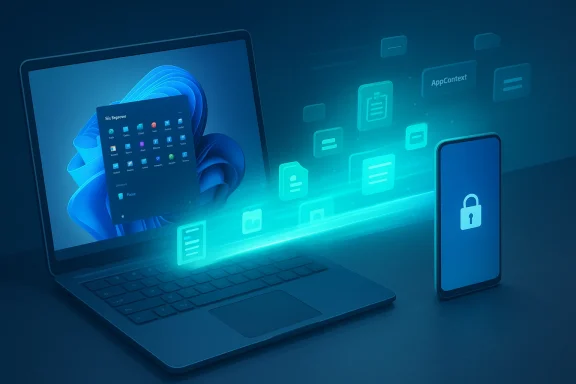 What Microsoft shipped (feature breakdown)
Below are that matter most to everyday users and IT administrators.Lock PC from your phone — an explicit remote lock
- A Lock PC button appears inside Link to Windows on Android, letting you remotely lock a paired Windows 11 PC on demand. This is a manual, one‑way action that severs the Link session until local sign‑in. It’s not a remote unlock; it’s an emergency‑style security control.
Bidirectional file transfers and File Explorer integration
- You can now send files both ways: phone ile transfers are surfaced in a Recent Activity hub, and Android devices can appear in File Explorer as networked storage objects (browse, copy/move, rename, delete). This treats the phone like a first‑class file source rather than a one‑way sink.
Expanded clipboard sync (text and images)
- Clipboard synchronization now supports images and screenshots as well as text. Shared clipboard cent Activity hub and can be pasted across devices. The implementation appears to blend native clipboard pushes with cloud‑backed keyboard syncing in some scenarios, so exact behavior may vary by keyboard and OEM.
One‑tap screen mirroring and Expanded App View
- A single control starts phone screen mirroring to the PC, with an Expanded mode that stretches the mirrored app beyond a narrow tile treal estate. The stream is a framebuffer feed from phone to PC, forwarding input events back. Because the phone remains the runtime, the feed is rasterized at phone resolution and scaled on the PC, which can cause blurriness on high‑DPI displays.
- Microsoft’s Cross‑Device Resume (the new handoff model) surfaces activities on a linked Android device and maps them to the best desktop handler on Windows. If a native desktop apppotify or Word) Windows prefers that; otherwise it opens a URL fallback in the default browser. The mechanism uses a compact metadata payload (an AppContext) to describe activity state. This is the most Apple‑like element of the update because it prioritizes continuity of intent over the runtime.
How it works — the plumbing and requirements
The new features sit on two cooperating subsystems: Phone Link (the Windows client and service) and Link to Windows (the Android companion app and OEM integrations). Key prerequisites and operational notes:- **Same Microsofvices to align pairing and cloud signals.
- Updated builds: the refreshed Link to Windows experience first appeared in specific builds (reported around 1.25071.165 on Android and matching Phone Link builds on Windows). Microsoft has rolled many features through Insider channels and staged public updates beginning December 2025.
- **Coth Low Energy (BLE) and/or Wi‑Fi for pairing and low‑latency interactions; some features require enabling Remote PC controls on the PC.
- OS constraints: many features require a modern Windows 11 build and an Android handset with relatively recent OS levels and OEM companion firmware. B OEM skins and keyboards.
Step‑by‑step: enable and troubleshoot Link to Windows features
- On Android: open Link to Windows (or Settings > Advanced features > Link to Windows on some Samsung devices), go to About Link to Windows → Check for updates, and update the app.
- On Windows 11: open Phone Link → About → Check for updates. Ensure you’re signed in with the same Microsoft account. Enable Rettings > Bluetooth & devices > Mobile devices > Manage devices if you want remote actions.
- For clipboard sync: verify clipboard sharing is enabled in both Phone Link/Link to Windows settings and, if present, disable conflicting keyboard integrationsan affect behavior). Re‑pair devices if sync breaks.
- For file transfers: use the Send files control on the Android side or drag‑and‑drop from File Explorer when the phone is shown in the sidebar. For large media, prefer USB or LAN shares foubleshooting:
- Reboot both devices, re‑pair Link to Windows, and confirm firewall or security tools aren’t blocking Phone Link service traffic.
- If mirrored apps look blurry, try a 5 GHz Wi‑Fi network and disable aggressive battery savg streaming.
Windows 11 continuity: strengths and practical benefits
- Frictionless handoff: users can pick up activities started on their phone and continue them on a PC with minimal con is a real productivity gain for messaging, media playback and mobile‑first productivity tasks.
- Unified recent activity: the Recent Activity hub centralizes transfers, clipboard items and handoff prompts, making it easier to resume work.
- Security utility: the Lock PC coward tool for securing a workstation quickly.
- Flexible models: Windows supports both streamed phone‑hosted apps and local WSA execution, so users can choose fidelity vs. convenience on a per‑app basis.
Risks, limitations and security considerations
- Clipboard leakage risk: cross‑dev expose sensitive tokens, passwords or proprietary snippets to another device. Admins should document acceptable use and retention policies.
- Frating: behavior varies with OEM skins, keyboard apps and firmware. Some advanced resume experiences dependrations that may not be widely available.
- Streaming fidelity: the framebuffer streaming approach scales and rasterizes phone UI; it’s convenient but inferioing for text clarity and multi‑window behavior. Expect blurriness on high‑DPI screens.
- Enterprise policy and compliance: IT teams should evaluate how clipboard and file sync fit with DLP and endpoint policies. Some organizations may need to disable certe explicit opt‑in.
Practical verdict (Windows users)
If you frequently move between phone and PC and rely on messaging, media playback or OneDrive‑backed documents, the new Link to Windowsreduce friction and are worth enabling. Power users and enterprises should prioritize configuration and education around clipboard handling and data policies. For fidelity‑sensitive apps, WSA or native desktop apps still deliver a
Motorola and Android 16: which phones will get it as their final major upgrade?
While Microsoft tightens Android–Windows continuity, Motorola’s Android 16 rollout is answering a different question for devll their phone’s software life extend? Multiple coverage outlets and device trackers indicate that several Motorola models will receive Android 16 as their final major OS upgrade — meaning those phones will remain on Android 16 for the rest of their major‑version life, although they may still receive security patches. Reported lists vary slightly between outlets, but independent reporting converges on a set of Edge, Razr and Moto G series devices that will stop at Android 16.Devices commonly listed as reaching their final major update with Android 16
- Motorola Edge 40 Pro
- Motorola Edge (2024)
- Motorola ThinkPhone
- Motorola Razr 40 (Razr 2023) and Razr 40 Ultra (Razr+ 2023)
- Moto G85, Moto G55, Moto G35
- Moto Pad 60 Pro (tablet)
What the phrase “final major upgrade” means in practice
- The device will typically stop receiving new Android version numbers (e.g., Android 17+) but may continue to receive security updates and bug fixes for a limited time per Motorola’s support policy. That support window varies by device and may be influenced by carrier certification in some markets.
Cross‑checking and verification
I cross‑checked multiple device‑tracking outlets and Motorola’s own update guidance. Gizmochina produced a consolidated list of devices expected to stop at Android 16, and Gadgets360 published an independent roundup that largely agrees on the major models affected. Motorola’s support pages provide the authoritative guidance on how to check for updates and explain that regional and carrier certification may cause staggered rollouts — but Motorola does not always publish a single master list in one place, which is why third‑party trackers compile the data. Given this mix, treat third‑party lists as helpful but provisional until Motorola publishes device‑by‑device timelines in its official support notifications.Timeline and rollout expectations
- Android 16 stable began rolling for Pixel devices first and manufacturers followed through 2025. Motorola started beta programs in mid‑2025 and phased stable rollouts for newer models later in the year, with additional devices slated for staged rollout into 2026. Expect carrier and regional delays, and a phased release that can take months for the entire catalog.
- Open Settings → System → Advanced → System updates.
- Tap Check for updates. If an OTA is available it will be offered; carrier devices may receive updates later. Motorola’s support pages document the same flow.
Strengths and risks of Motorola’s update posture
Strengths:- Motorola typically continues to provide security patches after major upgrades end, so a device that stops at Android 16 is not immediately abandoned from a security perspective.
- Motorola’s update policy has improved in recent years with some higher‑end devices receiving longer support windows.
- Being capped at Android 16 means missing out on future Android features and platform optimizations that may be introduced in Android 17 and beyond.
- Third‑party app compatibility will drift over time as developers progressively optimize for newer Android releases.
- Motorola’s historical variability in promises and regional/carrier gating make exact timelines uncertain; users who need long‑term major‑version support should prefer devices from vendors that publicly commit to longer update windows.
Advice to users and IT teams
For Windows 11 + Android continuity:- If you care about convenience, enable Link to Windows and try Cross‑Device Resume for light workflows (music, messages, OneDrive documents). Verify settings and educate users about clipboard hygiene.
- For fidelity‑critical workflows (document editing, design tools), use native desktop apps or WSA instead of streamed phone apps.
- Check Motorola’s official support pages and your device’s System updates screen before deciding to upgrade hardware. Carrier‑locked phones may lag behind unn a priority, consider devices from OEMs that explicitly commit to four to five years of Android updates and monthly security patches.
- Keep apps and security patches current; even when a phone stops receiving major upgrades, security updates still matter.
Final assessment
Microsoft’s Windows 11 continuity push — especially the Cross‑Device Resume and the expanded Link to Windows toolbox — is the most cohesive Android‑to‑PC handoff attempt we’ve seen from the Windows camp. It reduces friction for everyday tasks and introduces practical utilities like remote locking and bidirectional file transfers, but it’s not an Apple Handoff clone; differences in runtime (phone‑hosted stream vs. WSA local runtime), OEM variance and security tradeoffs mean the experience will be good for many scenarios and imperfect for some.On the Motorola front, Android 16 acting as a device’s final major upgrade is a sober reminder that hardware lifecycles still matter. Multiple outlets report overlapping lists of Motorola phones that will remain on Android 16, but because Motorola updates are regionally staged and sometimes carrier‑dependent, the definitive word remains Motorola’s official support notifications. Users who value long‑term Android version updates should verify device‑specific promises before buying.
In short: Windows 11’s closer Android integration unlocks useful new workflows and is worth testing if you live in the Microsoft ecosystem — but treat the features as conveniences that require thoughtful configuration for privacy and enterprise use. Meanwhile, Motorola users should check official update notices and consider the tradeoffs of hardware upgrading timelines when planning device refresh cycles.
Source: Nokiamob How Windows 11 New Update Lets You Sync Android Apps to Your PC
