

Microsoft’s Phone Link is no longer a nicety for power users — it has become a practical continuity layer that can materially reduce device switching and interruptions for remote workers, provided you respect its limits and verify compatibility before you roll it into daily workflows. This feature guide synthesizes a practical setup walkthrough with a critical appraisal of Phone Link’s strengths, failure modes, and enterprise considerations, consolidating the official onboarding steps and recent product changes into a single, production-ready reference for Windows users and IT teams. .
Phone Link (the Windows desktop component) and the companion Link to Windows app on Android are Microsoft’s primary continuity tools for bringing phone capabilities — messages, notifications, photos, calls, app streaming and limited device controls — to the Windows desktop. The feature set grew from a notification mirror into a multi‑faceted productivity surface, and Microsoft now works closely with OEMs (notably Samsung and HONOR) to expand capabilities such as app mirroring, file browsing in File Explorer, and a new manual “Lock PC” control surfaced on some Android builds. Microsoft documents and community reporting show Phone Link operates as a hybrid of local network transports (Wi‑Fi, BLE for discovery where applicable) and account‑backed pairing. That mix delivers good performance for everyday tasks while creating a few operational caveats that every remote worker and IT admin should know before deploying it widely.
On the PC (Phone Link):
Read the onboarding steps carefully, verify the Link to Windows app version on your phone, and test the features you plan to rely on (calls, app streaming, file transfers) before making Phone Link a core part of your remote work setup. If a setup fails or you hit an unexpected behavior, the most common remedies are updating both apps and OSes, re‑establishing the pairing, and checking battery optimization and network banding. Phone Link can significantly smooth the interruptions that fragment remote work — but like any continuity tool, it works best when chosen deliberately, verified on your hardware, and governed by appropriate security controls.
Source: BBN Times Phone Link Setup Guide for Seamless Remote Work
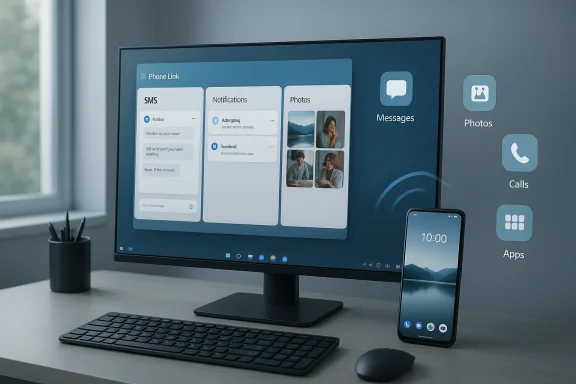 Background / Overview
Phone Link (the Windows desktop component) and the companion Link to Windows app on Android are Microsoft’s primary continuity tools for bringing phone capabilities — messages, notifications, photos, calls, app streaming and limited device controls — to the Windows desktop. The feature set grew from a notification mirror into a multi‑faceted productivity surface, and Microsoft now works closely with OEMs (notably Samsung and HONOR) to expand capabilities such as app mirroring, file browsing in File Explorer, and a new manual “Lock PC” control surfaced on some Android builds. Microsoft documents and community reporting show Phone Link operates as a hybrid of local network transports (Wi‑Fi, BLE for discovery where applicable) and account‑backed pairing. That mix delivers good performance for everyday tasks while creating a few operational caveats that every remote worker and IT admin should know before deploying it widely. Why Phone Link helps remote workers
Phone Link addresses a common productivity leak: context switching between a PC and a phone. For remote workers who live in video calls, shared documents, and chat threads, the app helps in these high‑value scenarios:- Read and reply to SMS/MMS from the PC without taking hands off the keyboard.
- See and triage phone notifications in the Action Center so only the important alerts interrupt focused work.
- Import recent photos quickly and drag them into reports or slides without cloud uploads or email.
- Handle calls via PC audio so you can store meetings rather than swapping devices mid‑call (note: call audio behavior requires specific verification — see Troubleshooting and limits).
- Mirror or stream supported Android apps to the desktop for short interactions that otherwise force you to pick up the phone.
System requirements — verify before you start
Specifications in public documentation have evolved. Cross‑checking current Microsoft guidance and recent product updates is essential before troubleshooting or recommending Phone Link to others.- Windows PC: Microsoft lists Windows 10 (October 2022 update or later) or Windows 11 as required on its support pages, while other Microsoft pages reference older minimums (May 2019 Update). Practice: keep Windows updated to the latest cumulative release and use Windows 11 when possible for best compatibility.
- Android phone: Microsoft’s support text has moved the baseline upward over time. Current guidance recommends Android 8.0+ and strongly recommends Android 10 or newer for the best experience; earlier Microsoft materials referenced Android 7.0, which may still work in limited cases but is not ideal. Verify your phone’s OS and the Link to Windows app version before you pair.
- Network & connectivity: Best performance occurs when the phone and PC are on the same Wi‑Fi network. Bluetooth Low Energy (BLE) or classic Bluetooth is used for discovery and some call routing behaviors on certain feature sets, but the precise transport used can vary by feature.
- Apps: Phone Link on the PC and Link to Windows on the phone (preinstalled on many Samsung and some OEM phones, or available on Google Play) are required. Keep both apps updated.
What you need before you begin (quick checklist)
- A Windows 10 or Windows 11 PC with Pr available in the Microsoft Store.
- An Android phone with Link to Windows installed (some Samsung, HONOR, OPPO, ASUS, Xiaomi devices ship it preinstalled).
- Same Microsoft account signed in on both devices.
- Wi‑Fi access (recommended) and Bluetooth enabled on both devices for discovery and certain telephony flows.
- If your or strict firewall rules, be ready to test pairing with VPN off — some VPNs block background services the apps require.
Step‑by‑step setup (concise, reliable Link on the PC (Start → type “Phone Link” → open). If missing, install it from the Microsoft Store.
- Choose Android when prompted. The app will show a QR code or a manual pairing code.
- On your phone, open a browser and go to the shortlink shown by Phone Link (commonly aka.ms/yourpc or aka.ms/phonelink) and install/open Link to Windows.
- Sign in to Link to Windows with the same Microsoft account used on the PC. In the phone app select Link your photo QR code on the PC. You can choose manual pairing if QR scanning fails.
- Grant requested permissions selectively. If you want a minimal initial setup, enable Messages and and Photos, Calls, or Apps later as needed. Phone Link works best with more permissions, but you remain in control.
- Confirm the connection and test: send a test SMS, open Photos to verify recent images, and — if you need calling — place a short call to confirm audio routing.
Settings to improve reliability
Take two minutes after pairing to tune stability and battery behavior.On the PC (Phone Link):
- Open Phone Link Settings → Features and disable anything you don’t need (Messages, Notifications, Calls, Photos, Apps). Fewer active features means fewer background activities and less surface for problems.
- Exempt Link to Windows from aggressive battery optimizations and “sleep” lists. Many Android OEMs close background services by default; adding Link to Windows to an Unrestricted or Never sleep list prevents random disconnects.
- Keep phone and PC on the same Wi‑Fi band when possible. Some routers handle device roaming poorly across 2.4 GHz/5 GHz and that can look like repeated disconnects.
Troubleshooting common problems)
Most setup failures trace back to three causes: Bluetooth discovery, account mismatch, or network/firewall restrictions. Try these fixes in order:- QR code will not scan: Clean the phone camera, increase screen brightness on the PC, and try the manual code pairing option.
- Device not found or pairing fails: Remove the phone from Windows Bluetooth settings, restart both devices, and retry pairing. Ensure both devices are on the same Microsoft account.
- Notifications not appearing: Check Android’s notification access (Settings → Special app access → Notification access) and confirm Link to Windows has permission. Verify that Android privacy features (e.g., sensitive notifications in newer Android builds) are not suppressing items you expect to see.
- Calls behave oddly: Microsoft’s troubleshooting notes are explicit — Phone Link does not support relaying a phone call to a Bluetooth headset connected to the PC. If you want PC‑side audio for calls, test using the PC’s speakers/microphone or a wired USB headset and consult the troubleshooting guide for audio quality tips.
- App freezes or crashes: Update Phone Link and Link to Windows. If problems persist, sign out of both apps and sign back in. For stubborn issues, remove the pairing and re‑establish it after updates.
Advanced features, OEM differences and recent changes
App streaming and multi‑app use
- App streaming (running Android apps on the PC while the phone does the work) is supported on selected phones and requires relatively modern Android and Phone Link versions. Microsoft’s features pages specify Android 10/11 as a practical baseline for multi‑app or expanded app streaming scenarios; OEM‑preinstalled Link to Windows builds (Samsung, HONOR, OPPO, ASUS, Xiaomi) often deliver the cleanest experience. Expect feature availability to vary by handset model and Android build.
File browsing and File Explorer integration
- Recent updates added native phone→PC file transfers and File Explorer integration on many supported builds — a major productivity win for quick photo imports. For large media or bulk movement, wired USB or dedicated LAN file transfer remains faster and more reliable.
Remote lock
- A significant recent addition is a manual “Lock PC” action available in updated Link to Windows releases. This lets you lock a paired Windows 11 PC from your Android phone; it locks the session and severs Phone Link until local sign‑in is completed, intentionally preventing remote unlock. This is a convenience feature and not a substitute for endpoint management. Microsoft and independent outlets documented the broader rollout in December 2025. Test the feature on your hardware to confirm behavior.
Strengths — where Phone Link shines
- Clear productivity wins: Rapid photos, SMS replies on a full keyboard, clipboard sharing and quick file handoffs remove routine friction from remote workflows.
- OEM partnerships accelerate parity: Samsung and a handful of OEMs ship Link to Windows preinstalled and get new features first, which improves the experience for a large user segment.
- Low barrier to entry: Setup is quick for consumer users — QR pairing and the Microsoft account handshake areon‑technical audiences.
Risks, limitations and what to test before production use
- Fragmentation across devices: Not all Android phones support or app versions, and behavior can differ between OEMs and OS versions. Pilot on representative devices.
via clipboard and files:** Cross‑device clipboard and drag‑and‑drop create a new data flow that may conflict with corporatle clipboard sync for sensitive workflows. - Ambiguous call routing behavior: Microsoft explicitly notes that relaying audio to a Bluetooth headset via the PC is not supported; verify the exact audio path for your headset and test in your environment.
- Account and phone compromise risk: A linked phone signed into the same Microsoft account is a powerful asset. Protect the Microsoft account with MFA, secure the phone, and remove pairing from lost/stolen devices immediately.
- Enterprise policy friction: Some MDM policies or firewalls can block pairing. IT teams must validate Phone Link against corporate security baselines before broad deployment.
Practical recommendations for remote workers and IT
- For individual users:
- Use Phone Link for small, repeatable tasks: one‑time sign‑in codes, quick photo exports, SMS replies, and brief app interactions.
- Keep Link to Windows exempted from aggressive battery restrictions.
- Use a Windows password/PIN and ensure the Microsoft account has MFA enabled.
- For IT teams:
- Pilot Phone Link with a small subset of devices (representative OEM mix).
- Evaluate DLP implications for clipboard and browser/file share actions.
- Document pairing/unpairing procedures and removal policies for lost devices.
- Configure conditional access and MDM policies to block or allow Link to Windows based on risk appetite.
Quick start cheat sheet (copy‑ready)
- Update Windows and Phone Link on the PC; update Link to Windows on the phone.
- Confirm both devices are signed into the same Microsoft account.
- Open Phone Link on the PC → select Android → pair via QR or manual code.
- Grant minimal permissions first (Messages, Notifications), then add Photos/Calls/Apps after testing.
- Exempt Link to Windows from battery optimizations and keep both devices on the same Wi‑Fi band for best reliability.
Final verdict — when Phone Link is right for you
Phone Link is a practical, low‑friction productivity layer for remote workers who want to keep their phone aside while staying responsive: it speeds routine tasks, reduces context switching, and — with current updates — adds helpful controls like remote locking and fuller file transfer flows. However, the experience is conditioned by device model, OS version, app version, and network environment. For individual users, the upside is immediate and tangible; for organizations, a staged rollout with clear DLP guidance and test coverage across OEMs is the prudent path.Read the onboarding steps carefully, verify the Link to Windows app version on your phone, and test the features you plan to rely on (calls, app streaming, file transfers) before making Phone Link a core part of your remote work setup. If a setup fails or you hit an unexpected behavior, the most common remedies are updating both apps and OSes, re‑establishing the pairing, and checking battery optimization and network banding. Phone Link can significantly smooth the interruptions that fragment remote work — but like any continuity tool, it works best when chosen deliberately, verified on your hardware, and governed by appropriate security controls.
Source: BBN Times Phone Link Setup Guide for Seamless Remote Work
