

Google is now rolling out per-app Android backup controls to Pixel devices, giving users a new App data section where individual apps can be left on or toggled off instead of treating all app data as one cloud-bound backup category. The feature, reported by 9to5Google and covered by BGR, is not a flashy Android redesign; it is a belated admission that backup is a policy surface, not just a convenience feature. Google’s default remains conservative — everything is switched on — but the new interface finally lets users see which apps are consuming backup space and stop the ones they do not trust, need, or intend to keep.
The change matters because Android backups have long lived in an awkward middle ground. They are essential when a phone is lost, reset, traded in, or replaced, yet they have often been managed through broad switches that hide the practical question users actually ask: which app is filling my cloud storage, and do I care if its data survives? Google’s answer, at least on Pixel devices for now, is a more granular control panel buried under Settings > Accounts and backup > Google Backup > Other device data.
This is the kind of small Android feature that looks boring until it saves someone from paying for storage, preserving junk data, or discovering too late that backup policy was never really under their control.
For years, the consumer promise of phone backup has been simple: turn it on, forget about it, and trust that your next phone will feel something like your old one. That simplicity has real value. Most people do not want to learn the difference between app binaries, app data, device settings, call history, messages, photos, and cloud-synced account data before replacing a handset.
But that same simplicity has always hidden an uncomfortable bargain. When a phone says it is backing up “apps and app data,” the user is rarely shown which apps are meaningfully contributing to the backup, which are saving nothing, and which are quietly preserving data that no longer matters. A travel app used once, a beta app installed for testing, a game abandoned months ago, or a temporary messaging client can all become part of the same undifferentiated backup bucket.
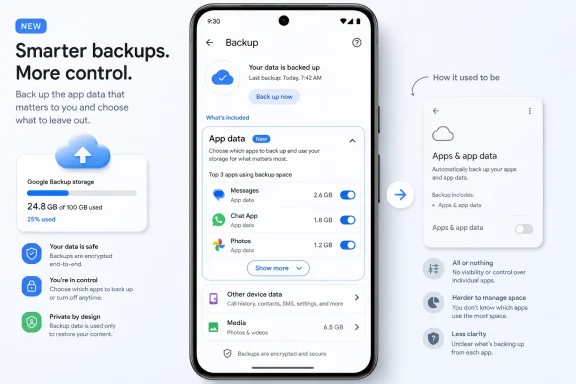
The new Pixel control changes that relationship. According to 9to5Google’s reporting, the old section labeled Apps & app data has been replaced with an updated App data section. Instead of a single aggregate line with a count and total stored data, Google now shows the top three apps using backup space, places toggles next to them, and adds a Show more option for the rest.
That is not just a layout tweak. It changes the mental model from “backup is on” to “these apps are being backed up.” The distinction is important because backups are no longer merely about disaster recovery. They are also about cloud storage allocation, privacy expectations, data retention, and device lifecycle management.
Google’s defaults are telling. Everything is toggled on by default, which means the company is not trying to push users toward a minimal backup posture. It is preserving the safety net first and letting users trim it later. That is the right default for mainstream users, but the new toggles finally create a way out for anyone who knows an app is disposable.
The practical use case is obvious: disable backups for apps you are testing, apps you do not plan to keep, or apps whose data is already synced elsewhere. That last category is especially important. Many modern apps maintain their own cloud state through account login, meaning Android’s device backup may be redundant, incomplete, or irrelevant. Per-app backup controls let users stop treating every installed app as equally worthy of long-term preservation.
For Pixel owners, the path is specific: Settings > Accounts and backup > Google Backup > Other device data. There, the new App data section replaces the older Apps & app data presentation. The top three listed apps are the ones with the most data backed up, which makes the page immediately useful instead of dumping users into a long alphabetical list.
That ranking decision is more important than it sounds. If the goal is cloud storage hygiene, users do not need to start with a hundred apps. They need to know the three biggest offenders. A backup screen that surfaces the largest app-data consumers is a tool; a backup screen that merely lists apps is a chore.
The Show more option then widens the aperture. BGR notes that continuing down the list shows apps that do not currently have any data backed up. That matters because the feature is not just reactive. Users can turn off backup for an app before it begins consuming Google cloud space.
That is the subtle power of this design. It addresses both current backup bloat and future backup bloat. If you install an app only to evaluate it, you do not have to wait for it to become a storage problem before excluding it.
The table captures why this is a better feature than its modest UI footprint suggests. Google is not simply adding more information; it is attaching an action to that information. Seeing that an app uses backup space is useful. Being able to switch that app off from the same screen is what makes the information operational.
That also makes the Pixel-only state more frustrating. Android’s backup problem is not Pixel-specific. Samsung, Motorola, OnePlus, and other Android users face the same uncertainty about what their phones are preserving and what their Google storage is carrying. If anything, the diversity of non-Pixel Android devices makes clear backup controls more necessary, not less.
That budget is opaque to many people. A user who receives a full-storage warning may blame photos, Gmail, or old files before suspecting device backup. Even when backup is visible, the categories are often too broad to act on intelligently. “App data” is a label, not a diagnosis.
Per-app size display changes the diagnosis. If the sizes listed beside apps show that one or two apps dominate the backup footprint, the user can make a rational choice. Keep the data because the app matters, or switch it off because it is disposable.
This is where the feature becomes more than a convenience toggle. It gives users a way to distinguish between valuable state and accumulated residue. A banking app, password manager, authenticator, notes app, or health app may be worth protecting, though many of those also have their own account systems and security models. A game you opened twice, a shopping app you used for one order, or a test build of an app may not deserve cloud retention at all.
Google’s default-on approach keeps the feature from becoming a foot-gun for casual users. The company is not asking people to build a backup policy from scratch. It is showing them the current policy and allowing exceptions.
That is the right compromise. Backup systems that require users to make too many decisions upfront tend to fail because users postpone setup or choose badly. Backup systems that allow no meaningful decision create waste and mistrust. The new App data section moves Android closer to the middle: safe by default, editable by intent.
For WindowsForum readers, the broader lesson should be familiar from PC backup and endpoint management. The best backup tools are not the ones that merely say “protected.” They are the ones that show scope, frequency, size, restore behavior, and exclusions. Android has historically been strong on the promise of restore, but weak on explaining the contents of the box.
That direction makes sense. Phones are storage-constrained devices that now behave like cameras, workstations, wallets, authenticators, entertainment libraries, and identity terminals. Moving stale local data to cloud storage is an obvious way to reduce pressure on the device without forcing users to manually archive everything.
But automatic backup without granular control can easily become automatic accumulation. If Google is going to make backup easier and more automatic, it also has to make exclusion easier and more visible. The new per-app toggles are therefore not an isolated feature; they are the control surface that should accompany the automation.
That is why BGR’s headline argument — that Android users should have had this all along — lands. A backup system that can preserve app data should also let users decide which app data is worth preserving. Otherwise, the user is left choosing between two bad options: back up everything, including junk, or disable a broader category and risk losing something important.
The new design addresses that gap, but belatedly. Android’s app ecosystem has spent years becoming more account-centric, more cloud-connected, and more ephemeral. Users install more apps than they can remember, many of which are thin clients for remote services. Treating all app data as a single backup class made more sense when apps were fewer and local state was harder to reconstruct.
In the current Android world, backup value varies wildly by app. Some apps store irreplaceable local preferences or user-created data. Others can be restored by logging in. Others are intentionally temporary. Per-app controls acknowledge that the operating system cannot infer all of that value correctly.
There is also a trust dimension. Some users may not want certain app data preserved in Google cloud space at all, even if it is technically eligible for backup. Others may want to reduce their retained footprint for privacy reasons. A toggle is not a full data-governance framework, but it is a meaningful user-facing affordance.
That means the new Pixel interface is best understood as a control over Android’s backup handling, not a magic snapshot of the entire app. If an app does not currently have any data backed up, the lower part of the list may show that. If an app’s developer stores most state on its own servers, Android’s backed-up app data may be small. If an app intentionally excludes sensitive local data from backup, the toggle will not override that design.
This distinction matters for users who expect phone backup to behave like a full disk image. Android backup is not that. It is a coordinated restore system shaped by platform rules, developer choices, account state, and app-specific cloud services.
The new UI may actually help educate users about this, indirectly. Seeing that some apps have large backup sizes while others have none makes visible what was previously hidden: app backup is uneven. That unevenness is not necessarily a bug. It may reflect sensible developer decisions, security constraints, or the fact that an app’s real data lives elsewhere.
For IT pros, this is where policy should stay conservative. Do not assume that enabling Android backup for an app means the app can be restored to a business-ready state after loss or reset. Test the restore path. Confirm what comes back. Document exceptions.
Consumer backup features are designed around convenience and continuity, not necessarily compliance-grade recovery. A restored phone that looks familiar to a user may still be missing app sessions, local files, tokens, offline content, or third-party backup archives. Per-app toggles improve control over what Android attempts to back up; they do not certify the result.
That nuance should temper the enthusiasm. This is a good feature because it exposes more of the backup layer. It is not a substitute for app-level export, enterprise mobile management, records retention, password-manager recovery planning, or dedicated backup strategies for regulated data.
But default-on also means the feature only helps users who visit the page. That is a familiar problem in settings design. A control buried three levels deep may be powerful, but it is not necessarily discoverable. The people most likely to benefit from trimming backup data may be the same people least likely to know where backup settings live.
The navigation path itself tells the story: Settings > Accounts and backup > Google Backup > Other device data. That is logical once you know it, but not exactly obvious to someone responding to a storage warning. If Google wants this feature to reduce support friction, it should eventually connect backup storage warnings directly to the App data view.
The top-three layout helps once the user arrives. It gives an immediate answer to the question “what is using the most space?” The Show more option avoids overwhelming the page while preserving depth. The toggles provide action without forcing a separate management screen.
Still, there is a risk that users will turn off backup for apps without understanding restore consequences. A toggle is a blunt instrument. Disable an app today, forget about it for a year, lose the phone, and the decision only becomes visible when the app fails to restore its previous state.
Google can mitigate that risk with clear language, restore previews, or warnings for apps with significant backed-up data. The source material does not indicate such warnings beyond the toggles and size display, so the safest advice is simple: do not disable backup for an app unless you are comfortable rebuilding that app’s state from scratch or through its own account sync.
That advice may sound obvious, but it is exactly the sort of thing users overlook when trying to reclaim storage. Storage pressure makes people aggressive. Backup settings should slow them down just enough to avoid deleting the wrong safety net.
The device is no longer the only place data lives. Some data is local. Some is synced. Some is cached. Some is backed up by the OS. Some is backed up by the app vendor. Some is not backed up at all. The user sees one object — the phone or PC — but the recovery story is split across multiple systems.
That is why backup interfaces need to become more explicit. “Backed up” is not enough. Backed up where? By whom? How often? How much space? Restorable under what conditions? Excluded by which app or policy?
Google’s updated App data section answers only a slice of those questions, but it answers a meaningful one: which apps are contributing to Android app-data backup, and can I stop them? For an ordinary user, that may be the difference between understanding a storage warning and blindly deleting photos. For an admin, it may be a clue that certain app data is entering a consumer cloud backup path that deserves policy review.
This is particularly relevant in mixed-use environments. A personal Pixel used for work apps, or a work-managed device with personal account features enabled, can blur the line between convenience backup and organizational data handling. Per-app controls may give users more power, but they also create more variation. Two employees with the same phone model and app set could have different backup states depending on which toggles they changed.
That does not make the feature bad. It means organizations need to decide whether they want user-managed backup choices, managed backup policy, or a hybrid. The worst option is pretending the consumer backup layer does not exist.
Per-app backup controls can help, but only if organizations treat them as part of endpoint posture. The existence of toggles means users may disable backup for apps the organization expected to survive a device replacement. Conversely, default-on backup may preserve app data the organization would prefer not to have retained in a personal cloud space.
The source material does not claim this feature includes enterprise policy enforcement, fleet reporting, or centralized audit. It is a user-facing Pixel setting. That distinction matters. A setting can be useful without being manageable at scale.
Admins should therefore avoid over-reading the rollout. This is not a mobile-device-management announcement. It is not a compliance control. It is a consumer backup improvement that happens to have enterprise consequences.
The right operational response is modest but real: update support documentation, identify affected Pixel users, and test restore behavior for critical apps. If a business depends on app state surviving device loss, do not rely on assumptions. If a business forbids certain data from entering consumer backups, do not rely on users finding and flipping toggles manually.
But the privacy win is bounded. Turning off Android backup for an app does not necessarily delete data the app stores on its own servers. It does not revoke the app’s account sync. It does not remove data already exported elsewhere. It does not change what the app developer collects.
That is why the feature should be described as backup minimization, not total privacy control. It gives users a way to reduce what Android’s backup system retains for specific apps. That is valuable, but it is only one layer in a much larger data chain.
The size display may also influence privacy behavior. Large backed-up data sizes can draw attention to apps users forgot about. Sometimes the most important privacy prompt is not a warning dialog but a number: why is this app storing so much?
Google’s interface appears designed around storage management, not privacy auditing, but the two overlap. Storage visibility often exposes data retention. Once users can see which apps have backup weight, they may ask better questions about whether those apps deserve it.
Still, users should be careful not to confuse “no backed-up app data” with “no data risk.” An app shown at the bottom of the list with no current backup data may still hold local data on the device, sync data through its own account, or store data remotely. Android’s backup list is one map, not the territory.
A user who disables backup for a test app and later loses nothing has benefited. A user who disables backup for a note-taking app because it looked large and later discovers those notes were not otherwise synced has not. The same toggle can be either smart hygiene or self-inflicted damage depending on the app.
That is why Google’s ranking by largest backed-up data is both useful and potentially dangerous. It correctly points users toward the biggest savings. It also points them toward the apps where the most state may be at stake.
The size number tells users how much data is backed up; it does not tell them how important that data is. Ten megabytes of app preferences may be trivial. A much smaller amount of authentication or configuration data may be painful to lose. Storage size is a proxy for cost, not value.
This is a familiar backup-management trap. People delete big things because big things solve the storage problem fastest. But recovery value is not measured in megabytes. It is measured in the time, money, access, and memory required to reconstruct what was lost.
The safest consumer rule is to disable backup only for apps that meet at least one of three conditions: the app is temporary, the app’s state is already synced through its own account, or the user is willing to lose the local state. If none of those is true, leave the toggle on.
Google could eventually improve this interface with restore confidence indicators, last-backup timestamps per app, developer-provided backup descriptions, or warnings for apps with non-cloud local state. None of that is in the described rollout. For now, the feature gives users control, and control always arrives with responsibility attached.
Those are complementary angles. 9to5Google’s value is the settings-level discovery: the App data section, the top-three app list, the toggles, and Show more. BGR’s value is the user-level interpretation: this is about controlling what takes up Google cloud space and preventing unnecessary app data from becoming part of long-term backup.
The synthesis is stronger than either frame alone. This is not merely a Pixel UI tweak, and it is not merely a storage-saving trick. It is Google adding policy granularity to a backup system that has become more automatic and more consequential.
That matters because backup has moved from the background to the foreground of platform competition. Apple, Google, Microsoft, Samsung, and every major cloud provider increasingly sell continuity: your files, settings, messages, photos, and app state should follow you. But continuity without transparency creates lock-in anxiety. Users want the magic, but they also want to know what the magic is doing.
Google’s new per-app controls are an incremental transparency feature. They do not make Android backup perfect. They do not solve cross-device restore inconsistency. They do not guarantee app state. They do not yet appear to be universal across Android devices. But they make the backup boundary more visible, and that is progress.
The fact that the feature currently appears Pixel-limited may also shape coverage. Pixel users get the cleaner experience first; the broader Android base waits to see whether Google pushes the control outward. If the goal is to improve Android backup as a platform, Google should not leave the setting as a Pixel convenience indefinitely.
That sounds simple, but operating systems often resist simple refusal. They offer broad sync categories, global backup toggles, or account-wide settings that make the user choose between too much and too little. Per-app backup control is the more adult version of the bargain: this app yes, that app no.
For anyone who regularly tests apps, the feature is overdue. Reviewers, developers, IT workers, hobbyists, and power users often install software temporarily. Under a broad backup model, temporary apps can become part of the long-term device history unless cleaned up manually. Per-app toggles make it easier to prevent that history from accumulating.
For ordinary users, the benefit may appear during storage cleanup. Instead of uninstalling apps or deleting personal media immediately, they can inspect backup data and disable apps that do not need cloud preservation. That gives users another lever before they sacrifice data they actually care about.
For privacy-conscious users, the benefit is selective retention. They can keep the safety net for important apps while excluding others. Again, this is not a complete privacy solution, but it is better than all-or-nothing backup.
For Google, the benefit is trust. Cloud storage warnings are annoying. Backup opacity is worse. A user who can see and control backup contributors is less likely to view Google cloud space as a mysterious tax on phone ownership.
The feature’s weakness is discoverability. If Google wants people to use it, the setting should surface when backup data grows, when storage is nearly full, or when an app with significant backed-up data has not been opened in a long time. A buried setting helps experts immediately and everyone else eventually, usually after frustration.
Open the backup settings, look at the App data section, and identify the top three apps using space. If they are important apps, leave them alone. If they are old, temporary, redundant, or already synced elsewhere, consider toggling them off.
Then use Show more. The lower list can reveal apps that do not currently have backed-up data. That is useful for preemptive cleanup: if an app is experimental or short-lived, turn it off before it starts consuming cloud space.
Users should be especially careful with apps that store local-only data. Notes, offline media, niche productivity tools, small developer apps, games, and specialty utilities may not have robust independent sync. If losing the app’s local state would hurt, keep backup enabled until you have confirmed another recovery path.
The feature also creates a new habit worth adopting before phone upgrades. Before resetting, trading in, or replacing a Pixel, review the App data page. Make sure important apps are still toggled on. Then perform the backup and, where possible, confirm that key apps have their own account sync or export.
That is not glamorous, but neither is discovering after a restore that the app you cared about was excluded months earlier. Backup settings are like insurance paperwork: boring when everything is fine, suddenly fascinating when something breaks.
Google’s new Pixel backup controls are a small interface change with larger platform implications: Android backup is becoming more automatic, more cloud-dependent, and finally more inspectable. The next step should be obvious. If Google believes per-app backup choice is important enough for Pixel users, it is important enough for Android users broadly — because the need to decide what deserves to survive a phone is not a Pixel feature, it is a modern computing requirement.
The change matters because Android backups have long lived in an awkward middle ground. They are essential when a phone is lost, reset, traded in, or replaced, yet they have often been managed through broad switches that hide the practical question users actually ask: which app is filling my cloud storage, and do I care if its data survives? Google’s answer, at least on Pixel devices for now, is a more granular control panel buried under Settings > Accounts and backup > Google Backup > Other device data.
This is the kind of small Android feature that looks boring until it saves someone from paying for storage, preserving junk data, or discovering too late that backup policy was never really under their control.
 Google Is Turning Backup From a Black Box Into a User Choice
For years, the consumer promise of phone backup has been simple: turn it on, forget about it, and trust that your next phone will feel something like your old one. That simplicity has real value. Most people do not want to learn the difference between app binaries, app data, device settings, call history, messages, photos, and cloud-synced account data before replacing a handset.But that same simplicity has always hidden an uncomfortable bargain. When a phone says it is backing up “apps and app data,” the user is rarely shown which apps are meaningfully contributing to the backup, which are saving nothing, and which are quietly preserving data that no longer matters. A travel app used once, a beta app installed for testing, a game abandoned months ago, or a temporary messaging client can all become part of the same undifferentiated backup bucket.
The new Pixel control changes that relationship. According to 9to5Google’s reporting, the old section labeled Apps & app data has been replaced with an updated App data section. Instead of a single aggregate line with a count and total stored data, Google now shows the top three apps using backup space, places toggles next to them, and adds a Show more option for the rest.
That is not just a layout tweak. It changes the mental model from “backup is on” to “these apps are being backed up.” The distinction is important because backups are no longer merely about disaster recovery. They are also about cloud storage allocation, privacy expectations, data retention, and device lifecycle management.
Google’s defaults are telling. Everything is toggled on by default, which means the company is not trying to push users toward a minimal backup posture. It is preserving the safety net first and letting users trim it later. That is the right default for mainstream users, but the new toggles finally create a way out for anyone who knows an app is disposable.
The practical use case is obvious: disable backups for apps you are testing, apps you do not plan to keep, or apps whose data is already synced elsewhere. That last category is especially important. Many modern apps maintain their own cloud state through account login, meaning Android’s device backup may be redundant, incomplete, or irrelevant. Per-app backup controls let users stop treating every installed app as equally worthy of long-term preservation.
The Pixel-Only Rollout Keeps the Feature Useful but Uneven
The current limitation is the catch: BGR’s account says the feature appears to be available only on Pixel devices. That fits Google’s broader pattern. Pixel phones often serve as the first public surface for Android-adjacent account, backup, restore, and settings experiments before the company either expands them more broadly or leaves them as part of the Pixel experience.For Pixel owners, the path is specific: Settings > Accounts and backup > Google Backup > Other device data. There, the new App data section replaces the older Apps & app data presentation. The top three listed apps are the ones with the most data backed up, which makes the page immediately useful instead of dumping users into a long alphabetical list.
That ranking decision is more important than it sounds. If the goal is cloud storage hygiene, users do not need to start with a hundred apps. They need to know the three biggest offenders. A backup screen that surfaces the largest app-data consumers is a tool; a backup screen that merely lists apps is a chore.
The Show more option then widens the aperture. BGR notes that continuing down the list shows apps that do not currently have any data backed up. That matters because the feature is not just reactive. Users can turn off backup for an app before it begins consuming Google cloud space.
That is the subtle power of this design. It addresses both current backup bloat and future backup bloat. If you install an app only to evaluate it, you do not have to wait for it to become a storage problem before excluding it.
| Backup interface | What users saw | What users can do | Practical effect |
|---|---|---|---|
| Previous Apps & app data section | A combined app/app-data listing with total count and stored data | Manage app data only at a broader level | Backup remained mostly opaque to ordinary users |
| Updated App data section | Top three apps using backup space, app-level sizes, toggles, and Show more | Enable or disable backup per app | Users can target storage-heavy or disposable apps directly |
That also makes the Pixel-only state more frustrating. Android’s backup problem is not Pixel-specific. Samsung, Motorola, OnePlus, and other Android users face the same uncertainty about what their phones are preserving and what their Google storage is carrying. If anything, the diversity of non-Pixel Android devices makes clear backup controls more necessary, not less.
The Storage Story Is the Real Story
BGR frames the feature around Google cloud space, and that is the right lens. Backups are emotionally sold as safety, but they are economically governed by storage. Once backup data starts competing with photos, videos, email, documents, and other account data, the backup screen becomes part of the user’s cloud-storage budget.That budget is opaque to many people. A user who receives a full-storage warning may blame photos, Gmail, or old files before suspecting device backup. Even when backup is visible, the categories are often too broad to act on intelligently. “App data” is a label, not a diagnosis.
Per-app size display changes the diagnosis. If the sizes listed beside apps show that one or two apps dominate the backup footprint, the user can make a rational choice. Keep the data because the app matters, or switch it off because it is disposable.
This is where the feature becomes more than a convenience toggle. It gives users a way to distinguish between valuable state and accumulated residue. A banking app, password manager, authenticator, notes app, or health app may be worth protecting, though many of those also have their own account systems and security models. A game you opened twice, a shopping app you used for one order, or a test build of an app may not deserve cloud retention at all.
Google’s default-on approach keeps the feature from becoming a foot-gun for casual users. The company is not asking people to build a backup policy from scratch. It is showing them the current policy and allowing exceptions.
That is the right compromise. Backup systems that require users to make too many decisions upfront tend to fail because users postpone setup or choose badly. Backup systems that allow no meaningful decision create waste and mistrust. The new App data section moves Android closer to the middle: safe by default, editable by intent.
For WindowsForum readers, the broader lesson should be familiar from PC backup and endpoint management. The best backup tools are not the ones that merely say “protected.” They are the ones that show scope, frequency, size, restore behavior, and exclusions. Android has historically been strong on the promise of restore, but weak on explaining the contents of the box.
Google’s 2025 Backup Shift Needed This Missing Control
The source material says Google changed how backups work on Android devices in 2025, making backups simpler to manage. Since then, Google has also introduced automatic backups to Android devices, designed to clean up old data from the phone and move it into the cloud for safekeeping when it is no longer needed locally.That direction makes sense. Phones are storage-constrained devices that now behave like cameras, workstations, wallets, authenticators, entertainment libraries, and identity terminals. Moving stale local data to cloud storage is an obvious way to reduce pressure on the device without forcing users to manually archive everything.
But automatic backup without granular control can easily become automatic accumulation. If Google is going to make backup easier and more automatic, it also has to make exclusion easier and more visible. The new per-app toggles are therefore not an isolated feature; they are the control surface that should accompany the automation.
That is why BGR’s headline argument — that Android users should have had this all along — lands. A backup system that can preserve app data should also let users decide which app data is worth preserving. Otherwise, the user is left choosing between two bad options: back up everything, including junk, or disable a broader category and risk losing something important.
The new design addresses that gap, but belatedly. Android’s app ecosystem has spent years becoming more account-centric, more cloud-connected, and more ephemeral. Users install more apps than they can remember, many of which are thin clients for remote services. Treating all app data as a single backup class made more sense when apps were fewer and local state was harder to reconstruct.
In the current Android world, backup value varies wildly by app. Some apps store irreplaceable local preferences or user-created data. Others can be restored by logging in. Others are intentionally temporary. Per-app controls acknowledge that the operating system cannot infer all of that value correctly.
There is also a trust dimension. Some users may not want certain app data preserved in Google cloud space at all, even if it is technically eligible for backup. Others may want to reduce their retained footprint for privacy reasons. A toggle is not a full data-governance framework, but it is a meaningful user-facing affordance.
App Data Backup Still Depends on the App
A crucial caveat remains: per-app backup control is not the same as a guarantee that every app’s meaningful state will be restored perfectly. Google’s own Android developer documentation has long made clear that app data backup depends on how apps participate in Android’s backup mechanisms and how developers configure their apps. Developers can customize backup behavior, exclude data, or opt out.That means the new Pixel interface is best understood as a control over Android’s backup handling, not a magic snapshot of the entire app. If an app does not currently have any data backed up, the lower part of the list may show that. If an app’s developer stores most state on its own servers, Android’s backed-up app data may be small. If an app intentionally excludes sensitive local data from backup, the toggle will not override that design.
This distinction matters for users who expect phone backup to behave like a full disk image. Android backup is not that. It is a coordinated restore system shaped by platform rules, developer choices, account state, and app-specific cloud services.
The new UI may actually help educate users about this, indirectly. Seeing that some apps have large backup sizes while others have none makes visible what was previously hidden: app backup is uneven. That unevenness is not necessarily a bug. It may reflect sensible developer decisions, security constraints, or the fact that an app’s real data lives elsewhere.
For IT pros, this is where policy should stay conservative. Do not assume that enabling Android backup for an app means the app can be restored to a business-ready state after loss or reset. Test the restore path. Confirm what comes back. Document exceptions.
Consumer backup features are designed around convenience and continuity, not necessarily compliance-grade recovery. A restored phone that looks familiar to a user may still be missing app sessions, local files, tokens, offline content, or third-party backup archives. Per-app toggles improve control over what Android attempts to back up; they do not certify the result.
That nuance should temper the enthusiasm. This is a good feature because it exposes more of the backup layer. It is not a substitute for app-level export, enterprise mobile management, records retention, password-manager recovery planning, or dedicated backup strategies for regulated data.
The Default-On Choice Is Sensible, but It Puts the Burden on Review
Google’s choice to leave everything toggled on by default is defensible. The average user is more likely to regret missing data than extra backup data. If Google shipped this feature with apps defaulting off, or forced users to choose app-by-app during setup, it would create confusion and avoidable loss.But default-on also means the feature only helps users who visit the page. That is a familiar problem in settings design. A control buried three levels deep may be powerful, but it is not necessarily discoverable. The people most likely to benefit from trimming backup data may be the same people least likely to know where backup settings live.
The navigation path itself tells the story: Settings > Accounts and backup > Google Backup > Other device data. That is logical once you know it, but not exactly obvious to someone responding to a storage warning. If Google wants this feature to reduce support friction, it should eventually connect backup storage warnings directly to the App data view.
The top-three layout helps once the user arrives. It gives an immediate answer to the question “what is using the most space?” The Show more option avoids overwhelming the page while preserving depth. The toggles provide action without forcing a separate management screen.
Still, there is a risk that users will turn off backup for apps without understanding restore consequences. A toggle is a blunt instrument. Disable an app today, forget about it for a year, lose the phone, and the decision only becomes visible when the app fails to restore its previous state.
Google can mitigate that risk with clear language, restore previews, or warnings for apps with significant backed-up data. The source material does not indicate such warnings beyond the toggles and size display, so the safest advice is simple: do not disable backup for an app unless you are comfortable rebuilding that app’s state from scratch or through its own account sync.
That advice may sound obvious, but it is exactly the sort of thing users overlook when trying to reclaim storage. Storage pressure makes people aggressive. Backup settings should slow them down just enough to avoid deleting the wrong safety net.
Why This Belongs in the Same Conversation as PC Backup
Windows users have lived through decades of backup confusion: File History, System Restore, OneDrive Known Folder Move, third-party imaging tools, enterprise endpoint backup, roaming profiles, and the messy gap between “my files are synced” and “my machine can be restored.” Android’s new per-app backup controls are a mobile version of the same problem.The device is no longer the only place data lives. Some data is local. Some is synced. Some is cached. Some is backed up by the OS. Some is backed up by the app vendor. Some is not backed up at all. The user sees one object — the phone or PC — but the recovery story is split across multiple systems.
That is why backup interfaces need to become more explicit. “Backed up” is not enough. Backed up where? By whom? How often? How much space? Restorable under what conditions? Excluded by which app or policy?
Google’s updated App data section answers only a slice of those questions, but it answers a meaningful one: which apps are contributing to Android app-data backup, and can I stop them? For an ordinary user, that may be the difference between understanding a storage warning and blindly deleting photos. For an admin, it may be a clue that certain app data is entering a consumer cloud backup path that deserves policy review.
This is particularly relevant in mixed-use environments. A personal Pixel used for work apps, or a work-managed device with personal account features enabled, can blur the line between convenience backup and organizational data handling. Per-app controls may give users more power, but they also create more variation. Two employees with the same phone model and app set could have different backup states depending on which toggles they changed.
That does not make the feature bad. It means organizations need to decide whether they want user-managed backup choices, managed backup policy, or a hybrid. The worst option is pretending the consumer backup layer does not exist.
Where Enterprise IT Should Be Cautious
The feature’s immediate audience is consumers with Pixel phones, but enterprise IT should pay attention because mobile backup has a way of becoming an enterprise issue after the fact. A user loses a phone. A restore fails. A regulated app’s data appears in an unexpected account. A support ticket reveals that personal Google backup was part of the workflow all along.Per-app backup controls can help, but only if organizations treat them as part of endpoint posture. The existence of toggles means users may disable backup for apps the organization expected to survive a device replacement. Conversely, default-on backup may preserve app data the organization would prefer not to have retained in a personal cloud space.
The source material does not claim this feature includes enterprise policy enforcement, fleet reporting, or centralized audit. It is a user-facing Pixel setting. That distinction matters. A setting can be useful without being manageable at scale.
Admins should therefore avoid over-reading the rollout. This is not a mobile-device-management announcement. It is not a compliance control. It is a consumer backup improvement that happens to have enterprise consequences.
The right operational response is modest but real: update support documentation, identify affected Pixel users, and test restore behavior for critical apps. If a business depends on app state surviving device loss, do not rely on assumptions. If a business forbids certain data from entering consumer backups, do not rely on users finding and flipping toggles manually.
Action checklist for admins
- Inventory Pixel devices where users may have access to Google Backup settings.
- Ask users or support teams to verify the new path: Settings > Accounts and backup > Google Backup > Other device data.
- Identify business-critical apps and test whether their data restores as expected after backup.
- Document which apps should remain backed up and which should be excluded because they are temporary, redundant, or policy-sensitive.
- Warn users not to disable backup for authentication, notes, workflow, or line-of-business apps unless an approved recovery method exists.
- Treat the feature as a user setting unless your device-management stack separately enforces backup policy.
The Privacy Win Is Real but Limited
There is a privacy benefit here, and it should not be dismissed. Users now have a clearer way to stop selected app data from being preserved in Google cloud space. That is meaningful for apps installed temporarily, apps that handle sensitive personal contexts, or apps whose data the user does not want retained beyond the device.But the privacy win is bounded. Turning off Android backup for an app does not necessarily delete data the app stores on its own servers. It does not revoke the app’s account sync. It does not remove data already exported elsewhere. It does not change what the app developer collects.
That is why the feature should be described as backup minimization, not total privacy control. It gives users a way to reduce what Android’s backup system retains for specific apps. That is valuable, but it is only one layer in a much larger data chain.
The size display may also influence privacy behavior. Large backed-up data sizes can draw attention to apps users forgot about. Sometimes the most important privacy prompt is not a warning dialog but a number: why is this app storing so much?
Google’s interface appears designed around storage management, not privacy auditing, but the two overlap. Storage visibility often exposes data retention. Once users can see which apps have backup weight, they may ask better questions about whether those apps deserve it.
Still, users should be careful not to confuse “no backed-up app data” with “no data risk.” An app shown at the bottom of the list with no current backup data may still hold local data on the device, sync data through its own account, or store data remotely. Android’s backup list is one map, not the territory.
A Good Settings Page Is Not the Same as a Good Restore
Backup features are judged twice: once when users configure them, and again when disaster strikes. Google’s new App data controls improve the first moment. The second remains the real test.A user who disables backup for a test app and later loses nothing has benefited. A user who disables backup for a note-taking app because it looked large and later discovers those notes were not otherwise synced has not. The same toggle can be either smart hygiene or self-inflicted damage depending on the app.
That is why Google’s ranking by largest backed-up data is both useful and potentially dangerous. It correctly points users toward the biggest savings. It also points them toward the apps where the most state may be at stake.
The size number tells users how much data is backed up; it does not tell them how important that data is. Ten megabytes of app preferences may be trivial. A much smaller amount of authentication or configuration data may be painful to lose. Storage size is a proxy for cost, not value.
This is a familiar backup-management trap. People delete big things because big things solve the storage problem fastest. But recovery value is not measured in megabytes. It is measured in the time, money, access, and memory required to reconstruct what was lost.
The safest consumer rule is to disable backup only for apps that meet at least one of three conditions: the app is temporary, the app’s state is already synced through its own account, or the user is willing to lose the local state. If none of those is true, leave the toggle on.
Google could eventually improve this interface with restore confidence indicators, last-backup timestamps per app, developer-provided backup descriptions, or warnings for apps with non-cloud local state. None of that is in the described rollout. For now, the feature gives users control, and control always arrives with responsibility attached.
BGR and 9to5Google Are Seeing the Same Feature From Different Angles
The reporting chain is straightforward. 9to5Google surfaced the new per-app backup controls and described where they appear on Pixel devices. BGR picked up the story and framed it as the backup setting Android users should have had much earlier.Those are complementary angles. 9to5Google’s value is the settings-level discovery: the App data section, the top-three app list, the toggles, and Show more. BGR’s value is the user-level interpretation: this is about controlling what takes up Google cloud space and preventing unnecessary app data from becoming part of long-term backup.
The synthesis is stronger than either frame alone. This is not merely a Pixel UI tweak, and it is not merely a storage-saving trick. It is Google adding policy granularity to a backup system that has become more automatic and more consequential.
That matters because backup has moved from the background to the foreground of platform competition. Apple, Google, Microsoft, Samsung, and every major cloud provider increasingly sell continuity: your files, settings, messages, photos, and app state should follow you. But continuity without transparency creates lock-in anxiety. Users want the magic, but they also want to know what the magic is doing.
Google’s new per-app controls are an incremental transparency feature. They do not make Android backup perfect. They do not solve cross-device restore inconsistency. They do not guarantee app state. They do not yet appear to be universal across Android devices. But they make the backup boundary more visible, and that is progress.
The fact that the feature currently appears Pixel-limited may also shape coverage. Pixel users get the cleaner experience first; the broader Android base waits to see whether Google pushes the control outward. If the goal is to improve Android backup as a platform, Google should not leave the setting as a Pixel convenience indefinitely.
The Best Part Is That Users Can Finally Say No
The central improvement is not the size display, the top-three ranking, or the Show more button. It is the ability to say no at the app level.That sounds simple, but operating systems often resist simple refusal. They offer broad sync categories, global backup toggles, or account-wide settings that make the user choose between too much and too little. Per-app backup control is the more adult version of the bargain: this app yes, that app no.
For anyone who regularly tests apps, the feature is overdue. Reviewers, developers, IT workers, hobbyists, and power users often install software temporarily. Under a broad backup model, temporary apps can become part of the long-term device history unless cleaned up manually. Per-app toggles make it easier to prevent that history from accumulating.
For ordinary users, the benefit may appear during storage cleanup. Instead of uninstalling apps or deleting personal media immediately, they can inspect backup data and disable apps that do not need cloud preservation. That gives users another lever before they sacrifice data they actually care about.
For privacy-conscious users, the benefit is selective retention. They can keep the safety net for important apps while excluding others. Again, this is not a complete privacy solution, but it is better than all-or-nothing backup.
For Google, the benefit is trust. Cloud storage warnings are annoying. Backup opacity is worse. A user who can see and control backup contributors is less likely to view Google cloud space as a mysterious tax on phone ownership.
The feature’s weakness is discoverability. If Google wants people to use it, the setting should surface when backup data grows, when storage is nearly full, or when an app with significant backed-up data has not been opened in a long time. A buried setting helps experts immediately and everyone else eventually, usually after frustration.
What Pixel Owners Should Do Now
Pixel users do not need to rush into the setting and start turning things off. The default-on state means Google is prioritizing protection, and for many people that is the right answer. The best first move is inspection, not deletion.Open the backup settings, look at the App data section, and identify the top three apps using space. If they are important apps, leave them alone. If they are old, temporary, redundant, or already synced elsewhere, consider toggling them off.
Then use Show more. The lower list can reveal apps that do not currently have backed-up data. That is useful for preemptive cleanup: if an app is experimental or short-lived, turn it off before it starts consuming cloud space.
Users should be especially careful with apps that store local-only data. Notes, offline media, niche productivity tools, small developer apps, games, and specialty utilities may not have robust independent sync. If losing the app’s local state would hurt, keep backup enabled until you have confirmed another recovery path.
The feature also creates a new habit worth adopting before phone upgrades. Before resetting, trading in, or replacing a Pixel, review the App data page. Make sure important apps are still toggled on. Then perform the backup and, where possible, confirm that key apps have their own account sync or export.
That is not glamorous, but neither is discovering after a restore that the app you cared about was excluded months earlier. Backup settings are like insurance paperwork: boring when everything is fine, suddenly fascinating when something breaks.
The Backup Layer Is Finally Becoming Visible
The concrete take here is simple: Google has added a useful, overdue control to Android backup on Pixel devices, and users should treat it as a review tool rather than a cleanup game. The feature is most valuable when it helps distinguish important app state from disposable app residue.- Pixel devices are currently the target for the per-app backup controls.
- The setting lives under Settings > Accounts and backup > Google Backup > Other device data.
- The updated App data section replaces the older Apps & app data presentation.
- Google shows the top three apps with the most backed-up data and lists sizes beside apps.
- Toggles are on by default, so users must actively disable backup for apps they do not want preserved.
- The feature is useful for test apps, temporary apps, and apps whose data does not need long-term cloud storage.
Google’s new Pixel backup controls are a small interface change with larger platform implications: Android backup is becoming more automatic, more cloud-dependent, and finally more inspectable. The next step should be obvious. If Google believes per-app backup choice is important enough for Pixel users, it is important enough for Android users broadly — because the need to decide what deserves to survive a phone is not a Pixel feature, it is a modern computing requirement.
References
- Primary source: aol.com
Published: 2026-07-09T14:50:10.545027
Loading…
www.aol.com - Related coverage: androidcentral.com
Loading…
www.androidcentral.com - Official source: 9to5google.com
Loading…
9to5google.com - Official source: support.google.com
Loading…
support.google.com - Related coverage: newsbytesapp.com
Loading…
www.newsbytesapp.com - Related coverage: sammobile.com
Loading…
www.sammobile.com
- Related coverage: androidauthority.com
Loading…
www.androidauthority.com - Related coverage: techadvisor.com
Loading…
www.techadvisor.com - Related coverage: techradar.com
Loading…
www.techradar.com - Related coverage: developer.android.com
Loading…
developer.android.com - Related coverage: realitypathing.com
Loading…
realitypathing.com - Related coverage: getjar.com
Loading…
getjar.com