

Microsoft’s Secure Boot certificate rollover is a single operational item that can break trust across your fleet if it is ignored — Intune offers a manageable path to deploy the replacement 2023 Secure Boot certificates, but it must be used deliberately: inventory first, pilot widely, coordinate firmware updates with OEMs, and back up BitLocker and recovery media before you change anything in firmware.
Secure Boot enforces cryptographic trust for the earliest code that runs on a system by relying on certificates stored in firmware (the DB and KEK) and a revocation list (DBX). Three Microsoft-supplied certificates issued in 2011 are scheduled to begin expiring in mid‑2026, and Microsoft has published a coordinated replacement set (the 2023 CAs) and an OS‑side deployment flow to update those certificates on many Windows devices. If devices still rely on the 2011 certificates after they expire, they will not be able to receive Secure Boot updates or trust newly signed boot components, which is a tangible risk for boot‑level security and updateability. Microsoft’s support guidance makes three important points up front:
Important registry keys (HKLM\SYSTEM\CurrentControlSet\Control\SecureBoot and subkeys):
Updating expiring Secure Boot certificates is a cross‑discipline program: firmware teams, deployment engineers, security/compliance, and help‑desk must coordinate. Use Intune’s Settings Catalog to enforce policy at scale, but treat Microsoft’s managed rollout as an operational assist rather than a guaranteed one‑click solution. Plan, pilot, verify, and be ready to involve your OEMs for the devices that don’t behave. The timelines are fixed — plan to have your fleet verified and remediated well in advance of the June–October 2026 certificate expiry windows to avoid interruptions to Secure Boot servicing and to preserve pre‑OS security posture.
Source: Microsoft - Message Center Microsoft Intune method of Secure Boot for Windows devices with IT-managed updates - Microsoft Support
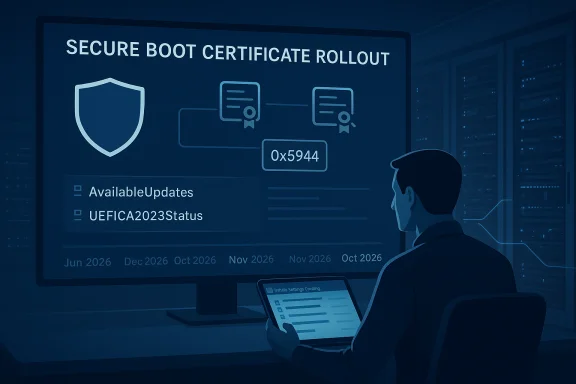 Background / Overview
Secure Boot enforces cryptographic trust for the earliest code that runs on a system by relying on certificates stored in firmware (the DB and KEK) and a revocation list (DBX). Three Microsoft-supplied certificates issued in 2011 are scheduled to begin expiring in mid‑2026, and Microsoft has published a coordinated replacement set (the 2023 CAs) and an OS‑side deployment flow to update those certificates on many Windows devices. If devices still rely on the 2011 certificates after they expire, they will not be able to receive Secure Boot updates or trust newly signed boot components, which is a tangible risk for boot‑level security and updateability. Microsoft’s support guidance makes three important points up front:- Devices can receive the 2023 certificates via OEM firmware updates or via a Windows‑side servicing flow that performs authenticated firmware variable writes.
- Microsoft offers automated assistance for a subset of devices it classifies as “high confidence,” but participation requires required diagnostic data to be sent to Microsoft and, in many cases, explicit opt‑in via management controls.
- Firmware variability — OEM PK/KEK signing, firmware bugs, or missing OEM updates — is the most common reason a device will not accept an automated OS‑driven change; where the firmware refuses a KEK/DB write, OEM intervention or a firmware update is needed.
What Intune manages: the three configuration objects
Microsoft exposes the Secure Boot certificate deployment controls to Intune through the Settings Catalog (platform: Windows 10 and later). The Intune profile exposes three distinct policies that map directly to registry keys and to the servicing task that orchestrates the OS flow:- Enable Secureboot Certificate Updates — controls whether Windows will initiate the Secure Boot certificate deployment process on the device (maps to the registry key AvailableUpdates). When set to Enabled, Windows begins the process; Disabled leaves the device unchanged. The servicing task runs roughly every 12 hours and some steps require a restart.
- Configure Microsoft Update Managed Opt In — allows an organization to permit Microsoft to run a Controlled Feature Rollout (CFR) and assist with certificate deployment for devices Microsoft can classify for managed rollout. This policy requires devices to send the required diagnostic data to Microsoft and corresponds to the registry key MicrosoftUpdateManagedOptIn.
- Configure High Confidence Opt‑Out — controls whether devices that Microsoft has validated can be automatically targeted during monthly cumulative updates. Important nuance: Enabled = block automatic deployment; Disabled (default) = allow automatic deployment for devices Microsoft considers high confidence. Because wording and ADMX interpretations have changed in some documentation releases, validate the policy’s behavior in your environment before mass deployment.
- trigger the certificate servicing sequence locally on a device,
- permit Microsoft to include the device in its managed rollout (CFR), and
- decide whether the device should be considered for automatic monthly-update delivery of the certificate payloads.
Why diagnostic data matters — and how to enable it safely
Microsoft classifies devices as “high confidence” for automated, OS‑driven variable writes only if there is sufficient diagnostic telemetry and targeted testing for that device model/firmware combination. Devices must send Required diagnostic data (or higher) to be considered for Microsoft‑managed deployment. If diagnostic data is blocked by policy, firewall rules, or if the device is configured with diagnostic data turned off, Microsoft cannot bucket the device and will not target it for CFR assistance. Practical steps:- Configure Diagnostic Data via Group Policy or MDM to level 1 (Required) for devices that will participate; in Intune you can set System/AllowTelemetry or use the Settings Catalog to enforce the diagnostic setting.
- Ensure device network paths allow the diagnostic endpoints (for most tenants: us‑v10c.events.data.microsoft.com, watsonc.events.data.microsoft.com, settings‑win.data.microsoft.com and related blob endpoints). If your environment uses a proxy that requires authentication, configure the proxy to allow these device accounts.
- Document which devices are allowed to share telemetry and which cannot because of privacy or regulatory constraints; for devices that cannot send diagnostic data, you must plan a manual or OEM‑driven certificate deployment.
Step‑by‑step: creating an Intune policy to trigger Secure Boot certificate updates
Below is a practical procedure to create an Intune profile that triggers and controls the Secure Boot certificate deployment process. This procedure is derived from Microsoft’s Intune guidance and the Windows IT playbook. Validate every setting in a test environment first.- In the Microsoft Intune portal go to: Devices > Configuration > Create > Create profile.
- Platform: Windows 10 and later. Profile type: Settings Catalog.
- Name the profile (for example: Secure Boot – CA 2023 rollout).
- Under Configuration settings click Add settings and search for Secure Boot. You should see the three settings described above: Enable Secureboot Certificate Updates, Configure Microsoft Update Managed Opt In, and Configure High Confidence Opt‑Out.
- For a test ring of devices, set:
- Enable Secureboot Certificate Updates = Enabled (this sets the device to initiate the servicing flow — AvailableUpdates is used by the scheduled task).
- Configure Microsoft Update Managed Opt In = Enabled if you want the device to be eligible for Microsoft’s CFR assist (ensure diagnostic data is set to Required first).
- Configure High Confidence Opt‑Out = Disabled to allow automatic monthly-update delivery on high‑confidence devices; set to Enabled when you want to block automatic monthly update deployments and push updates manually instead. Note the inverted semantics: Enabled blocks automatic monthly delivery.
- Assign the profile to a small, representative pilot group first (use device groups organized by OEM/model/firmware version).
- Monitor device registry keys and event logs (steps below) and expand your rings only after multiple devices in the pilot show UEFICA2023Status = Updated and Event ID 1808 appears in the System log.
Registry keys, status indicators, and event logs you must monitor
Intune applies settings that map to registry values the Secure Boot servicing task inspects. Use these for telemetry and automated health checks.Important registry keys (HKLM\SYSTEM\CurrentControlSet\Control\SecureBoot and subkeys):
- AvailableUpdates — operational bitmask used by the servicing task; setting this to 0x5944 requests the full sequence (add DB entries, add KEK, update boot manager). Use this only on devices you have validated.
- MicrosoftUpdateManagedOptIn — DWORD; controls CFR opt‑in behavior.
- HighConfidenceOptOut — DWORD; 1 = block automatic monthly deployment; 0 = allow. (Remember the UI semantics.
- UEFICA2023Status — string that transitions: NotStarted → InProgress → Updated. Use it as a primary per‑machine readiness marker.
- UEFICA2023Error — DWORD; non‑zero indicates a failure code you must investigate.
- Event ID 1808 — success: device has applied the new Secure Boot certificates and updated the boot manager.
- Event ID 1801 — failure during certificate apply; check UEFICA2023Error and firmware logs.
- Event ID 1795 — firmware rejected an authenticated variable write; typically indicates a firmware policy or bug; OEM firmware update usually required.
- Confirm Secure Boot state:
Confirm‑SecureBootUEFI— returns True/False. - Inspect DB contents:
Get‑SecureBootUEFI dband search for the stringWindows UEFI CA 2023. Using PowerShell to inspect the EFI partition and signer ofbootmgfw.efiis also a low‑level verification option.
Recommended rollout sequence and operational checklist
The following sequence reflects Microsoft’s published playbook and best practices used by large fleets:- Inventory and classify:
- Build a firmware‑aware inventory: OEM, model, BIOS/UEFI version/date, Secure Boot state, OS build, BitLocker status, and whether the device can send Required diagnostic data. Use PowerShell scripts or your existing CMDB.
- Identify test matrix:
- For each OEM/model/firmware version, pick at least one device (preferably multiple) to form a pilot ring. Include virtual hosts and cloud images because hypervisor behavior can differ.
- Update OEM firmware where required:
- Check OEM advisories for minimum BIOS versions that include or accept the 2023 certificates (HP and other vendors already published per‑platform guidance). Update pilot devices’ firmware first, and validate behavior.
- Prepare recovery posture:
- Back up BitLocker recovery keys and validate recovery media (WinRE, bootable USB). Update golden images and WinRE images to include the new boot manager where applicable. A firmware variable write failure can trigger BitLocker recovery.
- Pilot via Intune:
- Deploy your Intune Secure Boot profile to pilot groups and watch UEFICA2023Status and Event ID 1808. Allow multiple restarts and 48–72 hours for the entire servicing sequence to settle.
- Expand in controlled waves:
- Group devices by bucket hash or firmware family and roll out in waves, monitoring registry values and event logs. Use HighConfidenceOptOut to block automatic monthly delivery if you want full control.
- Remediate failures:
- Devices that report 1795 or UEFICA2023Error require firmware updates or OEM support. Plan replacement for hardware that cannot be updated and is out of vendor support.
Troubleshooting: common failures and remediation
- Firmware rejects variable writes (Event ID 1795): update firmware to the minimum BIOS that accepts OS‑initiated updates or coordinate with the OEM for a signed KEK. If firmware never accepts OS writes, you must perform a firmware/BIOS update or use OEM tools.
- KEK update fails: KEK updates require OEM PK‑signed material. This failure typically requires OEM-supplied firmware or update guidance.
- BitLocker recovery triggered after a certificate change: ensure BitLocker recovery keys are escrowed (Azure AD, AD DS, or secure vault) and confirm recovery media works. Test BitLocker recovery during pilot before wider rollout.
- UEFICA2023Status stuck on InProgress or shows an error: inspect UEFICA2023Error, System event logs, and Windows Update / servicing logs. Reboot the device and allow the scheduled task to retry; if firmware is refusing writes, escalate to OEM.
Virtual machines and cloud images: special considerations
Virtualized platforms depend on the hypervisor’s firmware image. Many cloud and virtualization providers have already published guidance to update the VM platform image or hypervisor firmware so guests can accept Secure Boot certificate updates. For long‑lived VMs, test whether the guest can apply the 2023 CAs; if not, coordinate with the hypervisor/cloud provider to patch the virtual firmware.Why you should not let this be “just another Windows update”
- The certificates are trust anchors for boot‑time validation; when the 2011 CAs expire (June/October 2026 windows), devices that don’t have the 2023 anchors will stop receiving Secure Boot fixes and may not trust new boot components. This is not a routine quality update — it’s a continuity control for pre‑OS integrity.
- The OS‑side servicing flow intentionally sequences DB → optional CA → KEK → boot manager to avoid leaving devices in a state that cannot accept future updates. Administrators who attempt to accelerate or shortcut the sequence risk creating devices that cannot be serviced further.
- A poorly planned rollout risks mass help‑desk calls for BitLocker recovery or OEM intervention. Plan for device replacement where firmware cannot be updated.
Example Intune deployment checklist (copy/paste)
- Inventory devices and group by OEM/model/firmware version.
- Escrow BitLocker recovery keys for all devices.
- Validate diagnostic data policy (Required) for the pilot cohort and verify network reachability to telemetry endpoints.
- Update firmware for pilot devices when vendor advisories require it (check HP/advisories, Dell, Lenovo).
- Create Intune Settings Catalog profile (Windows 10 and later) and add Secure Boot settings; assign to pilot group.
- Monitor registry keys (AvailableUpdates, UEFICA2023Status, UEFICA2023Error), and the System event log (Event IDs 1795, 1801, 1808).
- Expand to additional rings only after success criteria (UEFICA2023Status = Updated + Event ID 1808) are met on representative devices.
Strengths, verified facts, and risks — critical analysis
Strengths of the Intune approach- Scale: Intune’s Settings Catalog lets you push a single validated configuration to targeted groups across cloud‑managed fleets. The approach maps cleanly to registry keys and existing management telemetry hooks.
- Safety by design: Microsoft’s servicing flow enforces an order that protects devices from becoming unserviceable, and CFR reduces risk by limiting automatic delivery to devices Microsoft has validated.
- Observability: The UEFICA2023Status/UEFICA2023Error keys and the new event IDs give IT teams concrete telemetry for verification and remediation.
- Required diagnostic data is a prerequisite for Microsoft-managed CFR assistance.
- The scheduled servicing task that performs the OS‑side flow runs approximately every 12 hours; some steps need a reboot to finalize.
- The registry bitmask 0x5944 requests the full, ordered update sequence on a device.
- The exact criteria and model buckets Microsoft uses for “high confidence” classification are not fully public; treat CFR as an assist rather than guaranteed remediation for every machine. IT remains responsible for verifying all devices. Caution: do not rely on CFR alone for air‑gapped or telemetry‑blocked devices.
- Firmware vendor readiness is variable. Even when Microsoft’s OS scripts are correct, OEM firmware that rejects variable writes or lacks required PK/KEK artifacts will prevent completion and force OEM intervention. This is an operational risk you must track by OEM/model.
- UI wording differences and GPO/ADMX change logs show that misinterpretation of Enabled / Disabled semantics is possible; always validate registry outcomes after policy application in a controlled pilot.
Final recommendations (what to do this week)
- Build or refresh a firmware‑aware inventory and tag devices that cannot send Required diagnostic data.
- Backup BitLocker keys and update recovery media/golden images to ensure you can recover devices if a firmware change triggers recovery.
- Create a small Intune pilot profile as described above and assign to a handful of devices that span your OEM/firmware matrix. Validate UEFICA2023Status transitions and Event ID 1808.
- Coordinate firmware update windows with your OEMs for any devices that show firmware incompatibility. Use OEM advisories (for example, HP’s platform roadmap) to guide which platforms require BIOS updates.
- If your organization cannot allow diagnostic telemetry, plan an explicit offline/manual deployment path for those systems, and document the exceptions.
Updating expiring Secure Boot certificates is a cross‑discipline program: firmware teams, deployment engineers, security/compliance, and help‑desk must coordinate. Use Intune’s Settings Catalog to enforce policy at scale, but treat Microsoft’s managed rollout as an operational assist rather than a guaranteed one‑click solution. Plan, pilot, verify, and be ready to involve your OEMs for the devices that don’t behave. The timelines are fixed — plan to have your fleet verified and remediated well in advance of the June–October 2026 certificate expiry windows to avoid interruptions to Secure Boot servicing and to preserve pre‑OS security posture.
Source: Microsoft - Message Center Microsoft Intune method of Secure Boot for Windows devices with IT-managed updates - Microsoft Support
