

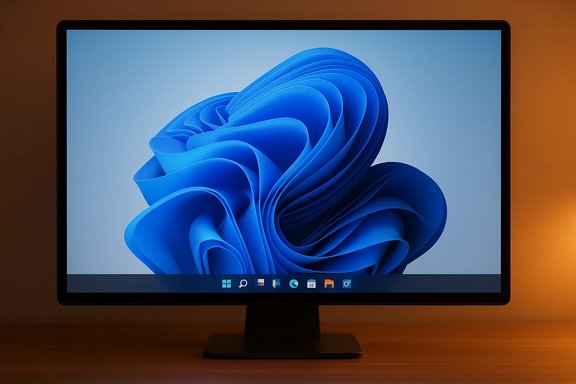
I started using Windhawk to treat Windows 11’s taskbar like a design element instead of an afterthought, and the result was immediate: a floating, dock-like bar that actually blends with my wallpaper instead of standing out as a solid slab. What began as a small cosmetic experiment—installing the Windows 11 Taskbar Styler and trying the Luminosity (Dock) preset—quickly turned into a short, reliable workflow for producing a premium-looking desktop without replacing the shell or adopting a heavyweight skinning tool. The trick was not a single app but a combination of a modular injector (Windhawk), conservative styling edits, and a few safety practices to keep stability and game/anticheat compatibility in check.
Microsoft exposes only a handful of native tweaks for the taskbar, and transparency options are intentionally limited compared with what third‑party utilities can accomplish. That gap is where small, focused tools shine: they let you change the taskbar’s visual materials (transparency, blur, tint), geometry (height, margins, corner radius), and content density (icon size and spacing) without replacing core shell behavior. Tools such as TranslucentTB and RoundedTB solve single problems well; Windhawk aims to be a modular framework to apply many small, reversible mods.
Target Grid#RootGrid Styles Background:=<WindhawkBlur BlurAmount="30" TintColor="#4D000000" />
Target Grid#SystemTrayFrameGrid Styles Background:=<WindhawkBlur BlurAmount="30" TintColor="#4D000000" />
If those changes don’t render immediately you may need to restart Explorer.exe from Task Manager. Windhawk’s docs explicitly include a WindhawkBlur brush (implemented with inspiration from TranslucentTB’s blur approach), so this snippet leverages that supported element rather than inventing one off‑platform.
Source: MakeUseOf I made Windows 11’s taskbar look premium with this tiny tool
 Background
Why the default taskbar feels “flat”
Windows 11 shipped with a refined UI language—rounded corners, softer animations, and center-aligned icons—but one persistent criticism is that the taskbar often reads as a fixed, opaque band that doesn't visually integrate with bespoke wallpapers or live backgrounds. For users who tune color palettes and wallpaper for a cohesive look, that mismatch quickly becomes distracting.Microsoft exposes only a handful of native tweaks for the taskbar, and transparency options are intentionally limited compared with what third‑party utilities can accomplish. That gap is where small, focused tools shine: they let you change the taskbar’s visual materials (transparency, blur, tint), geometry (height, margins, corner radius), and content density (icon size and spacing) without replacing core shell behavior. Tools such as TranslucentTB and RoundedTB solve single problems well; Windhawk aims to be a modular framework to apply many small, reversible mods.
What Windhawk is (and how it works)
A modular injector, not a shell replacement
Windhawk is a lightweight mod framework that installs as an engine and lets you enable focused “mods” that target specific processes (Explorer, Start menu host, etc.. Each mod hooks into running processes to adjust XAML resources, visual trees, and runtime behavior, and most mods are distributed through an integrated catalog. This modular approach means you can pick a single mod—like the Windows 11 Taskbar Styler—apply it, and keep everything else stock. The project is open-source and maintains documentation on how mods are written, installed, and debugged.The technical hooks and what they imply
Under the hood Windhawk uses global injection/hooking techniques to patch UI components at runtime. That’s what allows deep styling (XAML-based changes) without editing system files. The same capability, however, is why Windhawk can be sensitive to Windows updates, and why some games or anticheat systems may flag it as suspicious. The developer community is aware of that trade-off and has discussed ways to exclude injection into known anti‑cheat or game processes—an enhancement that has been requested and tracked in the project issue tracker. Treat this as an architectural fact: deep runtime hooks are powerful, and that power comes with potential compatibility trade-offs.The makeover I followed — practical rundown
Tools used (lightweight stack)
- Windhawk — installed as the mod engine, used only for the Taskbar Styler and a small height/icon-size mod.
- Luminosity (Dock) theme (Windhawk Taskbar Styler preset) — creates the floating dock-like silhouette and rounded corners.
- Small local edits to the theme’s XAML-style overrides — a soft blur + dark tint applied to key areas using Windhawk’s built-in blur brush. (Example code below.
- Optionally: TranslucentTB or RoundedTB for users who prefer single-purpose apps for blur or corner geometry.
The core styling tweak I applied
Windhawk’s Taskbar Styler lets you pick a theme and then edit specific style targets. To produce a subtle, wallpaper-blending dock, I applied the Luminosity (Dock) preset and then added a blur + tint to root taskbar layers. The exact Windhawk-friendly XAML override used:Target Grid#RootGrid Styles Background:=<WindhawkBlur BlurAmount="30" TintColor="#4D000000" />
Target Grid#SystemTrayFrameGrid Styles Background:=<WindhawkBlur BlurAmount="30" TintColor="#4D000000" />
If those changes don’t render immediately you may need to restart Explorer.exe from Task Manager. Windhawk’s docs explicitly include a WindhawkBlur brush (implemented with inspiration from TranslucentTB’s blur approach), so this snippet leverages that supported element rather than inventing one off‑platform.
Why this approach looks “premium”
Visual cues that signal quality
- Wallpaper integration: A soft blur with a dark tint lets the wallpaper read through without losing contrast for icons—this is the same design principle used in polished UIs across platforms.
- Floating geometry: Narrowing the taskbar and adding margins produces a dock effect that makes the desktop feel layered rather than flat.
- Rounded corners and proportion: Small corner radii and reduced thickness convey refinement; large, thick bars feel utilitarian.
UX benefits beyond aesthetics
- When the taskbar is narrower and centered, primary elements (system tray, widgets button) are closer together on large displays—fewer long cursor trips to the corner. That’s a small ergonomics win for productivity setups with wide or ultrawide monitors.
Safety, compatibility, and realistic risks
Stability and Windows updates
Windhawk’s runtime approach means compatibility depends on Windows’ internal UI structure. When Microsoft ships taskbar or shell changes, a Windhawk mod that targets specific XAML elements can break or stop applying until the mod is updated. Community reports show occasional post‑update breakage and the occasional need to restart Explorer or reinstall a mod. For mission‑critical machines, that instability window is the central risk to weigh.Anticheat and virtualization conflicts
Because Windhawk injects into explorer and other processes, some anti‑cheat stacks or virtualization products may refuse to initialize or will block processes while windhawk is loaded. Community threads document cases where games failed to launch until Windhawk was closed; the project has a tracked issue requesting a built‑in “do not inject into games/anticheat processes” toggle. If you play competitive games protected by strict anti‑cheat, make a habit of either closing Windhawk before launching a game or adding explicit exclusions where possible.Security posture
Windhawk’s code and many of its mods are open-source, which reduces but does not eliminate risk. Runtime injection tools have historically been flagged by some anti‑malware heuristics because they touch other processes. Always download Windhawk and its mods from the official project page and GitHub releases, verify checksums when available, and prefer signed releases for peace of mind. Open-source projects with active communities usually respond quickly to vulnerabilities, but you should still treat any tool that hooks system processes as privileged software.System restore and rollback
Some community reports indicate that certain combinations of mods can interfere with system restore creation or produce unexpected side effects. Create a Windows restore point before applying system-level mods, and consider a full image backup for machines used in production. If you need to experiment, a virtual machine or a spare test system is the safest place to start.A safe, step‑by‑step workflow (recommended)
- Create a Windows System Restore Point (or a full disk image) so you can revert easily if something goes wrong.
- Install Windhawk from the official site or GitHub release and run it once to ensure it launches.
- In Windhawk, install only the Windows 11 Taskbar Styler initially. Pick a preset (Luminosity/Dock is a good starting point).
- Test behavior for 24–48 hours: open apps, maximize windows, and reboot to check persistence.
- If you want blur/tint, add the small WindhawkBlur overrides shown above and restart Explorer if the UI doesn’t reflect changes immediately.
- If you play games with anti‑cheat: either create a habit of quitting Windhawk before launching those games, or check the Windhawk docs/issue tracker for per‑process exclusion options (a requested feature is in the tracker).
- If something breaks, disable the mod from Windhawk or restart Explorer; as a last resort, uninstall Windhawk and reboot.
Alternatives and when to prefer them
- TranslucentTB — if your priority is just blur/transparency without mod injection. Lightweight, widely used, and compatible with other tweaks—ideal for users who want transparency without the injection surface.
- RoundedTB — for margin, corner radius, and dock-like segmentation without deeper XAML editing. RoundedTB was archived as a repository but remains available via the Microsoft Store; use it if you want a minimal, single-purpose tool.
- ExplorerPatcher / StartAllBack / Start11 — if you want to restore classic behavior (multi-row taskbars, top taskbar placement, classic Start) rather than just a visual polish. These tools are practical when functionality restoration is the goal. Some of these tools are paid; others are open-source.
Troubleshooting: common hiccups and fixes
- Taskbar changes not visible: Restart Explorer.exe via Task Manager or toggle the Windhawk service. Many theme edits require Explorer restart to pick up runtime XAML overrides.
- Conflicting mods: Disable other taskbar utilities (TranslucentTB, RoundedTB, etc. while testing a Windhawk theme. Conflicts between multiple taskbar modifiers are a frequent cause of flakiness.
- Anticheat/game launch failure: Close Windhawk before launching the game or add process exclusions if supported. If a game refuses to launch while Windhawk is active, test by closing Windhawk and relaunching the game. Community threads show this as an intermittent but real issue.
- Explorer or system instability after mods: Uninstall the suspect mod and restore a system point if necessary; report the issue to Windhawk’s GitHub so developers can triage compatibility.
Deeper analysis: trade-offs and who should (and shouldn’t) try this
Strengths
- Design control: Windhawk’s fine-grained XAML targeting allows visual changes that look native and elegant. If good aesthetics matter, the payoff is high.
- Modularity: You can enable only what you need and revert easily.
- Open source and community-driven: Transparent development and rapid iteration on community requests.
Weaknesses and risks
- Compatibility fragility: Because Windhawk hooks into runtime UI elements, Windows feature updates can temporarily disable mods or require mod updates. Expect occasional maintenance.
- Anticheat and virtualization sensitivity: Users of strict digital-signal environments (competitive gaming, corporate anti‑cheat policies, virtualization hosts) should be cautious. Windhawk has community requests to add safer injection controls, but the onus is on you to avoid interruptions.
- Perceived security flags: Runtime injection triggers heuristics in some AV/endpoint products. Use signed releases and official sources to reduce false positives.
Who should try it
- Creative professionals and power users who care about desktop polish and are comfortable troubleshooting.
- Multi-monitor and ultrawide display owners who gain ergonomic benefit from a docked/narrow taskbar.
- Tinkerers who run backups or are willing to test on a secondary machine.
Who should avoid it
- Competitive gamers who cannot risk anti‑cheat conflicts, unless they commit to closing Windhawk before play.
- Enterprise machines managed by corporate policies or endpoint protection that blocks code injection.
- Users who prefer a fully supported, no‑maintenance solution: built-in Windows settings or single-purpose utilities like TranslucentTB are safer.
Final verdict
A tiny, modular tool like Windhawk can transform the Windows 11 taskbar from a utilitarian rectangle into a carefully composed design element—if you accept the trade-offs. The cosmetic gains are real: better integration with wallpapers, a dock-like feel, and precise control over blur, tint and geometry. The costs are practical: runtime injection risks, intermittent compatibility after Windows updates, and the potential for anticheat or virtualization conflicts. For hobbyists, designers, and power users who maintain backups and accept occasional troubleshooting, Windhawk is an elegant, low‑friction way to make Windows look premium without rebuilding your whole shell. If your priorities are absolute stability or you play competitive games with aggressive anti‑cheat, prefer single-purpose tools like TranslucentTB or RoundedTB, or keep Windhawk disabled while gaming. In short: Windhawk turns a tiny indulgence—making the taskbar match your wallpaper—into a realistic, repeatable workflow. It’s not magic, and it’s not risk‑free, but with the right precautions it’s a fast route to a desktop that finally feels intentional and premium.Source: MakeUseOf I made Windows 11’s taskbar look premium with this tiny tool
