

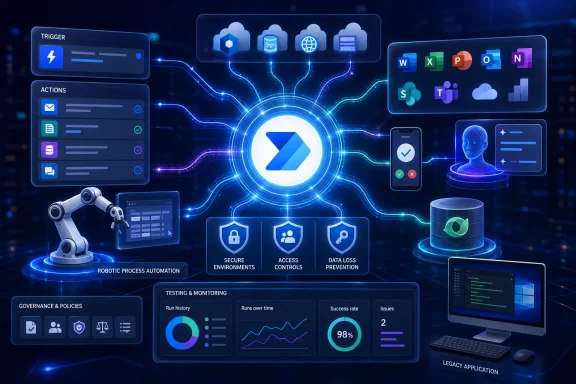
Power Automate in 2026 is no longer a single automation tool with one obvious starting point. It is a collection of cloud workflow, robotic process automation, AI-assisted design, mobile, Microsoft Teams, and governance experiences that can move information between services or operate Windows applications directly. The fastest route to a useful result is to identify where the work happens, select the matching flow type, build the smallest reliable version, test it with realistic data, and only then expand it into a business-critical automation.
Power Automate began life as Microsoft Flow, a cloud service designed to connect applications through triggers and actions. A new email could trigger a SharePoint update, a submitted form could create an approval, or a scheduled event could send a report without requiring a traditional application-development project.
Microsoft renamed the service Power Automate in 2019 and gradually broadened its scope. Cloud workflows remained central, but Microsoft added desktop automation, process mining, AI-assisted authoring, deeper Microsoft Teams integration, Dataverse-based lifecycle management, and enterprise administration through the wider Power Platform.
That history explains why the product can initially feel fragmented. The Power Automate web portal, Windows desktop application, mobile client, Teams Workflows app, and embedded Microsoft 365 experiences all expose different parts of the same automation platform.
Desktop flows operate the user interface of Windows applications and websites. They can click controls, enter text, read windows, manipulate files, run scripts, and interact with legacy programs that do not provide a suitable cloud connector.
The distinction matters because a desktop recorder should not be the first choice for a process that can be handled through a reliable API. User interfaces change more frequently than service interfaces, while desktop automation also depends on machine availability, screen state, permissions, and application behavior.
Power Automate for desktop is an important exception. Microsoft’s deprecation notice states that the desktop product continues to work with personal Microsoft accounts. Users should therefore distinguish between local desktop-flow authoring and the cloud capabilities required to manage machines, connect services, run cloud-triggered desktop automation, or use the mobile application.
That final check is easy to overlook. Connections, Dataverse resources, solutions, policies, and flows belong to environments, so creating an automation in the wrong one can lead to missing data, unexpected governance restrictions, or a difficult migration later.
Actions perform the work after the trigger fires. They can create records, send messages, request approvals, query data, transform values, call child flows, execute conditions, repeat operations, or wait for an event.
A simple flow may contain one trigger and one action. A production flow may contain conditions, parallel branches, loops, scopes, variables, expressions, error-handling paths, and calls to reusable components, but the basic execution model remains the same.
For example, a useful prompt might be: When a new high-priority item is added to the Facilities Requests SharePoint list, post an adaptive card in the Facilities Teams channel and email the assigned technician. Specific prompts generally produce better drafts than broad requests such as “automate our facilities work.”
Before saving a generated flow, verify the following:
Some Copilot capabilities in Power Automate for desktop may still be designated as previews or have narrower regional availability. Preview functionality can be useful for experimentation, but it should not become an unreviewed dependency in a critical production process.
Copilot is also optimized most strongly for English. Makers using other languages may encounter English interface elements, less consistent generation, or results requiring additional correction.
Configure the trigger first, then add actions in the designer. Save frequently, use the flow checker to identify obvious configuration problems, and test with controlled data before exposing the process to real users.
Actions should also be renamed. “Get items – Open facilities requests” conveys far more diagnostic value than the default “Get items,” especially when the run contains several SharePoint operations.
Good naming improves search, ownership reviews, troubleshooting, and handover. It becomes indispensable once an organization accumulates hundreds or thousands of flows.
Users should watch for automatic Apply to each loops. The designer may add a loop when dynamic content represents an array, even if the maker expected a single record.
Filter data as early as possible. Asking a connector to return only relevant records is usually more efficient than retrieving a large collection and filtering every item inside the flow.
Excel remains appropriate for bounded reporting, personal productivity, and controlled imports. For shared operational processes, SharePoint lists, Microsoft Lists, Dataverse, SQL Server, or another managed data platform will often provide stronger concurrency, validation, security, and query behavior.
This is often the fastest route for a beginner because the template demonstrates how connectors fit together. It can also reveal useful actions that would be difficult to discover through the connector catalog alone.
Pay particular attention to broad triggers. A template that monitors every incoming email or every file in a large document library may generate more executions than expected and could process sensitive material outside the intended scope.
Templates may also reflect older design patterns. Replace deprecated actions, review expressions, remove unnecessary steps, and verify that the design uses current Microsoft experiences rather than retiring embedded interfaces.
Connections store authorization within the selected environment. They should be treated as security assets rather than invisible setup details, particularly when a connection can read mailboxes, modify business records, access files, or send content outside the organization.
The recurrence trigger supports more sophisticated patterns than simply running every fixed number of minutes. Depending on configuration, a flow can run on selected weekdays, at particular hours, or according to a monthly schedule.
Set the intended time zone wherever the trigger provides that option. When manipulating dates inside the flow, use explicit conversions rather than relying on a value’s visual appearance.
Test schedules around daylight-saving transitions if the automation has legal, payroll, financial, or operational significance. “Every 24 hours” and “every day at 8:00 a.m. local time” are not always equivalent.
Where the process must remain sequential, review the trigger’s concurrency settings and limit parallel execution. For data-processing jobs, consider recording a unique batch identifier, processing state, or last-successful checkpoint so a failed run can resume safely.
Scheduled flows should also handle empty results gracefully. A daily reminder flow should not fail merely because there are no overdue items.
The Store version generally does not require local administrator rights and receives automatic Store-managed updates. It is convenient for individual users and organizations that permit Microsoft Store application deployment.
The standalone installer requires local administrator permissions. It can install Power Automate for desktop, the machine-runtime application used for cloud-connected machine management, and files required for Java user-interface automation.
There is a subtle but useful distinction: the Store version of Power Automate can coexist with the machine-runtime application installed through the standalone package. That configuration can support Store-based desktop-app updating while retaining the runtime required for cloud machine connectivity.
For the standalone release channel, administrators should also account for updating. Microsoft introduced an automatic-update capability for standalone installations beginning with the April 2025 release, although enterprise deployment controls and permissions may still determine how quickly endpoints receive new builds.
Restricted networks, proxies, application-control policies, or offline installation processes can interrupt that dependency download. Administrators should package the required 32-bit and 64-bit runtime components when preparing disconnected or tightly controlled machines, because some automation modules continue to depend on 32-bit components even on 64-bit Windows.
Installation success is only the first validation step. Test browser extensions, Java integration, proxy behavior, machine registration, credential access, and the target applications under the same Windows identity that will run the automation.
The recorder can capture a sequence of interactions and convert them into editable actions. Open the recorder, begin recording, perform the required application or website steps, stop the recording, and inspect every generated action before running it again.
Captured selectors can still break after application updates. Developers should remove overly specific attributes, anchor controls to stable parent elements, and test selectors against all supported versions of the target software.
Image-based recording is available for interfaces whose controls cannot be captured conventionally. It should be a fallback because image matching depends on resolution, scaling, theme, rendering, and visual state.
Use condition-based waits wherever possible. Waiting for a window, element, file, or page state is more reliable than inserting an arbitrary five-second delay.
Desktop flows should verify outcomes after important operations. If the automation submits a transaction, it should confirm that the success message or resulting record exists before continuing.
Cloud-triggered attended and unattended execution introduces licensing, machine registration, session, and infrastructure requirements. Unattended automation should run on a purpose-built machine or virtual machine with a controlled software baseline rather than an employee’s everyday PC.
Do not allow secrets to appear in plain-text variables, log messages, screenshots, or source files. Use approved credential-management mechanisms and restrict access to machines capable of opening sensitive systems.
A user can open the flows screen, inspect details, run an eligible flow, edit supported settings, disable or enable it, or delete it if permissions allow. Mobile access is particularly useful for managers who need to approve requests or field staff who must start a standardized process away from a desk.
Widgets can run flows created by the signed-in user, including eligible solution-aware flows. They cannot run ordinary flows merely shared with that user, and the iOS widget displays only a limited selection of the user’s flows.
If a flow requires input, the widget opens the application so the user can supply it. Designers should keep mobile forms concise and avoid forcing field workers to enter information the flow could derive from identity, location, time, or an existing business record.
A Teams message can also act as the starting point. Using the selected-message trigger, a flow can turn a conversation into a Planner task, Azure DevOps work item, service request, approval, CRM opportunity, or structured record.
This pattern is powerful because it reduces context switching, but it requires governance. A private chat or channel message may contain confidential data, so the resulting workflow must not copy content into an unauthorized service.
Use the designer’s test feature to run cloud flows with controlled sample data. Test successful paths, missing fields, duplicate events, invalid values, connector throttling, expired credentials, and downstream service outages.
Troubleshoot from the first unexpected result rather than the final failure message. An action near the end may fail only because an earlier step returned an empty array, malformed identifier, unauthorized response, or value in the wrong format.
For difficult transformations, temporary Compose actions can expose intermediate values. Remove or rename diagnostic actions before production release, especially if their outputs contain confidential data.
A useful error report should identify the flow, environment, run, business record, failed stage, and appropriate support destination. It should not expose passwords, access tokens, private message bodies, or entire customer records.
For recoverable connector failures, retries can help. For permanent validation failures, repeated attempts waste capacity and delay intervention, so the flow should route the item to a review queue instead.
Turning off a flow prevents new trigger processing, while in-progress behavior can depend on the flow and operation. Before disabling a critical process, consider queued work, pending approvals, delayed actions, and downstream expectations.
Solutions provide a structured container for flows, connection references, environment variables, Dataverse components, and related applications. They support deployment between development, test, and production environments without hard-coding every environment-specific value.
Environment variables should hold site references, mailbox addresses, API endpoints, list identifiers, and other settings that differ among environments. Connection references separate the logical connector dependency from one maker’s saved connection.
Assign appropriate co-owners, maintain service documentation, and use organizational identities according to Microsoft’s security guidance and the company’s identity policies. Shared credentials should never become an informal workaround.
Each production flow should have a named business owner, technical owner, support path, review date, and retirement condition. Automation without ownership eventually becomes technical debt.
Before uninstalling, verify whether the machine hosts scheduled, attended, or unattended desktop flows. Removing the desktop application, runtime, browser support, or dependencies can affect cloud-triggered processes that are not obvious to the local user.
Traditional Power Platform data policies classify connectors into business, non-business, or blocked groups. A flow cannot freely combine connectors across incompatible data groups, reducing the chance that corporate information will be copied into an unapproved consumer service.
Advanced policies add action-level control and design-time enforcement for supported certified connectors. They can prevent a maker from selecting a restricted operation rather than waiting for the resulting flow to fail or enter a suspended state.
However, coverage and rollout are not identical for every connector type or maker portal. Organizations should evaluate advanced policies alongside classic data policies rather than assuming an immediate one-for-one replacement in every environment.
Licensing should be checked before development rather than after a prototype gains users. A technically elegant flow can become financially impractical if it assigns premium requirements to hundreds of occasional participants.
Trigger frequency, API limits, connector throttling, and Power Platform request capacity also affect scale. Splitting one process into many rapidly firing flows does not eliminate service limits and may make monitoring harder.
Administrators can restrict cloud connectors, desktop action groups, endpoint access, AI features, trials, machine registration, desktop sign-in, and external invocation methods. Makers should engage the Power Platform administration or security team rather than attempting to bypass these controls.
Advanced connector policies are another major development. Their default-deny approach and action-level restrictions could make Power Platform governance more precise, particularly for organizations that previously found broad connector classification too coarse.
Desktop automation will continue to matter because many organizations still depend on applications without modern APIs. The key question is whether new AI and computer-use capabilities can improve resilience without making execution less predictable or harder to audit.
Windows administrators should also watch runtime requirements, desktop-client servicing, browser integration, unattended-session architecture, and application compatibility. A desktop flow is only as dependable as the Windows environment, software versions, identity controls, and network services beneath it.
For new users, the practical path remains straightforward: choose a small process, use a cloud connector whenever possible, reserve desktop recording for genuine interface-only tasks, test every branch, and document ownership before deployment. For experienced teams, the priority is to move beyond isolated personal flows toward solution-based automation with controlled environments, reusable components, governed connections, and measurable business outcomes.
Power Automate in 2026 succeeds when it makes repetitive work disappear without making responsibility disappear with it. The platform can connect cloud services, Microsoft 365, Teams conversations, mobile actions, and stubborn legacy Windows programs, but dependable automation still begins with careful process design and ends with active operational ownership.
 Background
Power Automate began life as Microsoft Flow, a cloud service designed to connect applications through triggers and actions. A new email could trigger a SharePoint update, a submitted form could create an approval, or a scheduled event could send a report without requiring a traditional application-development project.Microsoft renamed the service Power Automate in 2019 and gradually broadened its scope. Cloud workflows remained central, but Microsoft added desktop automation, process mining, AI-assisted authoring, deeper Microsoft Teams integration, Dataverse-based lifecycle management, and enterprise administration through the wider Power Platform.
That history explains why the product can initially feel fragmented. The Power Automate web portal, Windows desktop application, mobile client, Teams Workflows app, and embedded Microsoft 365 experiences all expose different parts of the same automation platform.
Cloud automation versus desktop automation
Cloud flows work through connectors that communicate with online services and application programming interfaces. They are the right choice when the participating systems already expose structured triggers and actions, as Microsoft 365, SharePoint, Teams, OneDrive, Dataverse, Salesforce, and hundreds of other services do.Desktop flows operate the user interface of Windows applications and websites. They can click controls, enter text, read windows, manipulate files, run scripts, and interact with legacy programs that do not provide a suitable cloud connector.
The distinction matters because a desktop recorder should not be the first choice for a process that can be handled through a reliable API. User interfaces change more frequently than service interfaces, while desktop automation also depends on machine availability, screen state, permissions, and application behavior.
The account change users must understand
Since the personal-account deprecation concluded on July 26, 2025, the Power Automate cloud portal and mobile service require a Microsoft work or school account. Personal addresses such as Outlook.com and Gmail accounts cannot be used to sign in to those cloud experiences.Power Automate for desktop is an important exception. Microsoft’s deprecation notice states that the desktop product continues to work with personal Microsoft accounts. Users should therefore distinguish between local desktop-flow authoring and the cloud capabilities required to manage machines, connect services, run cloud-triggered desktop automation, or use the mobile application.
Choose the Right Power Automate Entry Point
The most consequential decision comes before the designer opens. Users should classify the proposed automation according to its trigger, target applications, operating environment, security requirements, and expected level of reliability.Match the interface to the job
Use the principal Power Automate experiences as follows:- The web portal is best for cloud flows connecting Microsoft 365, business applications, databases, notifications, approvals, and online services.
- Power Automate for desktop is best for Windows and browser user-interface automation, especially when no suitable connector or API exists.
- The mobile application is best for approvals, notifications, monitoring, and manually launching instant flows while away from a PC.
- The Teams Workflows app is best when the automation should begin or remain visible inside a Teams conversation, channel, or collaboration process.
- Templates are best for common scenarios in which Microsoft or a connector provider has already assembled a useful trigger-and-action pattern.
- Copilot is best for generating a first draft, explaining an unfamiliar flow, or accelerating routine editing when the feature is available in the tenant.
Ask five questions before building
A short planning exercise prevents many fragile designs:- What precisely starts the process? Identify whether it begins with an event, schedule, button, message, file, form, approval, or desktop condition.
- Which system owns the authoritative data? Avoid copying values among Excel, SharePoint, email, and Dataverse without deciding which record is canonical.
- Can connectors perform every required action? If not, determine whether an HTTP request, custom connector, script, or desktop flow is justified.
- Whose credentials will the automation use? A flow tied to one employee’s personal connection can stop when that employee changes roles or leaves.
- What should happen when part of the process fails? Define retries, notifications, compensation steps, and manual recovery before users depend on the automation.
Start with the Power Automate Web Portal
The web portal is the primary workspace for creating and managing cloud flows. Sign in with a work or school account using a current version of Microsoft Edge, Chrome, Firefox, or Safari, and confirm that the correct Power Platform environment appears in the environment selector.That final check is easy to overlook. Connections, Dataverse resources, solutions, policies, and flows belong to environments, so creating an automation in the wrong one can lead to missing data, unexpected governance restrictions, or a difficult migration later.
Understand the three core cloud flow types
Power Automate presents three fundamental starting patterns:- An automated cloud flow begins when a defined event occurs. Examples include receiving an email, adding a SharePoint item, submitting a Microsoft Form, or modifying a Dataverse row.
- An instant cloud flow begins when a person or another process explicitly runs it. It can start from a button, Teams message, Power Apps application, mobile widget, or another flow.
- A scheduled cloud flow begins according to a date and recurrence. It is suitable for daily summaries, weekly maintenance, monthly reminders, and periodic synchronization.
Learn the trigger-and-action model
Every cloud flow has at least one trigger. The trigger supplies the initial event and normally exposes dynamic content that subsequent actions can use.Actions perform the work after the trigger fires. They can create records, send messages, request approvals, query data, transform values, call child flows, execute conditions, repeat operations, or wait for an event.
A simple flow may contain one trigger and one action. A production flow may contain conditions, parallel branches, loops, scopes, variables, expressions, error-handling paths, and calls to reusable components, but the basic execution model remains the same.
Generate a Cloud Flow with Copilot
Copilot provides a natural-language route into cloud-flow authoring. On the Power Automate home page, describe the desired automation, allow Copilot to generate a proposed trigger-and-action structure, review the recommendation, establish the required connections, and continue into the new designer.For example, a useful prompt might be: When a new high-priority item is added to the Facilities Requests SharePoint list, post an adaptive card in the Facilities Teams channel and email the assigned technician. Specific prompts generally produce better drafts than broad requests such as “automate our facilities work.”
Treat the generated flow as a draft
Copilot can infer intent, suggest connectors, configure some parameters, modify actions, and answer questions about a flow. It can reduce the time needed to find unfamiliar operations, but it does not remove the maker’s responsibility to understand the result.Before saving a generated flow, verify the following:
- The trigger watches the correct account, mailbox, site, list, table, channel, folder, or environment.
- Every connection uses an appropriate organizational identity.
- Conditions compare the intended values and data types.
- Loops operate only on the required records.
- Email recipients and Teams destinations are not hard-coded incorrectly.
- The design does not expose sensitive information to an inappropriate connector.
- The flow has a clear response when a trigger supplies missing, malformed, or unexpected data.
Copilot availability is not universal
Copilot’s visibility and capabilities depend on tenant configuration, environment, region, licensing, administrative settings, and Microsoft’s rollout status. Cloud-flow Copilot operates in the new designer, and administrators can restrict AI features.Some Copilot capabilities in Power Automate for desktop may still be designated as previews or have narrower regional availability. Preview functionality can be useful for experimentation, but it should not become an unreviewed dependency in a critical production process.
Copilot is also optimized most strongly for English. Makers using other languages may encounter English interface elements, less consistent generation, or results requiring additional correction.
Build a Cloud Flow Manually
Manual creation remains the clearest way to learn Power Automate. In the web portal, open My flows, select New flow, choose the required cloud-flow type, enter a meaningful name, select the trigger, and create the flow.Configure the trigger first, then add actions in the designer. Save frequently, use the flow checker to identify obvious configuration problems, and test with controlled data before exposing the process to real users.
Use deliberate naming conventions
Names should describe business purpose, scope, and environment rather than repeat generic phrases such as “Test Flow” or “Email Automation.” A practical convention might combine department, process, trigger, and lifecycle status.Actions should also be renamed. “Get items – Open facilities requests” conveys far more diagnostic value than the default “Get items,” especially when the run contains several SharePoint operations.
Good naming improves search, ownership reviews, troubleshooting, and handover. It becomes indispensable once an organization accumulates hundreds or thousands of flows.
Control conditions, loops, and expressions
Dynamic content allows one action to consume values supplied by an earlier step. When the designer cannot express the required transformation directly, Power Automate expressions can handle dates, strings, arrays, null values, logical tests, and structured data.Users should watch for automatic Apply to each loops. The designer may add a loop when dynamic content represents an array, even if the maker expected a single record.
Filter data as early as possible. Asking a connector to return only relevant records is usually more efficient than retrieving a large collection and filtering every item inside the flow.
Avoid spreadsheet-shaped architecture mistakes
Excel is a popular Power Automate data source, but it is not a general-purpose transactional database. Concurrent access, file locks, inconsistent formatting, deleted tables, and user edits can make Excel-based automations unreliable.Excel remains appropriate for bounded reporting, personal productivity, and controlled imports. For shared operational processes, SharePoint lists, Microsoft Lists, Dataverse, SQL Server, or another managed data platform will often provide stronger concurrency, validation, security, and query behavior.
Use Templates Without Inheriting Their Assumptions
Templates provide a preassembled trigger and action structure for common tasks. From the Templates area, users can browse or search for a scenario, select the template, authenticate each required service, continue into the configuration, customize the cards, name the flow, create it, and save it.This is often the fastest route for a beginner because the template demonstrates how connectors fit together. It can also reveal useful actions that would be difficult to discover through the connector catalog alone.
Audit every template before activation
A template is a starting point, not a certified business process. Check its trigger scope, recipients, permissions, connector licensing, folder locations, list names, time zones, and failure behavior.Pay particular attention to broad triggers. A template that monitors every incoming email or every file in a large document library may generate more executions than expected and could process sensitive material outside the intended scope.
Templates may also reflect older design patterns. Replace deprecated actions, review expressions, remove unnecessary steps, and verify that the design uses current Microsoft experiences rather than retiring embedded interfaces.
Know what the connectors imply
Each connector represents an interface to another service. Adding it may require authentication, consent, a premium Power Automate entitlement, a third-party subscription, a gateway, or administrator approval.Connections store authorization within the selected environment. They should be treated as security assets rather than invisible setup details, particularly when a connection can read mailboxes, modify business records, access files, or send content outside the organization.
Schedule Repeated Work Correctly
A scheduled cloud flow is appropriate when time, rather than an external event or user action, starts the process. Create one from My flows, select Scheduled cloud flow, provide the starting date and time, define the recurrence, create the flow, add its actions, and save it.The recurrence trigger supports more sophisticated patterns than simply running every fixed number of minutes. Depending on configuration, a flow can run on selected weekdays, at particular hours, or according to a monthly schedule.
Configure time zones explicitly
Scheduling mistakes frequently arise from an unexamined assumption that the displayed time matches the business location. Cloud services may store or process time in Coordinated Universal Time, while users, connectors, and daylight-saving rules introduce local conversions.Set the intended time zone wherever the trigger provides that option. When manipulating dates inside the flow, use explicit conversions rather than relying on a value’s visual appearance.
Test schedules around daylight-saving transitions if the automation has legal, payroll, financial, or operational significance. “Every 24 hours” and “every day at 8:00 a.m. local time” are not always equivalent.
Prevent overlapping runs
A scheduled process may begin again before its previous run finishes. That can create duplicate messages, conflicting updates, excessive API requests, or simultaneous desktop sessions.Where the process must remain sequential, review the trigger’s concurrency settings and limit parallel execution. For data-processing jobs, consider recording a unique batch identifier, processing state, or last-successful checkpoint so a failed run can resume safely.
Scheduled flows should also handle empty results gracefully. A daily reminder flow should not fail merely because there are no overdue items.
Install Power Automate for Desktop on Windows
Power Automate for desktop supports Windows 10 and Windows 11 and can be installed through Microsoft Store or Microsoft’s standalone installer. The two paths serve different deployment models.The Store version generally does not require local administrator rights and receives automatic Store-managed updates. It is convenient for individual users and organizations that permit Microsoft Store application deployment.
The standalone installer requires local administrator permissions. It can install Power Automate for desktop, the machine-runtime application used for cloud-connected machine management, and files required for Java user-interface automation.
Choose one desktop application package
Microsoft does not support installing both the standalone Power Automate for desktop package and the Store version of the desktop application on the same PC. Select one desktop application package and standardize it across managed devices when possible.There is a subtle but useful distinction: the Store version of Power Automate can coexist with the machine-runtime application installed through the standalone package. That configuration can support Store-based desktop-app updating while retaining the runtime required for cloud machine connectivity.
For the standalone release channel, administrators should also account for updating. Microsoft introduced an automatic-update capability for standalone installations beginning with the April 2025 release, although enterprise deployment controls and permissions may still determine how quickly endpoints receive new builds.
Account for the .NET requirement
Power Automate for desktop version 2.55 and later requires the .NET 8 runtime. The standalone installer attempts to obtain the necessary runtime components when they are absent.Restricted networks, proxies, application-control policies, or offline installation processes can interrupt that dependency download. Administrators should package the required 32-bit and 64-bit runtime components when preparing disconnected or tightly controlled machines, because some automation modules continue to depend on 32-bit components even on 64-bit Windows.
Installation success is only the first validation step. Test browser extensions, Java integration, proxy behavior, machine registration, credential access, and the target applications under the same Windows identity that will run the automation.
Record and Build Desktop Flows
Open Power Automate for desktop, select New flow, enter a descriptive name, and create the flow. The desktop designer provides actions for files, folders, Excel, email, browsers, databases, system processes, scripting, text manipulation, variables, conditions, loops, and user-interface automation.The recorder can capture a sequence of interactions and convert them into editable actions. Open the recorder, begin recording, perform the required application or website steps, stop the recording, and inspect every generated action before running it again.
Prefer UI elements over screen coordinates
Modern desktop automation identifies application controls through captured UI elements. This is generally more resilient than clicking a fixed horizontal and vertical coordinate, which can fail when a window moves, display scaling changes, or the user connects through a different monitor.Captured selectors can still break after application updates. Developers should remove overly specific attributes, anchor controls to stable parent elements, and test selectors against all supported versions of the target software.
Image-based recording is available for interfaces whose controls cannot be captured conventionally. It should be a fallback because image matching depends on resolution, scaling, theme, rendering, and visual state.
Add waits, validation, and recovery
A recording reproduces actions, but it does not automatically understand why a human paused. Applications may need time to load, files may appear asynchronously, and browser pages may respond at different speeds.Use condition-based waits wherever possible. Waiting for a window, element, file, or page state is more reliable than inserting an arbitrary five-second delay.
Desktop flows should verify outcomes after important operations. If the automation submits a transaction, it should confirm that the success message or resulting record exists before continuing.
Run desktop automation safely
A desktop flow can be started from the local console using its run control. Editing reopens it in the designer, while saving returns the updated version to the console.Cloud-triggered attended and unattended execution introduces licensing, machine registration, session, and infrastructure requirements. Unattended automation should run on a purpose-built machine or virtual machine with a controlled software baseline rather than an employee’s everyday PC.
Do not allow secrets to appear in plain-text variables, log messages, screenshots, or source files. Use approved credential-management mechanisms and restrict access to machines capable of opening sensitive systems.
Run Power Automate from Mobile and Teams
The Power Automate mobile application for iPhone and Android can create certain flows, manage cloud flows, receive notifications, handle approvals, and launch instant flows. Its greatest value is operational access rather than complex development.A user can open the flows screen, inspect details, run an eligible flow, edit supported settings, disable or enable it, or delete it if permissions allow. Mobile access is particularly useful for managers who need to approve requests or field staff who must start a standardized process away from a desk.
Create home-screen widgets
Mobile widgets can launch instant flows without requiring the user to navigate through the Power Automate application first. On iPhone, add the Power Automate widget through the home-screen customization interface; on Android, add it through the device’s widget picker.Widgets can run flows created by the signed-in user, including eligible solution-aware flows. They cannot run ordinary flows merely shared with that user, and the iOS widget displays only a limited selection of the user’s flows.
If a flow requires input, the widget opens the application so the user can supply it. Designers should keep mobile forms concise and avoid forcing field workers to enter information the flow could derive from identity, location, time, or an existing business record.
Build workflows inside Teams
In Microsoft Teams, the Workflows app exposes templates and creation tools within the collaboration environment. Users can select a template, name the workflow, authenticate the required services, configure its parameters, and add it to Teams.A Teams message can also act as the starting point. Using the selected-message trigger, a flow can turn a conversation into a Planner task, Azure DevOps work item, service request, approval, CRM opportunity, or structured record.
This pattern is powerful because it reduces context switching, but it requires governance. A private chat or channel message may contain confidential data, so the resulting workflow must not copy content into an unauthorized service.
Test, Monitor, and Troubleshoot Flows
A flow is not complete when it saves successfully. It is complete when it produces the expected outcome, handles known edge cases, reports failures clearly, and can be maintained by someone other than its original author.Use the designer’s test feature to run cloud flows with controlled sample data. Test successful paths, missing fields, duplicate events, invalid values, connector throttling, expired credentials, and downstream service outages.
Read run history systematically
The flow’s details page exposes run history, status, duration, trigger information, and inputs and outputs for individual actions. By default, portal run history is generally available for 28 days, although Dataverse-based run-history features can give administrators additional retention controls and analytical options.Troubleshoot from the first unexpected result rather than the final failure message. An action near the end may fail only because an earlier step returned an empty array, malformed identifier, unauthorized response, or value in the wrong format.
For difficult transformations, temporary Compose actions can expose intermediate values. Remove or rename diagnostic actions before production release, especially if their outputs contain confidential data.
Build explicit error handling
Group related operations into scopes and configure follow-up scopes to run after failure, timeout, or cancellation. This enables a controlled catch-and-notify pattern rather than relying on Power Automate’s default failure email.A useful error report should identify the flow, environment, run, business record, failed stage, and appropriate support destination. It should not expose passwords, access tokens, private message bodies, or entire customer records.
For recoverable connector failures, retries can help. For permanent validation failures, repeated attempts waste capacity and delay intervention, so the flow should route the item to a review queue instead.
Manage Flows Through Their Full Lifecycle
Cloud flows can be edited, disabled, enabled, shared, exported, moved into solutions, or deleted from the web portal. These controls appear straightforward, but production automation requires a stronger operating model than periodically opening My flows.Turning off a flow prevents new trigger processing, while in-progress behavior can depend on the flow and operation. Before disabling a critical process, consider queued work, pending approvals, delayed actions, and downstream expectations.
Use solutions for important automation
Personal productivity flows can live under an individual maker’s flow list. Departmental or enterprise processes should generally be built inside Power Platform solutions.Solutions provide a structured container for flows, connection references, environment variables, Dataverse components, and related applications. They support deployment between development, test, and production environments without hard-coding every environment-specific value.
Environment variables should hold site references, mailbox addresses, API endpoints, list identifiers, and other settings that differ among environments. Connection references separate the logical connector dependency from one maker’s saved connection.
Plan for ownership changes
Employee-owned automations can become invisible operational liabilities. If an owner leaves, loses a license, changes credentials, or has an account disabled, connected processes may stop.Assign appropriate co-owners, maintain service documentation, and use organizational identities according to Microsoft’s security guidance and the company’s identity policies. Shared credentials should never become an informal workaround.
Each production flow should have a named business owner, technical owner, support path, review date, and retirement condition. Automation without ownership eventually becomes technical debt.
Remove obsolete desktop components carefully
Power Automate for desktop can be removed through Windows Settings, under Apps, by locating the installed Power Automate package and selecting Uninstall. On managed devices, removal may instead occur through the organization’s software-deployment platform.Before uninstalling, verify whether the machine hosts scheduled, attended, or unattended desktop flows. Removing the desktop application, runtime, browser support, or dependencies can affect cloud-triggered processes that are not obvious to the local user.
Governance, Licensing, and Security
Power Automate’s connector model makes integration accessible, but it also creates a route through which business data can move between systems. Administrators govern that movement through environments, roles, licensing, connector policies, tenant settings, endpoint controls, and data policies.Traditional Power Platform data policies classify connectors into business, non-business, or blocked groups. A flow cannot freely combine connectors across incompatible data groups, reducing the chance that corporate information will be copied into an unapproved consumer service.
Advanced connector policies raise the governance bar
In 2026, Microsoft is also developing and rolling out advanced connector policies. These use a stricter allowlist-oriented model in which connectors and actions are blocked unless administrators explicitly permit them.Advanced policies add action-level control and design-time enforcement for supported certified connectors. They can prevent a maker from selecting a restricted operation rather than waiting for the resulting flow to fail or enter a suspended state.
However, coverage and rollout are not identical for every connector type or maker portal. Organizations should evaluate advanced policies alongside classic data policies rather than assuming an immediate one-for-one replacement in every environment.
Licensing affects architecture
Standard Microsoft 365 entitlements may cover many everyday workflows using standard connectors. Premium connectors, Dataverse scenarios, process mining, custom integration, unattended robotic process automation, hosted machines, and other advanced capabilities can require additional licensing.Licensing should be checked before development rather than after a prototype gains users. A technically elegant flow can become financially impractical if it assigns premium requirements to hundreds of occasional participants.
Trigger frequency, API limits, connector throttling, and Power Platform request capacity also affect scale. Splitting one process into many rapidly firing flows does not eliminate service limits and may make monitoring harder.
Admin restrictions are expected behavior
On company-managed accounts and devices, a missing connector, disabled Copilot pane, unavailable trial, blocked desktop action, or prohibited shortcut may reflect organizational policy rather than a software defect.Administrators can restrict cloud connectors, desktop action groups, endpoint access, AI features, trials, machine registration, desktop sign-in, and external invocation methods. Makers should engage the Power Platform administration or security team rather than attempting to bypass these controls.
Strengths and Opportunities
Power Automate’s most important advantage is not simply that it can send an email or click a button. Its value lies in connecting Microsoft 365 collaboration, structured business data, Windows applications, and human decisions through one governed automation platform.- Microsoft 365 integration reduces friction. Outlook, SharePoint, Teams, Forms, OneDrive, Planner, and Approvals can participate in workflows familiar to ordinary business users.
- Cloud and desktop automation can cover mixed estates. Organizations can automate modern services while continuing to operate older Windows applications.
- Templates and Copilot lower the entry barrier. Makers can generate a credible first draft without memorizing every connector and expression.
- Solutions support professional lifecycle management. Environment variables, connection references, and managed deployment practices make flows easier to promote and maintain.
- Mobile and Teams entry points bring automation to the user. People can start processes where work already happens instead of opening a separate portal.
- Governance controls can scale citizen development. Connector policies, environment strategy, role assignment, and monitoring allow organizations to enable automation without granting unrestricted data movement.
- Reusable child flows can standardize common operations. Notification, logging, validation, and document-generation logic can be maintained centrally rather than copied into every process.
- Process data can reveal improvement opportunities. Once execution is visible, teams can identify delays, recurring failures, excessive approvals, and tasks that should be redesigned rather than merely accelerated.
Risks and Concerns
Low-code development shortens the distance between an idea and a working automation, but it also shortens the distance between an idea and an operational mistake. Power Automate needs the same attention to identity, data protection, testing, change management, and support as conventional software.- Fragile desktop selectors can break after application changes. UI automation requires monitoring and disciplined selector design.
- Personal ownership can create abandoned production flows. Departing employees and expired connections can interrupt important processes.
- Overbroad triggers can expose or duplicate information. Mailbox, folder, list, and channel scope must be constrained deliberately.
- AI-generated flows can be logically wrong while appearing plausible. Copilot output requires human review and realistic testing.
- Connector choices can create unexpected licensing costs. Premium dependencies should be identified during design.
- Excessive automation can preserve a bad process. Teams should simplify unnecessary approvals and duplicate data entry before automating them.
- Run-history retention is not a permanent audit system. Regulated processes may require separate logging and retention.
- Desktop credentials and unattended sessions create high-value targets. Machines, identities, secrets, and network access need hardened controls.
- Policy changes can suspend existing resources. A flow that worked yesterday may become noncompliant when connector governance changes.
- Silent success can be more dangerous than visible failure. A flow that completes with incorrect data needs business-level validation, not merely technical status checks.
What to Watch Next
Power Automate’s direction in 2026 points toward more AI-assisted construction, stronger connector governance, and a closer relationship between automation and Microsoft’s broader agent strategy. Copilot will increasingly help makers create, explain, modify, and diagnose flows, but enterprise confidence will depend on reviewability and administrative control.Advanced connector policies are another major development. Their default-deny approach and action-level restrictions could make Power Platform governance more precise, particularly for organizations that previously found broad connector classification too coarse.
Desktop automation will continue to matter because many organizations still depend on applications without modern APIs. The key question is whether new AI and computer-use capabilities can improve resilience without making execution less predictable or harder to audit.
Windows administrators should also watch runtime requirements, desktop-client servicing, browser integration, unattended-session architecture, and application compatibility. A desktop flow is only as dependable as the Windows environment, software versions, identity controls, and network services beneath it.
For new users, the practical path remains straightforward: choose a small process, use a cloud connector whenever possible, reserve desktop recording for genuine interface-only tasks, test every branch, and document ownership before deployment. For experienced teams, the priority is to move beyond isolated personal flows toward solution-based automation with controlled environments, reusable components, governed connections, and measurable business outcomes.
Power Automate in 2026 succeeds when it makes repetitive work disappear without making responsibility disappear with it. The platform can connect cloud services, Microsoft 365, Teams conversations, mobile actions, and stubborn legacy Windows programs, but dependable automation still begins with careful process design and ends with active operational ownership.