

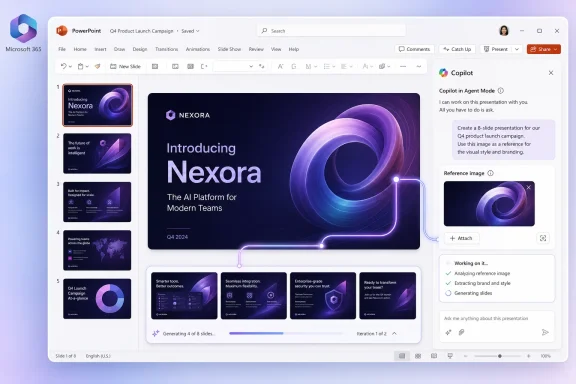
Microsoft is rolling out a July 2026 PowerPoint update for Microsoft 365 Copilot that lets desktop users attach and reference an image while creating a presentation with Copilot in Agent Mode in the worldwide General Availability channel. The feature sounds small, but it changes the basic contract between the user and the slide generator. Copilot is no longer just being asked to infer a visual direction from words; it can now be handed a concrete image as part of the brief. For anyone who has watched AI-generated decks drift from “on brand” to “stock-photo fever dream,” that matters.
The new Roadmap item, ID 555881, sits inside a broader shift in Microsoft 365 Copilot: away from single-turn content generation and toward agentic work inside Office apps. In PowerPoint, that means Copilot is expected not merely to draft slides, but to assemble, revise, style, and contextualize a presentation based on the material the user provides.
The image attachment feature is best understood as another input channel for that workflow. A user creating a presentation can reference an image in Agent Mode, giving Copilot a visual artifact to interpret when building the deck. That could be a product photo, a campaign visual, a mock-up, a diagram, a screenshot, a brand asset, or a scene that defines the tone of the presentation.
This is not the same as asking Copilot to “add a nice image.” It is closer to saying: build the presentation with this visual in mind. In presentation work, that distinction is enormous. A deck is rarely just a sequence of claims; it is a controlled visual argument, and PowerPoint’s hardest automation problem has always been preserving that control.
By allowing an attached image to be referenced during presentation creation, Microsoft is giving Copilot a more specific anchor. The image can function as evidence, style guide, source material, or creative constraint. If the feature works well, it should reduce the gap between what the user imagines and what the AI produces.
That gap has been one of the persistent weaknesses of AI slide generation. Text prompts are slippery. “Make this feel premium,” “use a modern enterprise style,” or “make this look like our product launch” are not precise instructions. A real image can compress a large amount of intent into a single artifact.
The change also acknowledges a reality that anyone who creates decks already knows: many presentations begin with a visual, not an outline. A screenshot of a new feature, a photo from a site visit, a chart exported from another tool, or a draft creative concept often becomes the seed around which the narrative is built. Copilot’s presentation creation flow is now catching up to that practice.
In PowerPoint, that is especially consequential because deck creation is a compound task. It requires writing, layout, hierarchy, design, image handling, and sometimes data transformation. A useful presentation assistant must know when to create a slide, when to split a slide, when to simplify a chart, when to preserve a design system, and when to leave well enough alone.
Microsoft has been stacking capabilities around that goal. Recent Copilot release notes have described PowerPoint features for creating presentations from Work IQ, referencing Teams meetings or chats, using multiple files, adjusting tone and style, and generating new presentations without overwriting originals. The image-reference feature joins that family: it is another way to feed Copilot the context that a human deck builder would ask for before starting.
The strategic pattern is obvious. Microsoft wants PowerPoint to become less like a blank canvas with automation bolted on and more like a production environment where Copilot can gather inputs, propose a structure, and iterate with the user. The risk is equally obvious: if the agent makes confident design decisions from misunderstood context, bad decks will become faster to produce.
An attached image can help Copilot infer some of those cues. If a sales team uses a product hero shot, Copilot may be able to shape the deck around the product’s visual language. If a marketing group attaches a campaign image, the generated presentation can better follow the campaign’s tone. If an IT department attaches a screenshot of a dashboard, Copilot can build around the actual interface rather than hallucinating a generic “cloud analytics” visual.
That does not make Copilot a brand governance system. A single image is not a corporate template, and visual inference is not the same as policy compliance. But it does give users a more grounded way to steer the model before the first draft is created.
For admins and communications teams, this is where the feature gets interesting. The more Copilot can ingest reference material, the more organizations will need to decide what reference material employees should use. An AI assistant that can follow an image can also follow the wrong image, an outdated image, or a legally sensitive image. Convenience expands the surface area of governance.
PowerPoint now exists across Windows, Mac, web, and mobile contexts, but the desktop app remains the center of gravity for many serious deck workflows. It is where complex templates, embedded media, add-ins, offline assets, and high-stakes presentation files often live. By landing this capability on desktop, Microsoft is aiming at the people who still do the most demanding PowerPoint work in the full client.
The tradeoff is fragmentation. Users may see Copilot capabilities described in one place and then discover that availability depends on app version, license, tenant configuration, rollout timing, and platform. That is not new for Microsoft 365, but AI features make the confusion sharper because Copilot presents itself as a single assistant while behaving differently across surfaces.
For IT teams, this means the rollout should be treated like a feature deployment, not a magic upgrade. Help desks will need to know who has Agent Mode, where image attachment works, and what file types and storage locations are supported in practice. The roadmap says “rolling out,” which is Microsoft shorthand for staggered arrival rather than a universal switch flipped at midnight.
Image reference could improve the economics of the first draft. If Copilot begins with a better visual anchor, the user may get closer to a usable deck on the first pass. That is where productivity gains become real: not in generating more slides, but in reducing the number of throwaway drafts.
This matters because presentation work is iterative by nature. A decent first draft is valuable only if it shortens the path to the final version. A bad first draft can be worse than a blank deck because it forces the user into cleanup mode, where the model’s choices become obstacles.
Microsoft’s challenge is to make Copilot’s use of the image legible. Users need to understand whether Copilot is drawing content from the image, matching its style, inserting it into slides, describing it, or using it as loose inspiration. If those modes blur together, the feature may generate the same kind of distrust that has followed other AI tools: impressive when it works, mysterious when it does not.
In an enterprise tenant, Copilot’s access should remain bounded by Microsoft 365 permissions and organizational controls, but users will still need practical guidance. The risk is not only that Copilot will access something it should not; it is that a user will intentionally attach something sensitive and then ask the AI to transform it into a presentation that travels farther than the original image should have.
This is especially relevant for screenshots. Screenshots are the duct tape of enterprise communication. They are fast, portable, and often messy. They also bypass many of the structures that keep information tidy, such as metadata, labels, source repositories, and retention policies.
Administrators should watch how this capability intersects with sensitivity labels, data loss prevention, audit logs, and Copilot usage reporting. The feature may be a productivity win, but it also encourages more multimodal content to flow into Copilot workflows. In 2026, that is no longer a side issue; it is the center of enterprise AI governance.
PowerPoint is a natural test bed for this because presentations already combine words, visuals, data, and narrative. If Copilot cannot become useful here, it will struggle to justify its place in many knowledge-worker routines. If it can, Microsoft gets a powerful example of why AI belongs inside Office rather than in a separate chatbot tab.
The company’s broader Copilot strategy depends on that inside-the-workflow advantage. Standalone AI tools can draft text and answer questions, but Microsoft owns the productivity surfaces where the draft becomes a file, the file becomes a meeting, and the meeting becomes a decision. Every new input type strengthens that argument.
Still, the user experience has to be disciplined. PowerPoint already suffers from feature sprawl, and Copilot risks becoming another panel full of possibilities that users do not understand. The best version of this feature will feel obvious: attach the image, explain what role it should play, review the draft, and refine. The worst version will feel like prompt archaeology.
Some of those behaviors may work. Some may work inconsistently. Some may depend on tenant settings, app version, or image content. The challenge is that users do not experience those distinctions as technical nuance; they experience them as trust or mistrust.
This is where Microsoft’s roadmap language is both useful and insufficient. Roadmap entries are meant to signal availability, not teach workflows. But Copilot features need more than availability notes because the product is probabilistic. A button either appears or it does not; an AI feature behaves across a spectrum.
For power users, the answer will be experimentation. For enterprises, experimentation at scale is expensive. Training materials, internal guidance, and support documentation will need to explain not just that images can be attached, but how users should frame the instruction: use this as a reference, use this as a source, use this as visual inspiration, or include this image in the deck.
PowerPoint’s advantage is distribution and file fidelity. It is already installed, already approved, already embedded in Microsoft 365 identity and compliance systems, and already the default format in many organizations. That advantage is formidable, but it does not automatically make Copilot the best creative assistant.
Image reference helps Microsoft defend PowerPoint against newer tools that treat visual direction as a first-class input. If a user can feed PowerPoint the same kind of visual brief they might give to a designer or an AI-native deck builder, there is less reason to leave the Microsoft ecosystem. That is the strategic value.
But Microsoft must avoid the trap of assuming integration is enough. Users will compare results, not architecture. If Copilot produces generic decks from specific images, the feature will be dismissed as another checkbox. If it produces structured, editable, brand-aware decks that respect the user’s visual intent, it becomes a reason to stay in PowerPoint.
The first deployment question is licensing and availability. The roadmap places the feature under Microsoft Copilot for Microsoft 365 and PowerPoint on desktop in General Availability, but tenants vary. Organizations should verify whether their users have the necessary Copilot entitlement, whether Agent Mode is enabled, and whether the feature has reached their update channel.
The second question is governance. If employees can attach images to guide deck generation, then organizations should decide which images are appropriate for that purpose. Approved brand assets, current product screenshots, sanitized customer examples, and labeled internal diagrams should be easier to find than random files buried in someone’s Downloads folder.
The third question is training. Users do not need a 40-page manual, but they do need prompt patterns that separate source, style, and insertion. “Use this image as a visual style reference” is a different instruction from “include this image on the title slide” or “summarize the process shown in this screenshot.” Good guidance will prevent bad assumptions.
 Microsoft Moves PowerPoint Copilot From Prompting Toward Briefing
The new Roadmap item, ID 555881, sits inside a broader shift in Microsoft 365 Copilot: away from single-turn content generation and toward agentic work inside Office apps. In PowerPoint, that means Copilot is expected not merely to draft slides, but to assemble, revise, style, and contextualize a presentation based on the material the user provides.The image attachment feature is best understood as another input channel for that workflow. A user creating a presentation can reference an image in Agent Mode, giving Copilot a visual artifact to interpret when building the deck. That could be a product photo, a campaign visual, a mock-up, a diagram, a screenshot, a brand asset, or a scene that defines the tone of the presentation.
This is not the same as asking Copilot to “add a nice image.” It is closer to saying: build the presentation with this visual in mind. In presentation work, that distinction is enormous. A deck is rarely just a sequence of claims; it is a controlled visual argument, and PowerPoint’s hardest automation problem has always been preserving that control.
The Image Is Now Part of the Prompt, Not Just Decoration
For years, PowerPoint automation has treated images as things to insert after the structure is done. The outline came first, the slide titles followed, and visuals were either selected manually, generated by Designer, or fetched from some stock-like well of approved imagery. That workflow produced passable slides quickly, but it often failed at the level where real presentations are judged: tone, continuity, emphasis, and visual restraint.By allowing an attached image to be referenced during presentation creation, Microsoft is giving Copilot a more specific anchor. The image can function as evidence, style guide, source material, or creative constraint. If the feature works well, it should reduce the gap between what the user imagines and what the AI produces.
That gap has been one of the persistent weaknesses of AI slide generation. Text prompts are slippery. “Make this feel premium,” “use a modern enterprise style,” or “make this look like our product launch” are not precise instructions. A real image can compress a large amount of intent into a single artifact.
The change also acknowledges a reality that anyone who creates decks already knows: many presentations begin with a visual, not an outline. A screenshot of a new feature, a photo from a site visit, a chart exported from another tool, or a draft creative concept often becomes the seed around which the narrative is built. Copilot’s presentation creation flow is now catching up to that practice.
Agent Mode Is Microsoft’s Attempt to Make Office Feel Less Like a Command Line
The phrase Agent Mode is doing a lot of work in Microsoft’s current product language. In Word, Excel, and PowerPoint, it generally signals a Copilot experience that can perform multi-step edits and creation tasks inside the document rather than simply answering questions beside it. The user gives direction through chat; Copilot acts on the file.In PowerPoint, that is especially consequential because deck creation is a compound task. It requires writing, layout, hierarchy, design, image handling, and sometimes data transformation. A useful presentation assistant must know when to create a slide, when to split a slide, when to simplify a chart, when to preserve a design system, and when to leave well enough alone.
Microsoft has been stacking capabilities around that goal. Recent Copilot release notes have described PowerPoint features for creating presentations from Work IQ, referencing Teams meetings or chats, using multiple files, adjusting tone and style, and generating new presentations without overwriting originals. The image-reference feature joins that family: it is another way to feed Copilot the context that a human deck builder would ask for before starting.
The strategic pattern is obvious. Microsoft wants PowerPoint to become less like a blank canvas with automation bolted on and more like a production environment where Copilot can gather inputs, propose a structure, and iterate with the user. The risk is equally obvious: if the agent makes confident design decisions from misunderstood context, bad decks will become faster to produce.
This Is a Branding Feature Masquerading as a Convenience Feature
The practical value of image reference will likely be felt first in branding and visual consistency. Enterprises do not merely want presentations that look polished; they want decks that look recognizably theirs. That means approved colors, product imagery, iconography, photography style, slide density, and visual hierarchy.An attached image can help Copilot infer some of those cues. If a sales team uses a product hero shot, Copilot may be able to shape the deck around the product’s visual language. If a marketing group attaches a campaign image, the generated presentation can better follow the campaign’s tone. If an IT department attaches a screenshot of a dashboard, Copilot can build around the actual interface rather than hallucinating a generic “cloud analytics” visual.
That does not make Copilot a brand governance system. A single image is not a corporate template, and visual inference is not the same as policy compliance. But it does give users a more grounded way to steer the model before the first draft is created.
For admins and communications teams, this is where the feature gets interesting. The more Copilot can ingest reference material, the more organizations will need to decide what reference material employees should use. An AI assistant that can follow an image can also follow the wrong image, an outdated image, or a legally sensitive image. Convenience expands the surface area of governance.
The Desktop-Only Detail Still Matters
The roadmap entry lists PowerPoint and Microsoft Copilot for Microsoft 365, desktop platform, General Availability, worldwide standard multi-tenant cloud, with rollout in July 2026. That platform detail is not trivia. It tells administrators where to expect the first operational impact and where user expectations may diverge.PowerPoint now exists across Windows, Mac, web, and mobile contexts, but the desktop app remains the center of gravity for many serious deck workflows. It is where complex templates, embedded media, add-ins, offline assets, and high-stakes presentation files often live. By landing this capability on desktop, Microsoft is aiming at the people who still do the most demanding PowerPoint work in the full client.
The tradeoff is fragmentation. Users may see Copilot capabilities described in one place and then discover that availability depends on app version, license, tenant configuration, rollout timing, and platform. That is not new for Microsoft 365, but AI features make the confusion sharper because Copilot presents itself as a single assistant while behaving differently across surfaces.
For IT teams, this means the rollout should be treated like a feature deployment, not a magic upgrade. Help desks will need to know who has Agent Mode, where image attachment works, and what file types and storage locations are supported in practice. The roadmap says “rolling out,” which is Microsoft shorthand for staggered arrival rather than a universal switch flipped at midnight.
The Real Productivity Gain Is Fewer False Starts
The sales pitch for AI presentation tools is usually speed. Create a deck in minutes. Turn an idea into slides. Build a proposal from a prompt. Those claims are not meaningless, but they often skip the part where users spend the saved time correcting layout choices, replacing images, rewriting generic copy, and making the output look less machine-made.Image reference could improve the economics of the first draft. If Copilot begins with a better visual anchor, the user may get closer to a usable deck on the first pass. That is where productivity gains become real: not in generating more slides, but in reducing the number of throwaway drafts.
This matters because presentation work is iterative by nature. A decent first draft is valuable only if it shortens the path to the final version. A bad first draft can be worse than a blank deck because it forces the user into cleanup mode, where the model’s choices become obstacles.
Microsoft’s challenge is to make Copilot’s use of the image legible. Users need to understand whether Copilot is drawing content from the image, matching its style, inserting it into slides, describing it, or using it as loose inspiration. If those modes blur together, the feature may generate the same kind of distrust that has followed other AI tools: impressive when it works, mysterious when it does not.
Visual Context Raises the Stakes for Security and Compliance
Image attachment also brings a familiar Microsoft 365 concern into a new format: sensitive content. An image can contain confidential information just as easily as a document can. Screenshots may expose customer data, internal dashboards, unreleased product details, employee information, source code, security architecture, or regulated material.In an enterprise tenant, Copilot’s access should remain bounded by Microsoft 365 permissions and organizational controls, but users will still need practical guidance. The risk is not only that Copilot will access something it should not; it is that a user will intentionally attach something sensitive and then ask the AI to transform it into a presentation that travels farther than the original image should have.
This is especially relevant for screenshots. Screenshots are the duct tape of enterprise communication. They are fast, portable, and often messy. They also bypass many of the structures that keep information tidy, such as metadata, labels, source repositories, and retention policies.
Administrators should watch how this capability intersects with sensitivity labels, data loss prevention, audit logs, and Copilot usage reporting. The feature may be a productivity win, but it also encourages more multimodal content to flow into Copilot workflows. In 2026, that is no longer a side issue; it is the center of enterprise AI governance.
PowerPoint Is Becoming the Front Door for Multimodal Copilot
The significance of this update is bigger than PowerPoint. Microsoft is teaching Office users that Copilot can reason across text, files, meetings, chats, and now images in the act of creating a business artifact. That is the daily-work version of multimodal AI: not a demo where a model describes a picture, but a workflow where a picture shapes a deliverable.PowerPoint is a natural test bed for this because presentations already combine words, visuals, data, and narrative. If Copilot cannot become useful here, it will struggle to justify its place in many knowledge-worker routines. If it can, Microsoft gets a powerful example of why AI belongs inside Office rather than in a separate chatbot tab.
The company’s broader Copilot strategy depends on that inside-the-workflow advantage. Standalone AI tools can draft text and answer questions, but Microsoft owns the productivity surfaces where the draft becomes a file, the file becomes a meeting, and the meeting becomes a decision. Every new input type strengthens that argument.
Still, the user experience has to be disciplined. PowerPoint already suffers from feature sprawl, and Copilot risks becoming another panel full of possibilities that users do not understand. The best version of this feature will feel obvious: attach the image, explain what role it should play, review the draft, and refine. The worst version will feel like prompt archaeology.
The Feature Also Exposes Copilot’s Biggest Design Problem
The more capable Copilot becomes, the harder it is for Microsoft to explain what it will actually do. “Attach and reference an image” sounds clear, but users will immediately test the boundaries. Can Copilot match the image’s colors? Can it extract text? Can it identify objects? Can it build a narrative around a product screenshot? Can it use a photo as a mood board? Can it preserve the original image without altering it?Some of those behaviors may work. Some may work inconsistently. Some may depend on tenant settings, app version, or image content. The challenge is that users do not experience those distinctions as technical nuance; they experience them as trust or mistrust.
This is where Microsoft’s roadmap language is both useful and insufficient. Roadmap entries are meant to signal availability, not teach workflows. But Copilot features need more than availability notes because the product is probabilistic. A button either appears or it does not; an AI feature behaves across a spectrum.
For power users, the answer will be experimentation. For enterprises, experimentation at scale is expensive. Training materials, internal guidance, and support documentation will need to explain not just that images can be attached, but how users should frame the instruction: use this as a reference, use this as a source, use this as visual inspiration, or include this image in the deck.
The Competitive Pressure Is Coming From Design Tools, Not Just AI Chatbots
Microsoft is not moving in a vacuum. Presentation creation has become a crowded AI category, with design-first tools, document-to-deck converters, and general-purpose AI assistants all promising to make slide work less painful. Many of those tools are better at visual-first workflows than legacy Office has historically been.PowerPoint’s advantage is distribution and file fidelity. It is already installed, already approved, already embedded in Microsoft 365 identity and compliance systems, and already the default format in many organizations. That advantage is formidable, but it does not automatically make Copilot the best creative assistant.
Image reference helps Microsoft defend PowerPoint against newer tools that treat visual direction as a first-class input. If a user can feed PowerPoint the same kind of visual brief they might give to a designer or an AI-native deck builder, there is less reason to leave the Microsoft ecosystem. That is the strategic value.
But Microsoft must avoid the trap of assuming integration is enough. Users will compare results, not architecture. If Copilot produces generic decks from specific images, the feature will be dismissed as another checkbox. If it produces structured, editable, brand-aware decks that respect the user’s visual intent, it becomes a reason to stay in PowerPoint.
Admins Should Treat the Rollout as a Workflow Change
For WindowsForum’s IT-heavy audience, the obvious temptation is to file this under “minor Copilot enhancement.” That would be a mistake. Presentation creation is one of the most common knowledge-work tasks, and small changes to how users create external-facing material can ripple through support, compliance, and communications teams.The first deployment question is licensing and availability. The roadmap places the feature under Microsoft Copilot for Microsoft 365 and PowerPoint on desktop in General Availability, but tenants vary. Organizations should verify whether their users have the necessary Copilot entitlement, whether Agent Mode is enabled, and whether the feature has reached their update channel.
The second question is governance. If employees can attach images to guide deck generation, then organizations should decide which images are appropriate for that purpose. Approved brand assets, current product screenshots, sanitized customer examples, and labeled internal diagrams should be easier to find than random files buried in someone’s Downloads folder.
The third question is training. Users do not need a 40-page manual, but they do need prompt patterns that separate source, style, and insertion. “Use this image as a visual style reference” is a different instruction from “include this image on the title slide” or “summarize the process shown in this screenshot.” Good guidance will prevent bad assumptions.
The Deck Factory Gets a New Input Slot
This release is one of those Microsoft 365 changes whose importance depends on how much presentation work you do. For occasional users, it is a nice addition. For sales, consulting, marketing, training, product, and leadership teams, it could become part of the normal deck-building rhythm.- The feature is rolling out in July 2026 for PowerPoint desktop users with Microsoft 365 Copilot in the worldwide General Availability channel.
- The core change is that Copilot in Agent Mode can use an attached image as a reference while creating a presentation.
- The most immediate benefit is likely better visual alignment in first drafts, especially when users start from product images, screenshots, campaign assets, or design references.
- The main enterprise risk is that users may attach sensitive or outdated images and turn them into broader presentation material.
- IT teams should verify licensing, rollout status, app channel behavior, and governance controls before treating the feature as universally available.
- The feature is part of Microsoft’s larger attempt to make Copilot a context-aware Office agent rather than a separate chatbot that merely suggests content.
References
- Primary source: Microsoft 365 Roadmap
Published: 2026-07-02T23:12:48.2177075Z
Microsoft 365 Roadmap | Microsoft 365
The Microsoft 365 Roadmap lists updates that are currently planned for applicable subscribers. Check here for more information on the status of new features and updates.www.microsoft.com
- Official source: support.microsoft.com
Create a new presentation with Copilot in PowerPoint | Microsoft Support
Learn how to use the power of AI in Microsoft 365 Copilot in PowerPoint to create a presentation from scratch.support.microsoft.com - Related coverage: m365admin.handsontek.net
Microsoft Copilot (Microsoft 365): Reference an attached PowerPoint deck’s style when creating a new presentation with Agent Mode in PowerPoint - M365 Admin
When creating a presentation with Copilot in PowerPoint using Agent Mode, you can reference an existing PowerPoint file, so Copilot applies its theme and styles to the new deck, keeping the design consistent. Product PowerPoint Release phase General Availability Release date March CY2026...m365admin.handsontek.net - Related coverage: techradar.com
Your favorite Microsoft 365 apps are getting a load more Copilot AI Agents - Word, Excel, Outlook, PowerPoint all get a boost | TechRadar
More AI agents are coming to Microsoft 365www.techradar.com