

Microsoft has quietly told admins it will remove PowerPoint’s long‑standing Reuse Slides pane from the desktop apps, and the retirement is already being rolled out — leaving many users who relied on the in‑app slide browser suddenly without their fastest way to pull selective slides from other decks.
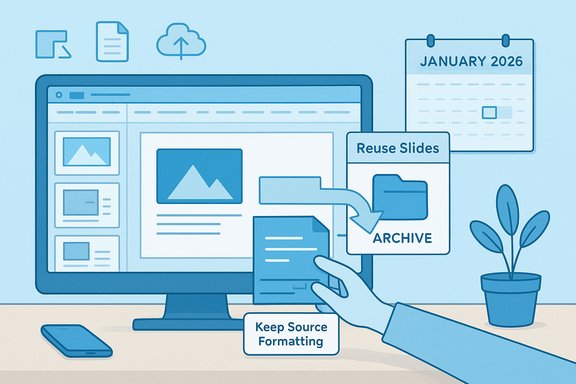
PowerPoint’s Reuse Slides tool lived in the Home > New Slide > Reuse Slides flow and opened a right‑hand pane that let users browse local files, OneDrive, or SharePoint and import individual slides — often with a single click to Keep source formatting. It preserved many template, animation and media details that can be finicky when copying and pasting manually. Microsoft’s own documentation lays out that workflow — including the Keep source formatting checkbox and the Insert/Insert All actions — as the official, supported method for importing slides. That apparently useful convenience will be retired across the desktop PowerPoint experience as part of Microsoft’s stated effort to reduce duplicated functionality in the product. The company’s official Message Center advisory (MC1179161) says the change will begin in December 2025 and complete in January 2026, removing the Reuse Slides option from the ribbon with no admin toggle to re‑enable it. Administrators were told to update documentation and prepare users for alternate slide reuse methods.
Key guidance:
For most casual users the alternatives (copy/paste, drag‑and‑drop, shared templates) will be sufficient after a brief adjustment period. For heavy‑reuse scenarios — high‑volume proposal shops, agencies, and teams that build decks from slide libraries — the loss can mean retraining, process updates, and potential investment in third‑party tooling to restore the missing UX.
Administrators should act now: verify the Message Center entry in their tenant, inventory reliance on Reuse Slides, and roll out a short training and documentation update well before the feature is gone in their environment. That pragmatic preparation will blunt the potential productivity hit and give teams space to adopt standardized slide libraries or a vendor solution if necessary.
Microsoft’s push to tidy overlapping features is predictable; the friction is not. Reuse Slides was a small, well‑targeted convenience that many users miss the instant it’s absent. The practical response is straightforward: verify your tenant’s timeline, teach the copy/paste and drag‑and‑drop alternatives, and, if your workflows demand it, plan for a slide‑management add‑in or stronger governance around shared slide assets.
Source: XDA Microsoft is axing a beloved feature from PowerPoint, and it may already be gone for you
 Background
PowerPoint’s Reuse Slides tool lived in the Home > New Slide > Reuse Slides flow and opened a right‑hand pane that let users browse local files, OneDrive, or SharePoint and import individual slides — often with a single click to Keep source formatting. It preserved many template, animation and media details that can be finicky when copying and pasting manually. Microsoft’s own documentation lays out that workflow — including the Keep source formatting checkbox and the Insert/Insert All actions — as the official, supported method for importing slides. That apparently useful convenience will be retired across the desktop PowerPoint experience as part of Microsoft’s stated effort to reduce duplicated functionality in the product. The company’s official Message Center advisory (MC1179161) says the change will begin in December 2025 and complete in January 2026, removing the Reuse Slides option from the ribbon with no admin toggle to re‑enable it. Administrators were told to update documentation and prepare users for alternate slide reuse methods. What Microsoft announced — timeline and scope
- Microsoft published Message ID MC1179161 on October 24, 2025, stating the Reuse Slides feature will be retired from PowerPoint for Windows and macOS desktops and that rollout will begin in December 2025 and complete in January 2026. The post makes clear the feature will be removed from the ribbon and will not be re‑enableable by administrators.
- This administrative notice updated and superseded an earlier Message Center posting (MC1111178) that placed a retirement date earlier in 2025; the overlap of messages has produced confusion in public reporting and among tenants, and some observers note Microsoft has adjusted the rollout timeline as the company prepared the retirement. Administrators should treat the most recent Message Center item visible in their tenant as authoritative for their environment.
- News outlets, community sites, and users reported the removal has already appeared for some people ahead of the broad timetable — prompting complaints on forums and Reddit threads where members say the pane simply disappeared from their build. Third‑party coverage notes the change is being seen in waves, consistent with staged rollouts.
Why this matters: the real value of Reuse Slides
PowerPoint’s Reuse Slides pane was more than a courtesy button; for many workflows it provided efficiencies and guarantees that alternatives sometimes do not:- Selective import without opening the source deck. You could browse and pull a single slide or a handful of slides directly into your working deck without maintaining two open windows.
- Formatting fidelity. The Keep source formatting option helped retain corporate templates, fonts, logos, and layout rules that are easy to lose with naive copy/paste.
- Animation and media preservation. In many cases animations, transitions, and embedded media survived the import better through the pane than through manual copy/paste workflows.
- Speed and discoverability. The right‑hand pane allowed quick searching of file stores (local, SharePoint, OneDrive) from inside PowerPoint, saving clicks and mental context switching.
Microsoft’s rationale — product simplification and duplication
Microsoft’s stated rationale is straightforward: Reuse Slides duplicates other ways to get the same job done, and removing redundant UI reduces maintenance and simplifies the product surface. The Message Center advisory explicitly points administrators to alternative methods — mainly copy/paste and duplicating presentations — and frames the retirement as part of streamlining PowerPoint while guiding users toward newer workflows such as co‑authoring, cloud file sharing, and AI‑driven draft generation. Third‑party commentators and consultancy writeups echo Microsoft’s product‑management logic: removing low‑usage or overlapping UI elements allows engineering focus to shift toward larger initiatives, such as Copilot capabilities in the Office suite. But replacing a single, convenient pane with general-purpose alternatives can impose measurable productivity costs for teams that relied on the pane’s specific affordances.Conflicting timelines and reports of early removals — what to watch for
Public reporting shows inconsistent dates. An earlier Message Center item (MC1111178) indicated an earlier rollout date (by July 31, 2025), while the October posting (MC1179161) moves the visible start to December 2025 with completion in January 2026. Local tenant experiences appear to vary, with some users already missing the feature and others still seeing it in their ribbon.Key guidance:
- Treat the Message Center notices that appear in your tenant as authoritative; Microsoft often targets rollouts differently across channels and rings.
- If the pane has already vanished in your environment, it may be part of an early deployment wave; the removal will be irreversible via admin controls once it completes.
- Be prepared for some churn in public reports — many third‑party sites lifted content from earlier postings and community complaints, producing a mixed narrative about exact dates.
Practical alternatives — how to replace Reuse Slides (end‑user tactics)
The good news is there are workable alternatives; the bad news is none perfectly replicate the one‑pane convenience and some require short retraining. The Microsoft Support docs and community guides list the standard methods:- Copy‑and‑paste between open presentations (use Paste Options → Keep Source Formatting to preserve styling). This is the closest functional replacement for the formatting behavior.
- Open the source deck, select slides in the thumbnail pane, drag them into your destination deck’s thumbnail pane, or right‑click → Copy then Paste in the destination and choose paste options to preserve formatting.
- Use New Window and arrange windows side‑by‑side (or multiple monitors) to move slides quickly between decks if you frequently duplicate entire decks or big sections.
- Consolidate canonical slide assets in OneDrive/SharePoint libraries or shared template files so teams can browse a single source of truth and copy from a known location. This is a governance approach rather than a UI shortcut but reduces ad‑hoc reuse friction over time.
- Open both source and destination presentations.
- In the source, select the slide thumbnails (Ctrl/Cmd+click or Shift to select ranges).
- Drag the selection into the destination thumbnail pane — or right‑click → Copy, then Paste in the destination.
- Immediately click the Paste Options icon and choose Keep Source Formatting if you want to preserve template fidelity.
For IT admins — readiness checklist and communications plan
Removing a familiar feature is a change‑management problem as much as a product decision. IT leaders should treat this like any other deprecation and take these steps:- Verify the Message Center entry for your tenant. Look for MC1179161 (or any tenant‑specific Message Center posts) and capture the dates and impacted applications. The most recent message in your tenant is authoritative.
- Inventory affected users and workflows. Identify teams (sales, proposals, agencies) with high slide reuse volumes and schedule interviews or telemetry reviews to measure impact.
- Update helpdesk scripts and training materials. Replace screenshots and instructions that reference the Reuse Slides pane. Distribute a one‑page “how to import slides” cheat sheet that walks users through copy/paste with Keep Source Formatting and drag‑and‑drop.
- Pilot alternative workflows. Test the copy/paste method with key templates, check animation/media fidelity, and identify edge‑cases requiring special remediation (e.g., slides created by third‑party tools or different slide sizes).
- Consider add‑ins or third‑party tools. Vendors such as those producing slide library or slide management tooling can restore selective import convenience and add governance. Evaluate licensing and security before onboarding.
- Communicate the change early and bluntly. Announce the retirement in employee newsletters, ticketing portals, and team meetings with a date and a link to the new helpdesk guide.
Risks, edge cases, and what Microsoft’s approach doesn’t solve
Removing Reuse Slides carries concrete risks and leaves certain user pain points unaddressed:- Hidden productivity tax. A few extra clicks per slide can add up across teams that assemble dozens or hundreds of slides per week.
- Template and animation drift. While Keep source formatting exists for paste operations, real‑world results vary (slide size mismatches, embedded media paths, linked content, and different master slide behavior can complicate import fidelity). Community reports show cases where formatting didn’t carry over as expected and required manual fixes. Test your templates.
- Irreversible UI change. Microsoft’s advisory warns there is no admin toggle to re‑enable the pane post‑retirement — meaning organizations cannot opt back in if they later change their minds. Plan accordingly.
- Perceived push toward new workflows. Microsoft frames the removal as part of a move to cloud‑native sharing and AI draft generation. While Copilot and file‑sharing improve some workflows, they do not duplicate the exact selective import and template fidelity that the Reuse Slides pane provided. Treat Copilot as a complement, not a drop‑in replacement for slide reuse needs.
Options for teams that can’t lose the capability
If your workflows depend on selective slide import with fidelity and speed, consider these options:- Central slide library: Build a curated slide library in a SharePoint document library (or a slide management tool) with explicit, versioned slide files that teams copy from. This is governance heavy but stabilizes quality.
- Lightweight add‑in: Evaluate slide library add‑ins or vendor tools that recreate a browse‑and‑insert pane and support enterprise controls. These restore the UX but add cost and an extra software management layer.
- Automation: Create a Power Automate flow or internal tool that can pull specific slides from standardized templates; this needs development effort but can be automated for repetitive bundles.
- Training + templates: Standardize templates with content placeholders and teach copy/paste best practices (including exact slide size checks) to avoid formatting surprises.
- Scripted exports: For archival or compliance use‑cases, export slides you rely on into .pptx snippets or image assets so they remain accessible regardless of PowerPoint feature availability.
Quick checklists — one for users, one for admins
User checklist:- If you rely on Reuse Slides, practice copying and pasting slides now and confirm Keep Source Formatting preserves the look.
- Standardize the slide size before importing to reduce layout surprises.
- Save reusable slide snippets in a shared folder with clear naming conventions.
- Keep a personal cheat sheet with the drag‑and‑drop and paste option steps.
- Confirm the Message Center messages in your tenant (MC1179161 or any tenant‑specific variants).
- Inventory roles and teams with high slide reuse.
- Update helpdesk articles and screenshots.
- Pilot alternative workflows and test template fidelity.
- Evaluate third‑party slide‑management tools if productivity loss would be material.
Final assessment: pragmatic inevitability vs. real friction
From a product‑management perspective, retiring a duplicative UI element makes engineering sense; every retained feature increases maintenance and testing surface. But product logic doesn’t erase the operational reality: small, well‑executed conveniences accumulate into time savings for teams, and their removal imposes real costs.For most casual users the alternatives (copy/paste, drag‑and‑drop, shared templates) will be sufficient after a brief adjustment period. For heavy‑reuse scenarios — high‑volume proposal shops, agencies, and teams that build decks from slide libraries — the loss can mean retraining, process updates, and potential investment in third‑party tooling to restore the missing UX.
Administrators should act now: verify the Message Center entry in their tenant, inventory reliance on Reuse Slides, and roll out a short training and documentation update well before the feature is gone in their environment. That pragmatic preparation will blunt the potential productivity hit and give teams space to adopt standardized slide libraries or a vendor solution if necessary.
Microsoft’s push to tidy overlapping features is predictable; the friction is not. Reuse Slides was a small, well‑targeted convenience that many users miss the instant it’s absent. The practical response is straightforward: verify your tenant’s timeline, teach the copy/paste and drag‑and‑drop alternatives, and, if your workflows demand it, plan for a slide‑management add‑in or stronger governance around shared slide assets.
Source: XDA Microsoft is axing a beloved feature from PowerPoint, and it may already be gone for you
