

When your most trusted PowerShell tools are Windows‑centric but your day‑to‑day workstation is Linux, the mismatch isn't theoretical — it’s an operational problem that forces a fork in how you deliver automation. You can try to bend the platform to your scripts, or you can bend the scripts to fit the platform. Both choices have trade‑offs in compatibility, performance, security, cost, and long‑term maintainability. This feature walks through the real limitations you’ll hit, evaluates three practical approaches (dual‑booting, WinBoat, and Windows Server RemoteApp), validates technical claims against vendor and community sources, and gives a playbook you can use to decide and execute safely.
PowerShell’s move to cross‑platform runtimes (PowerShell 6 / PowerShell 7+) made a big promise: one scripting language across Windows, macOS and Linux. In practice, that promise is limited by the reality that many PowerShell workflows — especially those written years ago for Windows PowerShell 5.1 — rely on Windows‑only cmdlets, Windows‑specific .NET APIs, or Windows GUI frameworks such as Windows Forms and WPF. Those dependencies either don’t exist on non‑Windows platforms or are imperfectly emulated, which breaks scripts in subtle and sometimes catastrophic ways. The net result: PowerShell can run on Linux, but Windows‑targeted scripts often can’t run there without sacrifice or additional architecture. m])
Finally, a caution: some statements you’ll hear in forums — for example, “Wine will run your Windows Forms PowerShell GUI” or “RemoteApp is deprecated” — are either oversimplified or context‑dependent. Wine can sometimes run simple .NET apps but routinely fails on complex Windows Form apps; RemoteApp as a concept remains supported through RDS and Azure Virtual Desktop, but client tooling and management models evolve (and Microsoft has revised the Remote Desktop client ecosystem recently). Treat such claims skeptically and verify against vendor documentation and controlled testing before making architectural decisions.
If you’re planning a migration or a short‑term compatibility plan and want a tailored checklist (script inventory commands, module scans, or a sample compatibility matrix you can run in your environment), use the practical steps in the migration checklist above as your starting point and run the automated inventory scans first. The results will quickly narrow the right option for your team: refactor, host, or emulate.
Source: Redmondmag.com Planning for PowerShell Script Usage in a Multiplatform Environment -- Redmondmag.com
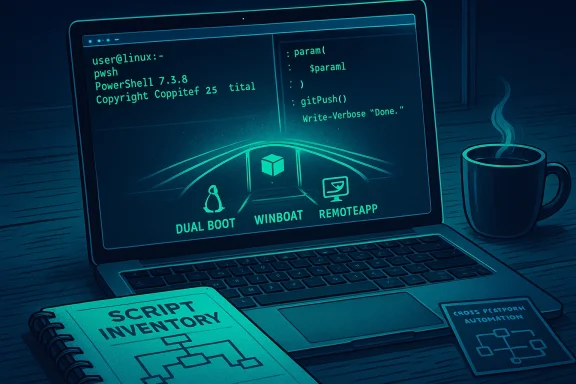 Background
PowerShell’s move to cross‑platform runtimes (PowerShell 6 / PowerShell 7+) made a big promise: one scripting language across Windows, macOS and Linux. In practice, that promise is limited by the reality that many PowerShell workflows — especially those written years ago for Windows PowerShell 5.1 — rely on Windows‑only cmdlets, Windows‑specific .NET APIs, or Windows GUI frameworks such as Windows Forms and WPF. Those dependencies either don’t exist on non‑Windows platforms or are imperfectly emulated, which breaks scripts in subtle and sometimes catastrophic ways. The net result: PowerShell can run on Linux, but Windows‑targeted scripts often can’t run there without sacrifice or additional architecture. m])Overview: what actually breaks on Linux
Windows‑only cmdlets and providers
PowerShell’s cross‑platform engine (pwsh) omits or limits several cmdlets tied to Windows subsystems. Things that talk directly to services, the Windows registry, certain certificate stores, or native Windows management interfaces will either be missing or behave differently on Linux. Microsoft’s own documentation lists many of those unsupported cmdlets and notes where behavior is restricted. If your script calls, for example, Get‑EventLog, Get‑Service, Rename‑Computer, or uses provider‑specific semantics (registry paths), expect failure or platform‑specific differences..NET dependencies and desktop APIs
Scripts and modules that depend on the .NET Framework or on desktop APIs will run into more fundamental limits. Microsoft made clear that Windows Forms and WPF are Windows‑only technologies because they are tightly coupled to Windows APIs. Although modern .NET releases added desktop support on .NET Core/.NET 5+, those UI stacks still depend on Windows internals and are not cross‑platform. That’s why GUI‑based PowerShell tools (System.Windows.Forms) won’t reliably run on Linux under pwsh. For non‑UI .NET code, the situation varies — some libraries can be ported or replaced, but many will need rework.Emulation and compatibility layers are brittle
Tools like Wine and mono attempt to bridge the gap, but they’re far from perfect for modern Windows desktop apps. Wine’s compatibility with .NET GUI apps is uneven and bug‑prone; bug trackers and community threads are full of regressions, missing APIs and workarounds. That makes relying on Wine for mission‑critical PowerShell GUIs a risky path.The three practical approaches: merits, mechanics and gotchas
Below I evaluate the three practical approaches that remain realistic for admins and power users who must run Windows‑dependent PowerShell scripts from Linux: dual‑boot, WinBoat (a containerized Windows‑in‑Linux approach), and Windows Server RemoteApp (RDS / AVD published apps). Each approach solves compatibility differently — at the cost of friction, complexity, or licensing.1) Dual booting: the blunt‑force compatibility option
What it is
Dual booting installs both Linux and Windows (commonly Windows 10/11) natively on the same machine. When you need full Windows compatibility you reboot into Windows and run your scripts there.Strengths
- Native Windows runtime — full compatibility with Windows PowerShell 5.1 and any Windows‑only modules or .NET APIs. No translation layer.
- Maximum performance — no virtualization overhead; apps run on real hardware.
- Simplicity of local tooling — use local devices, GPUs, USB dongles, and integrated hardware without passthrough complexity.
Weaknesses and risks
- Reboot friction — every time you switch envirot. That kills quick, ad‑hoc workflows and reduces productivity.
- Maintenance surface — two OSes to patch, secure and manage; imaging, backups and dev tooling must be doubled.
- Bootloader and update hazards — major Windows updates or Linux kernel/bootloader tweaks can sometimes break multi‑boot setups; anecdotal reports of update interference exist. That risk is real enough to factor into any production plan.
When to pick it
Dual booting is sensible for small numbers of users who need occasional, full‑fidelity Windows access on the same hardware and who can tolerate reboots. It’s a pragmatic stopgap for single‑machine scenarios but a poor fit for teams or frequent switching.2) WinBoat: containerized Windows VMs integrated into the Linux desktop
What it is
WinBoat (a real project) wraps Windows 10/11 in a containerized VM and integrates windows and clipboard with the Linux desktop. It aims to present Windows apps as if they were native Linux windows by routing display and input through an RDP/FreeRDP‑based stack. There is an upstream project and community releases that describe this behavior.Strengths
- High compatibility — since Windows runs inside the container/VM, you get native Windows behavior for PowerShell and GUI apps without rebooting.
- Seamless clipboard and file sharing — many implementations share the Linux filesystem inside Windows and support clipboard integration, reducing friction for mixed workflows.
- Faster context switch than dual‑boot — you keep Linux as the host and run Windows in the background or on demand.
Weaknesses and risks
- Performance overhead — containerized Windows still runs a full Windows instance (or lightweight VM) and consumes CPU, memory and I/O. Some users report significant slowdowns, particularly on lower‑spec hardware.
- Maturity and support — WinBoat and similar projects are relatively new and community‑driven. That brings risk around stability, supportability, and security patches compared to vendor products.
- Licensing and activation — WinBoat doesn’t provide Windows licenses; you must supply a valid Windows license for the guest. That’s an operational and legal requirement to plan for.
When to pick it
WinBoat is attractive for power users who want tight Linux integration and occasional native Windows work without a server. It’s best for non‑critical workflows or lab/proof‑of‑concept deployments. For production, weigh maturity, security posture, and the organization’s tolerance for non‑vendor tooling.3) Windows Server RemoteApp (publish PowerShell apps via RDS/AVD)
What it is
RemoteApp (published via Remote Desktop Services or Azure Virtual Desktop) hosts Windows applications (including PowerShell ISE or scripted GUIs) on a Windows Server (or Azure host) and presents those applications to endpoint clients via RDP sessions. To the user the app can appear as if it’s local, but it runs on the server. Microsoft’s Azure Virtual Desktop also supports RemoteApp scenarios and continues to evolve those features.Strengths
- True Windows server environment — native compatibility for any Windows PowerShell script or GUI; apps run server‑side so Linux endpoints only need an RDP client.
- Centralized management and isolation — administrators can manage, patch, and control which apps users see and use from a single place.
- Scalability and security features — when deployed as a proper RDS/AVD solution, you get session isolation, group policies, network controls and better central auditing.
Weaknesses and risks
- Licensing and cost — publishing apps via RDS (or AVD) requires Windows Server licenses, Windows Server CALs and Remote Desktop Services (RDS) CALs; cloud alternatives have their own pricing. Microsoft’s licensing documentation is explicit: any user or device connecting to an RDS session host requires an RDS CAL. There’s also a 120‑day grace period for new RDS installs, but long‑term deployments need licenses. Plan budget accordingly.
- Setup complexity — RDS/AVD requires planning (RD Session Hosts, licensing servers, gateways or AVD host pools) and operational expertise.
- Client compatibility and UX quirks — Linux RDP clients vary; some features of .rdp files and Windows clients may not map perfectly to Linux FreeRDP clients. In practice you’ll test and sometimes hand‑tune client configurations. The broader Remote Desktop client ecosystem is changing (Microsoft replaced the Remote Desktop store app with a new Windows App), but RDS/AVD server‑side publishing continues to be supported. Recent Windows updates have also caused RemoteApp connectivity issues in some enterprise scenarios, highlighting that RDP/RemoteApp is non‑trivial at scale.
When to pick it
Choose RemoteApp when you need managed, broadly compatible, centrally controlled Windows app delivery to many Linux endpoints, and you can absorb licensing costs and operational overhead. For enterprises it’s usually the most sustainable option if you must retain full Windows compatibility.Alternatives and hybrid strategies (don’t ignore these)
If none of the three “classic” options are perfect, several alternatives deserve attention because they reduce long‑term friction and technical debt.Modernize scripts for cross‑platform portability
- Move to PowerShell 7+ (pwsh), which works on Linux and macOS and reduces legacy engine differences.
- Replace Windows Forms GUIs with cross‑platform front ends:
- CLI + TUI (text UIs) for admin tasks
- Web‑based UIs (a lightweight Flask/ASP.NET service or an electron wrapper) for interactive needs
- Cross‑platform UI stacks like .NET MAUI (for cross‑platform apps), or consider lightweight web GUIs (HTML/JS) that run in a browser.
- Use or add an abstraction layer in scripts to isolate platform‑specific calls behind small shims.
Remoting instead of relocating
If your scripts manage remote Windows systems, consider remote execution instead of local GUI execution:- Use WinRM / PowerShell Remoting or PowerShell remoting over SSH for remote runs.
n, Azure Functions, or an orchestration service to host the automation and expose a thin client.
Virtual machines (VMs) on the Linux host
Instead of a containerized WinBoat approach, run a full Windows VM under KVM, QEMU, VirtualBox or VMware. VMs are more mature, easier to support in enterprise contexts, and give predictable isolation and hardware passthrough options. They do come with resource costs and licensing complexity, but they reduce the fragility of experimental projects.Practical migration and operational checklist
- Inventory your scripts and dependencies.
- Static scan for Windows‑only cmdlets, COM/.NET UI types, registry access and hardcoded paths.
- Identify scheduled tasks, installers or images that explicitly require Windows PowerShell 5.1 or v2 calls.
- Classify by remediation difficulty.
- Easy: Cmdlets that have cross‑platform equivalents or can be piped to standard CLI tools.
- Medium: Cmdlets that need a compatibility module or remote execution.
- Hard: GUI apps relying on System.Windows.Forms/WPF or direct windowing APIs.
- Prioritove non‑GUI automation to PowerShell 7+ and test on Linux.
- For GUI tools, consider web front ends or remote hosting (RDS/AVD).
- Use WindowsCompatibility / Import‑WinModule for transitional scenarios, but treat them as temporary if you can re‑architect.
- Test and validate.
- Create a lab with representative Windows Server or VM images and exercise the scripts end‑to‑end.
- Add monitoring and logging during tests to ensure behavior parity.
- Secure and license correctly.
- If you choose RDS/AVD/RemoteApp, acquire RDS CALs and plan license server placement per Microsoft guidance.
- Harden RDP access: Use gateways, MFA, conditional access, and logging.
- Operationalize.
- Treat scripts as code: version control, PR reviews, automated tests, and CI/CD for deployments.
- Add telemetry and safe guards (–WhatIf, –Confirm, robust logging) for any operations that change state.
Costs, security and long‑term risks
- Licensing: RemoteApp/RDS requires RDS CALs and Windows Server licenses. Microsoft documentation is clear that long‑term RDS use requires per‑user or per‑device RDS CALs; don’t lean on grace periods for production. Plan cost models for either on‑prem hosts or AVD/Azure hosting.
- Attack surface: Hosting PowerShell GUIs in a server‑side environment shifts attack vectors. RDP endpoints are frequently targeted; enforce least privilege, use hardened images, and monitor session activity.
- Technical debt: Using brittle community tools for compatibility (e.g., Wine, immature container projects) can produce brittle operations over time. Prefer vendor‑backed solutions or commit to an internal support model if you select experimental tooling.
- Supportability: If your organization must demonstrate compliance or needs vendor support, using unsupported third‑party stacks for critical automation may be unacceptable.
Recommendations: choosing the right path
- If you need predictable, enterprise‑grade compatibility and centralized control for many users: invest in RemoteApp / RDS or Azure Virtual Desktop RemoteApp. Budget for RDS CALs and the operational effort required for a managed service. This is the safest long‑term choice when you cannot change the scripts.
- If you are a single power user or small team and prefer low friction, experiment friendly tooling: try WinBoat or a Windows VM on your Linux host. Validate performance and plan how you will patch the Windows guest and manage licensing. Treat this as a pragmatic workstation solution rather than an enterprise standard.
- If your scripts are business‑critical but you can invest in refactoring: modernize the automation. Move to PowerShell 7+, remove Windows Forms, and adopt web‑based or cross‑platform front ends. This reduces future platform lock‑in and simplifies operations across mixed‑OS estates. Use the WindowsCompatibility module and remoting patterns only as transitional tools.
- Short term, where immediate compatibility is mandatory and rework is infeasible: dual‑boot is the lowest‑risk single‑machine approach for absolute compatibility, but expect productivity loss from reboots and higher maintenance burden.
Final analysis — strengths and hidden traps
PowerShell’s cross‑platform story improved dramatically, but the ecosystem still contains sharp edges where Windows‑specific tooling and .NET desktop APIs remain entrenched. The three practical approaches evaluated here give you options along a familiar trade‑off curve:- Full compatibility at the cost of friction (dual‑boot),
- Good compatibility with integrated workflow but maturity and performance trade‑offs (WinBoat / VM),
- Enterprise compatibility and manageability at the cost of licensing and infrastructure complexity (RemoteApp / RDS / AVD).
Finally, a caution: some statements you’ll hear in forums — for example, “Wine will run your Windows Forms PowerShell GUI” or “RemoteApp is deprecated” — are either oversimplified or context‑dependent. Wine can sometimes run simple .NET apps but routinely fails on complex Windows Form apps; RemoteApp as a concept remains supported through RDS and Azure Virtual Desktop, but client tooling and management models evolve (and Microsoft has revised the Remote Desktop client ecosystem recently). Treat such claims skeptically and verify against vendor documentation and controlled testing before making architectural decisions.
If you’re planning a migration or a short‑term compatibility plan and want a tailored checklist (script inventory commands, module scans, or a sample compatibility matrix you can run in your environment), use the practical steps in the migration checklist above as your starting point and run the automated inventory scans first. The results will quickly narrow the right option for your team: refactor, host, or emulate.
Source: Redmondmag.com Planning for PowerShell Script Usage in a Multiplatform Environment -- Redmondmag.com
