

PowerToys 0.99 lands as one of the most practical Windows utility updates in recent memory, adding Power Display for monitor control and Grab And Move for faster window handling while tightening dozens of existing tools across the suite. The release is not merely a feature drop; it is a snapshot of where Microsoft’s Windows power-user strategy is heading, with more system tray control, more command-driven workflows, and more attention to multi-monitor productivity. It also arrives with a caution: Microsoft has acknowledged a Command Palette crash on some machines, making this an update that enthusiastic users should install with eyes open.
PowerToys has always occupied an unusual place in the Windows ecosystem. It is Microsoft software, but it behaves more like a fast-moving open-source lab where ideas can be tested, refined, and sometimes folded into broader Windows thinking later. That makes every major PowerToys update interesting, because it shows which workflow frustrations Microsoft believes are worth solving outside the slower Windows release cycle.
The original PowerToys brand dates back to the Windows 95 era, when Microsoft shipped optional tools for users who wanted more control than the default operating system exposed. The modern PowerToys project was revived for Windows 10 as an open-source effort and has since become a staple on Windows 11 machines used by developers, administrators, designers, writers, and anyone who juggles more windows than Microsoft’s default shell comfortably manages.
Version 0.99 is especially notable because it pushes PowerToys closer to the “daily desktop control center” role. Power Display touches hardware settings that Windows has historically handled unevenly, especially with external monitors. Grab And Move, meanwhile, borrows a familiar Linux-style window management behavior and adapts it for Windows users who are tired of hunting for title bars and edges.
The broader release also shows a maturing project. Command Palette gets more Dock polish, Keyboard Manager becomes more useful for disabling unwanted keys and shortcuts, ZoomIt gains capture improvements, Image Resizer continues its WinUI modernization, and the default first-run experience is being streamlined. This is the kind of release where the headline features matter, but the smaller fixes may matter more over a long workday.
The utility automatically detects connected displays and exposes supported controls such as brightness, contrast, volume, and color profiles. The exact experience will depend on monitor capability and communication support, so users should not assume every old or inexpensive display will expose every setting. That caveat is important, because monitor control is partly a Windows problem and partly a hardware ecosystem problem.
Power Display also introduces profiles, which may become its most powerful feature. A profile can represent a work setup, a presentation setup, a dark-room setup, or a color profile tuned for content creation. Combined with Light Switch integration, PowerToys can now react to theme changes and apply monitor settings as part of a broader visual workflow.
Microsoft says users can choose the Win key instead of Alt if Alt conflicts with their existing workflow. That matters because modifier keys are contested territory in Windows. Apps, launchers, accessibility tools, remote desktop clients, and shell utilities all want memorable shortcuts, and PowerToys has to coexist with them rather than pretending the keyboard is empty.
Grab And Move also includes policy and setup integration, which suggests Microsoft expects more than hobbyist use. Group Policy support makes the feature easier to evaluate in managed environments where administrators may want consistent settings. An out-of-box experience page also helps users understand the behavior before they accidentally trigger it.
The addition of persistent calculator history also gives Command Palette more staying power. Quick calculations are common in technical work, but the value increases when results can be saved, reused, deleted, or cleared. That turns Command Palette from a transient launcher into a lightweight command notebook.
Extension support is also expanding with plain text and image viewer content types. That gives developers more ways to show useful content directly inside the palette rather than bouncing users to separate windows. The more the content pane can handle, the more Command Palette can become a single interface for small actions.
This release also improves multiline text replacement reliability in chat apps and plain text editors. That is a small but meaningful fix because text expansion only becomes trustworthy when it behaves consistently across the apps people use all day. If replacement fails in Teams, editors, browsers, and terminals, users stop trusting it.
The bigger story is that Keyboard Manager is becoming less of a simple remapping table and more of a policy-like input control layer. It can reshape keyboard behavior for accessibility, productivity, hardware consistency, and distraction reduction. That makes it especially valuable in mixed environments where users move between laptops, external keyboards, and remote systems.
Text extraction during snipping is another example of PowerToys collapsing multiple steps into one. Instead of capturing an image, opening another utility, running OCR, copying text, and pasting it elsewhere, users can move directly from selection to reusable text. For support teams and writers, this can shave minutes off repetitive workflows.
Image Resizer’s move from WPF to WinUI 3 is more subtle but strategically important. It aligns the tool with modern Windows design, helps consistency across PowerToys, and unblocks future technical improvements such as ahead-of-time compilation. The release also restores respect for user-configured JPEG quality and fixes missing PNG encoder settings, which are practical fixes for people who care about output fidelity.
The updated tray icon and update badge are also more important than they appear. Users who leave PowerToys running all day need a clean way to understand status, discover updates, and reach settings. A small tray improvement can reduce friction every time a user checks whether the tool is active or current.
Settings improvements continue the project’s gradual shift from utility bundle to coherent application. Dashboard layout fixes, refreshed assets, clearer labels, better shortcut visuals, and missing image fixes all contribute to trust. Users are more likely to explore advanced tools when the settings surface feels polished.
PowerToys already supports installation through common channels such as Microsoft Store, GitHub installers, WinGet, and other package managers. For enterprises, the more important question is not how to install it, but how to configure it consistently. The release’s expanded DSC documentation across many modules should help teams define repeatable states.
A practical enterprise rollout should be cautious rather than automatic. Some PowerToys utilities hook input, manage windows, interact with shell extensions, or modify file workflows. That does not make them unsafe, but it does mean administrators should test them against security tools, remote desktop platforms, privileged apps, and accessibility requirements.
At the same time, PowerToys rarely replaces best-in-class specialist tools overnight. Display professionals may still need vendor utilities or calibration suites. Heavy automation users may still prefer AutoHotkey or enterprise automation platforms. Launcher enthusiasts may still prefer mature alternatives with years of plugin ecosystems.
The strategic pressure falls in the middle of the market. If a third-party utility exists mainly to resize windows from anywhere, expose basic monitor brightness, or provide a simple launcher dock, PowerToys may be good enough for many users. That does not kill innovation, but it forces smaller developers to move up the value chain.
Before upgrading, review active modules and shortcuts. PowerToys has grown large enough that shortcut collisions are easy to create, especially if you use Windows Terminal, Copilot, screen capture tools, remote desktop clients, IDEs, and gaming overlays. Version 0.99 adds new functionality, so it is worth spending five minutes in Settings after installation.
For administrators, pilot deployment remains the safest path. Test on representative hardware, including multi-monitor desktops, ARM64 laptops, docked workstations, and machines with strict endpoint protection. Pay special attention to display behavior, input modifiers, shell extensions, and accessibility tools.
The next stage should focus on making PowerToys easier to reason about as a complete product. Users need clearer guidance on which utilities overlap, which shortcuts conflict, which modules are best for enterprise use, and which remain experimental. Administrators need stronger configuration examples, better reporting, and predictable update behavior.
Source: Thurrott.com PowerToys 0.99 Arrives With Two New Utilities, Many Improvements
 Overview
PowerToys has always occupied an unusual place in the Windows ecosystem. It is Microsoft software, but it behaves more like a fast-moving open-source lab where ideas can be tested, refined, and sometimes folded into broader Windows thinking later. That makes every major PowerToys update interesting, because it shows which workflow frustrations Microsoft believes are worth solving outside the slower Windows release cycle.The original PowerToys brand dates back to the Windows 95 era, when Microsoft shipped optional tools for users who wanted more control than the default operating system exposed. The modern PowerToys project was revived for Windows 10 as an open-source effort and has since become a staple on Windows 11 machines used by developers, administrators, designers, writers, and anyone who juggles more windows than Microsoft’s default shell comfortably manages.
Version 0.99 is especially notable because it pushes PowerToys closer to the “daily desktop control center” role. Power Display touches hardware settings that Windows has historically handled unevenly, especially with external monitors. Grab And Move, meanwhile, borrows a familiar Linux-style window management behavior and adapts it for Windows users who are tired of hunting for title bars and edges.
The broader release also shows a maturing project. Command Palette gets more Dock polish, Keyboard Manager becomes more useful for disabling unwanted keys and shortcuts, ZoomIt gains capture improvements, Image Resizer continues its WinUI modernization, and the default first-run experience is being streamlined. This is the kind of release where the headline features matter, but the smaller fixes may matter more over a long workday.
Power Display Turns the Tray Into a Monitor Console
Power Display is the most visibly new utility in PowerToys 0.99, and it targets a pain point Windows users know too well. External monitor controls remain wildly inconsistent across brands, models, connection types, and driver stacks. Windows can often manage laptop brightness well, but external display brightness, contrast, volume, input behavior, and color settings are usually hidden behind clumsy on-screen display menus.Why Monitor Control Still Feels Fragmented
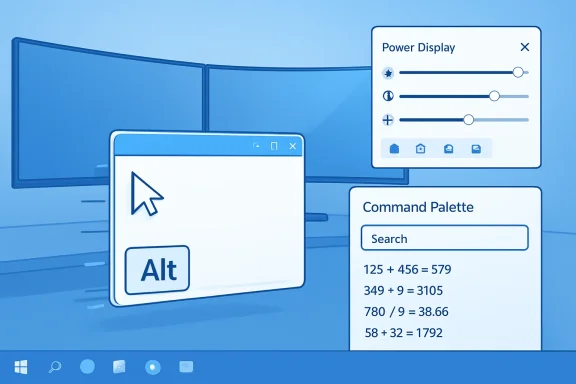
The promise of Power Display is simple: put compatible monitor controls in a system tray flyout and make them reachable without digging through buttons on the underside or rear of a panel. For multi-monitor users, that can save real time. If you regularly switch between bright daytime work, dim evening reading, video calls, gaming, and color-sensitive tasks, the ability to adjust displays from one place matters.The utility automatically detects connected displays and exposes supported controls such as brightness, contrast, volume, and color profiles. The exact experience will depend on monitor capability and communication support, so users should not assume every old or inexpensive display will expose every setting. That caveat is important, because monitor control is partly a Windows problem and partly a hardware ecosystem problem.
Power Display also introduces profiles, which may become its most powerful feature. A profile can represent a work setup, a presentation setup, a dark-room setup, or a color profile tuned for content creation. Combined with Light Switch integration, PowerToys can now react to theme changes and apply monitor settings as part of a broader visual workflow.
- System tray access reduces the need to touch physical monitor controls.
- Profile support makes repeatable display setups easier to manage.
- Light Switch integration connects monitor behavior to light and dark themes.
- Multi-monitor awareness makes the feature more valuable on desktop workstations.
- Hardware dependency means results will vary by display model and connection.
Grab And Move Makes Window Handling Less Fussy
Grab And Move is the other major addition, and it may become a favorite for users with ultrawide monitors, dense multi-window desktops, or remote sessions where window edges are awkward to target. The utility allows users to move a window by holding Alt and left-clicking anywhere inside it. It also allows resizing with Alt and right-clicking, again without needing to find a border or corner.A Linux-Style Idea Finds a Windows Home
This interaction will feel familiar to many Linux desktop users, where modifier-key dragging has long been a standard power-user convenience. On Windows, the traditional approach has depended on title bars, window borders, snap layouts, keyboard shortcuts, and the system menu. Those tools still work, but they are not always ideal when a window is partially off-screen or when a large display makes pointer travel tedious.Microsoft says users can choose the Win key instead of Alt if Alt conflicts with their existing workflow. That matters because modifier keys are contested territory in Windows. Apps, launchers, accessibility tools, remote desktop clients, and shell utilities all want memorable shortcuts, and PowerToys has to coexist with them rather than pretending the keyboard is empty.
Grab And Move also includes policy and setup integration, which suggests Microsoft expects more than hobbyist use. Group Policy support makes the feature easier to evaluate in managed environments where administrators may want consistent settings. An out-of-box experience page also helps users understand the behavior before they accidentally trigger it.
- Enable Grab And Move in PowerToys Settings.
- Choose whether Alt or Win should act as the modifier.
- Use modifier plus left-click to move a window from any interior point.
- Use modifier plus right-click to resize from the cursor position.
- Test the shortcut in admin tools, remote desktops, and full-screen apps before relying on it everywhere.
Command Palette and Dock Keep Becoming a Power Layer
PowerToys 0.99 gives Command Palette one of the most substantial rounds of improvements in the release. That is significant because Command Palette is not just another launcher. It is increasingly the connective tissue between PowerToys utilities, Windows Terminal, extensions, search, calculation, performance monitoring, and repeatable desktop actions.The Dock Becomes More Serious
The Dock receives a compact mode for top and bottom placement, an always-on-top behavior that yields for full-screen apps, and a better pinning flow. Users can choose where a command appears and whether title and subtitle text should be visible. These may sound like interface details, but they determine whether the Dock feels like a real productivity surface or just a demo feature.The addition of persistent calculator history also gives Command Palette more staying power. Quick calculations are common in technical work, but the value increases when results can be saved, reused, deleted, or cleared. That turns Command Palette from a transient launcher into a lightweight command notebook.
Extension support is also expanding with plain text and image viewer content types. That gives developers more ways to show useful content directly inside the palette rather than bouncing users to separate windows. The more the content pane can handle, the more Command Palette can become a single interface for small actions.
- Compact Dock mode helps reduce visual clutter on top and bottom placements.
- Always-on-top behavior improves access while respecting full-screen apps.
- Improved pinning gives users more control over command placement.
- Calculator history makes quick math more useful over time.
- Extension hardening reduces the chance that one broken extension ruins the whole list.
- Windows Terminal profile pinning strengthens the developer workflow.
Keyboard Manager Becomes a Better Control Surface
Keyboard Manager has long been one of PowerToys’ most practical utilities, especially for users who dislike a hardware key, need custom shortcuts, or want to standardize keyboard behavior across devices. PowerToys 0.99 builds on the recent editor redesign by adding more manual control after key recording. Once a remapping is recorded, each key can be adjusted from a dropdown, including keys that may not physically exist on the user’s keyboard.The Copilot Key Problem Is Now Easier to Solve
The new Disabled action is likely to get immediate attention. It allows specific keys or shortcuts to be turned off quickly, which is useful for accidental triggers and unwanted hardware behaviors. For many Windows 11 users, that means Keyboard Manager remains one of the cleanest ways to neutralize keys they never asked for, including dedicated AI or vendor-specific keys.This release also improves multiline text replacement reliability in chat apps and plain text editors. That is a small but meaningful fix because text expansion only becomes trustworthy when it behaves consistently across the apps people use all day. If replacement fails in Teams, editors, browsers, and terminals, users stop trusting it.
The bigger story is that Keyboard Manager is becoming less of a simple remapping table and more of a policy-like input control layer. It can reshape keyboard behavior for accessibility, productivity, hardware consistency, and distraction reduction. That makes it especially valuable in mixed environments where users move between laptops, external keyboards, and remote systems.
- Manual key selection helps users refine recorded mappings.
- Disabled actions make it easier to suppress unwanted keys or shortcuts.
- Multiline replacement fixes improve real-world reliability.
- Dropdown editing helps with keys not present on a physical keyboard.
- Validation improvements reduce the risk of broken mappings.
ZoomIt and Image Tools Push PowerToys Toward Creator Workflows
PowerToys 0.99 includes meaningful updates for people who capture, explain, resize, and reuse visual information. ZoomIt gains scrolling screenshots, text extraction while snipping, and break timer improvements. Image Resizer continues its migration toward modern Windows UI foundations with a WinUI 3 interface, while also fixing quality and encoder behavior.Capture Is Becoming a Productivity Category
ZoomIt’s scrolling screenshot capability is a natural fit for documentation, training, support, and bug reporting. Static screenshots often fail when content extends beyond the viewport, forcing users to stitch images manually or rely on browser-specific capture tools. Bringing panoramic capture into ZoomIt makes it more useful as a general explanation tool, not just a presentation zoom utility.Text extraction during snipping is another example of PowerToys collapsing multiple steps into one. Instead of capturing an image, opening another utility, running OCR, copying text, and pasting it elsewhere, users can move directly from selection to reusable text. For support teams and writers, this can shave minutes off repetitive workflows.
Image Resizer’s move from WPF to WinUI 3 is more subtle but strategically important. It aligns the tool with modern Windows design, helps consistency across PowerToys, and unblocks future technical improvements such as ahead-of-time compilation. The release also restores respect for user-configured JPEG quality and fixes missing PNG encoder settings, which are practical fixes for people who care about output fidelity.
- Scrolling screenshots help capture long pages and documents.
- Snip-time text extraction reduces OCR friction.
- Break timer improvements make ZoomIt useful beyond presentations.
- Image Resizer modernization improves design consistency.
- JPEG quality fixes protect user expectations.
- PNG encoder fixes improve file handling correctness.
Reliability, Defaults, and UI Modernization Matter More Than They Sound
Many PowerToys updates include a long tail of fixes, and version 0.99 is no exception. The release touches Settings, tray behavior, module defaults, dashboard layout, icons, telemetry, accessibility, localization, and development infrastructure. Those changes rarely dominate headlines, but they determine whether PowerToys feels like a trusted toolkit or a collection of clever experiments.A Lighter First-Run Experience
Microsoft has streamlined default module states so new installations start with a lighter experience. That is a wise decision because PowerToys has grown into a large suite. Enabling too much by default risks confusing new users, creating shortcut conflicts, and making the app feel heavier than it is.The updated tray icon and update badge are also more important than they appear. Users who leave PowerToys running all day need a clean way to understand status, discover updates, and reach settings. A small tray improvement can reduce friction every time a user checks whether the tool is active or current.
Settings improvements continue the project’s gradual shift from utility bundle to coherent application. Dashboard layout fixes, refreshed assets, clearer labels, better shortcut visuals, and missing image fixes all contribute to trust. Users are more likely to explore advanced tools when the settings surface feels polished.
- Default module changes reduce first-run overload.
- Tray update badges make maintenance more visible.
- Settings refinements improve discoverability.
- Accessibility fixes help screen reader and keyboard users.
- Localization and label changes reduce ambiguity.
- Infrastructure cleanup improves long-term maintainability.
Enterprise Administrators Get More to Like, and More to Test
PowerToys started as a power-user toolkit, but it increasingly has enterprise relevance. Developers, analysts, support staff, designers, and IT professionals often install it because Windows out of the box does not fully match their workflows. Version 0.99 strengthens that case, especially through policy support, Desired State Configuration documentation, and quieter default behavior.Managed PowerToys Is Becoming Realistic
The addition of Group Policy support for Grab And Move is a signal that Microsoft understands organizational deployment concerns. Administrators may not want every user inventing their own input model, but they may want specific teams to benefit from the feature. Policy control makes that conversation easier.PowerToys already supports installation through common channels such as Microsoft Store, GitHub installers, WinGet, and other package managers. For enterprises, the more important question is not how to install it, but how to configure it consistently. The release’s expanded DSC documentation across many modules should help teams define repeatable states.
A practical enterprise rollout should be cautious rather than automatic. Some PowerToys utilities hook input, manage windows, interact with shell extensions, or modify file workflows. That does not make them unsafe, but it does mean administrators should test them against security tools, remote desktop platforms, privileged apps, and accessibility requirements.
- Policy support makes selective enablement easier.
- DSC documentation helps configuration become repeatable.
- WinGet deployment supports modern package workflows.
- Lighter defaults reduce user confusion after installation.
- Known crashes require pilot testing before broad rollout.
- Shortcut conflicts should be mapped before enabling multiple modules.
Competition and the Broader Windows Productivity Market
PowerToys does not exist in a vacuum. The Windows utility market includes launchers, window managers, display tools, clipboard managers, screenshot utilities, automation apps, and keyboard remappers. Every time Microsoft adds a PowerToys feature, it changes the competitive landscape for smaller tools that solved those problems first.Microsoft’s Advantage Is Integration
Microsoft’s advantage is trust, distribution, and operating system familiarity. A free, open-source, Microsoft-maintained utility will be more acceptable to many users than a closed third-party app with deep system hooks. That matters especially for tools that control windows, keyboard input, display settings, and file operations.At the same time, PowerToys rarely replaces best-in-class specialist tools overnight. Display professionals may still need vendor utilities or calibration suites. Heavy automation users may still prefer AutoHotkey or enterprise automation platforms. Launcher enthusiasts may still prefer mature alternatives with years of plugin ecosystems.
The strategic pressure falls in the middle of the market. If a third-party utility exists mainly to resize windows from anywhere, expose basic monitor brightness, or provide a simple launcher dock, PowerToys may be good enough for many users. That does not kill innovation, but it forces smaller developers to move up the value chain.
- Display utilities face pressure from Power Display’s built-in convenience.
- Window managers must differentiate beyond basic dragging and resizing.
- Launchers compete with Command Palette’s Microsoft-backed extension model.
- Screenshot tools face overlap from ZoomIt improvements.
- Keyboard remappers must justify themselves against Keyboard Manager.
- Automation tools still have room where PowerToys remains deliberately scoped.
Installation and Upgrade Considerations
Most existing users can update from within PowerToys Settings, while new users can install through the Microsoft Store, GitHub installers, WinGet, or other package managers. The minimum supported platform remains modern Windows 10 or Windows 11 on 64-bit x64 or ARM64 hardware. The setup experience also accounts for Microsoft Edge WebView2 Runtime where needed.A Practical Upgrade Checklist
Users who rely heavily on Command Palette should treat this update slightly differently because of the acknowledged crash affecting some systems. That does not mean the release should be avoided universally, but it does mean productivity-critical users may want to keep an installer for their previous version available until the expected hotfix lands. Early adopters should be enthusiastic, not reckless.Before upgrading, review active modules and shortcuts. PowerToys has grown large enough that shortcut collisions are easy to create, especially if you use Windows Terminal, Copilot, screen capture tools, remote desktop clients, IDEs, and gaming overlays. Version 0.99 adds new functionality, so it is worth spending five minutes in Settings after installation.
For administrators, pilot deployment remains the safest path. Test on representative hardware, including multi-monitor desktops, ARM64 laptops, docked workstations, and machines with strict endpoint protection. Pay special attention to display behavior, input modifiers, shell extensions, and accessibility tools.
- Update existing installations through PowerToys Settings when convenient.
- Use package management for repeatable installation on managed machines.
- Check shortcut conflicts after enabling Grab And Move or Command Palette.
- Pilot Command Palette if your workflow depends on it heavily.
- Verify external monitor support before promising Power Display behavior.
- Document remappings when Keyboard Manager is used in support environments.
Strengths and Opportunities
PowerToys 0.99 succeeds because it combines instantly understandable features with deep maintenance work across the suite. Power Display and Grab And Move are easy to explain, but the release’s lasting value comes from better reliability, richer Command Palette behavior, more modern UI foundations, and stronger administrative signals.- Power Display addresses one of the most persistent multi-monitor annoyances in Windows.
- Grab And Move makes large-screen and off-screen window recovery faster.
- Command Palette continues evolving into a serious productivity hub.
- Keyboard Manager gains practical disabling and editing improvements.
- ZoomIt becomes more useful for documentation, training, and support workflows.
- WinUI modernization makes older utilities feel more consistent with Windows 11.
- Policy and DSC investments make enterprise adoption more realistic.
Risks and Concerns
The same breadth that makes PowerToys valuable also creates risk. Version 0.99 touches input, display control, shell behavior, extension loading, capture workflows, and administrative configuration. That means users and IT teams should consider compatibility, stability, and support boundaries before enabling every new option.- Command Palette crashes on some machines may disrupt users who rely on it daily.
- Monitor control support will vary depending on display hardware and connection capabilities.
- Shortcut conflicts may increase as more modules compete for memorable key combinations.
- Input remapping can complicate troubleshooting if users forget what they changed.
- Preview utilities may change behavior as Microsoft responds to feedback.
- Third-party extension failures remain a concern despite stronger isolation.
- Enterprise support ownership can become unclear if PowerToys is installed informally.
Looking Ahead
PowerToys 0.99 feels like a bridge release on the way to a symbolic 1.0 milestone, even if Microsoft has not framed it that way in simple marketing terms. The suite now contains enough utilities that the main challenge is no longer proving usefulness. The challenge is coherence, reliability, discoverability, and responsible defaults.The next stage should focus on making PowerToys easier to reason about as a complete product. Users need clearer guidance on which utilities overlap, which shortcuts conflict, which modules are best for enterprise use, and which remain experimental. Administrators need stronger configuration examples, better reporting, and predictable update behavior.
- Watch for a 0.99 hotfix addressing the Command Palette crash.
- Watch whether Power Display expands hardware compatibility and profile depth.
- Watch whether Grab And Move gains more granular app exclusions.
- Watch for continued Command Palette extension growth.
- Watch whether Microsoft positions PowerToys more formally for enterprise productivity.
Source: Thurrott.com PowerToys 0.99 Arrives With Two New Utilities, Many Improvements
