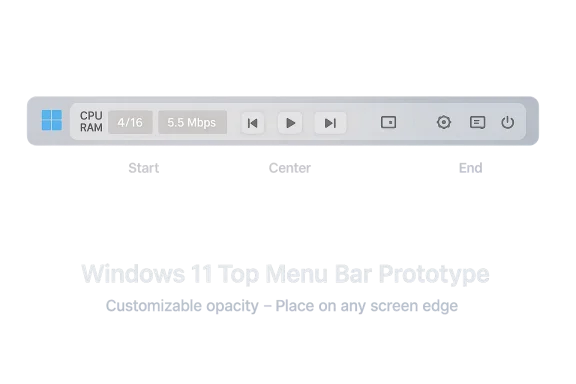
• Thread Author
Microsoft’s PowerToys team is quietly prototyping a persistent, Linux‑style menu bar for Windows 11 — a configurable “dock” attached to the new PowerToys Command Palette that can live along any screen edge and host glanceable system info, media controls, and pinned Command Palette extensions. This optional UI surface is currently a proof‑of‑concept under discussion and testing on GitHub; if it moves forward it could reshape how power users and Linux converts think about the Windows desktop by putting persistent, extensible status and control elements where macOS and many Linux desktops already do.

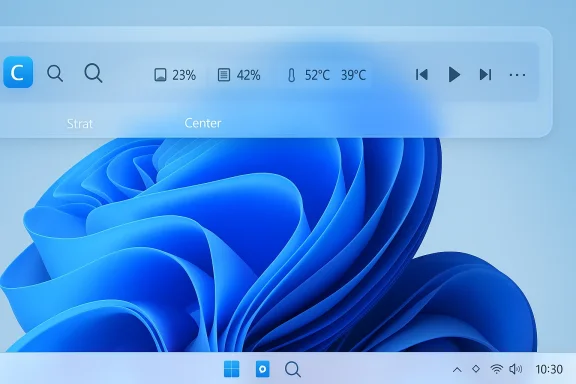
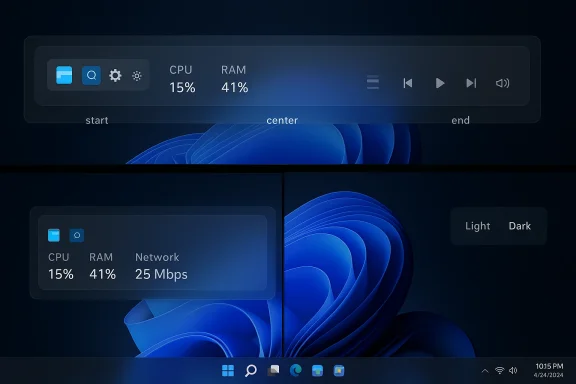
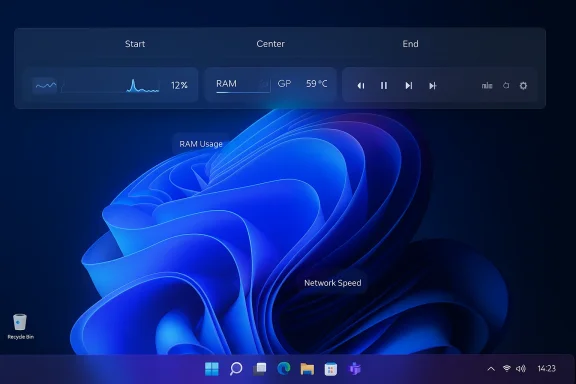
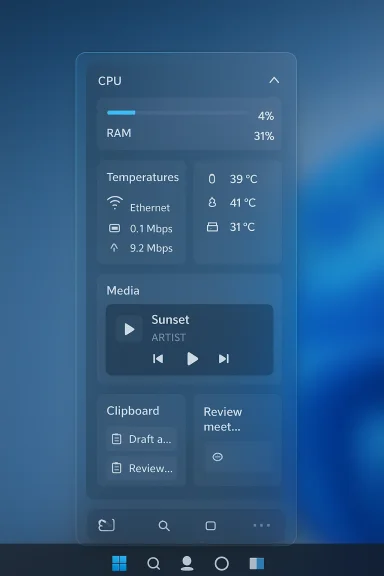
A translucent system monitor HUD with CPU, RAM, temps and media controls over a blue background.Background / Overview​

PowerToys has evolved from a grab‑bag of power‑user utilities into a modern, extensible toolkit that Microsoft maintains openly. Over recent releases the team replaced PowerToys Run with a richer, extensible Command Palette (CmdPal) that accepts plug‑in extensions, shell commands, and fast actions — a successor to classic quick‑launch tools and reminiscent of macOS Spotlight or Alfred. Microsoft’s documentation and recent release notes make Command Palette an official, supported module within PowerToys and describe it as the primary vehicle for the new experimentation.
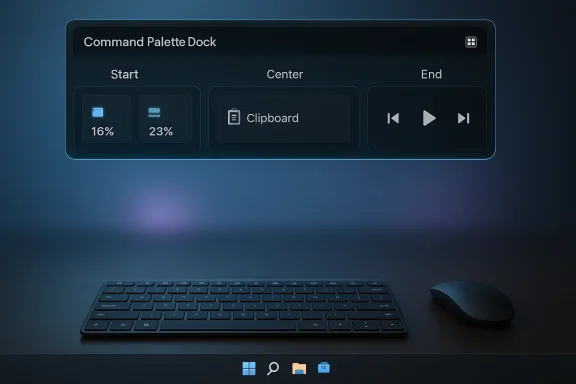
What’s new: the PowerToys team is experimenting with a Command Palette Dock — essentially a lightweight, persistent menu bar or “dock” that can be pinned to the top, bottom, left, or right of the screen and which surfaces selected Command Palette extensions without opening the palette itself. The dock is described as configurable into three regions (start, center, end), themable (background, styling, theme behavior), and intended to host both informational widgets (CPU/RAM, temperatures) and actions (app shortcuts, media controls). The feature is still early and optional; Microsoft is soliciting feedback on GitHub and running a dedicated branch for testing.

Why this matters now​

The UX gap PowerToys aims to fill​

Windows 11’s Taskbar and System Tray provide persistent access to core status and controls, but many users — especially those who have migrated from macOS or Linux — miss a top menu bar or a compact, highly customizable status strip. The PowerToys dock would give users a middle ground: a lightweight, user‑controlled bar that surfaces only the things they care about, while avoiding wholesale shell replacement. That approach plays to PowerToys’ strengths: opt‑in, modular customization for power users rather than a forced system change.

Extensibility and continuity with Command Palette​

Because the dock is described as an extension of Command Palette, existing CmdPal extensions should work without code changes — an attractive property that lowers friction for both extension authors and users. That means the same extension ecosystem that powers quick launcher behavior could now feed persistent UI elements, turning ephemeral commands into always‑visible controls. Microsoft’s Command Palette documentation and recent release notes show the project’s push for extension‑first design, and the dock is a natural next step.

Deep dive: What the prototype promises​

Positioning and layout​

  • The dock can be pinned to any screen edge — top, bottom, left, or right — to suit different workflows and monitor setups.
  • Items can be pinned to three logical regions: start, center, and end, which mirrors familiar tri‑region status bars used on macOS and many Linux DEs.
  • Visual appearance is customizable: background style, blur/opacity, and theme behavior are expected configuration options.

What you can pin to the dock​

  • Live telemetry and system info: CPU usage, RAM, temperatures, network throughput.
  • Media controls: play/pause, skip, volume.
  • Shortcuts and commands: pinned CmdPal extensions (for quick app launch or scripted actions).
  • Potentially more: custom extensions can deliver real‑time content using the Command Palette extension model.

User interaction model​

  • The dock is persistent but optional — users enable it in Command Palette settings, pin it to an edge, and add or remove items.
  • Items should be interactive (click to open or invoke) and may update in real time if extension items implement change notifications. Microsoft’s extension model explicitly supports live updates for list items, so the dock could display dynamic data without polling hacks.

Cross‑checking the claims: what’s verified and what is still tentative​

Verified by Microsoft documentation and release notes:
  • PowerToys includes Command Palette as a supported, extensible module and uses the extension model to power custom items and live updates. The CmdPal hotkey and extension mechanics are documented.
Corroborated by reporting and community threads:
  • Windows Central’s coverage and community chatter (Reddit, forums) confirm that the PowerToys team is prototyping a “Command Palette Dock,” that it supports multiple screen edges, and that a test branch exists for adventurous developers. Community posts surface early screenshots and brief feature summaries that align with Microsoft’s stated extension model.
Not yet independently verified or subject to caveats:
  • There is no official release or merge commit in the mainline PowerToys release branch at the time of reporting; the feature remains experimental and may change substantially before shipping. Implementation details (exact API contracts, multi‑monitor behavior, auto‑hide rules) are not finalized publicly. Any claims about release timing or final UX should be treated as provisional.

Strengths: why the dock could be a win for Windows power users​

  • Low friction customization: Because the dock leverages existing Command Palette extensions, users and extension authors gain functionality without needing to rewrite code. This continuity reduces friction and speeds adoption.
  • Glanceable telemetry: A top menu bar optimized for glanceability helps monitoring tasks (e.g., VRAM or CPU thermals) without constantly opening separate tools or overlay widgets. That’s particularly useful for creators, developers, and system tuners.
  • Opt‑in model: PowerToys’ modular design means this change would be optional and per‑user; power users can enable advanced UI surfaces, while mainstream users are unaffected. This respects Windows’ existing UX while offering advanced configurability.
  • Potential to reduce context switches: Pinning quick actions (e.g., mute/unmute, app shortcuts, clipboard snippets) to the dock could reduce mouse and context switching overhead for repetitive workflows.

Risks, tradeoffs, and compatibility concerns​

1) Interaction with Taskbar and Shell​

Windows 11’s taskbar has its own set of design constraints and internal behaviors. Adding a persistent dock — particularly at the top of the screen — risks visual and functional clashes with:
  • Legacy apps that assume a full‑height workspace from the top.
  • Apps that use full‑screen or exclusive modes (games, video players) and expect the top edge to be free.
  • The existing Taskbar and notification area workflows; two persistent bars may confuse users or duplicate functionality.
Unless carefully sandboxed and designed to auto‑hide or behave intelligently in fullscreen contexts, the dock could create friction. This is one reason PowerToys’ opt‑in approach is essential.

2) Multi‑monitor complexity​

Multi‑monitor setups raise important questions:
  • Does the dock appear on all monitors or only the primary?
  • Can users independently configure docks per display?
  • How does the dock behave when monitors have different DPIs, orientations, or scaling settings?
PowerToys already wrestles with multi‑monitor edge cases in utilities like FancyZones; the dock will need similarly robust multi‑monitor design and testing. Reports and issue threads show users frequently hit edge cases when docks or custom toolbars interact with multiple displays.

3) Accessibility and discoverability​

Top bars and docks can be friendly for sighted power users, but they must be accessible:
  • Keyboard navigation, screen‑reader semantics, and high‑contrast modes must be first‑class citizens.
  • Users who rely on keyboard‑only navigation should be able to reach and manipulate dock items without a mouse; Command Palette’s hotkey model helps here, but the dock itself must expose standard accessibility hooks.
Microsoft’s developer docs for Command Palette emphasize keyboard and extension best practices; the dock must adopt the same accessibility rigor.

4) Security and privilege concerns​

Because Command Palette can invoke commands, the dock could surface actions that run programs or scripts. That raises security considerations:
  • How are privileged actions handled when PowerToys or an extension require elevated permissions?
  • Will pinned items in the dock be allowed to run as admin, or will elevation be gated by a secure user flow?
  • Could a malicious extension trick users into invoking dangerous actions from a persistent surface?
PowerToys’ release history shows regressions and permission quirks (for example, extension behavior when PowerToys runs elevated), so handling elevation consistently remains a risk area. Microsoft will need to harden how the dock invokes privileged commands and how it displays elevation‑required items.

5) Performance and telemetry​

A persistent dock that updates live telemetry (CPU, network) must be efficient. Poorly implemented widgets could:
  • Cause CPU spikes, especially on low‑power devices.
  • Interact badly with power/performance profiles or throttling.
  • Increase background resource usage for users who expect an efficient desktop.
PowerToys historically takes a pragmatic approach to performance, but the community will be unforgiving if the dock degrades battery life or responsiveness.

How to try it now (for tinkerers) — and safety tips​

  • Install or update PowerToys to the latest stable release and enable Command Palette (CmdPal). The documented hotkey is Win + Alt + Space by default.
  • The dock is an experimental feature in a dedicated test branch according to reporting; developers can compile a specialized branch from the PowerToys GitHub to try the prototype. This requires building PowerToys from source and accepting the usual risks of developer builds (instability, no official support).
  • If you opt into a branch build: test in a non‑critical environment (secondary machine or VM), create a system restore point, and avoid using it on production or corporate devices. Experimental builds often include bugs and permission quirks.
Important safety notes:
  • Experimental branches may run with different privilege levels; do not run untrusted extensions.
  • Back up your PowerToys settings folder if you want to revert easily.
  • Monitor CPU, battery, and system logs during testing for regressions.

What extension authors should prepare for​

  • Design items that implement change notifications efficiently: the Command Palette extension model already supports live updates for list items, which the dock can reuse to avoid polling. Authors should follow those patterns for efficient telemetry or status indicators.
  • Consider both click and keyboard activation semantics: dock items should be reachable via keyboard, and invoking an action should follow least‑privilege principles.
  • Think about adaptive layouts: docks on small screens or high‑DPI monitors may require condensed visuals or alternate glyphs.
  • Test for elevation handling: if an action requires admin, implement safe prompts rather than silent elevation.

Policy and enterprise implications​

For IT administrators and enterprise deployments, a few control points matter:
  • Group Policy or MDM controls should be available to enable/disable experimental PowerToys features in managed environments. PowerToys configuration already exposes settings in JSON under %USERPROFILE% and integrators often use replacement policies; enterprises will want a supported toggle.
  • Security review of popular CmdPal extensions should be encouraged if docks can surface actions on locked corporate devices.
  • If Microsoft makes the dock a stable feature, it should ship with clear enterprise documentation about safe deployment and compatibility with corporate shell customizations.

Recommendations for Microsoft (engineering + UX)​

  • Ship the dock behind an opt‑in flag and expose clear telemetry/performance thresholds for pinned widgets. Power users might enable dozens of items; build safeguards.
  • Provide per‑display configuration and sensible defaults for multi‑monitor users, including the ability to restrict the dock to a single monitor or per‑monitor instances.
  • Enforce permission gating and elevation workflows for actions surfaced in the dock — including secure confirmation UI and clear visual cues for privileged actions.
  • Publish extension guidance and an accessibility checklist for dock authors so the ecosystem builds inclusive experiences from day one.
  • Offer enterprise management controls and explicit documentation for deploying or disabling the feature at scale.

A realistic timeline and what to expect​

Because the dock is an early proof of concept, timelines are uncertain. Historically, PowerToys features follow a path:
  • Prototype and community feedback (experimental branch and GitHub discussion).
  • Iteration based on feedback, stability and accessibility fixes.
  • Merge into the mainline and release in a future PowerToys version — often within weeks to a few months if community reception is positive and engineering costs are modest.
That said, features that touch shell behavior, multi‑monitor logic, or permissions can take longer. Users should treat any early screenshots or videos as previews, not final product.

Final analysis: practical value vs. UX risk​

The PowerToys Command Palette Dock is a practical, low‑risk way for Microsoft to experiment with a Linux/macOS‑style menu bar without forcing a platform‑wide UI change. Its strengths lie in modularity, reuse of CmdPal extensions, and an opt‑in philosophy that matches PowerToys’ ethos. For users who crave glanceable telemetry and fast access to custom actions, the dock delivers real promise.
However, the surface area of risk is not trivial. Multi‑monitor quirks, elevation handling, accessibility, and performance are all non‑trivial concerns that will determine whether the feature is embraced or ignored. Microsoft’s path forward should prioritize accessibility and least‑privilege security, invest time in multi‑monitor polish, and ensure the dock is an enhancement rather than a duplication that creates UI clutter.
If Microsoft gets the tradeoffs right, this could be one of PowerToys’ more consequential UX experiments — a configurable, extensible top bar that feels native to the desktop without demanding system‑level redesign. If they get it wrong, it will remain a niche tweak that power users compile themselves while the majority of Windows users never see a reason to enable it. Either way, the idea shows PowerToys continuing to push Windows customization in a thoughtful, community‑oriented way.

Conclusion​

A Linux‑style, Command Palette‑driven dock for Windows 11 is an appealing experiment that neatly leverages PowerToys’ extensibility model. It packages glanceable telemetry, persistent controls, and pinned Command Palette extensions into a single, user‑controlled surface — and it represents a pragmatic route for Microsoft to test desktop paradigms that many power users have long requested. For those who like tinkering, the prototype branch offers a way to try the concept now; for the broader audience, the experiment highlights how incremental, opt‑in UX surfaces can evolve Windows without breaking what already works.
Expect to see iterations, community feedback cycles, and careful attention to accessibility and security before the dock — if it ships — becomes a mainstream PowerToys feature. For now, the proposal is worth following: it could be a small change with outsized productivity benefits for the right users.

Source: Windows Central Microsoft explores bringing Linux-like menu bar to Windows 11 via PowerToys
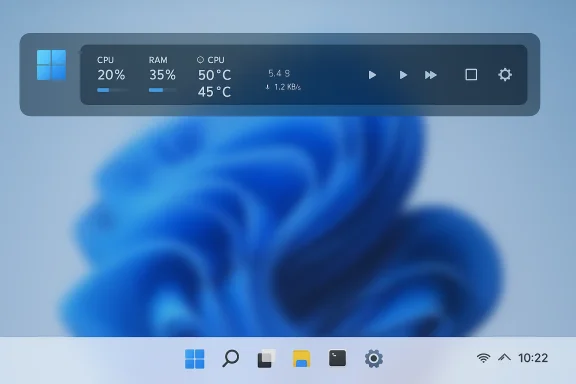
 

Microsoft is quietly testing a persistent, Linux‑style top menu bar for Windows 11 — not as a mandatory shell change but as an opt‑in PowerToys experiment that attaches to the new PowerToys Command Palette and behaves like a configurable dock you can pin to any screen edge.

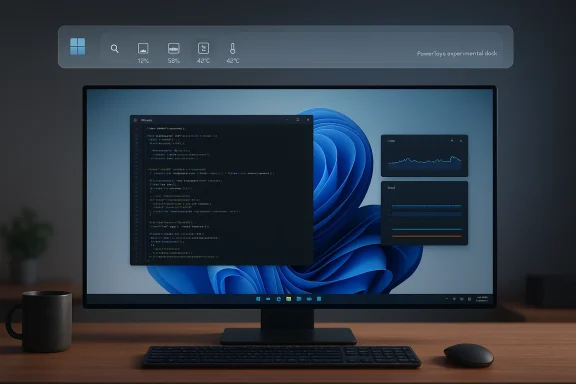
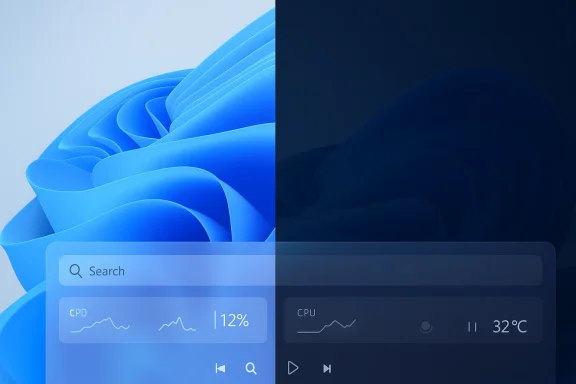
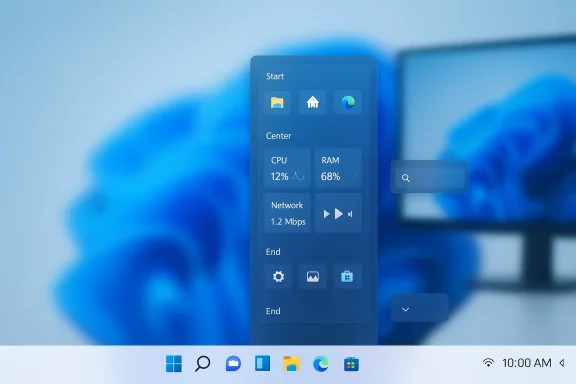
Blue abstract wallpaper with a frosted translucent floating control panel over a Windows-style taskbar.Background / Overview​

Microsoft’s PowerToys has become the go‑to vehicle for optional, power‑user features that don’t require an OS‑level policy change. In recent months the PowerToys team has expanded the project beyond a grab‑bag of utilities into a more extensible platform centered on the Command Palette (CmdPal), and the team is prototyping a lightweight, persistent “dock” that surfaces Command Palette extensions as always‑visible items. This dock is explicitly experimental, delivered through PowerToys branches and GitHub testing channels rather than Windows Update, and it’s positioned as an opt‑in enhancement for users who want a different persistent status/control strip.
The core idea is straightforward: give Windows users a compact, customizable bar — akin to the macOS menu bar or common Linux desktop panels — that can host glanceable telemetry, media controls, and pinned Command Palette extensions without forcing a full shell replacement. Microsoft frames this as a PowerToys prototyping effort that preserves users’ choice: enable it if you want, leave it off otherwise.

What Microsoft is testing: features and behavior​

The dock concept — what to expect​

  • A persistent bar (the “dock”) that can be pinned to the top, bottom, left, or right of any monitor.
  • Three logical regions — start, center, end — for placing items, mirroring the tri‑region pattern common on macOS and many Linux desktop environments.
  • Support for hosting both static shortcuts and live items provided by Command Palette extensions (for example: CPU/RAM, temperatures, network throughput, or playback controls).
  • Themed visuals and configurable appearance (opacity, blur, and theme behavior) to match Windows 11 aesthetics.

How it integrates with Command Palette​

The dock is not a separate monolith — it’s an extension of the PowerToys Command Palette. That means the same extension model that powers quick launcher behavior can feed the dock, turning ephemeral commands into persistent UI elements. In practice this lowers friction for extension authors: existing CmdPal extensions should work with the dock without major modification, and the extension model supports live updates (notifications when an element’s content changes).

Optional by design​

Microsoft is treating the feature as a proof‑of‑concept inside PowerToys, so it ships as an optional toggle and not as a forced system change. The opt‑in posture matters: PowerToys is already the canonical place for power users to try experiments, and keeping this surface optional preserves the default Windows 11 experience for the majority of users.

Why Microsoft is doing this: UX gaps and user demand​

Windows 11’s centered Taskbar and System Tray deliver persistent access for many tasks, but they haven’t satisfied users who migrated from macOS or Linux and miss a top menu/status bar. The PowerToys dock aims to fill that gap with a lightweight, user‑controlled surface.
  • It appeals to power users who want a customizable status strip without replacing the Windows shell.
  • It lets the PowerToys team prototype persistent UI ideas without risking enterprise compatibility by pushing OS‑level changes.
  • It supports an extension ecosystem, which makes the dock functionally flexible for different workflows.
These goals align with PowerToys’ historical role as an incubator for power‑user features: experimental, community‑driven, and reversible.

Technical design and implications​

Extension model and live updates​

Because the dock leverages the existing Command Palette extension model, items can be dynamic. Extensions can push state updates to the dock (for example, live CPU percent) rather than relying on polling hacks. This is a modern architecture pattern: make the UI surface a thin presentation layer while letting extension code handle telemetry and polling. It’s an efficient approach that reduces duplication and encourages a healthy third‑party ecosystem.

Positioning, multi‑monitor, and z‑ordering​

The dock’s ability to be pinned to any edge introduces subtle complexity around multi‑monitor setups, fullscreen apps, and window management. Early prototypes treat it as a non‑intrusive layer, but precise behavior around focus, autohide, and overlap with fullscreen applications still requires testing and refinement. Microsoft’s experimental stance means these edge cases will be iterated in private branches and community feedback loops before any broader push.

Accessibility and WinUI/WinApp SDK integration​

The prototype sits in PowerToys and will initially rely on PowerToys’ UI stack and accessibility plumbing. For the dock to reach parity with system UI surfaces, the team will need to ensure robust keyboard navigation, screen‑reader semantics, and high‑contrast support. Those accessibility assurances are not automatic in an experimental app, and they must be validated before any feature is recommended for mainstream audiences. At present, the dock is a prototype — accessibility details remain to be fully verified.

How this compares to other OS models​

  • macOS: A single menu bar across the top that integrates app menus and system status items. The PowerToys dock is inspired by the glanceability of that model but deliberately does not aim to subsume app menus; it’s a compact status/control area rather than a full menu‑bar replacement.
  • Linux: Many desktop environments use top or bottom panels that host system trays, app launchers, and widgets. The PowerToys dock explicitly references the Linux model as part of its affinity for configurable docks and panels.
  • Windows 11: Taskbar + System Tray remains the canonical persistent area. The PowerToys dock complements rather than replaces these, giving users a third persistent surface they can customize.

Developer and ecosystem implications​

Extensions, APIs, and adoption​

Because the dock is an extension of Command Palette, extension authors will likely get dock compatibility “for free” when the infrastructure stabilizes. That’s attractive: developers who already support CmdPal will be able to expose persistent elements without large rewrites.
However, broader ecosystem benefits depend on two things:
  • Microsoft keeping the CmdPal extension API stable and well‑documented, and
  • Third‑party developers choosing to adopt the model instead of shipping platform‑specific solutions.
If both happen, the dock could quickly host a wide range of small utilities and integrations. If not, the dock risks becoming a niche customization used only by enthusiasts.

WinUI controls and shell integration​

Microsoft continues to prototype new WinUI controls (for example, split menu items in context menus) to improve system consistency. Those WinUI experiments suggest Microsoft is moving toward a more modular UI strategy that favors developer APIs and progressive adoption rather than heavy-handed shell changes — and the PowerToys dock follows that same pattern: prototype in PowerToys, stabilize APIs in the Windows App SDK / WinUI, then consider broader shell integration if warranted.

Enterprise, management, and rollout considerations​

Opt‑in vs forced changes​

PowerToys experiments are opt‑in, which reduces enterprise risk at first glance. But Microsoft’s recent history of shipping UI changes through servicing updates — then enabling features server‑side via staged flags — demonstrates that binaries can be present on devices before users notice changes. Administrators should treat PowerToys experiments the same way they treat any user‑installed tooling: validate in a test ring and document policies. Historical rollout behavior for Start menu changes shows Microsoft can and does gate features server‑side for gradual exposure, and admins should pay attention to servicing KBs and release notes.

Telemetry and privacy​

Any persistent UI that exposes system telemetry (CPU, RAM, temperatures) raises privacy and telemetry questions for managed environments. Admins will want to know:
  • Does extension telemetry leave the device?
  • Are there corporate data leakage vectors (for example, quick actions that surface or transmit sensitive file names)?
  • Can admins disable PowerToys or restrict extension installation centrally?
Microsoft’s enterprise controls around PowerToys are less mature than OS policies, and organizations should approach experimental features cautiously until corporate‑grade controls or guidance arrive.

Performance, reliability, and system impact​

Memory and background costs​

A recurring theme in recent Windows experimentation is the trade‑off between perceived responsiveness and resource cost. For example, Microsoft’s Explorer preloading experiment improved first‑open latency but at a modest memory cost on low‑spec machines — a reminder that background “warm” components add steady resource usage even if they reduce occasional latency. The PowerToys dock’s resource profile will matter most on low‑RAM devices; each live widget or telemetry item adds CPU/polling and memory overhead that can accumulate if many extensions are active. Administrators and power users should watch for real‑world performance tests as the prototype matures.

Stability and compatibility risks​

Because PowerToys is not a shell, it avoids many compatibility constraints, but it still interacts with the desktop in ways that can expose fragility:
  • Z‑order and focus issues with fullscreen video or games.
  • Conflicts with other third‑party tools that hook the Taskbar or shell.
  • Multi‑monitor quirks where the dock might appear on one monitor but not another, or where per‑monitor DPI scaling creates inconsistent visuals.
These are typical for new UI layers and will need careful iterative testing in diverse device configurations.

Accessibility and internationalization: a gap that needs verification​

PowerToys historically has included accessibility features where contributors added them, but experimental UI surfaces require explicit verification. At the time of reporting the dock prototype’s accessibility posture — keyboard navigation, screen‑reader semantics, high‑contrast theme handling, and localization — remains to be fully validated. Until Microsoft documents and tests these areas, accessibility advocates and enterprise deployments should treat the dock as experimental and avoid relying on it for core workflows. This is a cautionary note rather than a confirmed deficiency; full accessibility verification is pending.

How to try it (for enthusiasts)​

  • Install the latest PowerToys release or opt into the PowerToys preview/test branch where the Command Palette and dock branch are available.
  • Enable Command Palette (CmdPal) in PowerToys settings and look for a “Dock” or “Command Palette Dock” toggles if your build includes the experiment.
  • Add extensions from the CmdPal extension store or from local extension manifests. Keep an eye on resource usage and disable noisy widgets if you see performance regressions.
Important caveat: the dock is experimental. Expect feature churn, visual changes, and possible regressions. If you depend on a stable environment (work laptop, critical production machine), do not enable experimental UI surfaces on that device.

Strengths — what’s compelling about the idea​

  • Choice and opt‑in: Delivered via PowerToys, the dock gives users an easy opt‑in path with no forced OS changes, which respects user preference.
  • Extensibility: By leveraging the Command Palette extension model, Microsoft lowers adoption friction for developers and creates a single integration point for many small utilities.
  • Bridges platform mental models: For users coming from macOS or Linux, the dock restores familiar workflows without asking Windows to abandon its taskbar/tray model.
  • Iterative, low‑risk approach: Prototyping in PowerToys lets Microsoft validate the concept before committing to shell‑level design changes.

Potential risks and weaknesses​

  • Performance overhead: Persistent widgets and live telemetry can raise memory and CPU costs, especially on low‑spec hardware. The Explorer preloading experiments illustrate the trade‑offs between responsiveness and resource use.
  • Fragmentation: A popular PowerToys dock could encourage many extensions and configurations, which risks creating inconsistent experiences across machines and complicating support for help desks.
  • Accessibility uncertainty: Experimental UI surfaces must be validated for keyboard and screen‑reader users; until then, accessibility is a risk for relying workflows.
  • Enterprise policy and telemetry gaps: PowerToys lacks the centralized policy controls of the OS, so administrators may not be able to audit or restrict dock behavior as tightly as they would prefer.

Verdict: pragmatic experiment, not a Windows 11 overhaul​

What Microsoft is building in PowerToys is best described as a pragmatic experiment: a way to offer the familiar top‑bar affordance to users who want it, without changing Windows for everyone. The design is smart in that it reuses the Command Palette extension model and keeps the feature opt‑in, but it will succeed only if Microsoft invests in three things:
  • Stability and performance tuning so the dock doesn’t penalize low‑end systems.
  • Clear accessibility and localization work so the dock is usable by everyone, including those relying on assistive technologies.
  • Enterprise controls and telemetry transparency so organizations can adopt or block the feature safely.
If those conditions are met, the PowerToys dock could be a neat addition for enthusiasts and productivity‑minded users. If not, it risks remaining an interesting experiment with limited mainstream impact.

Practical takeaways for Windows 11 users​

  • If you’re a power user who misses a menu/status bar and you enjoy tinkering, watch PowerToys previews and try the dock in a test environment. Expect churn and incremental refinements.
  • If you manage fleets in an enterprise, treat PowerToys experiments as third‑party tools: test before approving, verify telemetry behavior, and document an escalation path if users report issues. Recent Microsoft rollouts (Start redesign, Explorer experiments) show how UI changes can surface unpredictably across devices; plan accordingly.
  • If accessibility or compliance is central to your environment, wait for Microsoft’s formal guidance and accessibility validation before enabling experimental UI surfaces for production users.

Microsoft’s PowerToys top‑bar experiment is a reminder that not all meaningful OS evolution needs to start with the kernel or the shell: small, modular experiments can surface big ideas, test real‑world demand, and give developers time to adapt. The dock concept checks several pragmatic boxes — choice, extensibility, and low‑risk prototyping — but it will be judged on execution: performance, accessibility, and enterprise controls. For now, it’s a compelling option for tinkerers and a careful proof‑point for Microsoft’s incremental, developer‑friendly approach to modernizing the Windows desktop.

Source: The Verge Microsoft is experimenting with a top menu bar for Windows 11
Source: filmogaz.com Microsoft Plans Linux-Style Top Menu Bar for Windows 11 via PowerToys
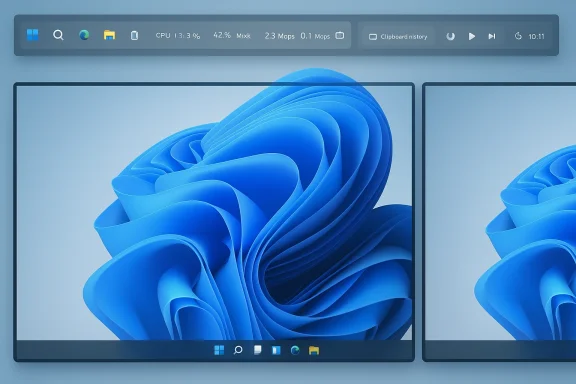
 

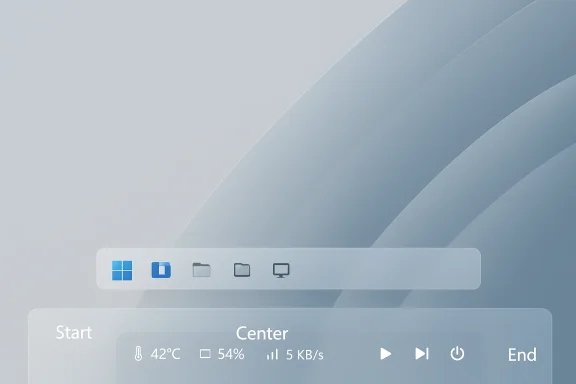
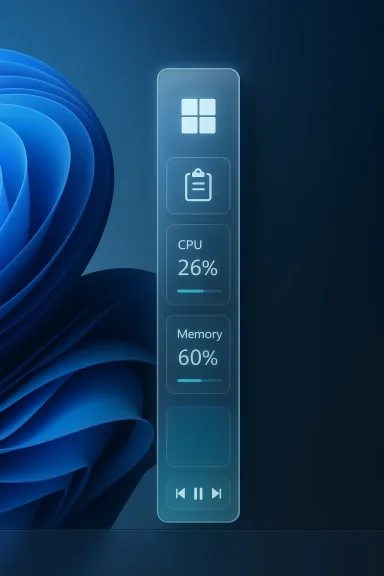
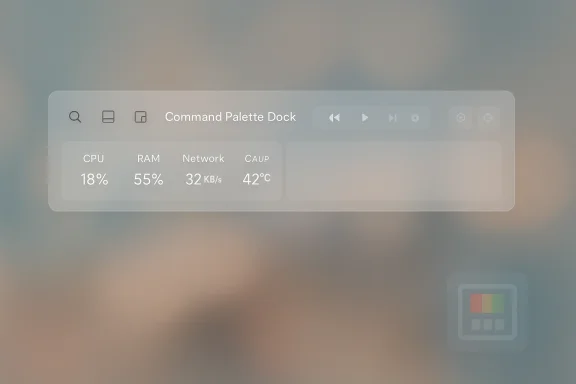
A sleek, glassy blue-gray desktop with a curved, rounded taskbar and app icons.
Microsoft’s PowerToys team is quietly prototyping a configurable, taskbar‑style “dock” that attaches to the new Command Palette and can be pinned to any screen edge — a low‑risk experiment that could give Windows power users a macOS‑ or Linux‑style glanceable status and control strip without forcing a shell change on everyone.

Background / Overview​

PowerToys has long been Microsoft’s sandbox for power‑user experiments: a place to incubate ideas, gather community feedback, and iterate quickly outside the main Windows shell. Over the last year the project migrated its quick‑launch functionality into a more extensible Command Palette (CmdPal), repositioning PowerToys from a set of discrete tools into a platform with a plugin model. That architectural shift is the foundation that makes a persistent dock feasible: extensions that already feed the Command Palette can, in theory, present persistent UI elements on a thin, always‑visible bar.
The prototype — often referred to in coverage as the Command Palette Dock — is being developed as an opt‑in PowerToys experiment. Microsoft has described it as early‑stage and is soliciting feedback; the team is it user‑enabled rather than baked into the OS shell. That distinction matters: delivering this as a PowerToys module preserves choice for mainstream users while letting enthusiasts test new desktop affordances.

What the dock promises: features and user model​

Early previews and proposal notes make several concrete design claims. Taken together, they sketch a compact, flexible surface aimed at glanceability and rapid interaction rather than replacing app menus or the Windows taskbar.
  • Positionable on any edge — top, bottom, left or right of a monitor, depending on workflow preference.
  • Three logical regions — start, center, end — for placing items, mirroring the tri‑region pattern common on other desktop platforms.
  • Extension‑driven content — the dock surfaces both static shortcuts and live items exposed via Command Palette extensions (CPU/RAM indicators, temperatures, network throughput, playback controls, pinned actions).
  • Theming and appearance control — blur, opacity, and color treatment to match Windows 11 aesthetics.
  • Opt‑in, not forced — shipped as a toggle in PowerToys rather than an automatic shell replacement; the prototype is being valid and on GitHub.
These are not aspirational bullet points alone — multiple independent outlets and the Powerave referenced the same triage of features and the linkage to CmdPal, giving the claims cross‑verification in reporting and code commentary.

Why this model makes sense today​

  • It reuses proven infrastructure: the Command Palette already accepts extensions and supports live updates; repurposing that plumbing for pinned, persistent elements reduces development duplication.
  • It respects enterprise and conservative users: because PowerToys is optional, this keeps experimentation away from the critical, heavily governed OS surface.
  • It maps to real user demand: many Windows migrants from macOS or Linux miss a simple top bar or panel that surle controls and telemetry. The dock answers that without committing Microsoft to a global shell redesign.

How the dock integrates with Command Palette (technical design)​

The implementation idea is straightforward and architecturally neat: treat the dock as a thin, presentation layer that subscribes to the Command Palette extension model rather than a separate runtime that dugic.
  • Extensions publish items and live updates. CmdPal extensions already support list items and change notifications; the dock can subscribe to those notifications and render an item’s current state in a persistent spot. That avoids polling and centralizes telemetry logic in extension code.
  • Single integration point for developers. From a developer’s perspective, adding dock‑compatible behavior should be a small delta if the extension API exposes “pin” or “present” hooks. That lowers friction and speeds ecosystem growth.
  • UI stack and accessibility. The prototype appears to rely on PowerToys’ Winponents; for the dock to match system surfaces it will need robust keyboard focus handling, screen‑reader semantics, and high‑contrast compatibility. Those are not automatic in experimental builds and must be validated before the dock is recommended to accessibility‑dependent users.
Two technical consequences flow from this architecture: first, tnally lightweight because it delegates heavy lifting to extensions; second, the extension API becomes the gatekeeper for what content is allowed on a persistent surface — which raises both security and governance questions (discussed below).

How this compares to other desktop models​

macOS​

macOS has a single system menu bar at the top that integrates app menus and statys dock borrows the glanceability concept but intentionally does not aim to supplant app menus — it’s designed as a compact status/control strip rather than a full menu‑bar replacement.

Linux​

Many Linux desktop environments provide configurable pane system trays, and launchers. The Command Palette Dock most closely resembles these panels: configurable, extensible, and positioned by the user. For Linux converts this restores a hout forcing Windows apps to adapt to new menu semantics.

Windows 11​

Windows’ canonical persistent areas remain the Tasky. The PowerToys dock complements rather than replaces them, giving users an optional third surface for pinned CmdPal items and live telemetry. That modular apg Windows expectations while opening a path to more extensible shell-like surfaces if the experiment succeeds.

Potential benefits — who wins if execution is solid​

  • Power users and creators get glanceable telemetry (CPU/GPU temps, network throughput) without constant context switching. That’s useful for live streaming, video editing, and system tuning.
  • Developers of small utilities can offer always‑visible controls and status without writing separate tray apps; the extension model centralizes distribution and versioning. from macOS/Linux** regain an anchor point for status and quick actions that maps to their muscle memory.
  • Microsoft benefits by testing UI paradigms in a low‑risk environment; positive feedback and robust APIs could later inform official shell improvements.

Risks, tradeoffs, and hard engineering challenges​

The idea carries meaningful technical and user‑experience risk. The next section identifies the primary hazards and why they matter.
ion and z‑ordering
A top or edge dock must coexist with fullscreen apps, games, and legacy code that assumes the top edge is free. If the dock does not auto‑hide or properly yield focus for exclusive fullscreen scenarios, it could interfere with media playback and games. Careful z‑order rules and fullscreen detection are required.

2) Multi‑monitor complexity​

Multi‑uce questions that are deceptively hard to get right:
  • Is the dock global, per‑display, or both?
  • How does it behave with different DPIs and scaling factors?
  • What happens when displays are rotated or function at different refresh rates?
PowerToys already wrestles with multi‑monitor edge cases in other modules; the dock will need a similar investment in per‑monitor defaults and configuration.

3) Accessibility and discoverability​

Persistent surfaces must be keyboard reachable and screen‑reader friendly. Experimental apps historically require explicit attention to accessibility; this dock must ship with an accessibility checklist and automated tests for keyboard focus, ARIA/semantics mapping, and high‑contrast themes before being promoted beyond tinkerers.

4) Security and privilege model​

Because Command Palette can invoke commands and run actions, surfacing those actions on a persistent bar raises security questions:
  • How are privileged actions gated? (e.g., admin prompts, secure UAC flow)
  • Can a malicious or poorly reviewed extension pin actions that mislead users?
  • How will enterprise admins audit or block problematic extensions?
PowerToys has had privilege‑handling anomalies in the past (extensions breaking when PowerToys runs elevated), so a hardened elevation and permission model is essential.

5) Performance, battery, andetry widgets are convenient but can increase CPU, memory, and battery use — especially if many extensions are pinned. The dock must enforce efficient update cadences and provide clear performance telemetry so users understand the resource cost of popular configurations. Past PowerToys work has reduced memory spikes via AOT compilation, showing the team can optimize, but vigilance is required.​

6) Fragmentation and supportlar dock with diverse extensions risks inconsistent experiences across machines and increased help‑desk complexity. Microsoft must balance openness with guidance and quality controls for extensions to avoid a ience.​


Developer and ecosystem implications​

If the dock uses the existing CmdPal extension API — as reported — adoption could be rapid for authors who already target CmdPal. But adoption depends on a few practical moves:
  1. Stable, documented API. Microsoft should publisacts and maintain backward compatibility for common patterns.
  2. An extension review and discovery surface. A curated gallery or store will help users find trustworthy dock widgets and prevent low‑quality or malicious modules from proliferating.
  3. Best practices for efficient updates. Extension authors must use push/change notifications instead of aggressive polling. The CmdPal model already supports list item updates that the dock can reuse.
For enterprises, PowerToys remains a user‑side tool; administrators will want Group Policy/MDM controls to block or permit the dock at scale. Microsoft should consider shipping enterprise toggles and telemetry transparency if the feature graduates from experiment to supported module.

How to try it now (for tinkerers) — practical steps and safety tips​

If you want to experiment with the dock today, know that the prototype lives in P and GitHub discussions. Expect churn and instability; do this on a secondary machine or VM.
  1. Install the latest stable PowerToys release to ensure your environment is up to date.
  2. Check the PowerToys ntal branch or prototype pull request labeled for the Command Palette Dock. Pull requests and issue threads will document build steps and known caveats.
  3. Build the test branch from source in Visual Studio (the PowerToys repo includes build instructions). Be prepared for compilation doper tooling overhead.
  4. Back up your PowerToys settings (usually under your local appdata), create a system restore point, and only enable experimental features on a machine you can afford to troubleshoot.
Safety tips:
  • Do not enable experimental UI surfaces on production machines used for critical work.
  • Monitotery after enabling the dock; disable noisy extensions.
  • If you manage devices, pilot the feature in a controlled test ring and document extensi Recommendations for Microsoft — what should come first
If Microsoft wants this to succeed beyond the enthusiast community, prioritize the followin audit and automated tests.** Ship the dock only after keyboard navigation, screen‑reader semantics, and high‑contrast compatibility are validated. Accessibility must be first‑class.
  • Performance budgets and telemetry. Expose a per‑item cost estimate or an overall dock impact meter so users can understand battery/CPU tradeoffs. Enforce efficient update cadences for extensions.
  • Privilege gating and secure UAC flows. Define and enforce how pinned items request elevation so that persistenntly run privileged tasks.
  • Enterprise controls. Provide ADMX/MDM policy templates to allow or block the dock, and document telemetry to support compliance audits.
  • Extension review and discovery. Offer a curated gallery and automated vetting to reduce malware risk and improve user trust in dock items.

Verdict: pragmatic experiment, not a Windows overhaul​

The Command Palette Dock is a smart, incremental way for Microsoft to offer the familiar benefits of a menu/panel bar — glanceable telemetry, pinned quick actions, and small utilities — without forcing a platform‑level redesign. The experiment’s strengths are clear: reuse of the Command Palette extension model, an opt‑in rollout that respects mainstream users, and a path for developers to add persistent controls without duplicative work.
However, the surface area of risk is real. Multi‑monitor quirks, performance costs, privilege handling, and accessibility are not trivial engineering problems; they will determine es a beloved productivity aid or an ignored curiosity used mainly by tinkerers. Microsoft’s track record with PowerToys shows the team can iterate quickly and optimize (Command Palette improvements and AOT work are recent examples), but the bar for a persistent UI surface is higher than for transient tools.
If Microsoft addresses accessibility and security early, documents cls, and provides enterprise governance, the dock could be one of PowerToys’ most consequential UX experiments in years — a pragmatic way to broaden Windowut destabilizing it. If those commitments aren’t made, the dock risks remaining a niche customization that enthusiasts build and share, while mainstream Windows users continue with the status quo.

Practical takeaway for readers​

  • If you are a curious power user who likes to tinker, keep an eye on PowerToys’ test branches and GitHub discussion threads. Try the dock in a VM or non‑critical machine and provide constructive feedback to the project.
  • If you manage devices for an enterprise, treat PowerToys experiments conservatively: pilot first, verify telemetry and incompatibilities, and wait for Microsoft to publish enterprise‑grade controls before broad adoption.
  • If accessibility or compliance is central to your workflows, wait for formal validation and documentation before relying on the dock in production.
Microsoft’s Command Palette Dock is an elegant example of how incremental, experimental design in PowerToys can explore new desktop paradigms without forcing users or enterprises into abrupt change. Done right, it could restore a familiar, highly productive desktop surface for many users; done poorly, it will be another interesting but optional tweak that never reaches mainstream acceptance. The difference will come down to execution: accessibility, security, multi‑monitor polish, and clear extension governance.

Source: Windows Report https://windowsreport.com/microsoft-wants-to-add-a-flexible-taskbar-style-dock-to-powertoys/
 

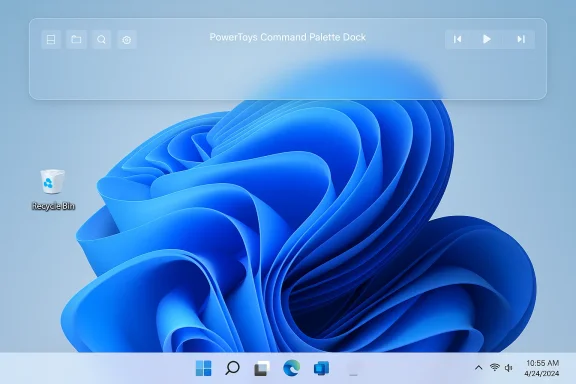
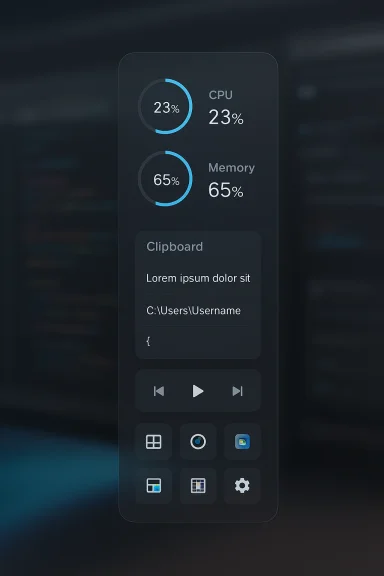
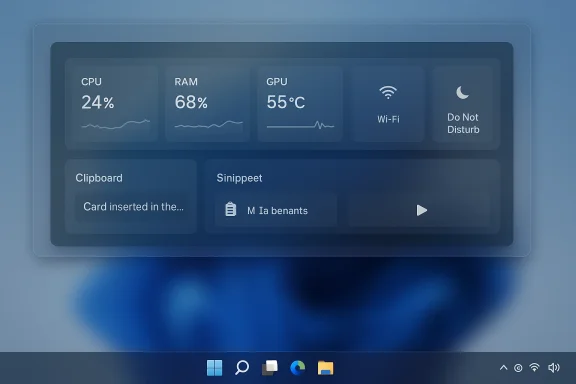
Windows 11 desktop showing a translucent PowerToys Command Palette Dock over a blue abstract wallpaper.
Microsoft is quietly prototyping a configurable, persistent top menu bar for Windows 11 — not as a forced shell rewrite but as an opt‑in PowerToys experiment that aims to bring macOS‑ and Linux‑style glanceable controls and telemetry to the Windows desktop. This “Command Palette Dock” concept is already visible in Microsoft’s PowerToys design work and GitHub branches, and it’s being positioned as a modular, optional surface users can pin to any screen edge and populate with extensions from the PowerToys Command Palette ecosystem.

Background / Overview​

Windows’ persistent UI has long centered on the Taskbar and system tray, but the design tradeoffs between discoverability, screen real estate, and cross‑device continuity have left some user segments longing for a familiar top menu or status bar. Microsoft’s PowerToys team — historically the lab for opt‑in power‑user features — has reworked the classic launcher into a modern Command Palette and is now testing a persistent “dock” that surfaces selected Command Palette extensions without requiring the full palette to open. The intent is explicit: offer a choice to users who prefer a top‑bar approach while avoiding a mandatory change to the Windows shell. ([github.com](https://github.com/microsoft/PowerToys?ultiple independent outlets reported the experiment in early coverage, confirming the prototype’s existence and its high‑level capabilities. Those reports align closely with Microsoft’s public PowerToys activity and with community discussions in enthusiast forums that have tracked the prototype and its potential feature set.

What Microsoft is testing: the Command Palette Dock explained​

Core concept​

The Command Palette Dock is a persistent UI strip that:
  • Can be pinned to the top, bottom, left, or right edge of a display.
  • Is segmented into three regions — start, center, end — where items and extensions can be placed.
  • Hosts both static shortcuts and live items (small telemetry widgets like CPU/RAM, temperature, network throughput) supplied by Command Palette extensions.
  • Is highly customizable in terms of appearance (opacity, blur, theming) and behavior.
These design points have been described by multiple publications and appear in the PowerToys design notes / GitHub discussion threads that accompany the experimental branch. Because the dock is implemented as a PowerToys feature, Microsoft frames it as optional rather than a forced change to how Windows looks or works.

How it connects to Command Palette​

PowerToys’ modernized Command Palette (which replaced the older PowerToys Run) is the extension host for the dock. This means an existing Command Palette extension can, in theory, be surfaced persistently in the dock without developers having to rewrite their extension model for a separate API. That reuse simplifies extension development and helps the dock inherit a mature plugin architecture already shipping in PowerToys.

Prototype vs. product​

Important distinction: the dock is a proof‑of‑concept. It exists in PowerToys’ testing branches and as early code samples; it’s not yet guaranteed to ship as a mainstream PowerToys feature, and Microsoft has explicitly solicited feedback from developers and power users on GitHub. When or whether the dock will graduate to a stable release remains unannounced.

Why Microsoft is experimenting with a top menu bar​

Microsoft’s stated and implied motivations for testing a dock are pragmatic and user‑focused:
  • Address a UX gap: Windows users who migrated from macOS or Linux often miss a compact, always‑visible status strip for quick info and controls. A PowerToys dock gives them that without altering the default shell for all users.
  • Leverage PowerToys as a safe testbed: PowerToys is intentionally opt‑in and community driven, allowing Microsoft to prototype interface changes outside of the main Windows servicing pipeline. That reduces rollout risk and lets the team learn from developer feedback.
  • Extend the Command Palette’s usefulness: The Dock transforms ephemeral commands into persistent, glanceable UI elements — a natural evolution for an extensible launcher.
From a product strategy perspective, this approach also keeps a boundary between optional customizations and the core Windows experience — a useful stance given enterprise sensitivity to forced UX changes.

Features you should expect (based on current prototypes)​

  • Edge pinning: top, bottom, left, right placement options allow use on ultrawide and multi‑monitor setups.
  • Three‑region layout: start/center/end pattern for organizing pinned items and live widgets.
  • Live telemetry widgets: CPU/RAM usage, temperatures, network throughput, and media controls are prototypes for what extensions may surface.
  • Theming and visual settings: opacity, blur, and light/dark behaviors aim to match Windows 11’s aesthetic.
  • Seamless extension support: existing Command Palette extensions should work with the dock without large code changes.
These are consistent across published reports and the PowerToys repository notes; they reflect the prototype’s stated goals rather than a finalized feature list.

How to try it today (risk‑aware steps)​

  1. Install the latest stable PowerToys release from the official Microsoft PowerToys distribution channels (Microsoft Store or GitHub releases). This ensures you start from a known baseline.
  2. If you are comfortable building from source or testing early branches, check the PowerToys GitHub for experimental branches or prototype branches labeled for Command Palette Dock testing. Cloning and opening the PowerToys solution in Visual Studio is required for many prototype branches.
  3. Run the experimental build in a non‑critical environment (VM or secondary machine). Do not deploy preview binaries directly to production devices.
  4. Provide feedback through the PowerToys GitHub repository issues and discussion threads so Microsoft can iterate the prototype.
Caveat: experimental PowerToys branches can interact with shell integrations and system components. Community reports have documented serious stability problems tied to early Command Palette builds; always keep backups and test on disposable hardware before wider evaluation.

The benefits: why enthusiasts and productivity users may care​

  • Familiarity for macOS and Linux converts: The dock offers a recognized interaction pattern — a small, persistent menu that reduces pointer travel and surfaces frequently used items. This can smooth the transition for users switching platforms.
  • Improved glanceability: Persistent telemetry and media controls reduce context switches and make information easier to access without opening widgets or the Task Manager.
  • Modularity: Because the dock is a PowerToys experiment, it doesn’t force change on users who prefer Windows’ default Taskbar-driven approach.
  • Developer‑friendly extension model: Reusing Command Palette extensions reduces friction for devs who want to create small glanceable widgets or workflows.
For power users, the dock could become a productivity multiplier — especially on ultrawide screens or multi‑monitor setups where a top bar can reduce neck and eye travel.

Risks, trade‑offs, and what to watch out for​

1. Stability and system integration risks​

Poated privileges and occasionally integrates closely with the shell. Community troubleshooting posts and incident reports have documented severe issues tied to early Command Palette releases: explorer.exe crashes, shell registration problems, and broken logins. Some users reported that uninstalling PowerToys did not fully remove problematic shell registrations, forcing full system restores. These incidents underline why prototypes must be tested outside production environments.

2. Performance and resource cost​

A persistent dock that updates live telemetry can increase background CPU and memory usage, especially on older hardware. While PowerToys developers have worked to optimize Command Palette performance in recent releases, adding more always‑on widgets raises the bar for resource efficiency. Benchmarks and telemetry will be needed to quantify actual impacts before broad adoption.

3. Compatibility with enterprise policies and third‑party shell customizations​

Enterprises often lock down shell behavior and use management tooling to standardize user interfaces. A configurable dock could conflict with group policies, custom start/menu replacements, or security controls. Since the dock is currently opt‑in and distributed through PowerToys, enterprises can block or disallow it — but if Microsoft ever considered OS‑level integration, the conversation would change substantially. Administrators should assess potential conflicts early through pilot programs.

4. UX fragmentation​

Windows has historically seen debate around UI fragmentation: multiple coexisting paradigms (Taskbar, Start, Widgets, Copilot, PowerToys UI bits) can confuse average users who prefer a single, consistent interface. Introducing another persistent surface — even optional — increases choices but may create inconsistent experiences across machines in an organization. That fragmentation matters particularly for helpdesk scripts, end‑user training, and documentation.

5. Security and privacy considerations​

Live widgets surface system metrics and may request contextual data. Extension authors must follow secure coding practices and Microsoft munance for what extensions can access and how data is transmitted (if networked telemetry is involved). Until a stable extension vetting model exists, users should be cautious about enabling third‑party extensions in the dock.

How this differs from an OS‑level menu bar and why that matters​

  • PowerToys approach: Opt‑in, modular, community‑driven, and easier to rollback. It’s designed to experiment without changing the default Windows experience.
  • OS‑level change: Would be mandatory at scale, require enterprise change management, and carry a far higher bar for stability, compatibility, and legal/regulatory review.
Microsoft’s decision to prototype within PowerToys reflects both prudence and a recognition of the divergent needs of Windows users — from mainstream consumers to highly technical power users. That separation keeps risk contained while still letting Microsoft explore new interaction models.

Practical guidance for Windows administrators and IT pros​

  1. Treat the dock as experimental tooling: block its deployment in managed fleets until Microsoft releases a stable, vetted version and published compatibility documentation.
  2. Use pilot rings: deploy to small, representative groups (developer teams, power users) and collect compatibility and telemetry data.
  3. Watch for shell integration anomalies: ensure imaging and SSO tooling are tested with PowerToys experimental builds before broader rollout.
  4. Maintain recovery procedures: create system restore and OS reimaging playbooks in case of shell or explorer instability traced to experimental PowerToys branches.
These steps will reduce the operational risk of experimenting with new UI surfaces on corporate machines.

Community reaction and developer signals​

The early buzz has been broadly positive among enthusiasts who want macOS‑style conveniences on Windows, but the community also voices caution about stability and the proliferation of UI experiments. Public GitHub discussions and forum threads show active participation from independent developers and plugin authors, underscoring a healthy developer interest in building extensions for the dock if it matures. Simultaneously, the few high‑severity user reports tied to earlier Command Palette builds temper enthusiasm and highlight the need for careful testing.

Verdict: pragmatic experiment with meaningful upside — if Microsoft executes​

Microsoft’s PowerToys dock proposal is a sensible, low‑risk way to explore a long‑requested UX pattern for some Windows users. It offers a strong design rationale: reuse the existing Command Palette extension model, make the feature optional, and gather feedback from developers and power users before any broader commitment. The benefits are clear for productivity and cross‑platform users, and the modular approach keeps risk out of the core Windows experience.
That said, the success of the initiative depends on three practical execution items:
  • Robust stability and cleanup behavior for any shell integration (uninstall must be clean).
  • Clear extension security model and vetting for third‑party widgets.
  • Resource‑efficient implementations that don’t degrade performance on constrained hardware.
Until Microsoft publishes a stable release and enterprise guidance, the dock should be treated as an interesting preview rather than an imminent mainstream change. Timing and final scope remain unverified; Microsoft is only soliciting feedback and testing prototypes today.

What to watch next​

  • PowerToys GitHub: look for prototype branches, release notes, and issue threads that indicate maturation to a stable release channel.
  • Microsoft announcements: any signals that the dock will move from PowerToys to an OS‑level feature would materially change rollout expectations and enterprise impact.
  • Community stability reports: monitor forums and issue trackers for any regressions tied to the Command Palette or dock codepaths; these will be the earliest signals of integration risk.

Conclusion​

The PowerToys Command Palette Dock is a thoughtful, measured experiment that brings a Windows‑native take on the macOS/Linux menu bar idea: optional, extensible, and designed to slot into the power‑user ecosystem rather than replace the default Windows experience. For enthusiasts, developers, and admins, this prototype is worth watching and, where safe, testing — but it also demands caution: prior PowerToys experiments have shown that deeply integrated UI prototypes can produce hard‑to‑reverse system effects if not thoroughly vetted.
If Microsoft follows the PowerToys path — iterate publicly, harden stability, publish clear extension controls, and make the feature truly optional — the dock could become a valuable productivity surface for many Windows users. If it’s rushed into a mainstream release without addressing cleanup, compatibility, and security, the community‑level costs could outweigh the benefits. For now, treat the dock as an exciting preview and test it only in controlled environments while you wait for formal release notes and enterprise guidance.

Source: Latest news from Azerbaijan Microsoft explores top menu bar for Windows 11 | News.az
Source: filmogaz.com Microsoft Tests New Top Menu Bar for Windows 11
Source: The Tech Buzz https://www.techbuzz.ai/articles/microsoft-tests-macos-style-menu-bar-for-windows-11/
 

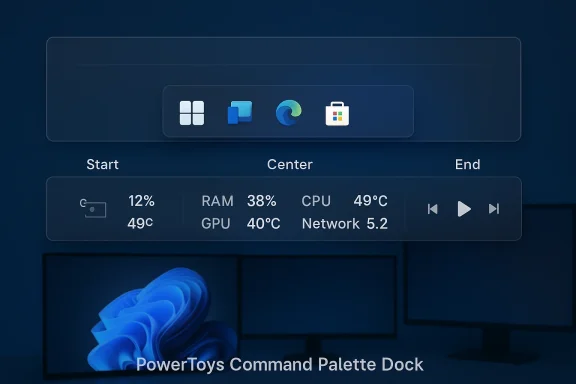
Microsoft’s PowerToys team is quietly prototyping a configurable, persistent menu bar for Windows 11 — an opt‑in “Command Palette Dock” that can live on any screen edge and surface shortcuts, system telemetry, and PowerToys extensions — and the idea is already stirring an old debate: if you can’t move the Windows 11 taskbar to the top, would a PowerToys dock be an acceptable substitute?

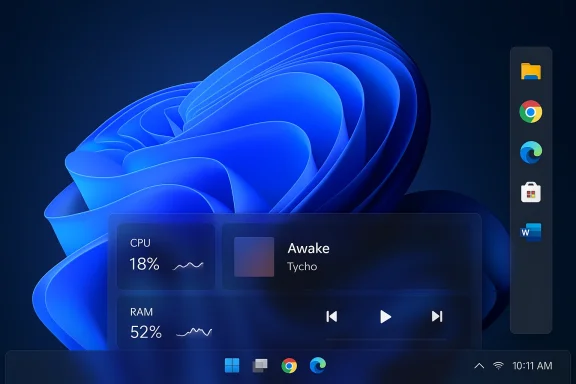
Dark blue Windows desktop with a PowerToys Command Palette Dock, app icons, and live system stats.Background​

Windows 11 shipped with a redesigned taskbar that’s fixed to the bottom by default and, at least officially, cannot be repositioned to the top or sides the way it could in Windows 10. That restriction has frustrated some long‑time Windows users who want a movable taskbar for ergonomics, multi‑monitor workflows, or personal preference. Third‑party tools and early registry hacks have provided limited workarounds, but they’re neither supported by Microsoft nor reliable across versions.
Into that UX gap comes an experiment from Microsoft’s PowerToys project: a lightweight dock tied to the modern PowerToys Command Palette. The proposed dock is not a full shell replacement — it’s an optional UI surface that aims to give users “glanceable” controls and telemetry without forcing changes on everyone. Concept images and prototype branches have been circulating among enthusiast outlets and the PowerToys developer community, and the idea has been covered in recent reporting and community threads.
What’s important to stress up front: this is an experimental PowerToys concept, not a change to Windows 11 itself. The dock leverages existing PowerToys architecture and the Command Palette extension model; if it ships, it would be opt‑in and configurable. At the same time, community commentary and early bug reports around Command Palette show that the feature can be sensitive in practice — testers should proceed cautiously.

What is the Command Palette Dock?​

Core concept and design model​

The Command Palette Dock is a persistent strip — think of a narrow bar — that can be pinned to the top, bottom, left, or right edge of the display. It’s designed around three functional regions (start, center, end) where users can pin:
  • App and workflow shortcuts
  • Live telemetry widgets (CPU/RAM usage, temperatures, network throughput)
  • Media controls and quick actions (mute/unmute, clipboard snippets)
  • PowerToys extensions already written for the Command Palette
The dock is intended to be highly configurable: theming (light/dark, opacity, blur), reordering of items across regions, and extension pinning are key parts of the design. The premise is simple: make frequently used tools and status indicators instantly reachable, without opening the full Command Palette or running separate overlay apps.

How the dock ties into PowerToys architecture​

PowerToys has gradually evolved from small, standalone utilities into a modular, extensible toolkit. In this trajectory, Command Palette (often abbreviated CmdPal) succeeds the older PowerToys Run launcher, becoming the extensible host for quick commands and indexed actions.
Because the dock would reuse the Command Palette’s extension API, developers could surface the same extensions persistently in the dock without rewriting them for a new plugin interface. That reuse makes adoption and extension compatibility easier — one of the practical design benefits the PowerToys team is explicitly targeting.

Why this matters: the UX gap PowerToys could fill​

Many users who migrated to Windows from macOS or Linux miss the convenience of a top menu/status bar: consistent placement for system monitors, global media controls, and compact application items. For others, a top bar is a personal preference that improves ergonomics and sightlines.
The proposed PowerToys dock addresses that desire while remaining:
  • Opt‑in: It doesn’t change Windows by default; users enable it only if they want it.
  • Modular: It surfaces only what users choose to pin; it’s not trying to replicate the entire taskbar.
  • Extension‑friendly: It benefits directly from the existing extension ecosystem in Command Palette.
Put plainly, the dock is an attempt to deliver the benefits of a movable top bar without requiring Microsoft to rework the Windows shell or commit to reintroducing full taskbar repositioning.

What the prototype promises (feature list)​

  • Positionable on any screen edge: top, bottom, left, or right.
  • Three logical regions: start, center, end for organized pinning.
  • Extension‑driven content, including:
  • CPU/RAM and temperature readouts
  • Network throughput indicators
  • Media playback and mute controls
  • App shortcuts and pinned Command Palette actions
  • Theming and appearance control: blur, opacity, light/dark enforcement.
  • Reorderable pinned items and simple drag‑and‑drop pinning flows.
  • Optional auto‑hide behaviors proposed by community feedback.
These are the capabilities surfaced in proposal notes and early previews; they reflect development intent, not a final shipping specification.

Cross‑checking the facts (what’s verified and what’s tentative)​

  • Verified: PowerToys includes a Command Palette extension model and an active open‑source repository; PowerToys is actively developed and receives experimental feature branches. This is part of the project’s public development model.
  • Verified: Reporting and prototype screenshots shared in developer channels and community coverage describe a dock concept that is positionable and extension‑driven.
  • Tentative: Release timing, final API contracts, enterprise compatibility, and the dock’s precise CPU/memory characteristics are not finalized. The feature remains a proof‑of‑concept and may change substantially before any mainstream release.
Any reader who expects a final delivery date or guaranteed behavior should treat these details as provisional until PowerToys merges the prototype into a stable release and publishes formal release notes.

Strengths: why a PowerToys dock could be a genuine win​

  • Low friction for extension authors. Because the dock builds on Command Palette extensions, existing ones can be surfaced persistently without heavy rework.
  • Glanceable system telemetry. Developers, content creators, and system tuners gain a low‑intrusion surface for system monitoring.
  • Reduced context switches. Quick actions pinned to the dock can significantly cut mouse travel and keystrokes for repetitive workflows.
  • Respect for user choice. The opt‑in model keeps mainstream Windows users unaffected while empowering power users to customize heavily.
  • Rapid iteration path. PowerToys’ open‑source model allows the team to iterate based on direct community feedback and prototype telemetry.

Risks and shortcomings: why some users are skeptical​

  • Screen real estate loss. A persistent top bar reclaims vertical pixels, an especially important consideration on laptops and ultrawide screens where vertical space is precious.
  • Performance and battery impact. Live telemetry and always‑on widgets consume CPU and memory. On older or battery‑sensitive devices, the dock could increase power draw unless aggressively optimized.
  • Stability concerns. Early Command Palette releases spawned community reports of shell integration bugs and Explorer crashes. Experimentation must be careful to avoid regressions that affect the Start menu, taskbar, and system shell.
  • Enterprise compatibility and policy controls. IT departments may not welcome a UI surface that behaves like a quasi‑system component; group policy and manageability hooks will be necessary for corporate adoption.
  • Redundancy vs. replacement. For users who want a full taskbar replacement, a PowerToys dock may feel like a compromise rather than a true solution. PowerToys is designed as an add‑on, not a shell replacement.

Stability and safety — real‑world caveats​

Community troubleshooting threads and test reports have documented issues in earlier Command Palette builds: Explorer crashes, shell registration anomalies, and cases where removing PowerToys did not fully revert certain shell registrations. Those incidents underline a fundamental truth about experimental system‑level features: they can touch sensitive OS subsystems and require conservative rollout practices.
If you try experimental PowerToys branches or build the prototype from source, follow these safety guidelines:
  • Test on a non‑critical machine or inside a VM.
  • Create a full system backup or a system restore point before enabling experimental features.
  • Regularly monitor Event Viewer and Explorer logs for shell instability.
  • Keep stable PowerToys releases handy and snapshot your PowerToys settings so you can revert if needed.

How to try the dock now — practical steps for tinkerers​

  • Update PowerToys to the latest stable release to ensure baseline compatibility.
  • Check the PowerToys GitHub repository for prototype branches or sample projects (the experimental code typically lives in a test branch or separate feature branch).
  • If you’re comfortable compiling from source:
  • Clone the repository and switch to the prototype branch.
  • Build locally with Visual Studio following the project’s contribution guidelines.
  • Run the resulting development build in a test environment.
  • If you prefer not to build from source, watch for preview releases from the PowerToys team or opt into preview channels if offered.
  • When testing, enable only the experimental Command Palette Dock and evaluate impact before enabling additional experimental features.
Important safety note: experimental builds can be unstable. Don’t install them on devices you rely on for work unless you have robust backups.

The taskbar that won’t move: why Microsoft hasn’t reintroduced full relocation​

Windows 11’s taskbar redesign involved animation, alignment, and shell behavior changes that are tightly coupled to the new Start menu and system surfaces. Officially, Microsoft has not reintroduced the ability to reposition the taskbar to the top or sides as of this report, and their design rationale includes consistency of animation and layout across device types.
Practical workarounds exist:
  • Registry hacks that once moved the taskbar in early builds no longer work reliably on modern Windows 11 versions; they are fragile and unsupported.
  • Third‑party tools such as ExplorerPatcher and Start11 provide taskbar relocation and restoration of legacy behaviors for users willing to accept the external dependency and possible update fragility.
  • Some users ask that PowerToys’ dock be turned into a full taskbar replacement by adding taskbar elements as widgets; this is theoretically possible but would shift PowerToys toward being a shell‑replacement — not the project’s stated mission.
Given the technical coupling and product design tradeoffs, a PowerToys dock is more likely to remain an opt‑in companion than become a sanctioned replacement for the official taskbar.

Accessibility and UX considerations​

A new persistent dock must be designed with accessibility in mind. That includes:
  • Keyboard focus and navigation patterns
  • Screen reader support and semantic labels for pinned items
  • High‑contrast and scalable UI modes
  • Respecting OS‑level accessibility settings (text scaling, cursor size)
If Microsoft and the PowerToys team intend the dock to reach a broad audience — including users who rely on assistive technologies — then accessibility must be baked into both the extension API and the dock’s interaction model from the start.

Enterprise implications​

For IT administrators, a persistent dock presents several management questions:
  • Will group policies be available to enable/disable the dock across fleets?
  • Can IT prevent certain extensions or telemetry widgets in managed devices?
  • How will security and code signing be enforced for user‑installed extensions?
PowerToys is often used enthusiastically by power users and IT pros for productivity, but any feature that resembles a system UI surface needs enterprise controls to be broadly acceptable in corporate environments.

Community reaction and realistic user scenarios​

Reaction in enthusiast forums and social communities is predictably split:
  • Some users welcome the dock as a clean, opt‑in way to get a top menu bar experience on Windows 11 without reengineering the shell.
  • Others worry about persistent UI clutter, loss of vertical screen space, and new always‑on telemetry.
  • A third group suggests the dock could be an ideal place for optional system widgets that don’t belong in the taskbar — for example, a small CPU temperature readout for creators, or a one‑click “toggle camera/mic” action for hybrid workers.
A practical compromise many propose — and one that tech writers have advocated — is an auto‑hide mode where the dock appears only on mouseover or when a hotkey summons it. That reduces constant screen usage while keeping the dock a click away.

Alternatives to consider today​

If you want a more traditional taskbar repositioning or a top bar experience right now, consider these options:
  • Use third‑party shell tools (ExplorerPatcher, Start11) to restore older behavior. Pros: closer to a full taskbar replacement. Cons: third‑party maintenance, update fragility, potential security considerations.
  • Use small utilities and widgets for telemetry (Rainmeter, HWiNFO + custom overlays) to get specific monitoring readouts without a full dock. Pros: precise control; Cons: more configuration needed.
  • Try other launcher apps (Raycast, Wox, Alfred‑style tools) if your primary need is a keyboard‑first quick launcher rather than a persistent bar.
  • Watch PowerToys experimental channels for the Command Palette Dock and test in non‑critical environments if you want to be an early adopter.

Recommendations for Microsoft (if they want this to succeed)​

  • Ship the dock as opt‑in and provide a stable preview channel with clear warnings and rollback options.
  • Offer group policy and MDM controls for enterprise manageability.
  • Prioritize accessibility and low‑power behavior in the dock implementation.
  • Provide a clear recovery path if users encounter shell registration issues — including an automated cleanup tool and documented steps.
  • Consider an auto‑hide default to address valid vertical space concerns, with the option to pin for users who prefer permanence.

Final analysis: a top menu bar by hand, not by mandate​

The PowerToys Command Palette Dock is an elegant, pragmatic approach to a long‑standing user desire: a movable, glanceable status and action bar that sits where users want it. It recognizes a core truth about modern Windows: many users want heightened customization but not a forced rework of the OS’s fundamental shells.
As a PowerToys experiment, the dock strikes a sensible compromise. It can deliver substantial productivity wins for creators and power users while preserving the official Windows experience for everyone else. But the devil is in the details: performance, stability, enterprise controls, and accessibility will determine whether the dock is a delightful productivity booster or a niche curiosity that never graduates beyond prototype.
If you love the idea, watch the PowerToys repository and public previews, and test in a sandbox if you’re an adopter. If you’re cautious, wait for the dock to graduate into a stable release with explicit enterprise and accessibility support. Either way, the conversation rekindles a helpful debate: Windows can evolve through optional, user‑driven tooling as easily as through OS‑level mandates — and PowerToys remains one of Microsoft’s best laboratories for that approach.

Source: TechRadar https://www.techradar.com/computing...wertoys-feature-could-be-the-next-best-thing/
 

Microsoft’s latest PowerToys experiment — a configurable, persistent “Command Palette Dock” that can sit as a menu bar on any screen edge — has quietly reopened one of the oldest debates in desktop UI design: how far should Microsoft go in rethinking the taskbar-centric model that has defined Windows for decades. Early prototypes show a macOS- and Linux‑inspired top bar that surfaces live telemetry, media controls, and pinned Command Palette extensions, but it’s the how and why behind the experiment that matter more than the pixel-perfect visuals. This staged, opt‑in approach through PowerToys signals a deliberate change in Microsoft’s development playbook: build cutting-edge interface concepts in a sandboxed space, gather real-world telemetry and community feedback, and then decide whether to promote them into the mainstream OS.

Dark Windows 11 desktop with translucent widgets displaying CPU, RAM, and network stats.Background / Overview​

Windows has long relied on a bottom-aligned taskbar to anchor the desktop — a familiar, stable affordance that carried users through generations of releases. That conservatism, however, created friction when Microsoft pursued bolder interface changes like the touch-forward Metro shell in Windows 8 or the centered taskbar in Windows 11. PowerToys, once a grab-bag of enthusiast utilities, is now a deliberate laboratory for interface experiments. The new dock concept extends PowerToys’ Command Palette (CmdPal) and aims to convert ephemeral command items into persistent, glanceable UI elements. That shift converts short-lived commands into always‑visible controls without forcing a shell replacement on all Windows users.
Microsoft’s prototype is explicit about intent: the Dock is optional, configurable, and built on the existing extension model used by Command Palette. Early reporting and developer branches describe the dock as pin‑able to any screen edge (top, bottom, left, or right), segmented into three logical regions (start, center, end), and capable of hosting both static shortcuts and live extension-provided content (CPU/RAM, temperatures, network throughput, playback controls, and other custom items). The design emphasizes choice: enable it if you want the functionality, leave it disabled otherwise.

Why PowerToys? The Strategic Role of an Experimental Surface​

PowerToys as Microsoft’s UX testbed​

PowerToys isn’t a throwaway hobby project. Over the last several years it has matured into a community-driven, extensible toolkit where Microsoft can trial ideas without rolling them into the OS servicing pipeline. That matters because interface changes at the OS level carry heavy enterprise and compatibility risks. Shipping novel UX concepts via PowerToys keeps the default Windows shell intact while enabling real-world usage data, developer experimentation, and direct community feedback. This is a textbook example of modern product research: prototype quickly, iterate with telemetry, and de-risk decisions.

From Power users to mainstream features​

PowerToys has a successful track record of graduating features: utilities such as FancyZones and PowerToys Run began life as power-user experiments and later influenced mainstream expectations for window management and quick-launch capabilities. Command Palette itself is the successor to PowerToys Run and provides an ecosystem of extensions; making a Dock that reuses that extension model is a pragmatic way to accelerate functionality while minimizing developer friction. If the Dock gains traction, Microsoft can adapt it and, if appropriate, integrate key ideas into supported Windows components — but only after evidence of user value.

What the Prototype Does — Technical Implementation and UX Details​

Core capabilities (as described in current prototypes)​

  • Positionable on any display edge: top, bottom, left, or right.
  • Tri‑region layout: start, center, and end for structured placement of items.
  • Hosting of pinned Command Palette extensions and native controls.
  • Theming controls (opacity, blur, light/dark behavior) to blend with Windows 11 aesthetics.
  • Optional opt‑in toggle under Command Palette settings; not a forced replacement for the taskbar and system tray.

Architecture: thin surface, extension-driven logic​

The Dock is designed as a presentation layer that relies on the Command Palette extension model to supply both content and state updates. This separation is important for performance and maintainability: extensions do the work (poll telemetry, compute values, fetch external state), while the Dock merely renders and updates visible items. The model supports live updates, avoiding inefficient polling hacks and allowing reactive behavior when extension authors implement change notification hooks. This architecture also means that many existing CmdPal extensions may become Dock-ready with little or no code changes.

Multi‑monitor and z‑ordering considerations​

Allowing the Dock to pin to any edge introduces complexity. Multi‑monitor setups require careful decisions around:
  • Which monitor hosts the Dock by default.
  • Behavior when a fullscreen app gains focus (auto-hide, transient overlay rules).
  • Window z‑ordering so the Dock does not block interactive content or game overlays.
Prototypes treat the Dock as non‑intrusive, but those edge cases remain subject to iterative testing and community feedback. Expect Microsoft to refine autohide semantics, focus handling, and monitor targeting as the project evolves.

Early User Experience Observations — Strengths and Potential Downsides​

What the Dock could deliver well​

  • Glanceable telemetry: Live CPU, RAM, or network indicators in a compact strip reduce the need for performance overlays or separate widgets.
  • Faster workflows for keyboard-first users: Turning CmdPal extensions into persistent shortcuts eliminates repeated palette invocations for frequently used actions.
  • Flexible ergonomics: Users who prefer a top bar (or left/right panels) regain a degree of control stolen by Windows 11’s fixed bottom taskbar.
  • Low-friction developer adoption: Reusing CmdPal’s extension API lowers the barrier for third-party plugins to expose useful Dock items.

Real integration challenges​

  • Native feel vs. grafted-on UI: Windows apps and their menus were not designed around a global top menu bar the way macOS apps are. Ensuring the Dock feels native — not a superficial overlay — requires careful UX integration and accessibility parity.
  • Visual competition with existing UI: Windows 11’s system tray and taskbar already host persistent status items. Adding another persistent surface risks visual clutter unless defaults are conservative and discoverability is clear.
  • Accessibility gaps: Prototype status surfaces must be validated for keyboard navigation, screen-reader semantics, and high-contrast modes before any wider endorsement. Early notes indicate accessibility remains an open area for the prototype.

Industry Reaction and Competitive Context​

Why this matters beyond aesthetics​

Microsoft’s experiment is more than a stylistic borrow from macOS or Linux; it’s a response to changing workflows and display realities. Developers and power users increasingly work on ultrawide, multi-monitor setups and switch between devices with very different aspect ratios. A one-size-fits-all bottom‑taskbar approach becomes limiting in that context.
The Dock also signals Microsoft’s recognition that reducing friction — making frequently used controls easier to reach — could help with Windows 11 adoption and satisfaction among stubborn holdouts. The experimentation route acknowledges the reputational lessons from Windows 8: when Microsoft forces a radical interface change, backlash can be severe. Testing through PowerToys lets the company be daring without being dogmatic.

Competitive pressure​

  • Apple’s macOS continues to rely on a top menu bar and Spotlight-style quick launchers, which many users favor for consistency and predictable placement.
  • Linux desktop environments have long supported flexible panels and widgets, giving power users precedent for what Microsoft is trialing.
  • The rise of cross-platform and cloud-driven work tools means OS-level productivity edges can influence enterprise choices. A small, well-designed affordance like the Dock could matter to IT teams evaluating endpoint efficiency and user satisfaction.

Enterprise Implications: Deployment, Training, and Governance​

What IT teams should consider now​

  • Pilot, don’t push: Because the Dock is an opt‑in PowerToys feature, enterprises can test it in controlled pilot groups before making policy decisions.
  • Update training materials conservatively: Any mainstream migration away from the classic taskbar would require updating help docs, training, and support scripts — but that risk is mitigated while the feature sits in PowerToys.
  • Evaluate compatibility with existing management tooling: Third-party monitoring, security agents, or custom shell modifications might interact unpredictably with optional UI surfaces; test for overlay collisions and accessibility regressions.

Why the PowerToys approach matters for enterprise confidence​

Microsoft’s opt‑in model avoids the abrupt, organization‑wide disruption that hurt Windows 8 adoption. PowerToys gives enterprise teams a preview and pilot mechanism that aligns with cautious IT governance: test, measure productivity gains, and then determine whether to recommend broader use. If the Dock remains opt‑in, enterprises won’t be forced to retrain all users on day one.

Risks, Unknowns, and What to Watch For​

Technical and UX risks​

  • Performance overhead: Any always-on UI surface must be lightweight. The Dock’s reliance on extension authors to handle polling is smart, but poorly designed extensions could still introduce CPU or memory overhead.
  • Security surface expansion: Surfacing third‑party extensions persistently raises questions about permission scopes and data leakage. Microsoft will need clear extension review and sandboxing policies.
  • Fragmentation risk: If PowerToys experiments proliferate without clear migration paths, enterprises could face inconsistent experiences across managed fleets.

Product and adoption unknowns​

  • Will the Dock remain a PowerToys niche for power users, or will it graduate into a supported OS feature?
  • Which, if any, Dock behaviors would Microsoft standardize for accessibility, multi‑monitor handling, and developer APIs?
  • How will Microsoft balance the Dock’s customizability with sensible defaults that prevent users from creating distracting or unsafe setups?

Practical Guidance: If You Want to Try the Dock Today​

  • Install the latest PowerToys preview or check the experimental branch in the PowerToys GitHub repository to locate the Command Palette Dock prototype.
  • Test on a secondary machine or within a controlled VM to verify behavior with your usual apps and fullscreen workflows.
  • Watch extension permissions and resource usage closely; prefer extensions from reputable authors and monitor CPU/RAM usage during testing.
  • Provide feedback via the PowerToys GitHub issues and discussion threads — Microsoft is explicitly soliciting developer and user input on this prototype, and your telemetry/bug reports may influence final design choices.

The Broader Evolution of Desktop Interface Design​

Microsoft’s experiment is a microcosm of larger industry shifts. Desktop metaphors conceived for single-monitor, mouse‑centric workflows are increasingly mismatched to modern realities: ultrawide monitors, multiple displays, touch and pen inputs, and hybrid work contexts. Interface design is now a negotiation between consistency, discoverability, and situational flexibility.
The Dock’s value proposition is pragmatic: give users the ability to surface what matters to them persistently — but only if that benefits productivity and does not fragment the broader Windows experience. That tradeoff underpins why Microsoft chose PowerToys as the launch surface: preserve the core OS mental model while exploring divergent interfaces in a voluntary way.

Historical Lessons and What Microsoft Appears to Have Learned​

Windows 8 taught Microsoft that radical, compulsory interface changes invite backlash. Windows 11—while less radical—still elicited strong opinion about the centered taskbar and stricter hardware gates. The PowerToys Dock experiment reflects an apparent shift in institutional learning: prioritize optionality, iterate openly with community input, and use measurable, opt‑in testing before making platform-wide changes. This reflects a more collaborative relationship with the Windows ecosystem and a recognition that UI changes must clear a higher bar of demonstrable benefit before becoming mandatory.

Final Analysis: A Measured, Pragmatic Step — But Not a Guaranteed Game Changer​

Microsoft’s Command Palette Dock is a thoughtful experiment that checks many boxes for modern interface research: optionality, extension-driven architecture, and compatibility with the existing PowerToys ecosystem. It addresses genuine user needs — especially for power users and those who prefer alternate panel positions — without forcing a wholesale redefinition of Windows’ shell.
Yet the Dock’s fate depends on three practical measures:
  • Adoption and feedback — Will real users find the Dock meaningfully improves workflow enough to enable it and keep it enabled? Early community interest is high, but long-term adoption will hinge on consistent, low-friction value.
  • Technical robustness — Can Microsoft harden the Dock’s multi‑monitor, z‑ordering, and accessibility behavior so it approaches parity with OS surfaces? Prototypes show promise but must clear accessibility and stability gates.
  • Governance and security — Can the extension model scale without introducing privacy or security gaps from persistent third‑party content? Microsoft will need clear extension controls and review processes.
If those conditions are satisfied, the Dock could offer a small but disproportionate productivity uplift for certain workflows. If they are not, it will likely remain a niche PowerToys novelty — useful for tinkerers, but invisible to mainstream Windows users.

Conclusion​

The PowerToys Command Palette Dock is a high‑signal experiment: modest in scope but ambitious in its implications. It demonstrates Microsoft’s evolving approach to evolving Windows — incremental, data-driven, and community-engaged. By prototyping a top/side/bottom menu bar within PowerToys, Microsoft can explore whether a decades‑old UI convention deserves an update for modern displays, workflows, and developer ecosystems. Whether the Dock becomes a mainstream Windows feature or stays a beloved power‑user tweak, the experiment itself is important: it shows Microsoft is willing to test the boundaries of desktop ergonomics without breaking the experience for the billions who still rely on Windows every day.

Source: WebProNews Microsoft’s PowerToys Experiment Signals Bold Rethinking of Windows 11 Interface Design
 

Microsoft’s leadership has quietly acknowledged a problem many Windows users have been complaining about for years: Windows 11 needs fewer headline features and more day‑to‑day fixes. In response, the company says it will “swarm” engineers onto long‑running reliability and performance pain points this year — and separately, Microsoft’s PowerToys team is already prototyping a Linux‑style persistent menu bar (a Command Palette “dock”) as an opt‑in experiment that aims to give power users glanceable status and quick controls without forcing a wholesale shell change.

A desktop monitor on a wooden desk runs Windows 11, with a code editor and floating system widgets.Background​

Windows sits at the center of an ecosystem of billions of devices and millions of workflows. That scale magnifies small annoyances into major productivity leaks: slow File Explorer launches, inconsistent dark‑mode rendering, fragile updates and odd UI regressions all create real friction for users and administrators alike. Microsoft’s own internal reckoning — described publicly as a commitment to “improve Windows in ways that are meaningful for people” — is an attempt to reset priorities toward reliability, performance, and user trust.
At the same time, the market context is unusual. Microsoft announced that Windows 11 has crossed the 1 billion active‑device milestone, an achievement the company highlighted on its recent earnings call. That figure underscores scale, but it also masks churn and dissatisfaction beneath the headline: a meaningful cohort of users and gamers are experimenting with Linux and SteamOS, partly because Linux gaming compatibility has improved and partly because frustration with some Windows behaviours has grown.
Microsoft’s PowerToys experiment, meanwhile, is emblematic of a specific strategy: ship smaller, opt‑in, community‑driven UI experiments through a maintenance channel that is already used by power users. The proposed Command Palette Dock is a concrete example of how Microsoft can prototype desktop paradigms familiar to macOS and Linux users without changing the default shell for everyone.

What Microsoft said (and why it matters)​

The executive message​

Pavan Davuluri, President of Windows and Devices, told reporters that feedback from Windows Insiders and customers has been unambiguous: focus on core experience and reliability. His line — “We need to improve Windows in ways that are meaningful for people” — is short, but it signals a tactical pivot. Rather than continuing to layer new AI features and surface experiments aggressively, Microsoft says it will concentrate engineering capacity on a prioritized list of regressions and UX pain points.
Why that matters: at scale, small regressions have outsized consequences. Frequent update‑induced breakages, visual regressions in dark mode, context‑menu clutter, and File Explorer sluggishness aren’t just aesthetic complaints; they translate into lost minutes and interrupted workflows across millions of machines. A public recommitment to fix these issues is necessary to restore the trust of IT pros, developers, and power users who make platform decisions for organizations and communities.

The “swarming” approach​

The term “swarming” — used internally in several enterprise and engineering organizations — describes temporarily reallocating teams to rapidly triage and resolve a prioritized set of high‑impact issues. Microsoft plans to use this pattern to concentrate engineering effort on reliability and performance hot spots rather than continuing with the previous cadence of broad feature releases that sometimes introduced regressions. Reporters and testers have already seen evidence of targeted fixes — for example, experiments to preload Explorer UI skeletons or reorganize context menus to reduce cold‑start latency.

The PowerToys Command Palette Dock: Linux‑style menu bar or UI clutter?​

What the prototype proposes​

PowerToys — Microsoft’s open, community‑driven toolbox for power users — is experimenting with a persistent UI surface called the Command Palette Dock. Key aspects of the prototype include:
  • A lightweight, persistent bar that can be pinned to any screen edge (top, bottom, left, right).
  • Three logical regions (start, center, end) for pinned items, mirroring the tri‑region pattern used on macOS and many Linux desktop environments.
  • The ability to host both static shortcuts and live Command Palette extensions (CPU/RAM monitors, temperature readouts, media controls, pinned actions).
  • Themed visuals and configurable opacity/blur so it better matches Windows 11 aesthetics.
  • An opt‑in model delivered through PowerToys channels and GitHub testing branches.

Why the dock could be appealing​

For power users and people migrating from macOS or Linux, a small, persistent status strip is familiar and efficient. The dock concept:
  • Makes telemetry and quick actions glanceable without opening the full Command Palette or Task Manager.
  • Leverages the existing Command Palette extension model, lowering friction for extension authors and enabling existing plugins to become persistent UI elements with minimal changes.
  • Keeps the change out of the core shell: PowerToys is opt‑in, so users who dislike it are unaffected.

The tradeoffs and risks​

No UI experiment is risk‑free. The dock faces several practical hurdles before it can be recommended broadly:
  • Screen real estate: On laptops and multi‑monitor setups, a new persistent bar competes with the taskbar and may create visual clutter. Several early responses from testers warn about top‑of‑screen congestion. The ability to pin the dock to any edge mitigates this, but defaults matter.
  • Accessibility and elevation: Any persistent surface must handle assistive technologies, high‑contrast modes, and secure elevation contexts cleanly — a non‑trivial engineering investment.
  • Performance and battery: Persistent telemetry widgets must be lightweight and avoid polling too aggressively; otherwise the dock could introduce the same friction it aims to solve.
  • Enterprise governance: IT administrators will want explicit controls to enable/disable the feature at scale; PowerToys historically targets enthusiasts and admins may prefer a different distribution model.
If Microsoft prioritizes accessibility, least‑privilege extension models, and enterprise controls, the dock could become a meaningful productivity tool for many users. If it’s rushed or poorly documented, it risks being another niche tweak that never reaches broad adoption.

The technical fixes Microsoft says it will pursue​

Microsoft’s public statements and some early Insider experiments point to a prioritized list of engineering targets. Here’s a practical translation of those goals and what will be necessary to deliver credible improvements.

1) File Explorer responsiveness and context‑menu bloat​

What’s broken: cold‑start pauses when opening Explorer, and context menus that become unwieldy as cloud providers and shell extensions pile entries into the menu.
What Microsoft is testing: optional background preloading of a minimal Explorer UI skeleton to improve first paint, and reorganization of context‑menu entries into grouped flyouts to reduce vertical clutter. Insiders have seen these experiments in recent preview builds.
What should happen next:
  • Move non‑blocking I/O off UI threads and prime caches during idle time.
  • Provide a robust UI for pruning shell extensions and provider entries.
  • Offer a visible, user‑friendly “Performance Mode” toggle to prioritize foreground responsiveness.

2) Measurable responsiveness SLOs​

Small latencies add up. Microsoft should commit to measurable Service Level Objectives (SLOs) for common UI actions (for example, sub‑100ms for the Start menu open animation, sub‑50ms for simple window toggles) and publish telemetry summaries showing progress. Trusted telemetry requires careful privacy governance to avoid collecting unnecessary user data.

3) Update reliability and rollback behavior​

Recent high‑visibility update regressions have damaged trust. The company needs faster, well‑instrumented rollbacks and improved pre‑flight validation that catches interactions between firmware, drivers, and management agents. Administrators should be given clearer, actionable diagnostics for failed updates.

4) Gaming stability and driver coordination​

Windows’ position as the best general‑purpose gaming platform depends on low latency, driver stability, and compatibility with anti‑cheat systems. Microsoft’s roadmap appears to include tighter vendor coordination and OS‑level session modes that reduce desktop interruptions during gameplay. These are deeper engineering efforts that require close GPU vendor collaboration.

The broader market signals: Why Linux matters (and how much)​

Windows’ recent struggles have coincided with a modest but visible uptick in Linux usage among gamers and some power users. Two points matter:
  • Valve’s Steam hardware and software surveys show Linux’s share among Steam users climbed into the low single digits (around 3–3.6% in late 2025), boosted by Proton, Steam Deck, and SteamOS devices. That percentage looks small compared with Windows’ overwhelming market share, but it represents millions of active gaming rigs and a trend that favors ongoing investment in Linux compatibility.
  • For some users, Linux is a tactical choice: better battery life on certain devices, a lighter base OS for dedicated gaming, and the increasing maturity of compatibility layers make it a viable alternative where previously it was not.
These trends matter because they change bargaining dynamics. When a non‑trivial cohort of users can switch platforms with limited pain, vendors must treat retention as a product problem — not just a marketing exercise. Microsoft’s pledge to fix Windows’ core experience is a direct response to that competitive pressure.
Caveat: The scale of Linux adoption varies by metric and region. Market analytics and platform surveys use different methodologies, so “Linux is growing” is accurate; “Linux is on the verge of dethroning Windows” is not. Use the numbers carefully and treat the Steam survey as one important, narrow slice of the gaming audience.

How credible is Microsoft’s pledge — and how will we know it’s working?​

A corporate promise is only as good as the measurable outcomes it produces. Microsoft can rebuild trust, but doing so requires transparency, timelines, and observable metrics.
What credible delivery looks like:
  • Clear, prioritized public roadmap items tied to measurable SLOs (e.g., median File Explorer first‑paint reduced by X ms for top N configurations).
  • Faster out‑of‑band fixes and a documented postmortem process for high‑impact regressions.
  • Formal accessibility and security checklists for any new UI surfaces (including PowerToys features) and enterprise policy controls to manage feature enablement.
  • Frequent, honest reporting to Insiders and enterprise customers about progress and setbacks.
Early signs to watch:
  • Insider and Beta builds that actually reduce regression counts for core experiences rather than introducing net new regressions.
  • Reduced volume of high‑severity bug reports after cumulative updates.
  • Public telemetry or third‑party benchmarks that confirm responsiveness improvements on a representative set of devices.

Practical advice for users and IT admins today​

Microsoft’s pledge is encouraging, but fixes will take time. Here’s a practical checklist for users and administrators to manage the present while expecting improvements.
  • For individual users:
  • Stay on a tested update ring unless you want to help debug new builds.
  • Use PowerToys and opt‑in experiments on secondary systems or VMs until they mature.
  • If you’re sensitive to UI changes, explore configuration options to disable Copilot surfaces and reduce promotional nudges.
  • For power users and tinkerers:
  • Try the PowerToys Command Palette and the dock prototype only if you understand tradeoffs; it’s a great way to shape direction by filing focused feedback on GitHub.
  • For IT administrators:
  • Validate any new preview build on non‑critical systems and collect repro steps for issues you find.
  • Update deployment policies to include driver and firmware validation sweeps before rolling cumulative updates.
  • Prepare clear communication for end users about the Windows 10 end‑of‑support implications — Microsoft’s official guidance reminds customers support ended on October 14, 2025, and outlines upgrade paths and extended security options.

Critical analysis: strengths, weaknesses, and what I’d watch for​

Notable strengths of the plan​

  • Focus and urgency. Redirecting engineers to high‑impact regressions is the right tactical move when reliability has eroded trust. It’s pragmatic and measurable.
  • Opt‑in experimentation. PowerToys continues to be an effective low‑risk testbed for UI and productivity experiments that won’t disturb the majority of users.
  • Vendor and community alignment. Microsoft’s public signals that it will prioritize gaming and driver coordination are important for ecosystem stability.

Risks and weaknesses​

  • Perception vs. reality. A public pledge can temporarily lower the volume of complaints, but lasting trust requires measurable improvement and transparency. Microsoft must avoid the pitfall of announcing intentions without visible outcomes.
  • Resource tradeoffs. Fixing deep reliability issues may consume resources that could have been used for feature improvements; the company must balance tactical firefighting with strategic roadmap work.
  • Distribution of fixes. Many problems arise from interactions among OEM firmware, drivers, and third‑party tooling. Fixes must account for this complexity and be validated across representative hardware, not just on Microsoft’s internal fleet.

What would convince me Microsoft is serious?​

  • Concrete SLOs and public telemetry that show improvements within three to six months.
  • A documented governance model for opt‑in features like the PowerToys dock that includes accessibility checklists and enterprise controls.
  • Faster rollback and more transparent postmortems for any future high‑impact regressions.

Final verdict and outlook​

Microsoft’s public pivot toward reliability and performance is the right move at the right time. The company’s scale gives it an advantage: swarming engineers can quickly reduce the frequency and severity of regressions that have harmed user trust. The proof, however, will be in measurable outcomes and in Microsoft’s ability to resist reverting to a pattern of shipping new, higher‑visibility features while leaving basic experience debt unresolved.
PowerToys’ Command Palette Dock is an encouraging example of how Microsoft can experiment with productive, opt‑in changes that borrow successful desktop patterns from Linux and macOS while keeping the default user experience stable. If executed with attention to accessibility, performance, and enterprise controls, it could become a small but powerful productivity enhancement for many power users. If executed poorly, it will remain niche and risk adding UI clutter.
For now, the roadmap reads like a sensible triage plan: fix the things that break trust, then build outward again. Users and administrators should be cautiously optimistic, keep their systems patched and measured, and participate in the feedback cycle if they want to influence the next phase of Windows’ evolution. The signal is positive; the timeline and delivery will determine whether this is a genuine turning point or a brief pause before more headlines.

Source: PC Guide Microsoft says it will fix "pain points" in Windows 11 this year, and has already proposed a Linux-like menu bar
 

Microsoft’s PowerToys team is quietly prototyping a new, optional desktop surface for Windows 11: a top‑mounted “Command Palette Dock” that can hold PowerToys extensions, media controls, glanceable system metrics, and other shortcuts — a lightweight, customizable second taskbar designed for power users and creators.

Dark Command Palette Dock overlay above a desk, with Start progress tiles, Center clipboard, End media controls.Background​

Microsoft’s PowerToys has become the canonical place for experimenting with power‑user features for Windows: utilities such as FancyZones, Color Picker, Advanced Paste, and the recently released Command Palette let enthusiasts change how Windows behaves without touching the core shell. The Command Palette itself — a keyboard‑driven launcher intended to succeed PowerToys Run — debuted as a fast search-and-command surface accessible by default with Win+Alt+Space.
The new dock concept grows directly from that extension model: rather than a transient overlay you summon with a hotkey, the dock is a persistent, opt‑in UI surface that can remain visible on one edge of the screen and expose selected Command Palette extensions and widgets at a glance. The idea is to give quick awareness and one‑click access to the specific telemetry and shortcuts you care about, without needing to open Command Palette or navigate Quick Settings.

What Microsoft is prototyping: the Command Palette Dock​

Core concept and capabilities​

  • The dock is being described as an optional UI surface that can be enabled from Command Palette settings and pinned to any screen edge (top, bottom, left, right). It supports three logical regions — start, center, and end — where users can place pinned items and extensions.
  • Example widgets shown by the PowerToys team include CPU and memory meters, clipboard history shortcuts, and media controls. The dock is meant to host any Command Palette extension, which makes it inherently extensible without developers needing to rewrite code for a new UI surface.
  • The team is designing customization options: background images and themes, reordering of pinned items, and placement controls so the dock can integrate visually into a variety of desktop setups. The dock therefore emphasizes personalization and quick visibility rather than replacing the taskbar.

Where the prototype lives (and an important caveat)​

Journalists and community posts point to an early prototype that Microsoft employees have shared via the PowerToys GitHub project; outlets report the experiment can be pulled into Visual Studio from a development branch for testing. Public coverage has referenced a branch name reported by some outlets, but that specific branch metadata could not be consistently located in the main repository at the time of reporting — treat branch names and exact repo paths as tentative until confirmed on the official PowerToys GitHub landing page. If you want to try the prototype, the safest path is to follow the official PowerToys repo guidance and the PowerToys blog for a supported preview or release channel. (github.com)

Why the dock matters: practical benefits for productivity and power users​

The dock proposal responds to several longstanding power‑user requests and workflow patterns. Its potential benefits include:
  • Instant, glanceable telemetry — Put CPU, RAM, battery, or network metrics where you actually look: the edge of your display. That reduces context switches for monitoring.
  • Pinned toolbelt — Surface the PowerToys extensions you use every day (clipboard history, quick scripts, toggles) so they’re one click away without digging into the system tray or the Command Palette.
  • Flexible placement — You can pin it to the top like a macOS menu bar, to a side for vertical workflows, or to the bottom if you want an alternate taskbar. This restores a degree of layout flexibility that many users missed after Windows 11’s taskbar restrictions.
  • Developer leverage — Because the dock is built on the Command Palette extension model, third‑party developers and internal teams can target one extension API and have their tools show up in either the Command Palette or the persistent dock surface. That lowers friction and encourages ecosystem growth. (github.com)
In short, the dock is a productivity layer: small, targeted, and optional — the exact kind of experiment PowerToys was created to run.

The practical trade‑offs and risks you should care about​

Every persistent UI surface that runs outside the main shell introduces complexity. Here’s a realistic assessment of the risks Microsoft and end users face if the dock moves from prototype to wider testing.

Stability and regression risk​

PowerToys has a strong track record of delivering useful utilities, but the large scale adoption of the Command Palette earlier this year exposed stability problems and edge‑case regressions. A series of GitHub issues tracked a startup and shell‑registration problem that produced “Class not registered” errors and prompted a high‑priority tracker for fixes. Those bugs — some severe — required a rapid fix and multiple follow‑ups in subsequent releases. That history matters because a persistent dock implies extra integration points with the shell and more ways for race conditions and registration issues to affect Explorer, Start, or other shell components.

Performance overhead​

Persistent widgets that poll telemetry or keep live controls (media, clipboard indexing, CPU sampling) will consume cycles and memory. On mid‑range or low‑end hardware, repeated gadget-style refreshes can produce measurable battery or CPU impact. PowerToys runs in user space and can be turned off, but the dock's always‑visible, always‑active nature increases the consequences of inefficient implementations. Performance‑conscious engineering and default off settings for “active” telemetry widgets are essential.

Accessibility and localization​

A custom UI surface can easily miss keyboard navigation semantics, screen‑reader roles, high‑contrast themes, and localization flows unless the team invests early in accessibility testing. Historically, community contributors have added accessibility improvements to PowerToys utilities incrementally. The dock will need explicit keyboard focus handling, ARIA‑like roles for assistive tech, and robust high‑contrast themes before it can be relied on by users who depend on assistive technologies. Until that work is visible in the prototype, organizations and accessibility advocates should treat the dock as experimental.

Fragmentation and support complexity​

Because PowerToys is opt‑in and highly customizable, a popular dock could lead to widely divergent desktop setups across users and organizations. That fragmentation raises support hurdles for help desks and complicates reproducibility for bug triage. Enterprise admins will also want centralized policy controls and telemetry transparency — things PowerToys historically lacks compared with OS‑native policy surfaces.

Security and elevate‑rights considerations​

Some PowerToys extensions require privileged actions (process control, shell integration, file management) and may behave differently when PowerToys runs elevated versus normal. Past reports described extensions disappearing or misbehaving when PowerToys was run as Administrator versus a regular user. A persistent dock that surfaces controls from multiple extensions must handle elevation boundaries carefully to avoid privilege escalation or hidden-surprises for IT admins.

What the community reaction looks like so far​

Initial reactions from early testers, journalists, and forum participants are mixed but largely enthusiastic. Coverage from major outlets emphasizes the dock’s promise as a bridge between macOS/Linux UI patterns and Windows’ modern shell, and community threads highlight both excitement and caution about screen real estate, OLED burn‑in concerns, and the potential for a cluttered top area.
At the same time, the PowerToys community’s recent experience with Command Palette bugs produced strong reminders: experimental UI surfaces must be robustly tested before opt‑in builds reach broad audiences. Multiple GitHub issues and forum threads recorded buggy behavior that required fixes in follow‑up releases; that backlog is a healthy signal that the team listens to feedback and iterates rapidly — but it also underscores why cautious rollouts and clear opt‑out paths matter.

Technical deep dive: how the dock fits into PowerToys architecture​

Built on the Command Palette extension model​

The dock inherits the Command Palette’s extension architecture: extensions expose small UI tiles or actions that the Command Palette can call. By surface‑mounting those extensions into a persistent dock, Microsoft avoids re‑implementing integration code and enables a single extension to serve transient (launcher) and persistent (dock) use cases. This is an architecture win — but it also couples two complex surfaces, increasing the blast radius of bugs in the extension framework.

UI layout and three‑region design​

Dividing the dock into start / center / end sections provides flexible organization for different workflows: the center for telemetry and glanceable readouts, start for app shortcuts, and end for system controls like media or utility toggles. This simple partitioning mirrors common toolbar patterns and keeps layout logic predictable across varying screen resolutions and scaling settings.

Theming and personalization​

PowerToys already supports theme and background customization inside Command Palette; the dock prototype extends that capability to a longer, persistent UI element. Designers must ensure theme contrast, translucency (blur), and animation performance work well across GPU drivers, HDR/OLED panels, and mixed‑DPI setups. Theme choices that look great on one configuration can be problematic on another; the PowerToys team’s recent personalization work in Command Palette shows they’re investing in these controls.

How to try the experiment (safely)​

If you’re the tinkering type and want to test the Command Palette Dock, follow these guidelines to minimize risk:
  • Back up your important data and create a restore point before installing preview builds.
  • Install PowerToys from the official GitHub releases page or the Microsoft Store, and prefer preview channels only on non‑critical machines. (github.com)
  • If following a community guide to compile a branch, verify the branch and commits in the official PowerToys repository and opt into experimental features only after checking issue trackers for regressions. (Note: some posts reference a development branch name in secondary coverage; verify that branch in the official repo before pulling.)
  • After enabling Command Palette and the dock, start with minimal pinned items (for example, a single CPU/RAM meter) and observe performance and battery behavior for a day.
  • If you encounter shell or startup errors (such as “Class not registered”), disable the module and file an issue with logs on the PowerToys GitHub so the maintainers can triage. There are active trackers for similar Command Palette startup problems and the team has marked some of them as P0 in the past.

For IT leaders and enterprise readers: governance questions​

Enterprises will ask three hard questions before deploying this kind of experiment at scale:
  • Can admins centrally block or manage the dock via group policy or MDM? Not yet — PowerToys doesn’t mirror the OS’s policy surface and chapters of enterprise controls are still ad hoc. Until Microsoft exposes explicit Group Policy/Intune controls, cautious deployments are recommended.
  • What telemetry and logging does the dock surface collect, and can those be audited? Transparency matters; organizations should ask for a detailed privacy and telemetry breakdown from the PowerToys team if they plan to pilot the dock on corporate endpoints. (github.com)
  • How will the dock behave with elevated processes and UAC? Past reports show Command Palette and its extensions can behave differently when PowerToys runs as Administrator. Test elevated sessions thoroughly before rolling out to developer or admin machines.

Verdict: a pragmatic experiment with promise — but not a finished feature​

The Command Palette Dock represents a practical, low-risk way for Microsoft to explore restoring layout flexibility and glanceable controls without touching the Windows shell for everyone. Delivered via PowerToys, it respects user choice and leverages an existing extension architecture — a smart, iterative approach to UI innovation.
That said, the dock’s success depends on three non‑negotiables:
  • Stability and performance hardening so the dock doesn’t cause regressions or impose undue CPU/battery cost on mainstream hardware. Recent Command Palette fixes show the team can respond quickly, but the dock increases the surface area for subtle bugs.
  • Accessibility work to ensure keyboard and assistive tech users can rely on the dock; this has to be baked in, not retrofitted.
  • Enterprise governance and telemetry transparency so organizations can safely pilot or block the feature without unsupported workarounds. (github.com)
If Microsoft meets those criteria, the dock could be one of PowerToys’ most consequential UX experiments in years: a small, opt‑in productivity layer that brings together the best of Command Palette extensions into a persistent, glanceable toolbar. If the team underinvests in the engineering and accessibility disciplines required by a persistent UI element, the dock risks becoming a niche curiosity that only hobbyists enable.

Final thoughts for Windows 11 users​

The Command Palette Dock is exactly the kind of idea PowerToys exists to prototype: reversible, optional, and developer‑friendly. It answers familiar user requests — more density, more control, and a return to layout flexibility — without forcing a universal change to the Windows shell.
If you’re curious, watch the official PowerToys GitHub and the PowerToys blog for a tested preview or release notes, experiment on a non‑critical machine, and file issues if you find bugs. If you administrate corporate fleets, treat the dock as an experimental feature and ask vendors for policy controls and telemetry documentation before enabling it in production. Above all, expect iteration: PowerToys features often evolve rapidly in response to community feedback, and this dock will almost certainly change if it reaches mainstream release. (github.com)
The experiment is live in public discussion and prototypes; whether it becomes a mainstream PowerToy — or a stepping stone that informs future Windows shell choices — will come down to how well Microsoft addresses performance, stability, and accessibility concerns while keeping the experience lightweight and optional.

Source: PCMag Microsoft Is Experimenting With a Windows 11 PowerToys Shortcut
 

Microsoft is quietly testing a new PowerToys experiment for Windows 11: a customizable, persistent Command Palette Dock that sits at the edge of your screen and gives power users one‑click access to utilities, live status widgets, and pinned Command Palette extensions without diving into menus or stealing window focus. This prototype—shown in early mockups and discussed by the PowerToys team—could reshape how advanced users stitch together tiny productivity wins and may signal where Microsoft is willing to let modular UI surfaces evolve outside the core shell.

Dark, futuristic system dashboard showing CPU 23% and Memory 65%, with a clipboard note and app icons.Background​

Since its modern revival, PowerToys has served as Microsoft’s official playground for power user utilities: a place to try small, high‑value tools that don’t require OS‑level rollout. Over several major updates, PowerToys has graduated ideas into mainstream conveniences (Always On Top, FancyZones, and others), and the Command Palette itself replaced and expanded what PowerToys Run started: a fast, extension‑driven launcher that acts like Spotlight/Alfred for Windows.
The Command Palette Dock is the next logical experiment in that lineage: rather than an ephemeral launcher, the team is exploring a persistent surface that exposes the same extension model so frequently used actions can be pinned and glanced at constantly. The proposal is intentionally opt‑in and lives in PowerToys’ experimental space—an appropriate sandbox for risky UI changes that would be unacceptable as forced OS updates.

What Microsoft is testing with the PowerToys Command Palette Dock​

The concept in plain terms​

At its core the Command Palette Dock is a slim, dockable bar that:
  • Can be pinned to any edge of the display (top, bottom, left, right).
  • Is divided into three logical regions—start, center, and end—to allow grouping of actions and widgets.
  • Hosts pinned extensions and live mini‑widgets (CPU/memory readouts, clipboard history, media controls, network stats, etc.).
  • Is configurable for appearance (themes, background blur/opacity) and behavior (auto‑show/hide, click targets, focus handling).
Think of it as a compact productivity layer that trades a full taskbar replacement for a set of always‑available micro‑actions and contextual readouts.

How it ties to Command Palette and extensions​

A significant design decision: the dock surfaces what the Command Palette already exposes. That means extension authors who target the Command Palette can, in theory, make their functionality available as either an ephemeral command or a persistent dock widget without rewriting core logic. For users this minimizes the friction to pin existing utilities—Clipboard history, Color Picker, FancyZones commands, or custom developer tools—directly onto the dock.
This extension-driven approach is a strength: it scales faster than a closed, monolithic bar because third‑party contributors can add functionality, and the same extension model powers both the launcher and the dock.

How the dock works and what you can pin​

Practical examples of pinned items​

The mockups and early previews show actionable items that power users repeatedly ask for:
  • Live resource monitors: CPU load, memory usage, GPU temperature, battery or network throughput.
  • Clipboard manager: quick access to recent clippings and paste shortcuts without opening a full window.
  • Media playback controls: play/pause, skip, and volume for your active player.
  • Quick toggles: switch Wi‑Fi, Bluetooth, dark mode, or Do Not Disturb without opening Quick Settings.
  • PowerToys utilities: one‑click access to FancyZones layouts, Color Picker, and Paste as Plain Text.
Pinned items can be arranged to match an individual workflow: developer at the center, communications and media at the end, system monitors at the start—whatever matches your mouse travel and attention model.

Customization and theming​

Customization is central to the concept. Expected configuration options include:
  • Theme selection (light/dark, accent integration).
  • Background styling (acrylic blur, translucency, or solid).
  • Module visibility and hotkey behavior.
  • Per‑monitor placement and multi‑display logic.
This lets users tune the dock for either a minimalist, low‑distraction setup or an information‑dense panel for monitoring and control.

Why it matters for power users and everyday workflows​

The productivity rationale​

Modern productivity is built on tiny, repeated interactions. If you’re a developer, designer, or IT admin, you probably hit the same 5–10 functions dozens of times a day. Each detour into Quick Settings, the Start menu, or a full app window costs context and time.
The dock promises to:
  • Reduce clicks and context switches.
  • Keep glanceable telemetry visible without a separate utility window.
  • Surface keyboard‑first workflows by combining hotkeys with persistent UI anchors.
  • Aggregate micro‑optimizations into larger time savings over days and months.
Those seconds add up. For users with high interaction density, even small reductions in friction compound into meaningful productivity gains.

A pragmatic middle ground on taskbar limitations​

Windows 11’s fixed taskbar position and other shell design decisions frustrated a vocal subset of advanced users who want more layout flexibility. A first‑party dock doesn’t restore full taskbar relocation, but it offers a practical compromise: moveable, modular controls that can be placed where the user naturally looks or mouses. It’s an incremental way to satisfy the call for ergonomic flexibility while the shell team evaluates broader changes.

The taskbar question returns: flexibility vs fragmentation​

Bringing a dock back into the Windows experience reopens an existing debate.
  • Proponents say: If Microsoft allows an opt‑in dock that lives at the top or sides of the screen, why can’t the taskbar be as flexible? Users want consistent control over screen edges.
  • Skeptics say: Multiple toolbars and docks risk UI fragmentation—confusing new users and creating management complexity for IT teams.
The PowerToys route makes a lot of sense politically and technically: ship as an opt‑in utility, build community trust, gather telemetry and feedback, and only then decide if any concepts should move into the shell. In short, PowerToys becomes a proving ground for larger shell experiments.

How to try it now (for adventurous users)​

This is an experimental feature available only in non‑stable development channels. If you want to test the dock today, follow these high‑level steps—but do so with caution.
  • Prepare a safe test environment:
  • Use a non‑critical machine, a virtual machine, or a secondary test PC.
  • Create a full system backup or at least a Windows system restore point.
  • Obtain the PowerToys experimental branch:
  • Clone or download the project’s development branch from the PowerToys repository.
  • Read the project’s README for branch names and build notes (experimental features are often gated behind specific branches or feature flags).
  • Build and run:
  • Install prerequisites such as Visual Studio, the Windows App SDK, and any required SDKs listed by the project.
  • Build the solution and run the experimental binary. Some experimental builds may require additional packaging steps (MSIX) or elevated privileges.
  • Enable the Command Palette Dock:
  • Open PowerToys settings and enable Command Palette or any experimental feature toggles.
  • Look for a Dock or Command Palette Dock option and configure position, pinned modules, and appearance.
  • Report feedback:
  • Use the project’s issue tracker to file bugs and participate in design discussions—PowerToys is community‑driven, and your logs/input help the feature mature.

Safety tips and troubleshooting​

  • If you rely on your PC for production work, don’t test experimental builds on your daily driver.
  • Keep the stable PowerToys installer handy so you can revert quickly.
  • If you encounter shell integration errors or explorer crashes, disable the module immediately and follow community troubleshooting steps or revert to a restore point.

Strengths and opportunities​

Strengths​

  • Extension reuse: Leveraging the existing Command Palette extension model lowers friction for developers and speeds up adoption.
  • Opt‑in experimentation: PowerToys is a mature, community‑driven place to iterate without forcing changes on all Windows users.
  • Customization and modularity: Positioning, theming, and per‑module pinning give users meaningful control of their workspace.
  • Ecosystem potential: If popular, the dock could grow into an ecosystem of tiny, trusted UI components that improve daily workflows.

Opportunities for Microsoft​

  • Use telemetry and community feedback to improve the shell in measured ways without risking mass user disruption.
  • Validate accessibility and internationalization before considering any OS‑level migration.
  • Provide enterprise management hooks early if the feature is intended for corporate environments.

Risks, trade‑offs, and unanswered questions​

Even the best ideas have downsides. Here are key risks to weigh.

Stability and shell integration​

The Command Palette is a UI feature that touches shell surface areas. Past releases surfaced startup and shell registration issues for the Command Palette—reports included “class not registered” errors and intermittent Explorer or Start Menu instability in some builds. Any persistent dock that integrates more tightly with the shell increases the risk surface. Microsoft and contributors must be meticulous about startup sequencing, registration semantics, and safe uninstall behavior.

Performance and battery impact​

Live telemetry widgets and always‑on modules consume CPU and memory. On laptops and older hardware, the dock could increase power draw or memory pressure if modules aren’t aggressively optimized. The trade‑off between constant visibility and resource use must be tuned carefully.

Screen technology and hardware concerns​

Persistent bright UI elements aren’t ideal on OLED displays: static icons or high‑contrast strips can accelerate burn‑in if users pin the same image for long periods. Microsoft should offer adaptive brightness, icon motion, and auto‑hide options to mitigate this.

Accessibility and keyboard navigation​

PowerToys has historically improved accessibility iteratively, but a new persistent surface must be fully keyboard accessible and expose proper screen reader semantics, high‑contrast modes, and localization. Early prototypes often miss edge cases; robust accessibility testing and documentation are essential before recommending adoption in professional environments.

Enterprise manageability and policy​

Corporates prioritize predictable shell behavior and group policy control. A PowerToys dock that behaves like a quasi‑system surface will need policy controls, disablement paths, and clear compatibility guarantees for security and compliance teams.

UX clutter and user overwhelm​

Adding another persistent bar risks visual clutter. Users already contend with taskbar icons, system tray flyouts, and Quick Settings. The dock must be clearly optional, minimally invasive, and easily hidden for users who don’t want yet another persistent control plane.

How this could influence Windows UI strategy​

PowerToys has historically been an incubator for OS features—or at least a testing ground for user reception. The Command Palette Dock could serve as a signal in two ways:
  • Ecosystem proof point: If the dock attracts third‑party extensions and demonstrable productivity gains, Microsoft can justify building similar modular surfaces into the shell in a managed, backward‑compatible way.
  • Design compromise: A successful dock may provide a compromise to users frustrated by taskbar inflexibility, giving ergonomics benefits without the deep engineering and compatibility trade‑offs of moving the taskbar itself.
Either outcome would be strategic: Microsoft gains hard user data and a low‑risk avenue to evolve the Windows UX.

Developer and extension ecosystem: the multiplier effect​

The dock’s value rises with ecosystem participation. If Command Palette extensions are first‑class citizens on the dock, then the cost of adding new capabilities is low:
  • Extension authors write once and expose both ephemeral commands and persistent dock widgets.
  • Community contributions accelerate discovery of useful mini‑apps—clipboard helpers, snippet managers, monitoring tiles, and bespoke team tools.
  • Corporate IT can ship curated extension packs that make the dock an on‑brand productivity surface for employees.
However, for this to work developers must have clear APIs, documentation, and stability guarantees. Microsoft needs to publish extension contracts early and maintain backwards compatibility for extension telemetry and security review.

What to watch next​

Two main signals will indicate whether the dock is destined for wider adoption:
  • Community momentum: Are extension authors adopting the dock model? Are GitHub issues, PRs, and third‑party modules appearing that demonstrate real, repeated value? Rapid, varied adoption would suggest the dock could become more than a novelty.
  • Shell alignment: Is Microsoft’s shell team paying attention? If internal UI teams begin referencing the dock’s patterns in broader Windows design conversations, the concept could migrate into OS‑level experiments or be used as input for more flexible taskbar policies.
Watch for developer documentation, extension templates, and PowerToys release notes that mention the dock moving from experimental to stable. Those are the pragmatic milestones that mean the idea is shipping at scale.

Recommendations for users and IT administrators​

  • Casual users: Wait for a stable release. The dock is experimental and may change behavior rapidly.
  • Power users/enthusiasts: Test in a VM or secondary PC if you want to shape the feature. Report constructive feedback and file reproducible issues for crashes or accessibility problems.
  • IT admins: Treat the dock as a user‑land experiment for now. Evaluate security and manageability implications before enabling across fleets. Push for group policy controls and clear uninstall paths if you pilot the feature internally.

Final assessment​

The Command Palette Dock is an elegant example of Microsoft using PowerToys as a low‑risk laboratory for meaningful desktop ergonomics. It addresses a real pain point—repeated, tiny interactions that cost time—and packages a modular, extensible solution that could save real minutes every day for power users.
But the road from prototype to production is littered with technical, UX, and policy challenges. Stability and safe shell integration top that list, followed by performance, accessibility, and manageability concerns. The success of this dock will depend less on the novelty of a top bar and more on the engineering discipline and community governance that accompany it.
If Microsoft and the PowerToys community iterate carefully—prioritizing stability, battery efficiency, accessibility, and clear developer contracts—the dock could become a rare win: a feature that reduces friction, respects diverse workflows, and proves the value of modular UX experiments. If they rush it without sufficient safeguards, it risks becoming another source of user frustration and fragmentation.
For now, the right takeaway is pragmatic optimism: PowerToys remains the appropriate stage for this work, and the dock is worth watching closely—especially if you live and breathe small, repeatable productivity gains in Windows 11.

Source: findarticles.com Microsoft Tests Windows 11 PowerToys Shortcut Dock
 

Microsoft’s PowerToys is testing a new optional UI surface called the Command Palette Dock — a slim, positionable top (or side/bottom) bar that promises to give Windows users the glanceability and pinned shortcuts many people associate with macOS and popular Linux desktop environments. The dock is not a shell replacement: it’s an experimental PowerToys feature tied to the existing Command Palette (the modern replacement for PowerToys Run) and is designed to surface Command Palette extensions as persistent widgets or shortcuts in three configurable regions. Microsoft’s team has published prototypes and solicited feedback; early coverage and community analysis confirm the core design, but the feature remains a prototype with real trade‑offs that enthusiasts and IT managers should evaluate carefully before adopting.

A futuristic translucent system monitor overlay shows RAM usage, network speed, and temp on a blue Windows desktop.Background / Overview​

PowerToys started as a grab‑bag of utilities for power users and over the last few years has become an actively developed, extensible toolkit maintained by Microsoft and the open source community. The project has graduated several ideas from experimental status to mainstream conveniences (for example, FancyZones, Always On Top, and Color Picker). In 2024–2025 the team replaced PowerToys Run with a richer, extension‑driven Command Palette that acts like Spotlight or Alfred — a keyboard‑first launcher that supports commands, app launching, window switching, and extensions that provide live or interactive items.
The new Command Palette Dock idea builds directly on that extension model. Instead of summoning a transient overlay with a hotkey, Microsoft’s prototype provides a persistent, opt‑in strip that can be placed on any screen edge and populated with pinned extensions and live widgets. That combination — persistent visibility plus extension ecosystem — is what distinguishes this design from previous PowerToys UI experiments.

What Microsoft is testing: the Command Palette Dock explained​

Core concept and behavior​

The prototype PowerToys dock is deliberately minimalist: a narrow, optionally persistent bar that can be pinned to the top, bottom, left, or right of a display. The dock is organized into three logical regionsstart, center, end — echoing a familiar tri‑region arrangement used by macOS and many Linux panels. That layout enables grouping of status items, media controls, and app shortcuts in predictable zones.
Key design points in Microsoft’s prototype include:
  • Positionable on any screen edge (top, bottom, left, or right).
  • Three configurable regions (start / center / end) for organizing pinned items.
  • Ability to host both static shortcuts and live, dynamic widgets supplied by Command Palette extensions (examples: CPU/RAM meters, GPU temperature, network throughput, playback controls, and clipboard history).
  • Theming and appearance controls — opacity, blur, and light/dark treatment to match Windows 11 aesthetics.
  • Opt‑in and experimental: the dock is a PowerToys feature toggle, not a system‑level forced change to the Windows shell.

How it integrates with Command Palette​

The dock is explicitly an extension of the Command Palette’s extension model. That means:
  • Existing Command Palette extensions that already publish list items or support live updates could be surfaced persistently in the dock with minimal changes.
  • The dock acts as a presentation layer subscribing to the Command Palette extension API rather than re‑implementing a new runtime.
  • Because the extension model already supports change notifications for list items, the dock can display dynamic values without inefficient polling.
This integration reduces developer friction: extension authors who target the Command Palette ecosystem gain a potential new persistent surface for the same logic they already maintain.

What you can pin — practical examples​

Early mockups and developer previews demonstrate several plausible pinned items:
  • Live resource monitors: CPU, memory, GPU temperature, battery, or network throughput.
  • Media controls: play/pause, next/previous, volume, and active media metadata.
  • Clipboard manager shortcuts: pinned entries or quick access to frequently used snippets.
  • App shortcuts and scripted actions: single‑click launchers for tools or workflows.
  • Tiny informational tiles: unread counts, download speeds, or custom developer telemetry.
The intent is to give users quick awareness and one‑click access to the things they use most — without opening the full Command Palette or navigating Quick Settings.

Verification and cross‑checks​

Multiple independent outlets and Microsoft’s own documentation align on the core claims:
  • Microsoft’s Command Palette is a supported PowerToys utility and an extension host designed for quick launch and commands; this is part of the official PowerToys documentation and release notes.
  • Coverage by independent tech outlets and community threads confirm a dock prototype that: (a) can be pinned to any screen edge, (b) is divided into three regions, (c) surfaces Command Palette extensions and live widgets, and (d) is opt‑in within PowerToys.
  • Community discussion and developer notes indicate the prototype exists in test branches and experimental builds; the feature is not guaranteed to ship unchanged and remains subject to iteration.
Where claims are specific (for example, exact behaviors of future releases or performance characteristics on all hardware), they remain tentative until PowerToys moves the dock into a stable release and publishes formal release notes and performance telemetry.

Strengths — why this matters​

The Command Palette Dock has several clear advantages that match real user needs:
  • Glanceability and speed: Persistent widgets reduce friction — you don’t need to summon a launcher to check CPU usage or skip a song.
  • Extensibility: Reusing the Command Palette extension model accelerates ecosystem growth and keeps one canonical API for both transient and persistent surfaces.
  • User choice: Delivered through PowerToys, it’s opt‑in. That respects conservative users and enterprise environments that resist forced UI changes.
  • Flexible placement: Positioning on any edge and tri‑region layout works for many workflows and multi‑monitor setups.
  • Customization: Appearance options (opacity, blur) let users integrate the dock visually with a variety of desktop aesthetics.
  • Developer leverage: Extension authors gain a new surface for existing features without rewriting core logic.
For power users, sysadmins, and enthusiasts who already rely on PowerToys for productivity tweaks, the dock can be a natural next step — offering targeted convenience without reworking the entire Windows shell.

Risks, trade‑offs, and when to be cautious​

No new persistent UI surface is risk‑free. Here are the most important trade‑offs and concerns that surfaced during reporting and community testing.

1. Stability and shell integration​

PowerToys is an external process that sometimes interacts with shell components. Historically, new Command Palette builds (and other PowerToys modules) have occasionally caused startup, explorer.exe, or shell‑integration issues on certain configurations. A persistent dock that interacts more closely with the shell raises the stakes: bad interactions can lead to UI freezes, Start menu or taskbar glitches, or worse. Until the feature matures, test it on non‑critical machines.

2. Performance and battery impact​

Live widgets are always on and, depending on implementation, can increase CPU usage, memory footprint, and battery drain on laptops. Poorly optimized extensions or many simultaneous live tiles could noticeably affect system responsiveness. Performance tuning and sensible defaults (update throttling, adjustable refresh rates) are essential to avoid this becoming a hidden battery killer.

3. Security and extension governance​

Because the dock surfaces extension‑provided content persistently, the extension model becomes a gateway for third‑party code to appear on your main UI. That raises two concerns:
  • Malicious or buggy extensions could leak data, misuse permissions, or present misleading content.
  • The extension vetting process and permission model must be clear: users need an explicit, understandable way to control which extensions can appear on a persistent system surface.
Microsoft and extension authors should adopt secure defaults: explicit consent, least privilege, and a clear extension manifest describing capabilities and update patterns.

4. Accessibility (A11y)​

Persistent UI surfaces must be fully accessible: keyboard navigation, focus management, screen‑reader labels, high‑contrast modes, and localization. Experimental UIs often miss edge cases; before this dock is recommended in production or for users with accessibility needs, Microsoft must demonstrate full compliance with accessibility guidelines and include documentation for assistive technologies.

5. Visual and hardware considerations (OLED, multi‑monitor)​

Static UI elements can accelerate OLED burn‑in if the same icons are pinned and static for long periods. Microsoft should include mitigations (auto‑hide, subtle animation, pixel shifting) and educate users about hardware risks. Multi‑monitor handling must be robust: docks pinned per‑monitor or global behaviors need to be logical and durable across docking/undocking and display mode changes.

6. Enterprise and management compatibility​

For enterprise deployments, any persistent UI that exposes new integration points must provide management hooks: group policy controls, MSI/Enterprise install options, telemetry opt‑outs, and predictable uninstall behaviors. PowerToys has historically been user‑centric and opt‑in; enterprises will ask for more explicit controls if the dock sees adoption.

How to try it now (for enthusiasts and testers)​

If you want to experiment with the Command Palette Dock today, do so carefully and follow these safety steps. The dock is currently experimental — expect churn.
  • Prepare a safe test environment:
  • Use a secondary machine, a virtual machine, or a non‑critical profile.
  • Create a system restore point or a full backup before experimenting.
  • Install or update PowerToys:
  • Use the official PowerToys releases page or the Microsoft Store preview if you prefer packaged previews.
  • For the prototype, you may need to opt into a preview/test branch or build PowerToys from source. Building from source requires Visual Studio and familiarity with developer toolchains.
  • Enable Command Palette:
  • In PowerToys settings, ensure Command Palette (CmdPal) is enabled and running. The default hotkey is Win+Alt+Space.
  • Locate the dock toggle:
  • If your build includes the experiment, look for a Dock or Command Palette Dock toggle in CmdPal’s settings.
  • Toggle it on and choose placement (top/bottom/left/right) and theming options.
  • Add and test extensions:
  • Pin only a few lightweight items initially (e.g., one resource monitor and media controls).
  • Monitor CPU, memory, and battery behavior in Task Manager and via built‑in resource monitors.
  • Test interactions:
  • Ensure keyboard navigation, focus behavior, and screen reader output meet your needs.
  • If you encounter issues:
  • Disable the dock, disable problematic extensions, and revert to your restore point if necessary.
  • Report bugs to the PowerToys project with reproducible steps and logs.
Important caveat: experimental builds can behave unpredictably. Avoid enabling experimental UI surfaces on devices you rely on for work unless you can fully recover.

Recommendations for Microsoft and the PowerToys team​

If Microsoft is serious about shipping a dock that will see broad adoption, these engineering and policy priorities will help:
  • Prioritize accessibility and automated A11y testing early in the development cycle.
  • Provide clear extension manifest schemas and permission models to avoid silent data exposure.
  • Include power‑ and performance‑sensitive design patterns: refresh throttling, adaptive polling, and per‑widget update rates.
  • Implement OLED burn‑in mitigations (subtle motion, auto‑hide, dimming) and document risks to users.
  • Keep the dock opt‑in and provide enterprise management controls (GPO, DSC resources or WinGet configuration).
  • Publish official benchmarking and telemetry (with user consent) showing resource impact across representative hardware classes.
  • Harden startup and uninstall behavior to avoid lingering shell registrations — a pain point that has appeared in past PowerToys releases.

Advice for developers writing Command Palette extensions​

Extension authors who want to make their tools dock‑friendly should adopt these best practices:
  • Optimize update frequency: avoid sending UI updates more often than necessary. Use change notifications rather than constant polling.
  • Be explicit about permissions and data usage in your extension’s manifest.
  • Provide configuration toggles to reduce refresh rates or turn off live telemetry when on battery power.
  • Test for accessibility: include labels, keyboard focus order, and high‑contrast resources.
  • Respect performance budgets: measure CPU and memory usage on lower‑end hardware and offer a “low‑power” mode.
  • Consider security implications if your extension displays sensitive content in a place that’s always visible; provide optional obfuscation or require explicit user consent.

What remains unverified and what to watch for​

Several important items are still tentative or lack official timelines:
  • Release schedule: Microsoft’s prototype has been published and tested, but there is no formal shipping date. Treat any publicized timelines as speculative until PowerToys includes the dock in a stable release and publishes release notes.
  • Performance claims: definitive, cross‑hardware benchmarks have not been published. Expect the dock’s real battery and CPU impact to vary by extension set and refresh behavior.
  • Final accessibility compliance: prototypes often improve during stabilization; Microsoft must demonstrate full screen‑reader and keyboard support in a stable release.
  • Enterprise management features: it’s unclear which management and auditing hooks will be provided at ship time.
Until these gaps are filled by formal PowerToys release notes or Microsoft documentation, consider the dock an exciting prototype rather than a finished product.

Final verdict — who should care and why​

The Command Palette Dock is an appealing idea for many Windows power users: it brings a familiar, glanceable UI pattern to Windows without forcing users into a new shell model. For enthusiasts who like to tinker and test bleeding‑edge PowerToys features, it promises genuine productivity wins — particularly when paired with a carefully curated set of lightweight extensions.
However, the dock is still experimental. Stability, power consumption, accessibility, and extension security are the critical axes that will determine whether it becomes a beloved addition or a niche, short‑lived experiment. If you depend on a stable work environment or manage enterprise fleets, skip early adoption until Microsoft ships the feature in a stable release and publishes clear documentation and management controls.
If you want to get involved as a tester, do so in a controlled environment and provide constructive feedback to the PowerToys project — this is the phase where community input most directly shapes API design, security posture, and accessibility compliance.
The dock represents a pragmatic, low‑risk way for Microsoft to bring a popular UX paradigm into Windows: opt‑in, extension‑driven, and visually consistent with Windows 11. Whether it matures into a mainstream PowerToys feature depends on engineering polish, security governance, and real‑world performance — all of which are exactly the sort of problems PowerToys has shown it can solve when given time and community feedback.

Source: TechPowerUp Windows PowerToys To Get "Command Palette Dock," a Top Bar À La macOS and Linux
 

Microsoft’s PowerToys team is quietly experimenting with a persistent, customizable menu bar for Windows 11 — a lightweight “dock” driven by the existing Command Palette system that brings macOS- and Linux-style quick access and status widgets to Windows as an opt‑in PowerToys experiment.

A split-screen UI showing light mode on the left and dark mode on the right with translucent system widgets.Background​

PowerToys started as a collection of small productivity utilities for power users and has become a public, extensible playground where Microsoft prototypes UI features and advanced tweaks without changing the Windows shell by default. Over the last year the PowerToys team moved from the classic PowerToys Run launcher to a reworked, plugin-driven Command Palette that acts more like modern quick‑launch ecosystems (think Spotlight, Alfred, or GNOME/KDE panels). The new proposal — referred to internally as the Command Palette Dock or simply the dock — is explicitly experimental and opt‑in, designed to surface Command Palette extensions and live widgets persistently on the desktop rather than only inside a modal launcher.
This is an important distinction: the dock is not intended to replace the Taskbar or System Tray. Instead, it’s a separate, user-enabled surface that can host glanceable telemetry (CPU, memory, temps), media controls, and pinned shortcuts provided by the Command Palette extension model. The experiment is being released to the community as a prototype, with the PowerToys team soliciting feedback and asking developers to test the integration with existing extensions.

What the Command Palette Dock is — at a glance​

  • Name: Command Palette Dock (prototype in PowerToys)
  • Platform: Windows 11 (PowerToys opt‑in)
  • Purpose: Persistent, customizable menu/status bar that hosts Command Palette extensions and small widgets
  • Placement: Can be pinned to any screen edge — top, bottom, left, or right
  • Layout: Three logical regions — start, center, and end — for arranging items
  • Customization: Themed visuals, background options, opacity/blur controls, and item ordering
  • Integration: Feeds from the Command Palette extension model so extensions that power the Command Palette can also surface content in the dock
  • Distribution: Experimental prototype via PowerToys (developer/test channels and GitHub)
These are deliberately conservative design choices: the feature is optional, modular, and extensible, rather than an imposed change to Windows’ core UI.

Why Microsoft is testing a dock now​

Filling a UX gap for power users​

The Windows 11 Taskbar and System Tray provide persistent affordances, but they don’t satisfy every workflow. Users who migrated from macOS or various Linux desktops frequently ask for a top menu or status bar for glanceable system telemetry and consistently available controls. The Command Palette Dock directly targets that audience: users who want a small, configurable strip that surfaces the precise information and shortcuts they care about.

Leverage existing extensibility​

Because the dock is built on top of the Command Palette infrastructure, it minimizes duplicated work for extension authors. The same extension that adds an action or resource tile to the palette can also provide a live, pinned element to the dock. That makes the dock attractive to developers: they can expose both transient commands and persistent glanceable UIs from a single extension endpoint.

Prototype fast, learn fast​

PowerToys has historically been Microsoft’s preferred testing ground for power‑user features. The team can collect feedback from the community, iterate quickly, and keep the default Windows experience unchanged for mainstream users. An opt‑in dock allows Microsoft to test real usage patterns and socialize the idea while avoiding the enterprise risk of forcing shell changes.

Deep dive: how the dock works (design and technical details)​

Modular regions and layout​

The dock uses a tri‑region layout — start, center, and end — mirroring patterns used by macOS and many Linux panels. This gives users a familiar mental model for arranging items: system status and pinned apps on the left (or start), a centered focal element (search or notifications), and system or user controls on the right (or end). Because the dock is placeable on any edge of the display, this tri-region logic adapts to vertical orientations as well.

Extension-driven content​

The dock isn’t a static set of widgets; it is a surface that extensions populate. That means items can be:
  • Static shortcuts (launchers, app pins)
  • Live telemetry (CPU %, RAM usage, temperatures)
  • Controls (play/pause, next/previous for media)
  • Short actions (run a script, switch a profile)
Extensions can push updates to their dock tiles so the UI remains responsive without continuous polling from the dock itself. This is a modern pattern: the dock is a thin presentation layer, and extensions are responsible for the heavy lifting (data collection, polling, state management).

Theming and visuals​

Windows 11 places a premium on cohesive visuals. The dock prototype exposes theme options — background blur, opacity, and color treatment — so it can blend with light/dark modes and existing desktop themes. Users can customize the appearance to either stand out or be visually subtle, depending on preference.

Siting, layering, and focus​

Key technical challenges — and areas where Microsoft is experimenting — include how the dock interacts with fullscreen apps, games, and other topmost UI elements. The opt‑in approach allows the team to iterate on edge cases like transient overlays, gaming mode suppression, and multi-monitor behavior without impacting the general user base.

User experience and accessibility considerations​

Benefits for productivity​

  • Faster glanceability: Constant access to resource states and controls reduces context switching.
  • Customizability: Users can create a personalized workspace that surfaces only what they need.
  • Consistency: Extension parity between the Command Palette and the dock cuts configuration overhead.

Potential friction points​

  • Screen real estate: A persistent bar at the top or side may conflict with applications that use their own top chrome or menus.
  • Visual clutter: Bringing another persistent UI surface into Windows risks making the top of the screen busy, particularly on laptops with limited vertical space.
  • Accessibility: Any new UI must comply with screen reader expectations and keyboard navigation. The dock’s extension model must mandate accessible behaviors for third‑party contributors.
Microsoft’s prototype appears to take these into account, but the final experience will hinge on how strictly the team enforces accessibility requirements for extensions and how gracefully the dock respects focus and fullscreen priorities.

Stability, security, and privacy: important caveats​

Stability history matters​

PowerToys is a powerful incubator, but it’s not immune to bugs. The evolution of the Command Palette itself surfaced stability concerns and regressions in some releases; community reports have documented instances where interactions between PowerToys and the Windows shell produced explorer crashes or unexpected behavior. Those reports underscore a simple truth: power‑user tooling that integrates deeply with the shell must be engineered and tested carefully.
If you care about a resilient production environment, treat the dock as a preview feature and avoid enabling it on mission‑critical machines until the team matures the code and the community has validated stability across common configurations.

Extension security​

Because the dock surface will accept third‑party extensions, Microsoft and the community must ensure that extensions cannot escalate privileges, exfiltrate data, or inject malicious content into the dock area. The extension model should enforce:
  • Principle of least privilege for extension processes
  • Sandboxing or capability restrictions for third‑party code
  • Review and signing policies for published extensions
  • Clear IPC boundaries and telemetry transparency
Until such guardrails are in place and enforced, power users should be cautious about installing untrusted extensions that can run in a privileged or persistent context.

Privacy implications​

Live telemetry widgets (CPU, network activity, etc.) are generally innocuous, but extensions that surface network status, app usage, or messaging previews could create privacy exposures on shared machines. Extension authors and Microsoft must document what data is collected, how often it is sampled, and whether any data is transmitted off‑device.

Real‑world scenarios where the dock shines​

  • Developers who want quick access to frequently run scripts, terminal instances, or resource monitors without opening larger tool windows.
  • Creators and streamers who need persistent media and mic/camera controls visible across apps.
  • IT pros and power users who prefer a top‑mounted status bar for multi‑monitor setups and want to place system controls in the center for immediate access.
  • Users who migrated from macOS or Linux desktops and miss a top menu/status bar but don’t want a complete shell replacement.
The dock is not targeted at casual users who rely on the default Taskbar. Instead, it’s explicitly for users who want to reshape their desktop surface in measurable, customizable ways.

Developer and extension ecosystem implications​

The dock’s approach of reusing the Command Palette extension model is an intelligent move. It reduces the friction for extension authors and encourages richer, dual‑mode extensions that work both as quick commands and persistent panels. For extension developers this means:
  • Minimal extra code to support dock tiles if the extension already supports Command Palette outputs.
  • Opportunity to build richer, live tiles that push state updates instead of relying on pollers inside the dock.
  • Need to follow strict UX and accessibility guidelines so dock content is usable across setups.
  • A potential marketplace of small, focused dock extensions for media, monitoring, developer tools, and system utilities.
From a product perspective, this can accelerate a healthy ecosystem — but only if Microsoft enforces quality and security standards for published extensions.

Multi‑monitor and virtualization edge cases​

Multi‑monitor setups introduce complexity: docks on multiple displays, per‑display instances, and behavior when monitors are hot‑plugged. Virtual desktop transitions, remote desktop sessions, and docking/undocking a laptop are further stress points. PowerToys’ experimental branches and community testing will reveal how gracefully the dock handles these scenarios; early commentary indicates the team is aware of the challenges and aims to treat virtual desktops more like monitors where appropriate.
If you depend on consistent FancyZones layouts and complex multi‑monitor workspaces, test the dock carefully before enabling it across your primary environment.

Community reaction so far​

Initial community response has been largely positive among power‑user circles: many users appreciate the idea of a customizable dock that doesn’t mandate a full shell change. Enthusiasts highlight the productivity wins from having persistent telemetry and controls.
At the same time, some users have raised concerns:
  • Potential for a busier top‑of‑screen experience on small laptops.
  • How the dock will interact with gaming overlays and full‑screen apps.
  • Stability and the historical brittleness of early Command Palette releases.
The PowerToys team has positioned the feature as a prototype to gather precisely this feedback, which suggests Microsoft expects and welcomes both praise and constructive criticism.

Practical guidance for Windows 11 users​

If you’re curious to try the dock, follow these practical rules of thumb:
  • Treat it as experimental: enable the dock only on test machines or non‑critical machines.
  • Back up settings: export PowerToys and system settings before adding experimental UI surfaces.
  • Watch for updates: use the PowerToys testing branches or GitHub prototype that the team provides and update frequently — experimental features evolve fast.
  • Test accessibility: if you rely on assistive technologies, validate the dock’s behavior with your tools before adopting it.
  • Be cautious with extensions: install extensions from trusted authors and prefer those that declare their data usage and run with minimal privileges.
  • Report issues: use the PowerToys GitHub or official feedback channels so problems can be triaged and fixed.
These steps will let you evaluate the dock’s benefits without exposing yourself to unnecessary risk.

Risks Microsoft must manage before shipping widely​

  • Stability and shell integration: Any persistent surface that interacts with the shell must avoid regressions that affect Explorer, Start Menu, and Taskbar. Past PowerToys releases have shown how deep integrations can reveal unexpected compatibility issues.
  • Performance and battery life: Live telemetry and persistent refresh loops can increase CPU and battery load; efficient update models and throttling are critical.
  • Security and privacy: A robust extension model and review pipeline are essential before a persistent dock ships to broad audiences.
  • Enterprise manageability: Large organizations will require Group Policy or centralized management to enable/disable such a surface; Microsoft must provide IT controls and documentation.
  • User experience fragmentation: By letting users add another persistent surface, Microsoft risks fragmenting the desktop UX. Defaults, recommended presets, and sensible constraints will help mitigate an explosion of inconsistent setups.
If Microsoft addresses these risks, the dock can become a polished, valuable tool; if not, it may remain a niche experiment.

Could the dock become a Windows feature?​

PowerToys has historically been where Microsoft experiments with features that sometimes — but not always — graduate into Windows proper. Whether the Command Palette Dock becomes native to Windows will depend on several factors:
  • Broad user demand and consistently positive feedback from the PowerToys community.
  • Engineering evidence that the dock can be made stable across millions of configurations.
  • Enterprise interest or pushback, since any shell change has larger organizational implications.
  • A well‑governed extension ecosystem that ensures quality and security.
It’s plausible that a refined, opt‑in dock could become an officially supported Windows component or a Shell experience toggle, but Microsoft is likely to be conservative: expect a lengthy validation period before any such move.

Conclusion​

Microsoft’s experimental Command Palette Dock in PowerToys is a thoughtful attempt to bring a flexible, extension-driven menu/status bar to Windows 11 without forcing a global shell change. It builds on the Command Palette’s extensibility, offers a familiar tri‑region layout, and prioritizes opt‑in customizability — all strengths that align with what power users have been asking for.
However, the feature also surfaces valid concerns: stability risks because of deep shell integration, extension security and privacy, potential visual clutter, and multi‑monitor edge cases. For now, the dock should be treated as a community preview: exciting and promising, but not production ready for everyone. Power users who enjoy tinkering and can tolerate early‑stage rough edges will likely find value; mainstream users and enterprise environments should wait for further maturity, robust safeguards, and official support before adopting it as part of their workflow.
If Microsoft can deliver a secure, accessible, and performant dock that respects fullscreen contexts, battery life, and enterprise controls — and if the extension ecosystem matures with clear guardrails — the Command Palette Dock could become a genuinely useful addition to the Windows 11 toolkit for those who want more control over their desktop surface. Until then, it’s a strong example of PowerToys doing what it does best: exploring possibilities, engaging the community, and iterating in the open.

Source: India News Network https://www.indianewsnetwork.com/en...nu-bar-feature-windows-11-powertoys-20260131/
 

Microsoft’s PowerToys team is quietly prototyping what it calls a Command Palette Dock — a slim, persistent bar you can pin to any screen edge that surfaces PowerToys extensions, media controls, and glanceable telemetry without opening the Command Palette or digging through Quick Settings. The idea has shown up in early mockups and GitHub discussion, and reporter and community previews describe a configurable, tri‑region dock that promises one‑click access to things like clipboard history, CPU/memory meters, and media controls — but it remains an opt‑in experiment inside PowerToys rather than a change to Windows itself.

Futuristic vertical system monitor panel showing CPU 26% and Memory 60% on a blue gradient background.Background / Overview​

PowerToys began as a grab‑bag of advanced utilities for experienced Windows users and has matured into Microsoft’s public sandbox for testing desktop UX and power‑user features. Over the last two years the project consolidated quick‑launch capabilities into a modern, extensible Command Palette (the successor to PowerToys Run), and the new dock idea builds directly on that extension model: instead of merely exposing commands in a hotkey‑invoked overlay, the dock would let you pin extensions as persistent tiles on a thin bar. That architecture is important because it lowers the friction for extension authors — the same extension API that powers ephemeral commands can, in theory, present a persistent tile.
At a high level, the PowerToys Command Palette Dock is being proposed as:
  • An optional PowerToys toggle — not a forced change to the Windows shell.
  • A positionable st to the top, bottom, left, or right edge of a display.
  • A tri‑region layout (start, center, end) so you can group telemetry, shortcuts, and system controls.
  • An extension‑driven surface where existing Command Palette extensions can be pinned and updated live.

What the prototype shows (features and UX)​

Core capabilities (reported and visible in previews)​

  • Positionable dock: The bar can be pinned to any screen edge — top, bottom, left or right — to suit different workflows and monitor setups. This restores the layout flexibility some users miss from older Windows versions.
  • Three logical regions: Items can be arranged into start, cenfamiliar pattern used by macOS and many Linux panels to separate system indicators from app shortcuts.
  • Pinned extensions & live widgets: The dock surfaces Command Palette extensions as tiles. Examples shown by the PowerToys team include CPU and memory readouts, clipboard history shortcuts, and media controls (play/pause/skip). Extensions that already publish live updates for the Command Palette could feed dynamic content into the dock.
  • Visual customization: Appearance options such as background blur, opacity, and theme matching are part of the concept, designed to make the dock blend with Windows 11 aesthetics.
  • Opt‑in and experimental: Microsoft is treating this as a PowerToys experiment — it’s meant to be enabled by users who want it and iterated in community channels, not pushed to all Windows installations.

Why extension reuse matters​

The dock’s biggest practical strength is reuse: because it surfaces the same Command Palette extension model, extension authors don’t have to maintain two separate APIs for the launcher and for the persistent bar. That means features like clipboard history, quick scripts, or resource monitors can be reused as ephemeral commands or pinned tiles with minimal changes. This design reduces duplication and accelerates the availability of meaningful tiles for testers.

How this complements — and differs from — the Windows taskbar​

PowerToys’ dock is explicitly not presented as a replacement for the Windows taskbar or system tray. Instead, it’s a compact productivity layer aimed at power users who want a second, configurable surface for quick actions and glanceable telemetry.
  • The Windows taskbar remains the canonical place for pinned apps, running program windows, and system notification area items.
  • The Command Palette Dock would act like a second taskbar or a lightweight top/side strip where you place the tiny, repeatedly used items you otherwise open via Command Palette or Q
That distinction matters for enterprises and mainstream users: by keeping the feature opt‑in and outside the core shell, Microsoft preserves existing behavior while giving enthusiasts a way to add the UX they want.

Verification and provenance: where this claim comes from​

Multiple independent outlets have reported on the experiment, and PowerToys maintainers have discussed the ideaic issue threads. The Verge and Windows Central ran early pieces summarizing the prototype and its goals, and PCMag’s UK feed covered the same demos and quotes from Microsoft personnel. The PowerToys repository is the correct public home for testing branches and issue threads; however, specific branch names that circulated in early reports (for example, a reported dev branch name) could not be consistently located in the mainline repository at the time of reporting — treat precise branch paths as tentative until confirmed on the official PowerToys GitHub landing page or by maintainers.
Important verification notes:
  • The feature is visible in PowerToys design notes, developer mockups and prototype branches, but it has not been merged into a stable, widely distributed PowerToys release at the time of reporting.
  • Some outlets and community threads reference a branch or test build; those identifiers should be double‑checked on the PowerToys GitHub if you intend to build or test — the repository is actively maintained and branch names can change.

Strengths: why this could be a meaningful productivity win​

  • Low friction for power users: The dock reduces the cognitive and mouse/keyboard travel needed for repeated tiny tasks (paste a recent clipboard item, toggle a setting, control media), turning multi‑step actions into single clicks.
  • Extension leverage: Reusing Command Palette’s extension model makes the dock scalable — third‑party and community extensions can populate the surface quickly.
  • Opt‑in safety: Because it’s delivered through PowerToys, mainstream Windows users won’t be forced into a new UI. Power users who want it can enable it and shape it.
  • Flexible placement: Pin to top for a macOS‑like feel, left for vertical monitor workflows, or bottom to experiment with an alternate taskbar layout.
  • Fast iteration: PowerToys’ public development and issue tracking lets Microsoft iterate in front of actual user telemetry and direct feedback, which speeds refinement of edge cases.

Risks and trade‑offs — what could go wrong​

No persistent UI surface is risk‑free. Here are the principal concerns that surfaced in reporting and community discussion.

1) Shell integration and stability​

Command Palette is already a UI surface that runs alongside the Windows shell, and past PowerToys Command Palette builds produced community bug reports tied to Explorer/Start issues on a subset of systems. Any UI that lives persistently around the screen edge increases the integration surface area and could surface new startup or interaction regressions if not hardened. Testers should be cautious and keep recovery options ready.

2) Performance and battery impact​

Persistent telemetry widgets and live updates can consume CPU cycles and power. Unless the team enforces efficient update throttling and sensible defaults, the dock could harm battery life on laptops or increase resource pressure on low‑end devices. Power‑sensitive defaults and adaptive refresh rules are necessary.

3) Screen real estate and UI clutter​

A second persistent bar competes for precious pixels — especially on laptops, portrait monitors, or cramped multi‑ts and good auto‑hide behavior will determine whether users feel empowered or overwhelmed. Designers must pick defaults carefully to avoid adding visual noise to the top of the screen.

4) Accessibility and assistive tech​

New surfaces need full keyboard navigation, proper screen reader semantics, high‑contrast support and localization. Experimental features often miss edge cases here; Microsoft will need to treat accessibility as a first‑class concern, not a post‑hoc fix.

5) Extension security and governance​

Because the dock persists on the main UI, an extension that surfaces content there has a privileged presence. Extension vetting, permission models, and a clear trust/manifest model will be critical to avoid privacy or spoofing risks (for example, malicious extensions displaying deceptive notifications). The PowerToys team must define a clear extension security posture before broad adoption.

How to test the prototype safely (if you want to try it)​

If you’re a tinker‑oriented reader and want to experiment, treat the dock like any experimental developer branch: use a non‑critical machine or a virtual machine, and expect churn. Here’s a short safety checklist.
  • Back up your system or create a full disk image before you begin.
  • Test on a secondary device or VM first — don’t install experimental builds on a work machine.
  • Install the stable PowerToys release from the official GitHub releases page and confirm you can revert to it.
  • If you want the prototype branch, find the official PowerToys GitHub repo and follow maintainers’ guidance — do not rely on unverified branch names quoted in social posts. (Some early reports referenced a dev branch; that path was not consistently present in public remotes at reporting time.)
  • Build or install the test branch only if you’re comfortable with development tooling and can supply logs and feedback to the project.
  • After installing, verify accessibility behaviors (keyboard nav, screen reader readouts), multi‑monitor behavior, and whether uninstallation returns your system to the pre‑install state.
If you find issues, file them against the PowerToys GitHub repository with reproducible steps and logs — that’s the fastest way to help the feature mature.

Enterprise and admin considerations​

For IT administrators, the Command Palette Dock is an experimental, optional PowerToys feature and should be treated like a third‑party tool until Microsoft provides enterprise guidance.
  • Don’t deploy experimental builds to production fleets.
  • Wait for documented Group Policy support, telemetry controls, and uninstall guarantees before permitting it in managed environments.
  • Evaluate the dock’s interaction with existing monitoring tools, endpoint protection agents, and accessibility requirements in pilot groups.
If Microsoft later moves similar functionality into the OS shell, that would be a materially different risk profile and would require enterprise‑grade controls and clear deployment guidance.

Where this could lead — product and platform implications​

PowerToys has a track record of incubating UX ideas that later influence or inspire mainstream Windows behavior (FancyZones and other utilities are canonical examples). If the dock proves popular and the engineering team resolves accessibility, security, and stability concerns, a few outcomes are plausible:
  • The dock could graduate to a stable PowerToys release and become a common productivity option for enthusiasts.
  • Lessons from the dock’s extension model might inform future, official shell surfaces — but moving a PowerToys idea into Windows would require broad testing and enterprise‑grade controls.
  • Alternatively, the dock could remain a niche PowerToys feature for tinkerers if integration costs or enterprise risks outweigh its daily productivity gains.
One pragmatic path forward is to treat PowerToys as the canonical sandbox: iterate publicly, gather telemetry and opt‑in user data, and only move concepts into the OS when they’ve demonstrated broad, safe value.

Practical alternatives today​

If you want similar capabilities without enabling experimental sofipboard managers and system monitors that offer compact overlays or tray icons.
  • Third‑party dock utilities that have polished multi‑monitor support (these are unofficial and have varying reliability).
  • Taskbar tweakers and registry workarounds — these remain unsupported by Microsoft and can break with OS updates.
None of these options provide the seamless extension integration PowerToys aims for, but they can be safer short‑term choices for production systems.

Final assessment: cautious optimism, but verify before you adopt​

The Command Palette Dock is an elegant, pragmatic experiment: it leverages PowerToys’ extension model, keeps the change opt‑in, and answers a clear user request for glanceable telemetry and instant controls. For power users and enthusiasts, the dock could save dozens of small context switches a day and restore layout flexibility that some users miss from earlier Windows releases.
However, the road from prototype to broadly useful feature requires rigorous investments in accessibility, extension governance, stability under diverse hardware and multi‑monitor topologies, and sensible defaults to avoid UI clutter and battery impact. Past Command Palette builds generated community bug reports related to shell interactions; the PowerToys team must ensure robust startup sequencing, safe uninstall semantics and enterprise manageability before widespread adoption is recommended. Test it in a sandbox, provide concrete feedback to the project, and don’t treat it as a replacement for the taskbar on production machines until it reaches a stable, documented release channel.
If you follow PowerToys development, watch the official PowerToys GitHub and the project’s release notes for confirmed branches, release candidates and accessibility audits — that’s where you’ll see whether the Command Palette Dock graduates from an intriguing experiment into a polished productivity surface.

Conclusion: Microsoft’s PowerToys Command Palette Dock is a smart, low‑risk way to test a second, configurable UI surface that many power users have long wanted. It’s promising because it’s opt‑in and extension‑driven; it’s risky because persistent UI surfaces that touch the shell require meticulous engineering. For enthusiasts: explore, test in a safe environment, and file actionable feedback. For everyone else: keep an eye on the PowerToys repo for a stabilized release and accessibility validations before enabling experimental UI surfaces on critical machines.

Source: PCMag UK Microsoft Is Experimenting With a Windows 11 PowerToys Shortcut
 

Microsoft’s experimental PowerToys work has produced a strikingly familiar idea: a slim, positionable menu/status bar — the Command Palette Dock — that can live at the top (or any edge) of your Windows 11 desktop and surface pinned Command Palette extensions, live telemetry, and quick actions without opening a launcher. This opt‑in prototype is being incubated inside PowerToys as a way to give power users a macOS‑ or Linux‑style glanceable strip while keeping the default Windows shell unchanged. s://www.theverge.com/news/870663/microsoft-windows-11-top-menu-bar-powertoy-experiment)

Futuristic desktop dashboard showing CPU, RAM, GPU temps, Wi‑Fi, Do Not Disturb, and clipboard/snippet widgets.Background​

Windows has historically anchored persistent UI to the Taskbar and notification area, but large groups of users — particularly those coming from macOS and various Linux desktops — have long missed a compact top bar for system status and quick controls. PowerToys, Microsoft’s public lab for power‑user features, has matured from a grab‑bag of small utilities into a modular platform that now includes an extensible Command Palette; that extension model is the technical foundation for the new dock prototype. The idea is to reuse the same extension plumbing that powers the Command Palette so ephemeral commands can also be surfaced persistently as dock tiles.
PowerToys’ experimental, opt‑in stance is central to Microsoft’s approach: the dock is not a system‑level forced change but a prototype feature you enable through PowerToys. Early reporting and developer previews indicate the team is soliciting feedback and offering artifacts on the PowerToys GitHub for developers and testers to experiment with.

What the Command Palette Dock Is — At a Glance​

  • Name: Command Palette Dock (prototype in PowerToys)
  • Platform: Windows 11 (PowerToys opt‑in experimental branch)
  • Primary goal: Provide a persistent, customizable surface for pinned extensions, glanceable telemetry, media controls, and quick actions
  • Placement: Positionable on any screen edge — top, bottom, left, or right
  • Layout: Divided into three logical regions — start, center, and end — for predictable grouping
  • Customization: Theme matching, blur/opacity, reordering of items, and visibility behaviors
  • Integration model: Surfaces content provided by existing Command Palette extensions, minimizing duplicated APIs for developers
  • Distribution model: Prototype code available via PowerToys experimental branches / GitHub; opt‑in toggle inside PowerToys settings.
These concise facts are the core, observable claims appearing in the prototype previews and in the reporting from independent outlets. Where details are still fluid (for example, exact keyboard focus behavior or enterprise controls), Microsoft is still soliciting feedback.

Design and Feature Breakdown​

Tri‑region layout and positioning​

The dock’s tri‑region layout (start / center / end) mirrors familiar desktop patterns: system items and shortcuts on the left, a focal region in the center, and controls/user items on the right. That logical separation maps cleanly to both horizontal and vertical dock placements, so it can adapt to top, bottom, or side placements without losing predictable groupings. This arrangement is explicitly referenced in prototype notes and mockups.

Extension‑driven content​

The big architectural win here is reusing the Command Palette extension model. Extensions that already publish actions, lists, or live updates to the Command Palette can, in theory, offer the same data as persistent dock tiles. That reduces developer friction: instead of building and maintaining two separate integrations (one for a launcher and one for a persistent surface), authors can target the single Command Palette API and opt their items into the dock. This design reduces duplication and accelerates the availability of meaningful dock tiles.

Sample tile types demonstrated in previews​

  • Live telemetry: CPU %, RAM usage, GPU temp, network throughput.
  • Clipboard access: recent snippets and quick-paste actions.
  • Media controls: play/pause, skip, volume, and active player status.
  • Quick toggles: Wi‑Fi, Bluetooth, Do Not Disturb, dark mode.
  • PowerToys utilities: FancyZones shortcuts, Color Picker activation, Paste as Plain Text.
    These concrete examples come from early previews and mockups shared by the PowerToys team and covered in reporting.

Theming and UX polish​

Prototype notes show attention to visual cohesion with Windows 11: background blur, adjustable opacity, and light/dark theme matching are part of the proposed controls. The dock is described as intentionally minimalist to avoid competing visually with the Taskbar. That said, default placement and size choices will matter a great deal to how visible or obtrusive the surface feels on small displays.

How to Try It (High‑Level)​

Microsoft and reporting indicate two primary ways developers and enthusiasts can experiment:
  • Enable the PowerToys experimental/test branch that contains the prototype (for most testers).
  • For developers or curious contributors, import the example project from the PowerToys GitHub into Visual Studio to build or iterate on the prototype locally.
Practical testing advice: run the dock on a non‑critical machine or VM, keep a known restore point or system image, and file constructive feedback or issues on the PowerToys GitHub so the team can iterate. The feature is explicitly experimental, and early testing is valuable to drive improvements.

Strengths: Why This Makes Sense for Power Users​

  • Low‑friction extensibility: Reusing the Command Palette API is a pragmatic engineering choice; extension authors can surface the same functionality persistently without a second API. This design encourages a healthy ecosystem quickly.
  • Opt‑in model preserves default shell: Because the dock is a PowerToys experiment, mainstream users aren’t forced into a UI change they might find confusing. Opt‑in enables rapid iteration without enterprise‑level disruption.
  • Glanceability reduces context switching: For workflows that frequently need tiny actions or metrics, a persistent bar reduces the number of keystrokes or clicks needed to access routine items. This has measurable productivity upside for certain workloads.
  • Cross‑platform parity for migrating users: Users who switch to Windows from macOS or Linux often miss a consistent top bar. The dock provides an official, supported path to regain that ergonomic pattern without third‑party hacks.

Risks, Trade‑offs, and Hard Engineering Problems​

Experimental UI surfaces like this are deceptively complex. The proposal highlights several risk areas that deserve scrutiny.

1) Shell integration and stability​

PowerToys runs in user space and interacts with shell surfaces; that interaction can produce unexpected system behavior. The Command Palette has already been the subject of community bug reports in which shell integration and process interactions caused Explorer instability in some configurations. Any persistent dock that integrates more tightly with the desktop increases the attack surface for subtle startup, registration, and focus bugs. Testers should be cautious and keep recovery options available.

2) Multi‑monitor complexity​

Multi‑monitor setups raise many practical questions: does the dock appear on all displays? Can configuration be per‑display? How does it handle edge cases like mixed DPIs, portrait/landscape monitors, or docking/undocking sequences? These are not trivial problems — early prototypes will need thorough QA across representative hardware.

3) Fullscreen and z‑ordering behavior​

Games, video players, and some professional apps expect the top edge of the primary display to be unobstructed. The dock must reliably hide or step aside for exclusive fullscreen modes and must not claim focus or block hotkeys unexpectedly. Engineering this without introducing regressions requires careful autohide and focus‑management policies.

4) Performance and battery life​

Live telemetry tiles can be efficient when they push updates, but poorly written extensions could poll aggressively, spawn background tasks, or cause CPU spikes — a real concern on laptops and low‑power devices. Microsoft and extension authors must enforce efficient update patterns and provide clear guidance and platform hooks that limit resource use.

5) OLED burn‑in and visual permanence​

Persistent UI elements carry a non‑zero risk of burn‑in on OLED panels if they render static, high‑contrast pixels in the same position for long durations. The PowerToys team should offer burn‑in mitigation defaults (auto‑fade, low-contrast icons, movement or subtle animation options) to protect devices with susceptible panels. Community feedback already flags this as a concern.

6) Accessibility and assistive technologies​

A persistent UI surface must be fully navigable by keyboard and comprehensible to screen readers. Experimental apps often lag in accessibility completeness; the PowerToys team will need to make these guarantees before encouraging mainstream adoption. Accessibility is not optional if the dock is to be broadly useful.

Developer and Extension Governance Considerations​

If the dock gains traction, extension governance will become crucial. A few practical governance points for Microsoft and extension authors:
  • Least‑privilege model: Extensions should declare minimal capabilities and avoid elevation unless explicitly required. Elevated tiles raise security, UAC, and sandboxing concerns.
  • Update and deprecation policy: Adopt versioning and compatibility policies to avoid breakage as the Command Palette and dock APIs evolve.
  • Performance budgets: Set reasonable CPU/memory limits or guidelines for live tiles, and provide telemetry hooks so authors can measure impact.
  • Privacy and data handling: Extensions that surface system telemetry (temperatures, network stats) should be transparent about what data they collect and how it is used. Enterprise deployments will want clear documentation and the ability to disable specific tile types.
These governance principles reduce the risk that the dock becomes a vector of instability, privacy surprises, or battery drain.

Practical Recommendations for Testers and IT Pros​

If you plan to try the dock now, take these pragmatic steps:
  • Run the prototype in a non‑production environment (VM or secondary PC). Experimental builds can interact unexpectedly with shell components.
  • Keep full system backups or imaging snapshots so you can roll back quickly if you observe shell instability.
  • Monitor CPU, memory, and battery behavior with and without the dock enabled to quantify any resource delta. Test on representative hardware, including laptops and OLED panels.
  • If you are an extension author, heed the single‑API model: design tiles to publish evented updates rather than polling aggressively; document your power profile.
  • File issues and provide structured feedback on PowerToys’ GitHub rather than scattered forum posts — the team looks at repository issues and prototype telemetry during early iteration.

What This Might Mean for Windows UX Long‑Term​

The Command Palette Dock is emblematic of a broader strategy: use PowerToys as a low‑risk sandbox to test desktop UX ideas that would be controversial if pushed as system defaults. Done well, this pattern gives Microsoft a fast feedback loop and a way to evaluate whether a UI paradigm resonates with real users without breaking enterprise expectations.
Two plausible long‑term outcomes:
  • Graduation: The dock matures, lands in a stable PowerToys release with robust developer guidance and accessibility, and becomes a mainstream optional productivity surface for many users. Microsoft could then consider tighter OS integration or limited platform support after thorough vetting.
  • Niche tool: The dock remains a PowerToys‑only experiment embraced mainly by enthusiasts and never fully integrated due tility, accessibility, or governance concerns. This outcome still preserves PowerToys’ value as an experimentation surface but leaves the default shell untouched.
The success path requires Microsoft to prioritize stability, provide clear enterprise controls, and invest in accessibility and multi‑monitor polish.

Final Assessment: Pragmatic Optimism, With Guardrails​

The Command Palette Dock is a sensible, pragmatic idea executed in the right place — PowerToys. It addresses real user pain points: repetitive micro‑interactions, the desire for glanceable telemetry, and the need for rapid, keyboard‑friendly actions. Its chief virtue is architectural thrift: reuse the Command Palette extension model and let developers pivot quickly from ephemeral commands to persistent tiles.
But the feature is not without real hazards. Past community reports about the Command Palette’s stability and shell interactions are a reminder that UI surface area and shell integration demand careful engineering and rollback strategies. Multi‑monitor quirks, fullscreen behavior, accessibility, battery impact, and OLED burn‑in concerns are all practical engineering and UX problems that must be solved before broad endorsement. Testers and administrators should approach the prototype cautiously and prioritize testing in non‑critical environments.
If you care about Windows customization, this is worth watching and testing in a controlled fashion; if you manage devices at scale, treat PowerToys experiments conservatively and wait for clearer enterprise controls and documentation before enabling them broadly. The Command Palette Dock is a thoughtful experiment — promising, potentially productive, and properly cautious in its early opt‑in posture. Whether it becomes a standard piece of the Windows UX will depend on the engineering discipline Microsoft and the community apply to the hard edge cases.


Source: TechPowerUp Windows PowerToys To Get "Command Palette Dock," a Top Bar À La macOS and Linux | TechPowerUp}
 

Microsoft is quietly testing a secondary, configurable UI strip for Windows 11 via PowerToys — a persistent “Command Palette Dock” that can host live telemetry, media controls, clipboard snippets and pinned extensions, and be positioned on any edge of the screen as an optional, lightweight second taskbar for power users.
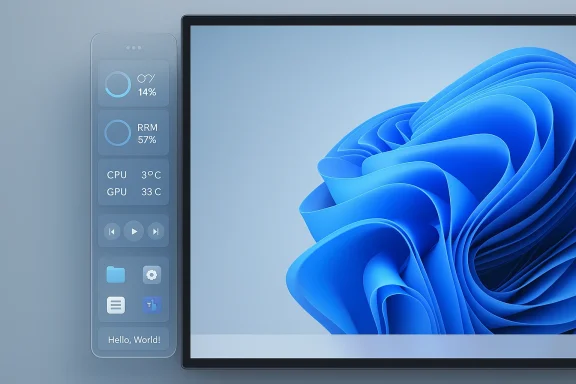
A sleek, blue live dashboard on a smartphone showing CPU/RAM, temps, media player, and tasks.Background​

Microsoft’s PowerToys project has evolved from a grab-bag of desktop utilities into a fast-moving experimentation platform for Windows power users. One of the more recent additions to PowerToys was the modernized Command Palette (a launcher in the tradition of Spotlight and other quick-launch palettes). The Command Palette Dock is presented as an extension of that system — a persistent presentation layer that surfaces Command Palette extensions and small, glanceable widgets without opening the full palette. The idea is deliberately opt‑in and prototyped inside PowerToys rather than being a forced change to Windows shell behavior.
Microsoft product staff described the dock as highly configurable: it can be placed at the top, bottom, left or right of the screen, is divided into three regions (start, center, and end) for organizing pinned items, and supports visual customization such as background, styling, and theme behavior. The team has published concept screenshots and prototype code in PowerToys’ development channels and asked the developer and tester community for feedback.

What the Command Palette Dock is — a concise overview​

  • Purpose: A persistent, optional strip to surface Command Palette extensions and small widgets for instant awareness and one‑click actions.
  • Placement: Positionable on any screen edge — top, bottom, left, or right.
  • Layout: Three configurable regions — start, center, and end — to arrange content.
  • Content: Static shortcuts and live items (CPU/RAM meters, temperatures, network telemetry, media controls, clipboard snippets, extension-provided status tickers).
  • Customization: Visual theming, opacity and blur control, and drag‑to‑reorder “edit mode” for arranging items.
  • Distribution: Experimental prototype inside the PowerToys codebase; Microsoft is soliciting feedback from developers and early testers.
This is an intentionally conservative framing: the dock is a presentation surface for the Command Palette extension model, meaning extension authors can surface the same data they already publish to the palette, now persistently. That reuse reduces developer friction, in theory, and makes the dock extensible without a separate API rewrite.

Why this matters: Windows 11 customization and the “secondary taskbar” idea​

Windows 11’s taskbar design choices have been polarizing for years — one common complaint is the lack of easy, system-supported taskbar repositioning (older Windows, macOS and many Linux desktops let you move panels freely). A Dock-like strip that can be attached to any screen edge and themed to match Windows creates a new affordance: users can have a narrow, always-visible strip dedicated to status and utilities while leaving the main taskbar for running applications.
That idea makes sense for several use cases:
  • Glanceable system telemetry: Quick visual feedback about CPU, memory, network or GPU without opening Task Manager.
  • Persistent media and communication controls: Music, VoIP mute/unmute, and playback functions that stay visible across apps.
  • Clipboard and snippets: Fast access to saved clipboard items or short templates.
  • Separation of concerns: One bar for app switching; another for monitoring and quick controls.
Those potential gains explain why publications and the community have described the dock as “a second taskbar of sorts” — even though design teams explicitly frame it as a complementary, opt‑in surface rather than a replacement for the system taskbar.

How it integrates with Command Palette and PowerToys​

Reuse of an existing extension model​

The key technical premise is that the dock does not force developers to rewrite extension logic. Instead, it subscribes to the current Command Palette extension model:
  • Extensions that can publish list items or live updates to Command Palette could be surfaced in the dock with minimal change.
  • The dock acts as a presentation layer that listens for extension updates and renders small widgets or icons persistently.
  • This architecture favors modularity and lowers the barrier for existing extension authors to adapt to the new surface.

How Microsoft positions it​

Microsoft’s own product leads framed the dock as highly configurable and non-obligatory. The prototype appears in the PowerToys repo and development branches; interested developers can build the experimental branch to try the early code. That said, Microsoft has not committed to shipping it as a stable feature and is explicitly soliciting feedback and telemetry from early testers.

Practical benefits for different users​

  • Power users and developers: A programmable strip that surfaces build servers, launch shortcuts, clipboard snippets, and live resource meters can reduce context switching and speed workflows.
  • Content creators and streamers: Persistent media controls and “do not disturb” / mute indicators are useful when switching between apps and full‑screen capture.
  • IT admins and testers: Quick visibility into system telemetry can help triage performance on lab machines without launching heavyweight tools.
  • Multimonitor setups: The ability to pin to a particular monitor edge provides flexible workspace layout options for multi‑display productivity.
Realistically, the dock is most useful where it solves a specific friction — for instance, keeping a small CPU meter visible during rendering jobs, or a short list of pinned launchers on a work monitor. If you don’t need constant visibility into telemetry or pinned tools, the strip may simply add visual clutter.

Notable strengths in the proposal​

  • Extensibility through Command Palette: Leveraging an existing extension model is efficient and developer-friendly. Developers can ship the same logic to either the modal palette or the persistent dock.
  • Edge-agnostic placement: Letting users dock the strip to any screen edge addresses long-standing preferences from macOS and Linux users and gives Windows more flexibility without altering the main taskbar.
  • Granular organization: The tri‑region layout (start/center/end) provides predictable zones for grouping controls, improving discoverability and ergonomics.
  • Opt‑in experimentation: Rolling it out as a PowerToys experiment limits blast radius: testers can try the feature on secondary machines or VMs before it graduates, which reduces risk compared with OS‑level changes.
  • Customization: Visual theming and an edit mode for drag‑and‑drop ordering makes the dock adaptable to different workflows and desktop aesthetics.

Risks, caveats and technical concerns​

No feature is purely beneficial; here are the main risks and unanswered questions that deserve scrutiny.

1) Shell integration and stability​

PowerToys’ Command Palette has previously been associated with startup and shell registration issues in some builds — users and maintainers tracked “Class not registered” errors and problems launching Command Palette on system startup in older releases. If the dock tightens integration with the shell, the risk surface grows: unclean registration, race conditions at login, or problematic startup ordering could cause Explorer or shell components to behave unpredictably. Testers should be mindful of prior PowerToys issues logged in the project’s issue tracker.

2) Performance and battery life​

Persistent live widgets that poll system telemetry or refresh frequently can increase CPU usage and power draw, especially on battery-powered laptops or older hardware. Without careful throttling and efficient rendering (GPU-accelerated UI, minimal update frequency), the dock’s ever-on nature could become a resource tax rather than a convenience. The PowerToys team must enforce strict performance budgets and backgrounding behavior for dock extensions.

3) Screen technology and burn-in (OLED)​

Persistent, high-contrast elements near the edge of a display can accelerate burn‑in on OLED panels. Users with OLED laptops or monitors should be able to configure auto‑hide, adaptive brightness, or motion on dock icons to mitigate static-image retention. Microsoft should make those mitigations prominent in settings if the feature reaches a stable release.

4) Accessibility and internationalization​

A new persistent surface must be fully keyboard‑navigable, expose correct ARIA/automation properties, and behave correctly under screen readers and high‑contrast modes. PowerToys historically iterates on accessibility, but this is an area where early prototypes often fail edge cases. The team should provide explicit accessibility documentation and test matrices before any OS-level migration.

5) Enterprise and manageability concerns​

If the dock gains traction, enterprises will want management controls (Group Policy, Intune settings) to restrict or configure it. Early design work should consider enterprise deployment models and security reviews — presenting an always-on UI surface that can host third‑party extensions introduces governance and security considerations.

6) Unclear upgrade path to OS feature​

At the moment, the dock is a PowerToys experiment and not an OS feature. Any suggestion that Microsoft will adopt it into core Windows behavior is speculative. Analysts and power users should treat it as an experiment unless Microsoft explicitly announces a plan to integrate it into the operating system proper. This also matters for support guarantees and enterprise expectations.

Developer and tester guidance (how to experiment safely)​

If you’re curious about trying the prototype in a controlled manner, follow a cautious workflow:
  • Use a secondary machine or VM. Don’t install development branches on your primary work device.
  • Back up or image the system. Create a restore point or disk image before building experimental code.
  • Build from official sources only. Clone the PowerToys repository and follow maintainers’ branch guidance rather than third‑party forks.
  • Read and file issues in upstream repo. If you find instability, attach logs and reproducible steps to the PowerToys GitHub issues so maintainers can triage.
  • Test accessibility and multi‑monitor behavior. Verify keyboard navigation, screen reader output, and how the dock behaves when moving windows across displays.
  • Watch for shell-related side effects. If you see Start Menu / Explorer oddities, exit the prototype and confirm whether uninstall returns systems to expected state.
Windows Forum and subreddit threads show an active testing community exchanging tips and reporting issues; these community channels can be helpful but remember they’re not a substitute for formal bug reports.

Community reaction and editorial take​

Early community responses are mixed but engaged. Some power users are enthusiastic about the idea of a second, repositionable strip dedicated to monitoring and quick actions. Others worry about visual clutter, OLED burn‑in, and the practical value for day-to-day computing.
Journalists and outlets characterise the dock as a “menu bar-like” or “secondary taskbar-like” surface. The broader conversation typically centers on whether Microsoft will use PowerToys as a playground for experimental UI paradigms that eventually influence the operating system itself. That’s possible — Microsoft has a recent track record of using PowerToys and Insider channels to trial features — but any migration to the OS should be judged by accessibility, stability, performance, and enterprise readiness requirements.

What this does and doesn’t tell us about Windows 11’s future​

The existence of the Command Palette Dock prototype signals two things:
  • Microsoft is willing to explore more flexible UI affordances for Windows desktop environments and to test ideas that borrow best practices from macOS and Linux.
  • PowerToys is functioning as a sandbox to test desktop UI innovation without committing to system-level changes prematurely.
That said, the prototype does not guarantee that Windows 11 will gain full taskbar repositioning, nor that Microsoft will make the dock a core OS feature. Those outcomes remain speculative until Microsoft publicly commits to integration. Treat the prototype as a potential direction rather than a roadmap certainty.

Recommendations for Windows users and IT teams​

  • Power users and tinkerers: Try the prototype only on secondary systems or VMs, and file thorough feedback if you test it. The community and the Microsoft team rely on structured tracker entries to identify regressions.
  • Enterprise IT: Monitor the experiment and assess the governance implications if the UI surface eventually becomes official. Start thinking about policy controls and accessibility requirements early.
  • General users: If a polished, supported version emerges, the dock could be valuable; for now, wait for a stable release and official documentation before adopting it on production machines.
  • Developers of Command Palette extensions: Consider whether your extensions benefit from a persistent surface and design with tight performance budgets and accessibility in mind.

Final analysis: promising experiment with real trade‑offs​

The Command Palette Dock is an intriguing step toward rethinking how Windows surfaces quick controls and status information. It combines logical strengths — reuse of the Command Palette extension model, edge‑agnostic placement, and a tri‑region layout — with real technical and usability challenges that Microsoft must address before broad deployment.
The most meaningful risk is not conceptually new: any always-on UI surface that integrates with shell components must be deterministic, performant, and removable without leaving system artifacts. PowerToys’ history of rapid iterations and community‑driven development is a strong advantage for polishing the feature, but it also cautions testers and administrators to proceed carefully.
If Microsoft graduates this prototype into a supported feature, it would add practical customization to Windows 11 in a way that many power users have long wanted — however, the company and community must solve stability, performance, accessibility, and manageability issues first. Until then, treat the dock as a promising experiment worth watching and testing in controlled environments.

The dock’s future depends on tester feedback, engineering validation, and how well Microsoft balances useful visibility against resource, accessibility and shell‑integration costs. If it lands in stable PowerToys — or, less likely but not impossible, as a Windows feature — it could finally give Windows users a flexible, optional second strip that answers long-standing customization requests. Until then, the Command Palette Dock remains one of the more interesting PowerToys experiments to follow.

Source: Pocket-lint Windows 11 is about to get a second taskbar (well, kind of)
 

Microsoft’s PowerToys team is quietly experimenting with a new, optional UI surface called the Command Palette Dock — a persistent, positionable bar that brings a macOS‑style top menu / Linux‑style panel to Windows 11 as an opt‑in PowerToys feature, and the prototype is now open for developer testing and community feedback as of late January 2026.

Two monitors display a blue abstract swirl wallpaper with a floating system bar above.Background / Overview​

PowerToys has evolved from a grab‑bag of enthusiast utilities into Microsoft’s public sandbox for serious desktop experiments. Over the last two years the project graduated a modern, extension‑driven Command Palette (the successor to PowerToys Run) that acts like Spotlight or Alfred for Windows. The Command Palette Dock is the natural extension of that platform: instead of a modal launcher you invoke with a hotkey, the Dock proposes a small, always‑visible surface where Command Palette extensions can live persistently for glanceable telemetry and one‑click actions.
This is explicitly an experiment. Microsoft’s PowerToys team is soliciting feedback, prototypes and code samples are available in test branches, and the feature is being positioned as opt‑in only so mainstream Windows 11 users are not forced into a new shell paradigm. The prototype started public discussion at the end of January 2026, and early previews and community testing are the current path to any wider rollout.

What is the Command Palette Dock?​

At its core the Command Palette Dock is a lightweight utility strip that sits at an edge of the screen and surfaces curated items from the Command Palette extension ecosystem.
Key assertions about the Dock from Microsoft’s prototype notes and independent reporting:
  • It’s an optional PowerToys module, not a forced shell replacement.
  • It defaults to the top edge (a familiar macOS‑style bar) but can be pinned to the top, bottom, left or right of any display.
  • The bar is logically divided into three regionsStart, Center, and End — for organization and predictable placement of items.
  • Content is extension‑driven: existing Command Palette extensions can expose short, interactive tiles or live “tickers” (CPU %, RAM, network speed, playback controls, clipboard items).
  • Appearance is configurable: theming, background blur/opacity, and order of items are expected to be adjustable.
  • The experience is designed for glanceability — quick awareness and single‑click actions without context switching.
Put simply: if the Command Palette is Spotlight for Windows, the Dock aims to be a thin, persistent status/control strip that surfaces the bits of Spotlight you rely on constantly.

Feature breakdown: What you can expect​

The prototype sketches a focused set of capabilities that solve specific power‑user pain points without attempting to become a full menu bar replacement.
  • Flexible placement:
  • Pin the Dock to any screen edge to match your workflow.
  • Three‑region layout:
  • Start: pinned launchers and system items.
  • Center: focal actions or search elements.
  • End: user controls and telemetry.
  • Live tickers:
  • Real‑time readouts such as CPU usage, memory utilization, battery or network throughput.
  • Quick actions:
  • Clipboard history, media playback controls, one‑click app launches, or small toggles (Do Not Disturb, Wi‑Fi, etc.).
  • Theming and visual controls:
  • Background color, opacity, blur and theme matching to Windows 11 fluent visuals.
  • Developer API surface:
  • The Dock is presented as a presentation layer that subscribes to the Command Palette extension model — extensions can opt to be pinned or expose a persistent tile.
These design decisions intentionally minimize duplication: the same extension plumbing that already powers the Command Palette should be able to export content to the Dock with minimal changes.

How the Dock integrates technically with PowerToys Command Palette​

The PowerToys architecture for this experiment favors reuse and minimal new attack surface.
  • The Dock is not a separate runtime; it reuses the Command Palette extension API.
  • Extensions publish list items and support change notifications; the Dock subscribes to those notifications to update tiles in real time without inefficient polling.
  • Heavy lifting (data collection, sampling rates, any privileged calls) remains the responsibility of the extension author, which keeps the Dock lightweight.
  • Visual and interaction logic is handled by PowerToys; extension authors provide items, icons and state updates.
This architecture is intentionally modular: PowerToys ships the presentation, while third‑party (or Microsoft) extensions supply the content and behavior. That makes adoption faster for extension authors but raises governance questions that must be resolved before broad adoption.

What’s confirmed — and what’s still provisional​

Confirmed, from the PowerToys project and independent reporting:
  • PowerToys includes a modern Command Palette module and is actively evolving its extension model.
  • Microsoft’s PowerToys team published prototypes and is seeking community feedback about a Dock concept that can be pinned to any screen edge and divided into three regions.
  • The Dock is experimental and opt‑in, currently present only in prototype/test branches rather than the stable PowerToys release.
Provisional or unverified claims that deserve caution:
  • Specific API names or function signatures (for example, public mentions of a GetDockBands() API) have appeared in some writeups and community discussion but could not be reliably located in the mainline PowerToys repo or official docs at the time of reporting. Treat named API calls as conceptual until confirmed in the PowerToys GitHub source, release notes, or official documentation.
  • Final behavior around multi‑monitor rules, fullscreen handling, enterprise controls, and accessibility hooks remains unspecified and is likely to change during prototyping.
I flag any explicit function or API name that I could not locate in the official PowerToys repository or the project’s release notes as unverified. If you plan to build extensions or depend on a particular API contract, verify the API surface from the PowerToys GitHub codebase or direct team communications before committing to a design.

How to try it now (for advanced users)​

The Dock is a prototype. If you’re an experienced tester or extension developer and want to experiment, follow these high‑level steps — always test in a non‑production environment first:
  • Clone or pull the PowerToys repository and check the project’s experimental or prototype branches that the PowerToys team has indicated for Dock testing.
  • Build PowerToys from source using Visual Studio or the team’s documented developer build steps.
  • Launch your developer build and enable the Command Palette Dock feature toggle in the PowerToys settings if the experimental build exposes it.
  • Install or author a simple Command Palette extension that exposes a live item and test pinning it to the Dock.
  • Validate multi‑monitor behavior, fullscreen apps (games, media players), and accessibility (keyboard navigation, screen reader announcements).
Best practices while testing:
  • Use a disposable test machine or a virtual machine snapshot you can revert.
  • Keep recovery steps handy: know how to disable PowerToys at boot or boot into safe mode if the prototype interferes with the shell.
  • File thoughtful, reproducible feedback and issues on the PowerToys GitHub so the team can iterate.

Strengths and benefits for Windows 11 power users​

Why this idea matters and where it could deliver real value:
  • Rapid glanceability: A persistent Dock reduces micro‑interruptions — glance for CPU %, quickly mute, skip a track — without switching windows or opening a launcher.
  • Familiarity for macOS/Linux converts: Users who prefer a top menu or configurable panel will feel at home.
  • Low friction for developers: Reusing the Command Palette extension model lowers the barrier to provide Dock tiles.
  • Opt‑in safety: Because it’s a PowerToys module, organizations and users can adopt it selectively and pilot it before any wider policy decision.
  • Potential productivity wins: Small, repetitive actions (media control, toggles, clipboard snippets) can be converted into single‑click behaviors, saving seconds that add up over a day.
In short: for people who live in the details, a persistent micro‑control surface can reduce friction and speed routine workflows.

Risks, trade‑offs and technical challenges​

No UI experiment that touches the desktop shell is risk‑free. The Dock raises a set of practical, engineering, security and accessibility challenges that will determine whether it becomes a useful, high‑quality addition or a source of headaches.

1) Shell integration and stability​

PowerToys runs in user space and interacts with shell surfaces; previous Command Palette builds surfaced bugs and edge cases with Explorer and startup registration in some configurations. A persistent Dock increases the surface area for focus, z‑order, and startup sequencing issues. Production environments should not deploy experimental builds without validation.

2) Multi‑monitor complexity​

Key questions:
  • Does the Dock show on all displays by default or only primary?
  • Can per‑display configuration be set (different tiles on different monitors)?
  • How does the Dock behave with mixed DPIs, portrait orientation, or docking/undocking laptops?
    These are nontrivial interactions that require extensive QA.

3) Fullscreen and z‑ordering​

Games and exclusive fullscreen apps expect the top edge to be unobstructed. The Dock must reliably hide or yield for exclusive fullscreen and avoid capturing keyboard focus in ways that break hotkeys. Poor behavior here would make the Dock unusable for creatives and gamers.

4) Performance and battery impact​

Because the Dock is always present, its CPU/GPU impact matters on battery‑sensitive devices. The choice to delegate data sampling to extensions mitigates this, but poorly designed extensions could still cause measurable overhead.

5) Security and privacy surface​

Persistent tiles, especially third‑party extensions, create a continuous channel for data. Extension governance — permissions, least‑privilege data access, and clear user consent — will be critical. Enterprises will want auditability and a way to control what extensions can run on managed machines.

6) Accessibility and keyboard navigation​

Top bars must be fully accessible (screen readers, high‑contrast modes, keyboard focus and logical tab order). Early experimental builds often lack full accessibility polish — this must be a first‑class concern before recommending wide adoption.

7) User experience and clutter​

Adding another persistent bar risks visual clutter. Defaults, sensible presets, and a careful out‑of‑box experience will determine whether users enable the Dock or ignore it.

Enterprise considerations: pilot first​

For IT teams considering trials:
  • Pilot with a small user group before any broad deployment.
  • Test interactions with endpoint management tools, custom shell extensions, and security agents.
  • Evaluate whether the Dock interferes with existing workflows (e.g., users who use top‑anchored toolbars in internal apps).
  • Keep change control and rollback plans in place.
Because the Dock is opt‑in and lives in PowerToys, it’s simple to restrict by policy or keep it off by default while you pilot its impact.

Developer perspective and extension governance​

From a developer’s standpoint, the Dock is attractive because it promises a second surface for visibility. But a few best practices and open questions apply:
  • Extension authors should honor performance budgets: sample telemetry efficiently and avoid frequent polling.
  • Clear manifest permissions will be needed so users can approve or deny what an extension exposes persistently.
  • Consider fallback behavior when extensions crash or lose permissions — the Dock must stay stable even if a tile misbehaves.
  • Documentation and composition patterns will be essential: small tiles with consistent semantics will keep the Dock coherent.
As noted earlier, some early writeups mention specific API names; those should be treated as sketch proposals until confirmed in the official PowerToys repo and docs.

How Command Palette Dock compares to macOS and Linux panels​

  • macOS: a single system menu bar integrates application menus with system indicators. The Dock concept here is more of a glanceable control strip than a full menu bar; it’s not proposed to replace app menus.
  • Linux DEs: many environments (GNOME, KDE, XFCE) support configurable panels with applets. The PowerToys Dock most closely resembles these panels: positionable, extensible and customizable.
  • Windows 11: the traditional affordance remains the Taskbar and Quick Settings. The Dock is designed as a complementary, not replacement, surface.
This restrained scope is meaningful: Microsoft is testing an additional surface for specific workflows rather than rewriting how apps expose menus.

Practical advice: test safely and weigh the tradeoffs​

If you’re intrigued and technically comfortable:
  • Test the prototype in a VM or on a secondary machine.
  • Try real world scenarios: fullscreen games, video calls, multi‑monitor setups, and battery‑constrained laptops.
  • Install only trusted extensions during early testing to minimize security exposure.
  • Report bugs with precise repro steps to the PowerToys GitHub to influence the feature’s direction.
If you manage critical systems, do not enable experimental PowerToys modules on production endpoints until the feature reaches a documented, stable release and the team publishes accessibility and performance audits.

Conclusion​

The Command Palette Dock is a pragmatic, interesting experiment from Microsoft’s PowerToys team that attempts to bring a familiar macOS/Linux pattern — a small, persistent status and control strip — to Windows 11 in a safe, opt‑in way. Its value proposition is clear for power users: reduce micro‑interruptions, surface critical telemetry, and pin frequently used actions for single‑click access.
But the road from prototype to polished feature is long. Multi‑monitor polish, fullscreen and z‑order behavior, accessibility compliance, extension governance, security posture, and performance budgets all need to be proven in real‑world conditions. Microsoft’s decision to incubate this idea in PowerToys is the right approach: it lets engineers and the community iterate without risking the core Windows shell.
If you live on Windows 11 and care about productivity micro‑gains, watch the PowerToys repo and consider joining the preview/testing cycle — but do so in a sandboxed environment and treat all API names and final behaviors as provisional until documented in the official PowerToys release. The Dock could be one of those small, practical changes that quietly saves users many tiny interruptions every day — provided Microsoft and the community get the engineering and governance details right.

Source: techcityng.com Microsoft Tests ‘Command Palette Dock’: A macOS-Style Top Bar for Windows 11
 

Microsoft’s PowerToys team is quietly prototyping a macOS‑style, positionable menu bar for Windows 11 — the “Command Palette Dock” — that would let you pin live widgets, app shortcuts and Command Palette extensions to a persistent, highly configurable strip anchored to any screen edge.

A curved monitor displays a blue abstract wallpaper, with a translucent side panel showing system stats.Background​

PowerToys has evolved from a collection of small utilities into one of the most visible community‑driven extensions to Windows. Its recent, full‑featured Command Palette launcher (the modern successor to PowerToys Run) introduced an extensible system for commands, quick actions and small live items. The Command Palette Dock is an experiment that builds on that extension model by providing a persistent surface for the same extensions and telemetry — essentially turning ephemeral Command Palette items into glanceable, one‑click UI tiles.
Multiple outlets reported the prototype this week after the PowerToys team published design notes and a developer preview artifact on the PowerToys GitHub. Microsoft frames the dock as an optional PowerToys surface, not a replacement for the Windows shell or taskbar, and the feature is currently an early proof‑of‑concept open to feedback and developer testing.

What Microsoft is testing: the Command Palette Dock explained​

The core idea in one paragraph​

The Command Palette Dock is a narrow strip that can be pinned to the top, bottom, left, or right edge of a display. It is divided into three logical regions — start, center, and end — where users can pin extensions and live widgets. Those pinned items can show telemetry (CPU, RAM, temperatures), media controls, clipboard snippets, or app shortcuts; when tapped they open the same flyout UI used by the Command Palette launcher.

Key features Microsoft is exploring​

  • Positionable on any screen edge (top, bottom, left, right) and optionally hidden.
  • Three dock zones — start, center, end — for predictable grouping and layout.
  • Drag‑to‑reorder “edit mode” so pinned items can be moved between zones.
  • Visual customization: background color, opacity/blur, theme matching to Windows 11, and other styling options.
  • Uses the existing Command Palette extension model so extensions require no code changes to surface in the dock.
  • Items can be static shortcuts or dynamic “live” tiles that update in real time (for example, resource meters).
  • Opt‑in prototype distributed through the PowerToys GitHub repository; developers can build and test the branch with Visual Studio.

How the dock ties into PowerToys and Command Palette​

PowerToys’ Command Palette already exposes an extension SDK so third‑party developers and internal PowerToys teams can publish searchable commands, list pages and small UI items. The dock reuses that extension plumbing as a presentation layer: instead of invoking the full Command Palette overlay with a keyboard shortcut, the dock keeps chosen extensions visible and accessible at all times.
This reuse is significant because it lowers developer friction. An extension that already provides a small status tile or a list item in the Command Palette should, in theory, be able to present the same content in the dock without rewriting its code. The dock therefore acts as a complementary UI surface — a persistent, glanceable alternative to the transient launcher.

Why this matters for Windows 11 users​

Windows has historically limited where system chrome (taskbar, Start) can live, which drove frustration among users who want a top menu bar or macOS‑like behaviors. The Command Palette Dock offers a non‑intrusive, opt‑in route to address this demand without Microsoft changing the core shell behavior. For power users, developers and multitaskers, a small, customizable surface for telemetry and quick actions could reduce context switching and keep essential info visible.
SEO‑friendly takeaways:
  • Windows 11 PowerToys is testing a macOS‑style dock.
  • Command Palette Dock brings persistent widgets and app shortcuts to Windows 11.
  • Developers can compile the experimental PowerToys branch in Visual Studio to test the preview.

Early UX and design observations​

Layout and visuals​

Microsoft’s mockups show a thin, elegant strip with subtle rounded icons and small readable metrics. Visual customization options match PowerToys’ recent trend of allowing deeper personalization for the Command Palette: background images, tinting and themed color fills to better integrate the dock into different desktops.

Interaction model​

  • Clicking a tile opens a flyout that reuses Command Palette UI panels.
  • The dock appears designed for low‑friction interactions — glance, click, act — rather than deep multi‑step workflows.
  • Edit mode lets you drag tiles across zones and remove items quickly.

Positioning and multi‑monitor behavior​

The prototype supports any screen edge, which is important for ultrawide and multi‑monitor setups. How the dock behaves with different scale settings, taskbar autohide, or multiple displays is not fully documented in the preview; that will be a critical area for testing.

Developer and power‑user testing: what you need to know​

Microsoft’s PowerToys team is distributing the prototype through GitHub as an experimental branch or design artifacts. The public messaging invites developers to test the code locally via Visual Studio. If you’re considering trying it, keep these points in mind:
  • Back up your system or test on a non‑critical PC. Experimental PowerToys builds can change shell integrations and have, in the past, produced disruptive behavior for some users.
  • Use a dedicated test account or a virtual machine if you want the safest environment.
  • Follow the PowerToys GitHub repository notes for branch names, build instructions and any run‑time caveats; branch names and PRs can change quickly.
  • Report bugs and feedback on the GitHub issue thread the PowerToys team opened; this is the preferred channel for early prototypes.
A cautionary note for would‑be testers: community reports from earlier Command Palette releases included compatibility problems for some configurations, so proceed carefully and document reproducible issues.

Strengths — what the dock gets right​

  • Low friction for power users. Persistent access to frequently used tools and telemetry reduces the need for keyboard shortcuts and launcher invocations.
  • Extension re‑use. Reusing the Command Palette extension model is pragmatic: it avoids fragmentation of the extension ecosystem and makes the dock immediately useful with existing extensions.
  • Flexible placement. Positioning on any edge helps users match the dock to their workflows and monitor setups, including vertical sidebars for portrait/monitor stacking scenarios.
  • Theming and integration. Theme matching and background options make the dock less likely to clash visually with Windows 11’s design language and popular third‑party themes.
  • Opt‑in approach. Delivering it as a PowerToys feature respects user choice and avoids imposing UI changes on users who don’t want them.

Risks and limitations — where Microsoft and testers should be cautious​

1) Stability and system integration​

PowerToys has a history of delivering powerful features but also occasionally creating unstable integrations with the Windows shell. Experimental features that interact with shell elements or register UI surfaces require rigorous testing across Windows 11 versions, OEM customizations, and enterprise environments.
  • Risk: Explorer or shell crashes caused by experimental shell integrations.
  • Mitigation: Strong regression testing, areawide telemetry and opt‑out fail safes.

2) Visual clutter and cognitive load​

A persistent bar at the top (or sides) of the screen introduces new constant visual information. For users not accustomed to a menu bar, the dock risks increasing cognitive load or interfering with full‑screen application experiences (games, video, design apps).
  • Risk: Screen real‑estate conflicts with app chrome and fullscreen behaviors.
  • Mitigation: Auto‑hide, app fullscreen suppression, opacity/blur options.

3) OLED burn‑in and display longevity​

Static UI elements on OLED panels can contribute to burn‑in over time. Many modern laptops use OLED or high‑contrast displays, and a persistent dock that displays small, bright icons and text could increase risk for devices used for many hours daily.
  • Risk: Burn‑in or image retention on OLED screens.
  • Mitigation: Provide recommended default behaviors (auto‑hide on long sessions), reduce static high‑contrast elements, add periodic shifting or dimming modes.

4) Accessibility and input diversity​

A productive dock must be accessible via keyboard navigation, screen readers and touch. If the prototype prioritizes mouse interactions, it may deliver a poor experience for keyboard‑centric or assistive technology users.
  • Risk: Keyboard and screen reader incompatibility; poor touch hit target sizes.
  • Mitigation: Enforce accessible hit target sizes, full keyboard navigation (tab order, accelerators), and UI automation support.

5) Performance and telemetry overhead​

Live telemetry widgets (CPU/RAM meters, temperature sensors) can be implemented efficiently, but poorly designed polling or rendering can increase CPU load and add battery cost on laptops.
  • Risk: Additional background CPU usage and battery drain from frequent polling.
  • Mitigation: Use event‑driven telemetry when possible, throttle updates, and provide user controls for refresh frequency.

6) Security and privacy of extensions​

Command Palette extensions can surface dynamic content and run commands. A persistent surface that automatically shows data increases the attack surface if malicious or poorly sandboxed extensions are present.
  • Risk: A rogue extension could expose sensitive clipboard data or run privileged actions.
  • Mitigation: Strong extension permission model, normalization of UWP/AppContainer sandboxing, curated extension store or signing, explicit user consent for telemetry access.

Compatibility issues to test carefully​

  • Multiple monitors with mixed scaling (100% + 150%).
  • Taskbar autohide, secondary monitors and tablet mode.
  • Interaction with OEM UI overlays and custom shells.
  • Conflicts with third‑party docks and replacement shells (StartAllBack, Explorer alternatives).
  • Enterprise environments where group policies lock taskbar or shell behavior.
These scenarios commonly produce edge cases in UI prototypes and should be prioritized in testing matrices.

Privacy and security considerations​

Persistent surfaces that surface live data (clipboard, currently playing track, resource counters) can be convenient but raise privacy questions — especially when remote desktop, screen sharing or presentation modes are used.
Considerations for the dock:
  • Add a clear, user‑visible mute or privacy mode for presentation/recording sessions.
  • Make clipboard access explicit per extension. Clipboard history in a persistent tile should be hidden when screen sharing is active.
  • Provide clear extension permissions and a user‑facing permission grant model. Extensions that read files, clipboard or system telemetry should request consent and show what they read.

Recommendations for Microsoft​

  • Keep the dock strictly opt‑in with a robust, one‑click disable and a short onboarding flow that highlights privacy and performance tradeoffs.
  • Ship a clear extension permission model and runtime sandboxing for third‑party extensions that appear on the dock.
  • Build accessibility into the prototype from day one — keyboard navigation, UI Automation, and good contrast ratios.
  • Add safe defaults for OLED panels: auto‑hide after inactivity, adaptive dimming and pixel shifting modes to reduce burn‑in risk.
  • Provide thorough multi‑monitor and scaling tests before any stable release; publish a compatibility matrix for OEMs and enterprise admins.
  • Offer a recovery path if the dock or Command Palette registration causes shell problems — documented rollback steps and an automated safe‑mode flag.

Recommendations for testers and power users​

  • Test on a spare machine or VM first. Experimental PowerToys features can interact with system shell components in unexpected ways.
  • Export or backup PowerToys settings before enabling experimental branches.
  • Report reproducible issues with step‑by‑step logs and system specs to the official PowerToys GitHub issue thread — maintainers rely on detailed repros.
  • Be mindful of privacy: disable clipboard or sensitive widgets when sharing screens or using remote desktop.
  • Monitor battery and CPU usage while the dock is enabled; report any unexpected overhead with profiling traces if possible.

How developers can (generally) try the prototype​

Microsoft’s public guidance is to fetch the preview artifacts from the PowerToys GitHub repository and build them in Visual Studio. Branch names and PRs change quickly; follow repository guidance and use the official README for exact build steps. A typical, high‑level workflow is:
  • Clone the Microsoft/PowerToys repository from GitHub.
  • Fetch the development branch or pull request that contains the Command Palette Dock prototype (check PR details for the exact branch name).
  • Open the solution in Visual Studio (recommended: the version specified in the repo readme).
  • Build the solution and run the PowerToys installer or start PowerToys in debug mode.
  • Enable Command Palette and look for the Dock option in settings to turn it on and configure placement.
Important: do not assume the branch name or build steps; always rely on the README and maintainers’ notes on the repository for the currently recommended approach. Experimental branches may require extra dependencies or specific Windows SDK versions.

What remains uncertain or speculative​

  • Shipping timeline: Microsoft has not committed to including the dock in a stable PowerToys release. Media reports suggest it could appear as an official PowerToys feature if feedback is positive, but any claim about exact shipping windows is speculative.
  • Branch and merge schedule: the experimental artifacts are on GitHub today, but whether and when they will be merged into the mainline PowerToys release is unknown.
  • Enterprise acceptance: adoption in corporate environments will depend on compatibility with management tooling and Group Policy; that path is unclear.
  • Long‑term maintenance and security posture: the responsibilities for vetting third‑party extensions that can appear on a persistent surface remain to be clarified.
Flagging these as unverifiable at the moment is important — Microsoft’s public signals are experimental and feedback‑driven, not promises.

Verdict: promising, but with real‑world tradeoffs​

The Command Palette Dock is a thoughtful attempt to bring a macOS‑style, glanceable, and extensible UI surface to Windows 11 without forcing system‑wide changes. Its strongest design choices are reuse of an existing extension model, flexible positioning and an opt‑in distribution through PowerToys. For developers and power users it could become a productivity booster: instant access to telemetry, playback controls and workflow shortcuts without repeated keypresses.
However, the prototype raises real concerns around stability, accessibility, privacy, display longevity (OLED burn‑in), and enterprise compatibility. Microsoft can mitigate many of these by prioritizing robust sandboxing, accessible design, safe defaults for displays, and clear rollback paths for testers.
If you value productivity surfaces and are comfortable with experimental builds, the dock is worth watching and, for cautious testers, trying in an isolated environment. If your priority is system stability, especially on work machines or critical systems, wait until the feature reaches a stable PowerToys release with documented enterprise guidance.

Conclusion​

The Command Palette Dock shows Microsoft experimenting in a practical, incremental way: instead of altering the Windows shell, PowerToys offers an optional surface that borrows the best elements of macOS and Linux panels while leveraging an existing, extensible Command Palette ecosystem. That design choice minimizes fragmentation and maximizes developer reuse, making the idea compelling.
But good intentions are only a start. Real adoption will hinge on rigorous QA, careful handling of privacy and accessibility, and thoughtful defaults for devices with sensitive displays. For Windows 11 power users and developers, the coming weeks of feedback and testing on the PowerToys GitHub will determine whether this prototype evolves into a polished productivity feature — or remains an interesting experiment that never ships.
If you plan to test the prototype, tread lightly, back up your settings, and report reproducible issues so the PowerToys team can iterate with the community’s help.

Source: Techweez Microsoft Is Testing a macOS-Style Dock for Windows 11
 

Microsoft’s latest PowerToys experiment — a persistent, positionable “Command Palette Dock” that can live at the top, bottom, left, or right edge of your screen — is quietly reshaping what many of us consider the Windows desktop to be. The feature is optional, built on the PowerToys extension model, and aims to reduce the micro‑interruptions that slow down workflows by putting commonly used tools, live telemetry, and one‑click actions within immediate reach.

Blue translucent Start menu panel with system widgets over a blurred Windows desktop.Background​

Why small interruptions matter right now​

Most arguments about operating‑system updates focus on headline features — major UI overhauls, security improvements, or large platform additions. But Microsoft’s recent design rhetoric (and user sentiment) points to a subtler truth: it’s the tiny pauses — searching for a setting, opening a hidden panel, or repeatedly switching windows — that drive resistance to change. The PowerToys Command Palette Dock is explicitly framed to reclaim those lost seconds and restore “flow,” offering a persistent, glanceable surface for the tools users rely on. (thestreet.com)

PowerToys as Microsoft’s innovation lab​

PowerToys has become Microsoft’s low‑risk testbed for new productivity features. By shipping prototypes and experimental controls through PowerToys rather than the core Windows shell, Microsoft can iterate quickly, solicit developer feedback on GitHub, and make features optional rather than mandatory. That approach gives engineers room to test radical ideas (such as launching Command Palette as a persistent dock) without imposing them on the broader Windows population.

The market context: Windows evolution and adoption pressure​

Microsoft’s desktop strategy for Windows 11 has been a mix of visual refreshes (centered taskbar), deeper integration (Copilot), and platform experimentation (PowerToys). The company has framed Windows 11 as widely adopted — citing a major milestone of roughly one billion Windows 11 devices reached during investor communications — which both legitimizes incremental UI risk and fuels attention on features that improve everyday productivity for a large user base. That growth, together with the end of mainstream support for Windows 10, increases the stakes for changes that affect user habits.

What the Command Palette Dock actually is​

Core concept and user model​

At its heart, the Command Palette Dock is a persistent UI strip anchored to any screen edge that hosts pinned extensions and live items supplied by the existing Command Palette extension model. It is not an app launcher in the traditional sense but a tiny, configurable “dock” intended to surface actions and glanceable data without opening the full Command Palette or launching separate apps like Task Manager. The dock divides into three logical zones — start, center, and end — where users can group items predictably.
Key feature list:
  • Positionable on top, bottom, left, or right of the display.
  • Segmented layout (start / center / end) for organizational clarity.
  • Hosts both static shortcuts and live telemetry items (CPU/RAM, network status, media controls).
  • Visual customization (background, opacity, blur, theme matching).
  • Integrates with Command Palette extensions so developers don’t need to rewrite extension code.

How it surfaces functionality​

When an item in the dock is activated, the extension opens in a popup/flyout that uses the Command Palette’s UI patterns, meaning actions are performed inline rather than launching full windows. The dock can show live updates for items that implement change notifications, which enables glanceable monitoring (for example, seeing CPU spikes or memory usage at a glance). Because the dock is an optional PowerToys surface, it coexists with the native taskbar and Start menu rather than replacing them.

Why Microsoft is testing the dock​

The “interruptions tax” problem​

Microsoft’s internal framing — and the language used by journalists covering the experiment — emphasizes minimizing small interruptions that accumulate into meaningful productivity loss. The dock is intended as a surgical change that reduces the number of clicks and context switches for routine tasks (toggling resource monitors, launching a frequently used tool, controlling media). By using PowerToys, Microsoft can test whether persistent surfaces help users or merely become another UI element competing for attention. (thestreet.com)

Design constraints and the “not forced” promise​

A recurring theme from the PowerToys team is that this is an opt‑in feature. That’s important: Microsoft explicitly avoids shipping forced visual changes that would break muscle memory wholesale. The dock, implemented as a PowerToys extension, gives both users and admins an easy way to try, disable, or customize the feature. That distinction between optional experiment and system‑level change is central to Microsoft’s risk management strategy.

Technical mechanics and developer implications​

Extension model reuse​

One of the dock’s design efficiencies is that it reuses the Command Palette extension plumbing. That means existing extensions can be surfaced persistently in the dock without being rewritten for a separate API. For extension authors, that lowers the barrier to supporting the dock while preserving a single extension development model. Developers are encouraged to test early prototypes available through PowerToys’ GitHub branches to adapt their extensions for dock compatibility.

Live updates and telemetry concerns​

The dock supports extensions that push live updates via the Command Palette’s change notification mechanism. That is technically elegant, but it raises questions about resource management: how often should extensions push updates? What telemetry is appropriate to show on a persistently visible strip? Microsoft’s prototype notes and community discussion have acknowledged these tradeoffs and asked for developer and user feedback before hardening the behavior.

Compatibility and surface area​

Because the dock is an overlay that coexists with the Windows shell, multi‑monitor setups, ultrawide displays, and third‑party taskbar mods all create corner cases. Microsoft’s early proposals include positioning rules and drag‑and‑drop reordering, but the specifics of multi‑monitor behavior, auto‑hide heuristics, and application focus interactions remain in flux. The PowerToys experiment aims to gather real‑world use patterns to drive those decisions.

Benefits: what users stand to gain​

  • Reduced context switching. The dock reduces the need to open separate apps or search through menus for commonly used actions. This is the feature’s core productivity promise. (thestreet.com)
  • Glanceable system health. Live telemetry tiles can show CPU, memory, temperature, and network throughput without opening Task Manager. That’s useful for power users and for anyone who diagnoses performance hiccups frequently.
  • One‑click access to tools. Media controls, toggles, and other small utilities become available instantly without keyboard shortcuts.
  • Customization and modularity. Because the dock is segmented and themeable, power users can tune it to their workflows rather than accept a one‑size‑fits‑all approach.

Risks and downsides: where this could go wrong​

UI clutter and attention cost​

A persistent dock that’s poorly configured or overloaded with live widgets risks becoming another distraction. The very thing intended to reduce interruptions can add a new visual element that competes for attention, especially across multiple monitors or when large windows occupy the top of the screen. Early prototypes will need robust auto‑hide and contextual visibility rules to avoid turning utility into noise.

Fragmentation of the Windows experience​

Windows already offers numerous entry points to commands and utilities: Start menu, taskbar, Quick Settings, and the Command Palette itself. Adding another persistent surface increases the complexity of choice and can widen variability between how different users customize their desktops. That’s tolerable for power users but risky for environments that need consistent user experiences (help desks, enterprise training programs).

Performance and battery trade‑offs​

Any visible UI that refreshes live telemetry carries a performance cost — incremental CPU usage, GPU composition for transparency/blur, and potential wakeups on mobile devices. For laptops and tablets, Microsoft will need to tune default behaviors and provide sensible battery‑preserving defaults. Otherwise, users may disable the dock after noticing worse battery life or thermal activity.

Security and privacy considerations​

Because extensions can surface system information, administrators and privacy‑sensitive users will want controls governing what data a dock extension can read and display. PowerToys currently operates at user level; enterprises that need to standardize what shows on desktops will want management controls or an enterprise‑grade configuration mechanism before widespread adoption.

Enterprise and IT implications​

Manageability and deployment​

For IT teams, the fact the dock is a PowerToys feature rather than a built‑in shell change simplifies roll‑out: PowerToys can be installed and configured by administrators for a controlled group. That said, PowerToys is historically targeted at enthusiasts and administrators; formal enterprise packaging, policy controls, and update channels would be needed if organizations plan broad deployments. Microsoft’s experimental posture suggests these governance features are not yet finalized.

Training and support costs​

Even optional UI surfaces have support costs when users request help. IT shops should watch early adoption patterns and consider creating internal guidance if they want to enable the dock for power‑user teams. Conversely, blocking PowerToys or disabling experimental features in managed images can be an effective way to keep a consistent experience for general knowledge workers.

Security posture​

Because extensions can access system details and invoke commands, enterprises will want vetting and a whitelisting model before exposing the dock to broad user populations. The PowerToys prototype will likely need more hardened extension signing or enterprise policy hooks before it is trusted in sensitive environments.

Developer angle: opportunities and caveats​

Why extension devs should care​

The dock’s reuse of the Command Palette extension model is a plus: extension authors can get exposure for their tools on a persistent surface without a large rewrite. That opens new UX patterns — persistent controls, live telemetry tiles, and inline flyouts — that can dramatically increase extension usefulness and discoverability. Microsoft’s GitHub channels are currently accepting feedback and code samples for early adapters.

Responsible update frequency and API design​

Extension authors will need to be mindful of update cadence and the performance implications of pushing telemetry frequently. Microsoft’s early documentation and community threads emphasize change notifications rather than constant polling; well‑designed updates will balance responsiveness with power efficiency.

Comparisons: macOS, Linux panels, and Windows’ heritage​

  • macOS menu bar: The dock resembles macOS’s persistent top menu and Dock conceptually, but Microsoft’s proposal is different in that it’s not an application‑bound menu bar (menus don’t change by the active app) — it’s a utility strip focused on tools and telemetry. That subtle difference matters because users expect top menu behavior on macOS; Windows’ dock is intended for system utility rather than app menus.
  • Linux panels: Many Linux desktops already offer flexible panels and widgets; Microsoft’s dock borrows that flexible spirit by allowing placement on any edge and offering widget‑style items. The difference is the integration with PowerToys’ extension model and Windows’ focus on backward compatibility.
  • Windows taskbar and Start: The dock is designed to complement — not replace — the taskbar and Start menu. That intentional coexistence reduces the probability of sudden backlash, but it also forces Microsoft and users to think about where to place common controls to avoid duplication and confusion.

Rollout expectations and current status​

Prototype, not a shipping product​

As of the current reporting, the Command Palette Dock exists as a proposal and prototype in PowerToys’ experimental branches and GitHub discussions. Microsoft is soliciting feedback, and builds that include early artifacts are intended for developer testers and enthusiasts rather than general consumers or managed enterprise fleets. There is no firm shipping date announced, and Microsoft’s history with PowerToys indicates prototypes can evolve, be delayed, or never ship depending on feedback. Treat the dock as a concept under evaluation, not a guaranteed Windows 11 feature.

Signals to watch​

  • Inclusion in an official PowerToys release channel (non‑experimental) and documentation updates.
  • Admin policy hooks or enterprise management features in PowerToys packaging.
  • Community adoption patterns — whether enthusiasts adopt the dock widely or find it redundant.

How to evaluate the dock if you test it​

  • Back up your settings and run PowerToys in a test profile or VM before enabling experimental features.
  • Try the dock in one placement (top or left) for a week to see how it affects your window management and focus.
  • Monitor battery and CPU usage before and after enabling live telemetry tiles. Look for unexpected wakeups or higher GPU/DRM usage.
  • Test multi‑monitor behavior, especially if you use different scale factors or mixed orientations.
  • If deploying in a business environment, trial the dock with a small pilot group and gather metrics on support tickets and productivity impact.

Final analysis: will this reshape your desktop?​

The Command Palette Dock is a deliberately conservative experiment with potentially outsized implications. Because it is optional, PowerToys‑centric, and designed to reduce micro‑interruptions, it addresses a real user pain point without forcibly rewriting the Windows UI. That architectural choice — test in PowerToys, iterate with developers, then decide — is a pragmatic path that lowers risk while allowing Microsoft to explore a fundamentally different surface model for the desktop.
However, the dock’s success isn’t assured. The key variables are execution and defaults: if Microsoft and extension authors strike the right balance between visibility and unobtrusiveness, and if the dock’s resource profile is light, the feature could genuinely reduce friction for power users. If the default becomes cluttered or too heavy on live updates, users will simply turn it off — and the experiment will have proven its limits. The most likely near‑term outcome is that the dock will remain a compelling optional tool for enthusiasts and power users, with potential enterprise adoption only after Microsoft builds governance and management features around it.
In short: the Command Palette Dock is an important signal about Microsoft’s UI thinking — one that favors optional, modular experimentation over forced change. It is less likely to be a revolution than a well‑scoped evolution: a polished productivity layer for those who want it and a quiet non‑event for everyone else.

Conclusion
Microsoft’s PowerToys Command Palette Dock is a thoughtful attempt to bring persistent, one‑click utility to Windows without breaking the habits of the millions who use the OS daily. As an opt‑in experiment it neatly encapsulates Microsoft’s current approach: iterate publicly, gather feedback, and only harden changes that demonstrably reduce friction. For users and IT pros, the prudent move is to watch the experiment, test in controlled settings, and be ready to weigh the productivity gains against the potential for UI clutter and battery impact. If the prototype fulfills its promise — fast access to tools, accurate glanceable telemetry, and a light resource footprint — it could quietly reshape how power users interact with Windows, one micro‑improvement at a time.

Source: thestreet.com https://www.thestreet.com/technolog...ws-11-change-that-could-reshape-your-desktop/
 

Microsoft’s PowerToys team is quietly prototyping a Mac- and Linux-style top bar for Windows 11 — a configurable, persistent “Command Palette Dock” that can host glanceable system telemetry, media controls, and pinned tools, and that can be positioned on any screen edge as an optional PowerToys surface.

A translucent Command Palette Dock displaying CPU, RAM, network, and temperature stats over a blurred background.Background​

Microsoft’s PowerToys has long been a testing ground for power-user features that either stay within the extension suite or inform broader Windows design choices. The latest experiment, referred to internally as the Command Palette Dock, extends the modern Command Palette (PowerToys’ replacement for the old Run-style launcher) into a small, persistent UI strip that the team envisions as an optional, extensible status and shortcut bar. Early concept materials and prototype branches have been posted and discussed in the PowerToys project, and Microsoft is soliciting community feedback rather than forcing a platform-level change.
That weakly-coupled, opt-in approach is central to how the feature is being framed: PowerToys is the vehicle, not a replacement for Windows’ core pieces such as the taskbar or Start menu. The team’s messaging emphasizes customization, developer extensibility, and the reuse of the Command Palette extension model so existing PowerToys plugins can surface in the dock without major rewrites.

What the Command Palette Dock is (and is not)​

Core concept​

  • Persistent, optional UI strip: The dock is a thin bar that can remain visible and grant one-click access to selected Command Palette extensions and small widgets.
  • Positionable on any screen edge: Users would be able to pin the dock to the top, bottom, left, or right of a display.
  • Three logical regions: The dock is split into start, center, and end zones to allow predictable grouping of items — similar to how macOS or some Linux panels structure controls.
  • Hosts live telemetry and quick actions: Planned examples include CPU/RAM meters, temperature sensors, network throughput, battery and connection icons, media controls, and quick shortcuts into PowerToys tools.
  • Highly customizable: Visual theming (backgrounds, blur, opacity), item ordering, and pinning behavior are part of the design goals.
Important caveat: this is a prototype inside PowerToys, not a shipping, OS-level change. Microsoft’s internal docs and the PowerToys team position it as experimental and optional; there is no official timeline for any rollout to the mainstream Windows 11 release channel.

What it’s explicitly not intended to be​

  • A forced replacement for the Windows taskbar or Start menu.
  • A global application-menu bar that changes with the active window (as in macOS app menus).
  • A non-optional, baked-in UI that would break existing Windows shell behavior.
Several commentators have noted that while the dock evokes the look-and-feel of macOS and certain Linux panels, Microsoft intends the dock to complement rather than replace core interface elements.

Why Microsoft is testing a top bar now​

Competing design expectations​

Windows power users are a diverse group: some prefer a dense tray of information and shortcuts, while others prize the minimalism of the Windows 11 default. Microsoft’s PowerToys often experiments where the Windows shell cannot — offering opt-in surfaces to bridge UX expectations without committing to a single vision. The dock directly addresses long-standing requests from users who migrated from macOS or Linux and miss a top menu/status bar that exposes system glances and quick controls.

Reusing the Command Palette ecosystem​

Because the dock is built on the Command Palette extension model, it promises a low-friction path for developers: existing Command Palette plugins can be surfaced in the dock, and extensions can open in consistent flyouts or mini-panels. This reuse reduces API churn and encourages third-party experimentation. Microsoft’s message here is pragmatic: reuse a mature extension model rather than invent a whole new plugin system.

Power users + telemetry​

The ability to pin lightweight telemetry tiles (CPU, memory, temperature) is a clear play for enthusiasts, developers, and gamers — people who often keep a Task Manager or third‑party monitor open. A small dock that shows these numbers at a glance reduces friction while keeping heavier tools just a click away. However, this promise carries implications for performance, battery life, and privacy (discussed later).

How the dock works in practice (based on prototype descriptions)​

Visual and behavioral model​

  • The dock itself is minimal: small icons, compact telemetry meters, and a light visual chrome that accepts theming.
  • Clicking an item opens an extension in a flyout — the same UI pattern used by the Command Palette launcher — so the interaction model is consistent with existing PowerToys behavior.
  • An edit mode enables reordering, pinning, and unpinning extensions so the dock can be tuned to a user’s workflow.

Developer flow​

Microsoft has made prototype artifacts available in the PowerToys project for developers to import into Visual Studio and experiment with locally. That means the earliest adopters will be developers comfortable building and running experimental branches rather than average users.

Integration with existing widgets and features​

The dock is not a new widgets board; it’s a complementary surface for glanceable widgets and shortcuts. Windows 11 already supports a Widgets board and various APIs (for example, PWA widget support), so the dock could coexist with those systems without usurping them. The PowerToys team appears focused on status and quick actions rather than content feeds or the discoverable news items currently found on the Widgets board.

Strengths: what the dock could get right​

1. Choice without breaking Windows​

By offering the dock as an opt-in PowerToys feature, Microsoft can satisfy different user preferences without imposing a single interface philosophy. Power users win, and mainstream users remain unaffected. This is a smart trade-off for an OS that must balance enterprise requirements and hobbyist customization.

2. Fast access to telemetry and controls​

A compact bar for CPU/RAM, network speed, battery, and media control reduces the need to open heavier tools for routine checks, speeding motivation-driven workflows (e.g., monitoring encoding jobs, gaming performance, or laptop battery state). Integrating these tiles into the Command Palette extension model offers a uniform plugin approach that third parties can adopt.

3. Reuse of an existing extension model​

Because the dock leverages Command Palette extensions, Microsoft avoids fragmenting its developer story. Existing extensions — clipboard managers, quick-launch tools, and telemetry monitors — could be surfaced in the dock without substantial rewrites, encouraging ecosystem growth.

4. Highly customizable, low-risk experiment​

Visual theming, placement choices, and modular pinning make the dock flexible for various desktop setups. As an experimental PowerToys feature, the risk that Microsoft will ship a confusing, unwanted default UI is minimized.

Risks and unanswered questions​

Visual clutter and fragmentation​

Windows already has a taskbar, system tray, Quick Settings, and the Widgets board. Adding a persistent dock creates the possibility of feature overlap. Users who adopt several of these surfaces may experience cognitive friction and visual noise. Microsoft needs a clear story about why a user would choose the dock versus the taskbar or Widgets board — and how the dock will be discoverable without being obtrusive.

Performance and battery impact​

Any always-on UI component that polls telemetry or renders live meters can increase CPU usage and battery drain, especially on notebooks. PowerToys is generally lightweight, but adding dozens of live extensions across multiple displays could have a non-trivial cost. PowerToys should provide explicit controls for polling frequency, granularity, and power profiles to avoid negative side effects for battery-sensitive users.

Accessibility and discoverability​

Microsoft must ensure the dock is accessible via keyboard, screen readers, and high-contrast modes. If the dock duplicates functionality but is hard to navigate for keyboard-first users, or if it steals focus in odd ways, it may exacerbate rather than reduce friction for users with disabilities. PowerToys historically focuses on power users, but accessibility parity is still required when a feature could reach a broad user base.

Privacy considerations​

Telemetry UI tiles often need system metrics that could be sensitive in enterprise environments. Microsoft should document what data the dock exposes and how — especially for third-party extensions. Enterprises will want controls to disable extension installation or limit data exposure in managed environments. The PowerToys team needs to make enterprise management paths explicit.

Fragmented developer experience​

While reusing Command Palette extensions reduces friction, the dock’s new UI constraints (tiny tile size, live telemetry needs) may force extension authors to add specialized code paths. Microsoft should publish clear guidelines and samples to minimize fragmentation and encourage consistent UX.

How to try the prototype (for adventurous users and developers)​

If you’re a developer or enthusiast who wants to experiment, Microsoft’s PowerToys project has prototype artifacts that can be imported into Visual Studio so you can build and run the dock locally. This is not a consumer-facing release — expect rough edges, frequent changes, and experimental branches.
Recommended precautions:
  • Clone the PowerToys repository into a controlled environment (preferably a test machine or virtual machine) rather than a production PC.
  • Use an isolated PowerToys installation or a separate user profile to avoid polluting your main configuration.
  • Read the prototype’s README or RFC notes in the repository for build instructions and known limitations.
  • Watch for polling settings and background behavior; reduce telemetry frequency on laptops.
  • Report feedback and bugs directly in the PowerToys project so the team can iterate quickly.

Comparison: macOS, Linux panels, and Windows 11​

What macOS does​

macOS exposes a global app menu and a compact status bar at the top of the screen that shows system status icons, Spotlight, Siri, and menu extras. The macOS model ties the menu bar’s content to the active app (for menus) but leaves persistent status icons exposed. The PowerToys dock borrows the look of a small top strip but intentionally diverges by being app-agnostic and focused on one-click tools and telemetry rather than full app menus.

What common Linux desktop environments do​

Many Linux desktops (GNOME, KDE, XFCE) provide a top panel or bottom panel that can host app menus, system trays, clock, and widgets. Panels are often highly configurable and extensible via plugins — a paradigm PowerToys is emulating but with the constraints and deployment model of Windows. The dock’s three-region layout echoes how many panels encourage predictable grouping.

Where Windows 11 sits now​

Windows 11’s design language focuses on a single centered (by default) taskbar, a system tray, Quick Settings, and a left-edge Widgets board. The dock does not replace these, but it introduces an alternative surface for users who want something more like macOS/Linux panels. The crucial difference is that the dock is opt-in and experimental, which preserves Windows 11’s default simplicity while offering power users a new tool.

Recommendations for Microsoft​

  • Publish a clear security and privacy policy for dock extensions, including enterprise group policy options to disable or restrict third‑party tiles.
  • Provide explicit power-management settings for telemetry tiles (polling intervals, suspend-on-battery, etc.) to protect notebook battery life.
  • Deliver comprehensive extension guidelines and samples to encourage consistent UX across tiles and flyouts.
  • Build accessibility testing into the prototype release cycle and publish a checklist and compliance report.
  • Consider controlled A/B testing rather than a broad release to measure real-world impact on performance and user behavior.
These moves would reduce risk and increase the feature’s chances of graduating from PowerToys experiment to a stable, supported utility for a broad audience.

What users should watch for​

  • Official PowerToys release notes indicating the dock’s graduation path (experimental → preview → stable).
  • Enterprise management guidance (Group Policy or MDM controls) that govern dock installation and extension behavior.
  • Documentation of extension APIs and example extensions that demonstrate battery-friendly telemetry.
  • Accessibility reports or community feedback that confirm keyboard and screen-reader parity.

Final analysis: a pragmatic experiment with caveats​

The PowerToys Command Palette Dock is an incremental, pragmatic experiment that brings a familiar UI metaphor — the top/status bar — to Windows in a low-risk way. By placing the feature inside PowerToys and reusing the Command Palette extension model, Microsoft preserves choice while enabling power users and developers to innovate.
That pragmatism is the dock’s greatest strength: it lets Microsoft explore interface expansion without committing the entire Windows population to a single design change. But the feature raises thoughtful questions about redundancy, performance, privacy, and accessibility that must be answered before any broad deployment.
If Microsoft gets those details right — clear power and privacy controls, good accessibility support, and a consistent extension UX — the dock could become a handy, lightweight addition to the Windows toolkit. If not, it risks becoming yet another optional surface that fragments user attention and duplicates existing functionality.
For now, the dock is an experiment worth watching. Developers can test prototypes from the PowerToys project, and Microsoft will rely on community feedback to shape the feature’s future. The most responsible path forward is the one Microsoft appears to have chosen: iterate in public, listen, and keep the feature opt‑in until it proves its value at scale.

Source: Gagadget.com Like in MacOS and Linux: Microsoft may add a top bar for widgets and system information to the Windows 11 interface
 

Microsoft’s PowerToys team is quietly testing a configurable, persistent “Command Palette Dock” — a slim, positionable menu/status bar that can live on any screen edge and surface pinned Command Palette extensions, system telemetry, and media controls as an optional PowerToys feature. ps://www.theverge.com/news/870663/microsoft-windows-11-top-menu-bar-powertoy-experiment)

Blue abstract wallpaper with a floating system monitor widget showing CPU/RAM and a vertical app dock.Background​

Windows 11’s redesigned taskbar shipped with a constrained feature set compared with previous Windows releases, notably restricting the ability to move the taskbar to the top or sides without hacks or third‑party tools. That limitation left a vocal group of power users frustrated and opened a persistent UX gap that Microsoft appears to be addressing experimeys rather than by changing the OS shell itself.
PowerToys has evolved from a grab‑bag of small utilities into a deliberate, public lab for interface experiments and power‑user features. In recent cycles the project replaced PowerToys Run with a richer, extensible Command Palette (CmdPal) and has used that extension model as the foundation for the dock propproach is explicit: build new surface affordances in PowerToys as opt‑in experiments, collect community feedback, harden them, and then evaluate whether any ideas belong in the mainstream OS.

What is the Command Palette Dock?​

Core concept​

The Command Palette Dock is a lightweight, persistent UI strip that can be pinned to the top, bottom, left, or right of the screen. It is divided into three logical regions — start, center,sers organize pinned items predictably across different screen edges and layouts. The dock surfaces items supplied by Command Palette extensions, including glanceable telemetry widgets (CPU, RAM, temperature), media controls, clipboard shortcuts, and pinned quick actions.

What it is explicitly not​

Microsoft frames the dock as an experimental PowerToys surface — *nott for the Windows taskbar or Start menu, and not a global application menu bar that replaces per‑app menus like macOS. The experiment is opt‑in and sits outside the OS shell by design; there is no official timeline for moving it into Windows proper. Treat the dock as a configurable overlay anchored by PowerToys rather than a guaranteed future shell feature.

Why Microsoft is doing this in PowerToys​

PowerToys offers Microsoft a low‑risk, high‑signal way to prototype UI paradigms that would otherwise be politically and technically heavy to land in the OS. Because PowerToys is modular, Microsblicly and gather telemetry and community feedback.
  • Reuse existing extension APIs (lowering friction for developers).
  • Keep the default Windows 11 experience unchanged for users who prefer status quo.
This strategy acknowledges both engineering constraints (the “reflow” complexity of moving a global taskbar) and product risk (enterprise compatibility), while still giving enthusiasts and admins a path to new workflows.

Technical design and integration​

Built on the Command Palette extension model​

The dock reuses the Command Palette’s extension model so that items and live data published by CmdPal extensions can appear persisten code for a different surface. That’s an architectural win: one extension authoring surface can power transient command invocation (the palette) and persistent glanceable tiles (the dock). Microsoft’s official Command Palette documentation and samples describe how extensions publish invokable commands and live payloads, which the dock can then bind to for display.

Layout, theming, and behavior​

The dock supports tri‑region placement and theme controls — r/opacity, and color behavior — to align visually with Windows 11 aesthetics. Items can be reordered and pinned by users. The design intends to be adaptable for single‑screen and multi‑monitor setups and account for fractional DPI scaling, but those interactions will require careful QA before any broad rollout. Early previews show the dock opening extension content in flyouts that reuse CmdPal’s interaction model rather than creating entirely new UI paradigms. ([windowsforum.com](Windows 11 Linux style Command Palette Dock prototype in PowerToys extension surface risks
Coupling a persistent UI to an extension runtime increases the blast radius for bugs and security issues. If a malicious or buggy extension can publish live content into the dock, it could create performance regressions, memory pressure, or unexpected system interactions. Poopment model mitigates some risk by moving experimentation into a community‑testable space, but Microsoft will need strict vetting, permissioning, and sandboxing for third‑party widgets before elevating the dock to a recommended or managed enterprise feature.

UX implications: who benefits, who risks losing out​

Benefits for power users and migrants from macOS/Linux​

  • Users who migrated from macOS or Linux often miss a fixed top menu or status bar for glanceable controls; the dock offers a familiar workflow without replacing Windows' taskbar.
  • The dock can improve ergonomics for multi‑monitor setups where a second persistent bar (for system status or quick shortcuts) makes sense.
  • Because it’s extension‑driven, the dock can host highly specialized tiles for developer workflows, media editing, or streaming setups.

Risks and friction points​

  • Additional UI density: adding another persistent bar threatens visual clutter and cognitive load, particularly on smalvertical pixel counts. Several commentators have already voiced caution about desktop clutter in early reporting.
  • Interaction conflicts: the dock must coexist with the taskbar, notification area, Quick Settings, and third‑party shells without confusing input focus, alt‑tab behavior, or touch gestures.
  • Accessibility: persistent but small display tiles must meet screen‑reader and high‑contrast requirements; PowerToys will need to demonstrate robust accessibility support before enterprise or wide consumer adoption.

How the dock compares to macOS and Linux paradigms​

macOS and many Linux desktop environments ship with a persistent top bar or panel that integrates global menus, system indicators, and app status. The PowerToys dock emulates the function of these surfaces (glanceable telemetry, pinned actions) but intentionally avoids changing per‑app menu behavior — it’s a status/shortcut strip rather than a global app menu. That difference keeps expectations realistic: the dock is a productivity bar, not an OS‑level reimagining. Early coverage underscores this parity in intent (similar look and placement) and the divergence in scope (no app menus).

Developer and extension ecosystem: opportunity and caution​

Opportunity​

Because the dock piggybacks on the Command Palette’s extension model, developers can target both transient and persistent surface cases with one API. That lowers the entry barrier and can accelerate a catalog of useful tiles — from system monitors to GitHub/CI status indicators and media controls.
Benefits include:
  • Unified API for launcher + dock.
  • Faster developer adoption due to sat documentation.
  • Potential for third‑party integrations that make Windows feel more tailored to professional workflows.
Microsoft’s Command Palette samples and developer guidance already show how invokablees are authored, which is the technical foundation the dock needs.

Caution​

The extension model must include:
  • Clear permission models: extensions should not be able to read or write arbitrary system state without user consent.
  • Resource caps: live widgets must be CPU/memory constrained to avoid background drain on laptops.
  • Update and compatibility guarantees: PowerToys updates should not silently break critical extensions that users depend on.
PowerToys has historically patched extension and runtime issues in response to community reports; the team will need to double down on test harnesses and API stability if the dock ddit.com]())

What testers and admins should know (step‑by‑step)​

  • Treat the dock as experimental: only enable it in a non‑production environment until Microsoft publishes formal guidance.
  • Install PowerToys from official channels and pull the prototype branch from GitHub if you want to test the dock; follow the project’s developer notes rather than random forks.
  • When testing, monitor resource usage (CPU, RAM) and look for focus or input regressions across apps, multi‑monitor setups, and high‑DPI displays.
  • Avoid enabling third‑party CmdPal extensions with elevated privileges until the permission model is clarified; some earlier Command Palette behaviors have shown elevation‑sensitive regre())
  • Provide structured feedback on GitHub with logs and repro steps; Microsoft is soliciting community input to refine API design, security posture, and accessibility.


Enterprise and management considerations​

Enterprises treat shell changes as high‑risk. Microsoft’s decision to prototype the dock inside PowerToys — and keep it opt‑in — is a deliberate way to avoid large‑scale compatibility fallout. If the dock ever moves toward enterprise channels, administrators will reasonably expect:
  • Group Policy controls and telemetry filters.
  • Whitelisting for allowed extensions and a managed store model.
  • Formal security and compliance documentation.
Until Microsoft publishes those controls, IT teams should consider the dock a user‑level experiment that requires standard change‑control procedures before adoption.

Potential roadmaps and plausible futures​

The dock has three plausible trajectories:
  • Narrow PowerToys feature: it remains a community experiment that fills a niche for power users and teases larger design ideas without becoming mainstream. This keeps the risk low and innovation fast.
  • Polished PowerToys module with enterprise controls: the dock matures into a stable PowerToys feature with admin controls and vetted extensions, suitable for wider use in professional environments.
  • OS‑level adoption: the dock’s concepts influence a future Windows shell change t term but possible if telemetry shows broad adoption and Microsoft finds a safe integration path. Any shift to this model would require a major program of compatibility testing and enterprise outreach.
At present, Microsoft’s public messaging and prototype placement suggest trajectory (1) or (2) as the most realistic near‑term outcomes; there’s no signal that a forced OS change is imminent.

Strengths, weaknesses, and an evidence‑based verdict​

Strengths​

  • Low‑risk innovation path: PowerToys lets Microsoft gather real user feedback without forcing changes across the Windows install base.
  • Developer efficiency: Reusing the Command plication and speeds time‑to‑value for extension authors.
  • Addresses a real user need: For many power users and migrants from other OSes, a persistent, configurable bar is a meaningful productivity win.

Weaknesses and risks​

  • Security and stability surface: A persistent dock magnifies the consequences of buggy or malicious extensions; robust vetting is essential.
  • UI clutter and interaction complexity: Another persistent bar can create friction in small displays or produce unexpected interaction overlaps.
  • Unknown timelines and governance: Without formal enterprise controls, admins should be cautious about adoption.

Verdict​

The Command Palette Dock stands out as a sensible, pragmatic experiment that respects Microsoft’s constraints while addressing genuine user demand. Its success depends less on a single clever UI mockup and more on the PowerToys team’s discipline: clear extension permissions, resource governance, accessibility compliance, and conservative rollout practices. If Microsoft nails those operational controls, the dock could be a durable productivity surface for enthusiasts and professionals alike; if it becomes rushed or under‑governed, it risks becoming yet another source of desk stability problems.

Practical recommendations for WindowsForum readers​

  • If you love tinkering: test the prototype in a sandboxed environment and contribute structured feedback via GitHub; your repro steps and telemetry help shape API stability.
  • If you manage machines: keep the dock on your radar but hold off on production deployment until Microsoft publishes enterprise controls and hardening guidance.
  • If you’re a developer: look at the Command Palette extension samples and design extensions with permissions and resource constraints in mind; plan for both transient and persistent UX surfaces.

Closing analysis: why this matters for the future of Windows UX​

The Command Palette Dock is more than a cosmetic add‑on; it represents a shift in how Microsoft experiments with desktop UX. Instead of forcing broad shell changes, the company is increasingly using PowerToys as a public laboratory — a place to prototype, iterate, and learn with real users. That discipline preserves enterprise stability while giving enthusiasts tangible new workflows to explore. For Windows to remain adaptable in a world where users expect macOS‑style polish, Linux‑style extensibility, and high enterprise assurance, this pattern — prototype in PowerToys, harden in the open, then decide — may become Microsoft’s default playbook. How Microsoft executes on security, accessibility, and extension governance will determine whether the dock becomes a beloved productivity surface or a footnote in UI experiments.
The PowerToys Command Palette Dock is an intriguing preview of what a more modular, user‑empowered Windows could look like — but for now it’s precisely that: an experiment. Test it cautiously, provide constructive feedback, and watch whether Microsoft uses the PowerToys sandbox to turn a useful prototype into a responsibly engineered feature.

Source: BornCity PowerToys: Microsofts Antwort auf die starre Windows-11-Taskbar - BornCity
 

Microsoft is quietly prototyping a persistent, customizable top bar for Windows 11 — not as a forced redesign of the shell, but as an optional dock surfaced through PowerToys' Command Palette that brings macOS‑ and Linux‑style glanceable system controls and widgets to the Windows desktop.

Windows 11 top menu bar prototype displaying CPU/RAM, Mbps, and media controls.Background​

Windows has long balanced two competing UI philosophies: the classic, persistent taskbar and system tray, and lighter, ephemeral interfaces such as the Run dialog or Spotlight‑style launchers. Microsoft’s PowerToys project has evolved from a collection of small productivity utilities into a semi-official laboratory for new desktop ideas, and Command Palette — a Spotlight‑like launcher — sits at the center of the latest experiment. The PowerToys team is testing a “Command Palette Dock” prototype that can be pinned to any screen edge and host small extensions that display live information or controls.
This prototype is intentionally opt‑in and distributed via PowerToys’ development channels and GitHub for early feedback. Microsoft frames the dock as an extension of existing Command Palette extensions: anything that already surfaces information for the palette can be shown persistently in the dock without rewriting the extension for a new UI. That design choice keeps the feature modular and minimizes duplication for developers.

What Microsoft is testing (the basics)​

  • The feature is called the Command Palette Dock in PowerToys’ design notes and reporting. It’s described as a persistent UI surface that can be placed at the top, bottom, left, or right of a display. Default visuals lean toward a top bar, which makes the comparison to macOS’ menu bar immediate.
  • The dock is divided into three logical regions — Start, Center, End — where users can pin extensions or widgets. That layout aims to let users group items semantically (system status on the left, contextual controls in the center, quick actions at the right).
  • Expected content includes glanceable system information (CPU/RAM usage, network speed, battery), media controls, clipboard shortcuts, and other small interactive tiles provided by Command Palette extensions. These tiles open flyouts or full Command Palette UI when invoked.
  • Appearance will be customizable: the team is prototyping theme and background controls (opacity, blur, ordering), so the dock can visually integrate with a user’s desktop setup. It’s designed to be personalizable rather than prescriptive.
  • Microsoft’s current distribution path for the prototype is PowerToys’ development branch and GitHub; developers and advanced users can compile or load experimental branches to try the dock, but mainstream rollout is not yet scheduled.

Why this matters — product and UX rationale​

At first glance, the dock is a modest productivity feature: a thin bar for quick information and controls. The bigger story is how it signals Microsoft’s evolving approach to desktop personalization and modular UX:
  • It acknowledges that many users want glanceable info without context switching to separate apps or panels. A persistent, small‑footprint bar lowers the friction to check system telemetry or control playback.
  • The dock implicitly recognizes user familiarity with other platforms. macOS users expect the menu bar to host app menus and status items; many Linux desktop distributions offer extendable top bars with widgets. By offering a similar surface as an option, Microsoft can appeal to power users who prefer that mental model without forcing it on the entire Windows population.
  • It allows PowerToys to experiment with deeper shell‑adjacent UI affordances without altering core Explorer behavior. That reduces risk while letting Microsoft gather user feedback and developer adoption signals.

How the prototype works in practice​

Layout and extensions​

The dock uses the existing Command Palette extension model. Any extension that already supplies small items to the palette can expose a compact tile or live “ticker” for the dock, so developers won’t need a separate API just for the bar. This makes the prototype extensible from day one and aligns with PowerToys’ plugin ecosystem.

Placement and behavior​

  • Default placement favors the top edge but users can pin the dock to any screen edge.
  • The bar is divided into three regions to organize items; items can be reordered and customized.
  • When a dock item is activated it typically opens a flyout or triggers the extension’s normal action, following the same interaction model as Command Palette results.

Visuals and personalization​

  • Prototypes show theme and background options including blur/opacity and ordering controls. The goal is to make the dock visually compatible with varied desktop wallpapers and color themes.

How to try it today (for tinkerers)​

If you want to experiment with the dock now, the team has made prototype code available in PowerToys’ development resources. Proceed carefully — this is experimental code that can cause instability on some systems.
  • Install or update to the latest PowerToys stable release and enable Command Palette. The usual activation hotkey is Win + Alt + Space (configurable in settings).
  • For the dock itself you may need to compile or pull a dedicated test branch from the PowerToys GitHub. That requires developer tooling (Visual Studio) and comfort building from source.
  • Test in a non‑critical environment: use a virtual machine, secondary PC, or create a system restore point before experimenting. Back up settings and be prepared to disable the module if you encounter issues.
Safety tips: experimental builds can behave unpredictably, and earlier Command Palette releases included regressions that affected shell registrations and startup behavior on some systems. If you depend on a stable workstation, do not enable development builds on it.

Benefits for end users​

  • Faster access to frequently checked metrics and controls without opening task manager, music apps, or other windows.
  • Customizability allows users to shape the bar to their workflows — developers can pin git/terminal shortcuts while creatives can pin media and color‑calibration tools.
  • Extensibility via Command Palette extensions means the ecosystem can add third‑party widgets rapidly without Microsoft shipping new APIs.
  • Optionality keeps the main Windows shell untouched: users who don’t want another UI element are unaffected.

Engineering and UX challenges (what could go wrong)​

This is where the experiment faces meaningful hurdles. The idea is simple on paper but deceptively complex in practice.

1) Shell integration and stability​

PowerToys runs in user space but interacts with shell components; deeper surface integration increases the risk of focus bugs, startup race conditions, or Explorer instability. The Command Palette itself has produced multiple GitHub issues where activation or registration problems caused error messages and functional regressions on some machines. These prior incidents show that even well‑intentioned productivity tools can provoke system‑level instability if not implemented carefully.
Community reports have documented troubling cases where Command Palette interactions correlated with shell errors severe enough to require system recovery. While maintainers actively triage those issues, the reports are a real caution for testers and enterprise admins.

2) Multi‑monitor and DPI complexity​

Modern multi‑monitor setups are heterogeneous: different DPIs, mixed orientation, docking/undocking sequences, and portrait/landscape displays. Questions to solve include whether the dock appears on all displays by default, whether settings are per‑display, and how the dock keeps consistent behavior when displays connect/disconnect. Handling these properly requires extensive QA across representative hardware.

3) Fullscreen apps, games, and z‑ordering​

Anything pinned to the top edge risks interfering with fullscreen experiences — games, video players, or professional tools that assume exclusive top‑edge use. The dock must reliably auto‑hide or yield to exclusive fullscreen modes, and it must not capture focus or break global hotkeys. These are subtle, easy‑to‑miss regressions.

4) UI clutter and discoverability​

Windows’ top edge is not currently a high‑density interaction area for many users. Adding a new status strip raises an inevitable debate about screen real‑estate and cognitive load. Microsoft will need to make default settings conservative and provide clear discovery/guidance so users don’t enable the dock and feel their desktop is suddenly cluttered. Community discussion already shows divided opinions on whether the top bar is a net positive.

5) Performance and battery life​

Persistent UI elements that poll telemetry or update frequently can have measurable CPU and battery implications on laptops. The extension model needs throttling policies and smart refresh rates to avoid undue overhead. Tech press and early testing notes highlight this as a material concern for mobile and low‑power scenarios.

Privacy, security, and accessibility considerations​

  • Privacy: Extensions that surface system telemetry should be transparent about what data they access. If third‑party extensions are allowed in the dock, Microsoft and maintainers must prevent exfiltration or unintended leakages of system state. The Command Palette extension model must include permission boundaries and clear user consent.
  • Security: Any surface that accepts third‑party extensions increases attack surface. PowerToys’ distribution model and extension packaging must enforce code signing, sandboxing, and a clear vetting process for widely used extensions.
  • Accessibility: The dock must work well with screen readers, high‑contrast themes, keyboard navigation, and alternate input methods. Small interactive tiles and flyouts frequently struggle with focus order and assistive tech unless accessibility is baked into the control templates. This is non‑negotiable for enterprise deployments or inclusive design goals.

PowerToys vs. Windows shell: what this tells us​

Microsoft’s decision to prototype the top bar inside PowerToys — rather than shipping it as a core Explorer change — is strategic. PowerToys functions as a public R&D environment that lets Microsoft test bold ideas without the risk and policy obligations of altering core OS behaviors. This lowers deployment barriers and preserves user choice. If the dock proves valuable, Microsoft could theoretically integrate similar capabilities into Windows proper later, but there is no evidence that such a migration is planned. For now, the dock is a lab experiment and an opt‑in power user feature.

Timeline and likelihood of mainstream arrival​

There is currently no public timeline for the dock to reach stable PowerToys or Windows release channels. Reporting emphasizes that the feature is in a research/prototype stage and Microsoft is soliciting developer feedback via GitHub. That means the idea could evolve, be shelved, or be refined significantly based on early tester feedback and the engineering challenges described above. Treat anything you see today as iterative.
Cautionary note: press coverage sometimes conflates PowerToys experiments with guaranteed OS changes. The distinction matters: PowerToys features can and do appear, change, or vanish without impacting the Windows release cadence.

Recommendations — what users and IT pros should do​

If you’re curious and comfortable testing experimental features:
  • Try the prototype only on a non‑critical machine (VM, spare laptop, or secondary test PC).
  • Create a full system restore point and back up important settings before enabling development branches.
  • Monitor PowerToys’ GitHub issues and the public discussion for known problems and fixes — especially any shell/registration issues tied to Command Palette.
  • Keep PowerToys up to date to get fixes; but avoid enabling developer branches on corporate or production endpoints.
  • Enterprise admins should treat the dock as unsupported in production until it reaches stable release and Microsoft publishes compatibility guidance. Consider blocking PowerToys via policy on managed devices until the feature matures.

What to watch next​

  • Developer uptake: check whether key PowerToys extensions (clipboard history, media controls, third‑party widgets) add dock support. Widespread extension updates would increase the dock’s utility.
  • Stability fixes: Microsoft’s response to logged shell/registration bugs in Command Palette will be the largest signal for production readiness. If those issues are resolved, the risk profile falls dramatically.
  • UX refinements for multi‑monitor and fullscreen behavior: the dock’s handling of edge cases will determine whether it is a helpful addition or a source of regressions for gamers and professionals.

Final analysis — promise and prudence​

The Command Palette Dock is a pragmatic, incremental approach to a longstanding user desire: quick, glanceable access to system information and controls without bloating the desktop. As an opt‑in PowerToys experiment it checks many right boxes — modularity, extensibility, and personalization. If it delivers low overhead, reliable behavior in multi‑monitor and fullscreen scenarios, and strong privacy/security controls, it could earn a permanent place in many power users’ workflows.
At the same time, the prototype sits atop a fragile space where shell interactions and persistent UI affordances can create disproportionate risk. Past Command Palette regressions, active GitHub issue threads, and community reports about stability mean that caution is warranted. This is a project to watch and to test — but not to deploy widely until Microsoft moves it from prototype to stable release and demonstrates robust QA across the scenarios described above.
For Windows enthusiasts this is an exciting, familiar idea: the convenience of macOS and some Linux desktops, reimagined for Windows 11 in a way that prioritizes choice. For administrators and stability‑minded users it’s a reminder that even non‑OS experimental tools can have system‑level impacts. The best path forward is measured curiosity: try it on a test rig, follow the project’s GitHub threads, and expect iteration rather than immediate perfection.

Source: Gagadget.com New Windows 11 top bar: Quick widgets and system information
 

Back
Top