

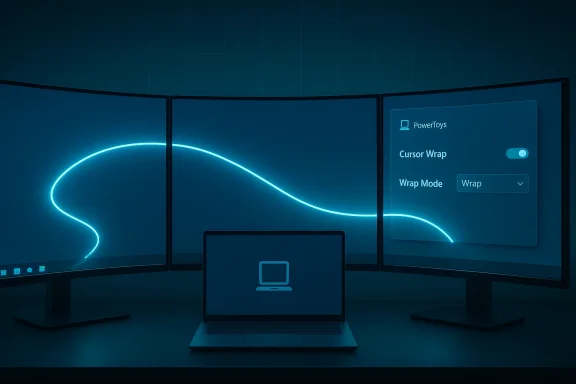
PowerToys’ latest maintenance release proves a rare thing in modern desktop tooling: small, focused iterations that materially improve workflow without adding bloat. Version 0.97.1 is primarily a bug-fix build, but it also tightens up CursorWrap — the new mouse utility that lets your pointer “teleport” across screen edges — by improving multi-monitor behavior, adding laptop-lid detection, and introducing a Wrap mode that limits wrapping to horizontal-only, vertical-only, or both directions. This update is modest in scope but significant in day-to-day ergonomics for multi-monitor and ultrawide users.
PowerToys began as an experimental toolkit for advanced Windows users and has evolved into a tightly maintained, open-source productivity platform hosted on GitHub. Recent cycles have shifted from scattered utilities toward a more cohesive platform: the Command Palette (a keyboard-first launcher), expanded CLI hooks for automation, and increasingly polished small utilities like CursorWrap. The project’s public cadence and detailed changelogs make it easy to verify what shipped and when.
PowerToys 0.97 introduced CursorWrap as a convenience for people with wide or multi-monitor setups, and 0.97.1 polishes that first implementation to handle real-world edge cases more reliably. The update is available via PowerToys’ usual distribution channels — GitHub releases, the Microsoft Store, and package managers — and includes enterprise-oriented artifacts such as ADMX policy templates for administrators.
The user-facing appeal is obvious: fewer long flicks across a desk, less wrist strain, and a snappier feeling when jumping across far-apart windows. Integrating this behavior into PowerToys means users don’t need third-party drivers or hacks to get the effect.
Key deployment guidance for IT:
From a product-design perspective, two decisions stand out:
If you’ve been on the fence, try CursorWrap in Horizontal-only mode first and evaluate how it fits your daily tasks. If you manage a fleet, use the ADMX templates included in v0.97.1 to control adoption. Either way, this release is another reminder that small, well-targeted updates can deliver outsized improvements to everyday productivity.
Source: Windows Central I didn't think PowerToys could get better so fast, but I was wrong
 Background
PowerToys began as an experimental toolkit for advanced Windows users and has evolved into a tightly maintained, open-source productivity platform hosted on GitHub. Recent cycles have shifted from scattered utilities toward a more cohesive platform: the Command Palette (a keyboard-first launcher), expanded CLI hooks for automation, and increasingly polished small utilities like CursorWrap. The project’s public cadence and detailed changelogs make it easy to verify what shipped and when. PowerToys 0.97 introduced CursorWrap as a convenience for people with wide or multi-monitor setups, and 0.97.1 polishes that first implementation to handle real-world edge cases more reliably. The update is available via PowerToys’ usual distribution channels — GitHub releases, the Microsoft Store, and package managers — and includes enterprise-oriented artifacts such as ADMX policy templates for administrators.
What CursorWrap Does (and why people care)
The mechanic: wrap, not teleport
CursorWrap implements a simple but powerful mechanic: when enabled, moving the mouse past the right edge of the active monitor repositions the pointer at the left edge of that monitor (and top↔bottom similarly), effectively wrapping the pointer around the active display. For single ultrawide monitors and extended multi-monitor arrays, this reduces the distance your hand must travel and can make moving between windows faster and less fatiguing.The user-facing appeal is obvious: fewer long flicks across a desk, less wrist strain, and a snappier feeling when jumping across far-apart windows. Integrating this behavior into PowerToys means users don’t need third-party drivers or hacks to get the effect.
How CursorWrap differs from system pointer behavior
- It wraps at the active monitor’s outer edges rather than indiscriminately across all display boundaries.
- It is a user-toggleable PowerToy — opt-in only — and integrates with the PowerToys settings UI.
- It can be constrained to horizontal or vertical wrapping (new in v0.97.1), which prevents accidental vertical wrap when you only want horizontal behavior.
What Changed in v0.97.1 (technical summary)
PowerToys v0.97.1 is primarily a corrective release, but a few changes are especially notable for users who enable CursorWrap:- Improved multi-monitor support: CursorWrap’s detection of monitor boundaries and the logic governing which edges should wrap have been refined to reduce unexpected teleports inside complex monitor grids.
- Laptop lid close detection: The utility now responds to dynamic topology changes like closing a laptop lid while an external display remains connected, preventing the pointer from becoming confused when displays appear or disappear.
- New ‘Wrap mode’ setting: You can limit wrapping to horizontal-only, vertical-only, or both. This addresses the common workflow preference to wrap left↔right but not top↔bottom, which helps prevent accidental vertical jumps during regular vertical movement.
- Enterprise supportnition for CursorWrap was added to the group policy templates, making it easier to control this behavior at scale in managed environments.
- Other fixes across PowerToys: The release also fixed various Command Palette and utility bugs, such as personalization UI issues and icon-loading fixes. These changes are small but improve stability and the settings experience.
Hands-on: Enabling and Configuring CursorWrap
Here’s a practical step-by-step to enable and test CursorWrap safely if you want to try it today.- Install or update PowerToys to v0.97.1 using GitHub, Microsoft Store, or your preferred package manager. Verify the release number in the settings to ensure you’re running 0.97.1.
- Open PowerToys Settings and find Mouse utilities (or the dedicated CursorWrap section if present). Toggle CursorWrap on.
- Use the new Wrap mode dropdown to choose Horizontal-only, Vertical-only, or Both. Pick Horizontal-only if you frequently flick the cursor to the top or bottom of your screen during normal use.
- Test on a single monitor first: move the cursor to the right edge and continue pushing; it should appear on the left edge of the same monitor. Repeat top/bottom if you enabled vertical wrapping.
- Test on your multi-monitor setup: place the active window on the outermost monitor and ensure wrapping happens only at the outer layout edges — not between internal edges where monitors sit side-by-side. Keep the laptop lid detection caveat in mind: if you disconnect or close a lid, re-check behavior.
Multi-monitor scenarios: the tricky parts
CursorWrap’s design must reconcile several competing constraints: natural wrapping behavior, predictable results across different monitor arrangements, and compatibility with drag operations and pointer-based interactions.Common pain points (and how v0.97.1 addresses them)
- Accidental wrapping at internal boundaries: Early implementations can mistakenly wrap the cursor at borders between two adjacent monitors. v0.97.1 refines the edge detection to wrap only at outer edges of a monitor layout, reducing surprise teleports.
- Lid closure and dynamic topology: Laptops with external monitors often change the display topology when the lid is closed. CursorWrap in 0.97.1 detects these topology changes (lid close/open) and updates wrapping behavior dynamically to avoid pointer loss or misplacement.
- Dragging objects: Wrapping while dragging can be disruptive. The current setting includes toggles or behaviors to avoid wrapping while active drags occur (users report the option exists — validate in your settings pane after updating). If you rely on long drag operations, test dragging with wrapping on and consider toggling wrap-off-during-drag.
Best practice checklist for complex setups
- Use Horizontal-only wrapping on stacked monitor arrangements or when you frequently use full-height toolbars and menus.
- Use Both only if you regularly jump across monitors vertically or use tiled vertical workspaces.
- Test with your window manager (FancyZones) to ensure focus and snapping behave as expected when wrapping happens.
- Keep a small timeout in mind: unexpected combinations of high pointer speed + wrapping might feel disorienting at first; slow your pointer speed in Settings if needed.
Enterprise considerations: policies, deployment, and governance
PowerToys is popular with individual power users, but sysadmins evaluating it for managed fleets need to understand governance implications. v0.97.1 includes an ADMX policy definition for CursorWrap, which is an explicit recognition of enterprise needs: administrators can allow, block, or configure CursorWrap via Group Policy or centralized configuration. That addition makes it much easier for IT teams to pilot and then roll out the feature without surprises.Key deployment guidance for IT:
- Validate the PowerToys installer artifact (MSIX or MSI) and published hashes before deploying. PowerToys publishes release artifacts and hashes with every release.
- Pilot on representative hardware combinations (laptop + external monitor, ultrawide single displays, mixed DPI screens) to check for topological edge cases.
- Check third-party EDR/AV policies — some organizations treat open-source tools that inject UI hooks as suspicious; whitelist the signed PowerToys binaries where policy allows.
- Use the new ADMX to control CursorWrap behavior centrally before broad rollout. Document the policy so users understand whether wrapping is permitted or disabled by default.
Security, privacy, and reliability analysis
PowerToys sits at a unique intersection: it hooks into windows, input, and the UI stack to deliver useful features. That power brings responsibility — both on the project side and for administrators.- Trust model: PowerToys is open source and developed publicly on GitHub, which builds transparency. Releases include signed artifacts and published hashes that administrators should verify before deployment. The project also provides multiple distribution channels, letting you pick the most controlled approach for your environment.
- Telemetry and data: Historically, PowerToys has been conservative with telemetry, and its settings and release notes document telemetry and opt-in behaviors. Organizations should review the settings for data collection and configure them to meet privacy requirements. When using Advanced Paste or AI-assisted features, review which external providers are used.
- Reliability: Installing user-mode hooks and utilities can produce compatibility issues with some apps or driver-heavy environments. The PowerToys team’s rapid patch cycle (as evidenced by 0.97.1) shows responsiveness, but admins should still pilot releases and rely on staged rollout.
Practical tips and tricks
- If you only want horizontal wrapping, select the Horizontal-only mode immediately after enabling CursorWrap — this eliminates common vertical surprises when moving between top and bottom UI elements.
- Combine with FancyZones carefully: wrapping and aggressive zone snapping can interact oddly. Test creating a FancyZones layout that reflects your wrapped edges so windows snap predictably.
- Toggle via hotkey: check the CursorWrap settings for a keyboard toggle so you can disable wrapping quickly if it interferes with a specific task (e.g., detailed drawing or multi-window drag operations). Confirm the hotkey exists in your 0.97.1 settings pane.
- Laptop users: after closing or opening your lid, watch for display re-detection. If behavior looks wrong, toggle CursorWrap off and on again or restart PowerToys to force topology re-evaluation — the new lid-detection logic reduces but may not eliminate all edge cases.
Why the incremental approach matters
PowerToys demonstrates an important product discipline: ship small features quickly, then iterate with focused fixes. CursorWrap’s introduction in the 0.97 cycle solved a concrete ergonomic pain point; v0.97.1 shows the team listening to real-world hardware diversity and adding options that make the feature useful for more people, not fewer. That iterative pattern — tiny, visible wins followed by polish — is one reason PowerToys remains one of the most beloved Windows utilities among enthusiasts.From a product-design perspective, two decisions stand out:
- Giving users granular control (wrap mode) acknowledges different workflows and reduces friction.
- Adding enterprise policy (ADMX) signals maturity: the team recognizes that to be broadly useful, PowerToys must be manageable in corporate contexts.
What I’d like to see next (realistic wishlist)
- Per-monitor wrap preferences: an option to enable wrapping only on specified monitors (useful for asymmetric multi-monitor setups).
- Wrap exceptions: a quick way to mark certain apps or screen regions as excluded from wrapping while they’re running (e.g., while a drawing tablet app is active).
- Drag-mode heuristics: more robust heuristics to disable wrapping reliably while the user is dragging windows or files, to avoid accidental teleports mid-drag.
- Accessibility integrations: deeper integration with keyboard and assistive inputs (for example, a spoken cue when wrap occurs, or haptic feedback for supported devices).
Final verdict
PowerToys v0.97.1 is a model of practical software maintenance: it keeps the update surface small while fixing the most painful edge cases that early adopters found. CursorWrap started as a delightful ergonomic experiment in v0.97 and has already matured into a configurable tool that respects different workflows and enterprise management needs. For multi-monitor users and ultrawide enthusiasts, the new Wrap mode and improved topology handling make CursorWrap worth trying; administrators have the ADMX templates they need to pilot the feature safely across fleets.If you’ve been on the fence, try CursorWrap in Horizontal-only mode first and evaluate how it fits your daily tasks. If you manage a fleet, use the ADMX templates included in v0.97.1 to control adoption. Either way, this release is another reminder that small, well-targeted updates can deliver outsized improvements to everyday productivity.
Source: Windows Central I didn't think PowerToys could get better so fast, but I was wrong
