

Microsoft’s PowerToys have returned as an open‑source productivity toolkit for modern Windows — a community‑driven reboot that started as a nostalgic nod to the Windows 95 era and has since become Microsoft’s public laboratory for small, high‑value enhancements to Windows 10 and Windows 11.
PowerToys began as an experimental set of utilities for power users in the Windows 95 era. The modern revival reimagined that spirit for contemporary Windows, packaging a modular set of developer‑ and power‑user‑focused tools under a single, Microsoft‑maintained GitHub repository. The project intentionally lives outside the core OS as a lightweight, optional suite so users and administrators can enable only what they need.
From day one of the reboot, Microsoft positioned PowerToys as open source and community‑friendly — published on GitHub, accepting contributions, and iterating publicly via issues and pull requests. That transparency accelerated development and helped PowerToys become a reliable incubator for Windows UX experiments.
It’s important to treat those early lists as roadmap ideas rather than guaranteed features. The GitHub model means priorities shift with community feedback, contributors’ availability, and Windows API limitations; some items were prototyped, some were reprioritized, and others evolved into different features as the project matured.
Practical installation checklist:
However, that same openness raises operational questions if Microsoft ever chooses to fold these features into Windows entirely. Legal obligations (license compliance), maintenance commitments and product governance must be planned carefully before migrating community code into a system image.
If an article or post cites an early roadmap item you need in production, check the present‑day repository and release notes to confirm its current status rather than assuming it shipped as originally proposed.
The primary risks are operational rather than conceptual: global hooks and hotkeys, interactions with endpoint security, and the legal/maintenance complexity of integrating community code into first‑party OS distributions. Enterprises and cautious users should adopt PowerToys deliberately — use official install channels, enable only what you need, test against critical workloads, and subscribe to release notes.
Install from official channels, start small, test thoroughly, and treat PowerToys as a curated set of productivity accelerators — a modern Swiss Army knife for Windows power users that, when used sensibly, saves time and simplifies repetitive tasks.
Source: BetaNews PowerToys are back! Microsoft reboots the utilities as an open source project for Windows 10
 Background / Overview
PowerToys began as an experimental set of utilities for power users in the Windows 95 era. The modern revival reimagined that spirit for contemporary Windows, packaging a modular set of developer‑ and power‑user‑focused tools under a single, Microsoft‑maintained GitHub repository. The project intentionally lives outside the core OS as a lightweight, optional suite so users and administrators can enable only what they need.From day one of the reboot, Microsoft positioned PowerToys as open source and community‑friendly — published on GitHub, accepting contributions, and iterating publicly via issues and pull requests. That transparency accelerated development and helped PowerToys become a reliable incubator for Windows UX experiments.
What the reboot actually delivered (and what it promised)
The earliest public roadmap for the reboot promised a small set of preview utilities and an open call to the community for ideas and participation. Early items included small but useful helpers such as a shortcut guide and window management extensions; the list of ideas that circulated in early community and press posts grew to include more ambitious items: a full window manager, a keyboard shortcut manager, a Win+R replacement, enhanced Alt+Tab behavior (including browser tab integration), a battery tracker, batch file re‑namer, quick resolution swaps, and more. These early concepts set expectations for PowerToys as a broad toolkit rather than a single‑purpose app.It’s important to treat those early lists as roadmap ideas rather than guaranteed features. The GitHub model means priorities shift with community feedback, contributors’ availability, and Windows API limitations; some items were prototyped, some were reprioritized, and others evolved into different features as the project matured.
The core modern PowerToys — what’s shipping and how it works
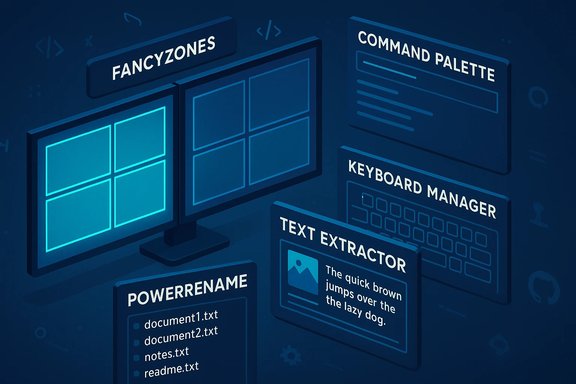
PowerToys today is a modular collection of utilities. The most widely used and high‑impact modules include:- FancyZones — an advanced window manager that provides custom tiling and per‑monitor layouts. It gives far more control than Windows’ native Snap Layouts and supports saved templates and a layout editor.
- Command Palette / PowerToys Run — a fast, keyboard‑first launcher (the modern Command Palette typically uses Win+Alt+Space by default; PowerToys Run historically used Alt+Space) for opening apps, files, registry keys and running quick commands or calculations.
- Text Extractor — on‑device OCR that copies text from anywhere on screen (default hotkey commonly Win+Shift+T). This is useful for grabbing error messages, screenshots, or locked PDFs.
- PowerRename — a powerful batch file renamer with regex support and preview.
- Keyboard Manager — remap keys and shortcuts through a GUI without needing drivers.
- Color Picker, Image Resizer, Always On Top, Video Conference Mute, Find My Mouse, and other small but practical utilities that solve frequent friction points.
Default hotkeys and behavior — verified specifics
- Command Palette (modern): default activation Win+Alt+Space (configurable).
- PowerToys Run (older name / legacy): activation Alt+Space by default in many builds.
- Text Extractor: activation commonly Win+Shift+T and uses Windows OCR packs; accuracy depends on image clarity and language packs installed.
- FancyZones editor often uses a modifier (Shift or Win) to drag windows into zones; FancyZones supports per‑monitor templates and can be run with elevated rights to manage elevated apps.
How to get PowerToys safely and reproducibly
PowerToys is distributed through three official channels: the Microsoft Store, the project’s GitHub releases page, and the Windows Package Manager (winget). Installing from official channels ensures signed installers and verifiable release artifacts. For scripted deployments, the recommended winget command is commonly documented for reproducible installs.Practical installation checklist:
- Prefer official channels (Microsoft Store, GitHub releases, or winget).
- Verify installer integrity if your workflow requires it (check published hashes on GitHub).
- Enable only the modules you intend to use, then validate behavior across your core apps (especially games, GPU‑accelerated tools, and enterprise apps).
Why PowerToys matters: strengths and practical benefits
PowerToys offers several concrete advantages:- Modular, low‑risk experimentation. Because PowerToys sits outside the inbox OS, it’s a low‑commitment way to add capability without changing core system behaviour permanently. This modular design is a deliberate engineering choice.
- Microsoft stewardship + open source transparency. The combination of first‑party involvement and public code + issue tracking reduces trust friction compared to unsigned third‑party utilities. Enterprises and security teams can audit behavior, track issues, and rely on an active maintainer community.
- High ROI for power users. Tools like FancyZones, Command Palette, and Text Extractor convert lots of sub‑minute friction into minutes saved over weeks, which is why PowerToys remains a top pick for productivity setups.
- Feature incubation for Windows. PowerToys acts as a public R&D playground; successful utilities sometimes inform Microsoft’s native offerings or inspire OS changes.
Risks, trade‑offs and security analysis
Open source and Microsoft backing do not remove all risk. There are practical and structural trade‑offs to consider:- Global hooks and low‑level input hooks. Several PowerToys modules require keyboard, mouse, or clipboard hooks to operate. These behaviors increase attack surface and can trigger endpoint protection or EDR products. Enterprise deployments should pilot PowerToys and coordinate with security teams.
- Hotkey conflicts and system interactions. PowerToys exposes many global shortcuts; collisions with other apps (or reserved OS combos) are common. PowerToys includes conflict detection, but administrators should plan for re‑mapping and testing.
- OCR and AI features — privacy boundaries. On‑device OCR (Text Extractor) preserves privacy, but other features that integrate AI or cloud providers (for example, advanced paste features that can use cloud models) must be audited for telemetry, API endpoints, and contractual data handling. If a module uses cloud APIs, clarify retention, region, and access guarantees before enabling in regulated environments.
- Licensing and maintenance issues for third‑party integrations. When PowerToys or Microsoft wants to ship functionality that originated elsewhere, licensing (GPL vs MIT) and long‑term maintenance responsibilities matter. Incorporating third‑party open‑source projects into first‑party distributions requires legal review and sustained investment.
- Elevated app boundaries and UI limitations. Modules that manipulate window positions or inject overlays may not work reliably with elevated processes or apps that use their own window‑management hooks; running PowerToys with administrative privileges can help but has its own security trade‑offs.
Enterprise guidance — how IT should treat PowerToys
PowerToys is immensely useful for power users, but enterprises must treat it like any third‑party toolkit:- Establish an approval policy: test PowerToys in a controlled lab, confirm compatibility with endpoint security tooling, and record which modules are acceptable.
- Deploy via managed channels: use winget, MSIX packaging, or the Microsoft Store for Business to control versions and rollouts.
- Limit modules by policy: enable only low‑risk modules for broad deployments; allow higher‑risk hooks for pilot groups.
- Monitor updates and changelogs: PowerToys ships frequent releases. Subscribe to release notes and test significant updates before broad rollout.
The community effect — how GitHub changed the game
Publishing PowerToys on GitHub created a virtuous loop: community ideas and contributions accelerate iteration; Microsoft engineers triage and upstream changes; users get frequent releases and can file reproducible issues. This collaboration also makes PowerToys a public testbed where design decisions are exposed to scrutiny — a benefit for long‑term trust and security.However, that same openness raises operational questions if Microsoft ever chooses to fold these features into Windows entirely. Legal obligations (license compliance), maintenance commitments and product governance must be planned carefully before migrating community code into a system image.
Feature deep dives — wins and caveats
FancyZones (window management)
FancyZones is the de‑facto power‑user window manager: custom grids, per‑monitor templates, and a layout editor make it far more flexible than Windows Snap. It’s ideal for ultrawide screens and multi‑monitor setups. Caveat: FancyZones needs PowerToys to be running and may require admin elevation to manage elevated apps reliably.Command Palette / PowerToys Run (launcher)
The Command Palette is a keyboard‑centric launcher that’s extensible and configurable. It accelerates app and file launches, quick calculations, registry jumps, and plugin tasks. The trade‑off is increased surface area for automation and potential security concerns if misconfigured (e.g., running arbitrary commands from a global hotkey). Use the built‑in conflict detector and sensible hotkey policies.Text Extractor (OCR)
Text Extractor uses on‑device OCR language packs to capture text from images. It’s fast and privacy‑friendly when kept local, but OCR accuracy varies with font, resolution and language support. For regulated data, prefer local-only flows and verify language pack coverage.Practical, step‑by‑step adoption plan (for individuals and IT)
- Install from an official channel (winget, Microsoft Store, or GitHub) and verify the installer if needed.
- Enable these three modules first: FancyZones, Command Palette (or PowerToys Run), and Text Extractor. Validate they behave across your common apps.
- Rebind hotkeys immediately to avoid conflicts in your environment; use the built‑in conflict detector.
- For enterprise deployment, pilot PowerToys in a small group for 30 days, monitor telemetry and support tickets, then expand with policy controls and packaging via winget/MSIX.
What the reboot didn’t (necessarily) promise — red flags and unverifiable claims
Early press coverage of the 2019 reboot listed a range of proposed utilities (e.g., Maximize to New Desktop, shortcut guides, full window managers). Treat those early lists as proposals rather than fixed deliverables. The GitHub‑first model meant some items were prototyped, others merged, and some shelved or subsumed into different modules as real‑world constraints appeared. When you read historical claims about “ten utilities due this summer,” verify against the project’s GitHub releases and changelogs — the public repo is the canonical truth.If an article or post cites an early roadmap item you need in production, check the present‑day repository and release notes to confirm its current status rather than assuming it shipped as originally proposed.
Final analysis — where PowerToys succeeds and where to be cautious
PowerToys succeeds as a lightweight, pragmatic, Microsoft‑backed toolkit that fills many small but nagging gaps in Windows workflows. Its modular design, open‑source development, and rapid iteration deliver measurable productivity gains for power users and small teams. FancyZones, Command Palette, Text Extractor and the batch utilities are examples where small investments pay off every day.The primary risks are operational rather than conceptual: global hooks and hotkeys, interactions with endpoint security, and the legal/maintenance complexity of integrating community code into first‑party OS distributions. Enterprises and cautious users should adopt PowerToys deliberately — use official install channels, enable only what you need, test against critical workloads, and subscribe to release notes.
Conclusion
The PowerToys reboot proved to be more than nostalgia — it became a living, open‑source experiment that delivers practical tools for everyday Windows productivity. The project’s strengths are its modularity, Microsoft stewardship, and community energy; its sensible weaknesses are the same things that make it powerful: wide surface area, frequent updates, and low‑level integrations. For individuals the payoff is immediate; for organizations, the route is cautious, measured adoption.Install from official channels, start small, test thoroughly, and treat PowerToys as a curated set of productivity accelerators — a modern Swiss Army knife for Windows power users that, when used sensibly, saves time and simplifies repetitive tasks.
Source: BetaNews PowerToys are back! Microsoft reboots the utilities as an open source project for Windows 10
