

Microsoft’s PowerToys v0.99.0 lands as a deceptively important Windows update: not because it rewrites Windows 11, but because it removes several everyday points of friction that have annoyed power users for years. The headline feature is Grab And Move, a Linux-like window control tool that lets users move or resize windows from almost anywhere inside the app surface instead of hunting for a title bar or a narrow border. The update also introduces Power Display, a new system tray utility for monitor controls, while Command Palette, Keyboard Manager, ZoomIt, and Image Resizer all receive meaningful refinements. Together, the release shows Microsoft using PowerToys as a proving ground for desktop features that feel too useful to remain niche forever.
PowerToys has always occupied a peculiar place in the Windows ecosystem. It is an official Microsoft project, but it behaves more like a laboratory than a traditional inbox component, letting the company ship power-user utilities quickly without waiting for the slower Windows feature-update cycle. That matters because Windows users often live with tiny workflow irritations for years before they become priorities for the operating system itself.
The original PowerToys lineage dates back to the Windows 95 era, when Microsoft used the brand for advanced utilities that appealed to enthusiasts, administrators, and technically curious users. The modern reboot arrived in the Windows 10 generation as an open-source project, and it has since become one of the most practical ways to customize Windows 10 and Windows 11. Tools such as FancyZones, PowerRename, Text Extractor, Awake, Keyboard Manager, and PowerToys Run turned PowerToys into a productivity suite rather than a nostalgia exercise.
That history explains why v0.99.0 feels more important than a typical point release. It does not merely polish icons or fix edge cases; it brings long-requested interaction patterns into Windows without asking users to replace the shell, install a full third-party window manager, or change operating systems. The result is incremental but meaningful, especially for people who spend the workday moving between documents, terminals, browsers, chat apps, and remote desktops.
The timing is also notable. Microsoft has been under pressure to make Windows 11 feel more coherent, more responsive, and less cluttered by legacy UI seams. PowerToys v0.99.0 fits that broader story by modernizing older utilities with WinUI 3, improving command workflows, and experimenting with system tray controls that Windows itself has historically handled inconsistently across devices and monitors.
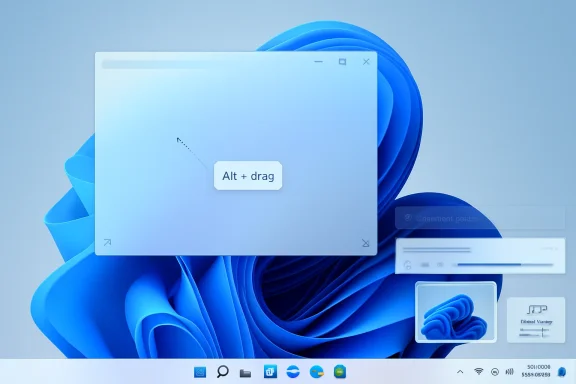
Microsoft’s implementation uses Alt + left click to move a window and Alt + right click to resize it. That distinction matters, because a quick description of the feature can make it sound like one gesture does everything. In practice, the split between left and right mouse buttons should help reduce accidental resizing while still preserving the main benefit: faster manipulation of windows without pixel hunting.
The biggest win is not novelty; it is forgiveness. Windows can still place app windows awkwardly after display changes, docking events, resolution shifts, or remote sessions. Grab And Move gives users a quick way to rescue a window that is partly off-screen or awkwardly positioned.
Key advantages include:
This is especially useful because monitor controls remain one of the least standardized parts of the PC experience. Laptop brightness keys usually work predictably, but external monitors often require a frustrating dance through on-screen display menus. Power Display attempts to turn that hardware-specific mess into a more Windows-native interaction.
Power Display’s most useful scenarios include:
The release improves the Dock experience with options such as keeping it always on top and using a more compact layout when docked at the top or bottom of the screen. Pinning also becomes more deliberate, with better control over where commands appear and whether titles or subtitles are shown. These are small changes, but they matter because a launcher becomes valuable only when users trust it to stay predictable.
The Command Palette improvements point to several priorities:
Keyboard Manager also gains a Disabled action, allowing users to turn off specific keys or shortcuts. That can help with accidental presses, gaming keyboards, kiosk-like setups, or machines used in shared environments. It is a simple feature with broad uses, especially for people who have ever wanted to neutralize Caps Lock, a vendor macro key, or a disruptive shortcut.
Image Resizer’s move from WPF to WinUI 3 is less flashy but strategically important. It aligns the tool with Windows 11’s modern design language and positions it better for future framework improvements. The broader message is that PowerToys is gradually modernizing its own internals rather than remaining a patchwork of useful but visually inconsistent utilities.
Notable utility updates include:
The good news is that PowerToys has matured beyond hobbyist tooling. Microsoft supports administrative controls through Group Policy and related management paths, and newer releases have been steadily improving deployment and configuration stories. That makes PowerToys more viable in managed environments than many third-party productivity suites.
Enterprise teams should evaluate:
This is where PowerToys has quietly become one of Microsoft’s best goodwill projects. Windows 11 can sometimes feel prescriptive, especially when Microsoft changes defaults, promotes cloud-connected experiences, or moves settings around. PowerToys works in the opposite direction: it gives control back to users who want to shape the desktop around their habits.
Likewise, Power Display may reduce repetitive physical interaction with monitors. That sounds trivial until the monitor controls are hard to reach, the display is wall-mounted, or the user switches brightness several times per day. Good accessibility often starts as convenience, then proves essential for people with specific needs.
Consumer-friendly gains include:
macOS approaches window management differently, leaning on gestures, full-screen spaces, Stage Manager, and third-party utilities for deeper customization. Linux distributions and desktop environments often expose far more window-manager behavior directly, while Windows traditionally balances simplicity, compatibility, and broad hardware support. PowerToys lets Microsoft experiment closer to the Linux end of that spectrum without unsettling the default Windows experience.
That does not mean third-party tools are doomed. Specialized utilities often move faster, support deeper customization, and target expert niches that Microsoft may avoid. But PowerToys changes the baseline expectation for what a free Windows productivity toolkit should include.
Competitive effects include:
The safest approach is to enable features one at a time rather than flipping on everything at once. This is particularly true for anyone using custom keyboard shortcuts, accessibility software, gaming overlays, remote desktop tools, or vendor monitor utilities. When something changes at the interaction layer, isolating the cause matters.
PowerToys is a useful test case because it contains utilities built at different times, with different UI assumptions, and for different user needs. Moving pieces like Image Resizer toward WinUI 3 creates a more consistent experience and gives Microsoft practical feedback on framework performance, packaging, accessibility, and reliability. That feedback loop can matter beyond PowerToys.
That is why the PowerToys path is encouraging. The project tends to modernize while preserving configurability, and it is visible enough that users can file issues, test fixes, and influence direction. In the Windows world, that kind of transparent iteration is still unusually valuable.
Modernization priorities should include:
The next question is whether features like Grab And Move and Power Display remain PowerToys-only conveniences or become candidates for deeper Windows integration. Microsoft has historically used PowerToys as an incubation space, and some ideas clearly feel broad enough for the operating system. Window movement from anywhere, in particular, could become a Windows accessibility and productivity option if it proves stable.
Watch these areas closely:
PowerToys v0.99.0 is not a flashy Windows overhaul, and that is precisely why it works. It improves the parts of Windows people touch hundreds of times a day: moving a window, resizing an app, adjusting a monitor, launching a command, remapping a key, resizing an image, or capturing a long page. If Microsoft continues refining these ideas with the same practical focus, PowerToys may become not just an optional toolkit for enthusiasts, but the clearest preview of where the Windows desktop should go next.
Source: XDA The latest PowerToys update brings a useful Linux-like feature to Windows 11
 Background
PowerToys has always occupied a peculiar place in the Windows ecosystem. It is an official Microsoft project, but it behaves more like a laboratory than a traditional inbox component, letting the company ship power-user utilities quickly without waiting for the slower Windows feature-update cycle. That matters because Windows users often live with tiny workflow irritations for years before they become priorities for the operating system itself.The original PowerToys lineage dates back to the Windows 95 era, when Microsoft used the brand for advanced utilities that appealed to enthusiasts, administrators, and technically curious users. The modern reboot arrived in the Windows 10 generation as an open-source project, and it has since become one of the most practical ways to customize Windows 10 and Windows 11. Tools such as FancyZones, PowerRename, Text Extractor, Awake, Keyboard Manager, and PowerToys Run turned PowerToys into a productivity suite rather than a nostalgia exercise.
That history explains why v0.99.0 feels more important than a typical point release. It does not merely polish icons or fix edge cases; it brings long-requested interaction patterns into Windows without asking users to replace the shell, install a full third-party window manager, or change operating systems. The result is incremental but meaningful, especially for people who spend the workday moving between documents, terminals, browsers, chat apps, and remote desktops.
The timing is also notable. Microsoft has been under pressure to make Windows 11 feel more coherent, more responsive, and less cluttered by legacy UI seams. PowerToys v0.99.0 fits that broader story by modernizing older utilities with WinUI 3, improving command workflows, and experimenting with system tray controls that Windows itself has historically handled inconsistently across devices and monitors.
Grab And Move Makes Windows Feel More Flexible
The most attention-grabbing addition in PowerToys v0.99.0 is Grab And Move, a preview utility that brings a familiar Linux desktop behavior to Windows. Instead of grabbing a title bar to move a window, users can hold a modifier key and drag from almost anywhere inside the window. For resizing, the same idea applies: the user does not need to aim at the thin resize border, which can be especially annoying on high-DPI displays.Microsoft’s implementation uses Alt + left click to move a window and Alt + right click to resize it. That distinction matters, because a quick description of the feature can make it sound like one gesture does everything. In practice, the split between left and right mouse buttons should help reduce accidental resizing while still preserving the main benefit: faster manipulation of windows without pixel hunting.
Why This Linux-Inspired Shortcut Matters
On many Linux desktop environments and window managers, modifier-based window movement has long been considered basic muscle memory. It is one of those features users miss immediately when they return to Windows, particularly on large monitors or multi-monitor desks. PowerToys is now narrowing that gap without forcing Microsoft to redesign the Windows shell.The biggest win is not novelty; it is forgiveness. Windows can still place app windows awkwardly after display changes, docking events, resolution shifts, or remote sessions. Grab And Move gives users a quick way to rescue a window that is partly off-screen or awkwardly positioned.
Key advantages include:
- Move windows without targeting the title bar
- Resize windows without finding a narrow edge
- Recover awkwardly placed windows more easily
- Improve workflows on ultrawide and multi-monitor setups
- Bring a familiar Linux-style interaction to Windows 11
- Reduce frustration on touchpad-heavy laptops and high-DPI screens
Power Display Brings Monitor Controls to the Tray
The other major new utility is Power Display, a system tray tool designed to control supported monitors from Windows rather than from physical buttons hidden under a bezel or buried behind a joystick nub. Once enabled, Power Display can expose settings such as brightness, contrast, volume, and color profile controls. It also supports profiles, letting users switch display configurations more quickly.This is especially useful because monitor controls remain one of the least standardized parts of the PC experience. Laptop brightness keys usually work predictably, but external monitors often require a frustrating dance through on-screen display menus. Power Display attempts to turn that hardware-specific mess into a more Windows-native interaction.
Profiles Could Be the Real Productivity Feature
The obvious pitch is brightness control, but display profiles may become the more powerful feature over time. A creator might want one profile for photo editing, another for evening work, and another for gaming. An office worker might use one setup for video calls and another for document-heavy work across multiple monitors.Power Display’s most useful scenarios include:
- Adjusting external monitor brightness without physical buttons
- Switching contrast or color settings for different workflows
- Creating custom profiles for day, night, work, or media use
- Managing monitor volume where hardware support exists
- Reducing dependence on vendor-specific display utilities
- Integrating display behavior with PowerToys’ broader automation ideas
Command Palette and Dock Keep Growing Up
PowerToys v0.99.0 also brings a substantial round of improvements to Command Palette, the newer command launcher that increasingly looks like the strategic successor to several older quick-access ideas inside PowerToys. Command Palette is not just a search box; it is becoming a hub for commands, extensions, pinned actions, and developer-friendly workflows. The v0.99.0 update makes that direction clearer.The release improves the Dock experience with options such as keeping it always on top and using a more compact layout when docked at the top or bottom of the screen. Pinning also becomes more deliberate, with better control over where commands appear and whether titles or subtitles are shown. These are small changes, but they matter because a launcher becomes valuable only when users trust it to stay predictable.
Persistent Calculation and Smarter Pinning
A persistent calculator history is one of those features that sounds minor until it saves someone from retyping the same quick calculation repeatedly. Developers, analysts, writers, and administrators often use launchers as scratchpads as much as app finders. Saving, reusing, deleting, and clearing calculator entries moves Command Palette closer to that everyday utility role.The Command Palette improvements point to several priorities:
- More reliable extension loading
- Better dock positioning and visibility
- Improved command pinning controls
- Persistent calculator history
- Support for richer extension content
- More useful Windows Terminal profile integration
- Better resilience when an extension misbehaves
Keyboard Manager, ZoomIt, and Image Resizer Get Practical Upgrades
Not every v0.99.0 change is a marquee feature, but several utility updates are likely to matter in daily use. Keyboard Manager now supports manually adjusted key remapping after recording a key or shortcut, with recorded keys becoming dropdowns that can be edited. That is a meaningful improvement for users dealing with unusual keyboards, missing keys, accessibility hardware, or layouts that do not map neatly to a standard physical device.Keyboard Manager also gains a Disabled action, allowing users to turn off specific keys or shortcuts. That can help with accidental presses, gaming keyboards, kiosk-like setups, or machines used in shared environments. It is a simple feature with broad uses, especially for people who have ever wanted to neutralize Caps Lock, a vendor macro key, or a disruptive shortcut.
Capture, Resize, and Modern UI Details
ZoomIt gains scrolling screenshots, text extraction during snipping, and break timer improvements. This is a notable expansion for a tool historically associated with presentations, screen zooming, annotations, and demos. Long-page capture is now a mainstream productivity need, particularly for documentation, receipts, support cases, web apps, and internal dashboards.Image Resizer’s move from WPF to WinUI 3 is less flashy but strategically important. It aligns the tool with Windows 11’s modern design language and positions it better for future framework improvements. The broader message is that PowerToys is gradually modernizing its own internals rather than remaining a patchwork of useful but visually inconsistent utilities.
Notable utility updates include:
- Keyboard Manager manual remap adjustment
- A Disabled action for keys and shortcuts
- Improved multiline text replacement reliability
- ZoomIt scrolling screenshot capture
- Text extraction during snipping workflows
- Break timer improvements for healthier work rhythms
- Image Resizer migration to WinUI 3
- Advanced Paste fixes for Electron and Chromium-based apps
Enterprise Implications: Useful, But Not Automatically Simple
PowerToys has become increasingly relevant to enterprise IT, but v0.99.0 also highlights the tension between user productivity and managed desktop consistency. Features like Grab And Move, Keyboard Manager, Command Palette, and Power Display can save time, but they also alter interaction patterns in ways that administrators may want to evaluate. A tool that feels empowering to a developer could be confusing on a locked-down shared workstation.The good news is that PowerToys has matured beyond hobbyist tooling. Microsoft supports administrative controls through Group Policy and related management paths, and newer releases have been steadily improving deployment and configuration stories. That makes PowerToys more viable in managed environments than many third-party productivity suites.
Policy, Training, and Support Considerations
Still, IT departments should not treat every PowerToys module as automatically safe for every user. Keyboard remapping can affect support scripts and help desk assumptions. Display controls may behave differently across monitor fleets. Command launchers can expose workflows that some organizations prefer to standardize through approved portals.Enterprise teams should evaluate:
- Which PowerToys modules should be enabled by default
- Whether Grab And Move conflicts with existing app shortcuts
- How Keyboard Manager remaps affect support documentation
- Whether Power Display works reliably across deployed monitors
- How Command Palette extensions fit security policy
- Whether automatic updates align with change-control rules
- How to document rollback steps for affected users
Consumer Impact: Small Changes That Feel Big
For consumers, PowerToys v0.99.0 is less about policy and more about removing annoyances. A student juggling browser windows, notes, a video call, and a PDF can use Grab And Move to rearrange windows faster. A home office user with an external monitor can adjust brightness without reaching behind the display. A casual creator can capture long pages or batch-resize images through a more modern interface.This is where PowerToys has quietly become one of Microsoft’s best goodwill projects. Windows 11 can sometimes feel prescriptive, especially when Microsoft changes defaults, promotes cloud-connected experiences, or moves settings around. PowerToys works in the opposite direction: it gives control back to users who want to shape the desktop around their habits.
Accessibility and Ergonomics Benefits
The ergonomic angle should not be overlooked. Thin window borders can be difficult for users with motor-control challenges, tremors, touchpads, or high-resolution displays. Modifier-based movement can reduce the precision required to operate the desktop, which makes Grab And Move more than just a Linux nostalgia feature.Likewise, Power Display may reduce repetitive physical interaction with monitors. That sounds trivial until the monitor controls are hard to reach, the display is wall-mounted, or the user switches brightness several times per day. Good accessibility often starts as convenience, then proves essential for people with specific needs.
Consumer-friendly gains include:
- Faster window rearrangement
- Less dependence on monitor hardware buttons
- Better long-page screenshots
- Simpler key disabling for accidental presses
- More modern Image Resizer visuals
- Improved command access through Dock and Palette
- More control over multi-monitor daily routines
Competitive Context: Windows Borrows Where It Should
The Linux comparison is unavoidable, and Microsoft should not shy away from it. Alt-drag window movement has been a staple in many Linux environments for years, particularly among users who favor keyboard-driven or mouse-efficient workflows. Bringing that behavior to Windows through PowerToys is a pragmatic acknowledgment that good desktop ideas are not platform-exclusive.macOS approaches window management differently, leaning on gestures, full-screen spaces, Stage Manager, and third-party utilities for deeper customization. Linux distributions and desktop environments often expose far more window-manager behavior directly, while Windows traditionally balances simplicity, compatibility, and broad hardware support. PowerToys lets Microsoft experiment closer to the Linux end of that spectrum without unsettling the default Windows experience.
The Third-Party Utility Squeeze
This release also puts pressure on smaller utility developers. Monitor-control apps, window manipulation tools, launchers, and screenshot utilities have long thrived because Windows left gaps. When Microsoft fills those gaps with a free, open-source, official suite, some users will naturally consolidate around PowerToys.That does not mean third-party tools are doomed. Specialized utilities often move faster, support deeper customization, and target expert niches that Microsoft may avoid. But PowerToys changes the baseline expectation for what a free Windows productivity toolkit should include.
Competitive effects include:
- Linux-style window movement becomes more accessible to Windows users
- Monitor utility apps face stronger built-in competition from PowerToys
- Launcher tools must differentiate beyond basic command access
- Screenshot utilities face pressure from ZoomIt’s broader capture features
- Keyboard remapping tools remain relevant for deeper macro workflows
- Windows gains credibility with users who value desktop customization
How to Try PowerToys v0.99.0 Safely
PowerToys v0.99.0 is worth trying, but users should approach preview utilities with realistic expectations. Grab And Move and Power Display are powerful precisely because they interact with core desktop behaviors and hardware capabilities. That means a little setup discipline can prevent confusion later.The safest approach is to enable features one at a time rather than flipping on everything at once. This is particularly true for anyone using custom keyboard shortcuts, accessibility software, gaming overlays, remote desktop tools, or vendor monitor utilities. When something changes at the interaction layer, isolating the cause matters.
A Sensible Setup Sequence
A measured setup path helps users understand what PowerToys is changing. It also makes it easier to roll back a single feature if it conflicts with an app or device. Power users may be tempted to configure everything immediately, but restraint pays off here.- Install or update PowerToys through a trusted Microsoft-maintained channel.
- Open PowerToys Settings and review which modules are enabled.
- Enable Grab And Move first, then test it with several desktop apps.
- Change the modifier key if Alt conflicts with software you use daily.
- Enable Power Display and verify each monitor responds correctly.
- Create one display profile before building a larger profile library.
- Test Keyboard Manager remaps with non-critical shortcuts first.
- Confirm ZoomIt scrolling capture works in your main browsers and apps.
Windows 11 Design Modernization Runs Through PowerToys
Image Resizer’s WinUI 3 migration may not dominate headlines, but it belongs in the larger Windows 11 design conversation. Microsoft has spent years trying to reconcile older Win32 surfaces, newer Settings experiences, Windows App SDK components, and Fluent design language. Users notice when these layers clash, even if they do not know the framework names behind them.PowerToys is a useful test case because it contains utilities built at different times, with different UI assumptions, and for different user needs. Moving pieces like Image Resizer toward WinUI 3 creates a more consistent experience and gives Microsoft practical feedback on framework performance, packaging, accessibility, and reliability. That feedback loop can matter beyond PowerToys.
Consistency Is More Than Visual Polish
A modern UI is not automatically a better UI. Windows users care about speed, density, keyboard access, predictable behavior, and whether a new interface preserves the power of the old one. A redesigned tool that looks cleaner but removes options will not win over the audience PowerToys serves.That is why the PowerToys path is encouraging. The project tends to modernize while preserving configurability, and it is visible enough that users can file issues, test fixes, and influence direction. In the Windows world, that kind of transparent iteration is still unusually valuable.
Modernization priorities should include:
- Visual consistency with Windows 11
- Fast launch times and low memory overhead
- Strong keyboard navigation
- Accessible controls and readable contrast
- Feature parity during framework migrations
- Stable behavior across Windows 10 and Windows 11
- Clear settings that avoid hiding advanced options
Strengths and Opportunities
PowerToys v0.99.0 succeeds because it focuses on friction points that users encounter constantly, not abstract platform goals. The release improves window movement, monitor control, command access, capture workflows, keyboard customization, and visual consistency in one package. Its biggest opportunity is to turn PowerToys from a beloved enthusiast suite into a mainstream Windows productivity layer.- Grab And Move gives Windows users a fast, Linux-like way to move and resize windows.
- Power Display can reduce dependence on awkward monitor buttons and vendor utilities.
- Command Palette is maturing into a serious command-and-extension hub.
- Keyboard Manager is becoming more practical for unusual hardware and accessibility scenarios.
- ZoomIt scrolling capture expands a trusted presentation tool into broader productivity territory.
- Image Resizer’s WinUI 3 migration supports a more coherent Windows 11 experience.
- Enterprise management support gives IT teams a path to controlled adoption rather than unmanaged experimentation.
Risks and Concerns
The same qualities that make v0.99.0 powerful also make it worth deploying carefully. PowerToys changes how users interact with windows, monitors, keys, commands, and captures, and not every environment will tolerate those changes smoothly. Preview labels are appropriate here, because hardware variability and shortcut conflicts can turn a great feature into a support ticket.- Power Display compatibility may vary significantly across external monitors and connection types.
- Grab And Move shortcuts could conflict with creative apps, development tools, or remote desktop software.
- Keyboard remapping can confuse support teams if changes are undocumented.
- Command Palette extensions may require governance in managed environments.
- WinUI 3 migrations must preserve speed, density, and advanced functionality.
- Feature sprawl could make PowerToys harder for new users to understand.
- Preview utilities may require patience from users expecting fully polished Windows inbox behavior.
Looking Ahead
PowerToys v0.99.0 arrives just one version number away from the psychologically significant 1.0 milestone, even if Microsoft has never treated that number as the only measure of maturity. The suite already feels production-grade in many areas, but the preview status of new utilities shows Microsoft still values experimentation. That balance is healthy, provided the team continues to prioritize reliability as much as novelty.The next question is whether features like Grab And Move and Power Display remain PowerToys-only conveniences or become candidates for deeper Windows integration. Microsoft has historically used PowerToys as an incubation space, and some ideas clearly feel broad enough for the operating system. Window movement from anywhere, in particular, could become a Windows accessibility and productivity option if it proves stable.
Watch these areas closely:
- Whether Grab And Move gains broader shortcut customization and app exclusions
- How Power Display compatibility improves across monitor brands and docks
- Whether Command Palette becomes the preferred successor to older launcher concepts
- How quickly remaining PowerToys utilities move toward modern Windows UI frameworks
- Whether Microsoft promotes any PowerToys feature into Windows 11 proper
PowerToys v0.99.0 is not a flashy Windows overhaul, and that is precisely why it works. It improves the parts of Windows people touch hundreds of times a day: moving a window, resizing an app, adjusting a monitor, launching a command, remapping a key, resizing an image, or capturing a long page. If Microsoft continues refining these ideas with the same practical focus, PowerToys may become not just an optional toolkit for enthusiasts, but the clearest preview of where the Windows desktop should go next.
Source: XDA The latest PowerToys update brings a useful Linux-like feature to Windows 11
