

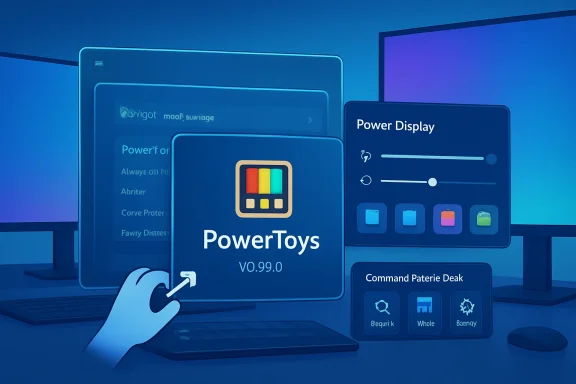
PowerToys v0.99.0 is not just another maintenance release for Microsoft’s favorite Windows utility suite; it is a statement about where advanced Windows productivity is heading. The update adds Grab And Move, a new window-management tool that lets users drag or resize windows without targeting title bars or borders, and Power Display, a system-tray utility for controlling monitor settings from one place. Together, they address two long-running Windows pain points: awkward window manipulation and fragmented display controls. For Windows enthusiasts, developers, multi-monitor users, and enterprise IT teams, this release feels like PowerToys moving from a collection of clever add-ons into a more coherent productivity layer for Windows.
PowerToys has always occupied a special place in the Windows ecosystem. The original Windows 95-era PowerToys gave advanced users small but powerful ways to bend the shell to their will, while the modern open-source reboot turned that spirit into a fast-moving laboratory for features Microsoft can develop, test, and iterate outside the slower cadence of Windows itself.
That distinction matters because Windows has a huge compatibility burden. Microsoft cannot simply reshape every corner of the desktop overnight without risking breakage for businesses, accessibility tools, legacy software, and highly customized workflows. PowerToys gives the company a safer channel for experimentation, especially around features that appeal to power users before they are ready for broader operating-system integration.
Over the last few years, PowerToys has expanded far beyond simple conveniences. Utilities such as FancyZones, PowerToys Run, Command Palette, Keyboard Manager, Mouse Utilities, Text Extractor, Advanced Paste, Peek, and ZoomIt have turned it into a substantial toolkit for people who live on Windows all day. The result is a platform-adjacent project that often feels like a preview of what Windows productivity could become.
Version 0.99.0 arrives at a symbolic moment. The version number puts PowerToys on the doorstep of 1.0, and the scope of this release makes that milestone feel less like marketing and more like a maturity checkpoint. The update includes headline features, migration work, crash fixes, accessibility improvements, developer tooling, telemetry refinements, and module-level polish across the suite.
That is where this update lands with unusual force. It narrows the gap between Windows and desktop environments that have long offered deeper window-control customization, while also improving areas where Windows 11 still feels conservative. Small interactions add up, and PowerToys is increasingly focused on those accumulated seconds of friction.
This feature will be instantly familiar to users of many Linux desktop environments. On KDE Plasma, GNOME variants, Xfce, and other desktop setups, modifier-key window dragging has long been one of those quality-of-life behaviors that becomes hard to give up once it enters muscle memory. Windows has traditionally leaned on the title bar, borders, Snap, keyboard shortcuts, and taskbar interactions instead.
The practical value is obvious on modern displays. Thin borders, custom app chrome, hidden title bars, and off-screen windows can make old-fashioned window targeting feel unnecessarily precise. Grab And Move reduces that precision tax and turns window manipulation into a broader, more forgiving gesture.
Key use cases include:
Power Display aims to centralize those controls. When supported by the hardware, users can adjust settings such as brightness, contrast, volume, and color profile from the tray. The utility can also expose monitor profiles, making it easier to switch between different setups without digging through display menus or touching buttons buried behind a screen.
For anyone with a laptop plus an external display, the appeal is immediate. Windows already has a brightness slider, but its behavior can be limited depending on display type, connection method, driver support, and monitor capabilities. Power Display gives PowerToys a chance to smooth over a gap that Windows users have tolerated for too long.
Power Display is especially relevant for:
This release adds a more controlled pin-to-Dock dialog, giving users better control over how commands appear. It also introduces a compact Dock mode for top and bottom positions, keeps the Dock above other windows by default, and automatically yields when a full-screen app is detected. Those details make the Dock feel less like an experiment and more like a desktop surface that can coexist with real work.
The extension platform is also growing. New content types for plain text and image viewing help extensions show richer results, while persistent calculator history gives Command Palette a feature users often expect from dedicated calculator apps. The cumulative effect is that Command Palette is becoming less of a launcher and more of a programmable control center.
Notable improvements include:
Microsoft’s UI platform story has been complicated for years. Developers have had to navigate Win32, WPF, UWP, WinUI, Windows App SDK, XAML Islands, and other layers depending on their needs. PowerToys sits in the middle of that history, with modules created at different times and under different assumptions.
Moving modules to WinUI 3 helps create consistency. It also aligns PowerToys more closely with Windows 11 design patterns, even if the migration introduces short-term regressions that must be fixed. In v0.99.0, Image Resizer not only gets modernization work but also fixes for JPEG quality settings, PNG encoder behavior, and JSON serialization.
The update’s modernization work touches several priorities:
Keyboard Manager receives fixes around multiline text replacement and manual key selection. That may sound narrow, but keyboard remapping is one of those features where reliability is everything. If a remap behaves differently in a chat app, editor, browser, or administrative prompt, users lose trust quickly.
Other modules receive smaller but meaningful improvements. Quick Accent expands character support, Peek improves ZIP filename encoding detection, PowerToys Run fixes a command breakout issue, and Text Extractor removes a third-party WPF UI library in favor of native theming. Taken together, these are the kinds of release notes that reveal a mature project: fewer flashy demos, more practical repairs.
Important workflow improvements include:
Reliability is especially important because PowerToys runs in the background and hooks into daily input patterns. A launcher crash, broken shortcut, stuck modifier key, or malfunctioning window operation can interrupt the whole desktop experience. When tools become part of muscle memory, failure feels bigger than the feature itself.
Accessibility also receives attention in this release. Screen reader announcements, keyboard focus behavior, tab stop cleanup, and visual contrast fixes all contribute to making PowerToys more usable for more people. This matters because power-user software has historically treated accessibility as an afterthought, even though many advanced users depend on assistive technologies.
The most important reliability themes are:
In enterprise environments, the question is rarely whether a utility is useful. The question is whether it can be configured, governed, updated, audited, and supported without creating risk. A tool that remaps keys, controls windows, runs commands, manages displays, and integrates with extensions must be handled carefully in regulated or locked-down environments.
PowerToys’ increasing use of policy, telemetry documentation, command-line tracking, and configuration references makes it more palatable for IT teams. It also positions the suite as a bridge between consumer enthusiasm and professional manageability. That bridge is important because many Windows power users are also developers, administrators, engineers, analysts, and support staff inside organizations.
A sensible enterprise rollout might follow these steps:
PowerToys v0.99.0 narrows some of that gap. Grab And Move directly addresses a behavior many Linux users miss on Windows, while Command Palette and Dock improvements push Windows closer to the command-centric productivity style popular among developers. Power Display also responds to the practical multi-monitor pain that often drives users toward specialized utilities.
This does not mean PowerToys turns Windows into Linux, nor should it. Windows succeeds partly because it preserves familiar defaults for a broad audience. The more interesting strategy is selective borrowing: add optional advanced behaviors for those who want them, without disrupting the average user who expects Windows to work the way it always has.
Competitive pressure shows up in several areas:
A new user opening PowerToys today may see enormous value, but also a wall of choices. Utilities can overlap conceptually: Command Palette, PowerToys Run, Quick Access, Dock, and individual module shortcuts all provide ways to launch or control actions. That flexibility is powerful, but it can become confusing without strong defaults and clear onboarding.
The team appears aware of this problem. The release adds OOBE pages for the new utilities, refreshed icons and overview images, navigation badges for new modules, and a more streamlined default-enabled set for new installations. Those are not minor housekeeping tasks; they are necessary product design work for a suite approaching mainstream maturity.
Areas that need careful curation include:
The most important question is whether Microsoft will eventually graduate some PowerToys concepts into Windows itself. FancyZones influenced expectations around window layouts, PowerToys Run anticipated the appetite for faster launchers, and now Grab And Move may expose demand for more flexible window manipulation. Power Display could also shape future thinking about monitor controls, especially as multi-display setups become more common.
Watch these areas next:
Source: Windows Central https://www.windowscentral.com/soft...less-reason-to-swap-from-windows-11-to-linux/
 Background
PowerToys has always occupied a special place in the Windows ecosystem. The original Windows 95-era PowerToys gave advanced users small but powerful ways to bend the shell to their will, while the modern open-source reboot turned that spirit into a fast-moving laboratory for features Microsoft can develop, test, and iterate outside the slower cadence of Windows itself.That distinction matters because Windows has a huge compatibility burden. Microsoft cannot simply reshape every corner of the desktop overnight without risking breakage for businesses, accessibility tools, legacy software, and highly customized workflows. PowerToys gives the company a safer channel for experimentation, especially around features that appeal to power users before they are ready for broader operating-system integration.
Over the last few years, PowerToys has expanded far beyond simple conveniences. Utilities such as FancyZones, PowerToys Run, Command Palette, Keyboard Manager, Mouse Utilities, Text Extractor, Advanced Paste, Peek, and ZoomIt have turned it into a substantial toolkit for people who live on Windows all day. The result is a platform-adjacent project that often feels like a preview of what Windows productivity could become.
Version 0.99.0 arrives at a symbolic moment. The version number puts PowerToys on the doorstep of 1.0, and the scope of this release makes that milestone feel less like marketing and more like a maturity checkpoint. The update includes headline features, migration work, crash fixes, accessibility improvements, developer tooling, telemetry refinements, and module-level polish across the suite.
Why this release feels bigger than its version number
The most interesting part of v0.99.0 is not simply that it adds two utilities. It is that those utilities target foundational Windows behaviors that users encounter hundreds of times per week. Moving a window, resizing it, adjusting a monitor, switching between display preferences, or pinning a command should not feel like a scavenger hunt through chrome, bezels, and menus.That is where this update lands with unusual force. It narrows the gap between Windows and desktop environments that have long offered deeper window-control customization, while also improving areas where Windows 11 still feels conservative. Small interactions add up, and PowerToys is increasingly focused on those accumulated seconds of friction.
Grab And Move Brings Linux-Style Window Control to Windows
The star of the release is Grab And Move, a utility that lets users move or resize a window from anywhere inside the window surface. By default, holding Alt and left-clicking moves the window, while holding Alt and right-clicking resizes it. Users who prefer another modifier can choose the Windows key instead, which is important for avoiding conflicts with apps that already rely on Alt-based shortcuts.This feature will be instantly familiar to users of many Linux desktop environments. On KDE Plasma, GNOME variants, Xfce, and other desktop setups, modifier-key window dragging has long been one of those quality-of-life behaviors that becomes hard to give up once it enters muscle memory. Windows has traditionally leaned on the title bar, borders, Snap, keyboard shortcuts, and taskbar interactions instead.
The practical value is obvious on modern displays. Thin borders, custom app chrome, hidden title bars, and off-screen windows can make old-fashioned window targeting feel unnecessarily precise. Grab And Move reduces that precision tax and turns window manipulation into a broader, more forgiving gesture.
The mechanics behind the convenience
The defaults are simple enough for new users to understand, but the feature has enough configurability to matter. Modifier selection is not a minor detail because Alt is already overloaded in some creative, development, and gaming applications. Allowing Win as an activation modifier suggests Microsoft understands that global input features must coexist with a messy desktop reality.Key use cases include:
- Moving windows that have drifted partially off-screen
- Resizing apps with narrow or invisible borders
- Managing windows on large 4K, ultrawide, or multi-monitor setups
- Reducing dependence on title bars in apps with custom chrome
- Making pointer-driven window management faster for mouse-first users
Power Display Fixes a Familiar Multi-Monitor Annoyance
The second headline utility, Power Display, brings monitor controls into a system-tray flyout. That may sound modest until you consider how inconsistent monitor adjustment can be on Windows. Laptop brightness is usually easy to control, but external monitors often require physical buttons, awkward on-screen display menus, vendor utilities, or third-party tools.Power Display aims to centralize those controls. When supported by the hardware, users can adjust settings such as brightness, contrast, volume, and color profile from the tray. The utility can also expose monitor profiles, making it easier to switch between different setups without digging through display menus or touching buttons buried behind a screen.
For anyone with a laptop plus an external display, the appeal is immediate. Windows already has a brightness slider, but its behavior can be limited depending on display type, connection method, driver support, and monitor capabilities. Power Display gives PowerToys a chance to smooth over a gap that Windows users have tolerated for too long.
Why monitor control belongs in PowerToys
External monitor controls are a perfect PowerToys problem. They are too specialized and hardware-dependent to be a simple one-size-fits-all Windows feature, but they are common enough to frustrate millions of desktop users. A tray-based utility can move quickly, support more scenarios over time, and remain optional for people who do not need it.Power Display is especially relevant for:
- Laptop users with one or more external monitors
- Desktop users with hard-to-reach monitor buttons
- Creators who switch between brightness and color profiles
- Office workers who adjust displays throughout the day
- Users who change display settings when switching between light and dark themes
Command Palette and Dock Continue PowerToys’ Launcher Evolution
PowerToys v0.99.0 also delivers a large wave of improvements to Command Palette and its Dock experience. Command Palette has become one of the most strategically important PowerToys modules because it sits at the intersection of launcher, command runner, extension host, calculator, system control surface, and workflow hub. The Dock extends that idea by keeping frequently used commands visible and reachable.This release adds a more controlled pin-to-Dock dialog, giving users better control over how commands appear. It also introduces a compact Dock mode for top and bottom positions, keeps the Dock above other windows by default, and automatically yields when a full-screen app is detected. Those details make the Dock feel less like an experiment and more like a desktop surface that can coexist with real work.
The extension platform is also growing. New content types for plain text and image viewing help extensions show richer results, while persistent calculator history gives Command Palette a feature users often expect from dedicated calculator apps. The cumulative effect is that Command Palette is becoming less of a launcher and more of a programmable control center.
Dock polish signals a maturing module
Dock improvements matter because persistent UI elements can become annoying quickly if they are not carefully behaved. A Dock that stays on top when useful, gets out of the way during full-screen activity, supports compact modes, and updates pin state correctly is far more likely to survive daily use. The v0.99.0 changelog shows substantial attention to those edge cases.Notable improvements include:
- A new dialog for pinning commands with more placement control
- Compact mode for top and bottom Dock positions
- Better handling of duplicate pinned items
- Automatic behavior changes around full-screen apps
- More reliable updates when items are pinned or unpinned
- Improved extension resilience when one component misbehaves
WinUI 3 Migration Shows Microsoft Is Still Modernizing the Toolkit
Beyond the new utilities, PowerToys v0.99.0 continues the suite’s gradual move toward WinUI 3. The most visible example in this release is Image Resizer, which is being migrated away from WPF toward a more modern Windows UI foundation. That is not just cosmetic; it affects maintainability, performance opportunities, accessibility alignment, and future support for ahead-of-time compilation.Microsoft’s UI platform story has been complicated for years. Developers have had to navigate Win32, WPF, UWP, WinUI, Windows App SDK, XAML Islands, and other layers depending on their needs. PowerToys sits in the middle of that history, with modules created at different times and under different assumptions.
Moving modules to WinUI 3 helps create consistency. It also aligns PowerToys more closely with Windows 11 design patterns, even if the migration introduces short-term regressions that must be fixed. In v0.99.0, Image Resizer not only gets modernization work but also fixes for JPEG quality settings, PNG encoder behavior, and JSON serialization.
Modern UI is more than rounded corners
A UI migration can look superficial from the outside, but it often unlocks deeper improvements. If the PowerToys team can reduce framework fragmentation, it becomes easier to share components, fix accessibility issues, update visuals, and ship modules that feel like they belong together. That cohesion matters more as PowerToys becomes a large suite rather than a handful of utilities.The update’s modernization work touches several priorities:
- Aligning older utilities with current Windows design language
- Reducing technical debt across modules
- Improving long-term maintainability
- Preparing more components for future performance work
- Making settings pages and module experiences more consistent
ZoomIt, Keyboard Manager, and Daily Workflow Tools Get Meaningful Upgrades
The release also improves utilities that many users may not associate with the v0.99.0 headlines. ZoomIt gains panoramic or scrolling screenshot capture, text extraction during snipping, and break timer improvements. For presenters, educators, technical writers, and support professionals, these changes make ZoomIt more useful as a capture and communication tool.Keyboard Manager receives fixes around multiline text replacement and manual key selection. That may sound narrow, but keyboard remapping is one of those features where reliability is everything. If a remap behaves differently in a chat app, editor, browser, or administrative prompt, users lose trust quickly.
Other modules receive smaller but meaningful improvements. Quick Accent expands character support, Peek improves ZIP filename encoding detection, PowerToys Run fixes a command breakout issue, and Text Extractor removes a third-party WPF UI library in favor of native theming. Taken together, these are the kinds of release notes that reveal a mature project: fewer flashy demos, more practical repairs.
The hidden value of cross-suite polish
The strongest PowerToys updates are not always the ones with the biggest feature list. They are the ones that reduce failure points across the suite. A crash fixed in Command Palette, an accessibility label corrected in Settings, or an encoding bug resolved in Peek can save real time for users who rely on these tools every day.Important workflow improvements include:
- Scrolling screenshot support in ZoomIt
- Text extraction during snipping
- Better multiline text replacement behavior
- Expanded accented, superscript, and subscript character support
- More reliable ZIP preview handling for non-UTF-8 archives
- Safer shell command handling in PowerToys Run
Reliability and Accessibility Take a Front Seat
A long changelog can be tedious, but v0.99.0’s reliability fixes are some of the most important parts of the update. The PowerToys team fixed reproducible typing crashes, corrected issues tied to indexer fallback, hardened list-fetch synchronization, improved cancellation cleanup, and refactored settings and app state toward immutable patterns. Those are not glamorous changes, but they are exactly what a sprawling utility suite needs.Reliability is especially important because PowerToys runs in the background and hooks into daily input patterns. A launcher crash, broken shortcut, stuck modifier key, or malfunctioning window operation can interrupt the whole desktop experience. When tools become part of muscle memory, failure feels bigger than the feature itself.
Accessibility also receives attention in this release. Screen reader announcements, keyboard focus behavior, tab stop cleanup, and visual contrast fixes all contribute to making PowerToys more usable for more people. This matters because power-user software has historically treated accessibility as an afterthought, even though many advanced users depend on assistive technologies.
Stability is now a feature
PowerToys cannot grow indefinitely unless it becomes predictable. Every new module adds surface area, dependencies, settings, update paths, localization needs, accessibility requirements, and enterprise policy implications. The v0.99.0 reliability work suggests the team is trying to reinforce the foundation before the suite crosses a major version threshold.The most important reliability themes are:
- Preventing one bad extension from breaking an entire loading path
- Reducing crashes during typing and navigation
- Improving thread safety in newer modules
- Making settings and state handling less race-prone
- Cleaning up resource leaks and dead code
- Improving diagnostic behavior for shortcut suppression
Enterprise Admins Get More Reasons to Pay Attention
PowerToys began as a power-user project, but v0.99.0 includes signals that enterprise deployment is increasingly part of the plan. Grab And Move integrates with the existing settings experience and policy support, while the development section notes expanded Desired State Configuration documentation covering many modules. That matters for organizations that want productivity tools without unmanaged chaos.In enterprise environments, the question is rarely whether a utility is useful. The question is whether it can be configured, governed, updated, audited, and supported without creating risk. A tool that remaps keys, controls windows, runs commands, manages displays, and integrates with extensions must be handled carefully in regulated or locked-down environments.
PowerToys’ increasing use of policy, telemetry documentation, command-line tracking, and configuration references makes it more palatable for IT teams. It also positions the suite as a bridge between consumer enthusiasm and professional manageability. That bridge is important because many Windows power users are also developers, administrators, engineers, analysts, and support staff inside organizations.
Deployment needs discipline
Enterprise adoption will depend on predictable defaults and clear control. The release changes default-on behavior for new installations by disabling several modules by default, which should help streamline first-run experience and reduce surprise. That is a welcome move because a suite with dozens of capabilities can overwhelm new users and concern administrators.A sensible enterprise rollout might follow these steps:
- Identify which PowerToys modules solve documented workflow problems.
- Test those modules with representative users and line-of-business apps.
- Configure allowed modules, shortcuts, and policies before broad deployment.
- Validate accessibility, security, and update behavior in managed environments.
- Document support boundaries so users know what IT will and will not troubleshoot.
Windows, Linux, and the Battle Over Desktop Control
Windows Central’s framing of Grab And Move as one less reason to flirt with Linux captures a real sentiment among power users. Linux desktop environments have long offered deep customization, especially around window behavior, keyboard-driven workflows, panels, launchers, and display management. Windows remains the mainstream choice for software compatibility and gaming, but enthusiasts often notice where Linux feels more flexible.PowerToys v0.99.0 narrows some of that gap. Grab And Move directly addresses a behavior many Linux users miss on Windows, while Command Palette and Dock improvements push Windows closer to the command-centric productivity style popular among developers. Power Display also responds to the practical multi-monitor pain that often drives users toward specialized utilities.
This does not mean PowerToys turns Windows into Linux, nor should it. Windows succeeds partly because it preserves familiar defaults for a broad audience. The more interesting strategy is selective borrowing: add optional advanced behaviors for those who want them, without disrupting the average user who expects Windows to work the way it always has.
Competition is about defaults and escape hatches
Operating systems compete not only on headline features, but on how they handle users who outgrow the defaults. macOS offers polish and ecosystem integration, Linux offers composability and control, and Windows offers compatibility and breadth. PowerToys strengthens Windows by giving ambitious users more escape hatches before they decide the platform itself is too restrictive.Competitive pressure shows up in several areas:
- Window management customization
- Keyboard-first command workflows
- Multi-monitor ergonomics
- Developer extensibility
- Built-in versus optional productivity tools
- Community-driven feature iteration
The Update Also Reveals PowerToys’ Growing Complexity
The sheer size of the v0.99.0 changelog is impressive, but it also reveals a challenge. PowerToys now contains enough modules, settings pages, extensions, shortcuts, background processes, and dependencies that it must be managed like a platform. That increases the stakes for design consistency, performance, memory use, and user education.A new user opening PowerToys today may see enormous value, but also a wall of choices. Utilities can overlap conceptually: Command Palette, PowerToys Run, Quick Access, Dock, and individual module shortcuts all provide ways to launch or control actions. That flexibility is powerful, but it can become confusing without strong defaults and clear onboarding.
The team appears aware of this problem. The release adds OOBE pages for the new utilities, refreshed icons and overview images, navigation badges for new modules, and a more streamlined default-enabled set for new installations. Those are not minor housekeeping tasks; they are necessary product design work for a suite approaching mainstream maturity.
Complexity must be curated
PowerToys’ biggest risk is not that it lacks ideas. It is that it may eventually have too many good ideas competing for attention. The best version of PowerToys is a suite where each module has a clear purpose, sensible defaults, accessible documentation, and a reason to exist alongside Windows’ native features.Areas that need careful curation include:
- Shortcut conflicts across modules and apps
- Extension quality control
- Settings discoverability
- Performance overhead at startup
- Consistent visual design across old and new modules
- Clear separation between stable and preview utilities
Strengths and Opportunities
PowerToys v0.99.0 succeeds because it targets real desktop friction rather than chasing novelty. Grab And Move and Power Display solve problems that users can understand immediately, while the broader release strengthens Command Palette, improves reliability, advances WinUI modernization, and gives administrators more configuration confidence.- Grab And Move gives Windows users a faster, more forgiving way to manipulate windows.
- Power Display centralizes monitor controls that are often buried in hardware menus.
- Command Palette Dock is becoming a serious productivity surface for keyboard and mouse users.
- WinUI 3 migration helps modernize older modules and align the suite with Windows 11.
- Reliability fixes make PowerToys more suitable for daily professional workflows.
- Enterprise configuration work improves the case for managed deployment.
- Open-source development keeps community feedback close to the product roadmap.
Risks and Concerns
The same release that shows PowerToys’ strength also underlines its risks. A suite this broad must avoid becoming bloated, inconsistent, or unpredictable, especially because many modules interact with input, windows, display hardware, shortcuts, and shell behavior. Microsoft must continue improving defaults, documentation, and guardrails as aggressively as it adds new features.- Shortcut conflicts may increase as more modules rely on global hotkeys.
- Hardware compatibility could limit Power Display’s usefulness on some monitors.
- Preview utilities may behave inconsistently across unusual app or display setups.
- Suite complexity could overwhelm new users without better onboarding.
- Framework migration may introduce regressions if old behaviors are not preserved.
- Enterprise security reviews may slow adoption of modules that control commands or input.
- Discoverability gaps may prevent mainstream users from finding the best tools.
Looking Ahead
PowerToys v0.99.0 makes the road to version 1.0 look more meaningful. The project no longer feels like a loose set of experiments; it increasingly resembles an optional advanced layer for Windows, with its own interface patterns, extension model, policy considerations, and workflow philosophy. The next step is to make that layer feel coherent enough that users trust it as part of their daily desktop.The most important question is whether Microsoft will eventually graduate some PowerToys concepts into Windows itself. FancyZones influenced expectations around window layouts, PowerToys Run anticipated the appetite for faster launchers, and now Grab And Move may expose demand for more flexible window manipulation. Power Display could also shape future thinking about monitor controls, especially as multi-display setups become more common.
Watch these areas next:
- Whether PowerToys v1.0 becomes a branding milestone or a stability milestone
- How quickly Power Display gains support across more monitor configurations
- Whether Grab And Move remains a preview tool or becomes a core power-user feature
- How Command Palette and PowerToys Run coexist over the long term
- Whether enterprise policy and DSC support continue expanding across modules
Source: Windows Central https://www.windowscentral.com/soft...less-reason-to-swap-from-windows-11-to-linux/
