

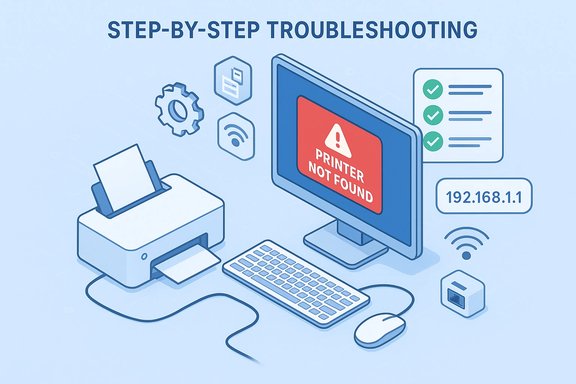
If your Windows PC reports “Printer not found” or “Printer not recognized,” the fault usually lies somewhere between a physical connection, the print spooler, or the driver stack — and most of those failure modes can be fixed with a systematic checklist and a few minutes of careful work. The troubleshooting steps that follow are a distilled, practical playbook drawn from Microsoft’s guidance and community-tested techniques so you can restore printing quickly without guesswork.
Printers interact with Windows through multiple layers: physical interfaces (USB, Ethernet, Wi‑Fi, Bluetooth), the Print Spooler service, device drivers (INF and driver packages), and discovery protocols (network discovery, mDNS, or direct IP). Failures in any one layer — a disconnected cable, a stalled spooler, an incompatible driver, or network isolation — can produce the generic “not found / not recognized” messages. Microsoft’s basic guidance focuses on verifying connections, restarting the spooler, updating or reinstalling drivers, running the built‑in troubleshooter, and ensuring the correct default printer is selected.
This article expands that guidance with step‑by‑step instructions, advanced diagnostics, platform caveats (notably Windows on ARM), and security considerations so you can choose safe, effective next steps.
If the printer continues to be unrecognized after following the steps in this guide, collect the exact error messages from Event Viewer, note the Windows build and system type (x86/x64/ARM), and contact the printer manufacturer with those details — they can provide firmware or model‑specific fixes that go beyond what OS‑level troubleshooting can resolve.
Source: Microsoft Support Fix printer not found and printer not recognized errors in Windows - Microsoft Support
 Background
Printers interact with Windows through multiple layers: physical interfaces (USB, Ethernet, Wi‑Fi, Bluetooth), the Print Spooler service, device drivers (INF and driver packages), and discovery protocols (network discovery, mDNS, or direct IP). Failures in any one layer — a disconnected cable, a stalled spooler, an incompatible driver, or network isolation — can produce the generic “not found / not recognized” messages. Microsoft’s basic guidance focuses on verifying connections, restarting the spooler, updating or reinstalling drivers, running the built‑in troubleshooter, and ensuring the correct default printer is selected.This article expands that guidance with step‑by‑step instructions, advanced diagnostics, platform caveats (notably Windows on ARM), and security considerations so you can choose safe, effective next steps.
Quick checklist (what to try first)
- Confirm power and physical connections: printer powered on and cables snug.
- Try a different USB port or a different network cable / Wi‑Fi SSID.
- Restart the Print Spooler service.
- Update or reinstall the printer driver.
- Run Windows’ automated printer troubleshooter in Get Help (Windows 11).
- Set the correct default printer in Settings > Bluetooth & devices > Printers & scanners.
Step 1 — Verify physical and network connections
USB printers
- Confirm the printer is powered on and shows a ready status on its control panel.
- Use a known‑good USB cable and plug directly into the PC (avoid passive hubs during setup).
- Try another USB port. If the device is still not detected, test the printer on a second PC to rule out hardware failure. Community guides stress that faulty cables or ports are a frequent root cause.
Network (Wi‑Fi / Ethernet) printers
- Ensure the printer and PC are on the same network segment (same SSID and subnet). Guest or “client isolation” modes on routers can block discovery.
- For troubleshooting, use the printer’s control panel to print a network configuration page and verify its IP address. If the printer has a static IP or DHCP reservation, use that IP when adding the device manually.
Bluetooth printers
- Verify Bluetooth is enabled on both the PC and printer and that the devices are paired in Settings > Bluetooth & devices.
- Keep proximity short (within a few meters) during pairing; interference can cause intermittent recognition.
Step 2 — Restart the Print Spooler (fast, safe, often effective)
The Print Spooler service manages print jobs. If it’s stopped or malfunctioning, printers may vanish from Windows.- Press Windows + R, type services.msc, and press Enter.
- Find Print Spooler, right‑click and choose Restart. If Restart is greyed out, Stop then Start.
- If the spooler repeatedly crashes or restarting does not help, stop the service and clear the spool queue:
- Open File Explorer and go to C:\Windows\System32\spool\PRINTERS
- Delete files inside that folder (these are queued jobs). Restart the Print Spooler afterward.
Step 3 — Update or reinstall printer drivers (don’t skip this)
Drivers are the most likely software cause of recognition failures.- Open Device Manager (right‑click Start > Device Manager) and expand Print queues or Printers.
- Right‑click the printer and select Update driver → Search automatically for drivers. If Windows finds nothing, proceed to uninstall and reinstall.
- Remove the printer from Settings > Bluetooth & devices > Printers & scanners → Remove device.
- In Control Panel → Devices and Printers → Print server properties → Drivers tab, remove any old or conflicting driver packages.
- Reboot the PC.
- Download the full‑feature driver package from the manufacturer (HP / Epson / Canon / Brother), run the installer as Administrator, then re‑add the printer. Vendor packages often rebind ports and utilities that Windows’ in‑box drivers omit.
- Prefer vendor‑signed drivers or drivers distributed through Windows Update — unsigned drivers are a security and stability risk.
- On business systems, check with IT: group policies may block driver removal or installation.
Step 4 — Use the built‑in troubleshooter and Get Help (Windows 11)
Windows 11 includes an automated printer troubleshooter in the Get Help app and via Settings > System > Troubleshoot > Other troubleshooters. Run the Printer troubleshooter to let Windows diagnose common misconfigurations and apply automated fixes. This is a low‑effort, high‑reward step and should be tried early.Step 5 — Set the correct default printer and clear ghost devices
Windows sometimes misroutes print jobs if an old or ghost printer is set as default, or if Windows is allowed to auto‑manage the default printer.- Open Settings > Bluetooth & devices > Printers & scanners, select your printer and click Set as default. If you prefer manual control, uncheck Let Windows manage my default printer first.
- Use PowerShell as Admin: run Get‑Printer to list devices, and Remove‑Printer -Name "PrinterName" to delete ghosts. Restart the Print Spooler and re‑add the correct printer. Community technicians rely on this to eliminate conflicting device entries.
Advanced diagnostics (when basic fixes don’t work)
Check Event Viewer for spooler and driver errors
Open Event Viewer → Windows Logs → System and filter by source Spooler or PrintService. Look for errors timed when you tried to print; messages often identify offending driver files or DLLs. Use those clues to target driver or file repairs.Run SFC and DISM
Corrupt system files can break print components. Open an elevated Command Prompt and run:- sfc /scannow
- DISM /Online /Cleanup‑Image /RestoreHealth
Verify port bindings and IP configuration
- For USB printers, confirm the assigned port is USB001 (or the vendor virtual port).
- For network printers, go to Printer Properties → Ports and verify a Standard TCP/IP Port with the correct IP. If discovery misbinds the driver, recreate the TCP/IP port and reassign the correct driver. These port mismatches are a frequent root cause in both home and enterprise environments.
Firmware updates
If the printer itself behaves oddly (network flakiness, discovery failures), check the vendor site for firmware updates for your model. Firmware fixes can resolve protocol incompatibilities introduced by new router behavior or Windows changes. Always apply firmware updates from the manufacturer’s official site.Windows on ARM: special caveats and compatibility risks
If you’re running Windows 11 on an ARM device (some Copilot+ PCs and tablets), printer installation can be less straightforward. There have been documented cases where vendor installers (x86/x64) fail on ARM builds; Microsoft recommends relying on drivers available through Windows Update or ARM‑specific vendor builds and, when necessary, using manual add paths in Settings > Bluetooth & devices > Printers & scanners. This is a rapidly evolving compatibility area; verify the current status on Microsoft’s support documentation or the printer maker’s site before attempting workarounds. Treat ARM driver claims as potentially transient and verify with the latest vendor guidance.Enterprise and print‑server scenarios
Large deployments and print servers use additional tools and precautions:- Use Print Management (printmanagement.msc) and PrintBRM for export/import of drivers and printers.
- Ensure the print server’s network profile is Private and the Print Spooler service set to Automatic.
- Install additional drivers for mixed architecture clients (x86/x64/ARM) to avoid client install failures.
- For servers, pin critical printers to static IPs or DHCP reservations to prevent discovery breakage after lease changes.
Safety and security considerations
- Always download drivers and firmware from the printer manufacturer or Windows Update. Avoid third‑party mirrors.
- Avoid installing unsigned drivers unless absolutely necessary — they can destabilize the OS and expose the system to risk.
- If troubleshooting requires disabling antivirus or firewall temporarily, do so with caution and re‑enable protections immediately after testing. Document the change and limit network exposure while protections are disabled.
Rapid recovery script for technicians (copy/paste playbook)
- Power‑cycle printer and reboot PC.
- Connect printer directly by USB to another port; verify device status.
- If not auto‑detected: Settings → Bluetooth & devices → Printers & scanners → Add device → The printer that I want isn’t listed → Add by IP or Add a local printer.
- If still failing: services.msc → Stop Print Spooler → delete files in C:\Windows\System32\spool\PRINTERS → Start Print Spooler.
- Remove suspect drivers from Print server properties → Drivers tab.
- Install manufacturer full‑feature driver as Admin, reboot, re‑add printer.
- If necessary, use PowerShell: Get‑Printer; Remove‑Printer -Name "GhostName".
When to escalate to the manufacturer or service
- The printer fails its self‑test page from the device control panel — likely hardware fault.
- Persistent printhead, paper feed, or sensor errors appear during device self‑diagnostics.
- The device requires firmware updates that you are uncomfortable applying.
- For warranty service or component replacement, contact the manufacturer. Vendor support is the correct escalation path for hardware failures that survive all software and network diagnostics.
Common troubleshooting myths — set the record straight
- Myth: “If the printer prints a self‑test it's definitely fine.” Reality: A self‑test proves the printer’s internal mechanisms and network interface, but it doesn’t prove the driver or spooler interaction with Windows; you still need to test from the PC.
- Myth: “Disable the firewall permanently to fix printers.” Reality: Only temporarily disable firewall for diagnosis; a persistent open firewall weakens security. Configure specific rules for File and Printer Sharing on Private networks instead.
- Myth: “Windows’ in‑box driver always provides full functionality.” Reality: Windows’ generic drivers often enable basic printing but omit scanner utilities, duplex or advanced features; the vendor package is necessary for full capability.
Handy reference checklist (one‑page)
- Power & cable check: done
- Test printer self‑test page: done
- Different USB port / cable: tried
- Printer and PC on same SSID/subnet: verified
- Spooler restart + clear spool files: done
- Drivers: updated, removed conflicts, reinstalled vendor package
- Run Windows printer troubleshooter: done
- Default printer set: verified
- Event Viewer / SFC / DISM: checked
- Firmware updated: confirmed
- If enterprise: Print Management and driver architecture checked
Final analysis — strengths, limits, and risks
Strengths:- The layered troubleshooting approach (connectivity → spooler → drivers → diagnostics) resolves the majority of “not found” and “not recognized” cases quickly.
- Windows’ built‑in tools (troubleshooter, spooler service, Device Manager) provide safe, non‑destructive first steps for most users.
- Driver architecture mismatches (x86/x64 vs ARM) and unsigned drivers can create hard‑to‑recover faults; always verify architecture and prefer vendor ARM builds on ARM devices. Treat ARM‑related guidance as time‑sensitive because vendor support evolves.
- Deleting spooler files removes queued jobs permanently — advise users to back up anything important before aggressive reset steps.
- Disabling security software for troubleshooting exposes the system temporarily; this should be limited, documented, and reversed after testing.
- Platform‑specific bugs (for example, printer installer failures on a specific Windows 11 build) may be patched; verify the current Windows build and manufacturer advisories before applying risky workarounds. If you encounter behavior that contradicts the steps above, check the manufacturer and Microsoft support pages for model‑specific or build‑specific notes.
Conclusion — restore printing without guesswork
A disciplined, layered approach fixes most “Printer not found” and “Printer not recognized” errors: confirm physical connectivity, restart and clear the Print Spooler, update or reinstall drivers from trusted vendor sources, use Windows’ automated troubleshooter, and set the correct default printer. When basic steps fail, proceed to Event Viewer, SFC/DISM, port verification, and firmware updates before escalating to manufacturer support. For businesses, use Print Management and PrintBRM to manage drivers and avoid client mismatches. Keep security in mind at every step: use signed drivers, limit the duration of any security exceptions, and verify ARM compatibility where applicable.If the printer continues to be unrecognized after following the steps in this guide, collect the exact error messages from Event Viewer, note the Windows build and system type (x86/x64/ARM), and contact the printer manufacturer with those details — they can provide firmware or model‑specific fixes that go beyond what OS‑level troubleshooting can resolve.
Source: Microsoft Support Fix printer not found and printer not recognized errors in Windows - Microsoft Support
