

If a shared printer on your local network suddenly refuses to connect, or your colleagues can’t print from the Windows PC that hosts the device, the fix is usually a mix of configuration, network, and driver work — but it’s rarely one single action. Microsoft’s official guidance walks through the basics — confirm the printer is shared on the host PC, verify both machines are on the same network, supply correct credentials, enable Network Discovery and File and Printer Sharing, and add the shared printer manually if automatic discovery fails — and those steps resolve the majority of home and small‑office cases.
This feature article expands that basic checklist into a practical, technician-friendly troubleshooting playbook. It explains what each step actually does, shows the commands and UI flows to run quickly, highlights common pitfalls (driver mismatches, print‑spooler corruption, authentication traps), and outlines safe escalation steps and security trade‑offs so you can restore printing without opening unnecessary attack vectors.
Shared printing on Windows works in two common ways: the host PC acts as a simple file‑share style print server (clients connect to \ComputerName\PrinterShareName), or the printer is a networked device with its own IP and is added directly via TCP/IP/IPP. The host‑share model depends on the Print Spooler service, Windows file‑sharing (SMB), network discovery, and matching drivers on the client. If any of those components are misconfigured or blocked, the client will fail to connect.
Microsoft’s quick checklist mirrors this architecture: make sure the printer is shared and note the share name; confirm both machines are on the same network; use correct credentials; turn on Network Discovery and File and Printer Sharing; and add the printer by its UNC path if discovery fails (\ComputerName\PrinterShareName). These are the first and fastest things to check.
Restoring shared printing in Windows is rarely mysterious: it’s about validating the host sharing, network reach, credential exchange, spooler health, and driver correctness in a methodical order. Microsoft’s published steps provide the authoritative checklist to begin with — confirm the share name and network settings, enable discovery and file/printer sharing, and add the printer by UNC path where automatic detection fails — and the broader community and vendor guidance fill in the operational details (spooler restart, driver hygiene, event‑log forensics) required for stubborn cases.
If the problem persists after following the full checklist — especially if you observe spooler crashes or driver installation failures on specific Windows builds or ARM devices — capture event logs and exact error codes and escalate to vendor or Microsoft support; those artifacts are the critical inputs needed to resolve more complex or build‑specific bugs.
Source: Microsoft Support Fix shared printer connection problems in Windows - Microsoft Support
This feature article expands that basic checklist into a practical, technician-friendly troubleshooting playbook. It explains what each step actually does, shows the commands and UI flows to run quickly, highlights common pitfalls (driver mismatches, print‑spooler corruption, authentication traps), and outlines safe escalation steps and security trade‑offs so you can restore printing without opening unnecessary attack vectors.
 Background
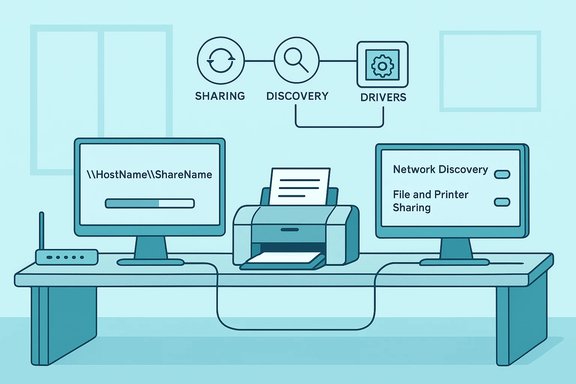
Shared printing on Windows works in two common ways: the host PC acts as a simple file‑share style print server (clients connect to \ComputerName\PrinterShareName), or the printer is a networked device with its own IP and is added directly via TCP/IP/IPP. The host‑share model depends on the Print Spooler service, Windows file‑sharing (SMB), network discovery, and matching drivers on the client. If any of those components are misconfigured or blocked, the client will fail to connect.Microsoft’s quick checklist mirrors this architecture: make sure the printer is shared and note the share name; confirm both machines are on the same network; use correct credentials; turn on Network Discovery and File and Printer Sharing; and add the printer by its UNC path if discovery fails (\ComputerName\PrinterShareName). These are the first and fastest things to check.
Quick triage: a five‑minute runbook
If you need to get printing back up fast, work through these priority steps in order. Each step eliminates a whole class of problems.- Confirm hardware and power: ensure the printer is powered, has paper/ink, and passes its built‑in self‑test.
- Verify both PCs are on the same network (same subnet/SSID). If in doubt, use the IP address when connecting rather than computer name.
- Ensure the host has the printer shared and record the share name: Settings > Bluetooth & devices > Printers & scanners > select printer > Printer properties > Sharing > Share this printer.
- On the client, attempt to browse the host: open File Explorer and type \HostComputerName (or \HostIP). If you can’t reach the host, fix network connectivity first.
- If host is reachable but the printer isn’t found, add it manually: Settings > Bluetooth & devices > Printers & scanners > Add device > The printer I want isn’t listed > Select a shared printer by name and enter \HostName\ShareName.
The deep dive: why each core area matters and how to fix it
1) Sharing configuration on the host
- Why: If the host PC hasn’t been set to share the printer, the network has nothing to discover. Windows’ Printer Properties exposes the share name you must use to connect.
- How to check: On the host go to Start > Settings > Bluetooth & devices > Printers & scanners, select the printer, choose Printer properties, and open the Sharing tab. Confirm Share this printer and note the Share name.
- Common mistakes: Using a confusing share name with spaces or special characters, or forgetting to apply the change. Rename to a simple name like OfficePrinter for reliability.
2) Network reachability and name resolution
- Why: The client must be able to reach the host machine. Name resolution (NetBIOS, LLMNR, or DNS) can fail in mixed networks or with Wi‑Fi extenders.
- Fast test: From the client open File Explorer and type \HostComputerName. If that fails, try \HostIPAddress. If the IP works but name does not, troubleshoot name resolution (DNS, NetBIOS over TCP/IP, or host file).
- Network profile: Ensure both systems have their network profile set to Private when in trusted environments; Private profile typically enables discovery functionality by default.
3) Credentials and authentication
- Why: Shared printers may require valid user credentials for the host machine. Windows may prompt for them or will silently fail if the accounts differ and the host requires authentication.
- Options:
- Use the same Microsoft account or matching local username/password on both machines.
- When prompted, enter HostComputerName\Username and the password.
- Pitfall: Using cached credentials that have changed on the host will fail silently—clear stored credentials (Credential Manager) and reauthenticate.
4) Network Discovery and File and Printer Sharing
- Why: These two Windows features control whether the PC advertises and exposes shared resources.
- How to enable: Settings > Network & Internet > Advanced network settings > Advanced sharing settings > turn on Network discovery and File and printer sharing. Both must be enabled for host‑share printing to work in typical small‑office setups.
- Security note: Only enable these on trusted networks. Disabling them on public networks is an important defensive measure.
5) Print Spooler service and stuck jobs
- Why: The Print Spooler is the Windows service that handles spooling and export of jobs to shared printers. If it’s hung or corrupted, clients see errors or the printer disappears.
- How to restart (three quick methods):
- Services UI: Win + R → services.msc → Print Spooler → Restart.
- Command prompt (admin): net stop spooler then net start spooler.
- PowerShell (admin): Restart-Service -Name Spooler.
- When to clear the queue: Stop the spooler, delete files from C:\Windows\System32\spool\PRINTERS, then start it again. This clears stuck jobs that often block subsequent connections. Third‑party guides and Microsoft Q&A both recommend restarting the spooler and clearing the queue as early troubleshooting steps.
Driver discipline: why drivers are the most common friction point
Modern Windows will often install a basic in‑box driver automatically, but the in‑box driver may not match vendor features and can cause install failures or print corruption. The recommended approach:- Prefer the vendor’s full‑feature driver package for the specific model and your Windows build (x64/x86/ARM).
- On mixed‑architecture networks (32‑bit clients, 64‑bit host), install additional drivers on the host (Print server properties → Drivers) so clients can pull a compatible driver automatically.
- If automatic driver install fails, use the classic Add Printer wizard to use “Have Disk” and point to the vendor INF, or add the printer using a Standard TCP/IP port (for network printers).
Advanced diagnostics and commands
When the basic steps don’t resolve the problem, use these diagnostic steps in order.1) Test network reachability (PowerShell)
- Test-NetConnection -ComputerName HostIP -Port 445
- If TcpTestSucceeded is False, SMB is blocked by firewall or not listening. Use netsh advfirewall to enable File and Printer Sharing rules for Private networks.
2) Print spooler health
- Open Services (services.msc), restart Print Spooler.
- If restart fails, stop the service, delete files from C:\Windows\System32\spool\PRINTERS, then start it. This sequence is validated across Microsoft community guidance and third‑party guides.
3) Event Viewer
- Look in Windows Logs → System and Windows Logs → Application for errors from sources like Spooler, PrintService, RPC, or Server. Match timestamps to your test activity — event detail often contains the exact error code you can search for targeted fixes.
4) SFC and DISM (if system corruption suspected)
- sfc /scannow
- DISM /Online /Cleanup-Image /RestoreHealth
These repair system libraries that the spooler and driver installers depend on.
5) PowerShell printer management (for power users / admins)
- List printers: Get-Printer
- Remove a ghost printer: Remove-Printer -Name "PrinterName"
This is useful for eliminating phantom devices that prevent reinstallation.
Common error patterns and how to interpret them
- “Printer not found” — Usually discovery or network mismatch; check IP/SSID and firewall.
- “Driver failed to install” — Wrong architecture or unsigned drivers; use vendor packages or Windows Update.
- Error 0x00000709 — Registry or permission problem when setting default printer; remove/reinstall or adjust registry carefully.
- Host reachable by IP but not by name — name resolution problem; either fix DNS/NetBIOS or use IP in the UNC path.
Security and privacy considerations
- Only enable Network Discovery/File and Printer Sharing on trusted (usually Private) networks. Leaving sharing enabled on public Wi‑Fi exposes resources to attackers.
- Avoid installing unsigned drivers from unknown sources — they pose both stability and security risks. Prefer signed vendor packages or the Microsoft Update Catalog.
- When sharing printers publicly (never recommended), metadata in print jobs could leak document names; treat shared printers like any shared storage — limit exposure and monitor access.
Enterprise and print‑server notes
- For enterprises, use Print Management (printmanagement.msc) and PrintBRM to manage drivers and export/import printer configs. Set the print server’s network profile to Private, set Spooler to Automatic, and preinstall additional architecture drivers for client compatibility. These steps reduce driver mismatches and permission issues.
- Consider using IPP/JetDirect or dedicated print servers for mixed OS environments rather than relying on SMB shares from a workstation host. For large deployments, Group Policy and deployment tools are far more reliable than ad hoc shares.
Prioritized full troubleshooting checklist (copy/paste for techs)
- Power cycle printer and host PC. (2–5 minutes)
- Verify host shares the printer and note share name. (2–3 minutes)
- From client, test \HostIP and \HostName in File Explorer. If IP works, use IP. (2–5 minutes)
- Ensure Network Discovery and File and Printer Sharing are ON for the Private network. (2 minutes)
- Restart Print Spooler; clear C:\Windows\System32\spool\PRINTERS if necessary. (5–10 minutes)
- Update or reinstall the vendor driver on both host and client; prefer vendor full‑feature package. (15–30 minutes)
- If still failing, run sfc /scannow and DISM /RestoreHealth, check Event Viewer for specific errors. (30–60 minutes)
- For mixed‑architecture clients, preinstall additional drivers on the host Print Server Properties → Drivers. (10–20 minutes)
Troubleshooting scenarios and sample fixes
Scenario A — Client cannot see host but ping works
- Symptoms: ping HostIP succeeds; \HostName fails; \HostIP\ShareName succeeds.
- Fix: Use \HostIP\ShareName for installation, then fix name resolution: enable NetBIOS over TCP/IP or adjust DNS entries.
Scenario B — Printer prints a self‑test but Windows shows it offline
- Symptoms: Printer self test OK; Windows displays offline or print jobs fail.
- Fix: Restart Print Spooler, verify driver and port mapping (USB001 vs Standard TCP/IP), reinstall vendor driver if Windows uses a generic driver.
Scenario C — Spooler crashes after Windows update
- Symptoms: Spooler repeatedly stops or Print Spooler service won’t stay running.
- Fix: Stop spooler, clear spool folder, update or roll back affected drivers, check Microsoft Q&A and update history for known Windows updates affecting spooler; perform SFC/DISM if spooler DLLs are corrupted.
When to escalate to vendor support or hardware repair
- Printer fails its own self‑test or reports mechanical faults (paper jam, carriage errors) — escalate to manufacturer service.
- Repeated spooler crashes tied to a specific driver model despite clean driver reinstalls — open a vendor support ticket and furnish event log entries.
- Mixed‑architecture or ARM device compatibility issues where the vendor has no ARM driver — consider an intermediate print server or cloud printing service as workaround. Be cautious: some community reports indicate Windows 11 24H2 and ARM device combinations can produce driver/compatibility problems; follow vendor advisories.
Final recommendations and best practices
- Keep drivers and firmware current, but apply Windows feature updates in a controlled window and test printing before wide deployment.
- Use simple share names and prefer IP-based connections for network printers used by multiple OSes.
- Maintain a one‑page runbook (the checklist above) for first‑responder techs.
- For multi‑user networks, favor a proper print server or cloud print solution rather than making a workstation a permanent host.
- Log and keep Event Viewer extracts and exact error codes when opening vendor or Microsoft support tickets — the details drastically speed diagnosis.
Restoring shared printing in Windows is rarely mysterious: it’s about validating the host sharing, network reach, credential exchange, spooler health, and driver correctness in a methodical order. Microsoft’s published steps provide the authoritative checklist to begin with — confirm the share name and network settings, enable discovery and file/printer sharing, and add the printer by UNC path where automatic detection fails — and the broader community and vendor guidance fill in the operational details (spooler restart, driver hygiene, event‑log forensics) required for stubborn cases.
If the problem persists after following the full checklist — especially if you observe spooler crashes or driver installation failures on specific Windows builds or ARM devices — capture event logs and exact error codes and escalate to vendor or Microsoft support; those artifacts are the critical inputs needed to resolve more complex or build‑specific bugs.
Source: Microsoft Support Fix shared printer connection problems in Windows - Microsoft Support
