

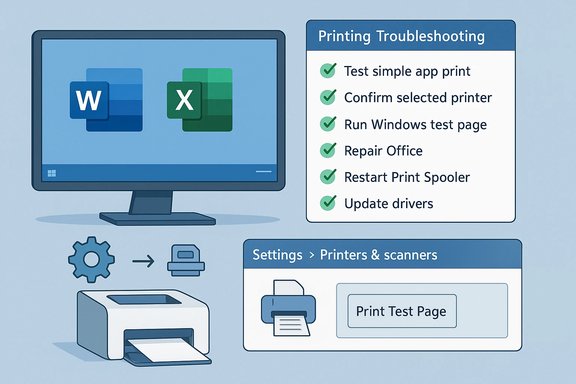
Microsoft’s official troubleshooting checklist for situations where Windows can print but specific apps — notably Word or Excel — cannot, is short, pragmatic and layered: start by proving the problem is app-specific, confirm the app’s selected printer and internal print settings, test Windows-level printing, repair or update Office, restart the print spooler, and update or reinstall drivers before escalating to automated troubleshooters or vendor support.
Printing in Windows is the result of multiple moving parts cooperating: the application (Word, Excel, Acrobat), the Windows print pipeline (print spooler, print processors), device drivers and ports (USB, TCP/IP, WSD), and the printer’s own firmware and networking. When a document prints from Notepad but not from Word, the problem lives at the intersection of application-level behavior and the print stack — not necessarily with the physical device. That is the rationale behind Microsoft’s stepwise approach: isolate the variable, then escalate the technical scope only as required. This article turns Microsoft’s checklist into an operational playbook for Windows enthusiasts and IT pros, explains why each step matters, supplies verified command and UI details for Windows 11, cross-references independent sources, and highlights risks and enterprise caveats to avoid costly mistakes.
Printers are stubborn when they fail, but a disciplined, layered diagnostic approach — exactly the one Microsoft and independent experts recommend — will resolve the majority of app-specific printing problems without reimaging machines or buying new hardware. Follow the checklist, gather logs if the issue persists, and escalate with precise, reproducible details to minimize downtime.
Source: Microsoft Support Fix printing problems in Word, Excel, or other apps - Microsoft Support
 Background
Printing in Windows is the result of multiple moving parts cooperating: the application (Word, Excel, Acrobat), the Windows print pipeline (print spooler, print processors), device drivers and ports (USB, TCP/IP, WSD), and the printer’s own firmware and networking. When a document prints from Notepad but not from Word, the problem lives at the intersection of application-level behavior and the print stack — not necessarily with the physical device. That is the rationale behind Microsoft’s stepwise approach: isolate the variable, then escalate the technical scope only as required. This article turns Microsoft’s checklist into an operational playbook for Windows enthusiasts and IT pros, explains why each step matters, supplies verified command and UI details for Windows 11, cross-references independent sources, and highlights risks and enterprise caveats to avoid costly mistakes.Overview: Common causes when some apps won’t print
- App-level settings or defaults — the app may be pointed at the wrong printer, a virtual printer (Print to PDF), or a page range. This is the most frequent and lowest-risk cause.
- Corrupt documents or fonts — a damaged DOCX/XLSX or a missing/substituted font can stop printing or produce blank output. Try a different document first.
- Print spooler service issues — stalled jobs, corrupted spool files, or a crashed spooler will block future jobs from some apps. Restarting or clearing the spooler often solves it.
- Driver mismatches or outdated drivers — app-specific drivers or vendor “full feature” drivers can behave differently than Windows’ in-box drivers. Updating or reinstalling drivers is a common fix.
- Office or app corruption — broken Office components (add-ins, corrupted configuration, or damaged installation) can affect print output; Quick Repair and Online Repair are legitimate next steps.
- Network / port misconfiguration — IP printers using the wrong port type or a sleeping share-host can print from some machines but not from specific apps.
Step-by-step: Turn Microsoft’s checklist into a reproducible workflow
1. Prove whether the issue is app-specific
- Open Notepad (or Paint) and print a simple one-line document.
- In the problem app (Word/Excel), open a new file, type a word or two, and print.
2. Confirm the correct printer is selected in the app
- In Word or Excel: File > Print.
- Verify the selected printer in the top drop-down; confirm the status shows Ready and is the correct device.
- Make sure no virtual printer (Print to PDF) is accidentally selected.
3. Check app-level print settings
- Confirm page size, orientation, layout, and margins match the printer’s supported configuration.
- Verify that Print to file or Print to PDF is not selected.
- Confirm the Pages option isn’t set to a tiny range (e.g., 1–1 when you meant All).
Windows-level checks and repairs
4. Print a test page from Windows 11
- Settings > Bluetooth & devices > Printers & scanners.
- Select the printer > Printer properties > General tab > Print Test Page.
5. Repair Microsoft Office (Word and Excel)
- Settings > Apps > Installed apps. Select Microsoft 365 (or your Office package) > Advanced options.
- Run Quick Repair first. If that doesn’t resolve printing, run Online Repair.
The print spooler: why it matters and how to handle it
Why the spooler is a common culprit
The Print Spooler is the Windows service that queues and hands off print jobs to the device driver and port. If the spooler is stuck on a malformed job or its internal files are corrupted, apps that generate complex print jobs (Word, Excel, PDF viewers) may fail while Notepad (with simple raw text) succeeds. Restarting or resetting the spooler often clears the blockage.6. Restart the Print Spooler service (safe, fast)
- Press Win + R, type services.msc, and press Enter.
- Find Print Spooler, right-click and select Restart.
- If Restart is unavailable: Stop the service, delete files from C:\Windows\System32\spool\PRINTERS, then start the service again.
- net stop spooler
- del %systemroot%\System32\spool\PRINTERS* /Q
- net start spooler
Drivers, ports, and reinstall strategies
7. Update or reinstall printer drivers
- Device Manager > Print queues (or Printers) > Right-click your printer > Update driver.
- If no suitable update is found, uninstall the device, restart the PC, and let Windows reinstall drivers automatically, or download the latest full-driver package from the manufacturer’s support site.
- Remove the printer from Settings > Printers & scanners.
- In Control Panel > Devices and Printers > Print server properties > Drivers, remove old/duplicate drivers.
- Reboot, install OEM driver as Administrator, then add printer and test.
Automated tools and other low-risk options
8. Run Microsoft’s automated printer troubleshooter (Windows 11)
Windows 11 includes the Printer troubleshooter available in the Get Help app and Settings > System > Troubleshoot > Other troubleshooters > Printer. It will scan for common misconfigurations and attempt automated repairs. Use this after the manual checks above or as a quick first pass. Independent diagnostics tools and OEM troubleshooters often duplicate these checks but can add manufacturer-specific firmware checks.Advanced diagnostics and enterprise considerations
Collecting diagnostic data
If problems persist after the standard sequence:- Reproduce the failure and capture Event Viewer logs: Windows Logs > System; filter for PrintService, Spooler, or error codes.
- Collect the %TEMP% and Office diagnostic logs if Office apps are involved. Microsoft Support or enterprise IT will request those logs when escalating.
Networked and shared printers
- Ping the device’s IP to confirm connectivity.
- Verify the printer’s port is a Standard TCP/IP port for network devices, not a misconfigured WSD or virtual port.
- If the printer is shared from another host, ensure the host is awake and not in sleep/hibernation. Faulty ports and sleeping hosts are common causes of selective printing failures in shared environments.
Domain-joined and managed devices
- Group Policy or endpoint protection products can block driver installation or change spooler behavior. Coordinate with IT before removing drivers or changing service startup types in managed environments. Some corporate builds also restrict access to Print Server properties — escalate to IT when necessary.
Practical checklist — copyable, in-order
- Try printing a simple file from Notepad or Paint.
- In the app that fails, File > Print — confirm the selected printer and settings.
- Print a Windows test page via Settings > Printers & scanners.
- Repair Office: Quick Repair → Online Repair if needed.
- Restart Print Spooler (services.msc or net stop/spooler & net start spooler).
- Clear spool folder if restarting doesn’t help (C:\Windows\System32\spool\PRINTERS).
- Update/reinstall OEM drivers; remove duplicate drivers from Print server properties.
- Run Windows’ Printer troubleshooter (Get Help or Settings > Troubleshoot).
- If still failing: collect Event Viewer logs, try printing from another PC, confirm network/port settings.
Strengths of the stepwise method — and where it can fail
Strengths- The workflow starts with low-risk steps (try another app, check printer selection) before escalating to potentially disruptive actions (uninstall drivers, Online Repair). That minimizes downtime.
- It separates app-level faults from system- or hardware-level faults, making troubleshooting efficient.
- The methods are reproducible and widely documented by OEMs and independent troubleshooters.
- Deleting files in the spool folder is effective but irreversible; do not delete files outside the PRINTERS folder. Back up first in uncertain scenarios.
- Online Repair reinstalls Office and may require re-signing and reconfiguring add-ins; back up Normal.dotm and custom macros before proceeding.
- In managed environments, driver removal or spooler changes may contravene policy and must be coordinated with IT to avoid security or compliance violations.
When to escalate to vendor support or Microsoft
- Multiple machines show identical failures (system-level rollouts or driver-wide regressions).
- Event Viewer shows spooler or driver errors with consistent stack traces.
- Firmware updates are available for the printer and self-tests from the device fail.
- Office Online Repair does not resolve app-level printing after the full checklist.
Quick reference: useful commands and UI locations
- Services console: Win + R → services.msc → Print Spooler.
- Restart spooler (cmd as admin): net stop spooler && net start spooler.
- Print test page: Settings > Bluetooth & devices > Printers & scanners > printer > Printer properties > General > Print Test Page.
- Office repair: Settings > Apps > Installed apps > Microsoft 365 > Advanced options > Quick Repair / Online Repair.
Final verdict and practical recommendations
Microsoft’s guidance for “fix printing problems in Word, Excel, or other apps” is practical and aligned with community best practice: isolate the problem, confirm app-level settings, test Windows-level printing, repair Office, manage the spooler, and update drivers. Cross-referencing Microsoft’s steps with independent diagnostics guides (Lifewire, Dell troubleshooting, and community playbooks) confirms these steps address the majority of real-world cases. For most home and small-business users:- Start with the simplest tests (Notepad, test page, change printer selection).
- Use Quick Repair first for Office problems.
- Restart the spooler before performing driver surgery.
- Maintain a driver repository of vetted OEM drivers for your Windows and Office builds.
- Use Print Management or PrintBRM for server-side exports/imports and to avoid driver conflicts.
- Collect Event Viewer and application logs early to speed vendor escalation.
Printers are stubborn when they fail, but a disciplined, layered diagnostic approach — exactly the one Microsoft and independent experts recommend — will resolve the majority of app-specific printing problems without reimaging machines or buying new hardware. Follow the checklist, gather logs if the issue persists, and escalate with precise, reproducible details to minimize downtime.
Source: Microsoft Support Fix printing problems in Word, Excel, or other apps - Microsoft Support
