

Microsoft’s Exchange Online team has published clear, actionable guidance that demystifies how retention and recovery behave for Exchange Online public folders — and why administrators should treat public-folder retention differently from mailbox retention policies to avoid surprise data loss, compliance gaps, and quota-driven service interruptions.
Background / Overview
Public folders remain a live part of many organizations’ collaboration and compliance surfaces, even as other groups migrate to SharePoint, Microsoft 365 Groups, or Teams. Public folders are stored inside public folder mailboxes, and Exchange Online implements retention and eDiscovery behavior for those mailboxes through the same Recoverable Items and hold mechanisms used for user mailboxes — but with several critical differences and operational quirks.This feature explains how retention policies and hold behavior apply to public folders, what happens when items or folders are deleted, how purged content is preserved and restored, common failure modes, and practical recommendations for administrators responsible for continuity and compliance. It draws on the Exchange Online team's operational guidance and on Microsoft documentation and community best practices to produce a single, practical reference for Windows and Exchange administrators.
How retention for public folders actually works
The Recoverable Items (dumpster) and DiscoveryHolds
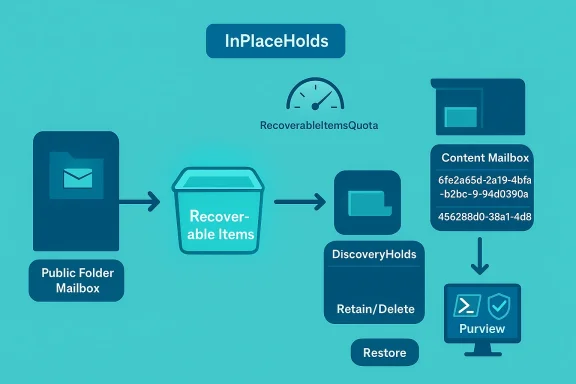
Public folders use a Recoverable Items area (often colloquially called the dumpster) to hold soft-deleted or purged items. When a retention policy or hold is in effect, purged items that would normally be permanently deleted are instead protected and moved into a special DiscoveryHolds subfolder within the content public folder mailbox. A background processor — referenced internally as the PublicFolderDiscoveryHoldsProcessor — runs regularly to process DiscoveryHolds folders and apply hold durations.Key operational points:
- In-place / retention holds for public folders are recorded as hold identities (InPlaceHolds) on the root or primary public folder mailbox. The hold preserves purged items and original versions of modified messages so they can be surfaced through eDiscovery.
- When an item is deleted from a public folder under retention, it first moves to the folder-level dumpster. If the dumpster retention expires or the item is purged, and a retention/hold applies, the item moves into the content mailbox’s Non_IPM_Subtree\DiscoveryHolds area instead of being immediately removed.
- The DiscoveryHolds structure mirrors content mailbox ownership: purged items are retained in the owning content mailbox, and the DiscoveryHolds folder may contain items and folders renamed with GUIDs to avoid naming collisions.
- Recovery or preservation is bound to the retention/hard-hold definition (indefinite hold vs time-bound retention). When the in-place hold’s duration expires for an item, that item may be marked for permanent deletion by the Managed Folder Assistant or equivalent processing.
Quotas and why they matter
Public folder mailboxes are subject to the same quota system that protects primary mailboxes: RecoverableItemsQuota, ProhibitSendReceiveQuota, and related warning thresholds. Important operational thresholds include:- Recoverable Items storage limits restrict how much deleted content can accumulate; if RecoverableItemsQuota is exceeded, purging and hold processing can fail or be delayed.
- The sum of TotalItemSize and TotalDeletedItemSize approaching or exceeding ProhibitSendReceiveQuota can cause the public folder mailbox to enter a state where creation, delivery, or retention processing is negatively affected.
Configuring retention policies on public folders — step-by-step
This section distills the practical, production-ready steps to create and validate retention policies for Exchange public folders.Preconditions and planning
- Confirm public folder mailboxes have measurable content (Exchange retains policies only after mailboxes meet the minimum size threshold used by retention systems). Mailboxes typically need at least 10 MB of data for retention settings to apply.
- Decide whether you need organization-wide retention (applies to all public folders) or a static scope targeting specific public folder mailboxes. Public folders do not support adaptive scopes and do not support exclusions for retention locations.
- Decide whether the policy will:
- Retain items only (prevent purge);
- Retain and then delete after a set period; or
- Delete after a set period.
- Choose the retention basis:
- Creation date (CreationTime) or
- Last modification date (LastModificationTime).
Create the policy (Purview / Compliance portal)
- Sign in to the Microsoft Purview portal and navigate to Solutions → Data Lifecycle Management → Policies → Retention policies.
- Select New retention policy and assign a clear, descriptive name (include "PublicFolder" and the policy purpose).
- On the admin units page, keep default of Full directory (admin units not supported for this policy).
- Select the static scope for Exchange public folders (adaptive scopes and exclusions are not supported).
- Configure the retention action (retain, retain-then-delete, delete) and the retention duration and basis (creation or last modification).
- Finalize and save.
Verify policy application
- Use the compliance portal to verify the policy status; policy updates can propagate quickly but sometimes take several days. Statuses typically move from Enabled (Pending) to Enabled (Success).
- Use Exchange Online PowerShell to confirm trap values are reflected on the public folder mailbox (InPlaceHolds may reflect policy identities).
- Test with a small controlled folder: create a test public folder, create an item, delete it and observe the flow into the dumpster and then into DiscoveryHolds if retention applies.
Useful PowerShell commands (examples)
- Check public folder mailbox sizes:
Get-MailboxStatistics -Identity <PublicFolderMailbox> | Select DisplayName, TotalItemSize, TotalDeletedItemSize - View public folder item statistics:
Get-PublicFolderItemStatistics -Identity "\Path\To\PublicFolder" - Trigger synchronization if DiscoveryHolds isn't synced:
Update-PublicFolderMailbox -Identity <mailbox> -InvokeSynchronizer -ForceOnlineSync -FullSync - Update all public folder mailboxes' hierarchy synchronizer:
Get-Mailbox -PublicFolder | Update-PublicFolderMailbox -InvokeSynchronizer -SuppressStatus - Inspect organization-wide holds:
Get-OrganizationConfig | Select -ExpandProperty InPlaceHolds
How to restore purged public folder content
When retention is configured correctly, purged items can be located and restored using content search and the Recoverable Items/DiscoveryHolds mechanism.Locate purged items using Purview Content Search
- Create a content search (for example: "Look for mails on PF") and set the location to Exchange public folders.
- Use targeted search conditions such as subject lines, senders, or date ranges to minimize result noise.
- When review results, look for the item location fields, such as Original Path or Location Name, which will indicate the owning content mailbox and the presence under the NON_IPM_SUBTREE\DiscoveryHolds path.
Restore flow — recommended approach
- Export located items to a PST using the Purview export option.
- Open or attach the PST in Outlook with an account that has permissions to write to the target public folder.
- Copy items from the PST back into the intended public folder using Outlook.
Alternative: PowerShell folder-level restore
- Purged folders that were deleted can be restored via PowerShell restore operations against the public folder hierarchy; restoring the folder will recover subfolders and contained items. This requires careful orchestration and, in some tenant circumstances, a Microsoft support engagement for large-scale moves.
Caveat about example durations
Some published examples show short intervals (for example, a deleted item moved to a folder dumpster and retained for "one day" before being processed). Treat such timing as illustrative — actual timing depends on your configured retention durations, the Managed Folder Assistant / processing cadence, and replication/propagation delays in the compliance backplane.Known issues, failure modes, and troubleshooting
Public folders are a special case and generate a set of troubleshooting patterns that differ from user mailboxes.DiscoveryHolds out-of-sync
Symptom:- Items are not processed from the dumpster and are not appearing under DiscoveryHolds.
- The DiscoveryHolds folder for a content mailbox is out of sync with the primary public folder mailbox.
- Manually trigger a synchronizer on the affected content mailbox:
Update-PublicFolderMailbox -Identity <affected mailbox> -InvokeSynchronizer -ForceOnlineSync -FullSync - After forcing a sync, the DiscoveryHolds folder should appear and background processors will resume moving and processing items as intended.
Quota saturation and processing failures
Symptom:- Retention processing fails or stops; public folders cannot be created, items fail to be held, or mail flow to public folders is affected.
- TotalDeletedItemSize has exceeded RecoverableItemsQuota, or TotalItemSize + TotalDeletedItemSize has exceeded ProhibitSendReceiveQuota.
- Review quotas with Get-MailboxStatistics and Get-Mailbox quota fields.
- Free space by:
- Archiving older public folder content (export+import to archived store or PST);
- Adjusting retention durations for low-risk content;
- Requesting quota increases or asking Microsoft support to perform controlled operations (for tenants facing autosplit complexities).
- Kick off targeted mailbox processing using the Managed Folder Assistant to clean up duplicates:
Start-ManagedFolderAssistant -Identity <mailbox> -HoldCleanup
Favorites, OWA display, and renamed DiscoveryHolds folders
Symptom:- Purged folders that were previously in users' OWA favorites still appear with new "Name_GUID" names.
- When a folder is moved into DiscoveryHolds, it may be renamed with a GUID to avoid collisions. OWA favorites reference the folder ID and may still show an entry until expiration.
- Instruct users to remove stale favorites in OWA. This is a user-facing workaround until the retention lifecycle completes.
AutoSplit and public folder moves
Symptom:- Users observe temporary unavailability or moved folders during AutoSplit operations.
- Exchange Online may automatically split public folder mailboxes when thresholds are reached. AutoSplit behavior is automatic and can temporarily affect access during cut-over. Keeping the primary hierarchy mailbox reserved for hierarchy-only tasks reduces risk.
Operational best practices and governance checklist
To keep public folder retention and recovery reliable, adopt the following operational practices:- Design a retention map: Catalog which public folders must be retained for compliance versus those suitable for short retention or deletion.
- Use conservative default holds for high-risk content: For folders containing regulated or legally relevant information, prefer retain-only or indefinite hold until a formal disposition policy is agreed.
- Test in a sandbox: Before rolling out tenant-wide retention policies, create a test public folder mailbox and run through deletion→dumpster→DiscoveryHolds→restore exercises.
- Monitor quotas proactively:
- Script daily/weekly checks for TotalItemSize and TotalDeletedItemSize for each public folder mailbox.
- Alert when RecoverableItemsQuota or ProhibitSendReceive thresholds approach.
- Automate retention health checks:
- Use scripts that call Get-MailboxStatistics and Get-PublicFolderItemStatistics to detect inconsistencies or unexpectedly large dumpster sizes.
- Document recovery workflows and owners:
- Keep step-by-step recovery runbooks (content search → export PST → restore via Outlook, or PowerShell folder restoration) and ensure legal and operations sign-off.
- Train users on OWA favorites:
- Document the behavior users may see after folder purges and how to remove stale favorites.
Compliance, eDiscovery, and legal hold implications
Retention for public folders ties directly into eDiscovery and legal obligations. A few points to note:- Legal/Discovery holds preserve purged content: When public folders are placed on hold, purged items are preserved in DiscoveryHolds and are discoverable by eDiscovery tools.
- Organization-wide retention may not show up on mailbox InPlaceHolds: Some organization-level retention constructs are applied centrally and may not be visible in mailbox-level hold properties; use organization-level checks to be sure a hold is in effect.
- Retention labels are not supported for public folder messages: Retention labels target mailbox content and may not apply to public folder messages; plan retention using policy scopes that specifically target Exchange public folders.
- Never purge DiscoveryHolds without review: Purging items from DiscoveryHolds can create irreversible loss and expose the organization to compliance risk.
Automation, monitoring scripts and practical tools
Practical automation and scripts are essential in medium-to-large tenants.- Build a simple PowerShell runbook that:
- Iterates all public folder mailboxes.
- Grabs TotalItemSize and TotalDeletedItemSize.
- Compares values to RecoverableItemsQuota and ProhibitSendReceiveQuota.
- Generates alerts for mailboxes crossing thresholds.
- Automate periodic verification of policy propagation:
- Query Purview policy status and correlate with mailbox-level hold properties and discovery searches.
- Keep recovery utilities handy:
- A pre-built content search template to find DiscoveryHolds items by subject, sender, or date.
- A standardized export → PST → restore process.
Alternatives and migration considerations
Public folders work, but they are not always the optimal long-term platform for collaboration or recordkeeping. When designing a modern information architecture:- Consider migrating public folder content to SharePoint or Microsoft 365 Groups where:
- Modern retention labels and policies may offer more granularity;
- Discovery and compliance are integrated across Teams, SharePoint, and Exchange data planes.
- If migration isn’t immediately feasible, treat public folders as part of your Archive and Records Management roadmap and ensure retention policies are included in migration planning.
Final recommendations and risk summary
Retention for Exchange Online public folders is powerful but requires deliberate governance. Administrators should:- Treat public folder retention as part of the compliance fabric and not as an afterthought.
- Design policies deliberately: avoid overly aggressive auto-deletion on content that may be subject to legal holds.
- Monitor quotas and automate alerts to avoid RecoverableItems or ProhibitSendReceive saturation, which can block processing and create data loss risk.
- Use content search and PST exports for recovery in routine cases; reserve PowerShell or support-assisted mass restores for complex scenarios.
- Test, document, and rehearse the recovery process so that when retention needs to be validated for compliance or legal processes, operations are auditable and repeatable.
- Specific timing for when dumpster items move into DiscoveryHolds and when they are finally purged depends on tenant policy configuration, Managed Folder Assistant processing cadence, and background processors. Example timelines that appear in guidance are illustrative — expect variance in production tenants and validate in your tenant.
- Organization-level retention constructs and adaptive protection features may cause holds that do not surface in mailbox-level properties; always inspect organizational configuration when investigating unexplained holds.
Conclusion
Public folders may feel legacy, but they remain a first-class source of business content and compliance obligations in many organizations. Exchange Online's retention and hold mechanisms provide the necessary protections to preserve deleted public folder items, but the system's behavior — dumpster → DiscoveryHolds → hold processing → purge — introduces operational responsibilities that must be managed: monitoring quotas, validating policy propagation, handling sync issues, and having repeatable restore procedures.Administrators who implement clear retention mappings, test restorations regularly, automate quota monitoring, and coordinate with compliance/legal teams will avoid the most common causes of public-folder data loss and will be prepared to recover purged content when required. Robust governance, active monitoring, and a rehearsed recovery playbook are the best defenses against surprise data loss and compliance exposure in public folders.
Source: Microsoft Exchange Team Blog Exchange Online Public Folder Data and Retention Questions | Microsoft Community Hub
